If you have ever looked at your phone, looked at your laptop, looked at your shrinking data plan, and whispered, “Please don’t make me pay for this,” welcome. You are among friends. The idea of using your phone as a mobile hotspot without using data sounds like a modern miracle, like calorie-free cheesecake or a printer that works on the first try.
Here is the honest answer: in most cases, a hotspot needs an internet source from somewhere. So if your phone is using its cellular connection to get online, it is using mobile data. There is no secret wizard mode that creates internet out of thin air. But there are real ways to use your phone like a hotspot without using cellular data in certain situations, and there are also smart ways to reduce data use so dramatically that your monthly bill can stop glaring at you.
This guide breaks down what is actually possible, what only works on some Android phones, what iPhone users need to know, and how to keep tethering from turning into a data-devouring monster.
The Truth About “Using a Hotspot Without Data”
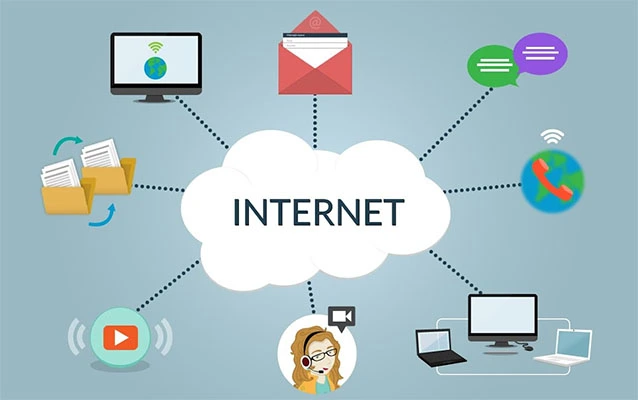
Before we go any further, let’s clear up the most important point. A mobile hotspot is simply your phone sharing its internet connection with another device, usually a laptop, tablet, or another phone. That shared connection can travel over Wi-Fi, USB, or Bluetooth. The part that matters most is the source of the internet.
If your phone is pulling internet from your carrier, your hotspot is using cellular data. If your phone is connected to Wi-Fi and your device supports Wi-Fi sharing or Wi-Fi tethering, then your phone may be able to pass along that Wi-Fi connection instead of using mobile data. And if you create a local-only hotspot, your phone can act like a tiny network hub with no internet at all, which is useful for file sharing, local apps, printers, smart gadgets, and some offline workflows.
So the better question is not, “Can I hotspot with no data?” It is, “Can I use my phone as a hotspot without using cellular data?” In some cases, yes. In all cases, with full internet access and no upstream connection, no.
When It Actually Works
1. Share an Existing Wi-Fi Connection on Supported Android Phones
This is the closest thing to the dream. Some Android phones, especially newer Pixel devices and many Samsung Galaxy models, can connect to a Wi-Fi network and then share that same connection with another device. In plain English, your phone acts like a middleman instead of a data source.
That means your laptop can connect to your phone’s hotspot while your phone itself stays connected to hotel Wi-Fi, airport Wi-Fi, café Wi-Fi, or home internet. In that setup, your phone is not burning through your cellular plan. It is basically wearing a router costume.
This can be especially helpful when:
- A hotel only allows one device per login
- A public Wi-Fi page is annoying to sign into on every device
- You want your laptop online, but the Wi-Fi signal is better where your phone is sitting
- You need to connect a device that does not handle captive portals well
2. Create a Local-Only Hotspot
If you do not need internet at all, a local-only hotspot is another genuine option. This creates a private wireless network between devices without connecting to the web. Think of it as a tiny private room instead of an open highway.
This works well for:
- Transferring files between compatible devices
- Connecting to a wireless printer
- Using certain camera, smart home, or gaming accessories
- Running local apps that communicate device-to-device
It will not let you browse websites, stream shows, or send emails unless another internet source is involved. So if your goal is Netflix on your laptop with zero data and zero Wi-Fi, that dream remains in the fantasy aisle.
3. Use Wi-Fi Password Sharing Instead of a Hotspot
Sometimes the best “hotspot without data” solution is not a hotspot at all. If both devices can join the same Wi-Fi network, simply share the Wi-Fi credentials. This is especially handy in the Apple ecosystem, where devices can share Wi-Fi passwords quickly when they are nearby. It is less flashy than hotspot mode, but it gets the job done without dragging cellular data into the drama.
How to Use an Android Phone as a Hotspot Without Cellular Data
Android gives you the best odds here, although menus vary by brand and software version.
On Pixel Phones
Some Pixel phones, including Pixel 3 and later, can share a Wi-Fi connection with other devices. That is the gold standard for this topic.
- Connect your Pixel phone to a Wi-Fi network.
- Open Settings.
- Go to Network & Internet or a similarly named section.
- Tap Hotspot & Tethering.
- Turn on Wi-Fi hotspot or the appropriate tethering option.
- Connect your second device to the hotspot name and password shown on the phone.
If everything works while your phone remains on Wi-Fi, congratulations: you are sharing internet without using your cellular data plan. If the hotspot immediately switches to mobile data or fails when cellular is off, your specific setup may not support Wi-Fi sharing the way you expected.
On Samsung Galaxy Phones
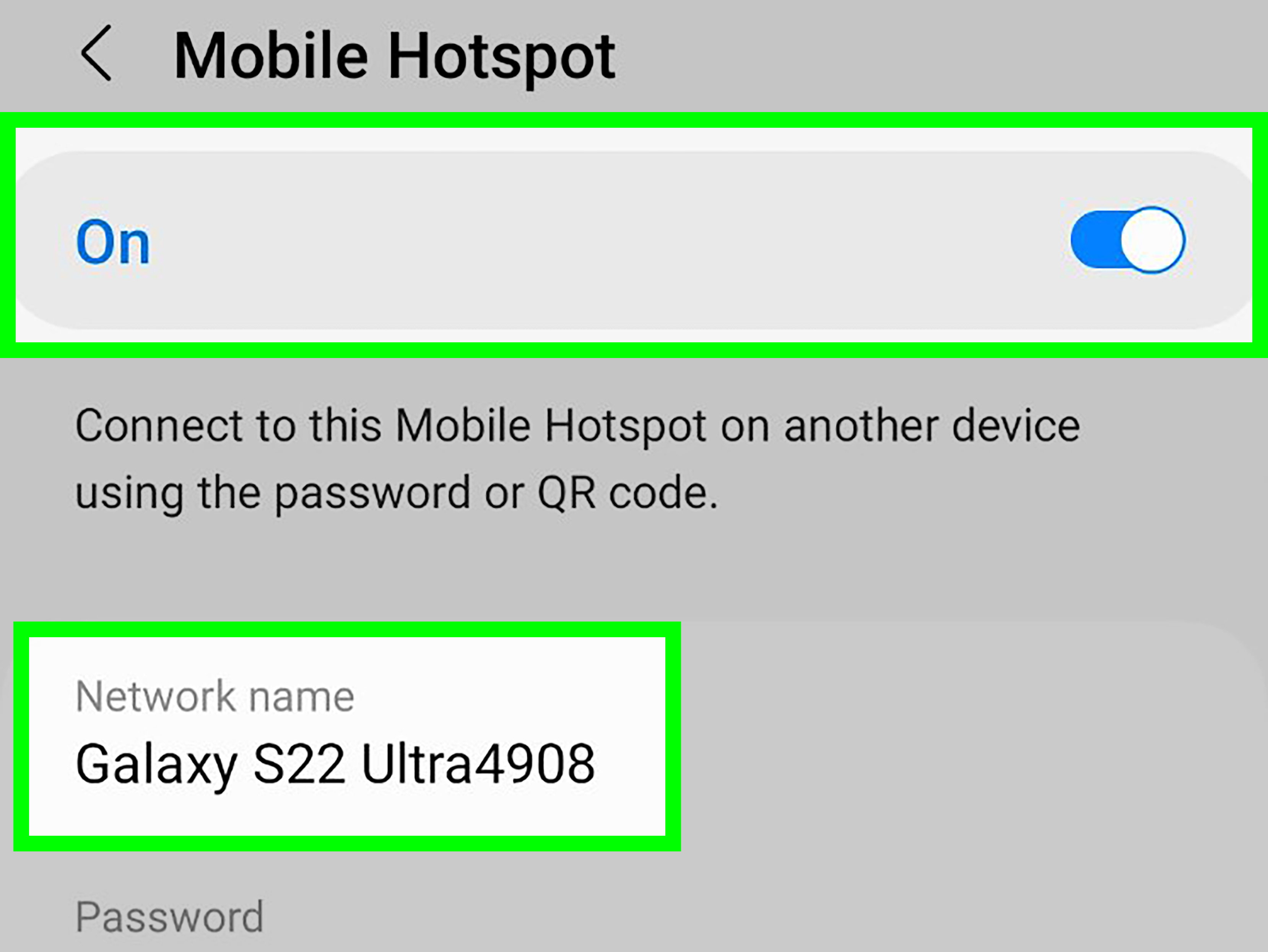
Samsung phones often include advanced hotspot controls, and many Galaxy devices offer a Wi-Fi sharing option buried in hotspot settings. The exact path can vary, but it usually looks something like this:
- Connect your Galaxy phone to Wi-Fi.
- Open Settings.
- Tap Connections.
- Select Mobile Hotspot and Tethering.
- Open Mobile Hotspot.
- Look for Advanced settings and find Wi-Fi sharing.
- Enable the hotspot and connect your other device.
If you do not see Wi-Fi sharing, your model, carrier version, or software build may not support it. Samsung also notes that standard hotspot use normally consumes data service and can disable Wi-Fi unless a sharing feature is available. In other words, the phone is not being difficult just for sport; it is following how that hardware and carrier combination was designed.
What iPhone Users Need to Know
Here is the blunt version: iPhone Personal Hotspot is built to share the phone’s cellular data connection. If you turn on Personal Hotspot on an iPhone for normal internet access, you should assume it is using mobile data.
That does not make the iPhone bad. It just makes it less magical for this specific use case. If your goal is internet on another device without tapping your carrier data, your better iPhone-friendly options are:
- Connect both devices to the same Wi-Fi network
- Share the Wi-Fi password instead of using Personal Hotspot
- Use a travel router if you regularly need to rebroadcast Wi-Fi
- Use public or home Wi-Fi directly on the second device
If you must use Personal Hotspot, think of it as a paid convenience. Very useful, very fast in the right conditions, and absolutely not free in data terms.
How to Keep Hotspot Use From Burning Through Your Plan
Maybe your phone cannot share Wi-Fi. Maybe you have an iPhone. Maybe the only available connection is cellular and you still need to get online. In that case, the next best move is learning how to use hotspot mode with as little data as possible.
Set the Connected Device to a Metered Connection
On Windows laptops, mark the hotspot network as a metered connection. This tells the computer to stop acting like it lives on unlimited home broadband. Suddenly it becomes much less eager to download giant updates, sync everything in the cloud, and quietly update twelve apps you forgot existed.
Pause Cloud Sync and Backups
Google Drive, iCloud, OneDrive, Dropbox, and photo backup apps love working in the background. Temporarily pause them before connecting through a hotspot. Otherwise, your laptop may decide that now is the perfect time to upload every vacation photo you have taken since 2019.
Stop Auto Updates
Operating system updates, game patches, and software updates are some of the biggest hotspot data hogs. Turn off automatic updates or delay them until you are back on regular Wi-Fi.
Lower Streaming Quality
Streaming in 4K over a hotspot is the digital equivalent of using a fire hose to water one houseplant. Reduce video quality, disable autoplay, and avoid background streaming when possible.
Use USB Tethering When You Can
If you are forced to use cellular hotspot, USB tethering can be a smart choice for one device. It is typically more stable than wireless tethering, keeps the connection focused on a single device, and may charge your phone at the same time. It will not eliminate data use, but it can make the whole experience less chaotic.
Carrier and Plan Fine Print Matters
This is where many people get surprised. A lot of carriers treat hotspot data differently from regular on-device data. Some plans include a separate high-speed hotspot allowance. Others slow hotspot speeds after a threshold. Some prepaid or lower-tier plans include only a small amount of hotspot use. In plain American English: “unlimited” is sometimes a word wearing a fake mustache.
That is why it is smart to check your plan before relying on hotspot mode for work, school, travel, or long video calls. If your carrier offers usage tools, alerts, or plan details in its app, use them. They exist to stop you from finding out the hard way.
Common Mistakes to Avoid
- Assuming hotspot means free internet: It does not. It means shared internet.
- Ignoring the connection source: Wi-Fi sharing and cellular hotspot are not the same thing.
- Forgetting background data: Your laptop can eat data much faster than your phone.
- Leaving the hotspot open: Use a password. Unless you enjoy sponsoring the internet habits of strangers.
- Trying shady carrier-bypass tricks: They are unreliable, may violate terms of service, and are a bad long-term strategy.
Security and Battery Tips
Hotspots are convenient, but they are also small portable power vacuums. They can drain battery quickly and make your phone run warm. Keep a charger or power bank handy, especially for work sessions, travel days, or long drives. Also use a strong password and avoid leaving the hotspot on when you are not actively using it.
If your phone gives you a choice between 2.4 GHz and 5 GHz hotspot bands, use 2.4 GHz for wider compatibility and range, and 5 GHz for better performance at shorter distances. That will not change whether you are using data, but it can make the connection smoother and less frustrating.
Real-World Experiences: What This Looks Like Outside the Settings Menu
In real life, the phrase “use your phone as a mobile hotspot without using data” usually comes from one of three situations: travel, emergencies, or pure desperation. Sometimes all three show up together like an overachieving chaos trio.
Imagine you are in a hotel. The Wi-Fi exists, technically, but it makes you sign in through a clunky web page and only allows one device. Your phone connects just fine, but your laptop keeps getting stuck on the login page. If you have a supported Android phone with Wi-Fi sharing, that phone can become the bridge. Your laptop connects to your phone, your phone connects to the hotel network, and your cellular plan stays untouched. That is the kind of win that feels weirdly heroic for something involving only a settings menu.
Another common scenario is remote work during an outage. Your home internet dies five minutes before a meeting. Your phone is on cellular, and yes, you can use it as a hotspot, but now every update, every Slack sync, and every video call starts chewing through data. People who have been through this once usually learn fast: pause cloud backups, turn off automatic updates, and treat your laptop like it has suddenly become expensive to feed. Because it has.
Students run into a similar problem. Maybe the library Wi-Fi is available, but it is weak in one corner, and your phone catches the signal better than your laptop. A phone that can share Wi-Fi becomes a handy relay. The experience is less about “free internet” and more about “making the internet you already have actually usable.” That distinction matters.
Then there are parents in cars, travelers in airports, and people trying to get a tablet, handheld console, or smart gadget online. In those moments, a hotspot feels like duct tape for modern life. It is not elegant, but wow, it is useful. You just have to know whether your phone is sharing Wi-Fi or quietly billing your future self.
And that is the emotional truth of hotspot use: most people do not care about the technical definition of tethering. They care whether their laptop opens a browser, whether their meeting starts on time, and whether their next bill causes immediate regret. Once you understand the difference between sharing Wi-Fi, sharing cellular data, and creating a local network, you stop guessing and start choosing the right tool for the moment.
The best experience usually comes from preparation. Test your phone’s hotspot options before you need them. Check whether your Android supports Wi-Fi sharing. Learn where your iPhone’s Personal Hotspot controls live. Find your carrier’s usage page. Keep a cable in your bag. If you do that, the next time Wi-Fi fails, you will not panic. You will tap a few buttons, solve the problem, and feel slightly more powerful than any human should after successfully opening Settings.
Conclusion
So, can you use your phone as a mobile hotspot without using data? If by “data” you mean cellular data, then yes, sometimes. The best-case scenario is an Android phone that supports Wi-Fi sharing, letting you rebroadcast an existing Wi-Fi connection to another device. You can also create a local-only hotspot for offline communication. But if you are using an iPhone Personal Hotspot or standard cellular tethering, you are using mobile data. There is no way around that basic rule.
The smartest move is to match the method to the moment. Share Wi-Fi when your phone supports it. Use local-only hotspot mode when you only need devices to talk to each other. And if cellular hotspot is your only option, control the damage with metered settings, paused sync, fewer updates, and lower streaming quality. Your battery, your carrier bill, and your future self will all be deeply grateful.