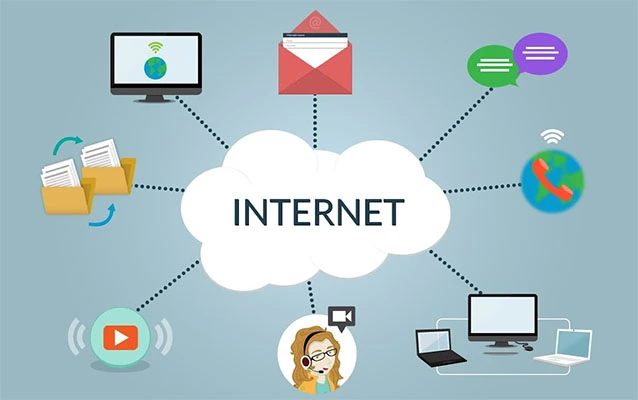
Your IP address works a little like a return address for internet traffic. It helps websites, apps, and online services know where to send the information you request. Fortunately, it is not necessarily carved in digital stone.
You might want to change your IP address to troubleshoot a connection, resolve an address conflict, test a website, improve privacy on public Wi-Fi, or correct inaccurate location information. The best method depends on whether you want to change your public IP address or the private IP address assigned to a device on your local network.
This guide explains both types and walks through practical methods for routers, VPNs, proxies, Windows, macOS, iPhone, Android, and mobile networks.
Public IP Address vs. Private IP Address
Before changing anything, identify which IP address matters for your situation.
What is a public IP address?
Your public IP address is the internet-facing address associated with your connection. It is usually assigned by your internet service provider. When several devices connect through a typical home router, they commonly share the same public IPv4 address while browsing the web.
What is a private IP address?
A private IP address identifies a device inside a home, school, or office network. Common private IPv4 addresses begin with 192.168, 10, or a number between 172.16 and 172.31.
Your laptop, phone, printer, streaming box, and suspiciously intelligent refrigerator may all have different private addresses while sharing one public address.
Dynamic and static IP addresses
A dynamic IP address is assigned automatically and can change. A static IP address is intended to remain consistent. Most residential customers receive dynamic public IP addresses, but “dynamic” does not mean the address changes every time the router sneezes. An ISP may reuse the same address for a long period.
How to Check Your Current IP Address
Record your current address before trying any method. Otherwise, you will have no reliable way to confirm that it changed.
- Public IP: Search the web for “what is my IP.”
- Windows private IP: Open Command Prompt, enter
ipconfig, and find the IPv4 address under the active connection. - Mac private IP: Open System Settings, select Network, choose the active connection, and open its details.
- Phone private IP: Open the details page for the connected Wi-Fi network.
Make sure you compare the same address type before and after. Renewing a laptop’s private IP will not normally change the public IP displayed by a website.
7 Ways to Change Your Public IP Address
1. Use a VPN
A virtual private network is generally the quickest and most predictable way to change the IP address that websites see. A VPN routes your traffic through one of its servers. The destination website normally sees the server’s public IP rather than the public IP assigned to your home, hotel, or cellular connection.
- Choose a reputable VPN provider with clear security and privacy policies.
- Install the provider’s official application.
- Sign in and select a server.
- Connect and check your public IP again.
Selecting another server typically produces another visible IP address. Some services also let you choose a country or city, although the displayed location is only an estimate based on IP databases.
A VPN does not make you completely anonymous. Websites may still recognize your account, cookies, browser fingerprint, device settings, payment information, or behavior. Verify that the VPN handles both IPv4 and IPv6 traffic and protects DNS requests.
2. Switch to Another Network
Connecting through a different internet connection usually gives you a different public IP. For example, you can move from home Wi-Fi to cellular data, a mobile hotspot, office Wi-Fi, or another trusted network.
This method is especially helpful for troubleshooting. If a website works on cellular data but not on home Wi-Fi, the problem may involve your router, ISP, DNS configuration, routing, or the reputation of the home connection’s public address.
Avoid connecting to an unknown public network solely to obtain a new address. A different IP is not a good trade for a questionable hotspot named something like “Totally_Safe_Free_WiFi.”
3. Restart Your Modem and Router
If your ISP assigns dynamic public addresses, restarting the modem or gateway may produce a new one. It may also return the same address because the provider remembers the previous DHCP lease.
- Unplug the modem and router. If you have one combined gateway, unplug that device.
- Wait at least 30 seconds.
- Reconnect the modem and wait until it is fully online.
- Reconnect the router and allow your devices to rejoin.
- Check the public IP again.
Do not press a recessed button labeled Reset. That button may restore factory settings, erase your Wi-Fi configuration, and turn a two-minute experiment into an evening activity.
Leaving the equipment disconnected longer may increase the chance that an old lease expires, but no waiting period guarantees a new public address.
4. Contact Your Internet Service Provider
If restarting does not work, ask your ISP whether it can issue a new public IP. Explain the underlying problem, such as incorrect geolocation, connection failures, suspicious traffic, or an address mistakenly associated with abusive activity.
The provider may renew the address, replace equipment, adjust account provisioning, or confirm that the assignment cannot be changed on demand. Customers paying for a static public IP usually need the ISP to modify the service.
Never type a random public IP into your router. Public addresses must be correctly assigned and routed by the provider; they are not available from a buffet.
5. Use a Proxy Server
A proxy forwards traffic between an application and the internet. Websites accessed through it generally see the proxy server’s address. A browser proxy may affect only browser traffic, while other apps continue using the regular connection.
Firefox proxy controls are available under Settings, General, Network Settings, and Settings. Windows also offers system proxy options under Network & internet settings. Enter only configuration information supplied by a trusted provider, employer, school, or network administrator.
Proxies do not automatically provide strong encryption. Unknown free proxies may log browsing, inject advertisements, expose credentials, or disappear during the exact five minutes when you need them most.
6. Use Tor Browser
Tor Browser sends browser traffic through several relays. Websites see the address of a Tor exit relay rather than your direct public IP.
Download Tor Browser only from the official Tor Project, retain its built-in security protections, and avoid unnecessary extensions. Its New Circuit for This Site and New Identity controls can establish a different route and may produce a different exit address.
Tor is often slower than an ordinary connection. Some websites also challenge or block known exit relays. Signing in to a personal account can identify you regardless of which exit IP appears.
7. Reconnect Your Cellular Connection
Turning airplane mode on briefly and then off may start a new cellular session. Restarting the phone or changing between available mobile network types may have a similar effect.
This method is inconsistent because the carrier controls address allocation. Many carriers use carrier-grade network address translation, meaning numerous subscribers may share one public IPv4 address. Your phone may also use IPv4 and IPv6 simultaneously.
How to Change Your Private IP Address
Changing a private IP can resolve a local address conflict, reconnect a computer to a router, or give a printer or server a predictable network location. It does not normally change the public address seen by websites.
Change or renew an IP address on Windows
To request a new DHCP address, open Command Prompt as an administrator and run:
The first command releases the existing local lease. The second asks the router or DHCP server for an address. Your connection will briefly disconnect during the process.
To configure an address manually, open Settings and select Network & internet. Choose Wi-Fi or Ethernet, open the relevant network, and find IP assignment. Select Edit, choose Manual, enable IPv4, and enter the required address, subnet prefix length, gateway, and DNS servers.
Renew an IP address on macOS
Open the Apple menu, choose System Settings, select Network, and open the active Wi-Fi or Ethernet connection. Choose Details, open TCP/IP, and select Renew DHCP Lease.
To set a manual address, change the IPv4 configuration option from DHCP to a manual configuration and enter the information supplied by your router or network administrator. Menu wording can vary between macOS versions.
Change an IP address on iPhone or iPad
Open Settings, tap Wi-Fi, and tap the information button beside the connected network. Select Configure IP. Automatic uses DHCP, while Manual lets you enter an IP address, subnet mask, and router address.
Another option is to forget the Wi-Fi network and reconnect. This can request a fresh lease, although the router may assign the same address again.
Change an IP address on Android
Android menus differ by manufacturer and software version. A common path is Settings, Network & internet, Internet, the connected Wi-Fi network, Edit, and Advanced options.
Change IP settings from DHCP to Static, then enter the address, gateway, network prefix length, and DNS details. Some phones hide the controls behind a pencil icon or an expandable Advanced section.
Use a DHCP reservation for devices that need a stable address
A DHCP reservation is often safer than manually configuring a static private IP. The router reserves one address for a specific printer, computer, camera, or other device while continuing to manage the network automatically.
Open the router’s administration app or webpage and look for LAN, DHCP, Address Reservation, or Static Lease settings. Select the device and reserve an available address. Router terminology varies by brand.
Common Actions That Do Not Change Your Public IP
- Opening an incognito window: Private browsing limits certain records stored on the device, but websites still see the connection’s IP.
- Clearing cookies: Cookies and IP addresses are different tracking signals.
- Changing DNS servers: DNS changes how domain names are resolved, not the address assigned by your ISP.
- Changing a MAC address: A MAC address identifies a network interface on a local link. It is not the same as a public IP.
- Restarting only the laptop: This may renew its private address but usually leaves the home connection’s public address unchanged.
- Entering a random static address: This can disconnect the device or create an IP conflict.
Does Changing Your IP Address Make You Anonymous?
No. Changing an IP can improve privacy in certain situations, but an IP address is only one identification signal.
Websites and advertising systems may also use cookies, account logins, browser characteristics, device identifiers, location permissions, and activity patterns. A VPN hides your home IP from destination websites, but the VPN provider becomes an intermediary. A proxy may protect only selected applications, while Tor requires careful browsing habits to preserve its privacy benefits.
Combine the appropriate IP-changing method with HTTPS, updated software, strong unique passwords, multifactor authentication, cautious permissions, and a secure home router. On public Wi-Fi, verify the network name and never ignore browser certificate warnings.
What to Do When Your IP Address Will Not Change
- Confirm that you are checking the correct public or private address.
- Reconnect the VPN and select a genuinely different server.
- Restart the modem or gateway, not only the wireless router.
- Check whether the ISP uses a sticky dynamic lease or static assignment.
- Remember that a cellular carrier may share public addresses among customers.
- Check both IPv4 and IPv6 when testing a VPN.
- Contact the ISP if the address has incorrect geolocation or a poor reputation.
When a manually configured private address fails, verify the subnet, gateway, and DNS settings. A correct house number in the wrong city still does not get the package delivered.
Real-World Experiences With Changing an IP Address
The router restart that changes absolutely nothing
A familiar troubleshooting story begins with someone unplugging a router, counting to ten, reconnecting it, and expecting a shiny new public address. The address remains unchanged because the modem never disconnected or because the ISP renewed the existing lease.
Restarting a Wi-Fi router can give devices new private addresses while leaving the ISP-issued public address untouched. A better test is to identify the modem or combined gateway, disconnect the internet-facing equipment, wait, and reconnect it before checking again.
Even then, the provider may return the same address. The useful lesson is that a dynamic IP is capable of changing, not obligated to perform a costume change on command.
A VPN fixes access, but the original problem remains
Imagine that a business portal, game server, or discussion forum suddenly refuses a home connection. Turning on a VPN makes the site work because it sees a different IP address.
That result is helpful evidence, but it does not automatically prove that the original IP was intentionally banned. The real cause could be inaccurate geolocation, an ISP routing issue, a shared address with a poor reputation, or an overly aggressive security filter.
Test another ordinary network and record the exact error. Contact the website or ISP when appropriate. A VPN can be a useful diagnostic and privacy tool, but repeatedly using it to evade legitimate access restrictions may violate a service’s rules.
The static printer address that creates an IP conflict
Another common experience involves assigning a printer an attractively tidy address such as 192.168.1.50. It works beautifully until the router gives that same address to a tablet. The printer disappears, the tablet becomes unreliable, and everyone blames the printerwhich, to be fair, was probably already under suspicion.
A DHCP reservation usually prevents this problem. The router keeps the selected address for the printer and avoids assigning it elsewhere. If a manual address is required, choose one outside the automatic DHCP pool and confirm the gateway, subnet, and DNS values.
The phone that seems to have several IP addresses
A modern phone can have a private Wi-Fi address, a carrier-side address, a public IPv4 address, and an IPv6 address at the same time. Toggling airplane mode may change one while leaving another untouched.
A website might display IPv6 before a network switch and IPv4 afterward, making two valid results look unrelated. When testing, use the same checking method, note the address format, disable Wi-Fi when evaluating cellular data, and verify both IPv4 and IPv6 when using a VPN.
Changing the IP helps privacy, but familiar sites still recognize you
Users are sometimes surprised when a store remembers their shopping cart after they connect to a different VPN server. The explanation is usually cookies, local storage, an account login, or an app identifiernot a failed IP change.
Treat the IP address as one part of a larger privacy system. Change it when you have a clear reason, then manage browser storage, account security, permissions, and device settings as well. Privacy is a collection of habits, not a single button wearing sunglasses.
Conclusion
The easiest way to change the public IP visible to websites is usually to connect to a reputable VPN or switch to another network. Restarting the modem may change an ISP-assigned dynamic address, but it is not guaranteed. A proxy or Tor Browser can change the address used for selected browsing traffic, while ISP support may be necessary for a persistent or static assignment.
To change a private IP inside a local network, renew the DHCP lease, adjust the device’s network settings, or create a DHCP reservation in the router. Always verify the result and avoid random manual values that can cause conflicts.
Changing an IP address can solve connection problems and provide an additional layer of privacy. It does not replace secure software, strong authentication, sensible browsing practices, or compliance with the rules of the services you use.