Command Prompt has been around so long that it practically deserves its own office chair, coffee mug, and retirement plan. Yet even in Windows 10 and Windows 11, this classic tool remains useful for troubleshooting, running scripts, checking network settings, launching utilities, and doing quick system tasks without clicking through ten layers of menus.
But there is one small problem: the default font may not be your favorite thing to stare at. Maybe it looks too tiny on a high-resolution display. Maybe the letters blur together. Maybe you simply want your terminal to look less like a 1998 hacker movie and more like a clean, readable workspace. Good news: changing the Command Prompt font is easy once you know where Windows hides the settings.
This guide explains how to change the font in Command Prompt on Windows 10 and Windows 11, including the classic Command Prompt window, default settings, Windows Terminal, font size, font style, readability tips, and common troubleshooting fixes.
Before You Start: Command Prompt vs. Windows Terminal
Before changing anything, it helps to know which window you are actually using. In Windows, “Command Prompt” can appear in two main places:
1. Classic Command Prompt
This is the traditional black window that opens when you type cmd into the Start menu or Run box. It uses the older console host interface. You can change its font from the title bar menu by using Properties or Defaults.
2. Command Prompt inside Windows Terminal
Windows 11 often encourages users toward Windows Terminal, a modern app that can run Command Prompt, PowerShell, Azure Cloud Shell, and other command-line profiles in tabs. If Command Prompt opens inside Windows Terminal, the font settings are controlled by the Terminal app, not the classic Command Prompt properties window.
Think of it like coffee. Command Prompt is the coffee. Windows Terminal is the fancy mug with tabs, themes, acrylic effects, and a font menu that actually looks like it was designed in this century.
How to Change the Font in Classic Command Prompt on Windows 10 & 11
If you are using the classic Command Prompt window, follow these steps.
Step 1: Open Command Prompt
Press the Windows key, type cmd, and select Command Prompt. You can also press Windows + R, type cmd, and press Enter.
Step 2: Open the Properties Menu
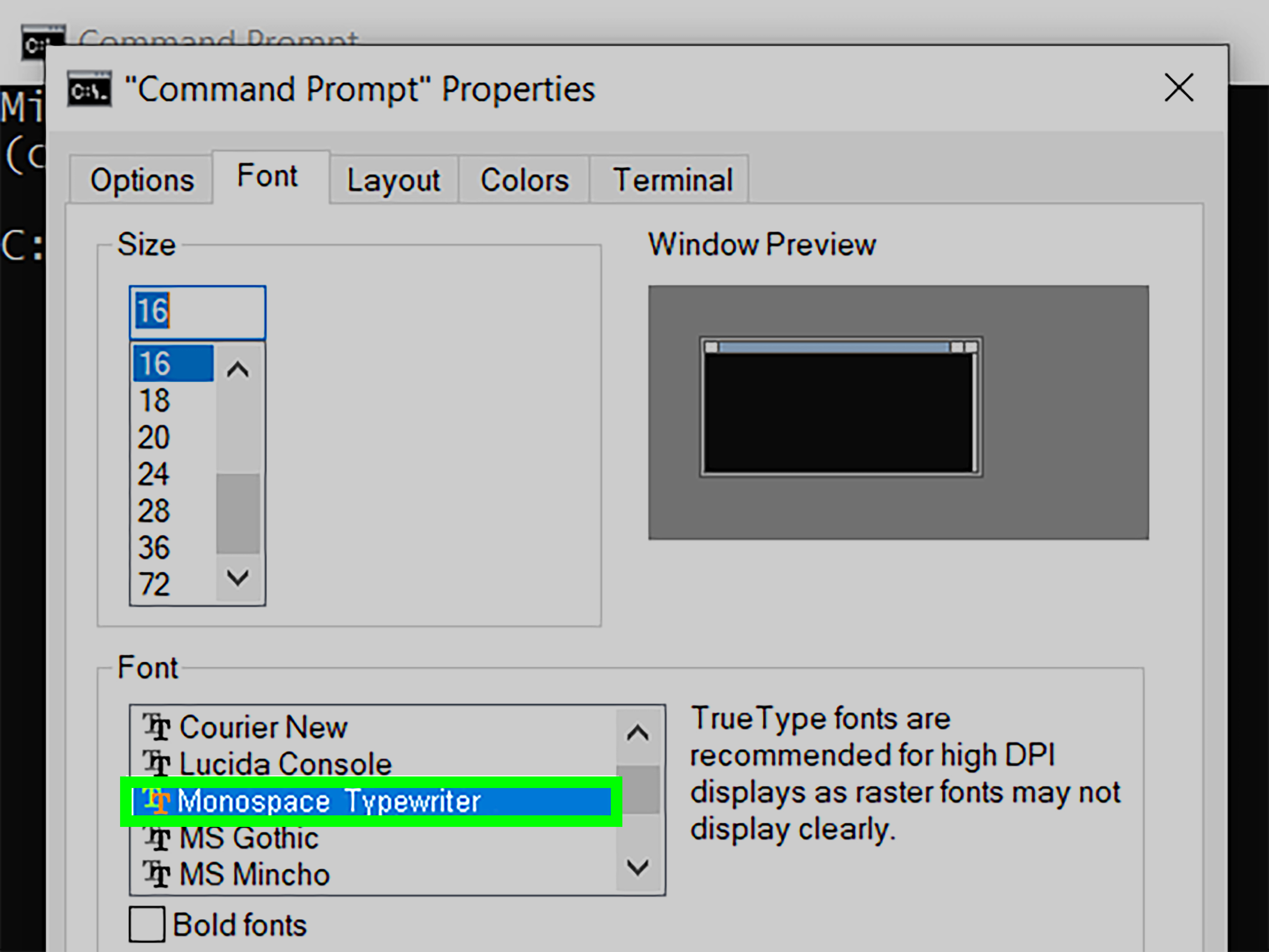
Right-click the title bar at the top of the Command Prompt window. This is the bar that says “Command Prompt” or shows the path to cmd.exe. From the menu, choose Properties.
If you want the change to apply only to the current shortcut or window style, use Properties. If you want the font to apply more broadly to new Command Prompt windows, choose Defaults instead.
Step 3: Select the Font Tab
In the Properties window, click the Font tab. You will usually see font size options on the left and font choices on the right. Common options include Consolas, Lucida Console, and sometimes Raster Fonts.
Step 4: Choose a Font and Size
Select a font that is easy to read. For most users, Consolas is a safe choice because it is monospaced, clean, and widely used in coding environments. A monospaced font means each character takes up the same amount of horizontal space, which helps columns, commands, and code-like text line up neatly.
Next, choose a font size. If you are on a laptop, something around 16 or 18 may feel comfortable. On a large monitor or high-resolution display, you may prefer 20 or higher. The preview box shows how the text will look before you commit.
Step 5: Click OK
Click OK to save the change. Your Command Prompt window should immediately update with the new font style or size. If it does not, close the window and open Command Prompt again.
Properties vs. Defaults: Which One Should You Use?
This is where many users accidentally choose the wrong setting and then wonder why Windows is acting like a stubborn printer.
Use Properties When…
Use Properties when you want to customize the current Command Prompt shortcut or the current window behavior. For example, if you open Command Prompt from a pinned taskbar shortcut, changing Properties may affect that shortcut.
Use Defaults When…
Use Defaults when you want new console windows to use the same font settings in the future. This is usually the better option if your main goal is “Please stop opening tiny text forever.”
For a simple setup, change both. Set your preferred font under Properties, then repeat the process under Defaults. That way, both the current window and future windows are more likely to behave.
Best Fonts for Command Prompt
Not every font is ideal for Command Prompt. Decorative fonts may look fun in a birthday card, but in a terminal window they can turn a simple command into an eye exam.
Consolas
Consolas is one of the best choices for the classic Command Prompt. It is sharp, readable, and designed for code-like text. If you are not sure what to choose, start here.
Lucida Console
Lucida Console is another classic monospaced font. It has a slightly older look but remains readable. Some users prefer it because the characters are simple and widely spaced.
Cascadia Mono
Cascadia Mono is commonly associated with Windows Terminal and modern Microsoft command-line tools. It looks fresh and works well for terminal use, especially if you spend a lot of time reading commands, paths, and scripts.
Raster Fonts
Raster Fonts are old-school bitmap fonts. They may look nostalgic, but they are not always the best choice on modern displays. On high-DPI screens, raster fonts can look blocky or uneven. Unless you are intentionally going for retro computer lab energy, a TrueType monospaced font is usually better.
How to Change Command Prompt Font in Windows Terminal
If Command Prompt opens inside Windows Terminal, use these steps instead. This applies especially to many Windows 11 setups.
Step 1: Open Windows Terminal
Press the Windows key, type Windows Terminal, and open it. If Command Prompt is not the default tab, click the small arrow next to the tab bar and choose Command Prompt.
Step 2: Open Settings
Click the downward arrow near the tabs and select Settings. You can also press Ctrl + , to open Terminal settings quickly.
Step 3: Choose the Command Prompt Profile
In the left sidebar, find and select Command Prompt. Windows Terminal uses separate profiles, which means PowerShell can have one font, Command Prompt can have another, and your Linux shell can wear its own little outfit too.
Step 4: Open Appearance
Within the Command Prompt profile, select Appearance. This is where you can change visual settings such as font face, font size, cursor style, opacity, and color scheme.
Step 5: Change Font Face and Font Size
Find the Font face field or dropdown. Choose a font such as Cascadia Mono, Cascadia Code, Consolas, or another installed monospaced font. Then adjust the Font size to your liking.
If you are using programming symbols, icons, or custom prompts, you may want a Nerd Font or Powerline-compatible font. For everyday Command Prompt work, however, Cascadia Mono or Consolas is usually enough.
Step 6: Save Your Settings
Click Save. Open a new Command Prompt tab to confirm that the font changed. If the old tab does not update instantly, do not panic. It is not haunted; it may simply need a fresh tab.
How to Change Font Settings with settings.json
Windows Terminal also lets advanced users edit settings in JSON format. This is useful if you like precise control or want to copy the same settings to another PC.
In Windows Terminal, open Settings, then choose the option to open the JSON settings file. Look for the Command Prompt profile and add or edit the font object. A basic example looks like this:
You can also apply font settings to all profiles by placing them in the defaults section. This is handy if you want PowerShell, Command Prompt, and other profiles to use the same font family and size.
Be careful when editing JSON. A missing comma can make Windows Terminal complain like a strict English teacher with a red pen. If something breaks, reopen settings and correct the formatting.
Why Some Fonts Do Not Appear in Command Prompt
You may install a font and expect it to appear in Command Prompt immediately, only to find that Windows ignores it. This can happen for several reasons.
The Font Is Not Monospaced
Command-line tools work best with monospaced fonts. If a font is proportional, meaning letters have different widths, it may not be available or may display poorly. Terminals need alignment. Without it, tables, code, and command output can look messy.
The Font Is Not Installed for All Users
Sometimes a font is installed only for one user account. Try right-clicking the font file and choosing Install for all users. You may need administrator permission.
The App Needs to Restart
After installing a new font, close and reopen Command Prompt or Windows Terminal. In some cases, restarting Windows helps the font list refresh.
The Classic Console Has More Limits
The classic Command Prompt window can be more restrictive than Windows Terminal. If you want more font flexibility, Windows Terminal is usually the smoother path.
How to Make Command Prompt Easier to Read
Changing the font is only one part of improving readability. A great terminal setup is like a good desk: it should make work easier, not make you squint until your eyebrows need a vacation.
Increase Font Size
If your monitor is large or high-resolution, increase the font size. Tiny terminal text may look “efficient,” but so does a grain of rice, and you would not want to debug a network issue through one.
Use a Clean Monospaced Font
Choose a font where similar characters are easy to tell apart. For example, the number 0, the capital letter O, the lowercase l, and the number 1 should not look identical. This matters when typing commands, file paths, IP addresses, and script names.
Adjust Window Size
In the classic Command Prompt Properties window, the Layout tab lets you adjust window size and screen buffer size. A wider window can make long command output easier to read without awkward wrapping.
Try a Softer Color Scheme
Black background with bright white text is traditional, but it is not mandatory. In Windows Terminal, you can choose different color schemes. A slightly softer contrast can reduce eye strain during longer sessions.
Common Problems and Fixes
Problem: The Font Changes Only Once, Then Goes Back
This usually means you changed Properties but not Defaults, or you changed a shortcut-specific setting. Open Command Prompt, right-click the title bar, choose Defaults, and set the font there too.
Problem: Windows Terminal Does Not Use the Font I Picked
Make sure you changed the correct profile. If you edited PowerShell but opened Command Prompt, nothing will appear different. Also confirm that the font name is typed correctly if you edited settings.json manually.
Problem: Characters Look Garbled
This can happen with language settings, code pages, or fonts that do not support the characters being displayed. Try a font with broader character support. For some CJK language scenarios, fonts such as MS Gothic may display certain characters better in console environments.
Problem: The Font Looks Blurry
Try increasing the font size, switching to Consolas or Cascadia Mono, or checking Windows display scaling. If your display scaling is set to an unusual value, some apps may look softer than expected.
Windows 10 vs. Windows 11: Is the Process Different?
The classic Command Prompt method is very similar in Windows 10 and Windows 11. You still open Command Prompt, right-click the title bar, choose Properties or Defaults, and use the Font tab.
The bigger difference is Windows Terminal. Windows 11 puts more attention on the modern terminal experience, and many users launch command-line tools inside Windows Terminal rather than the old console host. If you are changing fonts in Windows 11 and nothing happens in the classic Properties menu, check whether you are actually using Windows Terminal.
Should You Use Command Prompt or Windows Terminal?
For basic tasks, either one works. If you only run occasional commands like ipconfig, ping, or sfc /scannow, classic Command Prompt is fine. It is simple, fast, and familiar.
If you use the command line often, Windows Terminal is usually better. It supports tabs, profiles, modern font rendering, themes, split panes, JSON settings, and a cleaner customization experience. It also lets you keep Command Prompt, PowerShell, and other shells in one organized app.
Practical Example: A Comfortable Command Prompt Setup
Here is a simple setup that works well for many users:
- Font: Cascadia Mono or Consolas
- Font size: 14 to 18, depending on screen size
- Font weight: Normal or medium
- Window width: Wide enough to prevent frequent line wrapping
- Color scheme: Dark background with comfortable contrast
This setup keeps commands readable without making the terminal feel oversized. It is especially useful for students, developers, IT support users, system administrators, and anyone who occasionally dives into Windows troubleshooting.
Extra Experience Notes: What Actually Feels Better in Daily Use
After changing Command Prompt fonts on different Windows 10 and Windows 11 machines, one lesson becomes obvious: the “best” font is not always the fanciest one. It is the one you can read quickly at 11:47 p.m. when the Wi-Fi is acting dramatic and you are typing ipconfig /flushdns like it is a magic spell.
For everyday use, Consolas remains one of the most dependable choices in the classic Command Prompt. It is not flashy, but it is clear. The spacing is predictable, the characters are easy to distinguish, and it handles typical command output well. If you are working with file paths, directory listings, or network commands, that predictability matters more than style.
In Windows Terminal, Cascadia Mono feels more modern. It has a clean shape and pairs nicely with the overall Windows 11 design. Cascadia Code is also attractive, especially for users who like programming ligatures, but some people prefer Cascadia Mono because it avoids turning character combinations into special symbols. For plain Command Prompt work, simple is often better.
Font size is where personal comfort really matters. A size that looks perfect on a 24-inch monitor may look tiny on a 14-inch laptop. On many laptops, 16 is a comfortable starting point. On larger monitors, 14 may be enough if you sit close, while 18 or 20 may be better if your display has high resolution or you prefer a more relaxed reading experience.
Another useful habit is to test fonts with real commands, not just the preview window. Run commands like dir, ipconfig, systeminfo, or tree in a small folder. Look at how columns line up, how numbers appear, and whether long paths are easy to scan. A font can look beautiful in a preview box but feel annoying when you are reading 60 lines of output.
If you often copy commands from tutorials, choose a font that clearly separates punctuation marks. In Command Prompt, tiny differences matter. A hyphen, slash, backslash, colon, quote mark, or period can change whether a command works. A readable font reduces mistakes, especially when entering paths like C:\Users\YourName\Documents.
For users who work in multiple command-line tools, Windows Terminal is worth setting up properly. Create a consistent font style across Command Prompt and PowerShell so your workspace feels unified. When the visual experience is consistent, switching between tools feels less distracting. It is a small improvement, but small improvements are the secret sauce of a comfortable computer setup.
One final experience-based tip: do not over-customize on day one. Pick a readable font, choose a comfortable size, and use it for a few days. If your eyes feel relaxed and you are making fewer typing mistakes, you found a winner. If not, adjust gradually. Your terminal does not need to win a design award. It needs to help you get things done without making you feel like you are decoding ancient runes.
Conclusion
Changing the font in Command Prompt on Windows 10 and Windows 11 is a small tweak with a surprisingly big payoff. In the classic Command Prompt, you can right-click the title bar, open Properties or Defaults, and choose a better font from the Font tab. In Windows Terminal, you can customize the Command Prompt profile through Settings, Appearance, and Font face options.
For most users, Consolas, Lucida Console, Cascadia Mono, or Cascadia Code will provide the best balance of readability and style. Keep the font monospaced, choose a comfortable size, and test your setup with real command output. Your eyes will thank you, your commands will be easier to read, and your terminal will finally look like it belongs on your computer instead of in a museum exhibit labeled “Early Digital Anxiety.”
SEO Tags
Note: This article is prepared as publish-ready HTML body content. Add screenshots, internal links, and site-specific formatting before publishing if your editorial workflow requires them.