Note: This article is written in standard American English, based on current Apple documentation and reputable U.S. technology reporting, and formatted as copy-ready HTML for publishing.
What Is Stolen Device Protection on iPhone?
Stolen Device Protection on iPhone is one of Apple’s smartest security features because it addresses a painfully real problem: sometimes a thief does not just steal your phone; they also know your passcode. Maybe they watched you type it in at a coffee shop, a concert, an airport, or that one dimly lit bar where everyone suddenly becomes a cybersecurity liability. Once someone has both your iPhone and your passcode, they may try to change your Apple Account password, turn off Find My, erase the device, access saved passwords, or lock you out of your digital life before you can say, “Wait, where’s my phone?”
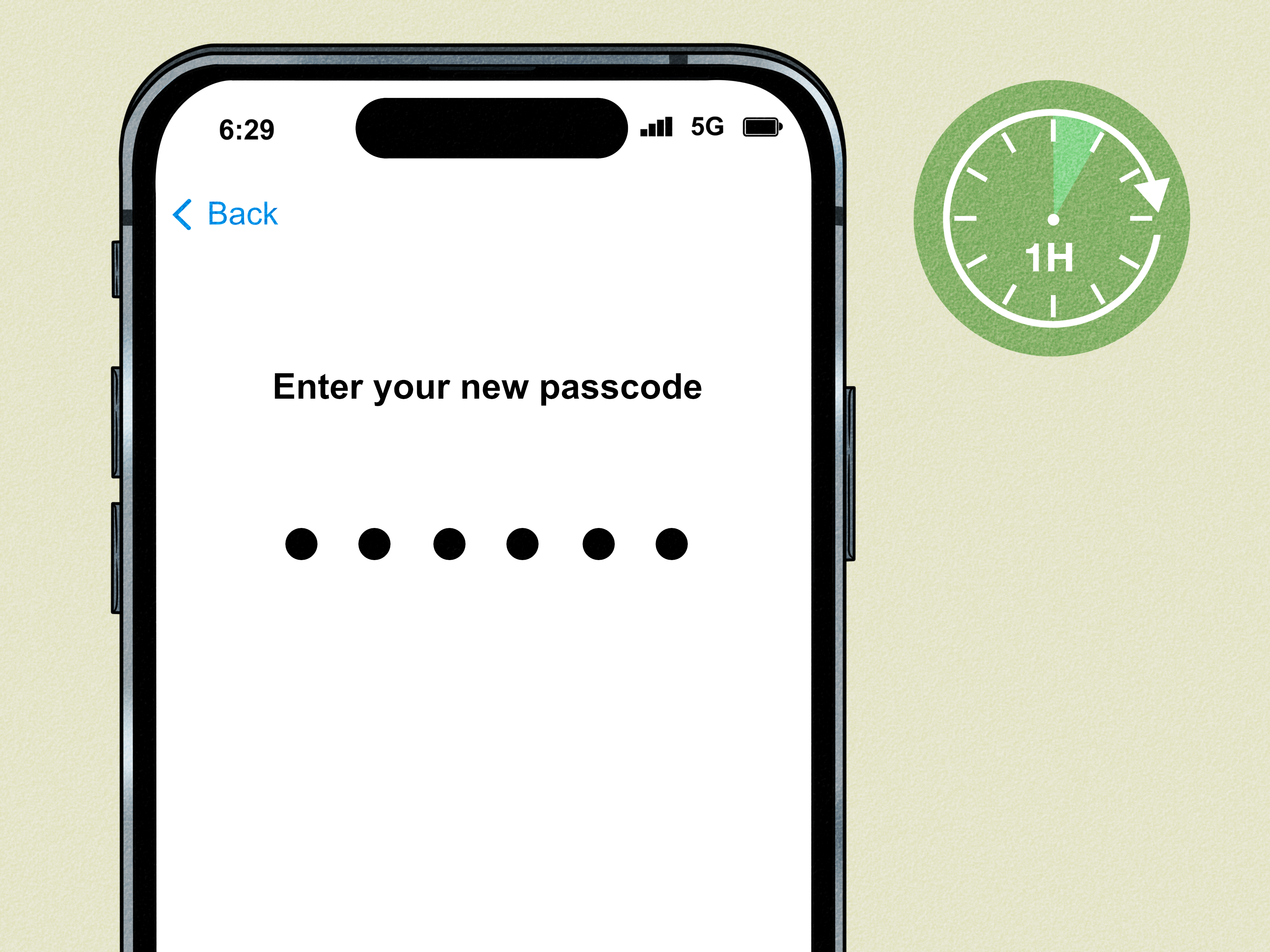
Stolen Device Protection adds extra barriers around sensitive actions. Instead of letting a passcode do everything, it requires Face ID or Touch ID for certain private tasks. For even more critical changes, it adds a Security Delay: biometric authentication, a waiting period, and then another biometric check. In plain English, it gives you time to react before a thief can do major damage.
The feature arrived with iOS 17.3 and continues to be an important iPhone security setting. It is designed for the specific scenario where someone steals your iPhone and also knows your passcode. That may sound rare, but “shoulder surfing” is common enough that Apple built a whole defense system for it. Think of Stolen Device Protection as the bouncer standing between a thief and your Apple Account, except this bouncer has Face ID, patience, and absolutely no interest in hearing excuses.
Why Stolen Device Protection Matters
Your iPhone is not just a phone. It is a wallet, password vault, photo album, banking portal, email inbox, digital keychain, travel assistant, and memory warehouse with a flashlight attached. If a thief can unlock it and quickly change your Apple Account password, they may be able to take control of your account, disable tracking, access passwords, and make recovery much harder.
Before this feature, the device passcode carried enormous power. A thief who learned the passcode could attempt to use it as a master key. Stolen Device Protection changes that balance by making biometric authentication the gatekeeper for important actions. In many cases, there is no passcode fallback. If the iPhone needs your face or fingerprint, a stolen passcode alone is not enough.
This matters because speed is everything in phone theft. Thieves want to act fast before the owner can open Find My, mark the device as lost, call the carrier, or change account credentials. The one-hour Security Delay is not just a waiting period; it is a chance for the real owner to fight back from another device.
How Stolen Device Protection Works
Stolen Device Protection uses three main ideas: familiar locations, biometric authentication, and Security Delay.
1. Familiar Locations
By default, Stolen Device Protection becomes stricter when your iPhone is away from familiar locations, such as your home or workplace. Apple uses location signals, including Significant Locations, to understand where your iPhone is usually used. When you are in a familiar place, some actions may work normally. When you are away from those places, the iPhone applies extra protection.
This makes sense for everyday convenience. You probably do not want a one-hour delay every time you adjust a security setting from your couch. However, you may want tougher rules when you are traveling, shopping, commuting, or enjoying a suspiciously overpriced latte in a crowded café.
2. Face ID or Touch ID With No Passcode Fallback
For certain sensitive actions, Stolen Device Protection requires Face ID or Touch ID. The key detail is that the passcode cannot be used as a backup for these protected actions. If a thief knows your passcode but cannot pass biometric authentication, the door stays closed.
This is a major security upgrade because a passcode can be watched, guessed, recorded, or pressured out of someone. Your face or fingerprint is harder to borrow without your permission. Much harder. Ideally impossible, unless your evil twin has been unusually quiet lately.
3. Security Delay
For the most critical account and device changes, Stolen Device Protection requires a Security Delay. The process usually works like this: you authenticate with Face ID or Touch ID, wait about one hour, and then authenticate with Face ID or Touch ID again. Only after that can the change be completed.
This delay is designed to stop a thief from immediately changing settings that would lock you out. It also gives you time to use Find My, mark the iPhone as lost, contact your carrier, or secure your Apple Account from another trusted device.
Actions That Require Face ID or Touch ID
When Stolen Device Protection is active and your iPhone is away from a familiar location, several sensitive actions require biometric authentication. These are actions that could expose private data, financial tools, or recovery options.
- Using passwords or passkeys saved in Keychain
- Using payment methods saved in Safari AutoFill
- Turning off Lost Mode
- Opening a locked app
- Erasing all content and settings
- Applying for a new Apple Card
- Viewing an Apple Card or Apple Cash virtual card number
- Taking certain Apple Cash and Savings actions in Wallet
- Using the iPhone to set up a new device with Quick Start
- Setting up or transferring an eSIM
These protections are practical because they guard the things thieves often want most: money, passwords, account access, device resale options, and ways to remove tracking. For example, if a thief tries to open your saved passwords, they cannot simply type your passcode and stroll into your digital pantry like they own the cereal. They need Face ID or Touch ID.
Actions That Require a Security Delay
Some actions are even more sensitive because they can change who controls the iPhone or Apple Account. For these, Stolen Device Protection may require the full Security Delay process.
- Changing your Apple Account password
- Signing out of your Apple Account
- Updating Apple Account security settings
- Adding or removing a trusted device
- Adding or removing a Recovery Key
- Adding or removing a Recovery Contact
- Adding or removing Face ID or Touch ID
- Changing your iPhone passcode
- Resetting all settings
- Enrolling in Mobile Device Management
- Turning off Stolen Device Protection
These are the settings a thief would love to change quickly. If they can change your Apple Account password, remove recovery options, or disable Find My-related protections, recovering your device and account becomes much harder. The Security Delay slows that process down and forces a second biometric check after the waiting period.
The “Always” Option Explained
Apple also offers a stronger setting that lets you require Stolen Device Protection measures all the time, even when your iPhone is at a familiar location. This option is useful for people who want maximum security and do not mind a little extra friction.
To use it, go to Settings > Face ID & Passcode or Touch ID & Passcode, enter your passcode, tap Stolen Device Protection, and choose Always under the Security Delay requirement. When this is enabled, protected actions require biometric authentication or Security Delay no matter where you are.
Should everyone choose Always? Not necessarily. For many users, “Away from Familiar Locations” offers a good balance between security and convenience. But if you travel frequently, work in public spaces, manage sensitive accounts, or simply prefer stronger protection, Always mode is worth considering. It is the digital equivalent of putting a second lock on the door because you have watched enough crime documentaries to know better.
How to Turn On Stolen Device Protection
Before turning on Stolen Device Protection, make sure your iPhone is running iOS 17.3 or later. You also need a device passcode, Face ID or Touch ID, two-factor authentication for your Apple Account, Find My, Location Services, and Significant Locations enabled.
Step-by-Step Setup
- Open the Settings app on your iPhone.
- Tap Face ID & Passcode or Touch ID & Passcode.
- Enter your device passcode.
- Scroll down and tap Stolen Device Protection.
- Turn on Stolen Device Protection.
- Choose either Away from Familiar Locations or Always.
If you do not see the option, check whether Face ID or Touch ID is fully set up and whether your iPhone is updated. Stolen Device Protection must be turned on before the device is lost or stolen. It is not a magic parachute you can install after jumping out of the airplane.
What Happens If Your iPhone Is Stolen?
If your iPhone is stolen, Stolen Device Protection helps, but it is not the only thing you should rely on. The first move is to mark the device as lost using Find My or iCloud.com/find. Marking the device as lost locks it, suspends Apple Pay cards and passes, and helps prevent unauthorized use.
You should also contact your wireless carrier to suspend service, report the theft to local law enforcement, and avoid trying to recover the device yourself if it appears in an unfamiliar or unsafe location. Your phone is important, but it is not worth a superhero scene in a parking lot.
Stolen Device Protection can make it harder for the thief to turn off Lost Mode, erase the iPhone, transfer eSIM service, access passwords, or change key account settings. However, Apple notes that the additional protections last only for a period of time, so acting quickly is still essential.
What Stolen Device Protection Does Not Do
Stolen Device Protection is powerful, but it is not a force field. It does not physically stop someone from stealing your iPhone. It does not replace Find My. It does not guarantee account recovery in every situation. It also does not protect every app or every piece of data if the device is unlocked and the thief has your passcode.
Some apps may still be accessible if they do not require their own login, Face ID, or app lock. That is why you should combine Stolen Device Protection with other security habits. Use a strong alphanumeric passcode instead of a simple four- or six-digit code. Enable Face ID for banking apps, password managers, email, and messaging apps when available. Turn on two-factor authentication for important accounts. Keep iOS updated. Do not share your passcode. And please, do not type your passcode in giant dramatic thumb movements in a crowded room.
Best Practices for Stronger iPhone Theft Protection
Use a Stronger Passcode
A six-digit passcode is better than nothing, but an alphanumeric passcode is stronger. Go to Settings > Face ID & Passcode > Change Passcode > Passcode Options and choose a custom alphanumeric code. Make it memorable but not obvious. “123456” is not a passcode; it is a welcome mat.
Keep Find My Enabled
Find My helps you locate, lock, and erase your iPhone. Stolen Device Protection works best when Find My is already enabled, and you cannot turn Find My off while Stolen Device Protection is active.
Disable Control Center on the Lock Screen
For extra protection, consider disabling Control Center access while locked. This makes it harder for someone to quickly toggle Airplane Mode from the lock screen. Go to Settings > Face ID & Passcode, then scroll to Allow Access When Locked and turn off Control Center.
Watch for Phishing After a Theft
If your iPhone is stolen, be suspicious of texts or emails claiming your device has been found. Scammers may send fake Apple or Find My messages to trick you into entering your Apple Account credentials. Apple will not ask for your passcode or verification code through a random message. Use official Apple pages and apps only.
Common Questions About Stolen Device Protection
Does Stolen Device Protection work on every iPhone?
It requires iOS 17.3 or later and compatible hardware with Face ID or Touch ID. If your iPhone supports the required iOS version and biometric authentication, you should be able to use it.
Can I turn it off?
Yes, but turning it off may require Security Delay if you are away from a familiar location or if you have chosen the Always setting. This is intentional. If a thief could instantly turn it off, the feature would be about as useful as a screen door on a submarine.
Does it stop Apple Pay?
No. Apple notes that you can still use your iPhone passcode for purchases with Apple Pay. However, some Wallet actions, Apple Cash actions, or virtual card details may require biometric authentication when Stolen Device Protection applies.
Should I choose “Always” or “Away from Familiar Locations”?
Choose Away from Familiar Locations if you want a balance of convenience and security. Choose Always if you want maximum protection everywhere, including home and work. Frequent travelers, business users, journalists, executives, and anyone who stores sensitive information on an iPhone may prefer Always mode.
Real-World Experience: Living With Stolen Device Protection
Using Stolen Device Protection in everyday life feels surprisingly normal most of the time. That is probably the best compliment you can give a security feature. Good security should not feel like wrestling a raccoon every time you check your phone. Once it is enabled, you can keep texting, browsing, taking photos, paying for groceries, and pretending you are “almost there” when you have not left yet.
The feature becomes noticeable when you try to do something serious, such as changing your Apple Account password, turning off protection, accessing saved passwords away from home, or preparing a device for trade-in while you are not in a familiar location. That is when the iPhone politely becomes stubborn. It asks for Face ID or Touch ID, and in some cases it starts the Security Delay. At first, this can feel annoying. Then you remember the entire point: if you were a thief, you would be annoyed too. That is the feature working.
One practical lesson is to plan ahead before selling, giving away, or trading in your iPhone. If you walk into a store and need to turn off certain services while Stolen Device Protection is active, you may face a delay. The smarter move is to prepare the device from home before leaving. Back up your iPhone, transfer your data, sign out properly when appropriate, and follow Apple’s trade-in or reset instructions before you are standing at a counter with a salesperson, a line behind you, and the emotional temperature of a toaster.
Another experience worth mentioning is how Stolen Device Protection changes your relationship with your passcode. You become more aware of where you enter it. In public, it is better to use Face ID or Touch ID whenever possible. If you must type your passcode, shield the screen. Avoid using simple codes that can be memorized from across a table. A thief does not need to be a hacker in a black hoodie; sometimes they just need good eyesight and terrible hobbies.
For families, Stolen Device Protection is also a good conversation starter. Parents can explain to teens that an iPhone passcode should not be shared casually, even with friends. Couples can discuss account recovery and emergency access without turning the conversation into a spy movie. Business users can ask whether company devices should use stronger passcodes and Always mode. The feature encourages better habits because it reveals how much power one small code can have.
In daily use, the best setup is layered. Turn on Stolen Device Protection. Keep Find My enabled. Use a strong passcode. Enable Face ID for important apps. Store passwords in a trusted password manager or iCloud Keychain. Keep iOS updated. Be skeptical of messages after a theft. These steps do not make theft impossible, but they make your iPhone a much less attractive target. Security is not about creating one perfect wall; it is about building enough locked doors that the thief gives up and chooses an easier mistake.
The biggest benefit of Stolen Device Protection is peace of mind. You still need to be careful, but you no longer have to treat your passcode as the single fragile thread holding your digital life together. If your iPhone is stolen and the thief knows your code, they still face biometric checks, protected settings, and time delays. That extra hour may be the difference between losing a device and losing an account, money, photos, and years of personal data.
Conclusion
Stolen Device Protection on iPhone is one of those features everyone should understand before they need it. It protects against a specific but serious threat: a stolen iPhone combined with a known passcode. By requiring Face ID or Touch ID for sensitive actions and adding a Security Delay for critical account changes, it gives users a stronger defense against theft, account takeover, and data exposure.
The setup is simple, the protection is meaningful, and the inconvenience is usually minor compared with the potential damage of a stolen device. For most users, turning it on is an easy win. For people who travel often or store sensitive information on their iPhone, choosing the Always option may be even better. In the grand drama of smartphone security, Stolen Device Protection is not the flashy hero with a cape. It is the calm, locked door that quietly ruins the villain’s plan.