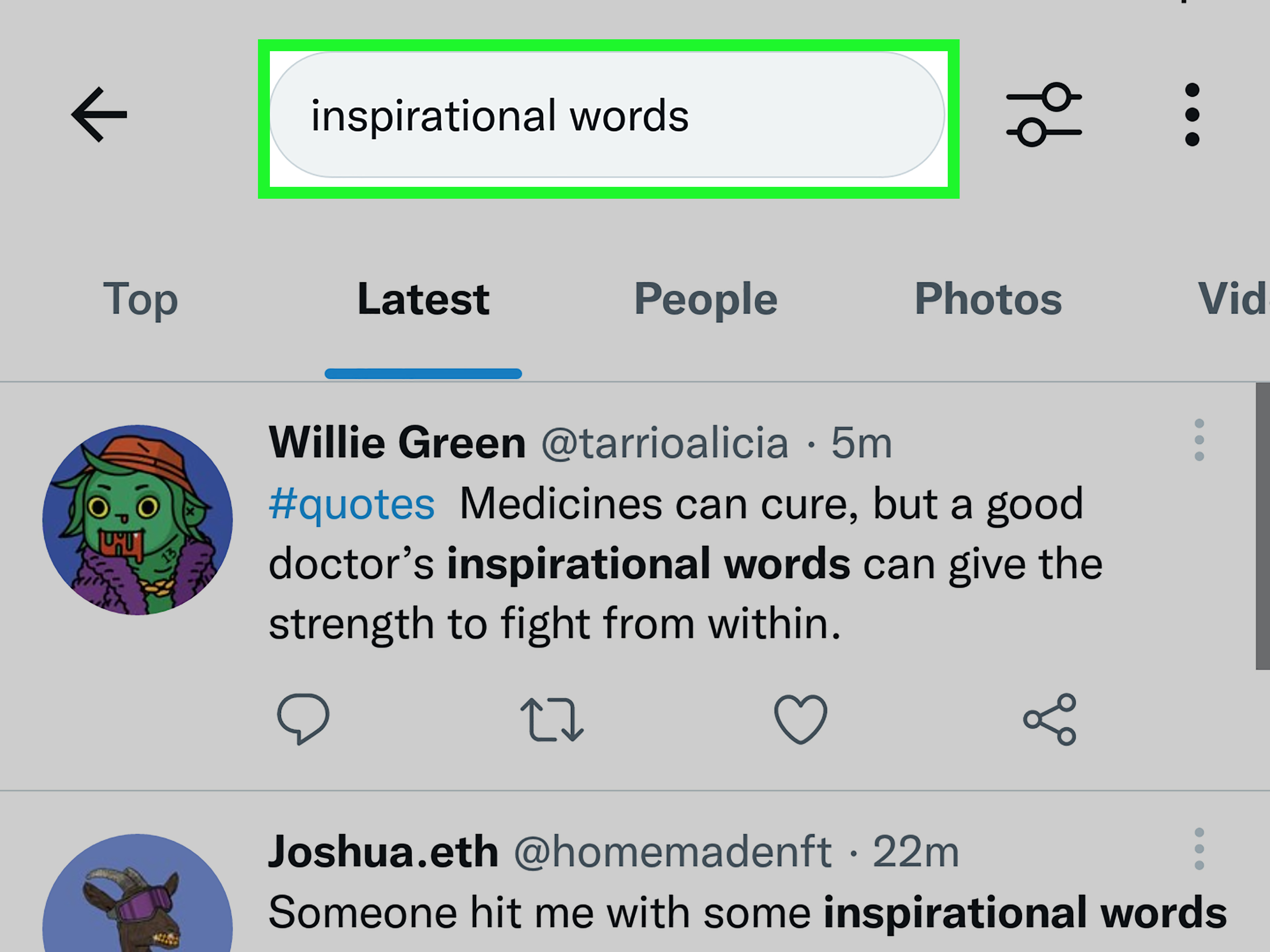
Trying to find an old tweet by scrolling your timeline is like looking for one French fry under the car seat: technically possible, spiritually exhausting. The good news is that X, still widely called Twitter by humans with muscle memory, gives you several simple ways to search tweets by date on the app. The slightly annoying news is that the mobile app does not always show the full Advanced Search form the way the desktop web version does. That means the easiest mobile method is usually not tapping a fancy calendar. It is typing the right search operators into the search bar.
Once you learn a few short commands, you can find posts from a certain day, tweets from a specific account, conversations around an event, brand mentions during a campaign, old replies, posts with photos, or your own ancient opinions from the era when everyone thought low-rise jeans were gone forever. This guide explains how to search tweets by date on the X app, how to use date operators correctly, and how to avoid the most common mistakes that make search results look weird.
Can You Search Tweets by Date on the X App?
Yes, you can search tweets by date on the X app, but the method is different from the full Advanced Search page on X.com. On desktop or mobile browser, Advanced Search usually provides form fields for words, accounts, engagement, and date ranges. Inside the mobile app, however, the most reliable approach is to type search operators directly into the search bar.
The two most important operators are since: and until:. They tell X to show posts after a starting date and before an ending date. The date format should be YYYY-MM-DD, which means four-digit year, two-digit month, and two-digit day. For example, May 3, 2025 becomes 2025-05-03. Yes, the zeros matter. Search engines are picky little librarians.
The Fastest Way to Search Tweets by Date on App
Open the X app, tap the search icon, and enter your search phrase with a date range. A basic search looks like this:
This searches for posts mentioning “coffee” from January 1, 2025, up tobut usually not includingJanuary 31, 2025. If you want to include the entire day of January 31, use the next day as your until: date:
That tiny detail matters. Many users type the same start and end date and then wonder why X acts like the tweet has vanished into a digital swamp. For a single-day search, always set until: to the following day.
How to Search Tweets From a Specific Account by Date
If you want to search posts from one account, use from: with the username. Do not include the @ symbol after from:. For example:
This searches for posts from the NASA account that mention “moon” during April 2024. You can replace the keyword with any topic, hashtag, or phrase. If you only want all posts from that account during the date range, remove the keyword:
This is useful when you remember who posted something but not the exact wording. Maybe a creator shared a discount, a company announced a feature, or a public figure posted something that everyone argued about for three business days. Searching by account and date narrows the haystack dramatically.
How to Search Your Own Old Tweets by Date
To search your own tweets, use your own username with from:. For example:
This is one of the simplest ways to find your old posts without downloading your archive. It is especially helpful if you want to revisit a travel memory, find a thread you wrote, recover a quote, or delete something outdated before it gets rediscovered by a cousin with too much free time.
You can also search your old posts without a keyword:
That query pulls up your posts from 2021. From there, use the “Latest” tab if available to browse more chronologically. The “Top” tab may show posts based on engagement rather than strict date order, which can make old posts appear in a way that feels less predictable.
How to Search Tweets Sent To or Mentioning Someone
Searching by date gets even stronger when you combine it with account-based operators. To find posts sent to a specific user, try to:. For example:
To find posts mentioning an account, use the @ handle as a regular search term:
The difference is simple: to: is more focused on replies directed to an account, while searching the handle can include mentions, quote posts, discussions, and other public posts containing that username. For research, brand monitoring, or customer feedback, searching the handle is often broader and more useful. For reply history, to: is cleaner.
How to Search a Hashtag by Date
Hashtags are perfect for date searches because they are often tied to events, launches, shows, sports moments, conferences, or viral trends. Use the hashtag plus your date range:
This shows posts using that hashtag during the selected window. For a one-day event, remember the next-day rule:
If the hashtag has multiple versions, use OR in capital letters:
This tells X to search either hashtag during the same period. The capital letters are important. Lowercase “or” may be treated like a normal word, which is not what you want unless you are researching people who say “or” a lot. Thrilling stuff.
Use Quotation Marks for Exact Phrases
If you remember the exact phrase from a tweet, put it in quotation marks. This is one of the easiest ways to cut through noise:
Without quotation marks, X may show posts containing the words separately. With quotation marks, the search looks for that exact phrase. This is useful for finding announcements, quotes, slogans, complaints, memes, or headlines.
You can also combine exact phrases with a username:
Be warned: searching your old dramatic phrases may reveal a version of yourself who needed a snack and a nap.
Exclude Words to Clean Up Results
Sometimes your search term has multiple meanings. If you search “apple,” you may get fruit, iPhones, stock chatter, recipes, and someone arguing about pie. To remove unwanted terms, add a minus sign before the word:
This searches “apple” while excluding posts containing “iphone” or “ipad.” You can also exclude usernames, hashtags, or phrases:
This small trick can turn a messy search into a useful one, especially when tracking brand mentions, product names, events, or common words.
Search Tweets With Images, Videos, or Links
If you are looking for media posts, try adding media-related filters. In many X searches, operators such as filter:images, filter:videos, or filter:links can help narrow results:
This can help you find an old photo post. For shared articles, try:
Search behavior can vary as X changes features, so if one operator does not perform as expected in the app, try the same query in a mobile browser or desktop browser. The query itself is still worth learning because it works across many versions of X search and is faster than tapping through menus.
Use Mobile Browser for the Full Advanced Search Form
If typing operators feels too technical, use X in a mobile browser instead of the app. Log in to X.com, open the Advanced Search page, and fill in the fields for keywords, accounts, engagement, and dates. This gives you a form-based search experience similar to desktop. After running the search, you can copy the generated query and reuse it in the app later.
This is a handy workaround if you are building a complicated search. For example, you might want posts from one account, mentioning a phrase, excluding another term, with a date range and a minimum number of likes. Creating that search in the form first can prevent operator soup. Nobody wants operator soup. It tastes like keyboard.
Examples of Useful Date Searches
Find tweets from one exact day
This searches posts about “earthquake” on January 10, 2025.
Find your tweets from a whole year
This shows your public posts from 2024.
Find a brand mention during a campaign
This helps marketers review public reactions during a campaign window.
Find posts before a certain date
This searches for posts before January 1, 2024.
Find posts after a certain date
This searches for posts from January 1, 2024 onward.
Common Mistakes When Searching Tweets by Date
The first mistake is using the wrong date format. X search works best with YYYY-MM-DD. Writing “Jan 5 2025” may not behave the same way as 2025-01-05.
The second mistake is forgetting that until: usually acts like a cutoff before the date. To search one full day, use the next calendar day as your ending point.
The third mistake is searching from the “Top” tab only. Top results are influenced by engagement and relevance. If you want a more time-based view, switch to “Latest” when the tab is available.
The fourth mistake is being too broad. A search like music since:2024-01-01 until:2024-12-31 is so wide that X may return a flood of results. Add a username, hashtag, phrase, or exclusion term to make the search more useful.
The fifth mistake is assuming deleted, private, suspended, or restricted posts will appear. Search can only show posts that are publicly available to you. If an account went private, deleted a post, changed visibility, or was removed, normal search may not recover it.
Why Date Search Is Useful
Date search is not just for nostalgia. It is useful for journalism, marketing, customer support, school research, social listening, creator planning, and personal digital cleanup. A small business can review what customers said during a product launch. A writer can find reactions to a news event. A creator can locate an old thread that performed well. A regular user can find that one joke from 2021 that deserved more likes, frankly.
For SEO and content research, searching tweets by date can reveal how conversations changed over time. For example, people may discuss “remote work” differently in 2020, 2022, and 2026. Date filtering lets you compare language, sentiment, questions, and trending terms without mixing everything into one chaotic pile.
Best Practices for Better Results
Start broad, then narrow. If you are not sure what someone wrote, begin with the account and date range. Then add keywords. If too many results appear, use quotation marks or exclusion terms. If too few results appear, remove the exact phrase and try related words.
Use shorter date windows for popular topics. A global news event can generate thousands of posts in minutes. Searching a full month for a common keyword may be overwhelming. Try one day, then expand.
Try both old and new wording. X is the platform’s current name, but many people still write “Twitter,” “tweet,” “retweet,” and “quote tweet.” A good search may need both terms:
Save useful search formulas in your notes app. Once you create a query that works, you can simply swap the keyword, username, or date range next time. That turns advanced search into a reusable tool instead of a fresh puzzle every Tuesday.
of Real-World Experience: What Actually Works Best
After using date-based X searches for content research, brand monitoring, and old-post cleanup, the biggest lesson is this: the best search is rarely the first search. Most people type one keyword, add a date range, see messy results, and assume the tool is broken. Usually, the search is not broken. It is just too vague.
For example, searching launch since:2025-01-01 until:2025-02-01 is almost useless because “launch” can mean a product launch, rocket launch, app launch, campaign launch, or someone launching themselves emotionally into a Monday morning complaint. A better search adds context: "product launch" @brandname since:2025-01-01 until:2025-02-01. Better still, add exclusions if unrelated conversations dominate the results.
Another practical lesson is to search in layers. First, search the account and date range only. This tells you whether the account was active during that period. Then add one keyword. Then try an exact phrase. Then add a filter such as links or images. This step-by-step method prevents you from building a query so narrow that it returns nothing.
The “next-day” rule is also worth repeating because it saves so much frustration. If you want tweets from July 4, 2025, search since:2025-07-04 until:2025-07-05. Many beginners search since:2025-07-04 until:2025-07-04 and accidentally create a date window with no room inside it. It is like booking a hotel from Monday to Monday and wondering why there is no overnight stay.
For personal cleanup, searching your own username by year is surprisingly effective. Start with from:yourusername since:2020-01-01 until:2021-01-01, then switch to “Latest” and browse. If you remember a topic, add it. If you remember a phrase, quote it. If you remember posting a photo, try a media filter. This is much faster than scrolling your profile backward until your thumb files a formal complaint.
For marketers and writers, date search is excellent for finding audience language. Search a phrase before and after a major event, update, product release, or trend. You may notice that people stop using one term and start using another. That is valuable for headlines, FAQs, product pages, and social captions. Real users often describe problems more naturally than companies do, and X search can help you catch that language while it is still fresh.
Finally, do not rely on one device. If the X app behaves strangely, run the same query in a mobile browser or on desktop. The app is convenient, but the web version often gives more control. The smartest workflow is simple: build complex searches on X.com, copy the query, and reuse it in the app whenever needed. Once you learn the operators, searching tweets by date becomes less like detective work and more like using a time machine with a search bar.
Conclusion
Searching tweets by date on the app is simple once you stop looking for hidden buttons and start using search operators. The essential formula is keyword plus since:YYYY-MM-DD and until:YYYY-MM-DD. Add from: for a specific account, quotation marks for exact phrases, hashtags for events, and minus signs to remove irrelevant results. For more control, use the Advanced Search form on X.com through a browser, then bring the same query back to the app.
Whether you are finding an old post, researching a trend, monitoring a campaign, or cleaning up your own timeline, date search turns X from a noisy scrolling feed into a searchable archive. It is not magic, but when you find the exact tweet you wanted in ten seconds, it does feel suspiciously close.
Note: This article is written in standard American English, uses HTML body-only structure, avoids source links in the article body, and is based on current real-world X/Twitter search behavior.