Note: This article is written for readers who want practical, current, mouse-free computer navigation guidance for Windows and Mac, including accessibility tools, keyboard shortcuts, browser controls, text editing, and real-world usage tips.
Using your computer without a mouse sounds like a punishment invented by a very strict IT department, but it is actually one of the fastest ways to work once you learn the rhythm. Whether your mouse battery died, your trackpad is acting like it has personal issues, or you simply want to become a keyboard shortcut wizard, both Windows and Mac offer excellent ways to navigate, click, type, switch apps, browse the web, edit documents, and control your system without touching a mouse.
The good news is that you do not need to memorize 400 shortcuts by tonight. Please do not turn this into a keyboard Olympics. The goal is to learn a few essential commands, activate helpful accessibility features such as Mouse Keys, and build small habits that make everyday computer use smoother. In this guide, you will learn how to use your computer without a mouse on Windows and Mac, including specific shortcuts, navigation methods, browser tricks, and practical examples for work, school, and home.
Why Learn to Use a Computer Without a Mouse?
Most people treat the mouse like the steering wheel of a computer. It points, clicks, drags, drops, and occasionally disappears under a pile of papers. But the keyboard can do far more than type emails and accidentally activate Caps Lock. With keyboard navigation, you can open apps, move between windows, select menus, manage files, browse websites, edit documents, and even move the pointer.
Learning mouse-free computer skills is useful for several reasons. First, it saves time. Pressing Ctrl + C is usually faster than right-clicking and choosing Copy. Second, it helps when your mouse, trackpad, or Bluetooth connection fails. Third, it improves accessibility for users with mobility challenges, repetitive strain injuries, vision needs, or temporary injuries. Fourth, it makes you look surprisingly powerful in public. Nothing says “I know what I’m doing” like switching apps without flailing around the screen.
Using a computer without a mouse is not about rejecting the mouse forever. The mouse has done nothing wrong. It is about having options. When your hands stay on the keyboard, your workflow becomes more focused, especially when writing, coding, researching, managing spreadsheets, or answering emails.
The Core Idea: Keyboard Focus
Before jumping into shortcuts, it helps to understand keyboard focus. Keyboard focus is the part of the screen currently ready to receive keyboard input. It may be a button, text field, menu, link, checkbox, file, browser tab, or app window. When you press Tab, the focus usually moves forward. When you press Shift + Tab, it usually moves backward.
Think of keyboard focus like a spotlight. The computer is asking, “Where should this next command go?” Once the right item has focus, you can press Enter or Space to activate it. This is the foundation of using Windows or Mac without a mouse.
Essential Universal Keyboard Actions
These commands work across many apps, websites, and operating systems:
- Tab: Move to the next field, button, link, or control.
- Shift + Tab: Move to the previous item.
- Enter: Open, confirm, or activate the selected item.
- Space: Press a button, check a box, or scroll a webpage.
- Esc: Close a menu, dialog box, pop-up, or cancel an action.
- Arrow keys: Move through menus, lists, files, or options.
- Ctrl + F on Windows or Command + F on Mac: Search within a page or document.
Master those, and you can already survive many computer tasks without a mouse. Add a few system shortcuts, and you are no longer surviving; you are gliding.
How to Use Windows Without a Mouse
Windows is very keyboard-friendly once you know the main routes. You can open the Start menu, search for apps, switch windows, manage files, open settings, and control the pointer with built-in accessibility features.
Start With the Windows Key
The Windows key is your front door. Press it once, and the Start menu opens. From there, simply begin typing the name of an app, setting, file, or feature. For example, press Windows, type “Notepad,” and press Enter. Congratulations: you opened an app without clicking anything. Your mouse is now slightly nervous.
Useful Windows shortcuts include:
- Windows: Open or close the Start menu.
- Windows + S: Open Search.
- Windows + E: Open File Explorer.
- Windows + I: Open Settings.
- Windows + D: Show or hide the desktop.
- Windows + L: Lock your computer.
- Alt + Tab: Switch between open apps.
- Alt + F4: Close the active window.
- Ctrl + Shift + Esc: Open Task Manager.
Use Mouse Keys on Windows
Mouse Keys is a Windows accessibility feature that lets you move the mouse pointer using the numeric keypad. This is useful when your mouse stops working, when you need precise pointer movement, or when you cannot comfortably use a pointing device.
To turn on Mouse Keys in Windows, open Settings, go to Accessibility, choose Mouse, and turn on Mouse Keys. You can also use the accessibility shortcut Left Alt + Left Shift + Num Lock on many Windows keyboards. Once enabled, the number pad moves the pointer: 8 moves up, 2 moves down, 4 moves left, 6 moves right, and the diagonal keys move diagonally.
For clicking, the numeric keypad becomes your tiny command center. The 5 key usually performs a click. Other keys can help select left-click, right-click, or double-click behavior depending on your Mouse Keys settings. It may feel odd for the first five minutes, like steering a shopping cart with a calculator, but it becomes surprisingly useful.
Navigate File Explorer Without a Mouse
File Explorer is easy to control from the keyboard. Press Windows + E to open it. Use the arrow keys to move through folders and files. Press Enter to open an item. Press Backspace to go back. Press Alt + Up Arrow to move to the parent folder. Use Ctrl + L to jump to the address bar and type a folder path.
To rename a selected file, press F2. To copy, press Ctrl + C. To paste, press Ctrl + V. To cut, press Ctrl + X. To delete, press Delete. To select multiple nearby files, hold Shift and use the arrow keys. To select separate files, use Ctrl while navigating and selecting.
Use the Windows Taskbar by Keyboard
The taskbar is not mouse-only. Press Windows + T to move focus to the taskbar. Use the arrow keys to move across pinned or open apps, then press Enter to open one. If your taskbar apps are pinned in order, Windows + 1 opens the first pinned app, Windows + 2 opens the second, and so on.
This is especially handy for people who use the same tools every day. Pin your browser, email app, file manager, notes app, and work software in a consistent order. After a few days, your fingers will remember the sequence before your brain finishes asking for coffee.
How to Use a Mac Without a Mouse
Mac computers are also strong keyboard machines. The key difference is the modifier language. Windows uses Ctrl heavily; Mac uses Command. The Option key often adds extra power, while Control on Mac appears in system and accessibility commands.
Master the Command Key
On Mac, the Command key is your best friend. It handles many everyday shortcuts:
- Command + Space: Open Spotlight Search.
- Command + Tab: Switch between open apps.
- Command + Q: Quit the active app.
- Command + W: Close the active window or tab.
- Command + N: Open a new window.
- Command + C: Copy.
- Command + V: Paste.
- Command + X: Cut in supported apps.
- Command + Z: Undo.
- Command + F: Find text.
Spotlight is the Mac version of “just type what you want.” Press Command + Space, type the app, file, calculation, or setting, then press Return. It is fast, elegant, and far less dramatic than hunting through folders.
Turn On Full Keyboard Access on Mac
Full Keyboard Access lets you use the keyboard to navigate more interface controls on a Mac. To enable it, open System Settings, choose Accessibility, go to Keyboard, and turn on Full Keyboard Access. With this enabled, you can move around more buttons, panels, toolbars, and controls using the keyboard.
Once Full Keyboard Access is active, use Tab and arrow keys to move through controls. Press Space to activate the focused item. If you use your Mac for long writing sessions, editing work, or research, this feature can reduce constant hand movement between keyboard and trackpad.
Use Mouse Keys on Mac
Mac also includes Mouse Keys, which allows keyboard control of the pointer. Open System Settings, choose Accessibility, select Pointer Control, and enable Mouse Keys. Depending on your settings, you may also be able to toggle Mouse Keys by pressing the Option key five times.
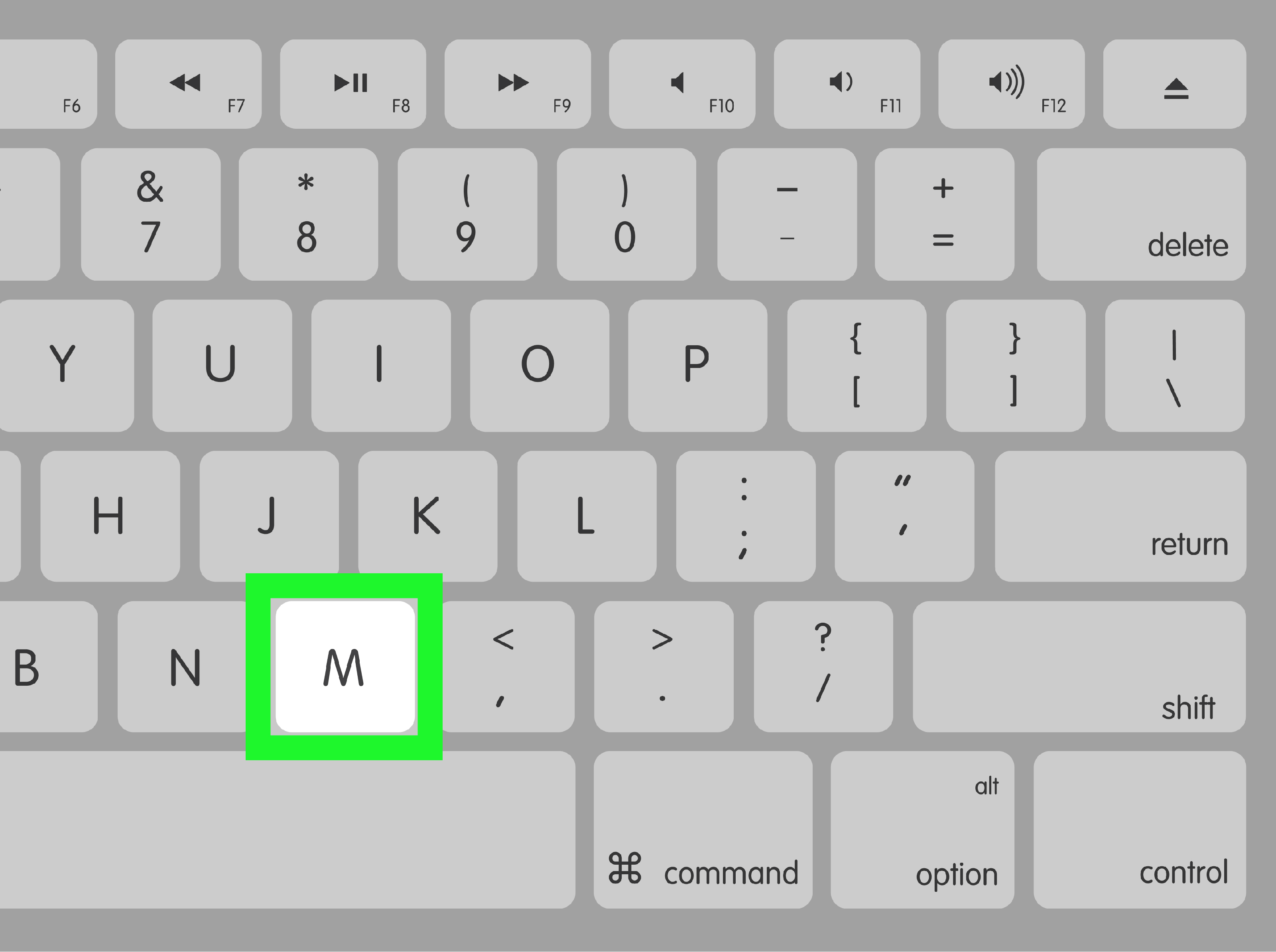
With Mouse Keys on, certain keyboard keys move the pointer and perform mouse actions. On keyboards with a numeric keypad, the number pad is commonly used. On laptops without a numeric keypad, Mac can use a cluster of letter keys for pointer movement. It takes practice, but it is helpful when precision matters or when your trackpad is unavailable.
Navigate Finder Without a Mouse
Finder is the Mac file manager, and it works well with keyboard shortcuts. Press Command + Space, type “Finder,” and press Return, or use Command + Tab to switch to Finder if it is already open. Use arrow keys to move between files. Press Command + Down Arrow to open a selected file or folder. Press Command + Up Arrow to move to the enclosing folder.
Press Return to rename a selected item. Use Command + C to copy and Command + V to paste. To move a copied file instead of duplicating it, copy it first, go to the destination, then press Option + Command + V. That shortcut is a small gem, like finding an extra fry at the bottom of the bag.
Browsing the Web Without a Mouse
Most web browsers, including Chrome, Edge, Firefox, and Safari, support strong keyboard navigation. This matters because much of modern computer life happens in a browser: email, documents, dashboards, shopping carts, banking, school portals, and mysterious tabs you opened three days ago but are afraid to close.
Essential Browser Shortcuts
Use these browser shortcuts to move faster:
- Ctrl + L on Windows or Command + L on Mac: Jump to the address bar.
- Ctrl + T on Windows or Command + T on Mac: Open a new tab.
- Ctrl + W on Windows or Command + W on Mac: Close the current tab.
- Ctrl + Shift + T on Windows or Command + Shift + T on Mac: Reopen the last closed tab.
- Ctrl + Tab on Windows: Move to the next browser tab.
- Command + Option + Right Arrow on Mac: Move to the next tab in many browsers.
- Space: Scroll down a webpage.
- Shift + Space: Scroll up a webpage.
- Ctrl + F or Command + F: Find text on a page.
When navigating websites, press Tab to move through links, buttons, and form fields. Press Enter to open a link or activate a button. In forms, use Tab to move forward, Shift + Tab to move backward, and Space to check or uncheck boxes.
Use Search Instead of Clicking Around
One of the smartest mouse-free habits is searching directly. Instead of clicking through a website’s menus, use the browser address bar or the site’s search box. Need your Gmail settings? Press the address bar shortcut, type “Gmail settings,” and use search results or bookmarks. Need a page inside a long document? Use the find shortcut. Need one file in a crowded folder? Search by name.
Keyboard-first users are not necessarily memorizing everything. They are simply reducing unnecessary clicking. The secret is not superhuman memory. It is knowing where to type.
Writing, Editing, and Working Without a Mouse
Text editing becomes much faster when you stop reaching for the mouse every time you need to select, copy, or move text. Whether you use Microsoft Word, Google Docs, email, a content management system, or a notes app, many editing shortcuts are consistent.
Text Selection Shortcuts
- Shift + Arrow: Select one character or line at a time.
- Ctrl + Shift + Arrow on Windows: Select by word or paragraph.
- Option + Shift + Arrow on Mac: Select by word.
- Ctrl + A on Windows or Command + A on Mac: Select all.
- Ctrl + Backspace on Windows: Delete the previous word.
- Option + Delete on Mac: Delete the previous word.
For long documents, use headings, search, and keyboard shortcuts together. For example, in Google Docs, the shortcut menu can be opened from the keyboard, and many formatting commands have direct shortcuts. In Microsoft Office apps, the ribbon can be accessed with keyboard commands, making it possible to choose formatting, review tools, tables, and layout options without clicking.
Keyboard Shortcuts for Common Office Work
Here are practical examples:
- To bold text, select it and press Ctrl + B on Windows or Command + B on Mac.
- To save a file, press Ctrl + S on Windows or Command + S on Mac.
- To print, press Ctrl + P on Windows or Command + P on Mac.
- To undo a mistake, press Ctrl + Z on Windows or Command + Z on Mac.
- To redo, press Ctrl + Y or Ctrl + Shift + Z on Windows, depending on the app, or Command + Shift + Z on Mac.
These shortcuts may look basic, but they are the foundation of fast computer use. A person who knows 20 everyday keyboard shortcuts often works more efficiently than someone who knows 200 obscure ones and cannot remember where they parked the cursor.
Accessibility Tools That Make Mouse-Free Computing Easier
Using a computer without a mouse is not only about speed. It is also about access. Windows and Mac include built-in tools for people who need alternative ways to interact with the screen.
Windows Accessibility Features
Windows includes several helpful features under Settings > Accessibility. Mouse Keys lets the numeric keypad move the pointer. The On-Screen Keyboard can display a keyboard on the screen. Sticky Keys allows shortcut combinations to be pressed one key at a time instead of all at once. Filter Keys can help prevent repeated accidental keystrokes. Narrator provides screen reading support for users who need spoken feedback.
For many users, the most useful shortcut is Windows + U, which opens Accessibility settings. If you are setting up a computer for mouse-free use, start there. Adjust keyboard, mouse, pointer, text cursor, and screen reader settings until the computer feels usable instead of like a puzzle box with electricity.
Mac Accessibility Features
Mac users can find similar tools in System Settings > Accessibility. Full Keyboard Access expands keyboard navigation. Mouse Keys controls the pointer from the keyboard. The Accessibility Keyboard displays an on-screen keyboard. Sticky Keys and Slow Keys help users who need modified key input. VoiceOver provides advanced screen reading and keyboard-driven navigation for users with vision needs.
Mac also offers the Accessibility Shortcuts panel, commonly opened with Option + Command + F5. On some Macs with Touch ID, pressing Touch ID three times can open accessibility shortcuts. This makes it easier to turn features on or off when you need them.
Build a Mouse-Free Workflow Step by Step
The easiest way to learn keyboard navigation is to practice in layers. Do not try to replace every mouse action on day one. Start with the actions you repeat constantly.
Step 1: Learn App Launching
On Windows, press Windows, type the app name, and press Enter. On Mac, press Command + Space, type the app name, and press Return. This one habit alone can save hundreds of clicks per week.
Step 2: Learn App Switching
Use Alt + Tab on Windows and Command + Tab on Mac. Keep holding the modifier key while tapping the second key to move through open apps. Release when you reach the app you want.
Step 3: Learn Browser Control
Practice opening tabs, closing tabs, switching tabs, and jumping to the address bar. Since so much work happens online, browser shortcuts quickly become second nature.
Step 4: Learn Text Editing
Use shortcuts for copy, paste, undo, save, search, and selection. These are the shortcuts that make writing, editing, and data entry feel dramatically faster.
Step 5: Turn On Accessibility Features When Needed
If you need actual pointer movement, enable Mouse Keys. If you need better keyboard control of interface elements, turn on Full Keyboard Access on Mac or explore Keyboard and Mouse settings under Windows Accessibility. The goal is comfort, not keyboard heroics.
Common Problems and Quick Fixes
The Tab Key Is Not Reaching Everything
Some apps and websites do not expose every control clearly to keyboard navigation. On Mac, turning on Full Keyboard Access often helps. In browsers, try using search, menus, or built-in app shortcuts instead of tabbing through every visible item. On Windows, check Accessibility settings and use app-specific keyboard commands when available.
Mouse Keys Feels Too Slow
Both Windows and Mac let you adjust pointer speed settings. Increase the maximum speed and reduce the initial delay if pointer movement feels painfully slow. Otherwise, moving across the screen can feel like watching a snail commute.
Laptop Keyboards Do Not Have a Number Pad
This is common. Windows laptops may require using embedded numeric keypad functions or an external keyboard for the best Mouse Keys experience. Mac laptops can use alternative key clusters when Mouse Keys is enabled. If mouse-free pointer control is something you use often, a compact external keyboard with a number pad can make life easier.
Shortcuts Differ Between Apps
Keyboard shortcuts are mostly consistent, but not perfectly. A shortcut that works in Chrome may behave differently in Photoshop, Excel, or a specialized business app. When in doubt, open the app’s Help menu and search for “keyboard shortcuts.” Many apps also show shortcuts beside menu commands.
Real-World Experiences: What It Feels Like to Use a Computer Without a Mouse
The first time you seriously try to use your computer without a mouse, it may feel awkward. You will probably reach for the mouse without thinking, like checking your pocket for a phone that is already in your hand. That is normal. Most of us learned computers visually: see the button, move the pointer, click the thing. Keyboard navigation asks you to think in actions instead: open, search, switch, select, confirm, close.
One common experience is that the first hour feels slower, but the second day feels surprisingly efficient. For example, opening apps from search becomes addictive. On Windows, pressing the Windows key and typing “Excel” feels much faster than scanning the desktop. On Mac, Command + Space becomes a universal launchpad. After a while, clicking app icons starts to feel like walking to another room just to turn off a lamp when the switch is beside you.
Another real-world benefit appears during writing. Writers, students, bloggers, programmers, and office workers often spend most of their time with both hands already on the keyboard. Moving one hand to the mouse breaks concentration. If you are editing a paragraph, shortcuts like find, select by word, copy, paste, undo, and save keep your mind in the sentence. The fewer times you leave the keyboard, the fewer chances your brain has to wander into dangerous territory, such as checking social media “for research.”
Using a computer without a mouse also teaches patience with digital design. Some websites are wonderful with keyboard navigation. Others behave like they were assembled during a thunderstorm. A good site lets you tab through links and buttons in a logical order, shows visible focus indicators, and allows forms to be completed without a mouse. A bad site traps focus, hides selection outlines, or requires hovering. When you become a keyboard user, even temporarily, you notice accessibility issues more clearly. This can make you a better designer, writer, developer, or editor because you start thinking about how real people interact with digital content.
For people with wrist pain or repetitive strain, keyboard-first work can reduce constant small mouse movements. That does not mean the keyboard is automatically healthier in every situation. Poor posture, tense shoulders, and hard key presses can also cause discomfort. The best experience comes from balance: use shortcuts to reduce unnecessary reaching, keep your keyboard at a comfortable height, relax your hands, and take breaks. Your computer should not feel like gym equipment unless you are actually shopping for gym equipment.
There is also a confidence boost. When your mouse battery dies during a meeting, you can still open files, switch apps, share notes, and close windows. When a trackpad stops responding, you can save your work before troubleshooting. When helping someone else, you can move quickly through settings without needing their exact mouse sensitivity or desk space. These moments make keyboard skills feel less like trivia and more like digital emergency tools.
The best approach is to create small practice challenges. Spend ten minutes browsing with only the keyboard. Write an email without using the mouse. Open three apps, switch between them, copy text, paste it into a document, save the file, and close everything. At first, you will make mistakes. You may close a tab you needed. You may open the Start menu six times in a row. You may whisper “why” at your laptop. Perfectly normal. Reopen the tab, keep going, and enjoy the tiny victory when your fingers finally remember the shortcut before your brain does.
Over time, using Windows or Mac without a mouse becomes less about restriction and more about fluency. You are not avoiding the mouse because you dislike it. You are choosing the best tool for the moment. Sometimes that is a mouse. Sometimes it is a keyboard shortcut. Sometimes it is Mouse Keys. Sometimes it is search. The real win is flexibility. When you can control your computer in more than one way, your workflow becomes faster, calmer, and more resilient.
Conclusion
Learning how to use your computer without a mouse is one of those skills that feels small until it saves your day. Windows and Mac both include powerful keyboard shortcuts, accessibility settings, Mouse Keys, search tools, and navigation options that make mouse-free computing practical for everyday work. You can open apps, switch windows, browse websites, manage files, edit documents, control the pointer, and complete forms using only the keyboard.
The smartest path is simple: start with universal shortcuts, learn your operating system’s app launcher, practice browser controls, and enable accessibility features when you need more control. You do not need to become a shortcut encyclopedia. Learn the commands you use every day, then add more as your comfort grows. Before long, your mouse may still be useful, but it will no longer be the boss of you.