Unlinking a computer from Dropbox sounds like something only a tech-support wizard would say while wearing a headset and sipping cold coffee. In reality, it is one of the simplest ways to stop a device from syncing your files, protect your Dropbox account, or clean up an old laptop before handing it to someone else.
Whether you are using Dropbox on Windows, Mac, iPhone, iPad, or Android, the main idea is the same: unlinking or signing out disconnects that device from your Dropbox account. The device stops syncing new changes, and your account remains safe in the cloud. However, the exact result depends on how you unlink it. On a computer, locally synced files may still remain on the hard drive unless you delete them or use Dropbox’s remote wipe option. On a phone or tablet, files that were only available inside the Dropbox app generally become inaccessible after you sign out.
This guide walks you through how to unlink a computer from Dropbox, how to remove Dropbox from Windows and Mac, how to disconnect mobile devices, and what to check before you start clicking buttons like a caffeinated raccoon.
What Does It Mean to Unlink a Computer from Dropbox?
To unlink Dropbox from a computer means to disconnect that computer from your Dropbox account. Once unlinked, the Dropbox desktop app on that device no longer syncs changes between the local Dropbox folder and your online Dropbox storage.
For example, imagine you have Dropbox installed on your home laptop and your office desktop. If you unlink the office desktop, files changed on that machine will no longer update in your Dropbox account. Likewise, new files added from your home laptop or Dropbox.com will not sync down to the unlinked office machine.
Unlinking is useful when you are selling a computer, leaving a job, switching Dropbox accounts, troubleshooting sync issues, reaching a device limit, or simply removing access from a machine you no longer use. It is not the same as deleting your Dropbox account, and it is not always the same as deleting local files.
Unlinking vs. Signing Out vs. Uninstalling Dropbox
These three terms are often used together, but they do different things. Understanding the difference can save you from accidentally deleting files, panicking, and then Googling “how to undo my own bad decision” at midnight.
Unlinking Dropbox
Unlinking removes a device from your Dropbox account. You can do this remotely from Dropbox.com through your security settings. This is the best option if you no longer have physical access to the device or want to manage all connected devices from one place.
Signing Out of the Dropbox Desktop App
Signing out from the Dropbox desktop app also disconnects that local app from your account. On Windows or Mac, this is done from the Dropbox app preferences under the Account tab. It is the cleanest method when you still have the computer in front of you.
Uninstalling Dropbox
Uninstalling removes the Dropbox application from the computer, but it does not automatically delete your Dropbox account. It also may not remove the Dropbox folder from your hard drive. If you want the local files gone too, you must remove the Dropbox folder separately after confirming your data is safely stored elsewhere.
Before You Unlink Dropbox: A Quick Safety Checklist
Before disconnecting a device, take a minute to confirm what you actually want. Do you want to stop syncing? Free up hard-drive space? Remove access from a lost computer? Delete local copies? These goals require slightly different steps.
- Check sync status: Make sure Dropbox has finished syncing important files before unlinking.
- Confirm cloud access: Log in to Dropbox.com and verify that your key files are visible online.
- Back up important local-only files: If files were never uploaded to Dropbox, unlinking will not magically save them.
- Do not delete files while still syncing unless you mean it: Deleting files inside a synced Dropbox folder can sync that deletion to your account and other linked devices.
- Use remote wipe only when needed: Remote wipe is powerful and should be used carefully, especially for lost, stolen, or work devices.
How to Unlink a Computer from Dropbox Remotely
The remote method works from a web browser and is ideal if you want to unlink a computer you no longer have nearby. This is also the best route if you are cleaning up old devices from your Dropbox account.
Steps to Unlink Dropbox from Dropbox.com
- Go to Dropbox.com and log in to your account.
- Click your avatar, profile picture, or initials.
- Select Settings.
- Open the Security tab.
- Find the Devices section.
- Look for the computer, phone, or tablet you want to disconnect.
- Click the trash can icon next to that device.
- If you are unlinking a computer and want Dropbox files removed from that machine, select the option to delete files the next time the computer comes online.
- Click Unlink to confirm.
After that, the device is disconnected. If it is a computer and you did not choose remote wipe, files that were already synced to the local Dropbox folder may remain on that computer. Dropbox will stop syncing new changes, but it will not necessarily erase what was already downloaded.
How to Unlink Dropbox on Windows
If you still have access to your Windows PC, signing out from the Dropbox desktop app is usually the easiest method. It tells Dropbox, “Thanks for the memories, but this computer is leaving the group chat.”
Sign Out of Dropbox on Windows
- Click the Dropbox icon in the Windows taskbar.
- Click your avatar, profile picture, or initials.
- Select Preferences.
- Open the Account tab.
- Click Sign out.
- Confirm by clicking Sign out again.
Once signed out, the Dropbox desktop app stops syncing with your account. Your Dropbox folder may still be on the computer, so check File Explorer if you want to remove local copies.
Uninstall Dropbox on Windows
If your goal is to remove the app entirely, uninstall Dropbox after signing out.
- Click the Dropbox icon in the taskbar.
- Click your avatar or initials.
- Choose Quit to close Dropbox.
- Open the Windows Start menu.
- Go to Settings.
- Select Apps, then Installed apps or Apps & features.
- Find Dropbox.
- Click Uninstall and follow the prompts.
Uninstalling the app does not automatically delete your online Dropbox account. It also does not guarantee that your local Dropbox folder disappears. If you want to delete the local Dropbox folder, first verify that your files are safely stored online or backed up somewhere else. Then move the local Dropbox folder to the Recycle Bin.
How to Unlink Dropbox on Mac
On a Mac, the process is very similar, except the Dropbox icon lives in the menu bar instead of the Windows taskbar. Macs like to be elegant about everything, including breakups.
Sign Out of Dropbox on Mac
- Click the Dropbox icon in the menu bar.
- Click your avatar, profile picture, or initials.
- Select Preferences.
- Click the Account tab.
- Choose Sign out.
- Confirm the sign-out when prompted.
After you sign out, Dropbox no longer syncs files between that Mac and your Dropbox account. The local Dropbox folder may still exist in Finder, so review it carefully before deleting anything.
Uninstall Dropbox on Mac
- Click the Dropbox icon in the menu bar.
- Click your avatar or initials.
- Select Quit.
- Open Finder.
- Go to Applications.
- Drag Dropbox to the Trash.
- If you want to remove local Dropbox files, drag the Dropbox folder to the Trash only after confirming you have a safe backup.
Some Mac users may have more than one Dropbox app version installed, especially after migrations, system updates, or older installs. If Dropbox keeps behaving strangely after uninstalling, check the Applications folder and Activity Monitor for duplicate Dropbox processes.
How to Unlink Dropbox from iPhone or iPad
On mobile, unlinking usually means signing out of the Dropbox app or removing the device remotely from Dropbox.com. Because mobile Dropbox files are generally accessed inside the app, signing out blocks access to the account on that device.
Sign Out of Dropbox on iPhone or iPad
- Open the Dropbox app.
- Tap the account icon in the bottom-right corner.
- Open the settings area for the account you want to disconnect.
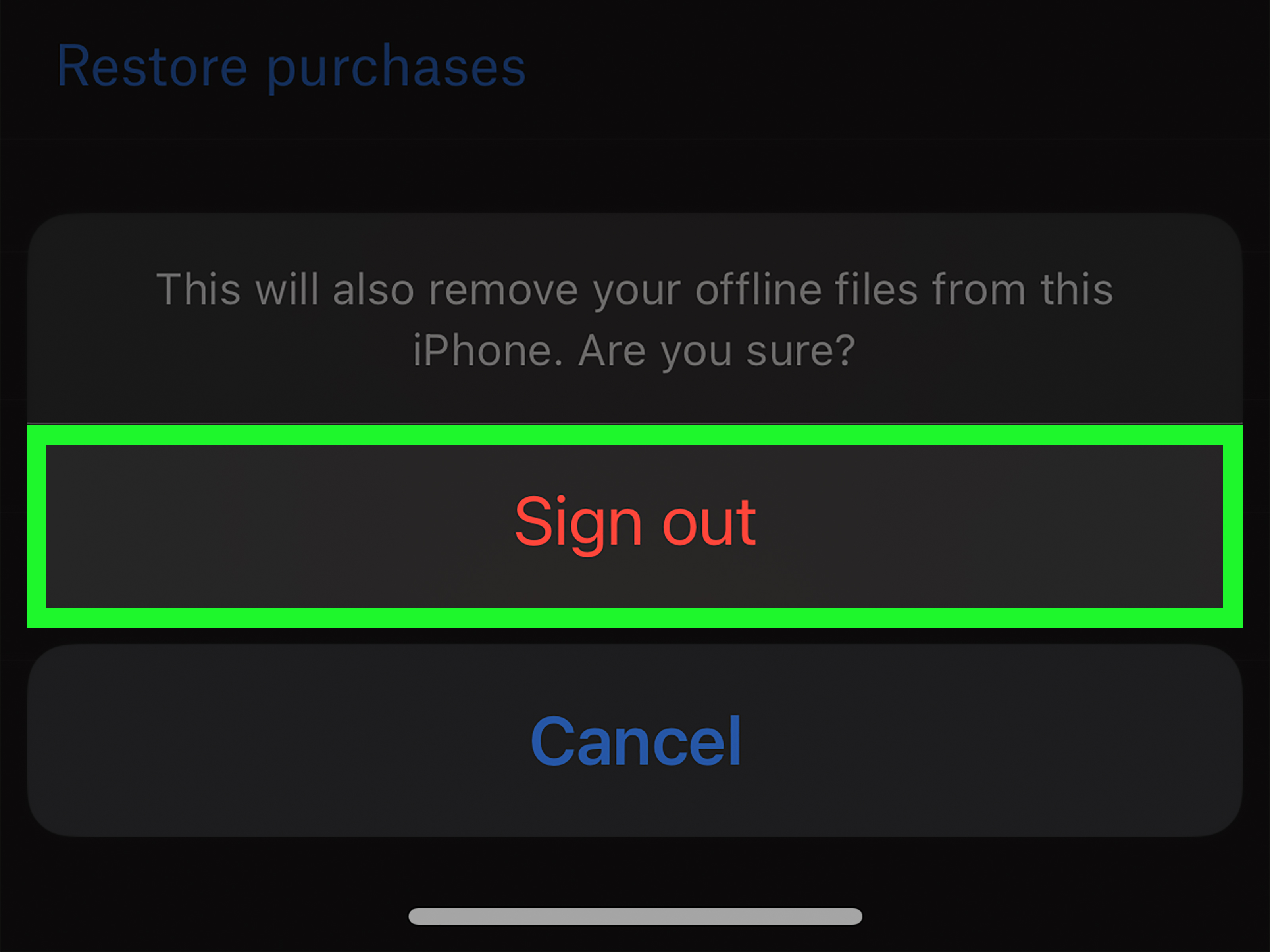
- Tap Sign out from this Dropbox.
- Confirm the sign-out.
If you have linked personal and work Dropbox accounts, make sure you are signing out of the correct one. Otherwise, you may disconnect your personal vacation photos instead of your work files, which is less cybersecurity and more accidental chaos.
Delete the Dropbox App on iPhone or iPad
If you also want to remove the app, touch and hold the Dropbox app icon, tap Remove App, then choose Delete App and confirm. This removes the app from the device but does not delete your Dropbox account.
How to Unlink Dropbox from Android
Android users can sign out inside the Dropbox app or unlink the device remotely through Dropbox.com.
Sign Out of Dropbox on Android
- Open the Dropbox app.
- Tap Account at the bottom of the screen.
- Tap Settings.
- Tap Sign out from this Dropbox.
- Confirm when prompted.
Uninstall Dropbox on Android
To remove the app, open your Android device settings, go to the apps section, select Dropbox, and tap Uninstall. Depending on your phone model, you may also be able to press and hold the Dropbox icon and choose Uninstall.
Deleting the Android app does not close your Dropbox account. Your files remain available when you log in again from another device or browser.
What Happens to Files After You Unlink Dropbox?
This is the question that makes people nervous, and for good reason. The answer depends on the device and the unlink method.
On Windows and Mac
When you unlink or sign out of Dropbox on a computer, files already synced to the Dropbox folder may remain on that computer. They stop syncing, but they do not always disappear. If privacy matters, especially on a shared or work computer, you should manually remove the local Dropbox folder after confirming your files are safe online.
On Mobile Devices
When you remotely sign out of a phone or tablet, Dropbox files usually cannot be opened from that device until someone logs in again. Even files marked for offline access are tied to the app rather than saved as ordinary local files in the same way desktop files are.
With Remote Wipe
Remote wipe is different. When selected during remote unlinking, Dropbox attempts to remove Dropbox files from that computer the next time it comes online and the Dropbox app is running. The files remain available in your Dropbox account and on your other connected devices. Remote wipe is helpful for lost, stolen, sold, or employee-returned computers, but it should be used carefully because the action cannot be casually reversed once it starts.
How to Remove Dropbox Files from One Computer Without Deleting Them Everywhere
If your real goal is to free up storage, unlinking may be overkill. Dropbox offers features that let you keep files online while reducing what is stored on a specific computer.
Option 1: Use Selective Sync
Selective sync lets you choose which Dropbox folders are saved to your hard drive. If you uncheck a folder, it is removed from that computer but remains stored in your Dropbox account online. This is great for bulky folders like video archives, old client projects, raw photos, or that mysterious folder called “Final_FINAL_ReallyFinal.”
Selective Sync on Windows
- Click the Dropbox icon in the taskbar.
- Click your avatar or initials.
- Select Preferences.
- Open the Sync tab.
- Under Selective Sync, click Modify.
- Uncheck folders you want removed from the hard drive.
- Click Update.
Selective Sync on Mac
- Click the Dropbox icon in the menu bar.
- Click your avatar or initials.
- Select Preferences.
- Open the Sync tab.
- Click Modify under the option to choose folders to sync to this Mac.
- Uncheck folders you do not want stored locally.
- Click Update.
Option 2: Use Online-Only Files
Online-only files remain visible on your computer but are stored primarily in Dropbox online. This is useful when you want a folder to appear in Finder or File Explorer without taking up full local storage. It is different from selective sync, which removes entire folders from the local Dropbox folder view.
Common Problems When Unlinking Dropbox
Dropbox Still Shows the Old Computer
If a device still appears under your security settings, refresh the page or check whether you removed the correct device. Device names can be vague, especially if every laptop in your life is named something inspiring like “DESKTOP-9H4KQ.” Rename computers clearly to avoid confusion later.
Files Are Still on the Computer
This is normal if you signed out or unlinked without remote wipe. Local files can remain on Windows and Mac. Delete the local Dropbox folder manually only after you confirm that the files are safely stored in Dropbox online or backed up elsewhere.
Dropbox Keeps Asking You to Sign In
If you unlinked but did not uninstall the desktop app, Dropbox may keep offering a sign-in prompt. That does not mean your account is still connected. It usually means the app is still installed and waiting for someone to sign in.
You Deleted Files Before Unlinking
If Dropbox was still syncing when you deleted files, those deletions may have synced to the cloud. Go to Dropbox.com and check deleted files or version history as soon as possible. The sooner you act, the better your chances of restoring accidentally removed files.
Security Tips After Unlinking Dropbox
Unlinking a device is a smart first step, but it is not the entire security routine. If the device was lost, stolen, shared, sold, or used by someone else, take a few extra precautions.
- Change your Dropbox password if you suspect unauthorized access.
- Enable two-step verification to add another layer of protection.
- Review connected devices and remove anything unfamiliar.
- Check connected apps that may still have access to Dropbox.
- Review shared folders and links if sensitive files were involved.
- Use remote wipe for computers that are lost, stolen, or no longer under your control.
Real-World Experience: What I Have Learned from Unlinking Dropbox Devices
In practice, the biggest mistake people make with Dropbox is assuming that “unlink,” “delete,” “remove,” and “uninstall” all mean the same thing. They do not. Most Dropbox headaches happen because someone wants to remove files from one device, but they delete files while the device is still actively syncing. Dropbox then interprets that action as a real deletion and syncs it everywhere. That is when a simple cleanup turns into a dramatic office moment starring one stressed person, three browser tabs, and a very judgmental coffee mug.
A safer habit is to decide your goal before touching the files. If the goal is privacy, unlink the device first, then remove local files. If the goal is storage space, use selective sync or online-only files instead of unlinking the whole computer. If the goal is selling or returning a device, sign out of Dropbox, uninstall the app, remove the local Dropbox folder, empty the Recycle Bin or Trash, and then follow your normal device reset process. That sequence is slower, but it prevents unpleasant surprises.
Another practical lesson: always check Dropbox.com before deleting local folders. If you can see the files online, you know they are safely stored in your account. If you cannot see them online, pause. The files may be local-only, unsynced, or stuck in a sync queue. On a computer with a slow connection, a huge video file may appear inside the Dropbox folder before it has fully uploaded. Deleting it too early can remove the only complete copy you had.
For work computers, remote unlinking is especially useful. Employees often forget to sign out of cloud apps before changing roles, replacing laptops, or sending devices to IT. A remote unlink from Dropbox security settings is fast and clean. If the computer is no longer trusted, remote wipe is the better choice because it attempts to remove Dropbox files from that device when it reconnects. However, remote wipe is not a full secure erase of the hard drive, so companies should still use proper device management and disk-erasure procedures.
For families, unlinking can prevent accidental file chaos. A shared home computer might have a parent’s Dropbox account connected, while a child uses the same machine for homework, downloads, and mystery folders with names like “new folder 17.” If multiple people use one computer, separate user accounts are cleaner than everyone sharing one Dropbox-connected desktop. Each person can sign in to their own computer profile and avoid mixing files.
For mobile users, the experience is usually less scary. Signing out of Dropbox on iPhone, iPad, or Android generally cuts off access inside the app. Still, it is smart to review offline files, camera uploads, and app permissions before removing the app. If camera uploads were enabled, check that your photos finished uploading before signing out. Nobody wants to discover that a vacation album stopped at photo 132 of 843 because the phone battery died somewhere between the beach and the hotel buffet.
The best rule is simple: unlink first, delete second, verify always. Dropbox is reliable, but it obeys your commands very literally. If you tell it to delete something while syncing is active, it may do exactly that. If you disconnect the device first, you get much more control over what stays online and what disappears from one machine.
Final Thoughts
Learning how to unlink a computer from Dropbox is not just a technical cleanup task. It is a practical security habit. Whether you use Windows, Mac, iPhone, iPad, or Android, disconnecting old devices keeps your files safer, reduces confusion, and prevents unwanted syncing.
Use Dropbox.com when you need to unlink a device remotely. Use the desktop app preferences when the computer is in front of you. Use selective sync or online-only files when you only want to save storage space. And before deleting any local Dropbox folder, double-check that your important files are safely stored online or backed up elsewhere.
Dropbox is supposed to make file access easier, not turn your laptop into a digital escape room. With the right steps, you can disconnect a device cleanly, protect your account, and move on with your day.