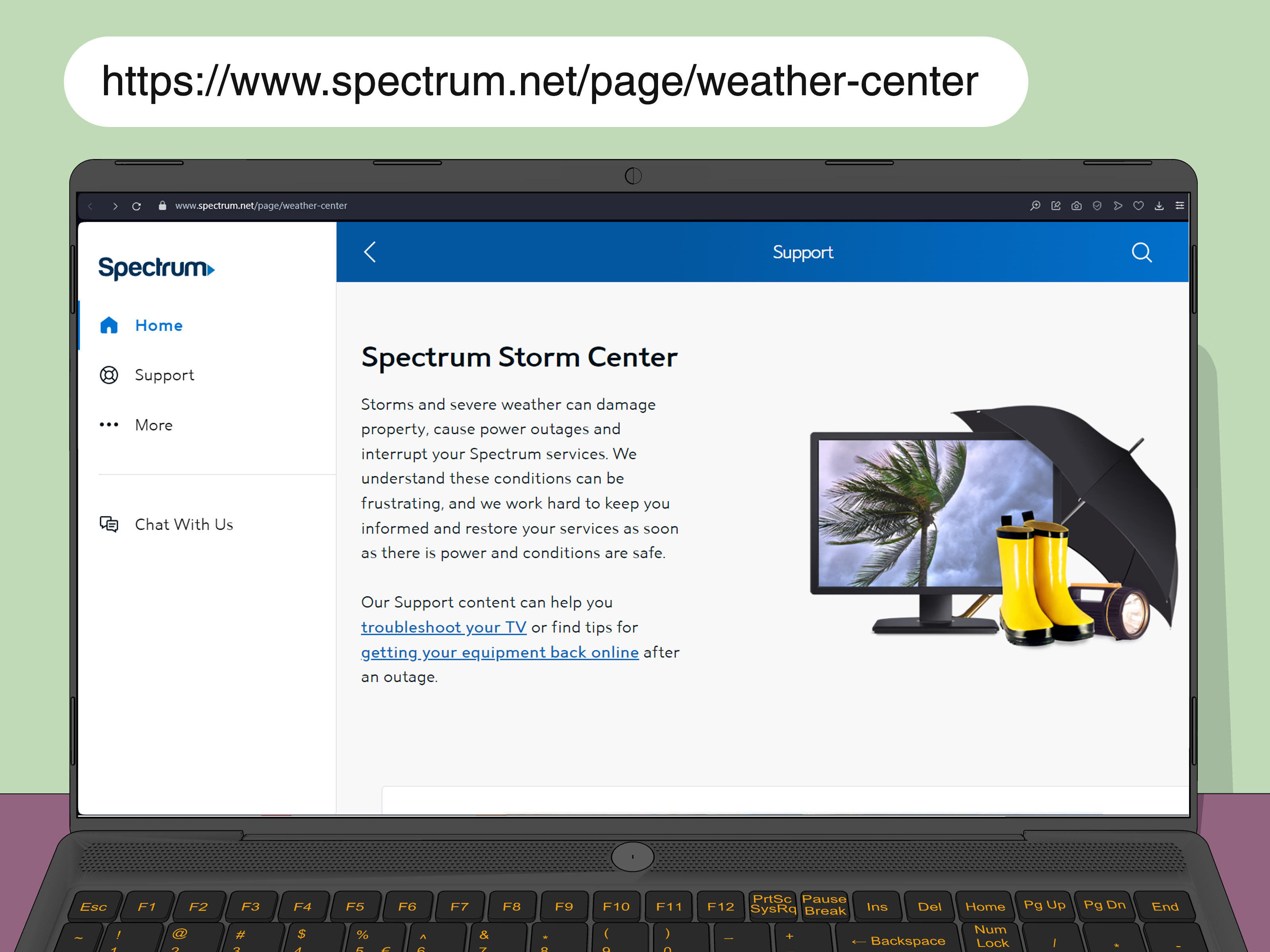
Note: This troubleshooting guide is based on current official Spectrum support guidance, app-store requirements, device-maker recommendations, and common real-world fixes used across Roku, Samsung Smart TV, Apple TV, LG TV, VIZIO TV, Xbox, iPhone, iPad, Android, tablets, and web browsers.
Why the Spectrum App Stops Working
The Spectrum TV app is supposed to make watching live TV and On Demand content feel easy. You open the app, pick a channel, and become one with the couch. But sometimes the Spectrum app decides to behave like a dramatic houseplant: it freezes, buffers, crashes, refuses to sign in, or displays an error code right when the game gets interesting.
If the Spectrum app is not working on any device, the problem usually falls into one of six buckets: internet connection trouble, a Spectrum service outage, an outdated app, outdated device software, corrupted app data, or an account/subscription issue. The good news is that most Spectrum TV app problems can be fixed without summoning a technician, buying a new TV, or threatening your router with a butter knife.
This guide walks through practical fixes for every major device category, including Roku, Apple TV, Samsung Smart TV, LG TV, VIZIO TV, Xbox, iPhone, iPad, Android phones, tablets, and browsers. Start at the top and work downward. The order matters because the simplest fixes solve the most problems, and nobody wants to factory reset a TV when the real issue is that the Wi-Fi password changed.
Quick Fix Checklist for the Spectrum App Not Working
Before digging into device-specific fixes, run through this fast checklist. It solves many “Spectrum app won’t load” and “Spectrum TV app keeps buffering” problems in minutes.
- Confirm your device is connected to the internet.
- Open another streaming app to see if only Spectrum is failing.
- Check whether Spectrum services are down in your area.
- Close the Spectrum app completely and reopen it.
- Restart your streaming device, phone, tablet, TV, or computer.
- Restart your modem and router.
- Update the Spectrum TV app.
- Update your device software or operating system.
- Clear the app cache or app data where available.
- Uninstall and reinstall the Spectrum app.
- Sign out and sign back in with your Spectrum username and password.
If the app fails on every device in your home, focus first on your Spectrum account, Spectrum outage status, modem, router, and home Wi-Fi. If it fails on only one device, the problem is probably that device, app installation, cache, or software version.
Step 1: Check Whether Spectrum Is Down
When the Spectrum app is not working on multiple devices, do not start by blaming the TV. The TV is just standing there, innocent and shiny. First, check whether Spectrum has a service outage in your area.
Use the My Spectrum app, Spectrum.net, or Spectrum customer support to check your service status. If your internet, TV service, or local Spectrum system is experiencing an outage, the Spectrum TV app may fail to load live channels, show missing content, or display connection-related error messages. In that case, your best “fix” is patience, which is annoying but cheaper than replacing your router.
Signs It May Be a Spectrum Outage
- The Spectrum app fails on every device.
- Your Spectrum internet is also slow or disconnected.
- Live TV will not load, but menus may still appear.
- Your neighbors with Spectrum are complaining too.
- The My Spectrum app shows a service alert.
If there is an outage, avoid repeated uninstalling and reinstalling. That will not repair a network-side issue, and it may add a fresh login problem on top of the original one. Let the service recover, then restart your modem, router, and device before trying again.
Step 2: Confirm Your Device Is Supported
The Spectrum TV app works on many popular platforms, but “any device” does not literally mean your 2011 smart fridge, your cousin’s mystery Android box, or a tablet that still remembers when people used Vine. Compatibility changes over time, so unsupported or outdated devices can suddenly become the reason the Spectrum app will not install, update, or open.
Common supported platforms include modern iPhone and iPad models, Android phones and tablets, Roku devices, Apple TV, Samsung Smart TVs, LG Smart TVs, VIZIO Smart TVs, Xumo devices, Xbox, Kindle Fire tablets, Windows and Mac browsers, and select newer TV platforms. However, exact requirements depend on app version, operating system version, device model, and your Spectrum TV package.
What to Check
- Make sure your device appears in Spectrum’s supported device list.
- Check whether your phone, tablet, TV, or streaming stick can still receive software updates.
- Make sure your app store shows the official Spectrum TV app from Charter/Spectrum.
- Confirm that your Spectrum TV subscription is active.
- Use the correct Spectrum username and password.
For Apple devices, newer Spectrum TV app versions may require newer iOS, iPadOS, or tvOS versions. For smart TVs, model year matters. For example, older smart TVs may not support the latest app even if they still connect to Wi-Fi and play other apps.
Step 3: Restart Everything in the Right Order
Restarting sounds too simple, which is exactly why people skip it. But streaming apps depend on a chain: Spectrum service, modem, router, Wi-Fi, device operating system, app data, and login session. If one link gets weird, the whole chain can wobble like a shopping cart with one cursed wheel.
Use this restart order:
- Turn off your TV, streaming device, phone, tablet, or computer.
- Unplug your modem and router from power.
- Wait at least 30 seconds.
- Plug in the modem first and wait until its lights stabilize.
- Plug in the router and wait for Wi-Fi to return.
- Turn your device back on.
- Open the Spectrum app and test live TV again.
This process clears temporary network errors, refreshes IP connections, and forces your device to reconnect cleanly. If your Spectrum app keeps freezing, buffering, or showing a spinning wheel, this should be your first serious move.
Step 4: Fix Internet and Wi-Fi Problems
The Spectrum TV app needs a stable internet connection, especially for live TV. A weak Wi-Fi signal can make the app look broken even when the real villain is distance, interference, or a router hidden behind a stack of decorative baskets.
Improve the Connection
- Move closer to your router.
- Restart your modem and router.
- Disconnect unused devices from Wi-Fi.
- Use Ethernet for Roku, Apple TV, Xbox, or smart TVs if possible.
- Move the router away from walls, metal objects, microwaves, and thick furniture.
- Test another app like YouTube or Netflix to compare performance.
If other apps also buffer, the problem is probably your internet connection, not the Spectrum app itself. If only Spectrum fails, move on to app updates, cache clearing, and reinstalling.
Step 5: Update the Spectrum App
An outdated Spectrum TV app can cause crashes, missing menus, login loops, playback errors, and compatibility problems. App updates often include bug fixes, performance improvements, and support for newer operating systems.
How to Update the Spectrum App
- iPhone or iPad: Open the App Store, search for Spectrum TV, and tap Update if available.
- Android: Open Google Play, search for Spectrum TV, and tap Update.
- Roku: Highlight the Spectrum app, press the star button, and check for updates; also update Roku OS from Settings.
- Apple TV: Open the App Store or enable automatic updates in settings.
- Samsung, LG, or VIZIO TV: Use the TV’s app store or settings menu to update apps and system software.
- Xbox: Check the Microsoft Store and system updates.
If the app store does not show the Spectrum TV app, your device may not be supported, your region settings may be wrong, or the app may not be available for that device model.
Step 6: Update Your Device Software
The app is only half the equation. Your device software also matters. If your Roku OS, tvOS, iOS, Android version, Samsung firmware, LG webOS, VIZIO software, or Xbox system is outdated, the Spectrum app may misbehave.
Common Update Paths
- Roku: Go to Settings > System > Software Update > Check Now.
- Apple TV: Go to Settings > System > Software Updates.
- iPhone/iPad: Go to Settings > General > Software Update.
- Android: Go to Settings > System > Software Update, though wording varies by brand.
- Samsung TV: Go to Settings > Support > Software Update > Update Now.
- Xbox: Go to Settings > System > Updates.
After updating, restart the device before opening Spectrum again. This helps the new software load cleanly instead of stumbling into the app like it just woke up from a nap.
Step 7: Clear Cache and App Data
Cache is temporary data that helps apps load faster. Unfortunately, temporary data sometimes becomes permanently annoying. Corrupted cache can cause the Spectrum app to freeze, crash, load slowly, show blank screens, or repeat the same error code.
Android Phones and Tablets
Go to Settings > Apps > Spectrum TV > Storage. Tap Clear Cache. If that does not work, tap Clear Data or Clear Storage. You may need to sign in again afterward.
Samsung Smart TV
On many Samsung TVs, you can clear app data by opening Settings, going to Support or Device Care, managing storage, selecting the Spectrum app, and clearing cache or reinstalling the app. Menus vary by model year.
Roku
Roku does not provide a normal app-cache button like Android. Instead, restart the Roku, remove the Spectrum app, restart Roku again, and reinstall the app. That sequence is important because reinstalling without restarting may leave old data behind.
Browsers
If SpectrumTV.net is not working in Chrome, Edge, Firefox, or Safari, clear browser cache and cookies, disable aggressive ad blockers or privacy extensions temporarily, and try a private browsing window. Also make sure your browser is updated.
Step 8: Uninstall and Reinstall the Spectrum App
If updating and clearing cache do not work, reinstall the app. This removes damaged files and gives you a fresh copy. Think of it as moving the app out, changing the locks, and inviting a better-behaved version back in.
Best Reinstall Method
- Delete or remove the Spectrum TV app.
- Restart the device.
- Reinstall the official Spectrum TV app from the device’s app store.
- Open the app and sign in manually.
- Test live TV and On Demand content.
Manual sign-in is often better than automatic sign-in when the app is stuck in a loop. If your saved credentials are old, corrupted, or tied to the wrong household user, typing your username and password fresh can fix the issue.
Device-Specific Fixes for Spectrum App Problems
Fix Spectrum App Not Working on Roku
For Roku, start with Settings > System > Power > System Restart. If your Roku model does not show Power, use Settings > System > System Restart. Then update Roku OS from Settings > System > Software Update > Check Now.
If Spectrum still fails, remove the app, restart Roku, then reinstall Spectrum TV. If you use a Roku Streaming Stick powered by the TV’s USB port, try plugging it into a wall outlet instead. Weak USB power can cause random crashes, freezing, and app loading problems.
Fix Spectrum App Not Working on Samsung TV
For Samsung Smart TVs, perform a soft reset by holding the power button on the remote until the TV restarts. Then check Settings > Support > Software Update. If the Spectrum app still does not work, delete and reinstall it.
If apps in general are acting strange, reset Smart Hub as a deeper fix. This may sign you out of apps, so make sure you know your passwords first. Also confirm your Samsung TV model year supports the Spectrum TV app.
Fix Spectrum App Not Working on Apple TV
On Apple TV, confirm the device is connected to the internet and updated to the latest tvOS available for that model. Force close the Spectrum app, reopen it, and restart Apple TV if needed. If the problem continues, delete the app and download it again from the App Store.
Also check your Spectrum username and password. The Spectrum TV app requires valid account credentials, and available channels depend on your TV plan and location.
Fix Spectrum App Not Working on iPhone or iPad
For iPhone and iPad, update iOS or iPadOS, update the Spectrum TV app, and restart the device. If the app crashes immediately, delete and reinstall it. Make sure Low Power Mode, VPN apps, or strict privacy settings are not interfering with location or network access.
If the app works on Wi-Fi but not cellular, your plan, location, or channel rights may limit what can stream away from home. Some programming may require Spectrum In-Home Wi-Fi.
Fix Spectrum App Not Working on Android
On Android, go to Settings > Apps > Spectrum TV > Force Stop. Then clear cache and reopen the app. If that fails, clear storage, update the app through Google Play, and restart the phone or tablet.
Disable VPNs, private DNS settings, or data saver modes temporarily. These tools are useful, but streaming apps sometimes treat them like suspicious strangers wearing fake mustaches.
Fix Spectrum App Not Working on LG or VIZIO TV
For LG and VIZIO Smart TVs, update the TV software first. Then restart the TV fully by unplugging it for about one minute. Reopen the Spectrum app and test playback. If the app still fails, remove and reinstall it from the TV’s app store.
If the app is missing from the store, confirm that your specific TV model supports it. Brand name alone is not enough; model year and operating system version matter.
Fix Spectrum App Not Working on Xbox
On Xbox, restart the console, check for system updates, and update the Spectrum TV app from the Microsoft Store. If the app freezes or returns to the home screen, uninstall and reinstall it. Also test your network connection under Xbox network settings.
Fix SpectrumTV.net Not Working in a Browser
If you stream through a browser, update the browser, clear cache and cookies, disable extensions, and try another browser. Chrome, Edge, Firefox, and Safari can all behave differently with streaming video. If one browser fails and another works, the issue is probably browser data or an extension, not Spectrum itself.
Common Spectrum App Error Situations
The Spectrum App Opens but Channels Will Not Play
This often points to connection trouble, account authorization, location restrictions, or channel rights. Restart your router, sign out and back in, and confirm your Spectrum TV package includes the channel. Some content may only be available on your Spectrum In-Home Wi-Fi.
The Spectrum App Keeps Buffering
Buffering usually means weak Wi-Fi, network congestion, or slow internet. Try Ethernet, move closer to the router, restart the network, and reduce other heavy activity such as downloads, cloud backups, or twelve family members streaming different shows at once.
The Spectrum App Keeps Crashing
Crashing often comes from outdated software or corrupted app data. Update the app, update the device, clear cache, and reinstall. On older devices, low storage can also cause crashes, so remove unused apps if needed.
The Spectrum App Says You Are Not at Home
Some Spectrum TV features and channels depend on being connected to your Spectrum In-Home Wi-Fi. If the app thinks you are away from home while you are actually sitting on your own couch, restart your modem and router, reconnect to your home Wi-Fi, and make sure you are not using a VPN.
The Spectrum App Will Not Let You Sign In
Reset your Spectrum password, make sure your account is active, and type the login manually. Avoid saved passwords until you confirm the new one works. If you recently changed your Spectrum services, account authorization may take time to refresh.
When to Contact Spectrum Support
Contact Spectrum support if the app fails after you have restarted your network, confirmed there is no outage, updated the app, updated the device, cleared cache, reinstalled the app, and tested another device. At that point, the issue may involve account provisioning, device authorization, local service problems, or a known app bug.
Before contacting support, write down your device model, app version, device software version, error code, whether the issue happens on home Wi-Fi or cellular, and whether other devices work. This saves time and prevents the classic support conversation where everyone spends ten minutes discovering that the TV is, in fact, plugged in.
Real-World Experience: What Usually Works Best
In real troubleshooting, the fastest fix depends on the pattern. When the Spectrum app is not working on any device in the house, the cause is rarely the app on each device. It is usually the network, an outage, the modem/router, or an account issue. The best first move is to check Spectrum service status, then restart the modem and router in the correct order. Many users skip the modem and only restart the TV, which is like changing the light bulb when the power is out.
When the Spectrum app works on a phone but not on a Roku or smart TV, the issue is usually the TV platform. Roku devices often respond well to the remove-restart-reinstall method. The restart between removing and reinstalling is the magic part. Without it, Roku may keep some old app data around, and the fresh install is not as fresh as it looks.
On Samsung Smart TVs, soft resets and Smart Hub resets solve many stubborn app problems. A soft reset is less destructive, so try it first. Resetting Smart Hub is more powerful, but it may sign you out of other apps. Do not do it five minutes before guests arrive for movie night unless you enjoy typing passwords under social pressure.
On iPhone, iPad, and Android devices, app updates and cache clearing are the heroes. If the app starts loading slowly after a recent update, reinstalling can help. Also, VPNs and privacy tools can interfere with streaming apps. Many people forget they enabled a VPN months ago and then wonder why a location-sensitive TV app is acting confused. Turn the VPN off, reconnect to your normal home Wi-Fi, and test again.
Browser issues are usually the easiest to isolate. If SpectrumTV.net fails in one browser but works in another, the problem is probably cookies, cache, extensions, or browser settings. Ad blockers, script blockers, privacy extensions, and old cookies can break sign-in or playback. Open a private window with extensions disabled, sign in, and test. If it works, clear site data for Spectrum in your regular browser.
The most frustrating cases happen after an app update. Users may report that Spectrum was fine yesterday, updated overnight, and now loads like it is walking through peanut butter. In those cases, check for another update, restart the device, and reinstall. If many users are reporting the same issue, it may be a bug that requires Spectrum to patch the app. Your job is to rule out your own device and network first, then report the bug with details.
The biggest lesson is simple: troubleshoot from widest to narrowest. First ask, “Is Spectrum down?” Then ask, “Is my internet working?” Then ask, “Is this device supported and updated?” Finally ask, “Is the app installation damaged?” That order saves time, reduces frustration, and keeps you from factory resetting a perfectly innocent television.
Conclusion
If the Spectrum app is not working on any device, start with the basics: check for a Spectrum outage, restart your modem and router, test your internet, and confirm your account is active. Then move to device-specific fixes such as updating software, clearing cache, reinstalling the app, resetting Smart Hub, restarting Roku, or trying another browser.
Most Spectrum TV app issues are not permanent. They are usually caused by a stale login session, weak Wi-Fi, outdated software, corrupted app data, or a temporary service problem. Work through the steps calmly, and you can usually get live TV and On Demand content working again without turning your living room into a tech-support crime scene.