Note: This guide explains how to remove the Android lock screen only on a phone you own and can already unlock. It does not cover bypassing a forgotten password, removing someone else’s lock, or defeating device security.
Android lock screens are a little like front doors: useful, protective, and occasionally annoying when you are just trying to check whether your pizza delivery is five minutes away or “still being prepared” in a mysterious parallel universe. If you are using a personal Android phone at home, a tablet that never leaves your desk, or a spare device for testing apps, you may want to turn off the lock screen and get straight to the home screen.
The good news: on many Android phones, removing the lock screen takes only a few taps. The slightly less glamorous news: the exact menu names vary by brand. A Google Pixel, Samsung Galaxy, Motorola, OnePlus, or carrier-branded Android device may use different wording, but the idea is the same. You open Settings, go to security or lock screen settings, enter your current PIN, pattern, or password, then choose None or sometimes Swipe.
Before you do it, understand the tradeoff. Turning off the lock screen means anyone who picks up your phone may be able to open your messages, photos, email, browser, apps, saved passwords, and payment-related apps. Google’s Android help warns that disabling the screen lock gives no protection for the device, while Google Wallet requires a screen lock for secure payments. Samsung and Motorola support pages also show that removing or changing a lock requires your current credentials first. In short: convenience goes up, security puts on a tiny raincoat and walks sadly into the distance.
What Happens When You Turn Off the Android Lock Screen?
When people search for how to turn off the lock screen on Android, they often mean one of two things. First, they may want to remove the secure lock method, such as a PIN, password, pattern, fingerprint, or face unlock. Second, they may want to remove even the “swipe to unlock” screen so the phone opens immediately after pressing the power button.
On Android, these are not always the same setting. Choosing None usually removes the screen lock completely. Choosing Swipe removes the PIN, password, pattern, and biometric requirement, but still leaves a basic swipe screen. Swipe is not considered strong security because it does not prove who you are; it only prevents accidental touches in your pocket, backpack, or the mysterious couch crack where snacks and lost earbuds go to retire.
Turning off the lock screen may also disable or limit features that depend on device security. Fingerprint unlock and face unlock may be removed. Some banking apps, password managers, work apps, school accounts, Google Wallet, and company-managed profiles may require a secure lock before they work normally. Android’s work profile and enterprise tools can enforce lock requirements, and mobile-device-management policies may prevent the None option from appearing.
How to Turn Off the Lock Screen on Android: 5 Steps
The steps below work for many modern Android phones, including Google Pixel-style Android menus. Samsung Galaxy, Motorola, and other brands may use slightly different names, so check the brand-specific tips after the main guide if your phone’s settings look different.
Step 1: Open the Settings App
Start by unlocking your Android phone with your current PIN, password, pattern, fingerprint, or face unlock. Then open the Settings app. The icon usually looks like a gear. If your app drawer is crowded enough to qualify as a digital junk drawer, swipe down from the top of the screen and tap the gear icon in the Quick Settings panel.
You must already know the current lock method. Android normally will not let you remove a lock screen without proving you are the owner or authorized user. That is not Android being dramatic; that is Android doing its job.
Step 2: Go to Security or Lock Screen Settings
Next, look for a menu named Security, Security & privacy, Lock screen, Lock screen and security, or Device unlock. On many newer Pixel phones, the path is usually:
Settings > Security & privacy > Device unlock > Screen lock
On Samsung Galaxy phones, the path is commonly:
Settings > Lock screen > Screen lock type
On Motorola phones, the support path commonly points to:
Settings > Security & privacy > Device lock > Screen lock
If you cannot find the menu, use the search bar at the top of Settings and type screen lock, lock screen, or device unlock. Android settings search is not perfect, but it is usually better than tapping every menu like you are trying to crack a treasure map.
Step 3: Enter Your Current PIN, Pattern, or Password
Once you tap Screen lock or Screen lock type, Android will ask for your current PIN, pattern, or password. Enter it to continue. This verification step is normal and important. It prevents someone from grabbing your unlocked phone for ten seconds and removing your security while pretending to “just check the weather.”
If you forgot your lock screen password, this article is not the right guide. You should use official recovery options from Google, your phone manufacturer, or your carrier. Do not trust random “unlocker” tools that promise magic results with one click. Many are risky, outdated, or designed to collect data faster than a hungry raccoon finds an open trash can.
Step 4: Choose None or Swipe
After verifying your identity, you should see screen lock options such as None, Swipe, Pattern, PIN, and Password. To turn off the lock screen completely, choose None. If None is not available but Swipe is available, choose Swipe to remove the secure lock requirement while keeping a basic swipe screen.
Here is the practical difference:
- None: pressing the power button or waking the phone may take you directly to the home screen.
- Swipe: you still swipe to open the phone, but no PIN, pattern, password, fingerprint, or face unlock is required.
- PIN, pattern, or password: the phone requires a secret credential before access.
- Fingerprint or face unlock: these usually work together with a backup PIN, pattern, or password.
Google’s Android help lists None as the option used to remove the current screen lock, while Motorola’s guidance mentions choosing None or Swipe. Samsung’s screen lock menu similarly lets users change the lock type after entering their current credentials.
Step 5: Confirm the Warning and Test Your Phone
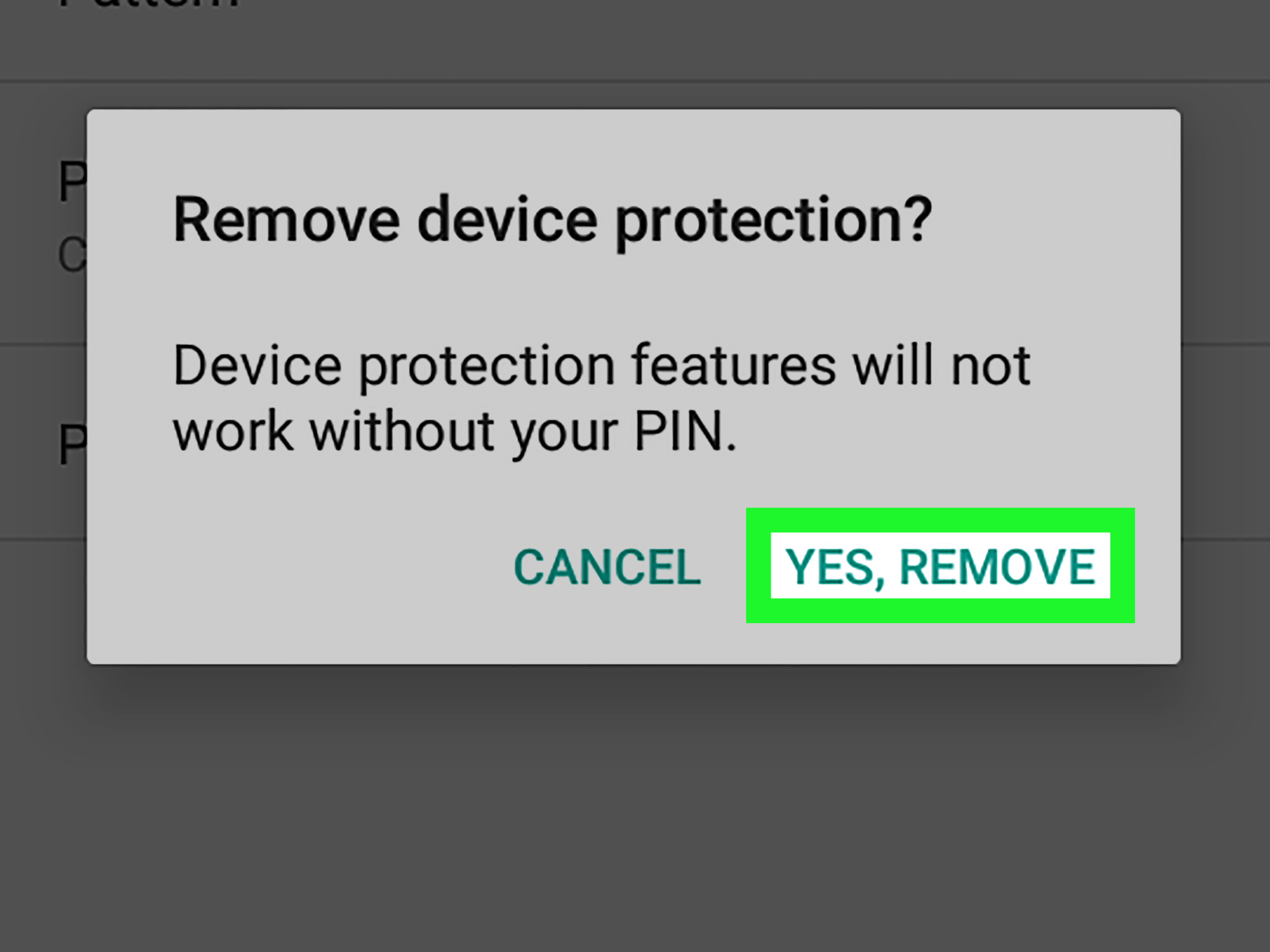
Android may show a warning explaining that removing the screen lock also removes device protection. Read it carefully. If you still want to continue, confirm your choice. Some phones may ask whether you want to delete saved fingerprints or face data. Since biometric unlock depends on a secure lock method, removing the secure lock usually removes biometric protection too.
After confirming, press the power button to turn the screen off. Press it again to wake the phone. If you selected None, your phone may open without a lock screen. If you selected Swipe, you should see a simple swipe screen. Congratulations: you have successfully removed the secure Android lock screen. Please do not celebrate by leaving the phone unattended at a coffee shop next to a sign that says “Free personal data.”
How to Turn Off Lock Screen on Samsung Galaxy Phones
Samsung Galaxy phones often place lock settings in a dedicated Lock screen area. Try this path:
- Open Settings.
- Tap Lock screen.
- Tap Screen lock type.
- Enter your current PIN, pattern, or password.
- Select None or Swipe, depending on what your device offers.
Some Samsung models and software versions may label the menu as Lock screen and AOD, especially on newer One UI versions. If you see Extend Unlock, that is a different feature. Extend Unlock can keep your phone unlocked in trusted situations, but it does not fully remove the lock screen. Samsung’s support material explains that users can change the screen lock type through the Lock Screen settings after entering the current credential.
How to Turn Off Lock Screen on Google Pixel Phones
On Google Pixel phones, the menu usually follows newer Android wording:
- Open Settings.
- Tap Security & privacy.
- Tap Device unlock.
- Tap Screen lock.
- Enter your current credential and select None.
If you cannot find the option, type screen lock into the Settings search box. Pixel’s official help states that changing the screen lock requires entering the current PIN, pattern, or password before choosing a different lock option.
How to Turn Off Lock Screen on Motorola Phones
Motorola’s current support guidance uses a path similar to stock Android:
- Open Settings.
- Tap Security & privacy.
- Tap Device lock.
- Tap Screen lock.
- Enter your current PIN, password, or pattern, then choose None or Swipe.
Carrier support pages may show device-specific paths for Motorola phones, so your exact wording can vary by model and Android version. If the option is missing, check for work profiles, device administrator apps, or security policies that may be controlling the setting.
Why Is “None” Missing or Grayed Out?
If the None option is missing, disabled, or grayed out, your phone may not be broken. It may simply be following a security rule. Common reasons include:
- Work profile restrictions: company or school accounts may require a secure lock.
- Device administrator apps: some security, email, parental control, or management apps can enforce lock rules.
- Payment apps: mobile payment features often require a secure screen lock.
- Stored credentials: certificates or security credentials can sometimes affect lock options on older Android versions.
- Manufacturer settings: some phones prefer Swipe instead of true None.
For school or work-managed phones, you may not be allowed to turn off the lock screen. That is normal. Android Enterprise and management tools can enforce password and lock policies for work profiles and managed devices. If your phone belongs to an employer, school, or parent-managed account, ask the administrator before changing security settings.
Should You Turn Off the Android Lock Screen?
For most everyday phones, the safer answer is no. A lock screen protects your private information if your phone is lost, stolen, borrowed, or briefly handled by someone else. A strong PIN or password is especially important if you use email, banking apps, two-factor authentication, saved passwords, private photos, or payment apps.
However, there are situations where turning off the Android lock screen can make sense. A tablet mounted in a kitchen for recipes may not need the same protection as your main phone. A home-only Android device used as a music controller, smart-home dashboard, or testing phone may be more convenient without a secure lock. Even then, think carefully about what accounts are signed in. A “harmless” tablet can still contain email, cloud photos, saved browser sessions, or access to shopping apps.
If convenience is your main goal, consider using Extend Unlock instead of removing the lock screen completely. Android’s Extend Unlock, formerly known as Smart Lock, can keep your phone unlocked in trusted situations, such as when it is on your body, near a trusted Bluetooth device, or at a trusted place. It still requires a screen lock, but it reduces how often you need to enter it. Google and Motorola both describe Extend Unlock as a way to keep a phone unlocked under trusted conditions rather than removing security altogether.
Security Tips If You Remove the Lock Screen
If you decide to remove the lock screen anyway, reduce the risk with a few practical habits. First, keep the phone physically close. No lock screen means physical access becomes digital access. Second, remove sensitive apps from that device if possible. Do not keep banking apps, private email, password managers, or school/work accounts on an unlocked phone unless you truly accept the risk.
Third, keep Find My Device active when available. It can help locate, ring, lock, or erase a lost Android device. Fourth, avoid saving passwords in browsers on a phone with no lock screen. Fifth, consider setting up app-level locks where available. Some banking, gallery, notes, and messaging apps offer their own protection, although app locks should not be treated as a full replacement for device security.
Finally, remember that a screen timeout is not the same as a lock screen. Screen timeout only turns the display off after a period of inactivity. Lock screen security controls what happens when the device wakes again. You can make the screen stay on longer without removing your lock, or you can remove the lock while keeping a short timeout to save battery. These settings live in different areas, so do not be surprised if changing one does not change the other.
Common Problems and Easy Fixes
The Phone Still Shows a Swipe Screen
You probably selected Swipe instead of None, or your phone does not offer a true None option. Swipe removes secure authentication, but it may still require a finger gesture to avoid accidental pocket touches.
Fingerprint Unlock Disappeared
That is expected. Fingerprint and face unlock normally require a backup PIN, pattern, or password. If you remove the secure lock, Android may remove stored biometric unlock methods.
Google Wallet Stops Working
Google Wallet requires a screen lock for secure payments. If you remove your lock screen, you may need to set up a PIN, pattern, password, or supported biometric method again before making contactless payments.
The Option Says “Disabled by Administrator”
This usually means a device policy, work profile, school account, security certificate, or management app is enforcing a lock. If the device is managed by an organization, you may not be able to change it yourself.
The Menus Do Not Match This Guide
Android settings change across versions and brands. Use the Settings search bar and look for screen lock, lock type, device unlock, or security. If your phone has a custom interface, the manufacturer’s support page may show the exact path for your model.
Experience Notes: Real-Life Lessons From Turning Off the Android Lock Screen
After helping many Android users think through lock screen settings, one pattern shows up again and again: people rarely want “less security” in theory. They want fewer interruptions in a specific situation. Maybe they are using an old phone as a baby monitor display. Maybe a tablet is mounted on a wall as a smart-home controller. Maybe a parent wants a recipe tablet that opens quickly with flour-covered fingers. In those cases, turning off the lock screen can feel like removing a tiny daily pebble from your shoe.
The best experience comes from matching the setting to the device’s job. For example, a spare Android phone used only for music in the garage may be fine with None or Swipe, especially if it has no email, no payment apps, no saved passwords, and no personal photo library. On the other hand, your main phone is different. It is probably a wallet, camera, notebook, mailbox, map, authenticator, calendar, and emergency contact list wearing a glass rectangle costume. Removing the lock from that device is convenient for about six seconds, then risky for as long as the phone exists.
A common “middle path” is using a simple PIN instead of removing the lock entirely. A six-digit PIN is much faster than a long password and far safer than no lock at all. Another good compromise is Extend Unlock. For home use, trusted places or trusted devices can reduce repeated unlocking while still keeping security available when you leave the trusted environment. It is not perfect, and it should not be treated like a bank vault guarded by laser dolphins, but it is more balanced than fully disabling the lock screen.
People also discover that the lock screen is connected to more features than expected. Remove it, and suddenly contactless payments complain. Fingerprint unlock disappears. A work email app demands a secure lock before syncing. A password manager refuses to behave casually. These moments are not bugs; they are reminders that Android uses the screen lock as a foundation for trust. When the foundation is gone, apps that protect money, identity, or private information may step back and say, “Absolutely not, captain.”
Another experience-based tip: if you are setting up a shared household Android tablet, create a clean setup instead of weakening your personal phone. Use a separate Google account, avoid saving payment details, install only the apps needed, and keep sensitive notifications off the lock screen. If the device is for guests, kids, recipes, music, or a smart-home dashboard, less personal data means less stress if someone taps around.
Finally, test the device after changing the setting. Turn the screen off, wake it, restart it, open important apps, and check whether payments, email, or work tools still function. A lock screen change seems small, but it can ripple into daily habits. The best setup is the one that gives you the right balance: quick access where it makes sense, strong protection where it matters, and zero surprise panic when your phone decides to enforce security right as you are trying to buy a sandwich.
Conclusion
Turning off the lock screen on Android is usually simple: open Settings, find Security or Lock Screen, enter your current credential, choose None or Swipe, and confirm the warning. The exact path varies by brand, but the principle is consistent across Pixel, Samsung, Motorola, and many other Android phones.
The bigger question is whether you should do it. For a spare home device, test phone, wall-mounted tablet, or low-risk gadget, removing the lock screen can be practical. For your main phone, a secure lock is still the smarter choice. Your Android device holds more personal information than most people realize, and a PIN is a small price to pay for keeping your digital life from turning into an open house.