Saving passwords on Microsoft Edge is one of those tiny browser habits that can quietly save you from a daily parade of “Wait, was it my dog’s name plus 2024?” moments. If you use Edge for school, work, shopping, banking, email, or the usual modern-life obstacle course of logins, the built-in Microsoft Password Manager can remember your usernames and passwords, fill them in when needed, and sync them across devices when you are signed in with a Microsoft account.
This quick guide explains how to save passwords on Microsoft Edge, how to turn password saving on or off, how to view saved passwords, how to manage autofill, and what to do when Edge refuses to save a password like it has suddenly developed strong opinions. You will also learn practical safety tips, because saving passwords is convenient, but convenience should not ride a scooter with no helmet.
What Is Microsoft Edge Password Manager?
Microsoft Edge Password Manager is the browser’s built-in tool for saving, managing, and autofilling passwords and passkeys. When you sign in to a website, Edge can ask whether you want to save that login. If you agree, it stores the credentials so the next visit is faster and less annoying.
The password manager is part of Microsoft Edge’s broader password and autofill settings. In newer Edge versions, Microsoft commonly places password tools under Settings > Passwords and autofill > Microsoft Password Manager. Depending on your device, version, or account type, you may also see password settings under Profiles > Passwords. Microsoft has changed some labels over time, so do not panic if your menu looks slightly different. The important destination is the same: the place where Edge manages saved passwords, autofill, password security checks, and password-saving prompts.
How to Save Passwords on Microsoft Edge
The fastest way to save passwords on Microsoft Edge is to let the browser prompt you after you log in to a website. Here is the simple version:
- Open Microsoft Edge.
- Go to a website where you have an account.
- Enter your username or email address and password.
- Sign in normally.
- When Edge asks whether you want to save the password, select Save.
That is it. The next time you visit that site, Edge can suggest or automatically fill the saved login details, depending on your autofill settings and security preferences.
How to Turn On Password Saving in Microsoft Edge
If Microsoft Edge is not asking to save passwords, the password-saving prompt may be disabled. Here is how to turn it back on:
- Open Microsoft Edge.
- Select the three-dot menu in the upper-right corner.
- Choose Settings.
- Select Passwords and autofill.
- Open Microsoft Password Manager.
- Look for the option called Offer to save passwords, Ask to save passwords, or a similar label.
- Turn the option on.
Once this setting is enabled, Edge should ask to save new passwords when you sign in to supported websites. Some sites block browser password saving, and some work or school devices may be controlled by an administrator. In those cases, Edge may not behave exactly like it does on a personal laptop.
How to View Saved Passwords in Microsoft Edge
Need to check a password you saved three months ago and immediately forgot? Microsoft Edge can show saved passwords after verifying your identity.
- Open Microsoft Edge.
- Select the three-dot menu.
- Go to Settings.
- Select Passwords and autofill.
- Choose Microsoft Password Manager.
- Find the website account you want to view.
- Select the saved item, then use the view option if available.
- Authenticate with your device password, PIN, fingerprint, face recognition, or another supported method.
This identity check is important. Without it, anyone borrowing your computer to “check one thing real quick” could potentially peek at your saved logins. Edge uses device-based authentication to make password viewing and autofill safer.
How to Edit or Delete Saved Passwords
Passwords change. Accounts get retired. Websites update their login systems. Your browser password list can become a digital junk drawer if you never clean it. To edit or delete saved passwords in Edge:
- Open Microsoft Password Manager in Edge settings.
- Find the saved login you want to change.
- Select the account entry.
- Choose the edit option to update the username or password.
- Choose delete or remove if you no longer want Edge to store that login.
If you recently changed a password on a website but Edge keeps filling the old one, update the saved password manually or delete the old entry and let Edge save the new one during your next login.
How to Sync Saved Passwords Across Devices
One of the best reasons to save passwords in Microsoft Edge is cross-device access. If you sign in to Edge with a Microsoft account and enable sync, your saved passwords can be available on other devices where you use the same account.
To check password sync:
- Open Microsoft Edge.
- Go to Settings.
- Select your profile.
- Open Sync.
- Make sure Passwords is turned on.
This is especially useful if you use Edge on a Windows laptop, desktop, tablet, or phone. Instead of rebuilding your password list from scratch on every device, syncing keeps your saved logins connected to your Microsoft account.
How to Use Password Generator in Edge
Microsoft Edge can do more than remember passwords. It can also help create stronger ones. When you sign up for a new account or change an existing password, Edge may suggest a strong password automatically. These suggested passwords are usually long, unique, and much harder to guess than “Summer2026!” or “PasswordButFancy.”
To use Password Generator:
- Go to a website’s sign-up or change-password page.
- Click inside the new password field.
- Look for Edge’s suggested strong password.
- Select the suggestion if you want to use it.
- Save the password when Edge prompts you.
The big advantage is that you do not need to memorize the generated password. Edge saves it for you, and if password sync is enabled, it can fill it on your other signed-in devices.
How to Turn Autofill On or Off
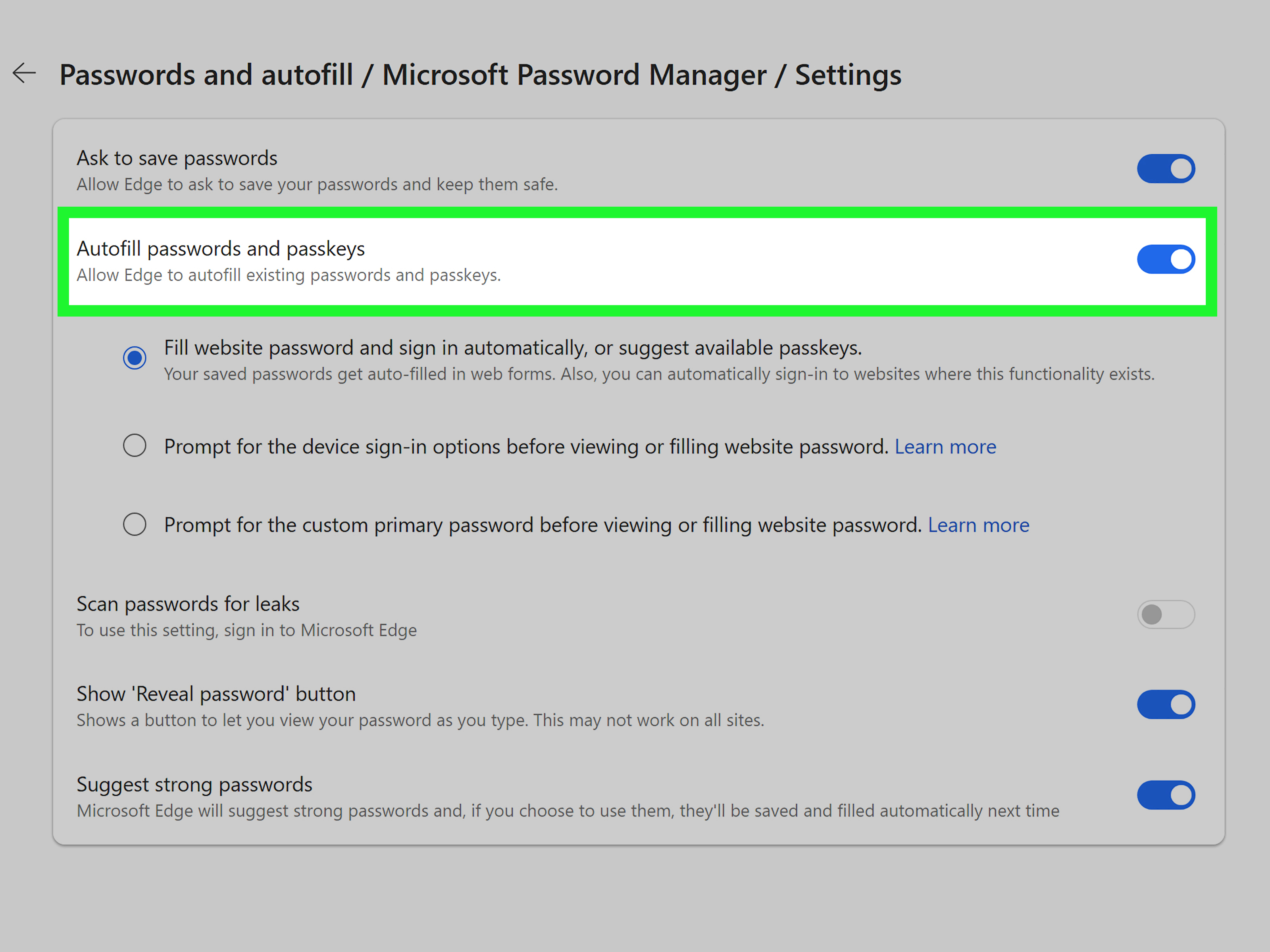
Autofill is the feature that enters saved login information into website forms. Some people love it because it makes signing in nearly instant. Others prefer more control, especially on shared computers. To manage autofill:
- Open Microsoft Edge.
- Go to Settings.
- Select Passwords and autofill.
- Open Microsoft Password Manager.
- Adjust password autofill settings based on your preference.
For better privacy, consider requiring device authentication before Edge fills passwords. That way, even if someone has physical access to your unlocked computer, they may still need your Windows Hello, PIN, fingerprint, or system password before saved credentials are used.
What to Do If Edge Does Not Ask to Save Passwords
If Edge does not offer to save passwords, start with the basics. First, confirm that Offer to save passwords or Ask to save passwords is turned on. Then check whether you previously selected “Never” for that website. If a site is on the blocked list, Edge will not prompt you again until you remove it from the list.
Check the Never Saved List
Some users accidentally tell Edge never to save passwords for a website. It happens. The button is right there, and sometimes fingers move faster than brains. In Microsoft Password Manager, look for a list of sites where passwords are never saved. If the website appears there, remove it, then try signing in again.
Update Microsoft Edge
An outdated browser can cause weird behavior. Open Edge settings, go to About Microsoft Edge, and let the browser check for updates. Restart Edge after updating.
Check Extensions
Privacy, security, or form-related extensions may interfere with password prompts. Try disabling extensions temporarily, then sign in to the site again. If the save prompt returns, one of the extensions may be the culprit.
Clear Site Data Carefully
Sometimes corrupted cookies or site data can affect login behavior. Clearing data for the specific site may help. Avoid wiping everything unless you are comfortable being signed out of multiple accounts.
Are Passwords Saved in Edge Safe?
Microsoft Edge stores saved passwords in an encrypted form on the device. Sensitive browser data such as passwords is protected using encryption and operating-system storage mechanisms. Edge also supports device-based authentication, which can require your system sign-in, Windows Hello, Touch ID, or similar verification before viewing or using saved passwords in certain situations.
That said, no password manager is magic armor. If your device is infected, your account is compromised, or your main Microsoft account password is weak, your saved passwords may still be at risk. Browser password managers are convenient and useful, but they work best when paired with good security habits.
Best Practices for Saving Passwords on Microsoft Edge
Use a Strong Microsoft Account Password
If you sync passwords through your Microsoft account, protect that account like it owns the keys to your digital housebecause in many ways, it does. Use a long, unique password that you do not reuse anywhere else.
Turn On Two-Factor Authentication
Two-factor authentication adds another layer of security. Even if someone guesses or steals your password, they still need a second verification step to access your account.
Do Not Save Passwords on Public Computers
Never save passwords on school library computers, hotel lobby PCs, internet cafés, or any device you do not control. Public devices are not your password’s forever home. They are more like a bus stop.
Use Unique Passwords for Every Account
Reusing passwords is risky. If one site has a data breach, attackers may try that same password on email, banking, shopping, and social media accounts. Edge’s password generator can help you avoid reused passwords.
Run Password Security Checks
Microsoft Edge includes password security tools that can help identify weak, reused, or potentially leaked passwords. Run password checks occasionally and update risky logins as soon as possible.
How to Export Passwords from Microsoft Edge
If you want a backup or plan to move to another password manager, Edge allows password export on desktop. Be careful: exported passwords are usually saved in a CSV file, which can be read by anyone who gets access to it.
- Open Microsoft Edge on a desktop computer.
- Open the password manager section.
- Select the menu option for password management.
- Choose Export passwords.
- Confirm the export.
- Save the file in a secure location.
Delete the exported file after importing it elsewhere. Leaving a plain password file on your desktop is like leaving your house keys taped to the front door with a cheerful sticky note.
Microsoft Edge Passwords vs. Third-Party Password Managers
Microsoft Edge Password Manager is a good choice for people who mainly use Edge and want simple password saving without installing extra software. It is built into the browser, easy to access, and useful for everyday browsing.
Third-party password managers may offer more advanced features, such as family sharing, secure notes, cross-browser support, emergency access, and deeper organization. If you use many browsers or operating systems, a dedicated password manager may be more flexible. If you mostly live in Edge and Windows, Microsoft Password Manager may be enough.
Quick Troubleshooting Checklist
- Make sure password saving is turned on.
- Remove the website from the “never saved” list.
- Update Microsoft Edge.
- Check whether sync is enabled.
- Disable conflicting extensions temporarily.
- Clear site data for the affected website.
- Check whether a work or school administrator controls password settings.
- Use a personal Microsoft account if certain features are unavailable under a managed account.
Real-World Experiences: What Saving Passwords on Edge Feels Like in Daily Use
In everyday browsing, saving passwords on Microsoft Edge feels less like a dramatic tech upgrade and more like removing a pebble from your shoe. You may not notice it every second, but your day gets smoother. The first major improvement is speed. Instead of stopping to remember which version of your password you used for a shopping account, Edge fills the login form and lets you move on. This is especially helpful for accounts you visit often but not daily, such as utility portals, airline accounts, school platforms, insurance dashboards, and subscription services.
Another practical benefit is fewer password resets. Many people do not reset passwords because they want better security; they reset them because they forgot which “clever” variation they invented last time. Edge reduces that cycle. Once the correct password is saved, you can sign in without turning your inbox into a password-reset graveyard.
The password generator is also surprisingly useful. At first, a generated password may look ridiculous, like a robot sneezed into the keyboard. But that is the point. Long, random, unique passwords are much harder to guess. Since Edge saves them, you do not have to memorize the keyboard sneeze. This is where the browser password manager becomes more than a convenience tool; it becomes a security upgrade for people who otherwise reuse the same password across too many sites.
Syncing is another area where Edge feels practical. Suppose you create an account on your laptop and later need to sign in on another device. If you are signed in to Edge and password sync is enabled, your login can follow you. That is much easier than texting yourself a password, writing it in a notes app, or using the ancient “I’ll remember it later” method, which has a success rate roughly equal to finding matching socks in a dryer.
However, the experience is not perfect. Some websites use login forms that do not trigger browser password saving properly. Others split username and password fields across multiple pages, which can confuse autofill. Work and school devices may also have admin restrictions. If Edge does not save a password, it does not always mean you did something wrong. Sometimes the website, extension, browser setting, or organization policy is part of the issue.
The biggest lesson from using Edge Password Manager is that the setup matters. Turn on password saving, enable sync only on trusted devices, use device authentication, and keep your Microsoft account protected with two-factor authentication. Those few choices make the feature much more reliable and safer.
For most users, Microsoft Edge’s password-saving feature is best used as a simple, everyday security assistant. It will not replace common sense, and it will not save you from clicking every suspicious link that promises a free luxury vacation. But it can help you create stronger passwords, avoid reuse, sign in faster, and manage accounts with less frustration. That is a pretty good deal for a feature already sitting inside your browser.
Conclusion
Learning how to save passwords on Microsoft Edge is simple, but using the feature wisely is what makes it valuable. Turn on the password-saving prompt, save logins only on trusted devices, use password sync if you want access across devices, and protect your Microsoft account with strong security settings. Edge can remember passwords, generate stronger ones, autofill login forms, and help you spot weak or reused credentials.
The goal is not to make you dependent on your browser. The goal is to stop wasting time on forgotten passwords while improving your overall login security. Used carefully, Microsoft Edge Password Manager is a convenient and practical tool for everyday browsing.