Note: Despite the title, there is usually no secret switch to flip. On most compatible iPhones, wireless charging starts automatically when you place the phone correctly on a supported charger.
If you came here expecting a hidden iPhone setting called Wireless Charging: On, I have good news and mildly hilarious news. The good news is that wireless charging on iPhone is usually much easier than people think. The mildly hilarious news is that there usually is no button to turn it on at all. Apple designed it so that, on a compatible iPhone, you simply place the device on a supported wireless charger and charging begins automatically.
That sounds wonderfully simple, and it is, but real life loves drama. Sometimes the phone is slightly off-center. Sometimes the case is too thick. Sometimes the charger is technically “wireless” but painfully slow. And sometimes the iPhone is hot enough to behave like it just finished a sprint in July. That is why so many people assume wireless charging is turned off, broken, or hidden somewhere deep in Settings.
This guide clears up the confusion. You will learn how wireless charging works on iPhone, which models support it, what charger to use, what settings actually matter, and how to fix the most common problems. By the end, you will know exactly how to get wireless charging working without poking around your settings like you are searching for treasure in a digital attic.
The Short Answer: You Usually Do Not “Turn On” Wireless Charging
Here is the simplest explanation: if your iPhone supports wireless charging, the feature is built into the phone and works automatically. There is usually no separate toggle in Settings that you need to enable first.
What you do need is a compatible charger, decent alignment, and a phone model that supports wireless charging. Once those boxes are checked, you place your iPhone on the charger and let physics do its glamorous little trick. No cable plugged into the phone. No secret menu. No ritual dance required.
So if you have been searching for “how to turn on wireless charging on iPhone,” the better question is really this: How do I make wireless charging start properly on my iPhone? That is the question worth answering, and the rest of this article is built around it.
Which iPhones Support Wireless Charging?
Compatibility is the first checkpoint. If your phone does not support wireless charging, the world’s fanciest charging pad is just an expensive coaster.
iPhones with standard Qi wireless charging
Wireless charging has been available on iPhone since the iPhone 8 generation. In practical terms, that means iPhone 8 and later models can use Qi-compatible chargers. If your iPhone is newer than that, you are generally in the game.
iPhones with MagSafe or Qi2-style magnetic charging
MagSafe adds magnetic alignment, which makes placement easier and often improves charging consistency. Many iPhone 12-and-later models support MagSafe, but there are model-specific exceptions. That detail matters more now than it used to. For example, iPhone 16e supports standard Qi wireless charging, but not the full magnetic MagSafe experience. Newer budget variants such as iPhone 17e bring MagSafe and Qi2 support back into the mix.
Why this matters
If you own an iPhone 16e and expect the phone to snap perfectly onto a magnetic charger, you may think wireless charging is “off” when the real issue is that you are using the wrong type of charger for the experience you expect. In that case, the phone can still charge wirelessly on a Qi pad, but it will not behave like a full MagSafe model.
- iPhone 8 or later: standard Qi wireless charging
- Many iPhone 12 and later models: MagSafe support with magnetic alignment
- Some newer models: faster wireless speeds with supported MagSafe or Qi2 hardware
- Some budget variants: wireless charging may work, but magnetic charging features may differ
How to Start Wireless Charging on Your iPhone in 3 Easy Steps
If your iPhone supports wireless charging, here is the easiest way to make it work.
Step 1: Use a compatible charger
Choose a charger that supports Qi, Qi2, or MagSafe, depending on your phone. If you want the simplest, most reliable experience, a certified charger from a reputable brand is the safest bet. Cheap mystery chargers sometimes work like champs, but they also sometimes perform like tired office printers.
Step 2: Plug the charger into proper power
The charging pad or stand needs enough power from the wall adapter. This part gets overlooked all the time. A fast wireless charger connected to a weak adapter is like a sports car stuck behind a tractor. The hardware may be capable of more, but the actual performance will be limited.
Step 3: Place the iPhone correctly
Put your iPhone face up on the center of the pad, or snap it into place if you are using a magnetic charger. If charging begins, you should see the battery icon respond on screen. If nothing happens, reposition the phone and remove any bulky or metal case.
That is it. That is the “on” switch: compatible phone, compatible charger, correct placement.
Why People Think Wireless Charging Is Turned Off
The confusion usually comes from symptoms that feel like disabled features. For example, you put the phone on a pad and nothing happens. Or charging starts, then pauses. Or it works one night and not the next. That makes people assume there must be a setting they forgot to turn on.
In reality, wireless charging problems usually come from one of these causes:
- the phone is not aligned with the charging coil
- the case interferes with charging
- the charger or power adapter is underpowered
- the phone is too warm or too cold
- there is metal or another object between the phone and charger
- the phone is already charging through a cable
- battery settings are slowing or limiting charging to protect battery health
That list is much less mysterious than a hidden toggle, but it is far more useful.
The Settings That Actually Matter
While you typically do not need to turn wireless charging on, there are a few charging-related settings worth understanding.
Optimized Battery Charging
This feature helps reduce battery aging by learning your charging routine. In some situations, your iPhone may pause around 80 percent and finish charging closer to when you usually unplug it. If your phone stops short of 100 percent overnight, that is not always a problem. Sometimes it is your iPhone trying to be the responsible adult in the room.
Charge Limit on newer models
On newer iPhones, especially iPhone 15 and later, you may be able to set a charge limit. If you choose 80 percent, your iPhone may stop there by design. That can make users think wireless charging is weak or broken when the phone is actually following the rule they set.
Battery information and charging estimates
Modern iPhone software may also show charging estimates or identify a slow charger. So if wireless charging feels sluggish, your phone may already be telling you the truth without any dramatic confrontation required.
MagSafe vs. Qi vs. Qi2: What Is the Difference?
This is where many shopping mistakes happen.
Qi
Qi is the widely used wireless charging standard. It works across many phones and accessories. On iPhone, standard Qi charging is convenient, but it is usually slower and more sensitive to exact placement than magnetic charging systems.
MagSafe
MagSafe is Apple’s magnetic system. It helps align the charger precisely with the charging coil inside the phone. That means less fiddling, more reliable placement, and often faster charging on supported models.
Qi2
Qi2 builds on the magnetic alignment idea and aims to deliver better efficiency and easier placement. In plain English, it is the part of wireless charging that says, “Let’s stop pretending people always place their phones perfectly.” That magnetic alignment makes a real difference in everyday use.
If you want convenience, choose magnetic charging when your iPhone supports it. If you just want basic cord-free charging and do not care about snap-on alignment, a standard Qi charger can still do the job.
How to Fix Wireless Charging If It Is Not Working
1. Reposition the iPhone
This is the first move because it solves a surprising number of problems. Standard Qi pads have a sweet spot. Miss it by enough, and charging can fail or become very slow. Magnetic chargers reduce this problem, which is why many people prefer them.
2. Remove the case
Some cases are fine. Some are not. Thick materials, metal plates, wallets, and magnetic accessories can all interfere. If your phone suddenly charges without the case, congratulations: you found the villain.
3. Check for metal objects
Coins, keys, badges, cards, and other items placed between the iPhone and charger are a bad idea. They can interfere with charging and, in some cases, heat up. Wireless charging likes a clean, uncluttered surface.
4. Make sure the charger has enough power
Not all power adapters are equal. A charger connected to a weak adapter may still work, but very slowly. If speed matters, use the adapter recommended by the charger maker.
5. Let the iPhone cool down
If your phone feels warm, wireless charging may slow down or temporarily pause. This is normal behavior designed to protect battery health. Heat is one of the biggest reasons wireless charging feels inconsistent, especially if the phone is in a thick case, in direct sunlight, or charging after gaming or navigation.
6. Unplug any cable from the iPhone
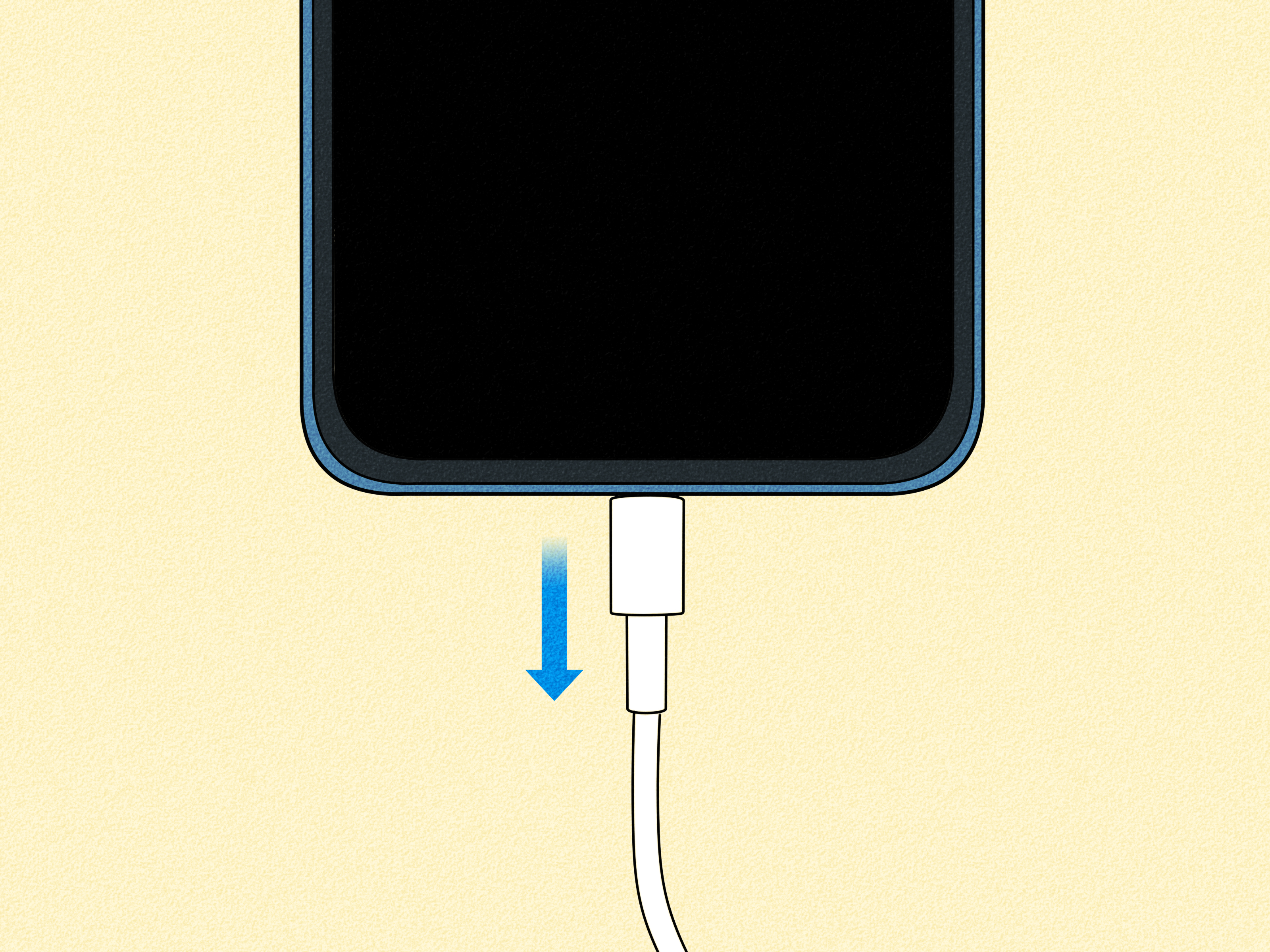
If your iPhone is physically connected by USB, it will usually prioritize wired charging instead of wireless charging. So if you are testing a pad while a cable is plugged into the phone, the results can be misleading.
7. Try a different charger
Sometimes the issue is not the phone at all. Testing with another certified charger is one of the quickest ways to isolate the problem. If a second charger works, the first one may be underpowered, incompatible, damaged, or just not very good.
Is Wireless Charging Bad for Your iPhone Battery?
Wireless charging is generally safe for compatible iPhones, but it is not magical perfection. It can generate more heat than wired charging in some situations, and heat is never your battery’s favorite roommate. That does not mean wireless charging is harmful by default. It means good habits matter.
Use a quality charger, keep the device ventilated, avoid charging in very hot environments, and do not panic if the phone pauses above 80 percent. That pause can be part of normal battery-protection behavior.
If you want maximum charging speed and lower heat during a quick top-up before leaving the house, wired charging often wins. If you want convenience at your desk, nightstand, or car mount, wireless charging is wonderfully practical.
When Wired Charging Still Makes More Sense
Wireless charging is convenient, but it is not always the best choice. A cable still makes more sense when:
- you need the fastest charge possible
- your phone is already very warm
- you are gaming or doing heavy tasks while charging
- you want the most efficient power transfer
- you are using a model with slower wireless charging support
The smartest setup for many people is not choosing one or the other. It is using both: wired when speed matters, wireless when convenience matters.
Common Real-World Experiences With Wireless Charging on iPhone
One of the most common experiences people report is the classic “I thought it was charging, but it wasn’t.” This usually happens with flat charging pads rather than magnetic chargers. You drop the phone onto the stand at night, the screen lights up for a second, and you assume all is well. Morning arrives, coffee is brewing, and your battery is somehow at 23 percent. That is usually not because wireless charging failed as a concept. It is because the phone shifted, the case interfered, or the pad needed more precise placement than expected.
Another very common experience is discovering that wireless charging feels dramatically better after switching to a magnetic charger. People who move from a basic Qi pad to a MagSafe or Qi2-style charger often say the upgrade feels less like a speed boost and more like a frustration reduction. The phone lines up more reliably, charging starts with less guesswork, and the whole routine becomes something you trust instead of something you squint at suspiciously before bed.
Desk use is another area where wireless charging tends to win fans. If your iPhone lives near your keyboard during the day, dropping it on a charging stand is simply easier than plugging and unplugging a cable ten times. You pick it up for a call, a message, or a quick scroll, then drop it back on the stand without thinking. That kind of low-effort convenience is the real reason wireless charging has stuck around. It is not just about removing a cable. It is about removing a tiny daily annoyance.
Travel, however, can expose wireless charging’s limitations. Hotel bedside tables are not always ideal, portable pads may charge more slowly than expected, and some people find that a cable is still the more dependable choice when every percentage point matters. A frequent traveler may love wireless charging at home and still keep a fast wired charger in the bag for airports, rideshares, and chaotic days when convenience gives way to urgency.
Many iPhone owners also notice that heat changes the experience. Wireless charging can feel smooth and effortless when the phone is cool, but slower when the device has been navigating in the car, streaming video, or sitting in a warm room. That is often when users start searching for hidden settings, assuming something got turned off. In reality, the phone is often just protecting itself and the battery.
Then there is the case problem, which deserves its own little support group. Some people use slim cases and never think about them again. Others use rugged cases, card holders, ring grips, or metal accessories and unintentionally create a wireless-charging obstacle course. The moment they remove the case and charging suddenly works, they go through all five stages of tech grief in about six seconds.
Perhaps the most useful real-world takeaway is this: once wireless charging is set up correctly, it tends to feel wonderfully boring in the best possible way. You stop thinking about ports, cable orientation, and connector wear. You just place the phone down and move on with your life. That quiet reliability is the real appeal. Not flashy. Not dramatic. Just easy.
Final Thoughts
If you want to “turn on” wireless charging on your iPhone, the main thing to remember is that the feature is usually already on. Your job is not to enable it in Settings. Your job is to use the right hardware and the right setup.
Start with three questions: Does my iPhone support wireless charging? Am I using a compatible charger? Is the phone aligned correctly without interference from a case or metal object? If the answer is yes to all three, charging should begin automatically.
That is the beauty of it. Once you understand how it works, wireless charging on iPhone stops feeling mysterious and starts feeling delightfully simple. Place, charge, done. The kind of technology that almost disappears is often the best kind.