Large Excel files are like overpacked suitcases: technically portable, but every time you try to move them, everyone groans. A bloated workbook can open slowly, crash unexpectedly, refuse to email, sync badly with OneDrive, and make your computer sound like it is preparing for takeoff.
The good news is that most oversized Excel files are not “big” because they are smart. They are big because they are carrying extra baggage: unused formatting, hidden data, oversized images, duplicated PivotTable caches, unnecessary formulas, forgotten sheets, and thousands of blank-but-not-really-blank cells. In other words, your spreadsheet may be dragging around a storage unit disguised as a workbook.
In this guide, you will learn how to reduce Excel file size using ten practical, beginner-friendly methods. These tips work for everyday business reports, school projects, financial models, sales dashboards, inventory trackers, marketing reports, and that mysterious workbook named “Final_Final_REAL_Final_v8.xlsx.” We have all been there.
Why Is My Excel File So Large?
Before shrinking your workbook, it helps to know what usually causes the problem. Excel files can become huge for several reasons: too much data, excessive cell formatting, unused ranges, images, charts, embedded objects, PivotTable caches, formulas copied far beyond the actual dataset, hidden sheets, old comments, and external data connections.
Sometimes the workbook looks small on the screen but is huge on disk. That usually means Excel thinks the “used range” extends far beyond the visible data. For example, you may have values in rows 1 through 1,000, but if formatting was accidentally applied down to row 1,048,576, Excel may save all that formatting. Congratulations: your spreadsheet is now wearing a floor-length gown to a casual lunch.
The best approach is not to compress the file blindly. Instead, use a cleanup routine: save a backup, identify the main source of bloat, remove unnecessary content, then save the workbook in the best format for your needs.
1. Save the Workbook as an Excel Binary Workbook (.xlsb)
One of the easiest ways to reduce Excel file size is to save the file as an Excel Binary Workbook, also known as an .xlsb file. The standard .xlsx format stores workbook information in an XML-based structure. That is great for compatibility, but it can be less compact for large spreadsheets. The .xlsb format stores data in binary form, which often creates a smaller file and may open faster for large workbooks.
How to save as .xlsb
Open your workbook, go to File > Save As, choose a location, then select Excel Binary Workbook (*.xlsb) from the “Save as type” dropdown. Save a copy and compare the file size with the original.
When to use this method
This is especially useful for large reports, dashboards, workbooks with many formulas, and files that do not need to be edited by non-Excel programs. However, if you share data with systems that expect .xlsx or XML-based files, keep a compatible copy. Think of .xlsb as packing your spreadsheet into a vacuum-sealed bag: wonderfully compact, but not always the best outfit for every event.
2. Remove Unused Rows and Columns
Excel may remember cells that once had data or formatting, even after you delete the visible content. This can make the workbook larger than necessary. A common fix is to delete unused rows and columns beyond your real data range.
How to clean the used range
Press Ctrl + End in a worksheet. Excel jumps to what it considers the last used cell. If that cell is far below or far to the right of your actual data, you have an inflated used range.
Select all blank rows below your actual dataset, right-click, and choose Delete. Then do the same for blank columns to the right. Save, close, and reopen the workbook. This forces Excel to recalculate the true used range.
Example
Suppose your report uses columns A through L and rows 1 through 2,500. If Ctrl + End takes you to cell XFD1048576, Excel may be storing unnecessary formatting across the entire sheet. That is not a workbook; that is a spreadsheet trying to cosplay as a warehouse.
3. Clear Excess Cell Formatting
Formatting is helpful when it improves readability. Formatting becomes a problem when it is copied across thousands of unused cells. Background colors, borders, fonts, number formats, and conditional formatting rules can all increase file size when applied too widely.
How to remove unnecessary formatting
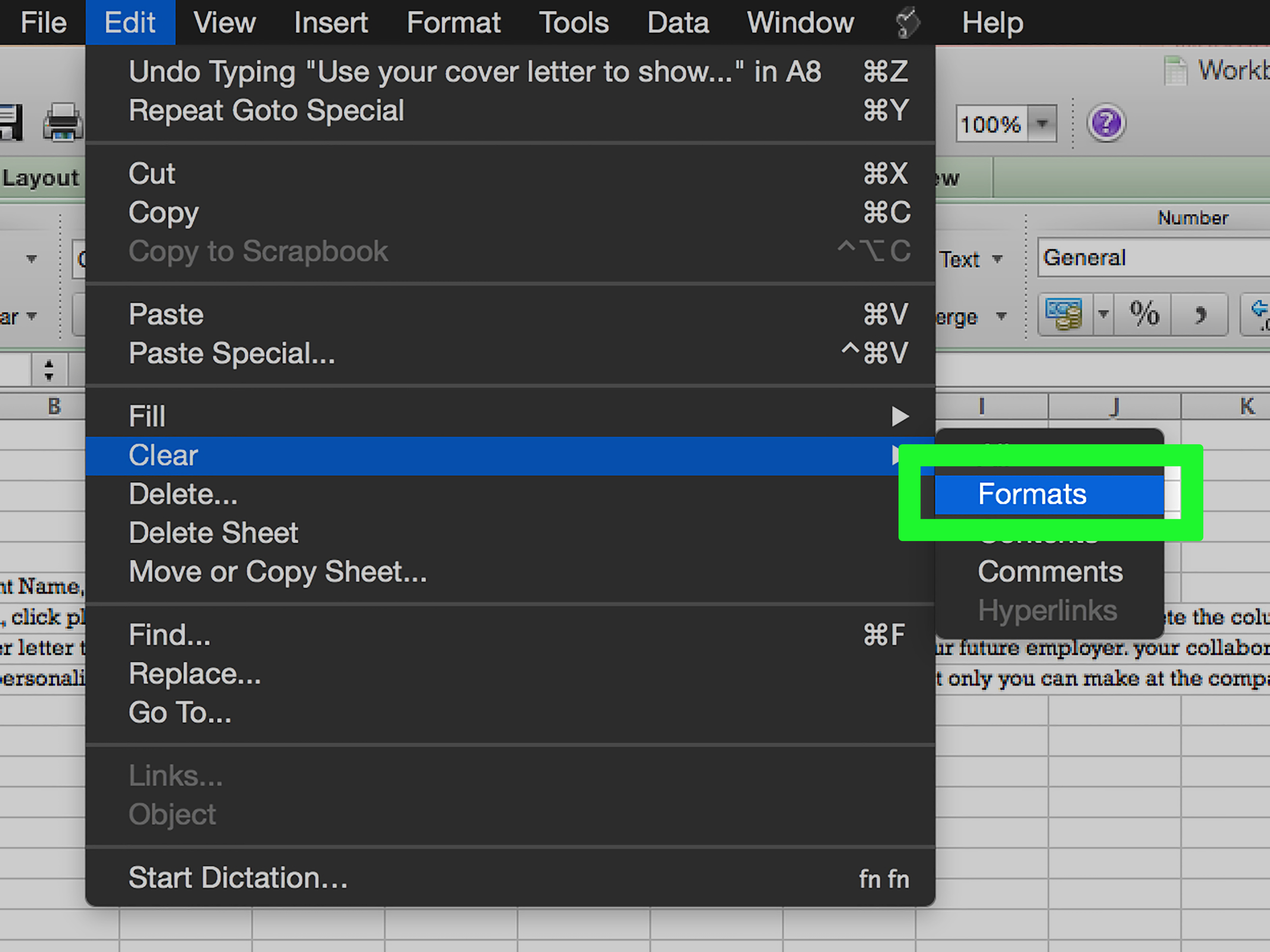
Select unused cells, go to Home > Clear > Clear Formats. This removes formatting while keeping actual cell values untouched. Be careful with active data areas: you do not want to erase important number formats, date formats, or visual cues that users rely on.
Use Excel’s cleanup tools
In some Microsoft 365 versions, Excel includes a Workbook Performance or cleanup feature that identifies cells that can be optimized. Some desktop versions also provide Inquire tools, including options to clean excess cell formatting. Always make a backup before using broad cleanup commands, because Excel cleanup is powerful and, like a toddler with a permanent marker, deserves supervision.
4. Compress Images and Delete Unneeded Pictures
Images are one of the sneakiest reasons Excel files become huge. A single high-resolution product photo, logo, scanned document, or screenshot can add several megabytes. If your workbook contains many images, compressing them can dramatically reduce file size.
How to compress pictures in Excel
Select an image, go to Picture Format, choose Compress Pictures, and select an appropriate resolution. For workbooks meant for screen viewing, you usually do not need print-quality images. Also consider unchecking “Apply only to this picture” if you want to compress every image in the workbook.
Remove image leftovers
Delete duplicate logos, old screenshots, hidden pictures, and pasted objects that are no longer needed. If a sheet has dozens of tiny icons, consider replacing them with text labels, symbols, or conditional formatting. Your spreadsheet does not need to become an art gallery unless the budget report is truly that emotional.
5. Convert Formulas to Values When Calculations Are Final
Formulas are one of Excel’s greatest strengths, but too many formulas can increase file size and slow performance. If certain calculations are final and no longer need to update, convert them to static values.
How to convert formulas to values
Select the formula range, press Ctrl + C, then use Paste Special > Values. This keeps the results but removes the formulas behind them.
Where this works best
This is ideal for archived monthly reports, exported data, historical dashboards, and one-time analysis sheets. For example, if you finished your January sales analysis and will never recalculate it, there is no need to keep thousands of VLOOKUP, XLOOKUP, INDEX MATCH, or SUMIFS formulas alive forever.
Be careful
Do not convert formulas that must stay dynamic. If your workbook depends on live calculations, keep the formulas in the working model and create a values-only copy for sharing. That way, your original workbook stays flexible, while your shared version becomes lighter and safer.
6. Avoid Whole-Column Formula References When Possible
Whole-column references such as A:A or B:B are convenient, but they can make formulas heavier, especially in complex workbooks. While modern Excel handles many range references efficiently, it is still better to avoid calculating more cells than necessary.
Better alternatives
Use Excel Tables instead of full-column references. When your data is formatted as a Table, formulas can refer to structured ranges such as Sales[Amount]. Tables expand automatically when new rows are added, keeping formulas clean and easier to maintain.
Example
Instead of using =SUMIFS(D:D,A:A,H2), you might use =SUMIFS(Sales[Revenue],Sales[Region],H2). The second version is easier to understand and usually better for long-term workbook health.
Reducing formula workload may not always shrink the file dramatically, but it can improve responsiveness. A smaller file is nice; a smaller file that does not freeze during a meeting is even nicer.
7. Remove or Simplify Conditional Formatting
Conditional formatting makes reports easier to scan, but too many rules can inflate workbook size and slow everything down. This is especially true when rules are applied to entire columns or duplicated across many sheets.
How to manage conditional formatting
Go to Home > Conditional Formatting > Manage Rules. Change the dropdown to show rules for the current worksheet. Look for duplicate rules, broken ranges, or rules applied to huge areas. Delete what you do not need and narrow the “Applies to” range.
Practical cleanup tip
If you copied and pasted formatted rows many times, Excel may have created duplicate conditional formatting rules. Instead of one neat rule, you may find dozens of almost-identical rules stacked like pancakes. Delicious at breakfast, terrible in spreadsheets.
Use fewer rules, apply them only where needed, and consider using helper columns for complex logic. Cleaner formatting often means smaller files and faster workbooks.
8. Manage PivotTable Caches
PivotTables are powerful, but they can increase file size because Excel stores a PivotTable cache behind the scenes. If multiple PivotTables use separate caches for the same source data, your workbook may store duplicate copies of similar information.
How to reduce PivotTable file size
Where possible, create multiple PivotTables from the same source range or Excel Table so they can share the same cache. You can also check PivotTable options and decide whether source data should be saved with the file. In some cases, unchecking Save source data with file and enabling Refresh data when opening the file can reduce workbook size.
When to be careful
If the workbook must work offline or the original data source may not be available, removing saved source data can cause problems. Before changing PivotTable cache settings, test a copy. PivotTables are like very talented interns: incredibly useful, but you should still check what they are storing in the back room.
9. Delete Hidden Sheets, Comments, Objects, and Old Data Connections
Excel workbooks often contain content you cannot see at first glance. Hidden sheets, very hidden sheets, comments, notes, text boxes, shapes, old charts, named ranges, external links, and data connections can all add weight.
Use Document Inspector
Go to File > Info > Check for Issues > Inspect Document. Document Inspector can help find hidden properties, personal information, comments, hidden rows and columns, hidden worksheets, and other behind-the-scenes content.
Check workbook links and connections
Look under Data > Queries & Connections and Data > Edit Links if available. Remove connections, queries, and links that are no longer needed. Old external links can make a workbook slower to open and harder to share.
Remove unnecessary objects
Press F5, choose Special, select Objects, and review selected objects before deleting. This can reveal hidden shapes or pasted elements. Do not delete blindly if your workbook uses buttons, form controls, or charts. The goal is cleanup, not spreadsheet demolition derby.
10. Split Large Workbooks or Move Raw Data Elsewhere
Sometimes the best way to reduce Excel file size is to stop asking one workbook to do everything. If a file contains raw data, cleaned data, calculations, PivotTables, charts, dashboards, exports, archives, and twelve sheets named “Temp,” it may be time to separate responsibilities.
Smart ways to split a workbook
Move old data to an archive file. Keep raw data in a CSV, database, Power Query source, or separate workbook. Use the main Excel file for analysis and reporting. If you have multiple years of data, consider keeping only the current year in the working file and storing historical data separately.
Use Power Query wisely
Power Query can import, clean, group, and transform data without requiring you to manually paste huge datasets into worksheets. For large recurring reports, this can make the workbook cleaner and easier to refresh. However, queries and caches can also add size if not managed well, so review what is loaded to worksheets and what is connection-only.
Best example
A sales dashboard does not need every transaction from the last ten years sitting in visible worksheet rows. Store the raw data elsewhere, load summarized results, and let the dashboard stay lean. Your workbook will behave less like a moving truck and more like a sports car.
Quick Checklist: How to Reduce Excel File Size Fast
- Save a backup copy before editing.
- Save the workbook as .xlsb and compare file size.
- Use Ctrl + End to check the real used range.
- Delete unused rows and columns beyond actual data.
- Clear excess formatting from blank areas.
- Compress large images and remove duplicate graphics.
- Convert final formulas to values.
- Limit whole-column references in complex formulas.
- Clean duplicate conditional formatting rules.
- Review PivotTable cache settings.
- Remove hidden sheets, old comments, unused objects, and stale links.
- Split oversized workbooks into cleaner, purpose-built files.
Common Mistakes That Make Excel Files Bigger
One common mistake is formatting entire rows or columns “just in case.” It feels harmless, but it can make Excel store a massive amount of unnecessary formatting. Another mistake is pasting data from websites, PDFs, or other workbooks without cleaning it. Pasted content may bring hidden styles, objects, links, and formatting baggage.
Another problem is using Excel as permanent storage for everything. Excel is excellent for analysis, modeling, tracking, and reporting. It is not always the best place to store millions of raw records forever. When your workbook becomes a filing cabinet, calculator, presentation deck, database, and scrapbook all at once, file size grows quickly.
Finally, many users forget to save, close, and reopen after cleanup. Excel may not fully reset the workbook size until you save and reopen the file. If the file size does not drop immediately, do not panic. Save a copy, close it, reopen it, and check again.
Experience Notes: What Actually Works in Real Excel Cleanup
After working with oversized spreadsheets, one lesson becomes very clear: the biggest file-size wins usually come from boring places. It is rarely one magical button. It is usually a combination of removing unused ranges, clearing formatting, compressing images, and saving in the right format. Excel cleanup is not glamorous, but neither is flossing, and both prevent painful problems later.
The first thing I usually check is the used range. Pressing Ctrl + End is simple, but it reveals a lot. If a worksheet with 3,000 rows jumps to the last row of Excel, I know the workbook is probably storing invisible junk. Deleting the unused rows and columns, saving, closing, and reopening can create a surprisingly large improvement. It feels almost too easy, like finding out the monster under the bed was just a pile of old socks.
The second thing I check is formatting. Many people use Excel like a coloring book: borders everywhere, filled rows, bold fonts, merged cells, and conditional formatting spread across giant ranges. A little design is good. Too much design turns the workbook into a glitter cannon. The best spreadsheets use formatting with purpose. Header rows, totals, input cells, and warning areas deserve styling. A million blank cells do not need a custom shade of blue named “corporate thunderstorm.”
Images are another major culprit. A team may paste screenshots into a workbook during review, then forget to remove them. Sometimes a logo copied from a design file is far larger than necessary. Compressing images or replacing them with smaller versions can cut file size quickly. For reports that will be emailed, I usually ask: does this image help someone make a decision? If not, it probably does not belong in the workbook.
Formulas require a more careful approach. I do not recommend converting every formula to values, because that can destroy the workbook’s usefulness. But for archived reports, values-only sheets are often perfect. A monthly report that has already been approved does not need to keep recalculating thousands of formulas every time someone opens it. Keeping a dynamic master file and exporting a values-only sharing copy is often the cleanest workflow.
PivotTables are tricky because users may not realize Excel stores cache data. If a workbook has many PivotTables built from similar ranges, the file can quietly grow. I have seen reports where the visible sheets looked reasonable, but the PivotTable caches were doing heavy lifting backstage. The fix is not always to delete PivotTables. Instead, build them from clean Excel Tables, reuse the same source where possible, and remove saved source data only when refresh access is reliable.
Another useful habit is keeping raw data separate from presentation sheets. A clean workbook usually has a clear structure: raw import, cleaned data, calculations, and output. When those layers get mixed together, the file becomes harder to troubleshoot. If a dashboard only needs summarized numbers, do not make every user carry the entire raw dataset. That is like bringing the whole grocery store home because you wanted one sandwich.
Finally, the best long-term solution is prevention. Use Excel Tables, avoid unnecessary formatting, name sheets clearly, remove temporary work areas, and create archive copies on a schedule. A workbook that is cleaned monthly is much easier to manage than one that has been collecting digital dust since 2018. Reducing Excel file size is not just about saving megabytes. It is about making files faster, safer, easier to share, and less likely to ruin your afternoon five minutes before a deadline.
Conclusion
Learning how to reduce Excel file size is one of those practical skills that pays off immediately. Smaller Excel files open faster, share more easily, sync better, and reduce the risk of crashes. More importantly, cleanup forces you to build better spreadsheets: cleaner data ranges, smarter formulas, lighter formatting, and fewer hidden surprises.
Start with the fastest wins: save a copy as .xlsb, check the used range, remove unused rows and columns, clear excess formatting, and compress images. Then move into deeper cleanup: simplify formulas, manage conditional formatting, review PivotTable caches, remove hidden content, and split oversized workbooks when needed.
A lean Excel workbook is not just smaller. It is easier to trust. And in a world full of spreadsheet chaos, that is a beautiful thing.