You posted a TikTok. You felt confident. The lighting was right, the hook was spicy, the cat walked through the background at exactly the correct comedic moment. Then you looked at the caption and saw it: a typo big enough to apply for its own creator fund.
Good news: in many current versions of TikTok, you can edit a caption after posting by using the Edit post option. Slightly less glamorous news: the feature has limits. It may not appear for every account, every post type, every region, or every app version. Also, you usually need to act fast because the editable window is limited.
This easy guide explains how to edit a TikTok caption after posting, what to do if the edit button is missing, how hashtags and mentions work after publishing, and how to avoid the classic “I posted before proofreading” panic spiral.
Can You Edit a Caption on TikTok After Posting?
Yes, many users can edit a TikTok caption after posting through the Edit post feature. This can allow you to change the video description, hashtags, mentions, and sometimes the cover image. However, the feature is not unlimited. Reports and current creator guidance commonly point to a short editing window, often within seven days of posting, and limits such as one edit per day for description and cover changes.
That means the answer is not simply “yes” or “no.” The real answer is: yes, if your post is eligible and your app shows the Edit post option. If your video is too old, your app is outdated, or the feature has not rolled out to your account, you may need to use a workaround.
Quick Answer: How to Edit a TikTok Caption After Posting
- Open the TikTok app on your phone.
- Go to your profile.
- Tap the video with the caption you want to change.
- Tap the three-dot menu or share/options button.
- Look for Edit post.
- Edit your caption, hashtags, mentions, or cover if available.
- Tap Save.
If you do not see Edit post, do not throw your phone into a decorative pond. Keep reading. There are still practical ways to fix the problem.
Step-by-Step Guide to Editing a TikTok Caption
Step 1: Open TikTok and Go to Your Profile
Start in the TikTok mobile app. This matters because some post-editing tools are easier to access, or only available, in the app rather than on desktop. Tap your profile icon and find the video you want to update.
Step 2: Open the Posted Video
Tap the video. Make sure you are viewing the actual live post, not a draft, not a downloaded version, and not a repost from another account. You need to access the original post from your own profile.
Step 3: Tap the Three Dots or Options Menu
On the right side of the screen, tap the three-dot menu or the share/options icon. TikTok’s interface changes occasionally, so the exact icon may look slightly different depending on your device and app version. The goal is to open the menu that contains post actions such as save, privacy settings, delete, promote, or edit.
Step 4: Find “Edit Post”
Scroll through the available options. You may need to swipe horizontally through the lower row of icons. If your post is eligible, you should see Edit post. Tap it.
Step 5: Update the Caption
Once the editor opens, change the caption carefully. This is your chance to fix spelling, add context, remove a confusing phrase, improve your TikTok SEO keywords, or swap out hashtags. Treat this moment like defusing a glitter bomb: slow hands, sharp eyes.
Step 6: Save the Changes
After editing, tap Save. Then go back to the published video and check that the new caption appears correctly. Do not assume. The internet has a sense of humor, and it enjoys watching creators trust buttons too much.
What Can You Change After Posting?
Depending on your account and post eligibility, TikTok may let you edit several post details after publishing:
- The written caption or description
- Hashtags
- @mentions
- Location tags
- The cover image or thumbnail
What you usually cannot change is the actual video content. If the mistake is baked into the video itself, such as on-screen text, a wrong product price, a misspelled name in the footage, or a clip you meant to remove, you will likely need to delete and repost or upload a corrected version.
Why You Might Not See the Edit Post Option
1. The Post Is Too Old
Caption editing is commonly limited to a short period after publishing. If the video has been live for more than the allowed editing window, the option may disappear. In that case, you cannot directly edit the caption and should consider a pinned comment or repost strategy.
2. You Already Edited It Recently
If TikTok limits edits to once per day for a post, you may need to wait before making another change. This is annoying, yes, but it also prevents captions from turning into a revolving door of chaos.
3. Your App Is Outdated
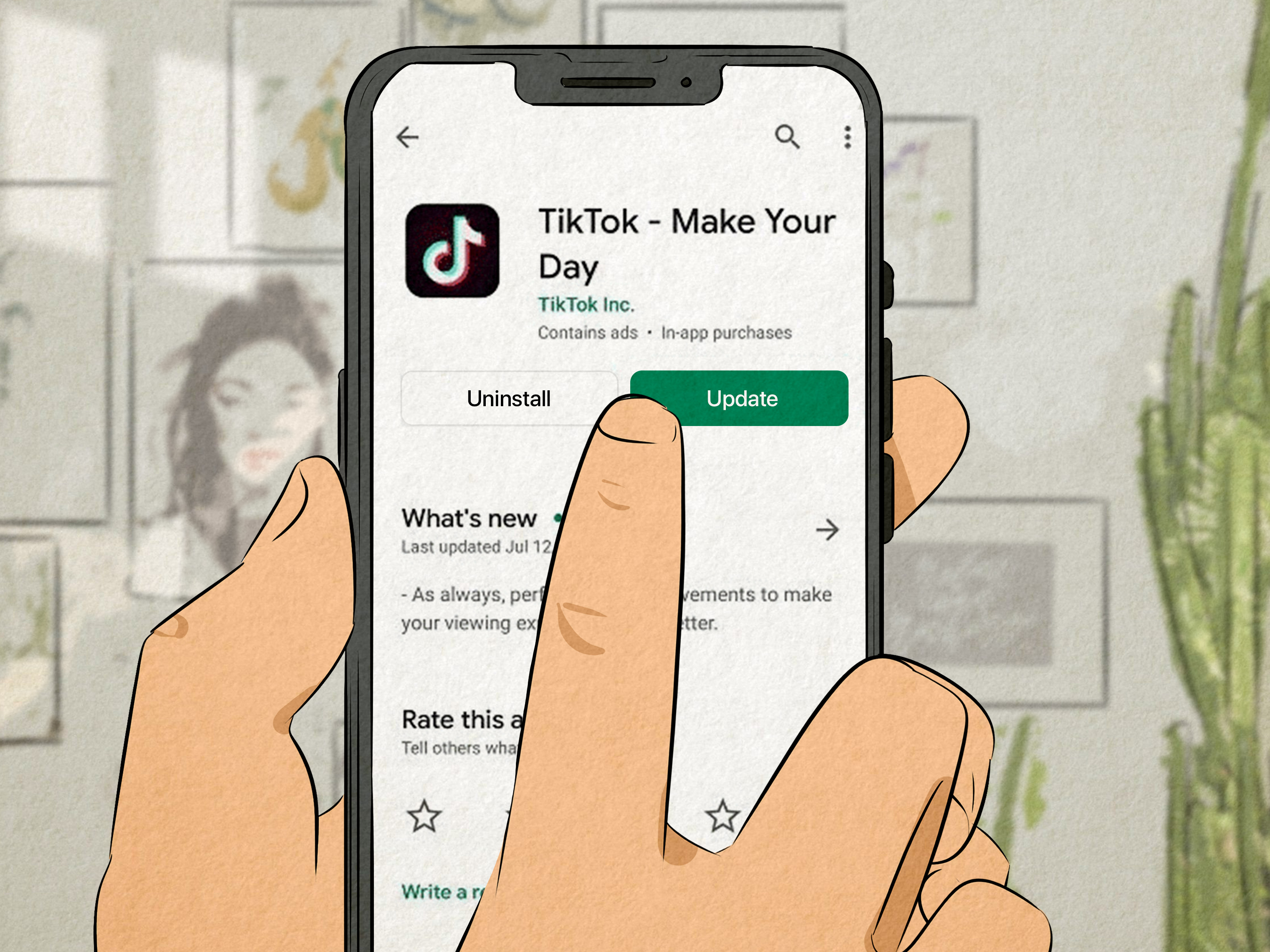
Update TikTok from the App Store or Google Play. Features often depend on having the latest version. After updating, close the app fully, reopen it, and check the post again.
4. The Feature Has Not Rolled Out to Your Account
TikTok often tests and rolls out features gradually. Two creators sitting at the same coffee shop can have different options on the same day. One gets the shiny edit button; the other gets character development.
5. You Are Trying to Edit the Wrong Kind of Content
Some tools may not apply to every format. Video posts, photo posts, text posts, Stories, ads, promoted posts, and reposted content can behave differently. If the post type is not supported, you may not see the same editing choices.
What to Do If You Cannot Edit the Caption
Option 1: Pin a Correction Comment
If the caption mistake is small, post a comment with the correction and pin it. For example:
Correction: The recipe uses 1 teaspoon of baking powder, not 1 tablespoon. Unless you enjoy pancakes with the lift capacity of a weather balloon.
A pinned comment is fast, visible, and does not erase engagement. This is the best option when the video already has views, likes, comments, saves, or shares.
Option 2: Reply to Comments With Clarification
If people are confused, answer them directly. TikTok comment sections can become mini search engines, so a helpful reply can rescue the post. You can also reply with a video if the correction needs more explanation.
Option 3: Delete and Repost
If the caption mistake is serious, misleading, or harmful to your brand, delete the original and repost the corrected video. Before deleting, consider whether the original has meaningful engagement. If the post has only three views and one of them is your cousin, reposting is painless. If it has 200,000 views, think carefully.
Option 4: Save the Video and Re-Upload It
If you no longer have the original file, open the posted video, tap the options menu, and save it to your device if saving is available. Then upload it again with the corrected caption. Be aware that saved TikTok videos may include a watermark, and reposted watermarked content may not look as clean as the original file.
Should You Delete and Repost a TikTok Just to Fix a Caption?
Sometimes yes. Often no. Here is the practical rule:
- Delete and repost if the caption contains wrong facts, legal issues, incorrect pricing, a broken brand message, or a mistake that changes the meaning of the video.
- Use a pinned comment if the mistake is minor, funny, obvious, or not damaging.
- Leave it alone if fixing the error would cost more engagement than it saves.
For creators and small businesses, engagement history matters. Deleting a post removes comments, saves, shares, and momentum. Sometimes a typo is just a typo. The audience may forgive “definately.” They may not forgive a repost that kills a video they were already enjoying.
How to Write a Better TikTok Caption Before Posting
Start With the Main Keyword
TikTok is not just a social app; it also works like a search engine for many users. People search for recipes, product reviews, travel tips, tutorials, workouts, study hacks, fashion ideas, and local recommendations. A strong caption helps TikTok understand what your video is about.
Instead of writing:
“This changed everything omg.”
Try:
“How to clean white sneakers without bleach.”
The second version gives TikTok and viewers a clear topic. It also gives your video a better chance of appearing in search results for people who actually want that content.
Use Hashtags Like Labels, Not Confetti
Hashtags can help categorize your video, but stuffing every trendy tag into the caption is not a strategy. It is digital soup. Use a small set of relevant hashtags that match the topic, audience, and niche.
For example, a useful set for a coffee tutorial might be:
#CoffeeTok #HomeCafe #IcedLatte #CoffeeRecipe
A less useful set would be:
#fyp #viral #funny #dance #makeup #gym #dogsoftiktok
Unless your iced latte is dancing at the gym with a golden retriever, keep it relevant.
Add a Clear Call to Action
A caption can encourage viewers to engage. Try simple prompts such as:
- “Save this for later.”
- “Comment ‘guide’ if you want the checklist.”
- “Which version would you try?”
- “Follow for part two.”
- “Tag someone who needs this.”
Do not overdo it. A caption that begs for likes, follows, comments, shares, saves, applause, snacks, and emotional validation can feel desperate. Pick one action and make it natural.
TikTok Caption Examples You Can Copy and Adapt
For Tutorials
“How to edit a TikTok caption after posting without deleting your video. Save this before your next typo attacks.”
For Product Reviews
“Honest review after 30 days: this budget desk lamp is cute, bright, and surprisingly not built like a wet noodle.”
For Recipes
“Easy 10-minute garlic noodles for nights when cooking feels like a personal betrayal.”
For Small Businesses
“Behind the scenes: packing our best-selling lavender candles before the weekend rush.”
For Travel
“Three things I wish I knew before visiting New York City for the first time.”
Caption Editing Checklist Before You Hit Save
Before saving your edited caption, check these details:
- Is the spelling correct?
- Does the caption match the video?
- Are hashtags relevant?
- Are @mentions spelled correctly?
- Is the location accurate?
- Is the call to action clear?
- Could anyone misunderstand the message?
This checklist takes 20 seconds. That is less time than it takes to rewatch your own TikTok eight times pretending you are “checking quality.”
Editing Captions vs. Editing Auto-Captions
There is an important difference between a TikTok caption and TikTok auto-captions. The caption is the written description attached to your post. Auto-captions are subtitles generated from the spoken audio in your video.
If the text under your video description is wrong, you need to edit the post caption. If the subtitles inside the video are wrong, look for the caption or subtitle editing option. TikTok and TikTok Studio offer tools for adding and editing captions for accessibility, but those tools are separate from editing the post description.
Best Practices for TikTok Captions After Editing
After you edit a caption, pay attention to performance. Did the video get more comments? Did people stop asking the same question? Did search traffic improve? Did the pinned correction become unnecessary? Captions are not decorative. They are tiny signposts telling viewers and the platform what your content is about.
A strong TikTok caption should do four jobs: explain the video, include natural keywords, support discoverability with relevant hashtags, and give viewers a reason to respond. It does not need to be long. It needs to be useful.
Common Mistakes to Avoid
Changing the Caption Too Many Times
If your post allows editing, resist the urge to rewrite it constantly. Make the correction, improve the clarity, and stop poking the bear. Over-editing can create confusion, especially if comments refer to the original caption.
Using Irrelevant Trending Hashtags
Trending hashtags are tempting, but irrelevant tags can attract the wrong audience. If viewers bounce immediately because the video is not what they expected, that does not help your content.
Deleting a Strong Post for a Tiny Typo
If a video is performing well, do not delete it over a harmless typo unless the mistake damages trust. A pinned comment can fix a small issue while preserving engagement.
Forgetting Accessibility
Captions and subtitles help people watching without sound and improve accessibility for deaf and hard-of-hearing viewers. They also make your message easier to follow in noisy environments. Basically, captions are the unsung heroes of the “watching TikTok in public without headphones” lifestyle.
Personal Experience: What Editing TikTok Captions Teaches Creators
Anyone who has posted regularly on TikTok eventually learns that the caption box is small but mighty. It feels like an afterthought until one tiny mistake hijacks the whole post. Maybe you type “angle” instead of “angel.” Maybe you tag the wrong brand. Maybe you write “link in bio” and then forget to put the link in your bio, which is the creator equivalent of inviting people to dinner and forgetting the food.
The biggest lesson is that speed and accuracy are always fighting. TikTok rewards fast reactions. Trends move quickly, sounds rise and disappear, and creators often feel pressure to post while the moment is still warm. But rushing leads to messy captions. A good habit is to write the caption outside TikTok first, especially for business posts, educational content, affiliate videos, product reviews, or anything involving prices, dates, ingredients, medical claims, financial details, or legal language.
For example, if you are posting a skincare review, the difference between “use daily” and “I used it daily” matters. One sounds like advice; the other sounds like personal experience. If you are posting a recipe, “baking soda” and “baking powder” are not interchangeable unless your goal is culinary sadness. If you are posting a travel tip, a wrong station name can send someone on a sightseeing tour of regret.
Editing a TikTok caption after posting is helpful, but creators should treat it as a safety net, not a workflow. The best workflow is simple: draft, read aloud, check hashtags, verify mentions, preview, then post. Reading aloud catches awkward phrasing because your mouth will trip where your eyes politely ignored the problem. It is weirdly effective and only slightly embarrassing if your roommate hears you whispering, “Best Amazon kitchen finds under $20,” at midnight.
Another practical experience: if a post starts gaining traction, avoid making unnecessary changes. When a video is already working, the caption is part of the context viewers are responding to. Fix clear errors, but do not rewrite the entire angle just because you suddenly thought of a cooler phrase in the shower. A late caption change can make early comments look confusing and may shift the promise of the video.
For small businesses, caption editing can protect professionalism. A typo in a casual dance video is funny. A typo in a discount code, product size, event date, or shipping deadline can cost money. Before posting promotional TikToks, keep a caption checklist: product name, offer, deadline, link instruction, hashtag set, and disclosure if needed. It is not glamorous, but neither is explaining to 47 customers that the sale ended yesterday, not next Friday.
Finally, remember that TikTok audiences are human. If you make a small mistake, own it. A pinned comment with humor can even increase engagement. Something like, “Yes, I spelled cappuccino like a haunted keyboard. The coffee is still good,” feels more relatable than silently panicking. TikTok is built on personality. A correction can be part of that personality when handled honestly.
Conclusion
Editing a caption on TikTok after posting is possible for many users through the Edit post feature, but it comes with limits. Open the video, tap the options menu, choose Edit post, update the caption, and save. If the feature is missing, use a pinned comment, reply with clarification, or repost only when the mistake is serious enough to justify losing engagement.
The smartest move is still prevention. Write captions with clear keywords, relevant hashtags, accurate mentions, and a simple call to action before publishing. Then proofread like your future self is begging you from the comment section. Because sometimes, they are.
Note: TikTok features can vary by account, region, device, post type, and app version. Always check the current options available in your own TikTok app before deleting or reposting a video.