Changing the date on a Casio watch should be simple. In theory, it is just a few button presses or a gentle twist of the crown. In reality, many people end up staring at tiny blinking numbers like they are trying to decode a submarine control panel. Good news: your Casio is not broken, cursed, or judging your life choices. You probably just need the right method for your watch type.
This quick guide explains how to change the date on your Casio watch, including digital Casio watches, G-SHOCK models, analog Casio watches, analog-digital models, and Bluetooth or radio-controlled models. Because Casio makes many modules, the exact button sequence can vary, but the core logic is usually the same: enter Timekeeping Mode, open the setting screen, move to the year, month, and day fields, adjust the numbers, then save.
Before you begin, turn your watch over and look for the module number on the case back. It is usually a three- or four-digit number inside a small rectangular box. That number matters more than the model nickname, because two watches that look similar may use different setting procedures. Think of it as the watch’s secret recipe cardexcept instead of cookies, you get the correct date.
Before You Change the Date: Know What Kind of Casio You Have
Casio watches generally fall into a few date-setting families. Digital models, such as the classic F-91W or A168-style watches, usually rely on push buttons. G-SHOCK and many sporty models use buttons labeled by position: upper-left, lower-left, upper-right, and lower-right. Analog Casio watches often use a crown, the small knob on the side. Analog-digital models may use buttons for the digital display while the hands follow automatically, or they may require separate hand alignment.
Smartphone-linked Casio watches, including many newer G-SHOCK, EDIFICE, OCEANUS, and PRO TREK models, may update the date automatically when connected to the official Casio app. Radio-controlled models can also correct the date using time calibration signals when reception is available. If your watch has automatic correction, changing the date manually may only be needed after battery replacement, travel, signal issues, or an incorrect Home City setting.
Quick Method for Most Digital Casio Watches
For many digital Casio watches, the date-setting process follows this pattern:
- Press the Mode button until the watch is in normal Timekeeping Mode.
- Hold the Adjust button until part of the display begins flashing.
- Press Mode repeatedly to move through settings such as seconds, hour, minutes, year, month, and day.
- Use the forward or reverse buttons, often the upper-right and lower-right buttons, to change the flashing value.
- Set the correct year first if your model has a year field.
- Set the correct month and day.
- Press Adjust again to save and return to Timekeeping Mode.
This method works conceptually for many G-SHOCK and modern digital Casio models. The button names may differ, but the rhythm is familiar: hold to enter, press Mode to move, press right-side buttons to adjust, press Adjust to exit. Once you understand that dance, you can handle many Casio watches without needing a magnifying glass, a support hotline, or emotional support coffee.
Example: Setting the Date on a Basic Digital Casio
On a simple digital Casio, you may enter the time-setting screen by pressing the Mode button several times until the seconds flash. Then the Light or Adjust button may move the selection from seconds to hour, minutes, month, date, and day of the week. Another button increases the number. After setting the month, date, and day, you press the mode or adjust button to return to normal timekeeping.
Older basic Casio models may not include a full year setting. Some simple calendars assume February has 28 days, which means you may need to correct the date manually after leap day or after months that do not match the watch’s simplified calendar behavior. This is not a defect; it is part of the charm. Vintage-style digital watches are wonderfully practical, but they are not tiny tax accountants.
How to Change the Date on a Casio G-SHOCK
G-SHOCK watches are tough enough to survive mud, rain, gym bags, and the occasional drop from a desk. Their settings menu, however, can still humble even confident adults. Most button-operated G-SHOCK models follow a structure like this:
- Enter Timekeeping Mode.
- Hold the upper-left button, usually Adjust, until the city code or setting indicator flashes.
- Use the lower-left Mode button to cycle through settings.
- Stop when the year, month, or day field flashes.
- Use the right-side buttons to increase or decrease the value.
- Press Adjust to save.
If the weekday is wrong, do not panic. On many modern Casio watches, the day of the week is calculated automatically from the year, month, and date. If Wednesday is showing when it should be Friday, the real problem is probably the year, month, or daynot the weekday itself. Set the complete date correctly and the weekday should fall into place like it finally remembered its job.
Check the Home City and DST Setting
If your G-SHOCK date changes at the wrong time, or your watch seems one hour off, check the Home City and DST settings. Home City tells the watch your time zone. DST, or Daylight Saving Time, tells the watch whether to add an hour during daylight saving periods. If either setting is wrong, the date may roll over at the wrong local time, especially on world time or radio-controlled models.
In the United States, many areas observe Daylight Saving Time, but not all places do. Arizona, except the Navajo Nation, is the famous example that ruins otherwise tidy explanations. If your Casio has Auto DST, use it only when your watch supports the correct signal or phone connection for your location. Otherwise, setting DST manually may be more reliable.
How to Change the Date on an Analog Casio Watch
Analog Casio watches usually use a crown. The crown may have one click, two clicks, or a screw-lock design. If it is a screw-lock crown, gently rotate it toward you to unlock it before pulling it out. Never yank the crown like you are starting a lawn mower. It is a watch, not a stubborn boat engine.
For many analog Casio watches, the basic method is:
- Pull the crown out to the first click if your model uses a quick date setting.
- Rotate the crown slowly until the date changes to the correct number.
- If the watch also has a day display, rotate in the correct direction to change day or date depending on the model.
- Push the crown back in firmly when finished.
- If the crown is screw-lock, press it in while rotating away from you to secure it.
Some advanced analog Casio watches use a second-click procedure where you adjust time first, then press a button to move to month, day, and year settings. On those models, the second hand may point to an AM or PM indicator, the month may be represented by hour markers, and the crown may fast-forward when rotated quickly. This is normal. It feels fancy because it is fancy.
Avoid the Date Danger Zone
Many analog watches have a period around midnight when the date-change mechanism is already engaged. As a cautious habit, avoid manually quick-setting the date when the hands are between about 9 p.m. and 3 a.m. The exact safe window depends on the movement, but the idea is simple: do not force the date wheel while the watch is already trying to change it.
A safe method is to move the hands to around 6:00 first, then set the date to the day before the correct date. After that, turn the hands forward until the date flips at midnight, then continue to the correct current time. This also helps you confirm whether the watch is set to AM or PM.
How to Change the Date on an Analog-Digital Casio
Analog-digital Casio watches combine hands and a digital screen. In many models, you set the digital date first. The analog hands may follow automatically, especially on radio-controlled, Bluetooth, or higher-end models. If the hands do not match the digital time, your issue may be hand alignment rather than the date setting.
Start by correcting the digital settings: Home City, DST, year, month, day, hour, and minutes. Then check whether the analog hands match. If not, look for a setting called Hand Set, H-SET, Hand Home Position, or Hand Alignment. This mode tells the watch where the hands are physically pointing so it can synchronize them with the digital time.
How to Change the Date Format on a Casio Watch
Some Casio watches let you change the date display format from month/day to day/month. This is useful if you travel, prefer international formatting, or simply dislike wondering whether 05-06 means May 6 or June 5. On supported G-SHOCK models, the setting is usually inside the main adjustment menu.
The general process is:
- Enter Timekeeping Mode.
- Hold the Adjust button until the setting screen appears.
- Press Mode several times until the date format screen appears.
- Use the adjustment button to choose month/day or day/month.
- Press Adjust to exit.
If your watch does not show this option, the format is probably fixed for that module. Casio modules are very specific. One G-SHOCK may offer multiple languages and date formats, while another says, politely but firmly, “Nope, this is what you get.”
Troubleshooting: Why Your Casio Date Is Still Wrong
1. The Year Is Wrong
If your watch has a full auto-calendar, the year matters. A wrong year can make the weekday wrong even if the month and day look correct. Always set the year before setting the month and date.
2. The Watch Is Set to the Wrong Home City
World time, Bluetooth, and radio-controlled Casio watches depend heavily on the Home City setting. If your Home City is wrong, your local date may change at the wrong time. Choose the city code closest to your actual time zone.
3. DST Is On When It Should Be Off
If your watch is exactly one hour ahead or behind, DST is the prime suspect. Turn DST on, off, or auto according to your location and model support.
4. The Watch Has a Simple Calendar
Some older or basic digital Casio watches require occasional date correction, especially around February or after months with fewer than 31 days. This is normal for certain modules.
5. The Hands Need Alignment
If the digital date and time are correct but the analog hands are wrong, do not keep changing the date. Use the hand alignment or home position correction mode instead.
Real-World Experience: What Usually Happens When People Set a Casio Date
The most common experience with changing the date on a Casio watch begins with confidence and ends with blinking numbers. You press one button, nothing happens. You press another button, the alarm appears. You press Mode too many times and suddenly you are in Stopwatch Mode, which is not helpful unless you want to time how long it takes to become mildly annoyed.
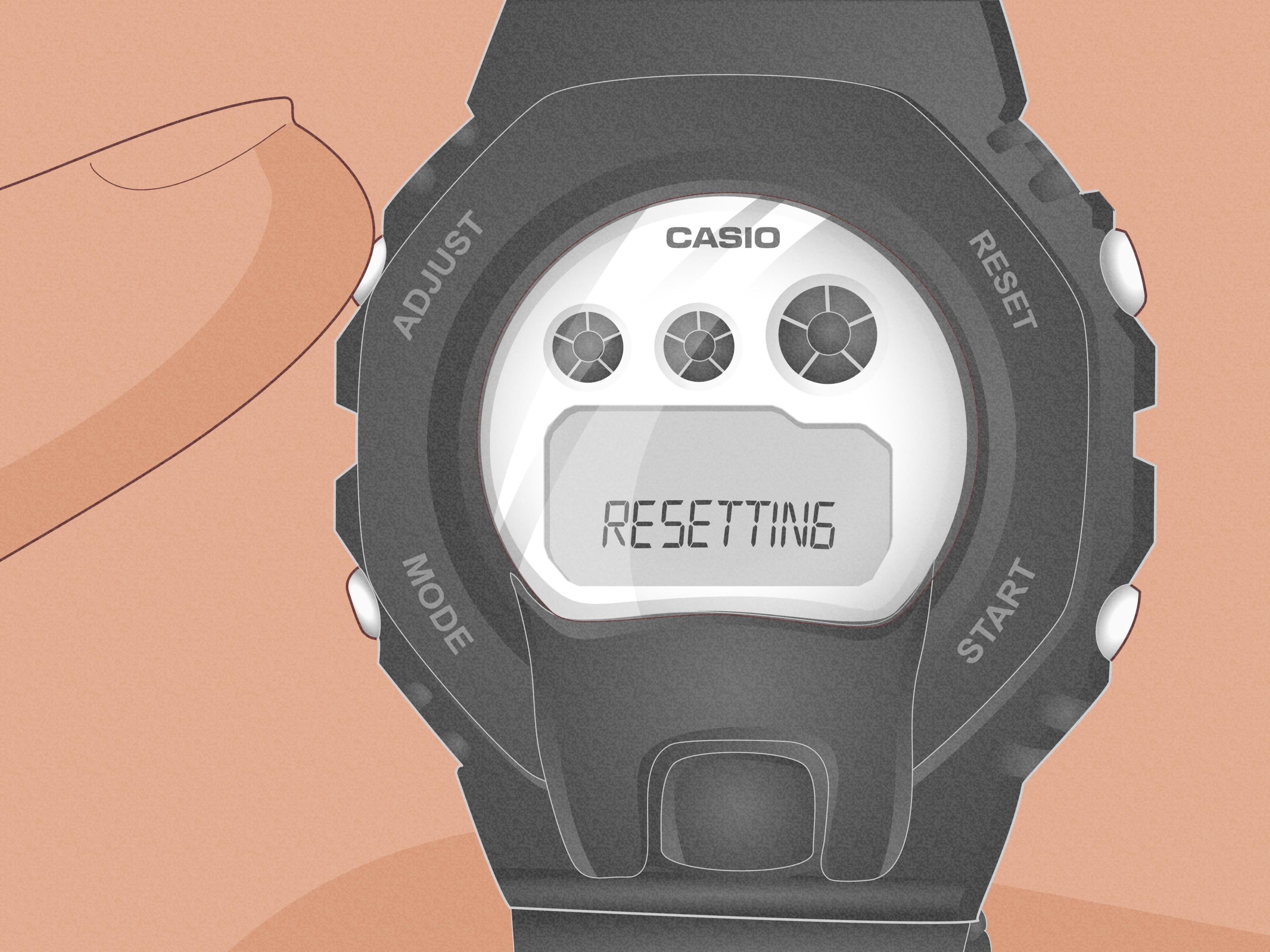
The first lesson is patience. Casio watches are logical, but they are not always obvious. The tiny labels around the caseAdjust, Mode, Start, Reset, Lightare your map. On most digital models, Mode moves between major screens, while Adjust opens or closes the setting screen. Once a number flashes, the right-side buttons usually change it. That pattern solves more problems than any random button-pushing marathon.
The second lesson is to set the complete date, not just the visible number. Many people change the day of the month and forget the year. Then the weekday stays wrong, and the watch appears broken. It is not broken. It is just doing math with bad information. Set the year, month, and day in order, and the weekday usually corrects itself automatically on models with a full calendar.
The third lesson comes from analog Casio watches: the crown is delicate even when the watch is tough. A G-SHOCK case may look like it could survive a small meteor, but the crown and setting stem still deserve gentle hands. Pull to the correct click, turn slowly, and push it back in properly. If the crown screws down, tighten it carefully after setting. That helps protect water resistance, especially if the watch will be near rain, sinks, pools, or the mysterious splash zone created by washing dishes.
The fourth lesson is that the manual is not optional for complicated models. Casio module numbers exist for a reason. A G-SHOCK GA model, an EDIFICE Bluetooth model, and a PRO TREK sensor model may all say Casio on the dial, but their setting sequences can be very different. Looking up the module number saves time and prevents the classic “I held every button and now the hands are spinning” situation.
The fifth lesson is to check DST and Home City before blaming the watch. If the date changes at noon, midnight feels wrong, or the time is exactly one hour off, the settings may be pointing to the wrong location or daylight saving mode. Correct those first. The date is often only the symptom; the real issue is the watch’s understanding of where in the world it lives.
Finally, remember that a Casio watch is built to be used. Do not be afraid of the settings menu. Move slowly, watch what flashes, and exit if you get lost. Most button mistakes do not damage a digital Casio. They simply create confusing displays, which can be fixed by returning to Timekeeping Mode and trying again. Once you learn the pattern, changing the date becomes quick, clean, and oddly satisfyinglike solving a tiny wrist-sized puzzle.
Conclusion
Changing the date on your Casio watch depends on the module, but the main idea is simple. Digital models usually use Adjust, Mode, and the right-side buttons. Analog models use the crown. Analog-digital models may require both digital setup and hand alignment. Smart, Bluetooth, and radio-controlled models may correct themselves once Home City, DST, and connection settings are right.
If you remember only one thing, remember this: find your module number first. It turns a guessing game into a guided process. Your Casio is designed to be practical, durable, and surprisingly clever. Give it the right date, and it will get back to doing what it does best: keeping time without drama.