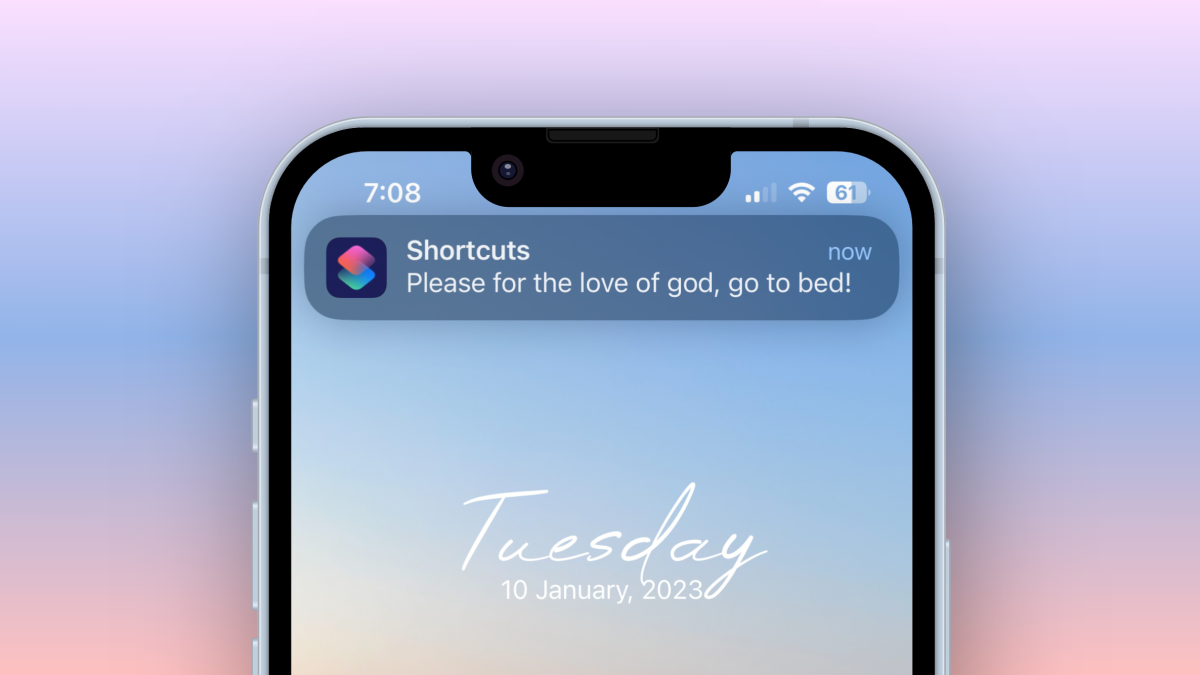
Your iPhone is already smart, but most people still use it like a tiny glass notebook with a camera and a judgmental battery icon. That is a shame, because the Shortcuts app can turn your iPhone into a personal assistant that quietly handles repetitive tasks before you even think about them. No cape required. No coding degree required. Just a little curiosity and a willingness to let your phone do more than collect screenshots you swear you will organize someday.
iPhone automations are rules you create in the Shortcuts app. Instead of tapping five things every morning, you can tell your iPhone, “When this happens, do that.” The trigger might be a time of day, arriving at work, connecting to CarPlay, opening an app, reaching a certain battery level, or turning on a Focus mode. The action might be enabling Low Power Mode, sending yourself a reminder, playing a playlist, changing settings, logging information, or launching your favorite app.
The best iPhone automations are not flashy. They are boring in the most beautiful way. They save taps, reduce distractions, prevent small problems, and make your day feel slightly less like a circus run by notifications. Below are seven practical iPhone automations you deserve to set up, plus real-world experience on how to make them useful without turning your phone into a bossy robot.
What Are iPhone Automations?
An iPhone automation is a shortcut that runs when a specific condition is met. In the Shortcuts app, you can create a personal automation by choosing a trigger, adding one or more actions, and deciding whether it should run automatically or ask before running. Some automations are simple, such as turning on Low Power Mode when your battery falls below 30%. Others can combine several actions, such as turning on Driving Focus, opening Maps, and playing a podcast when your iPhone connects to CarPlay.
Think of automations as little household rules for your phone. “When I arrive at the gym, open my workout app.” “When I leave home, remind me to bring my bag.” “When I plug in my iPhone at night, turn on Sleep Focus.” You are not trying to automate your entire personality. You are just removing friction from habits you already repeat.
1. Turn On Low Power Mode Before Panic Sets In
Best for: Battery anxiety, travel days, and forgetful humans
Low Power Mode is one of the easiest iPhone automations to love. Normally, iOS prompts you when your battery gets low, but by then you may already be playing the classic game of “Can I survive until I find an outlet?” A better approach is to make Low Power Mode turn on automatically at a percentage you choose, such as 40%, 35%, or 30%.
To create it, open the Shortcuts app, tap Automation, choose Battery Level, set the percentage, and add the action Set Low Power Mode. Choose Turn On, then decide whether the automation should run immediately.
This is especially useful if you commute, travel, attend long events, or constantly forget to charge your phone until it starts looking at you with 9% desperation. You can also create a second automation that turns Low Power Mode off when your iPhone connects to power. That way, your phone saves energy when it matters and relaxes when it is charging.
For even more control, pair this automation with a notification that says something like, “Battery saver is on. Future you is welcome.” It is not necessary, but it does add a tiny emotional support feature.
2. Start Your Driving Routine With CarPlay or Bluetooth
Best for: Safer drives, smoother commutes, and fewer driveway delays
If you use CarPlay or connect your iPhone to your car’s Bluetooth system, this automation can feel like magic. When your phone connects, it can open Maps, start your favorite playlist, launch a podcast app, turn on Driving Focus, or display your commute time.
A simple version looks like this: trigger the automation when CarPlay connects, then add actions such as Set Focus, Open App, and Play Music. You can choose your preferred navigation, audio, or parking app depending on your routine.
This automation is not about making your car feel like a spaceship, although that is a nice bonus. It is about reducing taps while driving. Fewer distractions are always good, and setting up your audio before you pull onto the road is far better than poking around at a red light like you are defusing a tiny rectangle-shaped bomb.
You can also create a disconnect automation. When CarPlay disconnects, your iPhone can save your parking location, turn off Driving Focus, or open a notes app where you track mileage or errands. For people who regularly forget where they parked, this automation deserves a standing ovation and possibly a small trophy.
3. Automatically Change Focus Modes by Time or Location
Best for: Work boundaries, study blocks, sleep routines, and peace
Focus modes are one of the most powerful ways to make your iPhone less chaotic. You can create modes for Work, Personal, Sleep, Fitness, Study, or anything else that deserves its own notification rules. With automation, your Focus mode can turn on at a certain time, when you arrive at a location, when you open an app, or when another condition is met.
For example, you can set Work Focus to activate when you arrive at the office, Study Focus to activate when you open a learning app, or Sleep Focus to activate when you plug in your iPhone after 10 p.m. You can also use Focus filters to control which calendars, mail accounts, or app information appear during a specific Focus.
The real value is mental separation. Your phone stops treating every part of your life like the same noisy room. During work, it can quiet personal distractions. During personal time, it can hide work chatter. During sleep, it can stop acting like breaking news from a shopping app is a matter of national importance.
Start simple. Pick one Focus mode that would improve your day, then automate it. You do not need seven Focus profiles, color-coded by mood and moon phase. A single reliable Work or Sleep automation can make your iPhone feel dramatically calmer.
4. Build a Morning Launchpad
Best for: Routines, planning, weather checks, and starting the day with fewer taps
A morning automation can help your day begin with useful information instead of a notification avalanche. At a chosen time, your iPhone can show the weather, read your calendar, open your task list, play a news briefing, start a playlist, or remind you of your top priorities.
For a clean setup, choose Time of Day as the trigger. Then add actions like Get Weather, Show Notification, Find Calendar Events, Open App, or Play Music. You can customize it for weekdays only, which is helpful unless you enjoy being bossed around by your phone on Sunday morning.
A practical version might say: “Good morning. Today’s high is 72 degrees. You have three calendar events. Open your planner?” That is enough. The goal is not to create a robotic butler who recites your entire life story before coffee. The goal is to surface what matters while your brain is still loading.
This automation is also great for students, remote workers, parents, and anyone with a schedule that changes daily. When your phone opens the right app at the right time, it reduces the chance that you will accidentally wander into social media and emerge 22 minutes later knowing too much about someone else’s lunch.
5. Make a “Leaving Home” Checklist
Best for: Keys, wallets, bags, chargers, and avoiding the walk of shame back upstairs
A location-based automation can remind you of essentials when you leave home. Instead of trying to remember everything while locking the door, let your iPhone show a short checklist. The trigger can be Leave your home address, and the action can be a notification that says, “Keys, wallet, bag, charger?”
This sounds almost too simple, but simple automations are often the ones people actually keep. A leaving-home reminder can save you from forgetting lunch, gym clothes, school materials, medication, headphones, or an important document. It is the digital equivalent of a friend yelling, “Did you bring the thing?” except less embarrassing and more customizable.
You can create different versions for different places. When leaving work, your iPhone can remind you to take your laptop. When leaving the gym, it can remind you to grab your water bottle. When leaving a store, it can remind you to check your shopping list one last time.
Location automations may depend on permissions and signal accuracy, so keep the message broad and useful. Do not overload it with twelve items unless you want every departure to feel like a spaceship launch sequence.
6. Open the Right App When You Arrive Somewhere
Best for: Gym apps, grocery lists, transit passes, loyalty cards, and productivity
Your iPhone can automatically open or suggest an app based on where you are. Arrive at the gym? Open your workout tracker. Arrive at the grocery store? Open your shopping list. Arrive at the train station? Open your transit app. Arrive at work? Open your calendar or task manager.
This automation works because it removes tiny moments of friction. You do not need to search for the app, swipe through folders, or get distracted by something else on your Home Screen. The right tool appears when the context makes sense.
For grocery shopping, create an automation triggered by arriving at your usual store, then add Open App for Reminders, Notes, or your preferred grocery app. For workouts, open Fitness, Strong, Strava, Nike Training Club, or whatever app you actually use. The best automation is not the fanciest one; it is the one that fits your real habits.
You can also use NFC tags for an even more intentional version. Place an NFC tag on your desk, nightstand, or workout area, then tap your iPhone to trigger a shortcut. This can launch a focus timer, open a playlist, or start a routine. It feels delightfully futuristic, even if the tag is stuck to a very ordinary desk next to a cup of old pens.
7. Create a Night Routine That Helps You Actually Wind Down
Best for: Better evenings, fewer late-night scrolls, and charging discipline
A night automation can help your iPhone shift from “daytime chaos rectangle” to “please let me sleep” mode. When you plug in your phone after a certain time, it can turn on Sleep Focus, lower brightness, set a wake-up alarm, open a calming playlist, or remind you to review tomorrow’s schedule.
One useful setup is: when iPhone connects to power between 9 p.m. and midnight, turn on Sleep Focus and show a short reminder: “Charge phone, set alarm, stop scrolling.” Gentle? Yes. Slightly rude? Also yes. Effective? Very possibly.
You can also automate a bedtime note. The shortcut can open a journal app or note with prompts like, “What went well today?” and “What is one thing to handle tomorrow?” This gives your brain a place to park loose thoughts instead of turning them into a midnight mental slideshow.
The trick is to keep the routine light. A night automation should support sleep, not become another productivity project. If it has too many steps, you will ignore it. If it quietly changes your phone environment and gives you one helpful nudge, it can become a routine you barely notice but deeply appreciate.
How to Set Up an iPhone Automation Without Overthinking It
Open the Shortcuts app and tap Automation. Choose New Automation or the plus button, depending on your iOS version. Pick a trigger, such as time, battery level, app, CarPlay, Bluetooth, location, charger, or Focus. Add the action you want your iPhone to perform. Review the automation, choose whether it should run automatically, and save it.
For your first automation, choose something low-risk. Battery and Focus automations are ideal because they are easy to understand and easy to undo. Avoid starting with anything that sends messages automatically, changes lots of settings, or depends on complicated conditions. Your goal is to build confidence, not create a tiny digital monster that texts your boss because you entered a coffee shop.
After a few days, adjust the automation. Maybe 40% battery is too early for Low Power Mode. Maybe your morning routine should run at 7:15 instead of 7:00. Maybe your leaving-home checklist needs fewer items. Automations improve when they reflect your actual life, not your imaginary perfect routine.
Common Mistakes to Avoid
The biggest mistake is making automations too complicated. If a shortcut has fifteen actions, three menus, and a notification that sounds like a corporate memo, you probably will not keep it. Start with one trigger and one helpful action.
Another mistake is automating things that require judgment. Sending messages, making purchases, deleting files, or changing important data should usually involve confirmation. Automations are best for predictable tasks: turning settings on, opening apps, showing reminders, logging simple information, and starting routines.
Finally, remember that some automations depend on permissions, location accuracy, device settings, or app support. If something does not work perfectly the first time, simplify it. Test the trigger. Check permissions. Try a more reliable condition, such as time of day or charger connection.
Real-World Experience: What It Feels Like to Use These iPhone Automations Every Day
The first thing you notice after setting up a few iPhone automations is not that your life suddenly becomes a productivity commercial. Birds do not land on your shoulder. Your inbox does not apologize. Your laundry still has opinions. What changes is smaller and more useful: your phone starts meeting you where you are.
A battery automation, for example, feels almost invisible until the day it saves you. You are out longer than expected, your iPhone quietly turns on Low Power Mode at 35%, and you realize later that you did not have to babysit the battery icon. It is not dramatic, but it removes a tiny thread of stress. That is the whole charm of good automation.
The driving automation is more noticeable. When CarPlay connects and your usual navigation or audio app opens, it creates a smoother transition into the car. Instead of sitting in the driveway tapping through apps, you can start the trip with fewer decisions. If Driving Focus turns on automatically, the phone also becomes less tempting. It is a small safety improvement and a big convenience upgrade.
Focus automations can be the most life-changing, especially if your phone is constantly mixing work, entertainment, family, errands, and random app alerts into one noisy soup. A Work Focus that turns on at the office helps protect attention. A Sleep Focus that activates when charging at night helps create a boundary. The experience is not about blocking the world; it is about choosing which part of the world gets to interrupt you right now.
Location-based reminders are funny because they feel almost too obvious. Of course your phone should remind you about your grocery list at the grocery store. Of course it should nudge you about your laptop when leaving work. But until you set it up, you keep relying on memory, which is brave, adorable, and often unsuccessful. These reminders work best when they are short. A five-item checklist is helpful. A twenty-item checklist is a hostage situation.
The morning launchpad is useful for people who tend to start the day by checking one notification and then accidentally falling into a digital rabbit hole. When your iPhone opens your calendar, task list, or weather summary first, it gives your morning a default direction. You can still ignore it, because free will remains undefeated, but the useful option appears before the distracting one.
The night routine may be the most underrated. Many people do not need a complex sleep system; they need a gentle cue that the day is ending. Plugging in your phone can become that cue. Sleep Focus turns on, brightness drops, and a reminder tells you to set your alarm or stop scrolling. The automation will not force you to behave, but it does make the better choice easier to see.
After using iPhone automations for a while, the best advice is to delete the ones that annoy you. Automation should feel like a helpful assistant, not a tiny manager with a clipboard. Keep the automations that save time, reduce stress, or support habits you already care about. Remove the ones that interrupt you, confuse you, or try too hard. The perfect iPhone setup is not the one with the most shortcuts. It is the one that quietly makes ordinary days easier.
Conclusion
iPhone automations are one of the most practical features hiding in plain sight. With the Shortcuts app, you can save battery, reduce distractions, improve driving routines, remember important items, open the right apps at the right places, and create smoother mornings and nights. The secret is not building complicated workflows. The secret is choosing small, repeatable moments where your iPhone can remove friction.
Start with one automation today. Make Low Power Mode turn on early. Create a leaving-home checklist. Automate Sleep Focus. Once you feel the benefit, add another. Before long, your iPhone will feel less like a device you constantly manage and more like a quiet assistant that finally learned how your day works.