Note: This article is written in standard American English, based on current, real-world After Effects preset workflows, and formatted as copy-ready body HTML for web publishing.
Introduction: Presets Are the Fast Lane, Not a Magic Wand
Installing After Effects presets sounds like one of those tasks that should take seven seconds, a confident click, and maybe a celebratory sip of coffee. Then reality walks in wearing mismatched socks: you download a preset pack, unzip it, stare at a mysterious .ffx file, drag it into After Effects, and the program looks back at you like, “Never met her.”
The good news is that After Effects presets are not complicated once you know where they belong. The slightly annoying news is that they do need to be placed in the correct folder, refreshed, and applied properly. Presets are usually animation preset files with the .ffx extension. They can store effects, keyframes, expressions, text animation settings, transitions, color looks, camera shakes, and other reusable motion graphics settings.
In simple terms, an After Effects preset is a shortcut. Instead of rebuilding the same glow, wiggle, bounce, blur, text reveal, glitch transition, or cinematic camera shake from scratch, you save or install a preset and apply it when needed. It is like meal prep for motion design, except your freezer is full of keyframes.
This guide explains how to install After Effects presets in seven clear steps. It also covers common mistakes, folder locations for Windows and macOS, how to make presets appear in the Effects & Presets panel, and what to do when a preset refuses to show up. By the end, you will know exactly how to import After Effects presets without turning your desktop into a crime scene of random ZIP files.
What Are After Effects Presets?
After Effects presets are reusable animation or effect settings that can be applied to layers inside Adobe After Effects. Most standard presets use the .ffx file format. When installed correctly, they appear in the Effects & Presets panel, usually under the Animation Presets or User Presets section.
Presets can be extremely simple or surprisingly powerful. A basic preset might add a fade-in animation to text. A more advanced preset might combine multiple effects, expressions, sliders, color adjustments, motion blur settings, and timing controls. Presets are popular among video editors, YouTubers, social media creators, motion designers, and anyone who has ever whispered, “Please, I do not want to animate this title from zero again.”
Common Types of After Effects Presets
You may see After Effects presets used for:
- Text animations and kinetic typography
- Logo reveals and intro effects
- Transitions, wipes, zooms, and glitches
- Camera shake and handheld movement
- Color correction and stylized looks
- Shape layer animations
- Lower thirds, captions, and social media graphics
- Repeating workflow effects such as blurs, bounces, and elastic motion
Presets do not replace learning After Effects, but they can speed up repetitive work and help you study how professional animations are built. A good preset is not just a button; it is also a little motion design lesson hiding in your timeline.
Before You Install: Check What You Downloaded
Before moving anything into your After Effects folders, look at the files you downloaded. Most preset packs arrive as a compressed ZIP file. After extracting it, you may find .ffx files, preview videos, PDF instructions, sound effects, fonts, license notes, or project files.
For installing animation presets, the key file type is usually .ffx. If your download contains .aep, that is an After Effects project file, not a preset. If it contains .mogrt, that is a Motion Graphics Template, often used in Premiere Pro or through the Essential Graphics workflow. If it contains a plug-in installer, that is a different process entirely.
This distinction matters because dragging the wrong file into the wrong place is the fastest way to create confusion. After Effects is powerful, but it is not a mind reader. It needs the right file in the right folder.
Simple Ways to Install After Effects Presets: 7 Steps
Now let’s get practical. These seven steps cover the standard manual installation process for After Effects presets on both Windows and macOS.
Step 1: Download the Preset Pack from a Trusted Source
Start by downloading your After Effects preset pack from a reputable source. This could be a marketplace, a motion design education site, a creator’s official store, or a professional template library. Trusted sources usually include installation instructions, previews, file compatibility details, and licensing information.
Do not skip the compatibility notes. Some presets are built for specific versions of After Effects. Others rely on effects that exist only in newer releases. If a preset was made for After Effects 2025 and you are using an older version, it may not behave correctly. That is not your fault; that is software version drama, and it has been starring in creative workflows for years.
Step 2: Unzip the Downloaded File
Most presets arrive in a ZIP file. Right-click the file and choose Extract All on Windows, or double-click the ZIP file on macOS. After extracting, open the folder and look for the preset files.
The files you want usually end in .ffx. Keep the original folder structure if the preset pack includes organized categories such as Text, Transitions, Camera Shake, Color, or Social Media. Preserving that structure can make the presets easier to find later inside After Effects.
Also check for a README or instruction file. Some preset creators include specific directions, especially if the pack includes fonts, expressions, sound effects, or extra assets. Reading instructions may feel old-fashioned, but it is still faster than losing twenty minutes to a missing folder named “IMPORTANT_READ_ME_FIRST.”
Step 3: Locate Your After Effects User Presets Folder
The safest place to install custom presets is usually the User Presets folder inside your Documents directory. This keeps third-party presets separate from the built-in After Effects presets and makes them easier to manage when updating software.
On Windows, the folder path is commonly:
On macOS, the folder path is commonly:
The exact version folder may include the version number or release name, depending on your After Effects installation. If you do not see a User Presets folder, you can create one manually. Just make sure the name is spelled clearly as User Presets.
Step 4: Copy the .ffx Files into the User Presets Folder
Once you find the correct folder, copy your .ffx preset files into it. You can paste individual preset files directly into User Presets, or you can place organized folders inside User Presets.
For example, you might organize your presets like this:
This is especially helpful if you collect presets over time. Without organization, your User Presets folder can quickly become the digital equivalent of a kitchen drawer full of batteries, rubber bands, and one mysterious key nobody can identify.
Step 5: Restart After Effects or Refresh the Effects & Presets Panel
After copying the files, open After Effects. If After Effects was already running, restart it for the cleanest result. In many cases, restarting allows the program to scan the presets folder again and display the new items.
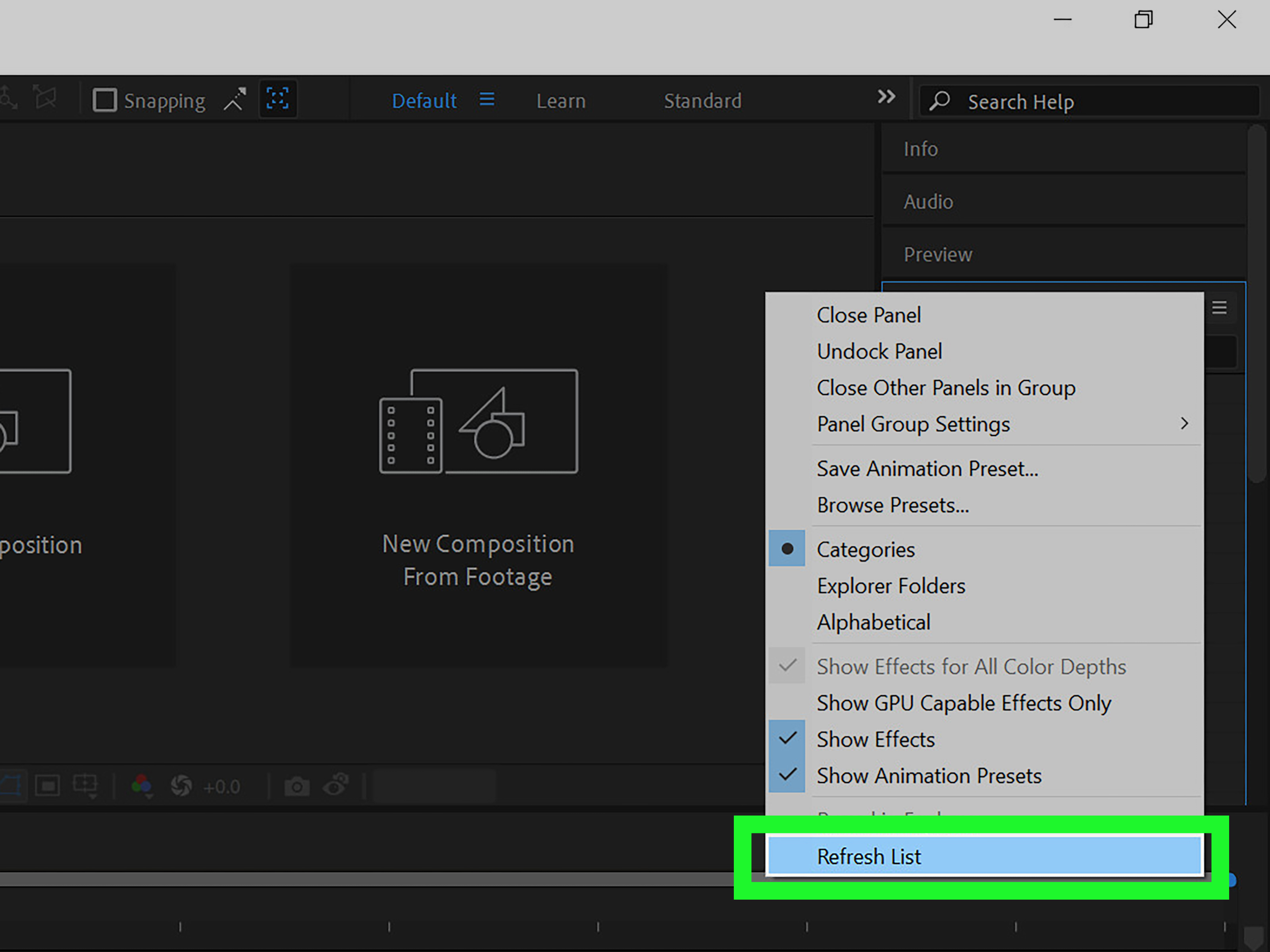
You can also try refreshing the Effects & Presets panel. Open the panel, click the panel menu, and choose the option to refresh the list if available. This tells After Effects to reload the preset list without requiring a full restart.
If your presets still do not show up, do not panic. Most missing preset problems are caused by one of four things: the files are still zipped, the presets are in the wrong version folder, the folder name is incorrect, or the downloaded files are not actually .ffx presets.
Step 6: Find the Presets in the Effects & Presets Panel
To locate your installed presets, go to Window > Effects & Presets. Use the search bar to type the name of the preset or the folder category. If installed correctly, your custom presets should appear under User Presets or inside the Animation Presets area.
If you are testing a text preset, create a text layer first. If you are testing a transition preset, select the right type of layer and make sure your timeline indicator is positioned where the animation should begin. After Effects often applies presets starting at the current-time indicator, so timing matters.
Think of the current-time indicator like the “drop pin” for your animation. Put it in the wrong place, and your animation may start too early, too late, or at that weird point where your title dramatically enters after the scene is already over.
Step 7: Apply the Preset to the Correct Layer
To apply a preset, select the layer you want to animate. Then double-click the preset in the Effects & Presets panel, or drag the preset directly onto the layer in the Composition panel or Timeline panel.
After applying the preset, press U on your keyboard to reveal animated properties on the selected layer. You can adjust keyframes, effect settings, expressions, sliders, or timing as needed. Many presets are meant to be customized, not worshipped from a distance.
Preview the result by pressing the spacebar or using the Preview panel. If the motion feels too fast, spread the keyframes apart. If it feels too slow, move them closer together. If it looks like your text has been startled by a ghost, reduce the intensity of the movement, blur, shake, or scale values.
How to Install Presets into the Main After Effects Presets Folder
Some creators may instruct you to install presets into the main application Presets folder instead of the user folder. This folder is usually inside the Adobe After Effects application directory. On Windows, that may be under Program Files. On macOS, it may be inside the Applications folder.
However, using the User Presets folder is usually better for everyday creators because it does not require administrator permissions and is less likely to be affected by application updates. The main Presets folder is better reserved for advanced workflows or preset packs that specifically require it.
If you do use the application Presets folder, be careful. Do not delete built-in Adobe folders unless you enjoy turning a five-minute preset install into a surprise troubleshooting workshop.
Why Your After Effects Presets Are Not Showing Up
If your presets do not appear after installation, the problem is usually fixable. Here are the most common causes and how to solve them.
The Files Are Still Inside a ZIP Folder
After Effects cannot use presets that are still compressed inside a ZIP file. Extract the ZIP first, then copy the actual .ffx files into User Presets.
You Used the Wrong After Effects Version Folder
If you have multiple versions of After Effects installed, you may have multiple Adobe folders in Documents. Make sure you are installing the presets into the folder for the version you are actually using.
The Folder Name Is Wrong
A small typo can cause big confusion. Use User Presets as the folder name. Avoid extra spaces, odd punctuation, or creative spelling such as “UserPresetz,” no matter how much personality it has.
The Preset Requires Missing Effects or Plug-ins
Some presets depend on third-party plug-ins. If the preset was built with a plug-in you do not have, it may load with missing effects or warnings. Check the creator’s documentation to see whether additional plug-ins are required.
You Are Searching for the Wrong Name
Preset packs often use internal file names that differ from the product name. If “Epic Cinematic Ultra Mega Shake Pack” does not appear in search, try searching for shorter terms like “shake,” “camera,” or the folder name.
Best Practices for Managing After Effects Presets
Installing presets is only the beginning. Managing them well can save hours over the life of a project.
Keep a Backup Folder
Create a backup folder outside After Effects where you store your downloaded preset packs. If you upgrade your computer, reinstall After Effects, or accidentally delete your User Presets folder, you will be glad you did.
Organize by Purpose
Use folders such as Text, Transitions, Logo, Color, Shake, Social, and Utility. Organizing by purpose is better than organizing by random download date, unless your creative process is powered entirely by chaos.
Rename Presets Carefully
You can rename preset files for clarity, but avoid changing file extensions. A file named Smooth_Text_Reveal.ffx is useful. A file named Smooth_Text_Reveal_final_FINAL_reallyfinal.ffx is a cry for help.
Test Presets Before Client Work
Always test new presets in a blank project before using them in a serious edit. This helps you confirm compatibility, understand controls, and avoid surprises when a deadline is sitting on your shoulder breathing loudly.
How to Create Your Own After Effects Presets
Once you understand how presets work, creating your own becomes much easier. Build an effect or animation you like, select the properties you want to save, and choose the option to save an animation preset. After Effects will create a new .ffx file that you can reuse in future projects.
This is especially useful for brand work. If you regularly create videos for the same company, you can save presets for branded lower thirds, title reveals, color treatments, logo movement, or call-to-action animations. That way, every project stays consistent without forcing you to rebuild the same motion design recipe again and again.
Custom presets are also great for personal workflow improvements. Maybe you always use the same glow settings. Maybe you have a favorite bounce expression. Maybe your captions always need the same drop shadow, background box, and pop-in animation. Save it once, reuse it forever, and let your future self send you a mental thank-you card.
Real-World Examples of Useful Preset Workflows
Imagine you are editing a YouTube video and need five animated section titles. Without presets, you might spend several minutes creating each title animation manually. With a saved text reveal preset, you can apply the same polished movement in seconds, then adjust the wording and timing.
Or suppose you create short-form videos for TikTok, Instagram Reels, and YouTube Shorts. You might use presets for punchy captions, zoom transitions, impact shakes, and colorful background animations. Presets help maintain a consistent visual style while speeding up production.
For corporate videos, presets can keep motion graphics clean and on-brand. A company may use the same lower third style, logo reveal, or slide transition across dozens of videos. Presets make that consistency easier, especially when multiple editors work on the same brand.
Extra Experience: Lessons Learned from Installing After Effects Presets
After installing many After Effects presets over time, one lesson becomes obvious: the installation process is usually simple, but the surrounding habits matter. The creators who have the smoothest experience are not necessarily the most advanced motion designers. They are the ones who keep their files organized, read the included notes, and test presets before tossing them into a real deadline.
One common beginner mistake is treating every downloaded pack like it belongs in the same place. In reality, preset packs, project templates, scripts, plug-ins, fonts, and Motion Graphics Templates all have different installation methods. If you download a big creative bundle, do not assume every file is an After Effects preset. Open the folder slowly, check file extensions, and sort the assets before copying anything. This one habit can prevent a lot of confusion.
Another practical experience is that preset names are not always friendly. A pack may be advertised as “Modern Social Media Titles,” but the actual files may have names like Title_01.ffx, SlideUp_03.ffx, or TXT_FAST_BLUR.ffx. That is why organizing folders by category is so helpful. When you are in the middle of editing, you do not want to audition forty presets just to find the one that makes a caption bounce like a caffeinated frog.
It also helps to build a small “favorites” folder. After testing a large preset pack, copy the presets you actually use into a separate folder inside User Presets. Name it something obvious, such as “Favorites” or “Daily Presets.” This keeps your best tools close and prevents the Effects & Presets panel from becoming a crowded shopping mall on a Saturday afternoon.
Compatibility is another lesson worth remembering. When After Effects updates, most simple .ffx presets continue to work, but complex presets may behave differently if they rely on expressions, effects, or third-party plug-ins. Before updating in the middle of an important project, back up your presets and test mission-critical animations in the new version. Updating software right before delivery day is technically allowed, but so is juggling soup. Neither is recommended.
Finally, presets work best when you customize them. A preset should be a starting point, not a creative prison. Change the timing, adjust the easing, reduce the blur, swap colors, and make it fit the project. The difference between amateur-looking preset use and professional-looking preset use often comes down to small adjustments. The preset gives you speed; your taste gives it style.
Conclusion
Installing After Effects presets is simple once you understand the basic workflow: download the pack, unzip it, find the .ffx files, place them in the User Presets folder, refresh or restart After Effects, locate them in the Effects & Presets panel, and apply them to the right layer. That is the whole dance. No secret handshake required.
Presets can save time, improve consistency, and make your motion graphics workflow feel less like pushing a boulder uphill while keyframing opacity. They are useful for text animation, transitions, camera movement, social media edits, logo reveals, and branded templates. Just remember to stay organized, back up your files, and customize presets so your videos still feel original.
Whether you are a beginner learning After Effects or an experienced editor trying to move faster, presets are one of the easiest workflow upgrades you can make. Install them properly, manage them wisely, and they will quietly become one of your favorite creative shortcuts.