If your iPhone has turned into a tiny digital bouncer and kicked someone off the guest list, the good news is this: letting them back in is easy. Whether you blocked a random spammer, an old coworker, a delivery driver, or that one friend who sends fourteen “hey” texts before breakfast, you can undo it in a minute or two. The trick is knowing where Apple hid the switch this time.
This guide walks you through exactly how to unblock a number on iPhone using the Blocked List, the Contacts app, and a few backup routes in Phone, Messages, and FaceTime. It also explains what happens after you unblock someone, why a contact may still seem “blocked,” and what settings to check if your iPhone still acts like it is holding a grudge.
Quick Answer: How Do You Unblock a Number on iPhone?
The fastest method is simple:
- Open Settings.
- Go to Phone or, on newer iOS versions, Apps > Phone.
- Tap Blocked Contacts.
- Tap Edit or swipe on the blocked entry.
- Tap Unblock.
That is the “I know what I did, let’s move on” version. Now let’s go through the full process so you can find the right route for your iPhone model, iOS version, and level of patience.
Method 1: Unblock a Number from the iPhone Blocked List
This is the best method when you want to see every blocked number in one place. It is especially helpful if you blocked someone months ago and cannot remember whether you blocked them from a call, a text, or a FaceTime attempt that arrived at the exact wrong moment.
On newer iPhone software
- Open Settings.
- Tap Apps.
- Tap Phone.
- Select Blocked Contacts.
- Tap Edit, then tap the minus or remove icon next to the number.
- Tap Unblock.
On older iPhone software
- Open Settings.
- Scroll down and tap Phone.
- Tap Blocked Contacts or Call Blocking & Identification.
- Find the number or contact.
- Swipe left or tap Edit.
- Tap Unblock.
Once you do this, the number is removed from your blocked list. That means future calls, texts, and FaceTime attempts from that contact can come through again. Your iPhone has officially retired from its role as overprotective nightclub security.
Method 2: Unblock a Number from Contacts on iPhone
If the person is already saved in your Contacts, this route can be even faster. Think of it as the “straight to the source” option.
- Open the Phone app or Contacts app.
- Find the person’s contact card.
- Scroll all the way down.
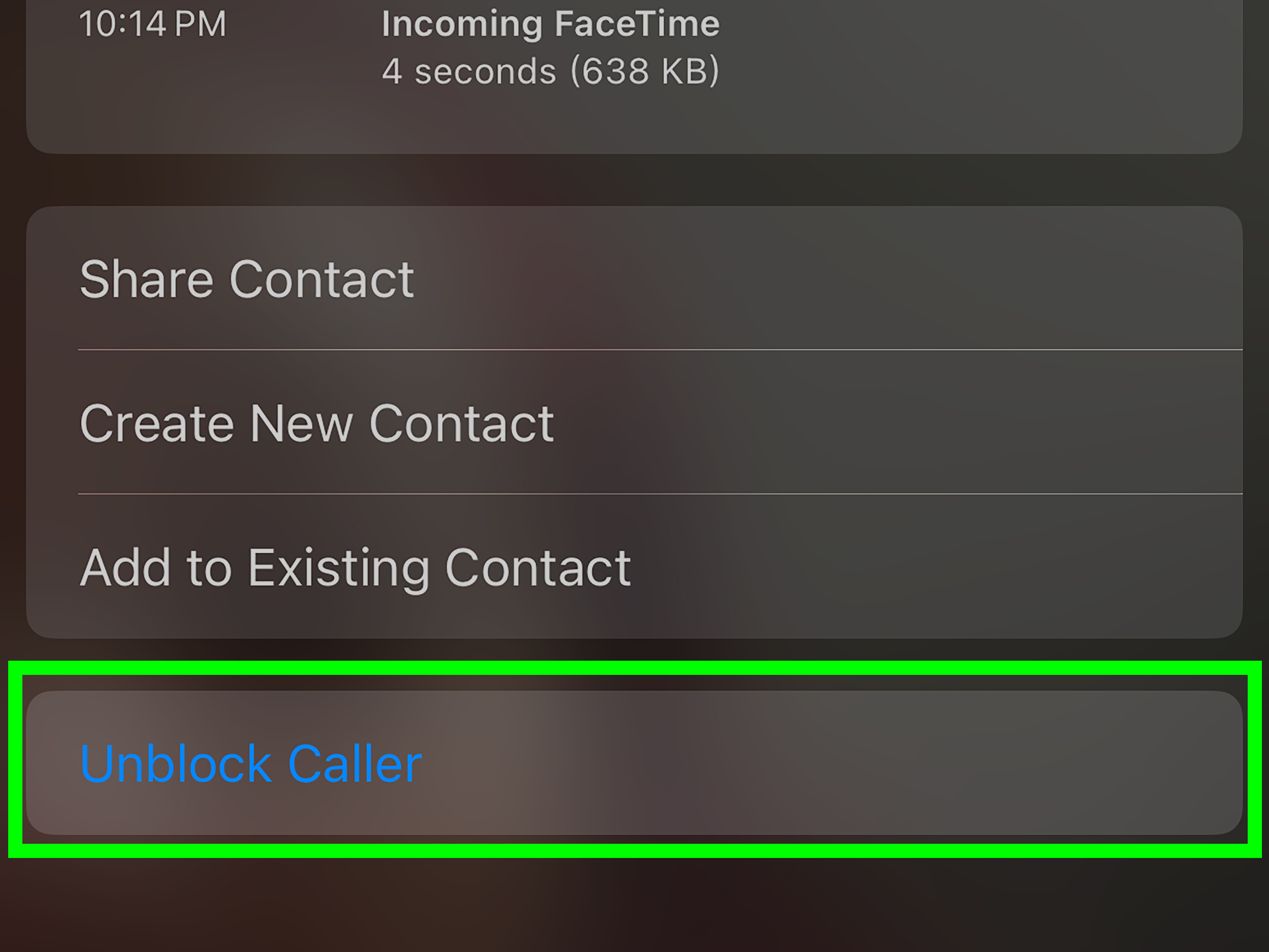
- Tap Unblock this Caller or Unblock Contact.
This is a handy fix when you blocked an actual person, not just a raw phone number. It is also useful when you are staring at their name in your contacts and thinking, “Wow, I really was dramatic on Tuesday.”
Method 3: Unblock a Recent Caller
Sometimes the number is not saved as a contact at all. It is just floating around in your recent calls like an uninvited mystery guest. In that case, you can usually unblock it directly from your call history.
- Open the Phone app.
- Tap Recents.
- Find the blocked number.
- Tap the i or info icon next to it.
- Scroll down.
- Tap Unblock this Caller.
This method is great when you blocked a number in a hurry and now realize it was not a scammer. Maybe it was the mechanic. Maybe it was your dentist. Maybe it was the pizza place, and frankly, that one hurts the most.
Can You Unblock from Messages or FaceTime?
Yes, sometimes. Apple ties phone number blocking across several apps, so a blocked contact may affect calls, messages, and FaceTime together. Depending on your iOS version, you may be able to manage blocked entries from:
- Settings > Messages > Blocked Contacts
- Settings > FaceTime > Blocked Contacts
- Settings > Mail > Blocked for blocked email senders
This matters because people often say, “I unblocked them in Phone, but I still don’t see their messages.” In reality, the issue might be living in Messages settings, FaceTime settings, or even Mail if you blocked an email address instead of a phone number.
What Happens After You Unblock Someone on iPhone?
After you unblock a number, that person can contact you again. Future calls can ring through. Future texts can show up. Future FaceTime attempts can arrive. In other words, the electronic drawbridge goes back down.
There are two details people often misunderstand:
- Unblocking does not erase your past block history. It simply stops blocking the person going forward.
- Messages and calls sent while the number was blocked usually do not replay after the fact. Unblocking is not a time machine. It is more like reopening the door for future communication.
So if you unblock a person and instantly expect eight missed texts and three emotional voicemails to appear like confetti, your iPhone may disappoint you. The person usually needs to call or text again after you unblock them.
Why Is a Number Still Not Reaching Me After I Unblock It?
If you removed the number from your blocked list but the contact still cannot get through, do not panic. Your iPhone may be innocent this time. Several other settings can mimic blocking.
1. Silence Unknown Callers is turned on
If the number is not saved correctly in your contacts, your iPhone may quietly send the call away. This feature is useful for robocalls, but it can also treat a legitimate number like yesterday’s spam.
Check this by going to:
Settings > Phone or Settings > Apps > Phone, then look for Silence Unknown Callers or other call-filtering options.
2. The contact is saved wrong
One digit off is all it takes. If your contact card has an old number, a work line, or a half-saved international format, the person may still look “unknown” to your phone.
Edit the contact and make sure the exact number calling you is saved properly.
3. Focus mode is doing too much
Focus settings can make it seem like someone is blocked when they are really just being filtered out by Do Not Disturb, Sleep, Work, or another custom mode you set up at 1:00 a.m. and forgot about.
Check:
Settings > Focus
See whether calls are allowed from everyone, favorites, or only selected contacts.
4. A carrier or third-party spam app is involved
If you used your wireless carrier’s blocking tools or a third-party call-blocking app, unblocking the number on the iPhone itself might not be enough. In that case, the block may still exist at the carrier level or inside the separate app.
That means you may need to check your carrier account, spam shield settings, or any call-filtering app installed on the phone.
5. The person is trying to reach you by email, not phone
This one surprises a lot of people. Apple lets you block phone numbers, contacts, and email addresses. So if the problem involves iMessage or Mail rather than regular calling, the block may be tied to an email address in the contact card instead of a phone number.
How to Find Your Full Blocked Contacts List on iPhone
If you want to do a full audit of your block list, go hunting in these places:
- Phone settings for blocked call numbers
- Messages settings for text-related entries
- FaceTime settings for video and audio call blocks
- Mail settings for blocked senders
- Privacy & Security on newer iOS versions, where Apple may centralize blocked contacts
If Apple changes a menu name again, do not take it personally. iPhone settings like to reorganize themselves the way kitchen junk drawers do: technically improved, emotionally confusing.
Common Mistakes When Unblocking a Number on iPhone
Only checking one app
Phone, Messages, FaceTime, and Mail can all play a role. If the issue is not fixed in one menu, check the others.
Forgetting about deleted contacts
If you deleted the contact but the number remains blocked, you may see only the phone number in the blocked list. That is normal. Unblock the number anyway, then recreate the contact if needed.
Assuming unblocking restores old communication
It opens the line again for future communication. It does not usually dump every missed text from the blocked period back into Messages.
Ignoring call filtering features
Spam filters, unknown caller filters, and Focus modes can all make a perfectly unblocked number seem suspiciously blocked.
Best Times to Use the Contact Method vs. the Blocked List
Use the contact method when:
- You know exactly who the person is.
- The number is already saved in Contacts.
- You want the fastest one-person fix.
Use the blocked list method when:
- You are not sure which number was blocked.
- You want to review every blocked entry.
- You blocked a raw number instead of a named contact.
- You suspect more than one number from the same person is blocked.
Basically, if you are doing housekeeping, use the list. If you are fixing one awkward situation, use the contact card.
FAQ: Unblocking Numbers on iPhone
Can I unblock someone without adding them to Contacts?
Yes. If the number appears in your blocked list or recent calls, you can unblock it without saving it as a contact first.
Will unblocking a number notify the other person?
No. Your iPhone does not send a dramatic announcement, a trumpet fanfare, or a tiny certificate of forgiveness.
Can a blocked email address be unblocked too?
Yes. If you blocked an email sender in Mail, go to the Mail-related blocked settings and remove that sender there.
Why can they leave voicemail but not reach me normally?
In some situations, blocked or filtered calls may still behave differently from messages or FaceTime. If voicemail behavior seems odd, check carrier settings and any spam-filtering tools as well.
Does unblocking work across all Apple apps?
Apple’s blocking system is connected across several communication features, but you should still review Phone, Messages, FaceTime, and Mail if something looks off.
Real-World Experiences: What Unblocking a Number on iPhone Is Actually Like
On paper, unblocking a number on iPhone is a tiny task. Tap here, tap there, problem solved. In real life, it is often attached to a story. Maybe you blocked a number in the heat of the moment. Maybe you cleaned up spam too aggressively and clipped a real person by accident. Maybe your thumb moved faster than your brain, which, to be fair, is a very modern problem.
A lot of people first notice the issue when they are waiting for something important. A doctor’s office says they called twice. A school says they sent a text. A delivery driver claims they could not reach you. Suddenly, you are scrolling through settings like a detective in pajama pants, trying to remember whether you blocked the number, silenced unknown callers, or turned on a Focus mode that now behaves like an overzealous receptionist.
Another common experience is finding an old contact in the blocked list and thinking, “Huh. That was from a completely different era.” iPhones are weird little memory vaults. A blocked contact can sit there for months, quietly collecting dust, until one random Tuesday when you need that person’s new address, invoice, update, or apology. Then it becomes less of a tech issue and more of a tiny archaeological dig through your own decisions.
There is also the confusion factor. Apple’s settings have changed names across iOS versions, so two people can follow the same advice and still see different menus. One person finds Phone > Blocked Contacts. Another finds Apps > Phone > Blocked Contacts. A third somehow ends up in FaceTime settings wondering how life got this complicated. This is why so many users feel like they are doing the right thing but still not fixing the issue.
Then comes the moment after unblocking. Many people expect a wave of missed texts to come pouring in immediately. Usually, that does not happen. The line is open again, but the past does not replay itself. That can feel strange at first, especially if you were hoping to recover an important message. In practice, the easiest solution is to ask the person to text or call again once you know the block is removed.
There is also a more ordinary, less dramatic reason people unblock numbers: organization. Sometimes your blocked list is just messy. You blocked spam, political robocalls, a fake warranty service, three unknown numbers, and one real human by mistake. Cleaning it up can make your phone feel less chaotic. It is like deleting old screenshots, except with slightly more social consequences.
In the end, the iPhone part is usually simple. The human part is the wild card. Still, once you know where the blocked list lives and how to use the contact card shortcut, the process gets much less mysterious. Your phone stops acting like a stubborn gatekeeper, and you get to decide who makes it through. Which, honestly, is how it should be. Technology can help you set boundaries, but it should not make you solve a puzzle just to undo one.
Final Thoughts
If you want to unblock a number on iPhone, the easiest path is usually through Settings > Phone > Blocked Contacts or the newer Settings > Apps > Phone > Blocked Contacts menu. From there, you can remove the number and let calls, texts, and FaceTime attempts reach you again. If the number is saved in Contacts, you can also open the contact card and tap Unblock this Caller.
The main thing to remember is that not every “blocked” problem is really a blocked-number problem. Silence Unknown Callers, Focus modes, spam filters, saved contact errors, and carrier tools can all create the same symptoms. So if your iPhone still seems stubborn after you unblock someone, check those settings before blaming the poor phone entirely.
Once you know where Apple keeps the blocked list, the process becomes quick, painless, and mercifully free of drama. Well, technical drama anyway. The human drama is still between you and your contact list.