Tablet Mode in Windows 10 is one of those features that sounds helpful until your laptop suddenly starts acting like it has enrolled in a yoga class. The Start menu goes full screen. Desktop icons seem to vanish. Apps open in a more touch-friendly layout. Your familiar Windows desktop looks different enough to make you ask, “Who touched my computer?”
The good news is that turning off Tablet Mode in Windows 10 is usually quick, painless, and does not require a screwdriver, a dramatic sigh, or calling your most technical cousin. Whether you accidentally tapped a setting, detached a keyboard from a 2-in-1 laptop, folded your screen backward, or Windows decided to be “helpful” at the wrong moment, this guide walks you through every practical way to return to normal Desktop Mode.
Below, you will learn how to turn off Tablet Mode from Action Center, how to stop Windows 10 from switching automatically, what to do if the Tablet Mode button is missing, and how to troubleshoot common problems. We will also cover real-life usage tips so you can keep your PC feeling like a PC, not a giant phone with commitment issues.
What Is Tablet Mode in Windows 10?
Tablet Mode is a Windows 10 feature designed to make touchscreen devices easier to use. It changes the interface so buttons, menus, and apps feel more comfortable when you are tapping with your fingers instead of clicking with a mouse. On tablets and 2-in-1 laptops, that can be useful. On a regular desktop PC, it can feel like Windows suddenly moved the furniture while you were making coffee.
When Tablet Mode is turned on, Windows 10 may display the Start screen in a larger, full-screen style. Apps may open in a more touch-focused layout. The taskbar can look simpler, and traditional desktop behavior may feel reduced. This is not a virus, a broken update, or a sign that your laptop has joined a touchscreen cult. It is simply Windows trying to optimize the experience for touch input.
Why Windows 10 Switches to Tablet Mode
Tablet Mode may turn on for several reasons. If you use a convertible laptop, Windows may detect that the keyboard has been folded back or detached. If you use a touchscreen device, the system may assume that you prefer finger-friendly controls. Sometimes, a previous setting tells Windows to automatically switch modes when the hardware changes. And yes, sometimes users click the Tablet Mode tile by accident, because Action Center tiles are dangerously easy to poke while looking for Wi-Fi or Bluetooth.
The important thing is that Tablet Mode is not permanent. You can disable it once, or you can change the settings so Windows 10 stops switching into Tablet Mode on its own.
Fastest Method: Turn Off Tablet Mode from Action Center
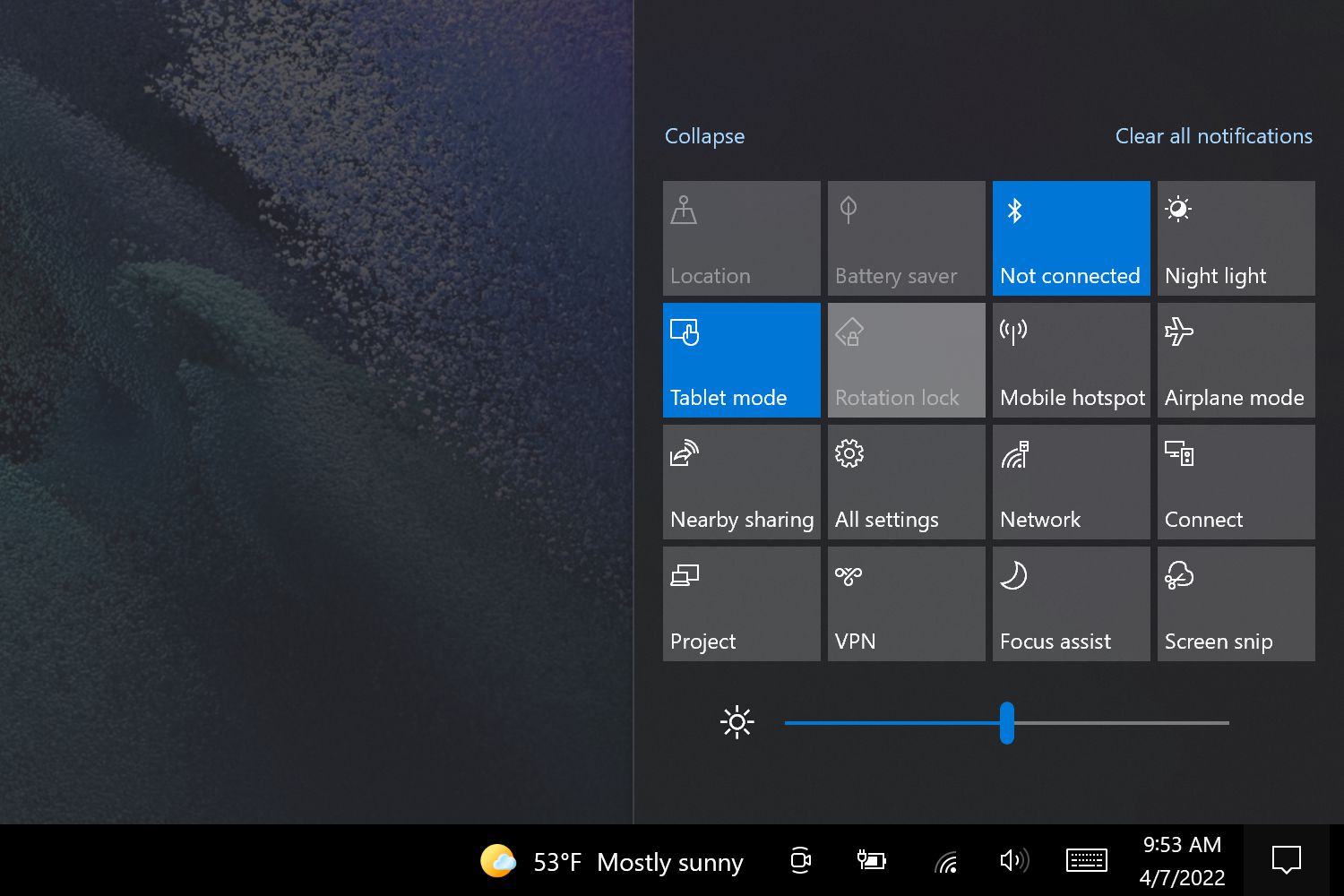
The quickest way to turn off Tablet Mode in Windows 10 is through Action Center. This is the notification panel on the right side of the taskbar, near the clock. It includes quick action buttons for common settings such as Wi-Fi, Bluetooth, Focus Assist, brightness, and Tablet Mode.
Steps to Turn Off Tablet Mode Quickly
- Look at the bottom-right corner of your screen, near the time and date.
- Click the Action Center icon. It looks like a speech bubble or notification icon.
- If you do not see all quick action buttons, click Expand.
- Find the Tablet Mode tile.
- Click Tablet Mode once to turn it off.
When Tablet Mode is off, Windows should return to the normal desktop layout. Your Start menu should behave more like the classic Windows 10 Start menu, apps should feel less forced into touch mode, and your desktop should look familiar again.
You can also use the keyboard shortcut Windows + A to open Action Center faster. This is handy if your screen layout feels strange and you would rather not hunt around with the mouse.
How to Turn Off Tablet Mode from Windows Settings
If you want a more permanent solution, use the Windows Settings app. This is the better method if Tablet Mode keeps coming back after restart, after signing in, or after adjusting your laptop screen.
Steps to Disable Tablet Mode in Settings
- Click the Start button.
- Select the Settings gear icon.
- Choose System.
- Select Tablet from the left-side menu.
- Under When I sign in, choose Never use tablet mode.
- Under When I use this device as a tablet, choose Don’t switch to tablet mode.
These settings tell Windows 10 that you prefer Desktop Mode. Instead of automatically changing the interface whenever the device thinks it is being used like a tablet, Windows will stay in the regular desktop layout unless you manually choose otherwise.
This is especially useful for 2-in-1 laptops. Some convertible devices are a little enthusiastic about switching modes. Fold the hinge slightly too far and Windows may assume you have abandoned the keyboard lifestyle forever. Setting the device to avoid automatic switching gives you more control.
How to Turn Off Tablet Mode When the Tile Is Missing
Sometimes the Tablet Mode tile does not appear in Action Center. Before you panic, click Expand in Action Center to reveal all quick actions. If the tile is still missing, use the Settings method instead.
Go to Start > Settings > System > Tablet. From there, change the sign-in and device-use options so Windows does not automatically enter Tablet Mode. On some Windows 10 versions, the exact wording may vary slightly, but the idea is the same: choose the options that keep Windows in Desktop Mode.
Why the Tablet Mode Button May Not Show
The button may be hidden because quick actions have been customized, your Windows 10 version displays tablet settings differently, or your hardware does not report itself as a tablet-capable device. Some desktop PCs with touchscreen monitors may not show the same options as convertible laptops. That does not mean you are stuck. The Settings app remains the best place to control the behavior.
How to Stop Windows 10 from Automatically Switching to Tablet Mode
If your computer keeps switching back to Tablet Mode, the issue is usually automatic mode switching. This is common on laptops with detachable keyboards, foldable hinges, or sensors that detect physical orientation.
Use These Settings for a Stable Desktop Experience
- Open Settings.
- Go to System.
- Choose Tablet.
- Set When I sign in to Never use tablet mode.
- Set When I use this device as a tablet to Don’t switch to tablet mode.
After changing these settings, restart your PC. A restart is not always required, but it helps confirm that Windows remembers your preference. If the computer starts in Desktop Mode after rebooting, you have solved the problem properly instead of just putting a tiny bandage on a very dramatic interface change.
How to Tell Whether Tablet Mode Is On or Off
You can usually tell Tablet Mode is on by looking at the Start menu and taskbar. If the Start screen fills the display, apps feel more full-screen than usual, and desktop icons are harder to access, Tablet Mode may be active.
In Desktop Mode, the Windows 10 interface feels more familiar. You see the desktop, windows can be resized more naturally, and the Start menu opens from the lower-left corner instead of taking over the room like an overconfident PowerPoint presentation.
Quick Signs Tablet Mode Is Enabled
- The Start menu appears full screen.
- Apps open in a touch-friendly layout.
- The desktop feels hidden or less accessible.
- Taskbar behavior looks simplified.
- Your laptop changed modes after folding or detaching the keyboard.
What to Do If Tablet Mode Will Not Turn Off
If Tablet Mode refuses to turn off, start with the simple fixes first. Do not jump straight to resetting Windows unless you enjoy turning a five-minute problem into an afternoon activity.
Restart Your Computer
A restart clears temporary glitches and forces Windows to reload your interface settings. Click Start > Power > Restart. After the computer turns back on, check whether Desktop Mode has returned.
Check Tablet Settings Again
Open Settings > System > Tablet and confirm that your preferences still say Never use tablet mode and Don’t switch to tablet mode. If Windows changed these settings back, update them again and restart.
Reconnect the Keyboard
On a detachable laptop, Windows may switch modes when it thinks the keyboard is disconnected. Remove the keyboard, reconnect it firmly, and give Windows a few seconds to detect the change. If you use a Bluetooth keyboard, check that it is paired and connected.
Check Display Orientation
If your screen is rotated or locked in an odd orientation, the device may feel like it is still behaving like a tablet. Open Settings > System > Display and make sure the display orientation is set correctly, usually Landscape for laptops and desktop monitors.
Update Device Drivers
Convertible laptops rely on sensors, keyboard detection, chipset drivers, and display drivers. If these are outdated or buggy, Windows may misunderstand the device state. Visit your PC manufacturer’s support site, such as Dell, HP, Lenovo, ASUS, or Acer, and check for recommended Windows 10 drivers for your exact model.
Tablet Mode vs. Desktop Mode: Which Should You Use?
Desktop Mode is best for most traditional laptop and desktop workflows. If you use a mouse, keyboard, external monitor, file explorer windows, multiple apps, and browser tabs stacked like a digital lasagna, Desktop Mode is the obvious choice.
Tablet Mode is useful when your device is being used as a true tablet. If you are reading, watching videos, using touch apps, drawing with a stylus, or walking around with a convertible device, Tablet Mode can make buttons easier to tap and reduce the need for a keyboard.
The best mode is the one that matches how you actually use your computer. Windows may try to guess, but your settings should have the final say. Computers are powerful, but they still occasionally need to be told, politely but firmly, “No, I am not a tablet today.”
Common Problems After Turning Off Tablet Mode
The Start Menu Still Opens Full Screen
If the Start menu still fills the screen after turning off Tablet Mode, check the Start settings. Go to Settings > Personalization > Start and turn off Use Start full screen. This setting can make the Start menu look like Tablet Mode even when Tablet Mode itself is disabled.
Desktop Icons Are Missing
If your desktop icons disappeared, right-click the desktop, choose View, and make sure Show desktop icons is enabled. Tablet Mode can make the desktop feel hidden, but this separate setting can also cause confusion.
The Keyboard or Touchpad Is Not Working
On some 2-in-1 devices, the keyboard and touchpad may disable automatically when the system believes it is in tablet position. Reposition the screen, reconnect the keyboard, and restart the PC. If the issue continues, install the latest keyboard, touchpad, chipset, and sensor drivers from your manufacturer.
Action Center Does Not Open
If Action Center does not open, use Windows + I to open Settings directly. From there, go to System > Tablet. You do not need Action Center to disable automatic Tablet Mode behavior.
Extra Tips for 2-in-1 Laptop Users
Convertible laptops are wonderful until the hinge sensor gets a little too creative. If your laptop switches modes every time you move the screen, keep the automatic switching setting disabled. You can still manually use touch features whenever you want, but Windows will stop changing the entire interface without asking.
If you often switch between laptop and tablet positions, choose the setting that asks before switching. That way, Windows will display a prompt instead of making the decision alone. It is the operating system equivalent of asking before eating someone else’s fries.
Should You Still Use Windows 10?
Windows 10 still runs on many PCs, and Tablet Mode settings remain useful for people who continue using it. However, Microsoft has ended standard support for Windows 10. That means users should think carefully about security, updates, and long-term device plans. If your PC supports Windows 11, upgrading may be worth considering. If it does not, keep your files backed up, use reliable security practices, and avoid ignoring system health just because the computer still turns on.
This does not change how you turn off Tablet Mode, but it does matter for the bigger picture. A clean desktop is nice. A secure computer is nicer. A clean, secure computer that does not suddenly pretend to be a tablet during work? That is the dream.
My Practical Experience with Turning Off Tablet Mode in Windows 10
In real-world use, Tablet Mode problems usually happen at the worst possible time. Nobody says, “Ah, perfect, my interface changed right before a deadline. What a refreshing surprise.” More often, someone opens their laptop to reply to an email, and suddenly Windows looks like it has been redesigned for a restaurant ordering kiosk.
The first thing I have learned is that users often do not realize Tablet Mode is the cause. They describe it in different ways: “My desktop disappeared,” “Everything is huge,” “The Start menu took over the screen,” or “My laptop is acting weird.” Those symptoms usually point straight to Tablet Mode or full-screen Start settings.
The Action Center method is the fastest fix when the Tablet Mode tile is visible. Pressing Windows + A, clicking Expand, and toggling Tablet Mode off solves the issue in seconds. It is the kind of fix that makes people stare at the screen and say, “That was it?” Yes. Sometimes Windows problems are not deep mysteries. Sometimes they are just one button wearing a disguise.
The second lesson is that the permanent Settings fix matters more than the quick toggle. If a person uses a 2-in-1 laptop and only turns Tablet Mode off from Action Center, the problem may return the next time the keyboard is detached or the screen folds back. Changing the automatic behavior under Settings > System > Tablet is the better long-term solution.
I have also seen confusion between Tablet Mode and the full-screen Start menu. They look similar enough to fool people. A user may turn off Tablet Mode, restart the computer, and still see a giant Start screen. In that case, the culprit is often Use Start full screen under Settings > Personalization > Start. Turning that off restores the normal Start menu. This is a great reminder that Windows has multiple settings that can create similar-looking symptoms, because apparently one confusing switch was not enough.
For touchscreen laptop owners, I recommend setting Windows to ask before switching modes. This gives flexibility without surprise. If you fold the laptop into a tablet for reading, you can allow the switch. If you are simply adjusting the screen angle while working, you can decline. That small prompt can prevent a lot of unnecessary frustration.
Another practical tip is to restart after changing mode settings. Windows usually applies the change immediately, but restarting confirms that the setting survives a fresh sign-in. If the computer returns to Tablet Mode after restart, that suggests a hardware detection issue, a driver problem, or a setting that was not saved correctly.
For older laptops, driver updates can make a real difference. Convertible devices depend on sensors and manufacturer-specific software to understand whether they are being used as a laptop or tablet. When those drivers are outdated, Windows may receive mixed signals. Updating chipset, display, keyboard, touchpad, and sensor drivers from the manufacturer’s site can reduce random switching.
In offices, schools, and shared family computers, I have found it useful to leave a short note near the device: “If everything looks huge, press Windows + A and turn off Tablet Mode.” It sounds almost too simple, but it saves time. Not every fix needs a twelve-step ritual. Sometimes a tiny instruction prevents three people from blaming the printer, the mouse, and the moon.
The main experience-based takeaway is this: do not just turn off Tablet Mode once. Set Windows 10 to stop switching automatically if you prefer Desktop Mode. That gives you control, keeps your workspace predictable, and prevents Windows from surprising you like a magician with a touchscreen obsession.
Conclusion
Turning off Tablet Mode in Windows 10 is simple once you know where to look. For a quick fix, open Action Center with Windows + A and click the Tablet Mode tile. For a permanent fix, open Settings > System > Tablet and choose options that prevent Windows from automatically switching modes.
If the problem continues, check full-screen Start settings, reconnect your keyboard, confirm display orientation, restart the PC, and update your device drivers. Tablet Mode can be useful on touch-first devices, but if you prefer the classic Windows desktop, you do not have to let your PC make that decision for you.
In short, Desktop Mode is still there. Your icons are not gone forever. Your laptop has not become a tablet against your will. Windows 10 simply needs a quick reminder of who is in charge.