If your iPhone screen keeps dimming at the exact moment you need it mostwhile reading a recipe, following GPS, watching a video, or trying to send one last text before bedyou are not imagining things, and your phone is not necessarily plotting against you. In most cases, an iPhone screen dims because of a built-in setting, a power-saving feature, a display comfort adjustment, or heat protection kicking in behind the scenes.
The tricky part is that several different settings can cause similar symptoms. One minute your display looks perfectly bright, and the next minute it gets darker like it is trying out for a dramatic movie scene. The good news is that you can usually fix the problem in a few minutes once you know where to look.
In this guide, we will walk through how to stop iPhone screen from dimming with six reliable fixes, explain why it happens, and help you tell the difference between a normal iPhone behavior and a problem worth troubleshooting further. Whether your iPhone dims randomly, in sunlight, while charging, or during gaming, there is usually a reasonand thankfully, usually a solution.
Why Does an iPhone Screen Keep Dimming?
Before jumping into the fixes, it helps to understand what is actually going on. iPhones can dim the display for a few common reasons:
- Auto-Brightness adjusts the screen based on ambient light.
- Auto-Lock turns the display off or dims it after inactivity.
- Low Power Mode reduces display brightness to save battery.
- Night Shift, True Tone, or Reduce White Point can make the screen look dimmer or warmer.
- Attention Aware features may change display behavior based on whether you are looking at the screen.
- Heat protection can dim the screen automatically if the iPhone gets too warm.
- Software bugs or settings glitches can also make brightness behave oddly.
That means the best fix depends on the cause. So let us stop guessing and get into the six most effective ways to fix it.
1. Turn Off Auto-Brightness
The first and most common fix is to disable Auto-Brightness. This feature uses the ambient light sensor to automatically adjust your screen brightness based on your surroundings. In theory, it is smart. In real life, it can sometimes feel like your phone is making executive decisions you did not approve.
How to turn off Auto-Brightness on iPhone
- Open Settings.
- Tap Accessibility.
- Tap Display & Text Size.
- Scroll down and turn Auto-Brightness off.
After that, manually raise the brightness from Control Center or in Settings > Display & Brightness.
This fix is especially helpful if your iPhone screen dims when you move between rooms, sit near a window, or use the phone outdoors. Sometimes the sensor overreacts, especially when lighting conditions change quickly.
One thing to keep in mind: turning off Auto-Brightness can use more battery over time if you leave the screen very bright all day. Still, if you want full control, this is the place to start.
2. Change Auto-Lock Settings So the Display Stays On Longer
If the screen dims and then shuts off after a short period of inactivity, the issue may not be brightness at all. It may be Auto-Lock, which determines how quickly your iPhone locks and turns off the display.
How to change Auto-Lock on iPhone
- Open Settings.
- Tap Display & Brightness.
- Tap Auto-Lock.
- Select a longer time, such as 3 Minutes, 5 Minutes, or Never.
If you are reading long articles, following a workout, using your phone as a recipe screen, or checking directions in a parked car, a short Auto-Lock time can feel like constant sabotage. Setting it a little longer can make a big difference.
Be aware that if Low Power Mode is on, your Auto-Lock choices may be limited and the phone may try to turn the display off faster to save battery.
What about Attention Aware features?
On Face ID models, Attention Aware features can also affect dimming behavior. When enabled, the iPhone checks whether you are looking at the screen before dimming or locking it. Usually this is helpful. Sometimes it is not.
If your iPhone dims when your face is partially covered, when you are wearing some sunglasses, or when the phone is mounted at an odd angle, this setting can be worth checking.
- Open Settings.
- Tap Face ID & Passcode.
- Enter your passcode.
- Scroll down to Attention Aware Features.
- Turn it off if needed.
This is not always the culprit, but when it is, it can save you a lot of head scratching.
3. Turn Off Low Power Mode
If your iPhone battery is running low, Low Power Mode may be reducing brightness automatically. This mode is designed to conserve battery life by limiting background activity, performance, animations, and yes, screen brightness.
How to turn off Low Power Mode
- Open Settings.
- Tap Battery.
- Turn Low Power Mode off.
You can also check for the yellow battery icon in the status bar. That is usually the giveaway.
If your screen gets dimmer every time the battery drops below a certain percentage, this is very likely the cause. Many users forget they turned Low Power Mode on earlier in the day, then wonder why the display suddenly looks less lively than a Monday morning meeting.
Once you disable it, raise the brightness manually and see if the issue stops.
4. Check Night Shift, True Tone, and Reduce White Point
Sometimes the display is not technically dimming as much as it is looking dimmer. Apple includes several display features designed for comfort, color balance, and accessibility. These can make the screen appear less bright, warmer, or softer.
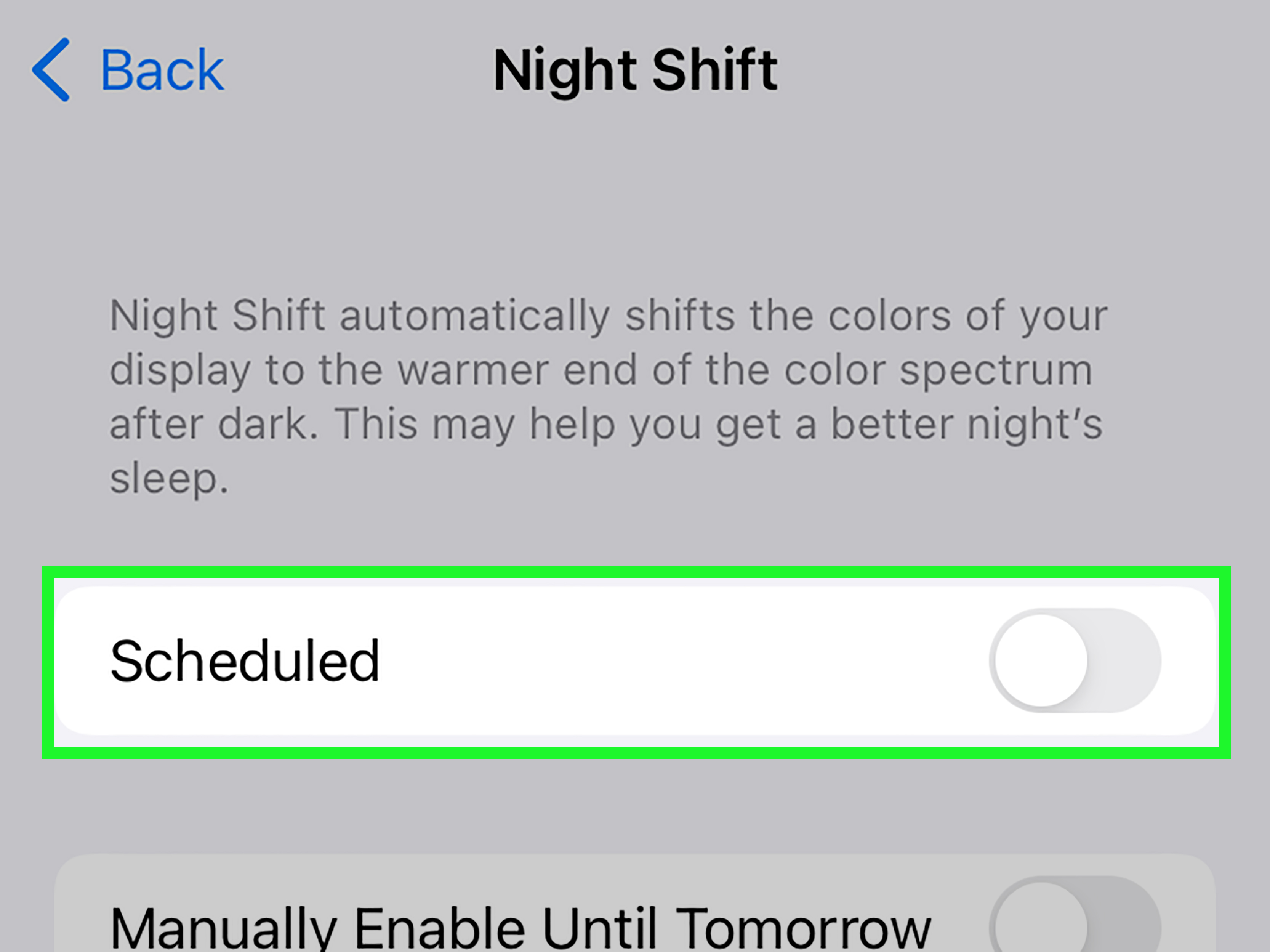
Turn off Night Shift
Night Shift shifts the screen to warmer colors, especially in the evening. It is great for reducing blue light, but it can make your screen seem darker or duller.
- Open Settings.
- Tap Display & Brightness.
- Tap Night Shift.
- Turn off Scheduled and Manually Enable Until Tomorrow.
Toggle True Tone off
True Tone adjusts the color and intensity of the display based on surrounding light. For many people, it makes the screen look more natural. For others, it can make the display seem slightly duller depending on the environment.
- Go to Settings.
- Tap Display & Brightness.
- Turn True Tone off.
Check Reduce White Point
Reduce White Point lowers the intensity of bright colors on the screen. If it is turned on by accident, your display can look dim even when the brightness slider is high.
- Open Settings.
- Tap Accessibility.
- Tap Display & Text Size.
- Find Reduce White Point and turn it off.
If your brightness slider is near the top but the screen still looks weirdly muted, this is a smart setting to inspect.
5. Cool Down Your iPhone if It Is Overheating
This is one of the most overlooked causes of iPhone screen dimming. If your device gets too warm, iOS can automatically dim the display to reduce heat and protect internal components. This is not a bug. It is a safety feature.
Heat-related dimming often happens when you:
- Use the phone in direct sunlight
- Play graphics-heavy games for a long time
- Stream video at high brightness
- Use GPS navigation in a hot car
- Charge the phone while running demanding apps
- Record long videos, especially outdoors
How to stop overheating-related dimming
- Move the iPhone out of direct sunlight.
- Remove a thick case temporarily if it is trapping heat.
- Stop charging for a while.
- Close heavy apps such as games or video editors.
- Let the phone rest in a cooler place for a few minutes.
- Avoid leaving it on a car dashboard like it is sunbathing.
If dimming happens mostly during gaming, outdoor use, or navigation, heat is probably your main issue. In those cases, changing settings alone may not fully solve it because the device is intentionally protecting itself.
The important thing to know is this: if heat is the cause, your iPhone may keep the screen dim even if the brightness slider still shows a high level. That can be confusing, but it is normal behavior.
6. Restart, Update, or Reset Settings if the Problem Persists
If none of the settings above fix the problem, you may be dealing with a software glitch. Brightness issues can sometimes appear after an iOS update, after restoring from backup, or when an app behaves badly in the background.
Restart your iPhone
A simple restart can clear temporary bugs and background weirdness. It is not glamorous, but it works more often than people like to admit.
Update iOS
- Open Settings.
- Tap General.
- Tap Software Update.
- Install any available update.
Software updates can fix display, battery, and performance bugs that may affect screen brightness behavior.
Reset All Settings
If the problem still will not quit, you can reset system settings without deleting your photos, apps, or personal files.
- Go to Settings.
- Tap General.
- Tap Transfer or Reset iPhone.
- Tap Reset.
- Choose Reset All Settings.
This resets things like display preferences, network settings, keyboard dictionary, privacy settings, and other system options. It is a good middle ground before considering a full erase or repair.
When iPhone Screen Dimming Is Actually Normal
Sometimes the best fix is knowing that nothing is wrong. Your iPhone may dim on purpose in situations like these:
- Battery is low and Low Power Mode is enabled
- The room lighting changes suddenly
- Night Shift kicks in on a schedule
- The device gets hot
- The screen is about to lock after inactivity
- Accessibility settings are changing display intensity
That is why it is useful to notice when the dimming happens. Random dimming at your desk points to settings. Dimming in direct sun points to temperature. Dimming at the same time every evening points to Night Shift. Your iPhone is usually leaving clues. It just does not speak fluent human.
Quick Troubleshooting Checklist
If you want the short version, run through this checklist:
- Turn off Auto-Brightness.
- Set Auto-Lock to a longer time.
- Disable Low Power Mode.
- Check Night Shift, True Tone, and Reduce White Point.
- Make sure the iPhone is not overheating.
- Restart the phone and install the latest iOS update.
For most users, one of those six fixes solves the problem.
Extra Real-World Experiences With iPhone Screen Dimming
People often describe iPhone dimming as “random,” but once you look at real-world patterns, it starts to make more sense. One common example is using Maps on a windshield mount during the afternoon. The brightness starts out fine, but after twenty minutes of navigation, sunlight and heat team up like uninvited party guests. The phone gets warm, the display dims, and suddenly you are squinting at the route like you are reading ancient treasure clues. In that case, the solution is not just changing brightness settings. It is cooling the device down, moving it out of direct sun, or using a vent mount with air conditioning nearby.
Another common experience happens at home at night. A person raises the brightness because the screen looks too dark, but it still feels oddly muted. That often turns out to be Night Shift or Reduce White Point. The phone is technically working the way it was told to work, but the user forgot those settings were enabled days or weeks ago. This is why screen dimming can feel mysterious. The cause is often hiding in plain sight.
There is also the workday scenario: you are reading a long email, scanning a document, or following instructions on your iPhone without touching the screen for a minute. Then the display dims and locks because Auto-Lock is set too short. This can be especially annoying when cooking, exercising, or repairing something around the house. The fix is simpleset a longer Auto-Lock timebut until you realize that is the cause, it feels like your phone has developed a dramatic flair for bad timing.
Gamers and video watchers run into a different version of the problem. The display may stay bright at first, then slowly dim after extended use. Many assume the phone has a bad screen or a battery issue, but the real cause is often heat. A bright display, fast processor, active speakers, and wireless connections all create extra warmth. Add a protective case and a warm room, and the iPhone may reduce brightness to protect itself. It is less “broken phone” and more “phone asking for a snack break.”
Face ID users sometimes notice dimming when the phone is resting on a table or stand instead of being held directly in front of the face. In some cases, Attention Aware Features can affect how the display behaves. If the iPhone cannot tell whether you are looking at it, its dimming behavior may not match what you expect. This is especially noticeable when wearing certain sunglasses, looking at the device from an angle, or glancing down while multitasking.
There are also those days when the issue appears right after an iOS update. The brightness seems inconsistent, Auto-Brightness feels touchy, or the screen behavior changes compared with what you were used to before. When that happens, a restart, software update follow-up, or Reset All Settings can often clear things up. It does not happen all the time, but it is common enough that it should be part of your troubleshooting routine.
The biggest lesson from user experience is simple: iPhone screen dimming usually has a reason. It may be annoying, but it is rarely random. When you match the symptom to the situationnight use, heat, inactivity, battery saver, or accessibility settingsthe fix becomes much easier. And once you know where the hidden settings live, you are far less likely to lose another argument with your own brightness slider.
Conclusion
If you are trying to figure out how to stop iPhone screen from dimming, start with the most likely causes: Auto-Brightness, Auto-Lock, Low Power Mode, display comfort settings, and overheating. In most cases, the problem is not a damaged screen. It is your iPhone doing exactly what one of its settings told it to do.
The fastest way to fix it is to go step by step. Disable Auto-Brightness, extend Auto-Lock, turn off Low Power Mode, check Night Shift and Reduce White Point, and make sure the phone is not getting too hot. If the problem continues, restart the device, update iOS, and consider resetting all settings.
Once you know where these controls are, you can stop the dimming drama and get back to using your iPhone without feeling like the screen is constantly ghosting you.