Typing is great until your thumbs stage a tiny labor strike. Maybe you need to explain a story that is too dramatic for text. Maybe you are walking, cooking, commuting, or trying to say “I’m five minutes away” with the exact emotional energy of “I am absolutely not five minutes away.” That is where Snapchat voice messages come in.
A Snapchat voice message, also called a voice note, lets you record a short audio message inside a one-on-one Chat or Group Chat. It works on both iPhone and Android, and the process is almost identical: open a chat, press and hold the microphone icon, speak, and release to send. Simple? Yes. Still easy to mess up the first time? Also yes, because Snapchat enjoys hiding powerful features behind tiny icons like it is running a digital scavenger hunt.
This guide explains how to send a voice message on Snapchat on iPhone and Android, how to cancel one before it sends, what to do if the microphone icon is missing, and how to fix common Snapchat voice message problems. Let’s make your voice note sound intentional, not like a pocket-recorded confession to a bag of chips.
What Is a Snapchat Voice Message?
A Snapchat voice message is an audio recording sent inside Snapchat Chat. Unlike a video Snap, it does not require your face, your room, your ceiling fan, or that suspicious pile of laundry in the background to participate. It is just your voice.
Voice messages are useful when you want to:
- Explain something faster than typing it
- Send a more personal message
- Respond while your hands are busy
- Share tone, humor, sarcasm, excitement, or panic more clearly
- Talk in a Group Chat without starting a full voice call
Think of it as the sweet spot between texting and calling. A text says, “I’m excited.” A voice message says, “I’m excited,” while sounding like you just found twenty dollars in an old jacket.
How to Send a Voice Message on Snapchat on iPhone
The Snapchat voice message process on iPhone is quick once you know where to look. Before starting, make sure Snapchat has microphone access. If the app asks for permission when you try to record, tap Allow.
Step-by-Step Instructions for iPhone
- Open Snapchat on your iPhone.
- Go to Chat by tapping the Chat icon at the bottom or swiping right from the Camera screen.
- Select a friend or Group Chat where you want to send the voice message.
- Find the microphone icon near the message field.
- Press and hold the microphone icon to begin recording.
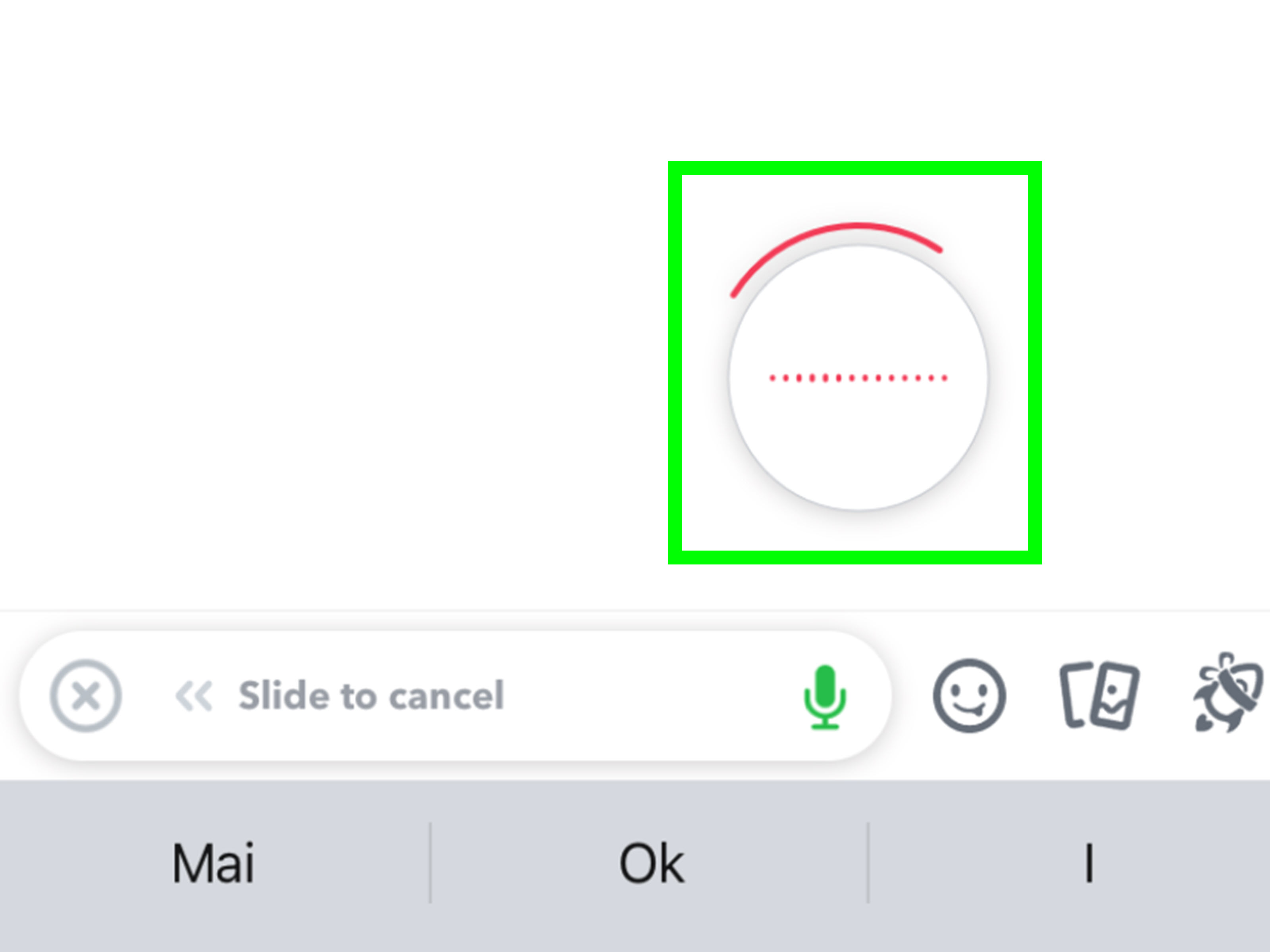
- Keep holding while you speak. Snapchat may show audio waves or a recording animation.
- Release your finger when you are finished. The voice message sends automatically.
That is it. You have officially sent a Snapchat voice note. No studio, no podcast microphone, no dramatic “testing, testing, one-two” required.
How to Cancel a Voice Message on iPhone
If you start recording and immediately regret everything, do not panic. While still holding the microphone icon, slide your finger to the side to cancel the recording. Depending on your app version, you may see a trash can, cancel area, or visual cue. Once the recording is canceled, it will not send.
The key is to cancel before releasing your finger. If you lift your finger first, Snapchat usually sends the voice message automatically. In other words, Snapchat rewards commitment and punishes hesitation. Very on brand.
How to Send a Voice Message on Snapchat on Android
Sending a voice message on Snapchat for Android is nearly the same as on iPhone. The main differences are small interface variations depending on your phone model, Android version, keyboard, and Snapchat app version.
Step-by-Step Instructions for Android
- Open the Snapchat app on your Android phone.
- Tap the Chat icon or swipe right from the Camera screen.
- Open a conversation with a friend or Group Chat.
- Look for the microphone icon next to or near the chat box.
- Tap and hold the microphone icon to start recording.
- Speak clearly while continuing to hold the icon.
- Release your finger to send the voice message.
Once sent, your voice message appears in the chat thread like other Chat content. Your friend can tap it and listen. If they do not respond immediately, they may be busy, asleep, ignoring everyone equally, or listening to your message three times to decode your tone. All are possible.
How to Cancel a Voice Message on Android
To cancel a Snapchat voice message on Android, keep your finger pressed on the microphone while recording, then slide your finger away toward the cancel or trash area. Release only after Snapchat shows that the recording has been canceled.
If you release too early, the message may send. This is why the first rule of Snapchat voice notes is: do not lift your thumb unless you are emotionally prepared for delivery.
How to Send a Voice Message in a Snapchat Group Chat
Voice messages are not limited to one-on-one conversations. You can also send them in Group Chats, which is perfect when typing a long explanation to twelve people feels like filing taxes with emojis.
- Open Snapchat.
- Go to the Chat screen.
- Tap the Group Chat you want to message.
- Press and hold the microphone icon.
- Record your message.
- Release to send it to the group.
Remember that everyone in the Group Chat can listen to the message. If your audio begins with “Do not tell anyone this,” you have already lost the plot.
Snapchat Voice Message vs. Voice Call vs. Video Snap
Snapchat has several audio-related features, and they can feel similar at first. Here is the difference:
Voice Message
A voice message is a recorded audio note sent in Chat. The other person does not need to be online when you send it. They can listen later.
Voice Call
A voice call is live. You tap the phone icon and talk in real time. This is great for actual conversations, but terrifying if you belong to the generation that treats unexpected phone calls like jump scares.
Video Snap With Audio
A video Snap records both video and sound from the Camera screen. Use this when the visual matters. Use a voice message when your face does not need to be involved in the production.
Why You Might Not See the Microphone Icon
If you cannot find the microphone icon in Snapchat Chat, do not immediately assume the app hates you personally. Several common issues can hide or disable voice messaging.
1. Snapchat Needs Microphone Permission
If Snapchat does not have permission to use your microphone, voice recording may not work. On iPhone, go to Settings > Privacy & Security > Microphone, then make sure Snapchat is turned on. You can also check Settings > Snapchat and enable Microphone there if available.
On Android, go to Settings > Apps > Snapchat > Permissions > Microphone, then choose an option such as Allow only while using the app. The exact wording may vary depending on your Android phone.
2. The App Is Outdated
If Snapchat is not updated, features may behave strangely. Open the App Store on iPhone or Google Play Store on Android and install the latest Snapchat update. This is not glamorous advice, but neither is restarting your router, and yet both solve an annoying number of problems.
3. You Are Not in a Chat
Voice notes are sent from Chat or Group Chat. If you are on the Camera screen, Spotlight, Stories, or someone’s profile, you may not see the same microphone option. Go back to the Chat screen and open a conversation.
4. Your Keyboard or Interface Is Covering It
Sometimes the keyboard, stickers, Bitmoji tools, or other chat options can make the microphone icon less obvious. Tap inside the message field, close extra menus, or reopen the conversation to refresh the layout.
How to Fix Snapchat Voice Messages Not Working
If Snapchat voice messages will not record, send, or play, work through these fixes in order. Start with the easy ones. There is no need to perform a full technological exorcism before checking your microphone permission.
Check Microphone Permission
Microphone permission is the first thing to check. If Snapchat cannot access your microphone, it cannot record your voice note. On iPhone, check the Microphone section under Privacy & Security. On Android, check Snapchat permissions in the Apps settings.
Restart Snapchat
Close Snapchat completely and reopen it. This can fix temporary chat glitches, frozen controls, or recording buttons that refuse to behave like civilized software.
Restart Your Phone
A device restart can clear small system issues affecting audio, permissions, or app performance. It is the digital version of taking a deep breath.
Switch Networks
Voice messages need a working internet connection to send. If your message is stuck, switch between Wi-Fi and mobile data. If you are in a low-signal area, move somewhere with better service.
Update Snapchat
Install the latest app update. Updates often include bug fixes for Chat, audio, performance, and compatibility with newer iOS or Android versions.
Disconnect Bluetooth Devices
If your phone is connected to earbuds, a speaker, or a car system, Snapchat may use the wrong microphone or playback device. Disconnect Bluetooth and try again using your phone’s built-in microphone.
Clear Snapchat Cache
Snapchat lets users clear cache data inside the app. Clearing cache can help with performance issues and does not delete your Memories, Snaps, or Chats. Open Snapchat Settings, look for privacy or data management options, and choose the cache-clearing option available for your device.
Reinstall Snapchat
If nothing else works, uninstall and reinstall Snapchat. Make sure you know your login information first. Reinstalling can fix damaged app files, but it should be a later step, not your opening move.
Can You Delete a Snapchat Voice Message After Sending?
In many Snapchat Chat situations, you can press and hold a sent message and choose Delete. However, your friend may see that something was deleted, and they might have already listened to it or taken a screenshot before you removed it.
So yes, deletion may help. No, it is not a time machine. If you send a voice note that says, “I accidentally joined the wrong group chat,” and the group has already heard it, the best next step may be confidence. Pretend it was performance art.
Best Practices for Sending Snapchat Voice Messages
Keep It Short
A great voice message is usually quick and clear. If your voice note needs chapters, a table of contents, and a closing argument, consider calling instead.
Start With the Main Point
Do not make your listener wait thirty seconds to learn why you messaged them. Start with the point: “I found the restaurant,” “I’m running late,” “You need to hear what happened,” or “Do not open the group chat at work.”
Record in a Quiet Place
Your phone microphone is powerful, but it is not magic. Wind, traffic, music, and background conversations can turn your message into a detective puzzle. Move closer to your phone and speak clearly.
Use Voice When Tone Matters
Voice messages shine when tone is important. Jokes, apologies, encouragement, excitement, and complicated explanations often work better in audio than in text. Text can make “fine” sound dangerous. Voice can prove it is actually fine. Usually.
Do Not Send Sensitive Information Casually
Snapchat is built around quick communication, but you should still be careful. Avoid sending private details, passwords, financial information, or anything you would not want repeated. A voice message feels casual, but it is still a message.
Common Questions About Snapchat Voice Messages
Do Snapchat Voice Messages Send Automatically?
Yes. In the standard voice note flow, your message sends when you release the microphone icon. If you want to cancel, slide away while still holding before you lift your finger.
Can I Preview a Snapchat Voice Message Before Sending?
Snapchat voice notes are designed for quick recording and sending. In many versions of the app, releasing sends the message automatically rather than giving you a preview screen. If you are unsure, record a shorter message or cancel and try again.
Can I Send a Voice Message to Someone Who Is Offline?
Yes. A Snapchat voice message is sent through Chat, so the recipient can listen when they open the conversation later.
Can I Send Voice Messages on Snapchat for Web?
Snapchat for Web supports chat and calling features, but mobile Snapchat is the most reliable place to use the standard press-and-hold voice note experience. If you are using Snapchat in a browser, make sure the browser has microphone permission enabled.
Why Does My Snapchat Voice Message Sound Bad?
Poor audio can come from background noise, blocked microphones, Bluetooth issues, low-quality earbuds, or phone-level microphone settings. Remove your case if it blocks the microphone, disconnect Bluetooth devices, clean around the mic gently, and test audio in another app.
Real-World Experience: What Sending Snapchat Voice Messages Is Actually Like
In real life, Snapchat voice messages are most useful when a normal text feels too slow, too flat, or too easy to misunderstand. For example, imagine your friend asks where you are meeting for dinner. You could type, “Take the side entrance by the parking garage, go upstairs, turn left, ignore the first sign because it lies, and look for the place with the neon taco.” Or you could send a ten-second voice message and save everyone from reading a treasure map written by a hungry person.
The best experience comes when you treat voice notes like casual mini-conversations, not full speeches. A good Snapchat voice message has a beginning, a point, and an ending. Something like, “Hey, I’m outside the coffee shop, but I grabbed the table near the window. Come in through the back door because the front line is ridiculous.” That is perfect. It is useful, personal, and short enough that nobody has to schedule listening time.
Voice messages are also great for emotion. If your friend sends good news, a typed “Congrats!” is nice, but a voice note with actual excitement feels warmer. You can laugh, cheer, gasp, or deliver the kind of dramatic reaction that deserves an award from the Academy of Overly Supportive Friends. Snapchat is already a casual, personality-heavy app, so voice messages fit naturally. They add tone without requiring a video, makeup, lighting, or the courage to reveal your current facial expression.
There is one learning curve: the release-to-send behavior. Many first-time users hold the microphone, record something, then release their finger expecting a preview. Instead, the message flies into the chat like a tiny audio rocket. This is why it helps to practice with a trusted friend first. Send something harmless like, “Testing this voice note feature,” not a three-minute emotional documentary about your week.
Another practical lesson: background noise matters. A voice note recorded beside traffic, fans, running water, or loud music can sound like it was captured from inside a washing machine. If the message matters, pause for a second, move the phone closer, and speak clearly. You do not need to sound like a radio host, but your friend should not need forensic audio software to understand where brunch is.
Voice notes can also reduce misunderstandings. Text has a talent for making simple messages sound cold. “Okay” can mean “okay,” “I am annoyed,” “we are done here,” or “my thumb slipped.” In a voice message, your tone does the heavy lifting. A quick friendly explanation can prevent a tiny text misunderstanding from becoming a full group-chat trial.
Still, voice messages work best when used thoughtfully. Not everyone can listen right away. Someone may be in class, at work, in public, or pretending to be productive near other humans. If the information is urgent and simple, add a short text summary after your voice note. For example: “Voice note explains it, but short version: meet at 7 by the main entrance.” That small habit makes you the rare voice-message user everyone still likes.
The overall experience is this: Snapchat voice messages are fast, expressive, and surprisingly handy once your thumb learns the gesture. Press, hold, talk, release. Slide away if disaster strikes. Use them for tone, quick stories, directions, reactions, and moments when typing feels like trying to fold a fitted sheet. They are not perfect for every message, but when they fit, they make Snapchat feel more human.
Conclusion
Sending a voice message on Snapchat is simple on both iPhone and Android: open a Chat or Group Chat, press and hold the microphone icon, speak, and release to send. If you change your mind while recording, slide your finger to the side before releasing to cancel it. The feature is ideal for quick explanations, funny reactions, personal updates, and any message where tone matters more than perfectly typed punctuation.
If Snapchat voice messages are not working, check microphone permissions first, then update the app, restart Snapchat, test your internet connection, disconnect Bluetooth devices, and clear the app cache if needed. Most problems come down to permissions, connection issues, outdated software, or the universal truth that apps sometimes need a nap and a restart.
Note: Snapchat menus and icons can change slightly by app version, device model, and operating system. The core voice message process remains the same: open Chat, hold the microphone, record, release to send, or slide away to cancel.