The Ask Toolbar has a special talent: it shows up when nobody remembers inviting it. One day Chrome opens normally, and the next day your homepage, new tab page, or default search engine has taken a suspicious little detour through Ask. It is not always dangerous in the dramatic movie-hacker sense, but it is annoying, intrusive, and often classified as a potentially unwanted program because it can change browser settings, ride along with other software installers, and keep reappearing if you only remove part of it.
The good news is that you can usually remove the Ask Toolbar from Chrome without throwing your laptop into a lake. The better news is that the process is mostly straightforward: remove the extension, fix Chrome settings, uninstall related programs from your computer, reset Chrome if needed, and run a trusted malware scan if the toolbar keeps coming back like a bad sequel.
This guide walks you through the complete cleanup process for Windows and Mac, including what to do when Chrome says it is “managed by your organization,” why your search engine keeps changing, and how to prevent Ask or similar browser hijackers from sneaking back in.
What Is the Ask Toolbar?
The Ask Toolbar was a browser add-on associated with Ask.com search features. In older versions of browsers, toolbars were more visible: they sat across the top of the browser like an extra shelf nobody asked the carpenter to install. In modern Chrome, traditional toolbar behavior is less common, but Ask-related software may still appear as an extension, a search provider, a homepage setting, a new tab redirect, or an installed program on your computer.
Many users encountered Ask Toolbar because it was bundled with third-party software installers. During installation, a small preselected checkbox could authorize the toolbar, homepage change, or search engine change. In other words, the toolbar often entered through the front door while disguised as “recommended settings.” Sneaky? Yes. Technically invited? Unfortunately, sometimes also yes.
Signs the Ask Toolbar Is Affecting Chrome
You may need to remove Ask Toolbar from Chrome if you notice one or more of these symptoms:
- Your default search engine changes to Ask or another unfamiliar provider.
- Your homepage or startup page opens Ask.com without your permission.
- Chrome redirects searches through unexpected pages before showing results.
- An Ask, Search App by Ask, or unknown extension appears in Chrome.
- Unwanted pop-ups, ads, or new tabs appear repeatedly.
- The toolbar disappears after removal but returns after restarting Chrome.
- Chrome displays “Managed by your organization” on a personal computer.
Not every symptom means the Ask Toolbar itself is present. Sometimes another browser hijacker copies similar behavior. That is why the best cleanup approach is not just “delete Ask and hope.” You want to check Chrome, your operating system, your shortcuts, and your security software.
Before You Start: Save Your Work and Update Chrome
Before making changes, close important browser tabs, save documents, and make sure Chrome is updated. Open Chrome, click the three-dot menu in the top-right corner, choose Help, then About Google Chrome. Chrome will check for updates automatically. Relaunch the browser if prompted.
An updated browser gives you the latest security fixes and extension controls. It also helps prevent older unwanted add-ons from exploiting outdated settings. Think of it as putting on gloves before taking out the digital trash.
Step 1: Remove the Ask Extension from Chrome
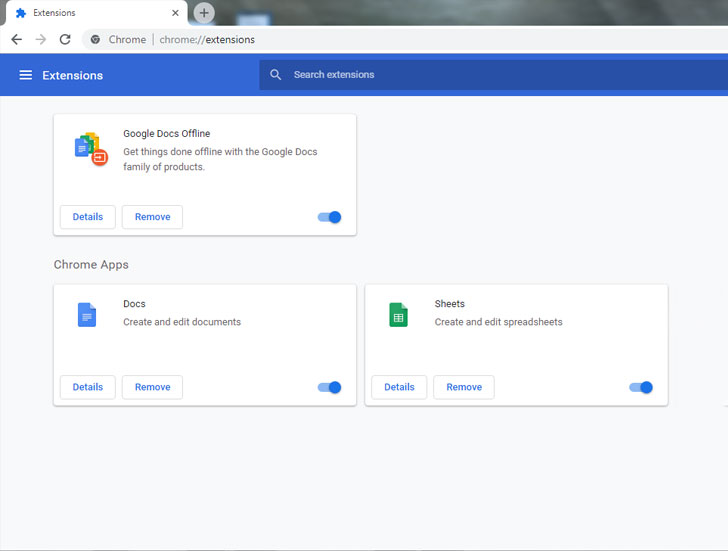
Start with the most obvious hiding place: Chrome extensions.
- Open Google Chrome.
- Click the three-dot menu in the top-right corner.
- Select Extensions, then Manage Extensions.
- Look for anything named Ask, Ask Toolbar, Search App by Ask, or anything you do not recognize.
- Click Remove.
- Confirm by clicking Remove again.
If you see several suspicious extensions, remove the ones you do not remember installing. Be especially cautious with extensions that claim to improve search, shopping, coupons, PDF conversion, maps, weather, or new tab features. Browser hijackers often dress up as “helpful tools,” the way raccoons dress up as homeowners when they find an open garage.
What If You Do Not See Ask in Extensions?
If Ask is not listed, do not assume you are done. The change may be coming from a desktop program, a Chrome policy, a startup page, a search engine setting, or synced browser data. Continue through the next steps.
Step 2: Change Your Default Search Engine Back
Removing the extension does not always restore your preferred search engine. Chrome may still be configured to search through Ask.
- Open Chrome.
- Click the three-dot menu and choose Settings.
- Select Search engine.
- Next to Search engine used in the address bar, choose Google, Bing, DuckDuckGo, Yahoo, or another trusted provider.
- Click Manage search engines and site search.
- Remove Ask or any unfamiliar search provider from the list if Chrome allows it.
If the Ask entry cannot be removed, another extension or system policy may be controlling it. Keep going. We are not negotiating with the toolbar.
Step 3: Fix Your Homepage and Startup Pages
Ask-related software may change what opens when Chrome starts. To fix that:
- Go to Settings.
- Select On startup.
- Choose Open the New Tab page, or select your preferred startup pages.
- If Ask.com or an unfamiliar URL appears, remove it.
Next, check the home button:
- Go to Settings.
- Select Appearance.
- Find Show Home button.
- Set it to the New Tab page or a trusted URL.
- Remove any Ask-related address.
This step matters because many users remove the extension but leave the homepage behind. Then Chrome keeps opening Ask, and the user thinks the toolbar survived. Sometimes the ghost is not a ghost; it is just a leftover setting wearing a sheet.
Step 4: Uninstall Ask Toolbar from Windows
If Ask came bundled with installed software, Chrome cleanup alone may not be enough. Remove related programs from Windows.
Windows 11 or Windows 10
- Click Start.
- Open Settings.
- Go to Apps, then Installed apps or Apps & features.
- Search for Ask, Ask Toolbar, Search App by Ask, or unfamiliar programs installed around the same date the problem began.
- Click the three-dot menu or select the program.
- Choose Uninstall.
- Follow the prompts and restart your computer if asked.
Using Control Panel
Some older programs may appear more clearly in Control Panel.
- Search for Control Panel from the Windows taskbar.
- Open Programs, then Programs and Features.
- Look for Ask-related or suspicious entries.
- Select the program and click Uninstall.
Sort the list by installation date if possible. If Ask appeared after installing a free converter, media player, game launcher, coupon tool, or download manager, that installer may have brought friends.
Step 5: Remove Ask-Related Apps from Mac
On a Mac, unwanted browser components may appear as applications, launch items, profiles, or extensions.
- Open Finder.
- Click Applications.
- Look for Ask, Search App by Ask, or unfamiliar apps installed recently.
- If the app has its own uninstaller, use it.
- If not, drag the app to the Trash.
- Empty the Trash when you are sure you do not need the app.
- Restart your Mac.
Also check System Settings for suspicious login items or configuration profiles. A profile can enforce browser settings, including search behavior. If this is your personal Mac and you see a profile you do not recognize, investigate before removing it. If it is a school or work device, ask your administrator first.
Step 6: Reset Chrome Settings
If Ask keeps returning or Chrome still behaves strangely, reset Chrome settings. This does not delete bookmarks, saved passwords, or browsing history, but it does reset your startup page, new tab page, search engine, pinned tabs, site settings, cookies, and extensions.
- Open Chrome.
- Click the three-dot menu.
- Choose Settings.
- Select Reset settings.
- Click Restore settings to their original defaults.
- Click Reset settings.
After the reset, return to Extensions and only re-enable tools you trust and actually use. If you re-enable everything immediately, you may accidentally invite the troublemaker back in and then blame Chrome for having commitment issues.
Step 7: Clear Browsing Data
Clearing browsing data can remove cached redirects, cookies, and site data connected to unwanted behavior.
- Open Chrome Settings.
- Go to Privacy and security.
- Select Delete browsing data.
- Choose a time range, such as All time.
- Select Cookies and other site data and Cached images and files.
- Click Delete data.
You may be signed out of some websites afterward, so make sure you know your important passwords or have them saved securely.
Step 8: Run a Trusted Malware or PUP Scan
If the Ask Toolbar keeps coming back, scan your computer with reputable security software. Many security tools detect browser hijackers and potentially unwanted programs, often called PUPs. These may not behave like classic viruses, but they can still change settings, inject ads, redirect searches, or reduce browser performance.
Use a trusted antivirus or anti-malware tool from a reputable vendor. Update the software first, run a full scan, quarantine detected threats, and restart your computer if prompted. Avoid random “toolbar remover” downloads from unknown websites. The cure should not look more suspicious than the disease.
Step 9: Check Chrome Shortcuts on Windows
Some hijackers modify Chrome shortcuts so that every launch opens a specific URL. This trick can make it seem like Chrome itself is infected.
- Right-click your Chrome desktop shortcut.
- Select Properties.
- Open the Shortcut tab.
- Look at the Target field.
- It should end with something like chrome.exe, usually inside quotation marks.
- If you see an Ask URL or unfamiliar website after chrome.exe, delete only the unwanted URL portion.
- Click Apply, then OK.
Repeat this for taskbar shortcuts if needed. You may need to unpin Chrome from the taskbar, launch the clean Chrome shortcut, and pin it again.
Step 10: Investigate “Managed by Your Organization”
If Chrome says Managed by your organization on a personal computer, it may be harmless, but it can also mean software has installed browser policies. Work and school computers often use policies legitimately. Personal home computers usually should not have unexpected policies controlling search engines or extensions.
Type chrome://policy into the address bar and press Enter. Review the listed policies. If you see extension force-install rules or search engine settings you did not create, an installed program may be controlling Chrome. Remove suspicious software, run a malware scan, and reset Chrome.
Be careful with registry edits or command-line policy removal unless you know what you are doing. Deleting the wrong setting can create new problems, and nobody wants to remove a toolbar by accidentally starting a side quest called “Why Won’t My Computer Boot?”
Step 11: Turn Off Sync Temporarily if the Toolbar Returns
Chrome Sync can restore extensions and settings across devices. That is convenient when everything is clean. It is less convenient when it keeps bringing back the digital raccoon.
- Open Chrome Settings.
- Click your Google account profile area.
- Go to Sync and Google services.
- Temporarily turn off sync.
- Remove unwanted extensions and reset settings.
- Clean other devices signed into the same Chrome profile.
- Turn sync back on only after all devices are clean.
If one old laptop still has the bad extension, it can re-sync the problem to your main computer. Clean the whole herd, not just the loudest goat.
Step 12: Create a Fresh Chrome Profile
If Chrome remains stubborn after all cleanup steps, create a new Chrome profile.
- Click your profile icon in Chrome.
- Select Add.
- Create a new profile.
- Test browsing before syncing extensions.
- Import bookmarks if needed.
A fresh profile can solve problems caused by corrupted settings or persistent extension data. Treat it like moving into a clean apartment: bring your bookmarks, not the mystery box labeled “old browser junk.”
How to Prevent Ask Toolbar and Similar Add-ons
Once you remove the Ask Toolbar from Chrome, prevention is the easy part. The main rule is simple: slow down during software installation. Many unwanted toolbars appear because users click “Next” repeatedly without reading the options. We have all done it. Installers are boring. But those checkboxes are where toolbars go to make life choices for you.
Use Custom Installation
When installing free software, choose Custom or Advanced installation instead of Express or Recommended. Then decline extra search tools, browser helpers, shopping assistants, homepage changes, and “special offers.”
Download from Official Sources
Get software directly from official websites or trusted app stores. Third-party download portals may wrap programs in their own installers, which can include additional offers.
Review Chrome Extensions Monthly
Open chrome://extensions once a month and remove anything you no longer use. Extensions with broad permissions can read or change data on websites, so keep the list short and trustworthy.
Keep Security Software Updated
Use reputable security software with PUP detection enabled. Some tools allow potentially unwanted program detection to be turned on or off, so check the settings.
Common Mistakes to Avoid
Only Hiding the Toolbar
Some unwanted toolbars offer a hide button. Hiding is not removing. It is basically putting sunglasses on a problem and pretending it went on vacation.
Resetting Chrome Before Uninstalling the Program
If a desktop program is controlling Chrome, resetting the browser may only provide temporary relief. Uninstall suspicious programs first, then reset Chrome.
Installing Random Removal Tools
Search results for “remove Ask Toolbar” may include questionable utilities. Use trusted antivirus companies, official support instructions, or built-in operating system tools.
Ignoring Other Browsers
If you also use Edge, Firefox, or Safari, check them too. Browser hijackers are not always loyal to one browser. They may spread their enthusiasm around.
Frequently Asked Questions
Is the Ask Toolbar a virus?
The Ask Toolbar is usually described as a potentially unwanted program rather than a classic virus. However, because it can change browser settings and arrive through bundled installers, many users treat it like unwanted software and remove it.
Why does Ask keep coming back in Chrome?
It may be returning because of Chrome Sync, an installed desktop program, a forced extension policy, a modified shortcut, or another browser hijacker. Remove the extension, uninstall related programs, reset Chrome, scan your system, and check sync settings.
Will resetting Chrome delete my bookmarks?
No, a standard Chrome reset does not delete bookmarks, saved passwords, or browsing history. It does reset search, startup pages, cookies, site data, pinned tabs, and extensions.
Can I remove Ask Toolbar without antivirus software?
Often, yes. You can manually remove the extension, uninstall related programs, and reset Chrome. But if the toolbar keeps returning, a malware or PUP scan is strongly recommended.
Conclusion
Removing the Ask Toolbar from Chrome is usually a matter of cleaning several connected areas: Chrome extensions, search engine settings, startup pages, installed apps, browser data, and sometimes system policies. The key is to avoid stopping after the first visible fix. If you only remove the extension but leave the desktop program, startup page, or synced setting behind, Ask may come strolling back like it pays rent.
Start with Chrome’s extension manager, restore your preferred search engine, fix your homepage, uninstall Ask-related programs from Windows or Mac, reset Chrome if necessary, and run a trusted scan for potentially unwanted programs. After that, protect yourself by choosing custom installation options, avoiding sketchy downloads, and reviewing browser extensions regularly.
The Ask Toolbar may be persistent, but it is not magic. With a careful cleanup and a little patience, you can get Chrome back to normal and return your address bar to its rightful job: taking you where you actually wanted to go.
Real-World Experiences: What Removing the Ask Toolbar from Chrome Is Actually Like
The first thing many people notice about the Ask Toolbar is not the toolbar itself. It is the feeling that Chrome has suddenly developed opinions. You type a search, expecting your usual search engine, and the browser politely escorts you somewhere else. Your homepage changes. Your new tab page looks unfamiliar. There may be a tiny extension icon you do not recognize. At first, it feels like a small annoyance. Then you change the search engine back, restart Chrome, and Ask returns. That is the moment the relationship becomes personal.
A common experience is the “I already removed it” loop. A user opens Chrome extensions, deletes something named Ask, feels victorious, and closes the browser. Ten minutes later, the search engine is wrong again. This usually happens because the visible extension was only one piece of the puzzle. There may still be an installed program in Windows, a startup page in Chrome settings, or synced data restoring the old configuration. The lesson is simple: removing the Ask Toolbar is not one click; it is a cleanup checklist.
Another familiar scenario happens after installing free software. Someone downloads a media converter, PDF tool, coupon helper, or old utility from a download site. The installer offers “recommended browser settings,” and because everyone wants the installation to end before dinner, the user clicks through. Later, Chrome starts opening Ask. This is not a moral failure; it is a design trap. Many bundled offers rely on speed, distraction, and tiny checkboxes. The best defense is to slow down during installation and treat every prechecked box like it is trying to sell you a timeshare.
On older family computers, the Ask Toolbar often appears alongside other clutter: multiple coupon extensions, outdated Java versions, abandoned toolbars, and three different “PC optimizer” programs all claiming to be the hero. In those cases, removing Ask can noticeably improve the browsing experience. Chrome may launch faster, searches may stop redirecting, and fewer pop-ups may appear. It feels less like a technical repair and more like opening a window in a room that has been storing old cardboard boxes since 2014.
Some users also run into the confusing “Managed by your organization” message. On a work laptop, that may be normal. On a personal home computer, it can feel alarming. In many cases, it means a program created a Chrome policy to control extensions or search settings. The fix may require uninstalling suspicious software and scanning for unwanted programs before Chrome behaves again. This is where patience matters. Randomly deleting files from system folders can make things worse. A calm, step-by-step approach works better than panic-clicking every button labeled “remove.”
The most satisfying part of the process is the final restart. Chrome opens to the correct homepage. The address bar searches with the engine you chose. The extension list is clean. No weird redirects. No unwanted toolbar. It is not glamorous, but it is deeply satisfying in the same way as peeling a sticker off cleanly. Better yet, once you have removed one browser hijacker properly, you know how to handle similar problems in the future. The names may change, but the cleanup logic stays the same: remove the extension, fix the settings, uninstall the source, scan the system, and prevent the comeback tour.
Note: This article is based on current browser cleanup practices, official Chrome settings behavior, Windows and macOS uninstall workflows, and reputable anti-malware guidance. No source links are inserted so the content is ready for direct web publishing.