Opening a ZIP file on Android used to feel like one of those tiny tech chores that somehow required three apps, two prayers, and a suspicious download button shaped like a toaster. Thankfully, that is no longer the case. With Files by Google, you can open ZIP files on Android in a simple, clean, beginner-friendly way without hunting for a complicated file manager or risking a sketchy third-party app.
Whether you downloaded a folder of photos, received homework documents, saved a work archive, or grabbed a collection of PDFs from your email, ZIP files are everywhere. They are useful because they bundle multiple files into one smaller package. The only catch? You have to “unzip” or extract them before you can use what is inside.
This guide explains exactly how to open ZIP files on Android using Files by Google, where your extracted files go, what to do when something does not work, and how to keep your phone safe while handling compressed files. No tech wizard robe required.
What Is a ZIP File?
A ZIP file is a compressed archive. In plain English, it is like a digital suitcase. Instead of sending five images, three documents, and a folder separately, someone can pack them into one ZIP file and send that single file instead. When you extract the ZIP file, the contents come back out in a normal, usable form.
ZIP files are common because they make file sharing easier. They can reduce file size, keep related items together, and make downloads more organized. For example, a teacher might send a ZIP file containing class notes and worksheets. A photographer might send edited images in one archive. A business might share a bundle of invoices or reports. It is neat, efficient, and much better than receiving 47 separate attachments with names like “final_final_REALfinal2.pdf.”
Why Use Files by Google to Open ZIP Files on Android?
Files by Google is Google’s official file manager app for Android. It helps you browse downloads, documents, images, videos, and other files stored on your phone. It also includes a built-in option to extract ZIP files, which means you usually do not need to install a separate unzip app.
That matters for three big reasons: convenience, trust, and simplicity. Convenience means you can open your ZIP file right where your downloads already live. Trust means you are using a Google-made app rather than rolling the dice on a random “Super Mega Zip Master 9000” app with too many ads. Simplicity means the process is tap, extract, done.
Files by Google is especially useful for everyday ZIP files, such as documents, photos, school materials, receipts, forms, and small project folders. It is not trying to be a complicated desktop-level archive manager. It is designed for the thing most people actually need: opening a ZIP file quickly and finding the files inside without turning their phone into a puzzle box.
Before You Start: Make Sure Files by Google Is Installed
Many Android phones already include Files by Google, but not all of them do. Some brands, such as Samsung, may include their own file manager as the default. That is fine, but for this guide, we are using Files by Google.
How to check for Files by Google
Swipe up from your home screen to open your app drawer and search for “Files.” Look for the app named Files or Files by Google. The icon usually looks like a blue folder. If you do not see it, open the Google Play Store and search for “Files by Google.” Install the app from Google LLC.
Once installed, open the app. You may need to allow file access permissions so the app can view and manage files on your device. This permission is necessary because, well, a file manager that cannot access files is basically a librarian locked outside the library.
How to Open ZIP Files on Android Using Files by Google
Here is the straightforward step-by-step process to unzip files on Android with Files by Google.
Step 1: Open Files by Google
Open the Files by Google app on your Android phone or tablet. You will usually see sections such as Recents, Categories, Downloads, Images, Videos, Audio, Documents, and Apps. The exact layout may vary slightly depending on your device and app version, but the general idea is the same.
Step 2: Find the ZIP file
If you downloaded the ZIP file from a browser, email, messaging app, or website, it is probably in the Downloads folder. Tap Browse, then choose Downloads. You can also use the search bar and type part of the file name if you remember it.
ZIP files usually end with the .zip extension. For example, the file might be named project-files.zip, photos.zip, or documents-for-review.zip. If you see a file with that ending, you are in the right neighborhood.
Step 3: Tap the ZIP file
Tap the ZIP file once. Files by Google should open a preview window showing the contents of the archive. This lets you see what is inside before extracting it. That preview is helpful because it gives you a moment to confirm, “Yes, this is my tax folder,” or “No, this is definitely not the vacation photos I thought I downloaded.”
Step 4: Tap Extract
Tap Extract. Files by Google will unzip the archive and create normal files from the compressed package. Depending on the size of the ZIP file, this may take a few seconds or a little longer. A small document archive opens quickly. A giant folder of vacation videos may need a moment to stretch its digital legs.
Step 5: Review the extracted files
After extraction, Files by Google shows a preview of the extracted files. You can check that everything looks right. If the ZIP file contained images, documents, PDFs, or folders, they should now be available as regular files.
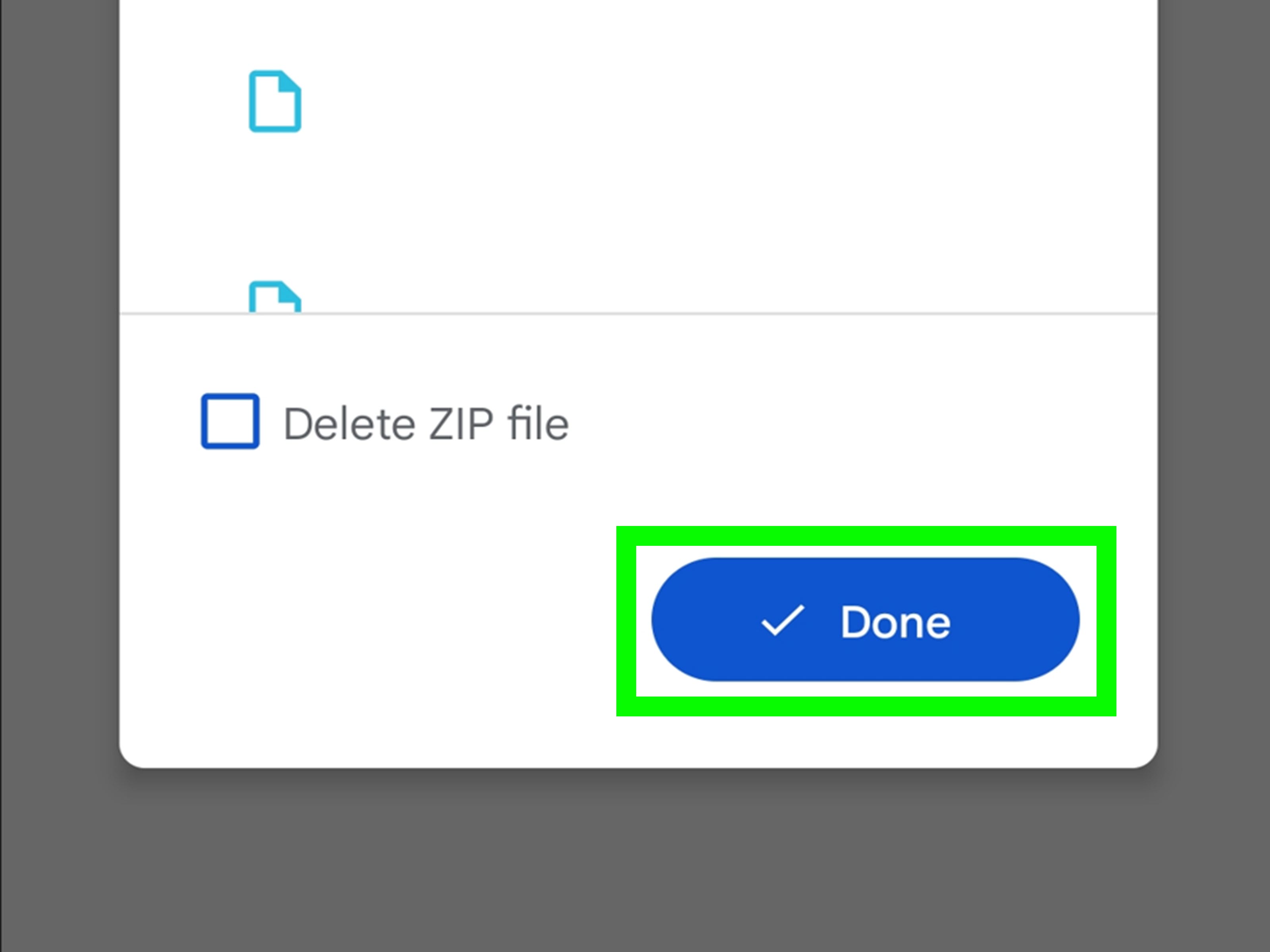
Step 6: Choose whether to delete the ZIP file
Files by Google may give you the option to delete the original ZIP file after extraction. This is useful if you want to save storage space. However, if the ZIP file is important or you are not sure whether the extraction worked correctly, keep it until you confirm the extracted files are usable.
Step 7: Tap Done
Tap Done. Your extracted files are saved in the same location as the original ZIP file. So if the ZIP file was in Downloads, the extracted content will also appear there. This makes it easier to find your files afterward.
Where Do Extracted ZIP Files Go on Android?
When you extract a ZIP file with Files by Google, the contents are usually saved in the same folder as the ZIP file itself. If your archive was in the Downloads folder, look in Downloads. If it was in a folder called “Work Documents,” look there.
Sometimes the extracted files appear inside a new folder named after the ZIP file. For example, extracting summer-photos.zip may create a folder called summer-photos. Inside that folder, you will find the photos, documents, or other files that were packed in the archive.
If you cannot find the extracted files, use the search feature in Files by Google. Search for part of the file name, or browse by category. For PDFs and Word files, check Documents. For pictures, check Images. For videos, check Videos. Android is usually good at sorting files by type once they are extracted.
Common Problems When Opening ZIP Files on Android
Most ZIP files open smoothly in Files by Google, but occasionally your phone may throw a tiny digital tantrum. Here are common issues and how to fix them.
The ZIP file does not open
If tapping the ZIP file does nothing or shows an error, the file may be damaged, incomplete, or unsupported. Try downloading it again, especially if the file came from a weak internet connection. A ZIP file that did not finish downloading is like a sandwich with only one slice of bread: technically present, but not very useful.
The ZIP file is password-protected
Some ZIP files require a password. Files by Google may not handle every password-protected archive the way advanced archive apps do. If you received the file from someone else, ask them for the correct password and instructions. Avoid guessing passwords or downloading random tools from suspicious websites.
The file is not actually a ZIP file
Files by Google supports ZIP extraction, but there are other archive formats such as RAR, 7Z, TAR, and GZ. If your file ends in .rar or .7z, it may not open with Files by Google. In that case, you may need a reputable archive app that supports those formats. Always download apps from a trusted source and check reviews, permissions, and developer information before installing.
There is not enough storage space
Extracting a ZIP file requires storage space. In fact, you may temporarily need enough room for both the original ZIP file and the extracted contents. If your phone is almost full, delete unnecessary downloads, clear large media files you no longer need, or move photos and videos to cloud storage before extracting.
The extracted files will not open
Sometimes the ZIP extracts correctly, but a file inside will not open. That usually means you need the right app for that file type. A PDF needs a PDF viewer. A DOCX file needs a compatible document app. A spreadsheet needs a spreadsheet app. Files by Google helps you extract the package, but another app may be needed to read the actual contents.
Is It Safe to Open ZIP Files on Android?
ZIP files themselves are not automatically dangerous. They are simply containers. The risk comes from what is inside them and where they came from. A ZIP file from your school, workplace, client, or trusted cloud account is usually fine. A ZIP file from a strange email, random website, or mystery message saying “open this urgent prize document” deserves suspicion and possibly a dramatic eyebrow raise.
Before opening a ZIP file, ask yourself three quick questions: Do I know who sent this? Was I expecting it? Does the file name make sense? If the answer to any of those is “not really,” slow down. Do not open attachments from unknown senders, and be careful with files downloaded from unfamiliar websites.
Google Play Protect can help keep Android apps safer by checking apps for harmful behavior, but it does not magically make every downloaded file trustworthy. Good habits still matter. Keep your phone updated, use apps from trusted sources, and avoid installing APK files or running unknown apps that were hidden inside a ZIP archive.
Best Practices for Managing ZIP Files on Android
Once you know how to open ZIP files on Android, it is worth learning a few habits that keep your phone organized and your storage under control.
Rename files before they become chaos
If you download several ZIP files with vague names like archive.zip, files.zip, or download.zip, rename them before or after extraction. Clear names such as client-contracts-may.zip or biology-notes-chapter-4.zip make files easier to find later.
Delete duplicates after checking the extracted files
After extracting a ZIP file, you may not need the original archive anymore. If storage is tight, delete the ZIP once you confirm the extracted files work. But do not rush. Always check the contents first. Deleting the only copy of an important archive before confirming extraction is the file-management version of tossing your keys into a lake.
Move important files into organized folders
Downloads can become a junk drawer very quickly. After extracting important ZIP files, move the contents into folders such as Work, School, Receipts, Photos, or Travel. Your future self will thank you, probably with fewer sighs.
Back up important extracted files
If the files matter, back them up. Use Google Drive, another cloud storage service, or a computer backup. Phones can be lost, damaged, or unexpectedly full at the worst possible moment. A backup turns disaster into mild inconvenience, which is a beautiful upgrade.
Files by Google vs. Third-Party ZIP Apps
For most people, Files by Google is enough. It opens standard ZIP files, helps you find downloads, and keeps the process simple. It is the best first choice if your goal is to extract everyday files quickly.
Third-party archive apps can be useful if you work with formats beyond ZIP, such as RAR or 7Z, or if you need advanced features like creating encrypted archives, extracting multiple archive types, or managing complex folder structures. However, extra power comes with extra responsibility. Choose well-known apps, avoid unnecessary permissions, and skip apps that look overloaded with aggressive ads or confusing buttons.
In short, use Files by Google for normal ZIP files. Consider a trusted third-party app only when you truly need support for other archive formats or advanced features.
Example: Opening a ZIP File from Gmail
Imagine someone emails you a ZIP file called event-photos.zip. You download the attachment on your Android phone. Now what?
Open Files by Google, tap Browse, and go to Downloads. Find event-photos.zip and tap it. When the preview appears, tap Extract. After the extraction finishes, tap Done. You should now see a folder or files related to the event photos in Downloads. Open them, move them to a better folder if needed, and delete the ZIP file once you are sure everything extracted correctly.
That is the whole process. No cable. No computer. No panic. No calling your cousin who “knows phones” but mostly just restarts everything.
Example: Opening a ZIP File from Chrome
If you download a ZIP file from Chrome, it usually lands in the Downloads folder. After the download finishes, you may see a notification. You can tap the notification to open the file, or you can go through Files by Google.
The Files by Google route is often better because it lets you manage the file afterward. Open Files by Google, go to Downloads, tap the ZIP file, choose Extract, review the extracted files, and tap Done. If the ZIP was large, check your storage afterward and delete the original archive if you no longer need it.
How to Keep Extracted Files Organized
Opening ZIP files is easy. Keeping the results organized is the real boss level. Here is a simple system that works well on Android:
Create a few main folders based on how you use your phone. For example, make folders for School, Work, Personal Documents, Receipts, and Photos to Sort. After extracting a ZIP file, move the contents into the right folder immediately. This takes less than a minute and prevents your Downloads folder from becoming a digital attic full of mystery boxes.
You can also sort files by date, size, or type inside Files by Google. If you are trying to clean up storage, sort by largest files first. Large ZIP archives and extracted video folders can take up a surprising amount of space. A single forgotten ZIP file may not matter, but ten of them can quietly eat your storage like a raccoon in a snack cabinet.
Extra Experience: Real-World Tips for Opening ZIP Files on Android
After working with ZIP files on Android across school, work, travel, content creation, and everyday phone use, one lesson becomes very clear: the actual extraction step is easy; the surrounding habits matter more. Files by Google makes the technical part simple, but users still run into problems because of messy downloads, unclear file names, low storage, or unsafe sources.
One practical habit is to check the file size before opening a ZIP archive. If someone says they sent “one small document,” but the ZIP file is 2 GB, pause for a second. It may still be legitimate, especially if it includes media, but the size should match the situation. A resume ZIP should not be the size of a superhero movie.
Another useful habit is to extract important ZIP files while your phone has a stable battery level. Extraction is not usually heavy work, but large archives can take time. If your phone dies halfway through, you may end up with incomplete extracted files. It is not common, but it is annoying enough to remember forever.
For students, Files by Google is especially helpful when teachers or classmates share ZIP folders containing PDFs, slides, and images. The best approach is to download the ZIP, extract it, then immediately move the files into a folder named after the class or assignment. For example, use a folder like History Project – May. This makes it much easier to find the materials later when the deadline is staring at you like a disappointed owl.
For work users, ZIP files often arrive as project bundles, invoices, design assets, or exported reports. In that case, do not leave everything in Downloads. Extract the archive, review the contents, and move the files to a proper work folder. If the files are confidential, avoid sharing screenshots or forwarding the archive casually. Treat extracted files with the same care as the original ZIP.
For travelers, ZIP files can be useful for offline document bundles. You might keep hotel confirmations, itinerary PDFs, tickets, maps, and insurance documents in one archive. Before the trip, extract the ZIP file and confirm that each document opens without internet access. That small check can save you from airport Wi-Fi drama, which is one of the least glamorous forms of modern suffering.
For creators, ZIP archives are common when downloading fonts, templates, presets, stock images, or website assets. After extraction, check the file types carefully. Images and documents are usually straightforward. Fonts, APKs, scripts, and unknown executable files require more caution. If you do not recognize a file type, do not rush to open it. Search for what the extension means and confirm that it matches the source you expected.
A final experience-based tip: keep your Downloads folder boring. That sounds strange, but boring is good. A clean Downloads folder means you can instantly spot new ZIP files, failed downloads, duplicates, and suspicious archives. A chaotic Downloads folder means everything blends together, including files you should probably delete. Spend a few minutes each week clearing old ZIP files and extracted folders. Your phone will feel lighter, your files will be easier to find, and you will avoid the classic “I know it is somewhere in here” spiral.
In everyday use, Files by Google is one of the easiest ways to open ZIP files on Android because it keeps the process close to where your files already are. You download, browse, tap, extract, review, and move on with your life. That is exactly how a file tool should work: quietly, clearly, and without making you feel like you accidentally joined an IT certification course.
Conclusion
Learning how to open ZIP files on Android using Files by Google is simple once you know where to tap. Open Files by Google, find the ZIP file, tap it, choose Extract, review the contents, and tap Done. The extracted files usually appear in the same folder as the original archive, making them easy to locate and manage.
For most Android users, Files by Google is the safest and simplest first choice for opening standard ZIP files. It is official, easy to use, and already designed around Android file management. Just remember to watch your storage space, avoid suspicious ZIP files, organize extracted files right away, and keep backups of anything important.
ZIP files may sound technical, but on Android they do not have to be complicated. With Files by Google, opening one is less like solving a computer mystery and more like opening a lunchbox: tap, unpack, enjoy what is inside, and maybe clean up afterward.