The craving has arrived. You have chosen dinner, debated whether extra cheese counts as self-care, and reached checkoutonly for the DoorDash app to freeze, crash, reject your payment, or stare back with an e skills. The issue may come from a weak internet connection, outdated software, corrupted temporary data, incorrect permissions, account verification trouble, or a broader DoorDash outage.
This guide explains how to fix the DoorDash app when it is not working on an iPhone or Android device. Start with the quick solutions and move toward the more involved steps only when necessary. There is no reason to demolish the kitchen looking for emergency crackers just yet.
Why Is the DoorDash App Not Working?
Before changing every setting on your phone, identify what the app is actually doing. Different symptoms often point to different causes.
Common DoorDash app problems include:
- The app will not open or closes immediately.
- The screen freezes, turns white, or remains stuck loading.
- You cannot sign in or receive a verification code.
- Restaurants, menus, or delivery addresses do not load.
- The checkout button does nothing.
- A credit card or another payment method is declined.
- Order tracking does not update.
- Notifications from DoorDash or the Dasher do not appear.
- The app says there is no internet connection even though other apps work.
The most likely causes are a temporary DoorDash service interruption, unstable Wi-Fi or cellular data, an outdated app version, damaged cached data, insufficient storage, denied permissions, account security checks, or a payment-related issue.
1. Check Whether DoorDash Is Experiencing an Outage
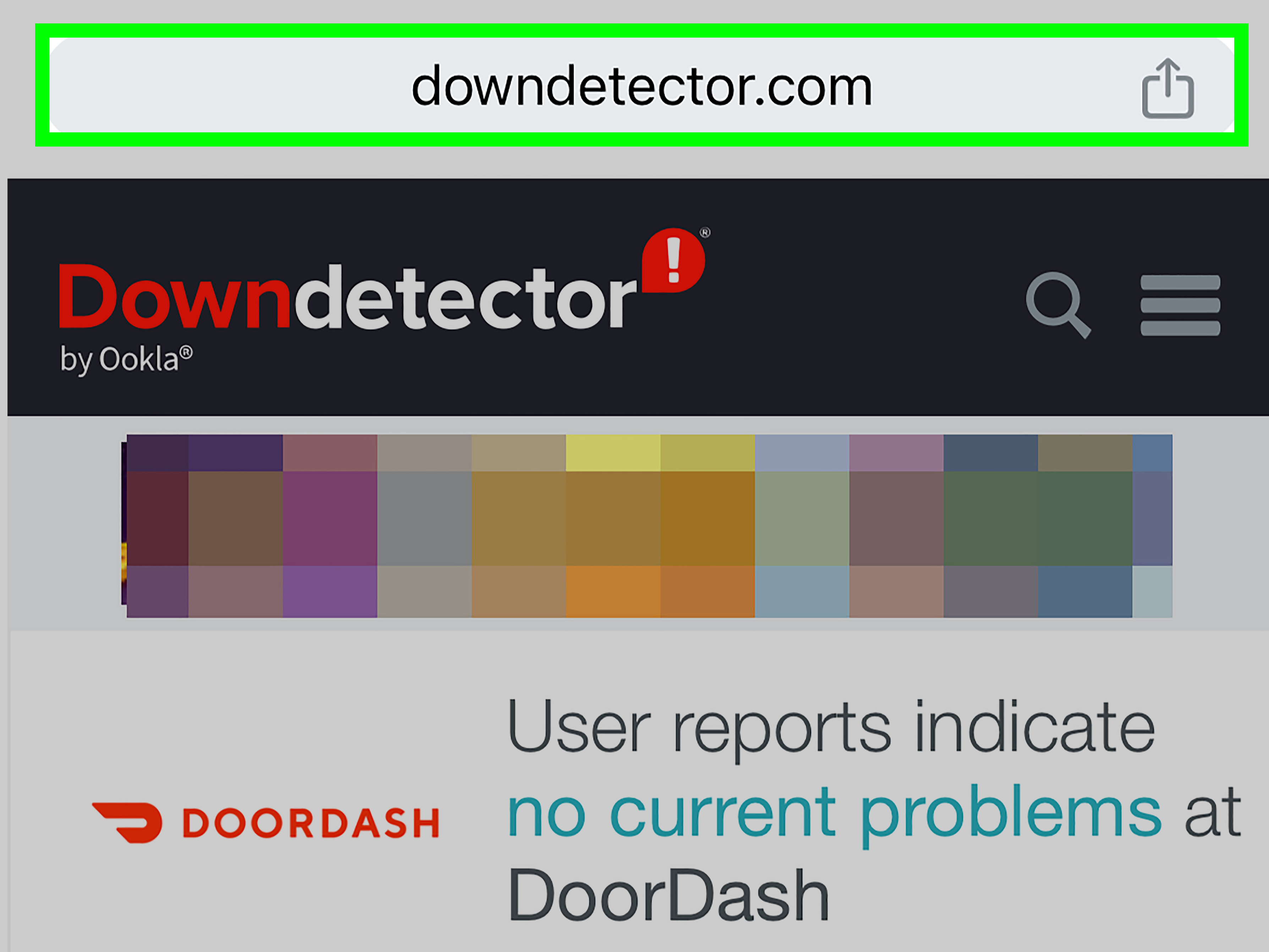
Start by determining whether the problem is affecting only your phone or the entire DoorDash platform. This can save you from reinstalling the app six times while DoorDash engineers are already wrestling with the problem.
Look for reports on DoorDash’s official support channels or a reputable service-status tracker. You can also search social media for recent reports from other customers in your area.
A widespread outage is likely when:
- Both the DoorDash app and website are unavailable.
- Several people report login or checkout failures at the same time.
- The app suddenly stops working on both Wi-Fi and cellular data.
- You see server, authentication, DNS, or unexpected-error messages.
During a confirmed outage, avoid repeatedly pressing the Place Order button. Multiple attempts can make it difficult to determine whether an order was accepted. Check your email, text messages, order history, and bank activity before trying again.
2. Close and Reopen the DoorDash App
A temporary app process may have stalled. Closing DoorDash completely forces it to start a fresh session.
On an iPhone
- Swipe up from the bottom of the screen and pause in the middle. On older models with a Home button, press the Home button twice.
- Find the DoorDash preview.
- Swipe the preview upward to close it.
- Wait several seconds and reopen DoorDash.
On Android
- Open the recent-apps screen.
- Swipe DoorDash away or select the option to close it.
- Open the app again.
If DoorDash remains frozen on Android, open Settings > Apps > DoorDash and tap Force Stop. Menu names may differ slightly by phone manufacturer.
3. Test Your Internet Connection
DoorDash needs a reliable connection to load restaurant menus, calculate delivery availability, process payments, and update order tracking. A phone can display full Wi-Fi bars while receiving little or no usable internet access.
Open another app or website to test your connection. Then try these steps:
- Turn Wi-Fi off and open DoorDash using cellular data.
- If cellular data fails, reconnect to a reliable Wi-Fi network.
- Turn Airplane Mode on for about 10 to 15 seconds, then turn it off.
- Move closer to your Wi-Fi router.
- Restart the modem and router when other devices also have connection problems.
Public Wi-Fi networks at hotels, airports, schools, and coffee shops may require you to accept terms in a browser before apps can connect. Open your browser and complete the network sign-in page.
A VPN, private DNS service, ad blocker, firewall, or security app can also interfere with location and checkout requests. Temporarily disable those services and test DoorDash again. Turn them back on afterward if they are not responsible.
4. Restart Your Phone
Restarting clears temporary processes, refreshes network services, and gives your phone a clean start. It is the troubleshooting equivalent of taking a deep breath before replying to a questionable group chat.
Turn the phone completely off, wait several seconds, and turn it back on. After it reconnects to Wi-Fi or cellular service, open DoorDash before launching several other apps.
A restart is especially helpful when DoorDash stopped working after your phone switched networks, installed an update, ran low on memory, or remained powered on for many days.
5. Update the DoorDash App
An older DoorDash version may not communicate correctly with current platform services. Updates can also repair bugs related to maps, checkout, account authentication, and app crashes.
Update DoorDash on an iPhone
- Open the App Store.
- Tap your profile picture.
- Find DoorDash in the available updates.
- Tap Update.
Update DoorDash on Android
- Open the Google Play Store.
- Search for DoorDash.
- Tap Update if the option appears.
If you see only an Open button, the latest compatible version is probably already installed. Automatic updates are convenient, but they may be delayed by storage limits, battery-saving settings, or a requirement to use Wi-Fi.
6. Update iOS or Android
The app may be current while your operating system is not. Older system software can cause compatibility problems with security, maps, payment screens, notifications, and sign-in tools.
On an iPhone, check Settings > General > Software Update. On Android, look under Settings > System > Software Update, although the exact path varies by device.
Charge your phone, connect to dependable Wi-Fi, and back up important information before installing a major operating-system update.
7. Clear the DoorDash Cache and App Data
Cached files help apps load faster, but damaged temporary data can produce blank screens, outdated menus, map crashes, or an endless loading symbol.
Clear DoorDash Cache on Android
- Open Settings.
- Select Apps or Applications.
- Choose DoorDash.
- Tap Storage or Storage & Cache.
- Select Clear Cache.
Test the app before clearing its storage or data. The stronger Clear Storage or Clear Data option resets locally stored app information and signs you out. Make sure you know your login details first.
Refresh DoorDash Data on an iPhone
iOS does not normally provide a universal Clear Cache button for individual apps. You can offload or delete DoorDash under Settings > General > iPhone Storage > DoorDash. Deleting and reinstalling the app provides the most complete refresh.
8. Check Storage Space and Background Restrictions
Apps can behave unpredictably when a phone has almost no available storage. DoorDash needs room for updates, temporary files, map information, and normal system operations.
Delete unnecessary downloads, duplicate photos, unused apps, or old videos if your storage is nearly full. Restart the phone after creating space.
Battery Saver, Low Power Mode, Data Saver, or manufacturer-specific background restrictions may also delay location updates and notifications. Allow DoorDash to use cellular data and operate in the background while you have an active order.
9. Review Location, Notification, and Cellular Permissions
DoorDash can still accept a manually entered delivery address without constant location access, but denied permissions may make address detection and certain location-based features less reliable.
Check Permissions on an iPhone
- Open Settings > Privacy & Security > Location Services and select DoorDash.
- Choose an appropriate option such as allowing access while using the app.
- Open Settings > Apps > DoorDash > Notifications and allow notifications.
- Confirm that cellular data is enabled for DoorDash.
Check Permissions on Android
- Open Settings > Apps > DoorDash > Permissions.
- Review location and notification access.
- Open the app’s mobile-data settings and permit background data when needed.
Notifications matter during an active delivery. Without them, you may miss substitution requests, arrival updates, or a message asking which building contains Apartment 4Bthe eternal mystery of modern delivery.
10. Fix DoorDash Login and Verification Problems
If DoorDash will not let you sign in, first confirm that you are using the same login method associated with your account. An account created with Google, Apple, or Facebook may not respond as expected when you enter a separate email-and-password combination.
When a verification code does not arrive:
- Confirm that the phone number on the account is correct.
- Make sure your phone can receive standard SMS messages.
- Turn Airplane Mode on and off to refresh the cellular connection.
- Check whether messages from unknown senders are being filtered.
- Wait briefly before requesting another code.
Do not request codes repeatedly in rapid succession. Security systems may temporarily limit additional requests. Never share a verification code with someone claiming to be a Dasher, restaurant employee, or support representative.
If you recently changed your email address or phone number, use the DoorDash account-management options or contact customer support for help verifying the updated information.
11. Troubleshoot Checkout and Payment Errors
When the app works until checkout, the problem may involve the order rather than the entire application.
Review the following details:
- Card number, expiration date, security code, and billing ZIP code
- Available balance or credit
- Bank fraud alerts or online-purchase restrictions
- The selected default payment method
- Minimum-order requirements
- Restaurant availability and delivery range
- Promo-code eligibility, expiration date, and spending conditions
Remove and re-add an outdated card when necessary, or choose another payment method. A bank may decline an otherwise valid transaction because the purchase appears unusual. Contact the card issuer if multiple attempts fail and the information is correct.
Before resubmitting an order after an error, check your DoorDash order history and payment account. A confirmation screen can fail to load even after the transaction has been accepted.
12. Correct Address and Restaurant-Loading Problems
If DoorDash displays no nearby restaurants, confirm the delivery address shown at the top of the app. A missing apartment number, incorrect ZIP code, old work address, or misplaced map pin can change availability.
Enter the full address manually instead of relying only on automatic location detection. Add apartment, suite, building, gate, and delivery instructions separately.
A restaurant may disappear because it is closed, temporarily paused, outside the delivery range, overloaded with orders, or unavailable for the selected address. Test another restaurant before assuming that the entire app is broken.
13. Reinstall the DoorDash App
Reinstallation removes damaged local files and installs a clean copy of DoorDash. Use this step after checking connectivity, updates, permissions, and temporary data.
- Confirm that you know your DoorDash login method and password.
- Delete or uninstall DoorDash.
- Restart your phone.
- Download DoorDash again from the official App Store or Google Play Store.
- Sign in and verify your address and payment settings.
Avoid downloading app installation files from unofficial websites. Modified packages may be outdated, insecure, or designed to steal account information.
14. Try the DoorDash Website
If the mobile app remains unusable, open the official DoorDash website in a browser. The website can help you determine whether the problem is limited to the app.
If the website works, you may still be able to browse restaurants, manage your account, check an order, or place an order while troubleshooting the application. Try a private browsing window or clear the browser’s cookies and cached files if the site also behaves incorrectly.
If neither the app nor the website works on multiple networks and devices, a DoorDash service issue becomes much more likely.
15. Contact DoorDash Support When an Active Order Is Affected
Technical troubleshooting should not delay urgent help for an order that was charged, delivered incorrectly, or never received. Use the Help option connected to the current or past order whenever possible. This gives support the relevant order information.
Contact support when:
- You were charged but no order appears.
- The app submitted duplicate orders.
- A completed order is missing from your history.
- You cannot report a missing or incorrect item.
- Tracking is frozen and the delivery is significantly late.
- You cannot access the account associated with an active order.
Save useful evidence such as screenshots, confirmation emails, receipts, error messages, and the approximate time the problem occurred. Do not post your full payment information, address, password, or verification code publicly.
Quick Fixes for Specific DoorDash App Problems
DoorDash Keeps Crashing
Force-close the app, restart your phone, update DoorDash, clear its cache on Android, and check available storage. Reinstall the app if crashes continue.
DoorDash Is Stuck on a Loading Screen
Switch between Wi-Fi and cellular data, disable a VPN temporarily, close the app, and check for an outage. Confirm that your phone’s date and time are set automatically.
The DoorDash Checkout Button Is Not Working
Review the cart for unavailable items, confirm the delivery address, remove an invalid promotion, select a valid payment method, and reopen the app.
DoorDash Order Tracking Is Not Updating
Refresh the order page, verify internet access, and enable notifications. Tracking can occasionally update late even while the delivery continues. Use the order’s Help section if the estimated arrival time has passed substantially.
DoorDash Notifications Are Missing
Enable order updates inside DoorDash and in the phone’s system settings. Review Focus, Do Not Disturb, battery-saving, and background-data restrictions.
How to Prevent Future DoorDash App Problems
A few maintenance habits can reduce the chance of another dinner-time technical rebellion:
- Keep DoorDash and your phone’s operating system updated.
- Maintain enough free storage for app updates and temporary files.
- Use a stable internet connection during checkout.
- Keep your delivery address, phone number, and payment information current.
- Allow essential notifications while an order is active.
- Avoid repeatedly submitting an order after an unclear error.
- Use a strong, unique password and never share verification codes.
Real-World Experiences: What DoorDash Problems Usually Teach Us
The following composite experiences reflect common DoorDash troubleshooting situations. They illustrate why identifying the symptom is usually more effective than immediately deleting the app.
Experience 1: The App Looks Broken, but Wi-Fi Is the Culprit
Imagine opening DoorDash at home and seeing restaurant images load slowly before the screen becomes completely unresponsive. Other apps appear normal, so DoorDash gets blamed immediately. After closing the app, clearing its cache, and restarting the phone, nothing changes.
The revealing test is switching off Wi-Fi and using cellular data. DoorDash loads instantly. The actual problem is the router or internet connection, not the app. Restarting the router restores normal service.
The lesson is simple: do not assume that visible Wi-Fi bars guarantee a working connection. Testing a second network is one of the fastest ways to separate app problems from connection problems. It also prevents unnecessary reinstallation and the awkward realization that you have forgotten your password.
Experience 2: The Payment Error Is Really a Promo-Code Conflict
In another common scenario, the app works perfectly until the customer reaches checkout. A valid credit card is selected, but the order refuses to submit. Re-entering the card changes nothing.
The overlooked detail is an old promotion attached to the cart. The offer may require a particular subtotal, payment card, store, account, or membership status. Removing the promotion allows checkout to proceed normally.
This experience shows why checkout failures should be investigated differently from app crashes. When browsing and menus work but Place Order does not, review the cart, address, payment information, restaurant availability, and promotional terms. Reinstalling an entire app because one coupon is grumpy is usually unnecessary.
Experience 3: The Order Was Submitted Even Though Confirmation Failed
A particularly stressful problem occurs when the app displays an error immediately after the customer taps Place Order. The natural reaction is to press the button again. That can create a duplicate order if the original transaction succeeded but the confirmation page failed to load.
The safer response is to pause and check the Orders section, email inbox, text messages, push notifications, and bank activity. If an order number or pending charge appears, avoid resubmitting until its status is clear.
This habit is valuable for any delivery or shopping app. A broken confirmation screen does not always mean a failed transaction. Saving screenshots and noting the time of the attempt also makes support conversations more productive.
Experience 4: Missing Updates Come From Notification Settings
Sometimes DoorDash appears to stop tracking an order, yet the delivery arrives normally. The customer later discovers that notifications were disabled during a battery-saving cleanup. DoorDash was updating, but the phone was quietly hiding the evidence.
Checking both DoorDash’s internal notification preferences and the phone’s system settings resolves the issue. On some Android devices, aggressive battery optimization can also delay background activity. On an iPhone, Focus modes may silence alerts without disabling them permanently.
The broader lesson is that app permissions are part of the troubleshooting process. Location, cellular access, notifications, and background activity can affect different features without preventing the app from opening.
Experience 5: Reinstallation Works, but It Should Be the Final Move
Reinstalling DoorDash can solve stubborn crashes caused by damaged local files. However, it also signs the user out and may require account verification. That becomes inconvenient when the customer no longer has access to the old phone number connected to the account.
Before reinstalling, confirm the login method, password, email address, and phone number. Try force-closing, restarting, updating, switching networks, and clearing the Android cache first. Reinstallation is useful, but it should be a carefully chosen repairnot the ceremonial first move whenever an app has a bad afternoon.
Conclusion
When the DoorDash app is not working, begin with the simplest explanations. Check for an outage, test another internet connection, close and reopen the app, and restart your phone. Next, update DoorDash, clear temporary data, review permissions, and verify your account, address, and payment information.
Reinstalling the app can fix persistent software problems, but it is best saved until after the faster solutions have failed. During an active order, avoid repeated checkout attempts and contact DoorDash support when charges, deliveries, or account access are affected.
Most DoorDash problems are temporary and surprisingly fixable. With a methodical approach, you can spend less time staring at a spinning icon and more time staring through the window wondering whether every approaching car contains your tacos.