Note: This guide is based on current Apple TV and tvOS behavior, including Apple TV 4K and Apple TV HD models that support downloadable apps. The publishable article below does not include source links or citation markers.
Introduction: When Your Apple TV Starts Looking Like a Digital Junk Drawer
Apple TV is supposed to make entertainment simple. You sit down, grab the Siri Remote, open Netflix, Disney+, YouTube, Apple TV+, Hulu, Max, Prime Video, or whatever streaming app is currently winning the “What should we watch?” family debate, and enjoy the show. But after monthsor let’s be honest, yearsof downloading random apps, free trials, fitness platforms, games, weather apps, and that one cooking channel you opened exactly once, your Apple TV Home Screen can start looking like a garage sale with Wi-Fi.
That is where knowing how to delete an app on Apple TV becomes surprisingly useful. Deleting unused apps can clean up your Home Screen, free up storage space, reduce clutter, and make your Apple TV feel less like it needs a tiny digital organizer with a clipboard. The process is quick, but it can be a little confusing because the Apple TV remote works differently depending on which model you own. Some remotes have a touch surface, some have a clickpad, and some seem designed to test your patience during movie night.
The good news? Once you know the steps, deleting apps on Apple TV is easy. In this guide, you will learn the five simple steps to remove an app, the difference between deleting and offloading, how to use Settings to manage storage, what to do if an app will not delete, and why removing an app does not always cancel your subscription. That last point is important, because deleting an app and canceling a paid subscription are not the same thing. Apple TV will happily remove the icon while your subscription continues quietly in the background like a ninja with a billing cycle.
Before You Start: Can Every Apple TV Delete Apps?
Before you start pressing buttons with heroic confidence, it helps to know whether your Apple TV supports downloadable apps. Apple TV 4K and Apple TV HD support the App Store, which means you can install and delete apps. Older Apple TV models, such as the Apple TV 3rd generation, have a more limited app experience. On those devices, you generally cannot delete apps in the same way because many apps are built into the system or managed differently.
If you see the App Store on your Apple TV Home Screen, you are almost certainly using a model that supports app installation and deletion. If you do not see the App Store, your Apple TV may be an older model, and your options may be limited to hiding, rearranging, or updating available apps rather than deleting them like you would on an Apple TV 4K or Apple TV HD.
What Happens When You Delete an App?
When you delete an app from Apple TV, the app is removed from the device. In many cases, its local data is removed too. That can include sign-in information, cached files, downloaded content, preferences, or game progress stored locally. If the app stores your information in the cloud, you may be able to recover it after reinstalling and signing in again. If the data exists only on the device, deleting the app may erase it for good.
Apple TV also offers an Offload option on supported versions of tvOS. Offloading removes the app from the Home Screen to free up space but keeps its data so that if you reinstall the app later, it can pick up more easily where you left off. Think of Delete as “pack up and leave,” while Offload is more like “go take a vacation, but leave your suitcase in the hallway.”
How to Delete an App on Apple TV: 5 Simple Steps
Step 1: Go to the Apple TV Home Screen
Start from the Apple TV Home Screen, where all your apps are displayed. If you are inside an app, press the Back button or TV/Home button on your Siri Remote until you return to the main screen. This is the place where you see app icons such as Apple TV, Music, Photos, YouTube, Netflix, Disney+, Prime Video, Hulu, Max, ESPN, fitness apps, games, and any other apps you have installed.
If your Home Screen is already tidy, congratulationsyou are clearly more disciplined than most of us. If it is a chaotic wall of icons, do not worry. Deleting apps is exactly how you take back control.
Step 2: Highlight the App You Want to Delete
Use the Siri Remote to move around the Home Screen and highlight the app you want to remove. Do not open the app. Just place the focus on it so the app icon is selected. On newer Siri Remotes, you can use the clickpad ring or swipe on the center surface. On older remotes, use the touch surface to navigate.
For example, maybe you downloaded a fitness app in January during your “new year, new me” era. It is now May, and the only thing getting cardio is your thumb scrolling through snacks. Highlight that app. No judgment. Apple TV cleanup is a safe space.
Step 3: Press and Hold the Clickpad or Touch Surface
With the app highlighted, press and hold the center of the clickpad or touch surface on the remote. After a moment, the app will enter edit mode. Depending on your tvOS version and remote, the icon may jiggle, a menu may appear, or both. This is similar to how apps behave on an iPhone or iPad when you press and hold them.
If nothing happens, make sure you are pressing and holding long enough. A quick tap will open the app. A longer press tells Apple TV, “I am not here to watch; I am here to organize.”
Step 4: Choose Delete App
Once the app menu appears, select Delete App. On some Apple TV interfaces, you may need to press the Play/Pause button to open the app options menu while the icon is in edit mode. From there, choose the delete option.
If you see both Delete and Offload, pause for one second before clicking like a remote-control cowboy. Choose Delete if you want to remove the app and its data from Apple TV. Choose Offload if you want to free up storage while keeping the app’s data for a future reinstall.
Step 5: Confirm Your Choice
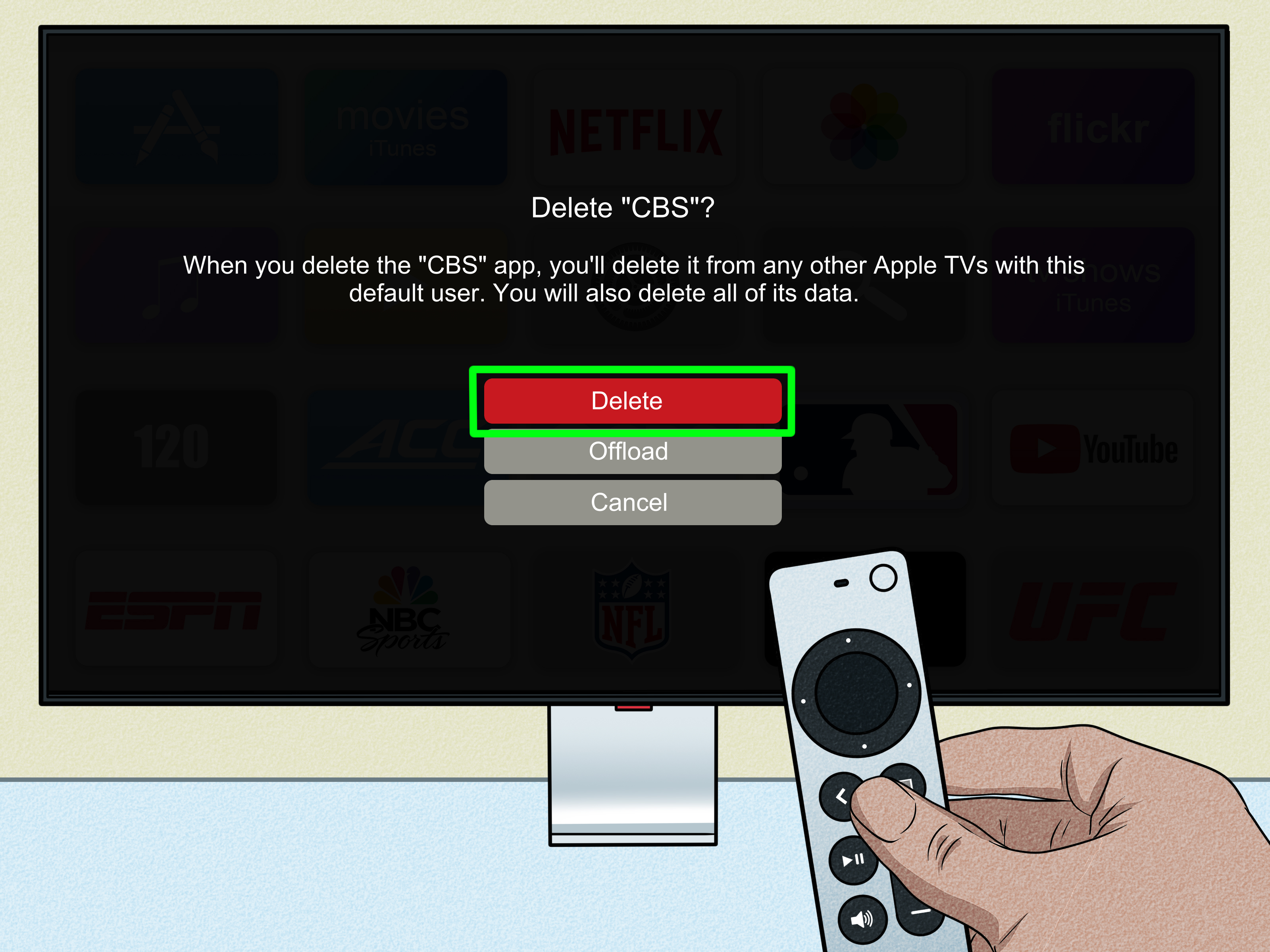
Apple TV will ask you to confirm before removing the app. Select Delete to finish. The app will disappear from your Home Screen, freeing up space and making your interface cleaner. If you ever want the app again, you can usually download it from the App Store without buying it again, assuming it is still available and connected to your Apple Account purchase history.
And that is it. Five steps. No toolbox, no hidden menu spell, no dramatic sacrifice to the streaming gods. Just highlight, hold, delete, confirm, and enjoy a cleaner Apple TV.
Alternative Method: Delete Apple TV Apps from Settings
The Home Screen method is the fastest way to delete an app, but it is not the only method. If your main goal is to free up storage, the Settings method may be even better because it shows how much space each app is using.
How to Delete Apps Through Manage Storage
Open Settings on your Apple TV, then go to General. Scroll to the Usage section and choose Manage Storage. Apple TV will show a list of installed apps along with the amount of storage each one uses. Select the trash icon next to the app you want to remove, then choose whether to delete or offload it if both options are available.
This method is especially helpful when your Apple TV is running low on storage and you are not sure which app is the biggest space hog. Some apps look harmless on the Home Screen but quietly store large caches, downloads, or game files. Manage Storage exposes the culprits. It is basically the Apple TV version of opening the fridge and discovering who ate all the leftovers.
Delete vs. Offload: Which Option Should You Choose?
The difference between deleting and offloading matters, especially if you plan to use the app again later. Deleting removes the app and its local data from Apple TV. This is best when you are sure you do not need the app anymore, when the app is glitching badly, or when you want a fresh reinstall.
Offloading removes the app itself but keeps its documents and data. This is useful when you need storage space now but may want to reinstall the app later without starting completely from scratch. Offloading is a practical choice for games, streaming apps with preferences, or apps that you use occasionally.
When Deleting Makes More Sense
Delete the app if it is outdated, broken, no longer supported, rarely used, or tied to a service you no longer subscribe to. Also delete it if you want to remove its stored data from the device. For example, if you are giving your Apple TV to someone else, cleaning up apps and data is a smart move.
When Offloading Makes More Sense
Offload the app if you want to free space but expect to use it again. This works well for seasonal apps, occasional games, workout apps, or streaming services you rotate in and out of your monthly entertainment budget. In other words, offloading is perfect for the modern subscription lifestyle, where half of us subscribe to a service for one show and then disappear like a mysterious woodland creature.
Important Warning: Deleting an App Does Not Cancel a Subscription
This is one of the most important things to know about deleting apps on Apple TV. Removing an app from your Apple TV does not automatically cancel a paid subscription. If you subscribed to a streaming service, fitness platform, sports app, music app, or premium channel, you may still be billed even after the app icon is gone.
To manage subscriptions on Apple TV, go to Settings, then open Profiles and Accounts. Choose your profile, select Subscriptions, and review the active subscriptions linked to your Apple Account. From there, you can change or cancel eligible subscriptions. You can also manage Apple subscriptions from an iPhone, iPad, Mac, or the web, depending on how the subscription was started.
Think of deleting an app like throwing away a restaurant menu. It does not cancel the reservation, stop the chef, or prevent the bill. If money is involved, always check subscriptions separately.
Why You Might Want to Delete Apps on Apple TV
1. Free Up Storage Space
Apple TV devices have limited storage. Apps, games, cached data, and media files can take up space over time. If your Apple TV starts warning you about storage or refuses to install updates, deleting unused apps is one of the simplest fixes.
2. Clean Up the Home Screen
A cluttered Home Screen makes it harder to find the apps you actually use. Deleting old apps keeps your most important services easy to access. Your future self will appreciate not having to scroll past seven abandoned apps just to open YouTube.
3. Fix App Problems
If an app freezes, crashes, fails to load, or behaves like it had one too many software updates, deleting and reinstalling it can sometimes help. A fresh install may clear corrupted local data or outdated cached files.
4. Protect Privacy
If you share your Apple TV with family members, guests, roommates, or coworkers, deleting apps you no longer use can reduce unnecessary sign-ins and account exposure. This is especially useful for apps connected to personal accounts, purchases, watch history, or private recommendations.
5. Reduce Distractions
Sometimes the best reason to delete an app is simply that you do not want it staring at you anymore. Removing unused entertainment apps, games, or shopping apps can make your Apple TV feel calmer and more intentional.
Troubleshooting: What If You Cannot Delete an App?
The App May Be Built In
Some Apple apps and system features may not be removable in the same way as downloaded apps. If the Delete option does not appear, the app may be part of the Apple TV system or restricted by tvOS.
Your Apple TV May Be Too Old
If you are using an older Apple TV model without the App Store, you may not be able to delete apps like you can on Apple TV 4K or Apple TV HD. In that case, your options may be limited to hiding, rearranging, or updating available built-in apps.
The Remote May Not Be Registering the Long Press
If the app does not enter edit mode, try pressing and holding the clickpad or touch surface a little longer. Also check the remote battery, make sure the remote is paired, and confirm that you are highlighting the app rather than opening it.
The App Is Inside a Folder
If the app is inside a folder, open the folder first, then highlight the app and use the same press-and-hold method. You can also move apps out of folders if you are reorganizing the Home Screen.
Restrictions or Device Management May Be Involved
If your Apple TV is used in a school, office, hotel, rental property, or managed environment, app deletion may be restricted. In that case, an administrator may control which apps can be installed, removed, or changed.
How to Reinstall a Deleted App on Apple TV
If you delete an app and later change your mind, reinstalling it is simple. Open the App Store on Apple TV, search for the app, and select Get, Install, or the download icon. If you previously purchased the app with the same Apple Account, you usually do not need to pay again. However, app availability can change, and some apps may be removed from the App Store by their developers.
After reinstalling, you may need to sign in again. For streaming apps, that could mean entering a password, scanning a QR code, using a phone activation link, or signing in through your TV provider. In other words, keep your login details handy unless you enjoy shouting, “What email did we use for this?” across the living room.
Extra Tips for Keeping Apple TV Organized
Turn Off Automatic App Installation
Apple TV can automatically install Apple TV versions of apps you download on other Apple devices signed in with the same Apple Account. This can be convenient, but it can also fill your Home Screen with apps you never intended to watch on a TV. To manage this, go to Settings, then Apps, and look for Automatically Install Apps. Turning it off can help keep your Apple TV from becoming a surprise app museum.
Use Folders for Apps You Keep
If you do not want to delete certain apps but also do not want them covering the Home Screen, organize them into folders. You might create folders for Streaming, Sports, Fitness, Games, Kids, News, or Music. This keeps everything accessible without making your Home Screen look like Times Square.
Review Apps Once a Month
A quick monthly cleanup can prevent app clutter from building up. Open Manage Storage, check which apps take up the most space, and remove anything you have not used recently. This takes only a few minutes and can prevent bigger storage headaches later.
Delete Apps Before Resetting Apple TV
If Apple TV feels slow or messy, do not jump straight to a full reset. Start by deleting unused apps, restarting the device, and updating tvOS. A full reset can be useful in certain situations, but it is more disruptive because you may need to sign in again and reconfigure settings.
Personal Experience: What It Feels Like to Clean Up Apple TV Apps
Deleting apps on Apple TV sounds like a small task, but in real life, it can feel oddly satisfying. The first time many users clean up their Apple TV, they discover apps they completely forgot existed. There is usually a streaming app downloaded for one free trial, a game someone played during a holiday visit, a fitness app installed during a burst of optimism, and at least one mysterious app that no one in the house admits downloading. It is the digital version of finding a single sock behind the dryer.
One practical experience many Apple TV users share is that the Home Screen becomes easier to use immediately after cleanup. The apps you actually usemaybe Apple TV, Netflix, YouTube, Disney+, Prime Video, Hulu, Max, Spotify, or a sports appmove into focus. Instead of scrolling through a long row of forgotten icons, you can open what you want faster. This matters more than it sounds, especially when everyone is sitting on the couch and the “pick something already” energy is rising.
Another common experience is realizing that deleting apps can help with performance annoyances. While deleting an app is not a magic cure for every Apple TV problem, removing unused apps and clearing space can make the device feel less crowded. If an app has been crashing or refusing to load properly, deleting and reinstalling it may give it a clean start. This is especially useful for streaming apps that store cache, login tokens, or temporary files. Sometimes the app does not need a lecture; it just needs a fresh install.
The Settings method also changes how people think about their Apple TV. When you open Manage Storage and see exactly how much space each app uses, the cleanup becomes more strategic. Instead of deleting random icons, you can target the apps that are actually taking up room. A small utility app may barely matter, while a game or video-heavy app may be using far more storage than expected. It is like checking your closet and realizing the biggest problem is not the socksit is the giant coat you have not worn since 2019.
One lesson worth learning early is to check subscriptions before celebrating. Many users delete a streaming app thinking they have ended the service, only to discover the charge still appears later. The app is gone, but the subscription is alive and well. A smart cleanup routine includes two parts: delete the app from Apple TV and then review subscriptions under your Apple Account. This extra step can save money and prevent surprise renewals.
Families may also find that deleting apps makes Apple TV easier for kids, parents, or guests to use. A simplified Home Screen reduces accidental app openings and keeps the focus on approved services. If your Apple TV is used by multiple people, deleting unused apps and organizing the rest into folders can prevent daily confusion. The remote is already small enough to lose between couch cushions; the Home Screen does not need to be confusing too.
Overall, the experience of deleting apps on Apple TV is quick, useful, and mildly therapeutic. It is one of those tiny tech chores that makes a device feel new again. You do not need to be a tech expert, and you do not need to understand every corner of tvOS. Just remove what you do not use, offload what you might want later, check subscriptions separately, and keep your favorite apps within easy reach. Your Apple TV will feel cleaner, faster to navigate, and much less like it was decorated by a committee of bored app icons.
Frequently Asked Questions About Deleting Apps on Apple TV
Can I delete Apple TV apps permanently?
You can delete many downloaded apps from Apple TV 4K and Apple TV HD. However, some built-in apps or system features may not be removable. Deleted apps can often be reinstalled from the App Store later.
Will deleting an Apple TV app delete my account?
No. Deleting an app removes it from Apple TV, but it usually does not delete your account with that service. For example, deleting a streaming app does not delete your Netflix, Hulu, Disney+, or Apple Account.
Does deleting an app cancel the subscription?
No. Deleting an app does not cancel a subscription. You must cancel subscriptions separately through Apple TV settings, your Apple Account, the service provider, or the platform where you originally subscribed.
Can I get a deleted app back?
Yes, in most cases. Open the App Store on Apple TV, search for the app, and reinstall it. If you purchased it before with the same Apple Account, you usually do not need to pay again.
Why do I see Offload instead of only Delete?
Offload is a storage-saving option that removes the app while keeping its data. Delete removes the app and its local data. Choose Offload if you might reinstall the app later and want to preserve data.
Conclusion: A Cleaner Apple TV Is Only Five Steps Away
Learning how to delete an app on Apple TV is one of the easiest ways to keep your streaming setup clean, fast, and pleasant to use. Whether you are removing an app you no longer watch, freeing up storage, fixing a glitch, or simply making the Home Screen less chaotic, the process takes only a minute. Go to the Home Screen, highlight the app, press and hold the clickpad or touch surface, choose Delete App, and confirm.
For storage-focused cleanup, use Settings > General > Manage Storage to see which apps are taking up the most space. If available, choose between Delete and Offload based on whether you want to remove app data or keep it for later. And remember: deleting an app does not cancel a subscription, so always review your active subscriptions separately if money is involved.
In the end, Apple TV app cleanup is simple maintenance with a big payoff. Your Home Screen becomes easier to navigate, your storage gets some breathing room, and your remote-control life becomes a little less dramatic. That is a win for you, your couch, and everyone waiting for movie night to begin.