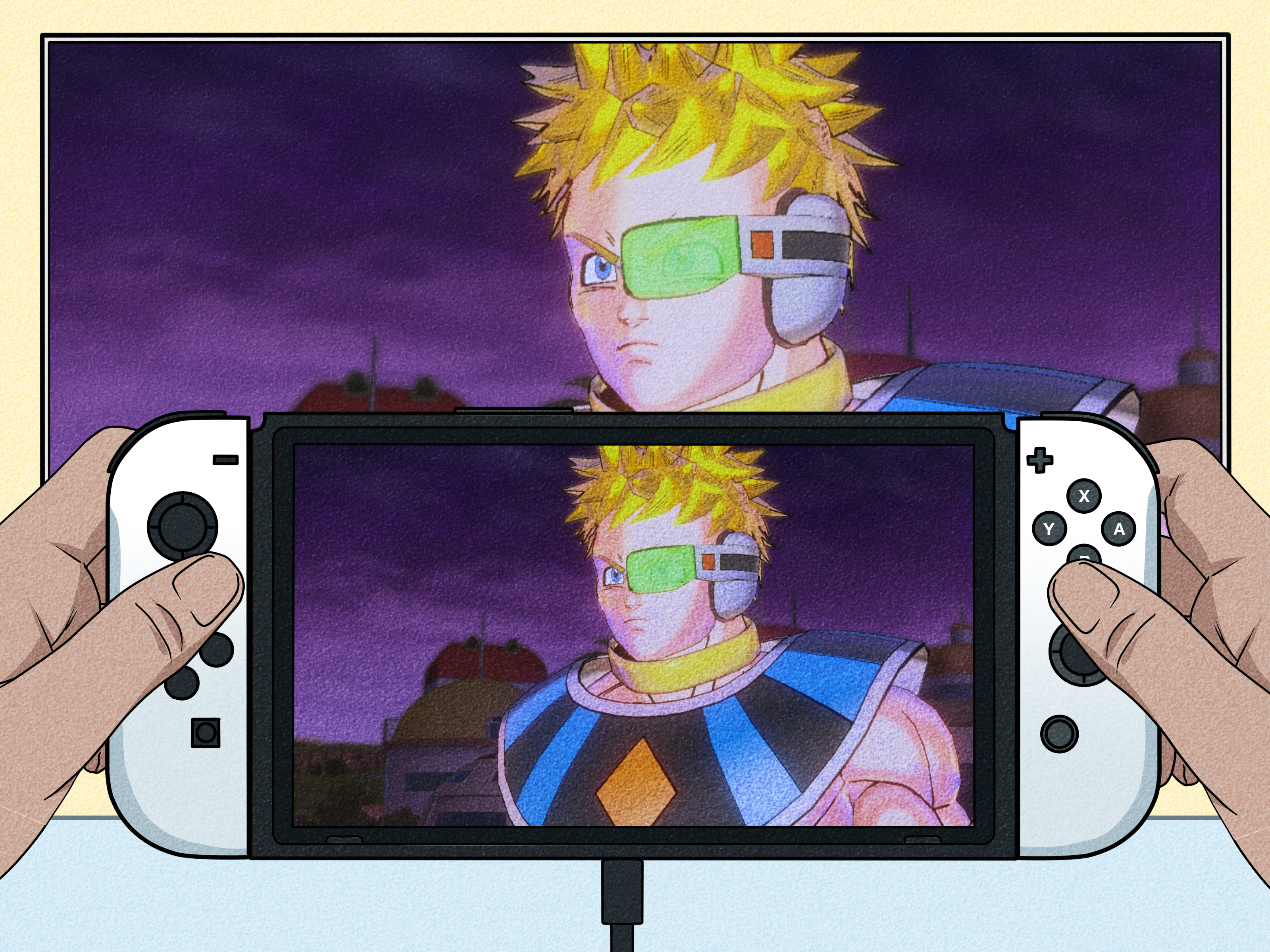
So, your Nintendo Switch dock is missing, broken, borrowed by a sibling, or buried somewhere in the mysterious cable drawer where old chargers go to retire. Good news: you may still be able to connect your Switch to a TV without the official dock. Bad news: you cannot do it with just any random USB-C cable you found under the couch. The Nintendo Switch is flexible, but it is not a magician in tiny plastic pants.
This guide explains how to connect Switch to TV without dock using the right USB-C to HDMI adapter or portable dock alternative. We will cover what you need, what works, what does not, how to troubleshoot a blank screen, and how to avoid turning a simple gaming session into a tech support opera.
Can You Connect a Nintendo Switch to a TV Without the Dock?
Yes, you can connect a standard Nintendo Switch or Nintendo Switch OLED Model to a TV without the original dock, but you still need hardware that performs the dock’s job. The dock is not just a plastic stand. It routes power, sends video through HDMI, and helps the console enter TV mode.
To replace it, you need a compatible USB-C to HDMI adapter, mini dock, or portable docking station that supports video output and power delivery. A simple USB-C charging cable will not send gameplay to your TV. A regular USB-C to HDMI adapter made for laptops may or may not work reliably with the Switch, so choosing a Switch-compatible adapter is important.
Important Note About Nintendo Switch Lite
The Nintendo Switch Lite cannot connect to a TV. It does not support TV mode, even with an adapter, HDMI cable, capture card, or a very convincing pep talk. The Lite is designed as a handheld-only system. If you own a Switch Lite, your best big-screen workaround is remote-style viewing through a camera or capture setup, but that is not true TV mode and is usually not worth the hassle for normal gaming.
What You Need to Connect Switch to TV Without Dock
Before you start plugging things in with the confidence of a movie hacker, gather the right equipment. A clean setup prevents most connection problems.
Required Items
- A Nintendo Switch or Nintendo Switch OLED Model
- A compatible USB-C to HDMI adapter or portable Switch dock
- An HDMI cable
- The official Nintendo Switch AC adapter or a high-quality USB-C power adapter that supports proper power delivery
- A TV or monitor with an HDMI input
- Joy-Con controllers, a Pro Controller, or another compatible controller for comfortable play
The safest option is to use the official Nintendo Switch AC adapter. The Switch needs enough power to run in TV mode while sending video output. Underpowered chargers can cause the console to charge slowly, fail to enter TV mode, or disconnect during play. Nobody wants Mario Kart to cut out on the final lap because the charger got stage fright.
How to Choose the Right USB-C to HDMI Adapter
The adapter is the heart of this setup. Look for a product described as a portable dock for Nintendo Switch, a Switch-compatible USB-C HDMI adapter, or a USB-C hub that specifically mentions Nintendo Switch TV mode support.
Features to Look For
- USB-C power input: The adapter should allow power to pass through while connected to the console.
- HDMI output: This sends the video signal to your TV.
- Power Delivery support: This helps provide stable power while gaming.
- Switch compatibility: The product description should clearly say it works with Nintendo Switch or Switch OLED.
- Good ventilation: Avoid adapters or cases that trap heat around the console.
Avoid suspiciously cheap no-name adapters with vague descriptions like “USB-C magic display thing.” The Switch uses USB-C, but that does not mean every USB-C accessory is a good match. Choose a reputable accessory from a known brand, read recent reviews, and make sure the listing mentions Nintendo Switch support rather than only laptops, tablets, or phones.
Step-by-Step: How to Connect Switch to TV Without Dock
Once you have the right adapter, the connection process is fairly simple. Follow the order below for the best chance of success.
Step 1: Turn On Your TV and Select the Right HDMI Input
Power on your TV or monitor. Use the remote to select the HDMI input you plan to use. If your HDMI cable is plugged into HDMI 2, choose HDMI 2 on the TV. This sounds obvious, but “wrong input” is one of the most common causes of panic in modern civilization.
Step 2: Connect the HDMI Cable to the TV
Plug one end of the HDMI cable into your TV or monitor. Plug the other end into the HDMI port on your USB-C to HDMI adapter or portable dock. Make sure both ends are firmly connected. A loose HDMI cable can cause flickering, no signal, missing audio, or random black screens.
Step 3: Connect Power to the Adapter
Plug the Nintendo Switch AC adapter into a wall outlet, then connect the USB-C end to the power input on your adapter or portable dock. If your adapter has multiple USB-C ports, use the one labeled “PD,” “Power,” “USB-C In,” or similar. Do not plug power into a data-only port.
Step 4: Connect the Adapter to the Switch
Now connect the adapter’s USB-C plug to the USB-C port on the bottom of your Nintendo Switch. Use a gentle, straight connection. Do not force it. The USB-C port is sturdy enough for normal use, but it is not designed for wrestling.
Step 5: Wake the Switch
Press the Power button or Home button on a paired controller. If everything is connected correctly, the Switch screen should turn off and the picture should appear on your TV. This means the console has entered TV mode.
Step 6: Detach or Pair Your Controllers
If your Joy-Con controllers are attached, remove them before settling in. You can also use a Nintendo Switch Pro Controller or another compatible wireless controller. Once the game appears on the TV, you can play from the couch like royalty.
Best Setup Example for a Clean Connection
Here is a simple example of a reliable no-dock setup:
- Nintendo Switch OLED Model
- Portable Switch-compatible USB-C dock
- Official Nintendo Switch AC adapter
- Standard HDMI cable
- TV set to the correct HDMI input
- Pro Controller paired wirelessly
This setup keeps the Switch powered, sends the video signal through HDMI, and avoids the bulky original dock. It is especially useful for travel, hotel rooms, dorm rooms, gaming nights, or moving between TVs at home.
Can You Use a Phone USB-C to HDMI Adapter?
Sometimes, but it is not the best bet. Many phone and laptop USB-C to HDMI adapters are designed for devices that output video differently. Some may work with the Switch, while others will do absolutely nothing except make you question your life choices.
If the adapter does not include USB-C power input, it is probably not suitable for Switch TV mode. The Switch needs power while sending video. A plain video-only dongle usually is not enough. For the best results, choose an adapter or mini dock marketed for Nintendo Switch.
Can You Connect Switch to TV Wirelessly?
No, the Nintendo Switch does not include built-in wireless screen casting to a TV. It cannot natively mirror gameplay through Chromecast, AirPlay, Miracast, or a smart TV app. To play on a TV, you need HDMI output through the dock or a compatible dock alternative.
Some people use capture cards to display Switch gameplay on a laptop or tablet, but that is a different setup. It introduces extra hardware, possible lag, and more cables. For regular living-room play, HDMI remains the cleanest and most dependable option.
Troubleshooting: Switch Connected Without Dock but No Signal
If your TV says “No Signal,” do not immediately assume your console has joined a secret underground rebellion. Work through these fixes first.
Check the HDMI Input
Make sure the TV is set to the same HDMI port you are using. Try another HDMI port if available. Some TVs label ports differently, and one port may behave better than another.
Reconnect in the Correct Order
Unplug everything and reconnect in this order: HDMI to TV, HDMI to adapter, power to adapter, adapter to Switch, then wake the console. The order can matter because the console needs to detect both power and display output.
Use the Official AC Adapter
If you are using a weak phone charger, swap it for the official Nintendo Switch AC adapter. TV mode requires more reliable power than casual handheld charging.
Inspect the USB-C Port
Check the bottom USB-C port on the Switch for dust, lint, or visible damage. Do not jam metal tools inside it. If needed, gently clear debris with compressed air or have a repair professional inspect it.
Try Another HDMI Cable
HDMI cables can fail. Try a different cable that you know works with another device. If the screen appears, your old cable was the tiny villain all along.
Restart the Console
Hold the Power button for a few seconds, choose Power Options, then restart. A simple reboot can fix handshake issues between the console, adapter, and TV.
Check TV Resolution Settings
In the Switch settings, go to TV Settings and set TV Resolution to Automatic. If that fails, try 720p or 1080p manually. Some older TVs are picky about resolution and color range.
Safety Tips When Using a Dock Alternative
Connecting a Switch to TV without dock is convenient, but use common sense. The goal is gaming, not conducting a risky electronics experiment on your coffee table.
Avoid Overheating
Keep the console in an open area with airflow. Do not cover it with blankets, stack it on hot electronics, or place it in a tight case while playing on the TV. The official dock leaves room for ventilation; your alternative setup should do the same.
Be Careful With the USB-C Port
If the adapter hangs directly from the bottom of the Switch, avoid putting pressure on it. A short USB-C extension cable or a small stand can reduce strain. The console should rest securely instead of balancing like a nervous flamingo.
Buy From Reputable Brands
Use accessories with clear compatibility claims, good reviews, and safe power delivery. Cheap, poorly made docks can be unreliable and may create power or connection issues.
Dock vs. No-Dock Setup: Which Is Better?
The official dock is still the simplest and most reliable choice for everyday TV play. It is designed for the Switch, supports TV mode properly, holds the console upright, and keeps the setup tidy.
A no-dock setup is better for portability. A compact USB-C HDMI adapter or mini dock takes up less space in a travel bag, works well for hotel TVs, and saves you from unplugging your main dock every time you visit a friend. The tradeoff is that you must be more careful about accessory quality, heat, and cable strain.
When You Should Replace the Dock Instead
If you play on TV every day, have kids using the console, or want the most stable setup possible, buying a replacement dock may be smarter. Nintendo sells official docks and dock sets, and there are also licensed accessories from reputable brands. A replacement dock is less exciting than a tiny travel adapter, but it is dependable. Sometimes boring is beautiful.
500-Word Experience Section: Real-World Lessons From Connecting a Switch Without a Dock
In real life, connecting a Nintendo Switch to a TV without the dock usually feels easy after the first successful setup. The first time, however, it can feel like solving a puzzle designed by a cable-loving raccoon. The most common experience is this: you plug in the USB-C adapter, connect HDMI, stare at a “No Signal” message, and immediately wonder whether the TV, Switch, adapter, cable, or universe is broken.
The biggest lesson is that power matters. Many users try a phone charger first because it fits the USB-C port. That seems logical, but the Switch in TV mode is more demanding than a phone sipping battery on a nightstand. A weak charger may charge the console in handheld mode but fail to trigger TV output. Using the official Nintendo Switch AC adapter often solves the problem instantly. It is not glamorous, but it works.
The second lesson is that the adapter must be truly compatible. A USB-C to HDMI adapter that works with a laptop does not automatically work with the Switch. The product should specifically support Nintendo Switch TV mode. When shopping, read recent reviews rather than only the star rating. Look for comments from people who used the adapter with a standard Switch or Switch OLED, not just with a MacBook, iPad, or Android phone.
Another practical experience: hotel TVs can be weird. Some hotel remotes block input switching, some HDMI ports are hidden behind wall mounts, and some TVs have settings controlled by the hotel system. In those cases, a portable dock still works only if you can access a real HDMI input and select it. Bringing a slim HDMI cable and a small adapter is helpful, but patience is also part of the packing list.
At home, the no-dock method is excellent for moving between rooms. Instead of unplugging the official dock from the living room, you can keep a portable adapter near a bedroom TV or office monitor. For families, this reduces cable chaos. For travelers, it saves bag space. For people who dislike clutter, it feels like a tiny victory over the cable monster.
There are also comfort lessons. If the adapter plugs directly into the bottom of the Switch, do not let the console dangle from it. Place the Switch on a stand or flat surface so the USB-C connector is not carrying the console’s weight. A small stand with airflow makes the setup safer and cleaner. Heat is another factor: the Switch should not be covered or squeezed into a pouch while outputting to TV.
Finally, remember that no-dock setups are best when treated as portable solutions, not indestructible replacements. The official dock is still the easiest daily option. But when you choose the right adapter, use the right power supply, and connect everything in the correct order, playing Switch on a TV without the dock can be smooth, compact, and surprisingly convenient. It is one of those tech tricks that feels fancy once it works, even though the real secret is simply using the right cable in the right hole. Technology: occasionally dramatic, but manageable.
Conclusion
Learning how to connect Switch to TV without dock is useful when your official dock is unavailable, damaged, or too bulky to carry. The key is using the right equipment: a Switch-compatible USB-C to HDMI adapter or portable dock, a reliable HDMI cable, and a proper power adapter. Standard Nintendo Switch and Switch OLED systems can use TV mode through compatible hardware, but the Switch Lite cannot output to a TV.
For the smoothest experience, connect HDMI first, add power, plug the adapter into the Switch, select the correct TV input, and use a paired controller. If you see no signal, check the input, power source, HDMI cable, adapter compatibility, and TV settings. With a little care, you can enjoy big-screen gaming without hauling the full dock everywhere. Your backpack will thank you. Your TV will be ready. Your couch will understand the assignment.