Your AirDrop name is the little label that appears when someone nearby tries to send you a photo, video, PDF, contact card, meme, or the kind of “quick file” that somehow becomes urgent only when everyone is standing in a crowded room. If your device still shows up as “iPhone,” “iPad,” “MacBook Pro,” or worse, “Dad’s iPhone 2,” changing your AirDrop name can make sharing faster, cleaner, and far less awkward.
The good news? You do not need a secret Apple handshake, a Genius Bar appointment, or a software engineering degree. On iPhone and iPad, your AirDrop name is tied to your device name. On Mac, it is tied to your computer name. Once you update that name, people nearby should see the new label when they use AirDrop.
In this guide, you will learn how to change your AirDrop name on iPhone, iPad, and Mac, why the change matters, what to do if the new name does not appear right away, and how to choose a name that is useful without broadcasting your entire life story to strangers at the airport.
What Is an AirDrop Name?
An AirDrop name is the display name other Apple users see when your device is available for AirDrop sharing. It helps identify your iPhone, iPad, or Mac in a list of nearby devices. For example, if three people in a room all own an iPhone, names like “iPhone,” “Sarah’s iPhone,” and “Sarah Work iPhone” make a very big difference.
AirDrop itself is Apple’s wireless file-sharing feature. It works between supported Apple devices and uses Wi-Fi and Bluetooth to discover nearby devices and transfer files. You might use it to send vacation photos from your iPhone to your Mac, share a PDF from your iPad to a coworker, or move a video from one Apple device to another without emailing yourself like it is 2009.
Why You Should Change Your AirDrop Name
Changing your AirDrop name is a small setting with surprisingly practical benefits. The default device name may be too generic, too personal, or simply confusing. A better name can make your device easier to recognize and reduce failed transfers.
It Makes Your Device Easier to Find
If you are in an office, classroom, family group, or coffee shop, there may be several Apple devices nearby. A clear name like “Maya iPhone 15” or “Alex MacBook Air” is easier to select than a mystery device called “iPhone.”
It Helps Separate Personal and Work Devices
If you use multiple Apple devices, naming them by purpose can save time. For example, “Chris Work iPad,” “Chris Personal iPhone,” and “Chris Studio Mac” are much easier to identify than three nearly identical default names.
It Can Improve Privacy
Your device name may appear in other Apple services and connections, including Bluetooth, Personal Hotspot, iCloud, and Finder. If your current device name includes your full legal name, business name, or something overly specific, changing it to a simpler label may be a smarter choice.
How to Change Your AirDrop Name on iPhone
On iPhone, your AirDrop name usually comes from your device name. Change the iPhone name, and you change how your iPhone appears in AirDrop.
Step-by-Step Instructions for iPhone
- Open the Settings app on your iPhone.
- Tap General.
- Tap About.
- Tap Name.
- Delete the current name.
- Type your new AirDrop name.
- Tap Done on the keyboard.
That is it. Your iPhone now has a new device name, and that name should appear when someone tries to send files to you through AirDrop.
Example iPhone AirDrop Names
Not sure what to choose? Try something clear and simple:
- Emma iPhone
- Emma Work Phone
- Marketing iPhone
- Jake 15 Pro
- Family iPhone
Avoid names that are too long, too private, or too silly in professional settings. “Supreme Commander of Snacks” may be funny at home, but it may not inspire confidence during a client meeting.
How to Change Your AirDrop Name on iPad
The process on iPad is nearly identical to iPhone. Since iPadOS uses the same basic naming path, you can rename your iPad in less than a minute.
Step-by-Step Instructions for iPad
- Open the Settings app on your iPad.
- Tap General.
- Tap About.
- Tap Name.
- Remove the old device name.
- Enter the new name you want people to see.
- Tap Done.
Your iPad’s AirDrop name should now be updated. If you use your iPad for school, work, drawing, editing, or family sharing, a specific name can help you avoid sending files to the wrong device.
Smart iPad Naming Ideas
For iPad, it often helps to include the device’s purpose. For example, “Lena Design iPad,” “Sam School iPad,” or “Kitchen iPad” can be more useful than a generic name. This is especially helpful in homes or offices with multiple iPads.
How to Change Your AirDrop Name on Mac
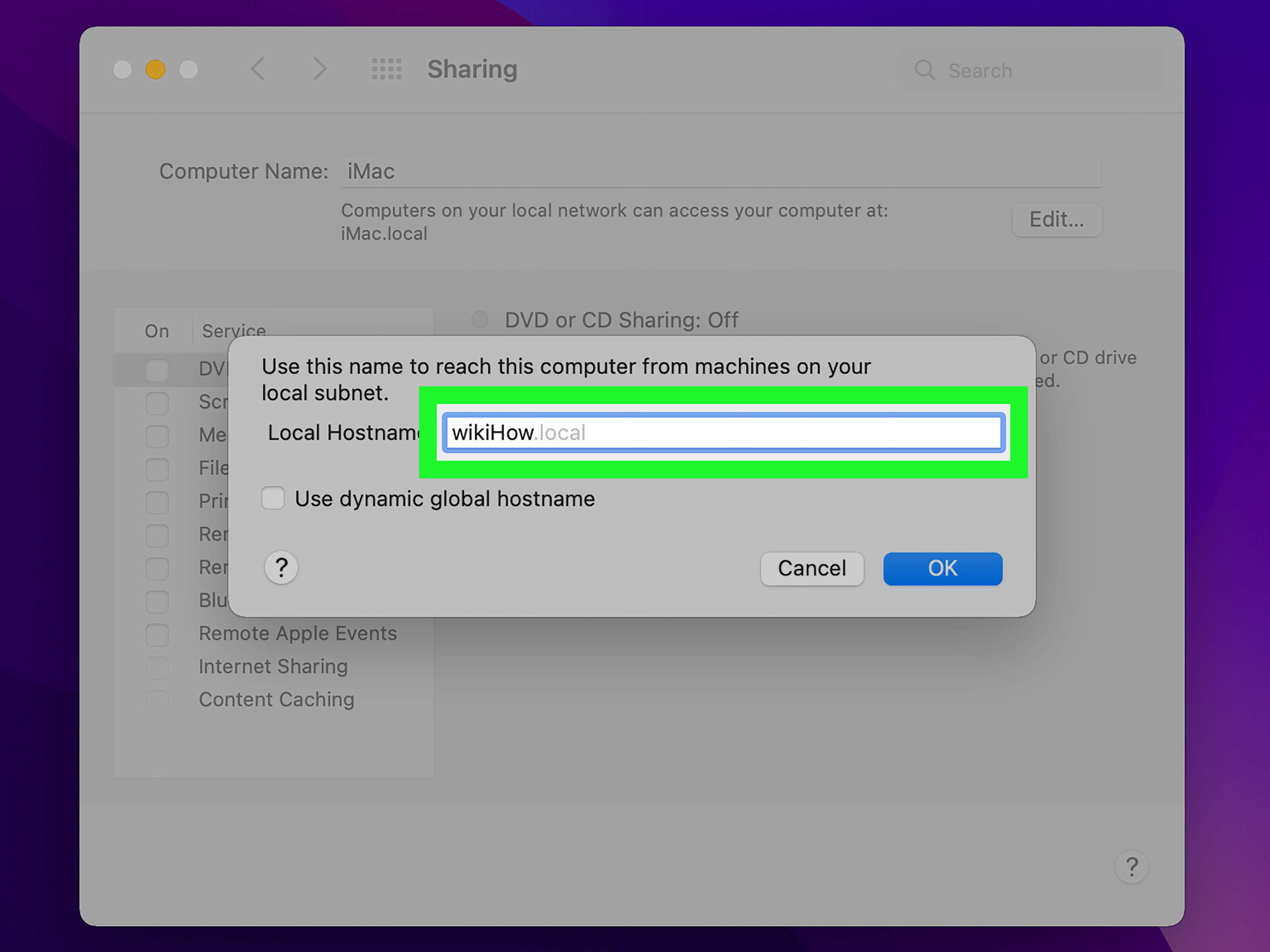
On Mac, your AirDrop name is connected to your computer name. In current versions of macOS, you can change it from System Settings. Older macOS versions may use System Preferences instead.
Step-by-Step Instructions for Newer macOS Versions
- Click the Apple menu in the top-left corner of the screen.
- Choose System Settings.
- Click General in the sidebar.
- Click About.
- Select the current computer name.
- Type the new name you want to use.
- Close Settings or go back; the change should save automatically.
Depending on your Mac and settings, you may be asked to authenticate with your password or Touch ID before changing the name.
Instructions for Older macOS Versions
If your Mac uses an older macOS layout, try this path instead:
- Click the Apple menu.
- Open System Preferences.
- Click Sharing.
- Find Computer Name.
- Enter a new name.
- Close the window to save the change.
After changing the computer name, your Mac should use the new name in AirDrop and on local network services.
How to Check If Your New AirDrop Name Worked
After renaming your device, test it with another Apple device. Open a photo, document, or webpage, tap or click the Share button, choose AirDrop, and look for your renamed device in the nearby list.
If you are testing between your own Apple devices, make sure both devices have Wi-Fi and Bluetooth turned on. Also keep them physically close. AirDrop is convenient, but it is not a magical file cannon that works from across town.
AirDrop Name vs. Contact Name: What Is the Difference?
This is where things can get slightly confusing. Your AirDrop display may be influenced by more than one kind of name, depending on the sender, receiver, contact settings, and Apple Account details.
Device Name
The device name is the name you change in Settings on iPhone or iPad, or System Settings on Mac. This is the most important setting when you want to change your AirDrop name.
Contact Card Name
If someone has you saved in their Contacts app, they may see the name from their contact card for you rather than only the raw device name. That is why your new AirDrop name may look correct to strangers or non-contacts but appear differently to someone who already has your contact saved.
Apple Account Name
Your Apple Account name can also appear across Apple services. However, changing your AirDrop name does not require changing your Apple Account name. In most cases, you only need to rename the device.
What to Do If Your AirDrop Name Does Not Change
Sometimes your new AirDrop name does not appear immediately. Do not panic. Your device probably did not ignore you out of spite. It may simply need a refresh.
1. Turn AirDrop Off and On Again
On iPhone or iPad, open Control Center, press and hold the wireless controls box, tap AirDrop, and change the receiving setting. You can also go to Settings > General > AirDrop. On Mac, use Control Center or Finder’s AirDrop window.
2. Toggle Wi-Fi and Bluetooth
AirDrop depends on Wi-Fi and Bluetooth. Turn both off, wait a few seconds, then turn them back on. This simple reset often fixes discovery issues.
3. Restart Your Device
If the old name still appears, restart your iPhone, iPad, or Mac. A restart can help the system refresh the device identity shown to nearby Apple devices.
4. Update Your Software
Software updates can fix AirDrop bugs and compatibility problems. On iPhone or iPad, go to Settings > General > Software Update. On Mac, go to System Settings > General > Software Update.
5. Check the Other Person’s Contacts
If one person still sees the wrong name, the issue may be on their device. They may have an old contact card saved for you. Ask them to check your contact entry or try sending from another device.
Best Practices for Choosing an AirDrop Name
A good AirDrop name should be recognizable, short, and appropriate for the places where you use your device. You do not need to overthink it, but a little strategy helps.
Keep It Short
Long names can be harder to read in the AirDrop panel. “Jonathan’s iPhone for Work and Occasional Cat Photography” may be accurate, but it is not exactly elegant.
Make It Recognizable
Use a first name, initials, device type, or purpose. Examples include “Mia iPhone,” “J Lee iPad,” or “Studio Mac Mini.”
Avoid Sensitive Details
Do not include your full address, phone number, email address, company password hint, or anything that makes strangers say, “Wow, that is a lot of information for a device name.”
Use Different Names for Different Devices
If you own multiple Apple devices, avoid giving them all the same name. Use labels like “Work,” “Home,” “Travel,” “Editing,” or “School” to make each device easy to identify.
Does Changing Your AirDrop Name Affect Other Features?
Yes, it can. Your device name is not used only for AirDrop. On iPhone and iPad, the name can also appear in iCloud, Bluetooth, Personal Hotspot, Finder, and other device lists. On Mac, the computer name can appear on local networks and in sharing settings.
That is usually helpful. If you rename your iPhone to “Nora iPhone,” your Personal Hotspot may also become easier to recognize. The only downside is that if you choose a joke name, that joke may travel farther than expected. Choose wisely; your Bluetooth speaker has seen things.
AirDrop Privacy and Visibility Settings
Changing your AirDrop name does not automatically change who can send files to you. AirDrop visibility is a separate setting. Current Apple devices usually offer options such as Receiving Off, Contacts Only, and Everyone for 10 Minutes.
Contacts Only limits discovery to people in your contacts, while Everyone for 10 Minutes temporarily allows nearby Apple devices to find you. For everyday use, Contacts Only is usually the more private option. If someone is not in your contacts and cannot find your device, temporarily switching to Everyone for 10 Minutes can help.
Common Mistakes When Changing an AirDrop Name
Changing the Wrong Name
Some users change their Apple Account name or Messages name and expect AirDrop to update. For AirDrop identification, start with the device name first.
Using the Same Name on Every Device
If your iPhone, iPad, and Mac are all called “Taylor,” you may still be confused when sending files. Add the device type to each name.
Forgetting to Test the Change
After renaming, test AirDrop with another Apple device. It takes only a few seconds and confirms that the name appears as expected.
Assuming AirDrop Is Broken
If the device does not appear, the problem may be AirDrop visibility, Wi-Fi, Bluetooth, distance, contact settings, or outdated software rather than the name itself.
Real-World Experience: What Changing Your AirDrop Name Is Actually Like
Changing an AirDrop name sounds like a tiny housekeeping task, but in real life, it can make Apple devices feel much more organized. Imagine a family with four iPhones, two iPads, and a MacBook on the same table. Everyone wants to share vacation photos after dinner. The AirDrop screen fills with names like “iPhone,” “iPhone,” “Mom’s iPhone,” and “iPad.” Suddenly, sending one beach photo becomes a guessing game. Rename the devices to “Anna iPhone,” “Ben iPad,” “Mom 15 Pro,” and “Family MacBook,” and the confusion disappears almost instantly.
The same thing happens in workplaces. If you have ever tried to AirDrop a presentation in a meeting room, you know the danger of vague device names. There is always one person whose Mac appears as “MacBook Pro,” and somehow there are three MacBook Pros nearby. A clear name such as “Olivia Work Mac” or “Design Team iPad” reduces mistakes and keeps the meeting moving. It is a tiny productivity win, but those tiny wins add up, especially when everyone is pretending they are not secretly checking Slack.
Students can benefit too. In classrooms, labs, and libraries, AirDrop is often used to share notes, images, project files, and PDFs. A student with a device named “iPad” may be hard to find in a crowded room. A name like “Noah Bio iPad” or “Ava Notes iPad” makes sharing easier and helps avoid accidental transfers to the wrong person. It also looks more polished when working on group projects.
There is also a privacy lesson here. Many people do not realize their device name may show up beyond AirDrop. A phone named with a full first and last name may be fine in trusted settings, but less ideal in public places. A simpler name, initials, or device-purpose label can strike a better balance between recognition and privacy. For example, “M Chen iPhone” is still identifiable to friends and coworkers but less revealing than a full name plus job title.
Another practical experience: the change may not show immediately on every nearby device. That does not always mean you did something wrong. AirDrop discovery can be cached briefly, and nearby devices may need a moment to refresh. Toggling AirDrop, Wi-Fi, or Bluetooth usually helps. Restarting is the classic “fine, let us be serious” solution when nothing else works.
The best naming system is the one you will understand six months from now. If you own one iPhone, a basic name is enough. If you manage several Apple devices, use a consistent pattern: name plus device type, purpose plus device type, or location plus device type. Examples include “Jamie iPhone,” “Jamie iPad Pro,” “Office Mac Mini,” and “Travel MacBook Air.” It is simple, searchable, and unlikely to embarrass you when your screen appears in a room full of people.
In short, changing your AirDrop name is not just cosmetic. It improves convenience, prevents mistakes, supports privacy, and makes your Apple ecosystem feel less like a drawer full of unlabeled chargers. And unlike many tech fixes, this one takes about one minute and does not require buying anything. A rare and beautiful thing.
Conclusion
Learning how to change your AirDrop name on iPhone, iPad, and Mac is one of those small tech skills that pays off immediately. On iPhone and iPad, go to Settings > General > About > Name. On Mac, go to System Settings > General > About and edit the computer name. Once updated, your device should be easier to recognize when sending or receiving files through AirDrop.
Choose a name that is clear, short, and appropriate for both personal and professional settings. If the new name does not appear right away, refresh AirDrop, toggle Wi-Fi and Bluetooth, restart your device, or check whether the sender has an old contact card saved. With the right name, AirDrop becomes faster, cleaner, and much less likely to send your vacation photo to the wrong “iPhone.”