You have a shiny new Android phone, tablet, Chromebook, smartwatch, or Google TV device. Naturally, you want to add it to the Google Play Store so you can install apps, recover previous purchases, and reunite with that puzzle game you definitely did not spend three hours playing last night.
Here is the important part: Google Play does not normally provide a giant “Add Device” button. Instead, a supported device is associated with your Google Play account automatically after you sign in with your Google Account and open the Play Store on that device.
This guide explains how to add a device to the Google Play Store, confirm that it appears in your device list, install apps remotely, connect multiple accounts, and fix common registration problems.
What Does “Adding a Device to Google Play” Actually Mean?
Adding a device to Google Play means connecting a compatible device to the Google Account you use for Play Store downloads and purchases. Once connected, the device may appear as an installation destination when you browse Google Play on the web or another Android device.
The registration process is generally automatic. You do not type a serial number into Google Play, submit the device’s IMEI, or perform a ceremonial dance around your Wi-Fi router. You simply:
- Use a device that supports Google Play.
- Connect it to the internet.
- Add your Google Account.
- Open the Google Play Store.
- Complete any prompts and install or update an app.
After the device communicates with Google Play, it becomes associated with the account. The exact menu names can vary by manufacturer, Android version, carrier, and device type.
Before You Add a New Device
Confirm That the Device Supports Google Play
Most certified Android phones and tablets include the Google Play Store. However, not every device running Android supports it. Some imported phones, customized Android devices, e-readers, and uncertified tablets use alternative app stores instead.
You can check certification directly on a device that already has the Play Store:
- Open the Google Play Store.
- Tap your profile picture.
- Select Settings.
- Expand or open About.
- Look for Play Protect certification.
A certified device should say that it is Play Protect certified. An uncertified device may not work correctly with Google Play, and certain apps may be missing or unavailable.
Have Your Google Account Ready
You need a Google Account to use the Play Store. This may be a Gmail address, a Google Account created with another email address, or an account provided by a school or employer.
Before beginning, make sure you know the correct email address, password, and two-step verification method. A new phone is a poor place to discover that your verification codes are being delivered to the old phone sitting in a shipping box across town.
Connect to a Reliable Network
Use a stable Wi-Fi or mobile data connection. Google must verify your account, load Play Store services, and synchronize device information. Incorrect date and time settings can also interfere with authentication, so automatic date and time should normally remain enabled.
How to Add an Android Phone or Tablet to Google Play
Step 1: Open the Account Settings
On most Android devices, open Settings and look for one of these sections:
- Passwords, passkeys & accounts
- Passwords & accounts
- Users & accounts
- Accounts
- Accounts and backup
The wording depends on the phone’s manufacturer and software version. Android menu names enjoy changing outfits occasionally, but the underlying function is the same.
Step 2: Add Your Google Account
- Tap Add account.
- Select Google.
- Verify your identity with your PIN, pattern, password, fingerprint, or face unlock if requested.
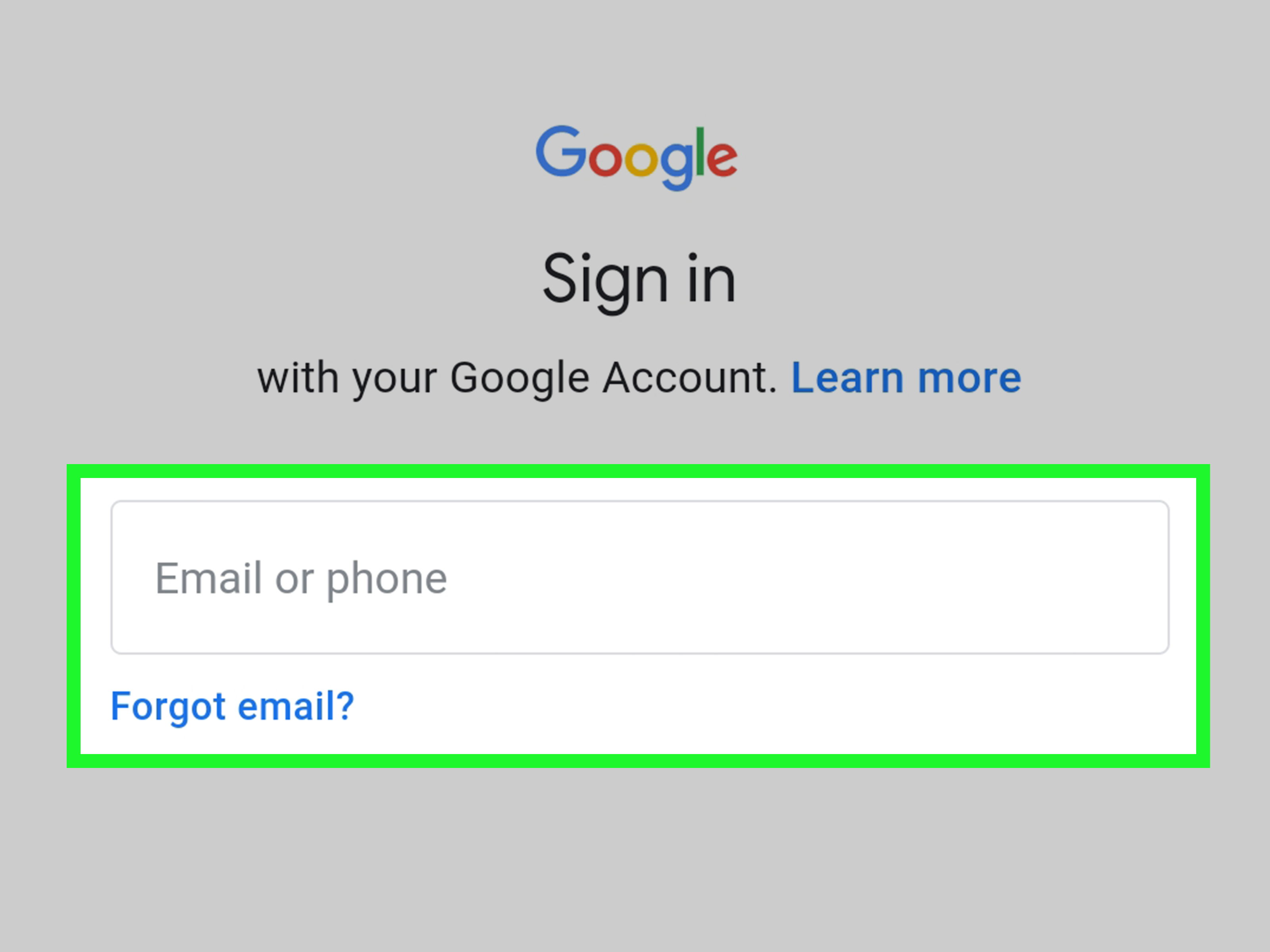
- Enter your Google Account email address.
- Tap Next and enter your password.
- Complete two-step verification if enabled.
- Review and accept the account and synchronization options.
Step 3: Open the Google Play Store
Find and open the Play Store app. If more than one Google Account is present, tap the profile icon and confirm that the correct account is selected.
You may be asked to accept Google Play terms, configure backup preferences, choose purchase authentication settings, or confirm parental controls.
Step 4: Install or Update an App
Search for a free app you recognize and tap Install. This is not always required, but it confirms that the account, device, Play Store, and download services are communicating correctly.
Once the Play Store is active, the device should be associated automatically with your Google Play account.
Samsung Galaxy Menu Path
On many Samsung Galaxy phones and tablets, the typical path is:
Settings > Accounts and backup > Manage accounts > Add account > Google
Samsung devices may also include the Galaxy Store. A Samsung account is used for the Galaxy Store, while a Google Account is required for Google Play. They are separate accounts, even though both stores may be staring at you from the same app screen.
How to Add a Chromebook to Google Play
Many Chromebooks support Android apps through the Google Play Store, but support depends on the Chromebook model, operating system version, and administrative settings.
- Sign in to the Chromebook with your Google Account.
- Open Settings.
- Select Apps.
- Find the Google Play Store section.
- Select Turn on or open the available Google Play preferences.
- Review the terms and select Accept.
- Open the Play Store from the Chromebook launcher.
- Install a compatible Android app.
If there is no Google Play Store option, the Chromebook may not support Android apps, or the feature may be disabled by a school or workplace administrator. Additionally, some Android apps are not designed for ChromeOS and may not appear in Chromebook search results.
How to Add a Wear OS Smartwatch
A Wear OS watch can access its own version of Google Play. Setup varies by watch brand, but the general process is:
- Pair the watch with its companion app on your phone.
- Connect the watch to Wi-Fi or mobile data.
- Add or copy your Google Account during setup.
- Open the Play Store on the watch.
- Select the correct account if multiple accounts are available.
- Install a watch-compatible app.
Only apps with a compatible Wear OS version will be offered for installation on the watch. A phone app does not automatically have a watch version, no matter how politely you ask it.
How to Add a Google TV or Android TV Device
Google TV and certified Android TV devices can use Google Play to download television-compatible apps.
- Connect the television or streaming device to the internet.
- Sign in with your Google Account during initial setup.
- If setup is complete, open Settings.
- Choose Accounts & Sign In, Users & Accounts, or a similarly named option.
- Select Add account.
- Follow the on-screen instructions or enter the displayed code using your phone.
- Open the Play Store or the device’s Apps section.
Only apps designed for televisions will appear. A device may be connected correctly even when a particular phone app is unavailable.
How to Confirm That the Device Was Added
To review devices associated with Google Play:
- Visit Google Play in a web browser.
- Sign in with the same Google Account used on the new device.
- Click your profile icon.
- Select Library & devices.
- Open the Devices tab.
The page may show the device model, carrier, last-used date, visibility setting, and a nickname field. You can assign a useful nickname such as “Living Room TV” or “Work Tablet” instead of trying to remember which mysterious model number belongs to which screen.
How to Install an App Remotely
Once a device appears in Google Play, you may be able to send compatible apps to it from a web browser:
- Sign in to Google Play on the web.
- Open the page for the app you want.
- Select Install or Install on more devices.
- Choose the target device.
- Confirm your account password if requested.
The device must be online and compatible with the app. Availability may depend on Android version, screen type, hardware, country, age restrictions, and developer settings.
How to Add Multiple Google Accounts
You can add more than one Google Account to many Android devices:
- Open Settings.
- Go to the device’s account section.
- Tap Add account.
- Select Google.
- Sign in with the additional account.
To switch accounts in Google Play, open the Play Store, tap the profile picture, and choose the account you want to use.
Remember that purchased apps, subscriptions, books, and other content are generally connected to the account that acquired them. Adding a second account does not transfer purchases from the first account.
What to Do When the Device Does Not Appear
1. Check the Selected Account
The most common explanation is an account mismatch. Compare the email address shown in the Play Store on the device with the account selected on the Google Play website.
2. Open the Play Store on the New Device
Simply adding an account in Settings may not complete Play registration immediately. Open the Play Store, accept any prompts, and install or update an app.
3. Restart the Device
A restart refreshes account services, network connections, pending updates, and synchronization processes. It is not glamorous, but neither is brushing your teeth, and both solve more problems than people like to admit.
4. Update the Play Store
- Open the Play Store.
- Tap your profile picture.
- Select Settings.
- Open About.
- Tap Update Play Store.
If an update is available, it should download and install automatically.
5. Check for Android Updates
Open the system update section in Settings and install available updates. Older software may have compatibility, authentication, or security problems that affect Google Play.
6. Clear the Play Store Cache
On most devices, go to:
Settings > Apps > Google Play Store > Storage & cache > Clear cache
If clearing the cache does not help, you can clear Play Store storage or data. This resets local Play Store settings and may require you to accept its terms again. It does not delete the apps already installed on your phone.
7. Check Google Play Services
Google Play services handles important account, security, and application functions. Make sure it is enabled and updated. Clearing its cache can help, but clearing all Play services data is a more disruptive troubleshooting step and may require some services to resynchronize.
8. Verify Play Protect Certification
Open Play Store > Profile > Settings > About and check the certification status. If the device is not certified, contact the manufacturer or seller. Manually downloading random Play Store installation files is not a reliable substitute for proper device certification.
9. Review Family, Work, or School Restrictions
Family Link controls, managed work profiles, school accounts, and enterprise policies can restrict app installation or disable Google Play entirely. In those situations, the account owner or administrator may need to approve the device or application.
Can You Add an iPhone, Fire Tablet, or Windows PC?
An iPhone or iPad cannot be added as a normal Google Play installation target because iOS apps come from Apple’s App Store. Individual Google services may be available on iOS, but the device will not behave like an Android phone in the Play Store device list.
Amazon Fire tablets use Amazon’s Appstore by default and are not standard Google Play-certified devices. Unofficial installation methods exist, but they can create compatibility, update, and security problems.
A Windows computer is also not a regular Android installation target. Google Play Games for PC is a separate service that supports selected Android games rather than the complete mobile Play Store catalog.
How to Hide, Rename, or Secure an Old Device
Google Play may continue to display devices that were previously associated with your account. In the Library & devices area, you can change a device nickname and control whether it appears in installation menus.
Hiding a device from Google Play menus is not the same as signing out of your Google Account. Before selling, donating, or recycling a device:
- Back up anything you want to keep.
- Remove your Google Account from the device.
- Remove screen locks when appropriate.
- Perform a factory reset using the manufacturer’s instructions.
- Review the device activity and security section of your Google Account.
Frequently Asked Questions
Why Is There No “Add Device” Button?
Because Google Play normally registers supported devices automatically. Sign in on the device, open the Play Store, and complete its setup prompts.
Does a SIM Card Add the Device to Google Play?
No. A SIM card connects a phone to a mobile carrier. Google Play registration primarily depends on the device, Google Account, internet connection, and Play services.
Can the Same Google Account Be Used on Several Devices?
Yes. You can use one Google Account on multiple compatible phones, tablets, Chromebooks, watches, and television devices. App compatibility and licensing rules still apply.
Why Is an App Missing on the New Device?
The app may not support that device’s Android version, processor, screen type, geographic region, age setting, or hardware. The developer may also have excluded tablets, Chromebooks, watches, or television devices.
Can Apps Be Synchronized Across Devices?
Google Play includes app synchronization features on supported Android devices. In the Play Store, open Manage apps & device and look for an option such as Sync apps to devices. You can then select eligible devices associated with the account.
Real-World Experiences and Practical Lessons
Adding a device to Google Play is usually quick, but real-world setups have a talent for introducing one tiny detail that turns a two-minute task into a kitchen-table technology summit. The following scenarios illustrate common experiences and the lessons they offer.
Experience 1: The New Phone That “Wasn’t Added”
A user completes the setup of a new Android phone, signs in with Gmail, and immediately checks Google Play on a laptop. The new phone is not listed, so the user assumes something went wrong.
In many cases, the missing step is simply opening the Play Store on the phone. Account setup connects Google services, but Play registration may not be fully reflected until the store launches, accepts its terms, updates its components, and performs a successful download. After opening the store and installing one familiar app, the phone becomes available as an installation destination.
The practical lesson is to finish setup on the new device before inspecting the web device list. Google Play needs an introduction, not merely the knowledge that your phone exists somewhere in the building.
Experience 2: The Correct Device With the Wrong Account
Another common experience occurs when someone has separate personal, work, and old Gmail accounts. The new tablet is connected correctly, apps install normally, and yet it refuses to appear in the expected Google Play account.
The reason is usually visible in the top-right corner of the Play Store: a different profile picture or email address is selected. Switching to the intended accountor adding it through Android Settingsresolves the mystery.
This situation also explains why previously purchased apps may display a price. The app was purchased through another account. Google Play purchases do not automatically merge just because the accounts live together on one tablet like polite digital roommates.
Experience 3: The Used Phone With Certification Problems
A bargain-priced used or imported Android phone may include a Play Store icon but still report that the device is not Play Protect certified. The owner might experience missing apps, authentication loops, unexpected crashes, or payment restrictions.
Clearing caches can repair temporary software issues, but it cannot turn unsupported hardware or unofficial firmware into a properly certified device. The useful response is to confirm the exact model and software build, check certification, install official manufacturer updates, and contact the seller or manufacturer when necessary.
The larger lesson is that “runs Android” and “fully supports Google Play” are not identical statements. A suspiciously cheap device can become surprisingly expensive when measured in troubleshooting hours.
Experience 4: The Chromebook Controlled by an Administrator
A student or employee opens Chromebook Settings but cannot find the option to turn on Google Play. Restarting does nothing, and the device is otherwise working normally.
This often happens because the Chromebook is managed. An organization can decide whether Android apps are allowed and which applications users can install. The absence of the feature may therefore be intentional rather than a malfunction.
Personal Chromebook owners should verify model support and update ChromeOS. Managed users should contact the administrator instead of repeatedly resetting the device and accidentally deleting local files.
Experience 5: The Device Appears, but the App Does Not
Sometimes the device is properly listed, yet the desired app cannot be installed remotely. This is generally a compatibility issue rather than a registration problem. A banking app may reject an uncertified device, a game may require newer graphics hardware, and a phone-only utility may be unavailable on a television or Chromebook.
Check the app listing directly on the target device. Google Play usually provides a compatibility message or simply omits unsupported applications from search results. Testing a well-known free app can confirm whether the store itself is functioning.
These experiences point to one dependable troubleshooting method: separate account problems, device-registration problems, download problems, and app-compatibility problems. They can look similar on the surface, but each has a different solution. Identify which layer is failing before pressing every button in Settings like a contestant on a very stressful game show.
Conclusion
To add a device to the Google Play Store, use a supported and Play Protect-certified device, connect it to the internet, add your Google Account, open the Play Store, and complete a successful app installation or update. Google Play handles the actual device association automatically.
If the device does not appear, confirm the account, update the Play Store and operating system, restart the device, review certification, and check for family or administrator restrictions. Most problems come from an account mismatch, incomplete Play Store setup, outdated services, or application compatibilitynot from a missing secret registration button.