Deleting a PS3 profile sounds like one of those tiny chores you can finish between two sips of coffee. Then you turn on the PlayStation 3, stare at the XMB menu, and realize the console was designed in an era when “press Triangle for secret powers” was a perfectly normal user experience. Don’t worry. Removing an old PS3 user profile is simple once you know where to look, what gets erased, and what should be backed up first.
This guide explains how to delete PS3 profiles in 9 clear steps, plus what happens to saved games, trophies, PlayStation Network access, downloaded content, and local media. Whether you bought a used console, are selling your PS3, cleaning up old guest accounts, or removing a profile named something mysterious like “Player 7 Final Final,” this walkthrough will help you do it safely.
What Is a PS3 Profile?
On the PlayStation 3, a profile is usually called a “user.” It is the local account you choose when the console starts. A PS3 user can store game saves, settings, messages, photos, videos, music, browser data, and other personal information on the system storage.
A PS3 profile is not exactly the same thing as a PlayStation Network account. A PSN account lives online and can be used across supported PlayStation devices. A PS3 user profile lives on that specific console. This distinction matters because deleting a local PS3 profile does not automatically close the PSN account itself. It removes the local user and locally managed data from the PS3.
Before You Delete a PS3 Profile
Before you remove anything, pause for a minute. A PS3 may be old enough to have seen multiple console generations, but the data on it can still matter. Game saves from long RPG campaigns, old family photos, downloaded videos, and trophy data may be attached to the user you are about to delete.
Deleting a PS3 user can remove saved data and other information managed by that user from the system storage. If the profile belongs to someone else, ask first. Nothing ruins a friendship faster than deleting a 100-hour save file and saying, “Oops, I thought you were done with that dragon.”
Easy Ways to Delete PS3 Profiles: 9 Steps
Step 1: Turn On Your PS3 and Connect a Controller
Start by turning on the PlayStation 3 and connecting a controller. You can use a DualShock 3 or compatible controller. If the battery is low, plug it in with a USB cable so it does not disconnect halfway through the process. Deleting a user is not complicated, but it is still a system-level action, so a stable controller connection helps avoid accidental menu chaos.
Step 2: Go to the Users Section on the XMB Menu
The PS3 home menu is called the XMB, short for Cross Media Bar. From the main screen, move all the way to the left until you reach the Users section. This is where the local profiles on the console appear. You may see one profile or several, depending on how many people have used the system.
If you bought a used PS3, this section may look like a museum of previous owners. Common signs include profiles named “Dad,” “Guest,” “COD,” “Test,” or the always suspicious “asdf.”
Step 3: Log In as the User You Want to Delete
To delete a PS3 user, log in as that specific user. Highlight the profile and press the X button to enter it. This may feel odd because you are logging into the profile only to remove it, but that is how the PS3 deletion process works.
If the user has a login password and you do not know it, you may not be able to enter that profile normally. In that case, consider whether the console should be restored completely instead, especially if you purchased it secondhand and want a clean start.
Step 4: Back Up Important Saved Data
Before deleting the profile, check whether there are game saves you want to keep. Go to Game > Saved Data Utility (PS3). Highlight the saved data, press Triangle, and choose Copy if the save allows copying. You can copy many saves to a USB storage device.
Some saved data may be copy-protected. If you have access to PlayStation Plus features on the account, online storage may be an option for supported saves. However, not every game or save file supports every backup method. The safest approach is to check the important games one by one rather than assuming everything is already safe.
Step 5: Sync Trophy Information
If the user profile is linked to a PlayStation Network account, sign in to PSN and sync trophies before deleting the profile. On the PS3, go to PlayStation Network > Trophy Collection. Opening Trophy Collection while signed in allows trophy information to sync with the PSN server.
This matters because trophies stored only locally may not appear later if the profile is removed before syncing. Think of trophy syncing as telling the internet, “Yes, I really did finish that absurdly hard challenge, and I would like history to remember me.”
Step 6: Check Photos, Music, Videos, and Messages
Many PS3 owners forget that a profile can manage more than game data. It may include imported music, photos, videos, playlists, internet browser data, and messages. If you are cleaning your own console, look through the Photo, Music, and Video sections before deleting the user.
If you are preparing the PS3 for sale or donation, this step is also about privacy. Old photos, login information, saved browser pages, and message history should not be left for the next owner. The PS3 may be retro now, but your personal data does not need a nostalgia tour.
Step 7: Highlight the User Icon and Press Triangle
After backing up anything important, return to the Users section. Highlight the user icon you want to remove. Press the Triangle button on the controller. This opens the options menu for that user.
Triangle is the PS3’s “more options” button in many areas of the system. If you ever feel lost on a PS3, pressing Triangle while highlighting an item often reveals the hidden menu. It is not magic, but it is close enough for a console from the late 2000s.
Step 8: Select Delete
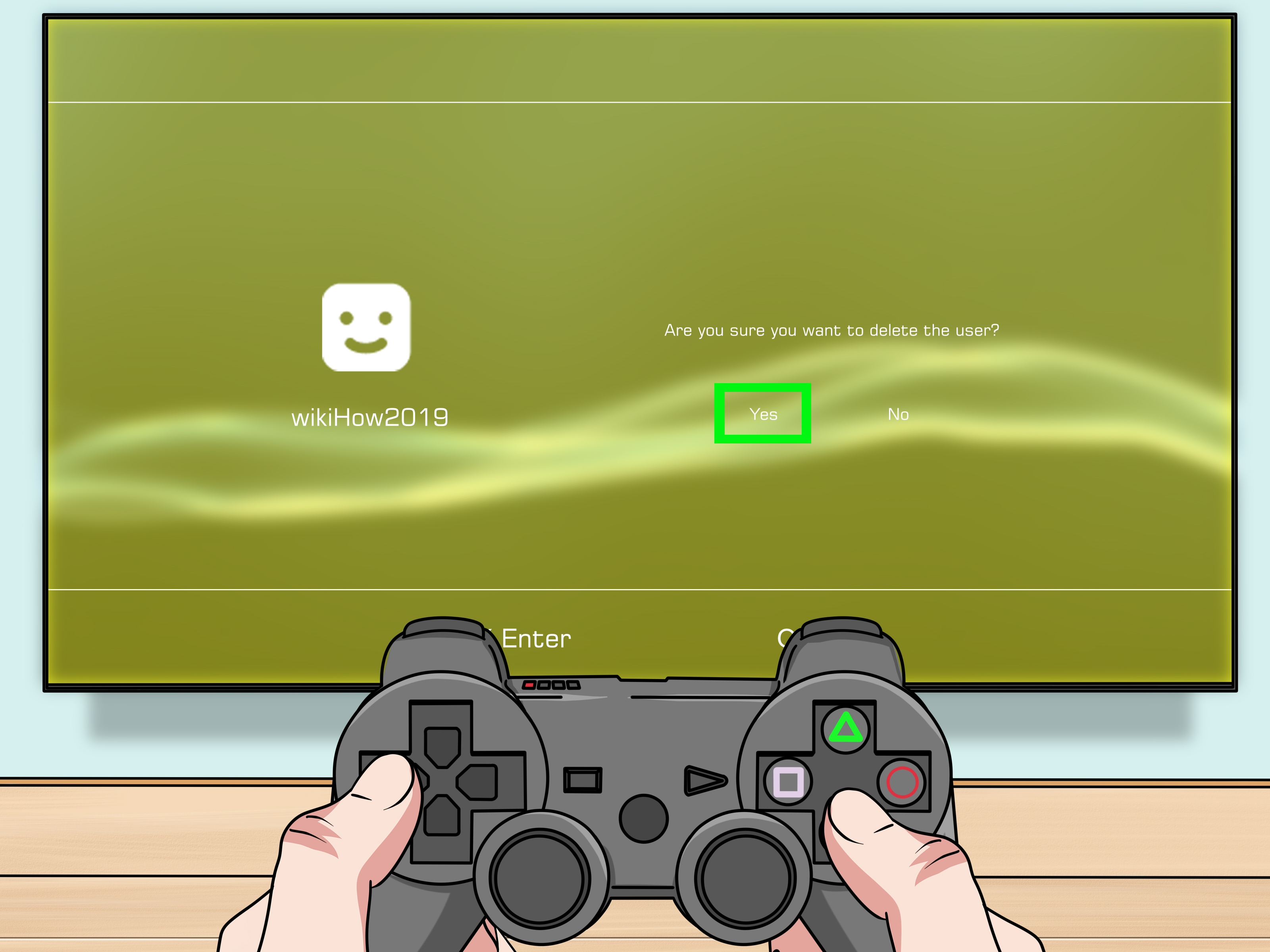
In the options menu, choose Delete. The PS3 will warn you that deleting the user removes data managed by that user from system storage. Read the warning carefully. This is the point where you should be completely sure you selected the correct profile.
If there are multiple users with similar names, double-check before confirming. Accidentally deleting the wrong profile is easy when a console has “User 1,” “User 2,” and “User 3,” which is basically the family version of a spy novel.
Step 9: Confirm the Deletion
Confirm the deletion when prompted. The PS3 will remove the profile and its associated local data. Once the process is complete, the user icon should disappear from the Users section. Restarting the system afterward is optional, but it can help you confirm that the profile no longer appears at startup.
That is the complete process. In simple form: log in as the user, highlight the user icon, press Triangle, choose Delete, and confirm. The extra steps above are there to protect your saves, trophies, content, and sanity.
What Happens After You Delete a PS3 Profile?
After you delete a PS3 profile, the local user is removed from that console. Any data stored on the PS3 and managed by that user may also be deleted. This can include saved game data, messages, browser-related information, and other local files connected to the user.
Deleting the profile does not necessarily erase the online PlayStation Network account. If the account still exists, the owner may be able to sign in again on another compatible system or create a new local user on the same PS3 and sign back into PSN. However, local data that was not backed up may be gone.
Deleting a PS3 Profile vs. Closing a PlayStation Account
It is important to separate two actions: deleting a PS3 profile and closing a PlayStation account. Deleting a PS3 profile removes a local user from the console. Closing a PlayStation account is a separate account-level process handled through PlayStation support or supported account tools.
If your goal is simply to clean up the PS3 menu, remove an old guest profile, or prepare a console for another family member, deleting the local user is usually enough. If your goal is to permanently close a PSN account, that requires a different process and should be done carefully because it can affect access to purchases, wallet funds, subscriptions, online ID, and account history.
Should You Deactivate the PS3 Before Deleting a Profile?
If the profile is linked to a PSN account that purchased games, add-ons, or video content, consider deactivating the system for that account before deleting the profile, especially if you are selling or giving away the console. On PS3, activation is related to using certain purchased content on the system.
To manage activation, sign in to the account and go to PlayStation Network > Account Management > System Activation. From there, follow the prompts to deactivate the system for the content type. This is a smart step when retiring a console because it helps keep your account organized.
When to Use Restore PS3 System Instead
Deleting one profile is perfect when you only want to remove one local user. But if you are selling the console, giving it away, or starting from scratch after buying it used, you may want a deeper clean. In that case, Restore PS3 System can delete all system storage content and restore system settings to defaults.
This option is more serious than deleting a user profile. It can remove all users, game data, media, settings, and other content from the system storage. Use it only after backing up anything important. If deleting one profile is like cleaning one drawer, restoring the system is like emptying the entire house and repainting the walls.
Common Problems When Deleting PS3 Profiles
The Delete Option Does Not Appear
If you do not see the Delete option, make sure you are in the Users section and highlighting the actual user icon. Press Triangle while the profile icon is selected. If you are inside another menu, Triangle may show different options.
You Deleted the Wrong Profile
If you delete the wrong profile, recovery depends on what was backed up or synced. Trophies synced to PSN should be connected to the account online. Some saved data may be restored from USB backup or online storage if it was uploaded earlier. Data that was only stored locally and not backed up may not be recoverable.
Downloaded Games Are Missing
If games or downloadable content were tied to the deleted profile’s PSN account, other users may not be able to access them unless the console is properly activated and licensing allows it. The account owner may need to sign in again, download the content again, or manage activation settings.
The Console Still Shows Old Data
If you deleted a profile but still see old game installs, photos, music, or videos elsewhere on the system, those items may not have been managed by the deleted user or may be stored separately. Browse the Game Data Utility, Photo, Music, and Video sections to clean up remaining files.
Tips for Selling or Giving Away a PS3
If you are preparing a PS3 for a new owner, do more than delete one profile. Back up your saves, sync trophies, deactivate the console from your PSN account, remove local users, and consider restoring the system. Also remove any discs from the drive. Yes, people still forget games inside consoles. Somewhere out there, a copy of LittleBigPlanet is trapped in a machine like a tiny cardboard astronaut.
After cleaning the system, restart it and check the startup screen. Make sure your personal profiles are gone. If you restored the system, confirm that the PS3 boots like a fresh console and does not show your account information.
Extra Experience: What I Learned From Deleting PS3 Profiles the Smart Way
Deleting PS3 profiles is easy, but doing it well is a little more thoughtful than pressing Delete and walking away. The biggest lesson is that the PS3 treats local users, PSN accounts, saved data, and downloaded content as related but separate pieces. Once you understand that, the whole process becomes much less confusing.
One practical experience is that old consoles often contain more personal information than expected. A PS3 profile may look harmless, but when you open the menus, you might find saved photos, old messages, music files, browser history, or game saves from years ago. If you are cleaning up your own console, this can be nostalgic. If you are selling it, it is a privacy issue. Always check more than just the Users menu.
Another useful habit is to back up saves before you think you need them. Many players assume they will never return to an old game, then suddenly feel the urge to replay it years later. That is when a missing save file hurts. Before deleting a PS3 user, go through the Saved Data Utility and copy important saves when possible. Even if you never use the backup, it is better to have a tiny digital safety net than a giant cloud of regret.
Trophies deserve special attention too. If you earned trophies while offline, make sure they sync before you delete the profile. It only takes a short visit to Trophy Collection while signed in, but it can save you from wondering why your online trophy list looks emptier than it should. This is especially important for older PS3 games, where trophy syncing was not always something players thought about regularly.
For used PS3 buyers, the best experience is usually to start clean. If the console still has old profiles, do not poke around more than necessary. Back up only what is yours, remove previous users if appropriate, or restore the system if you want a fresh setup. A used console should feel like your machine, not like you are borrowing space in someone else’s digital attic.
For families, it helps to name profiles clearly. Instead of “User 1” and “User 2,” use names that make sense. Clear labels reduce mistakes when deleting old profiles later. A console with five nearly identical user icons is a disaster waiting for one sleepy button press.
Finally, take your time with the confirmation screen. The PS3 will warn you before deleting a user, and that warning is worth reading. Retro consoles are fun because they preserve memories. The goal is to delete clutter, not erase something you wish you had kept.
Conclusion
Deleting a PS3 profile is simple once you know the path: sign in as the user, highlight the user icon, press Triangle, choose Delete, and confirm. The real trick is preparing before you do it. Back up important saves, sync trophies, check personal media, and understand the difference between a local PS3 user and an online PlayStation Network account.
Whether you are clearing an old guest profile, organizing a family console, or getting a PS3 ready for sale, these 9 steps give you a safe and practical way to remove unwanted users without accidentally tossing your digital memories into the void. The PS3 may be a classic, but good data hygiene never goes out of style.
Note: This article is written for web publication and is based on practical PS3 menu behavior and official PlayStation guidance about users, saved data, trophies, backups, activation, and account management.