Two monitors are wonderful for productivity, gaming, editing, researching, pretending to work while actually choosing wallpapers, and generally feeling like the captain of a very stylish spaceship. The only problem? A lot of desktop wallpaper tools still behave like dual screens are some kind of advanced sorcery. You pick a beautiful image, hit apply, and suddenly your mountain range is split in half like a low-budget magic trick.
That is exactly where Superpaper earns its keep. If you want one wallpaper on two screens with better control than the usual built-in desktop settings, Superpaper gives you a smarter way to span a single image across multiple monitors. Better yet, it can handle awkward monitor setups that make ordinary wallpaper tools throw up their virtual hands: different resolutions, different screen sizes, bezels, portrait mode, and even angled displays.
In this guide, you will learn how to set one wallpaper on two screens with Superpaper, how to make the result look polished instead of painfully stretched, and how to troubleshoot the usual hiccups. We will also cover a few real-world examples so you can get your desktop looking clean, cinematic, and impressively intentional.
What Is Superpaper, and Why Use It?
Superpaper is a multi-monitor wallpaper manager designed for people who want more than the default wallpaper options. On a basic level, it can put one image across two screens or assign different images to different displays. But its real party trick is advanced span, which can correct for differences in pixel density, bezels, and display positioning.
That matters because a normal “span” wallpaper setup usually slices one image according to screen resolution and calls it a day. That works fine when both monitors are nearly identical. It gets messy fast when one display is larger, sharper, rotated vertically, or sitting at a slightly different angle. In those cases, a face can look stretched, a horizon can break at the bezel, and your wallpaper can end up looking like it lost an argument with geometry.
Superpaper is a better fit if your setup includes:
Two monitors with different resolutions, such as 2560×1440 and 1920×1080; one landscape monitor and one portrait monitor; thick bezels that interrupt the image; a desk layout where the screens are not perfectly flat and aligned; or a Linux setup where wallpaper spanning is often less straightforward than it is on Windows.
In other words, Superpaper is not just for making your wallpaper bigger. It is for making it look right.
Before You Start
Before you open Superpaper, take two minutes to set up your displays correctly at the operating system level. This saves a lot of confusion later.
1. Make sure your monitors are in Extend mode
If your screens are duplicated instead of extended, wallpaper spanning will never behave the way you want. Your computer needs to recognize the two screens as separate displays in one extended desktop.
2. Arrange the monitors to match your real desk
In your display settings, drag the monitor icons so they match the physical layout on your desk. If monitor 2 is on the right in real life, it should also be on the right in software. This matters because Superpaper uses your display arrangement as part of the spanning logic.
3. Use each monitor’s native resolution
If one display is not set to its native resolution, your wallpaper may look softer, misaligned, or strangely scaled. Native resolution gives you the best chance of a sharp, predictable result.
4. Pick a wallpaper that has enough room to breathe
A single image stretched across two screens needs enough pixels to avoid looking blurry. For two 1920×1080 monitors side by side, a 3840×1080 image is the obvious starting point. If your displays have different sizes or one is vertical, you do not always need a perfectly prebuilt panorama, but you do need a reasonably large source image. Tiny images become giant disappointments very quickly.
How to Set One Wallpaper on Two Screens With Superpaper
Step 1: Install Superpaper
On Windows, Superpaper is available as an installer and as a portable package. On Linux, one of the easiest options is the AppImage, while native installation can offer better integration with your theme and icons. There is also partial macOS support, although it is not as polished as the Windows and Linux experience.
If you are the sort of person who enjoys typing commands because it makes you feel powerful, Superpaper also supports command-line usage. But for most people, the graphical app is the fastest way to get started.
Step 2: Open the app and create a profile
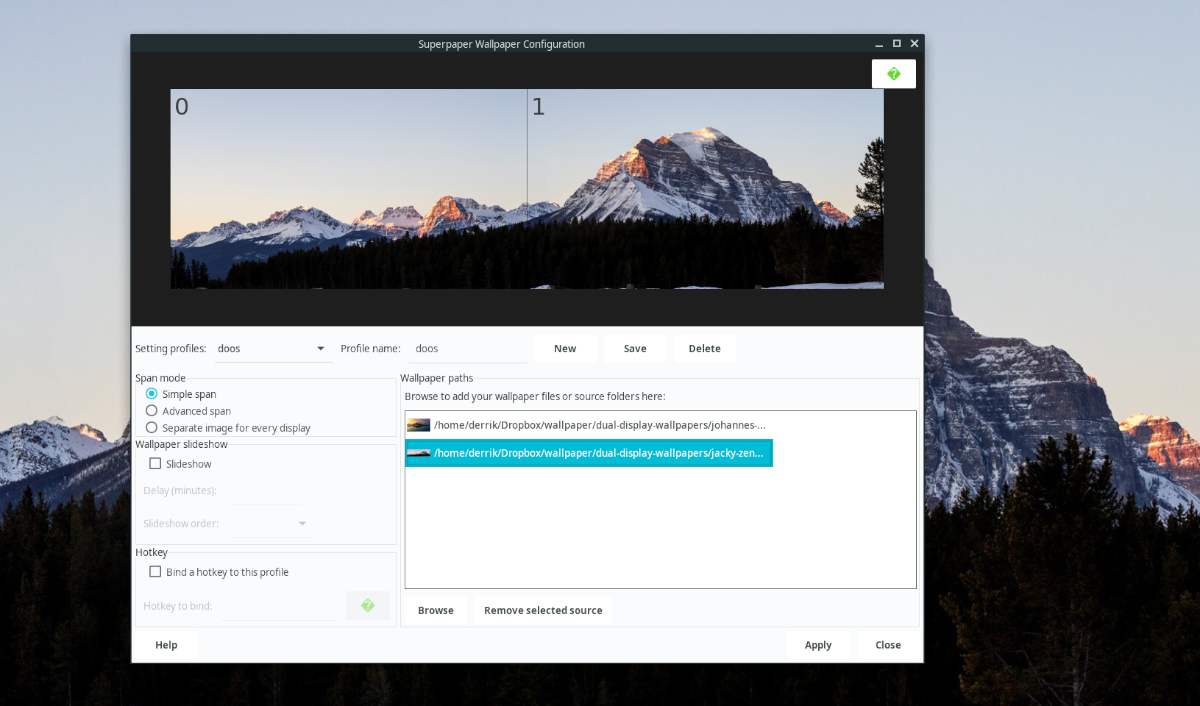
When you launch Superpaper, create a new profile. Think of a profile as a saved wallpaper recipe. Instead of rebuilding your setup every time, you can save your favorite desktop arrangement and reapply it later with one click.
This is especially helpful if you switch between a laptop-only setup and a two-monitor desk setup. Profiles save time, reduce confusion, and prevent the classic “Why is my wallpaper suddenly zoomed into a random cloud?” moment.
Step 3: Add your wallpaper image
Use the browse option to find the image you want to span across both displays. Add it as a source, then select it in the wallpaper list. If you only want one wallpaper on two screens, choose a single image rather than a separate image for each monitor.
Step 4: Apply the wallpaper across both displays
For a simple setup with two similar monitors, you can often apply the image right away and get a good result. Superpaper will preview the wallpaper layout, which is useful for spotting obvious mistakes before your desktop turns into modern art.
If the preview looks balanced, click apply. Congratulations: your wallpaper is now stretching across both screens instead of living a sad, fragmented life.
Step 5: Save the profile
Save the profile once the wallpaper looks correct. This is the difference between “I have a polished setup” and “I vaguely remember clicking six things last time and now I must begin my quest again.”
How to Make a Dual-Screen Wallpaper Look Good
Setting the wallpaper is only half the job. Making it look intentional is where the fun begins.
Use Advanced Span for mixed displays
If your monitors differ in size, resolution, or orientation, switch to Superpaper’s advanced span tools. This is where the app stands out from ordinary wallpaper managers.
Advanced span can compensate for pixel density, which helps when two monitors show the same resolution but not the same physical size. It can also account for bezel correction, so the image appears to continue behind the gap between screens. And if your monitors are angled, perspective correction can help the wallpaper look more natural from your viewing position.
Adjust bezel correction carefully
Bezel correction sounds fancy because it is fancy. Instead of pretending your monitor frames do not exist, Superpaper lets you tell the app how thick those bezels are. That way, a line in the image does not jump awkwardly when it crosses from one screen to the next.
Do not overdo it. A little correction goes a long way. Too much, and your wallpaper starts looking like it was designed for a hallway mirror maze.
Use manual offsets for tiny fixes
If the image is nearly perfect but not quite, use manual pixel offsets to nudge it into place. This is ideal for lining up horizon lines, architectural details, or any wallpaper where your eyes will absolutely notice a one-centimeter mismatch forever.
Choose the right kind of image
Not every wallpaper belongs on a two-monitor setup. Images with one central face, one centered logo, or one very important object often get chopped awkwardly by the monitor gap. Wider scenic images usually work better. Think landscapes, abstract gradients, city skylines, or digital art with room on both sides.
If your wallpaper has a focal point, try to position it mostly on one screen rather than dead center between the two monitors. Nobody wants a dragon whose nose lives on monitor one while its self-esteem lives on monitor two.
Examples of Good Superpaper Setups
Example 1: Two matching 1080p monitors
This is the easy mode of multi-monitor wallpaper. Use a panoramic image around 3840×1080 or larger. Apply it in a normal spanned layout, save the profile, and enjoy your clean, seamless desktop.
Example 2: One 1440p monitor plus one 1080p monitor
This is where built-in wallpaper tools start to wobble. Use Superpaper’s advanced span and preview mode. If the image looks uneven, adjust offsets and consider pixel-density correction to improve continuity between the two screens.
Example 3: One landscape monitor and one portrait monitor
This setup can look fantastic with the right wallpaper, but you need an image with enough vertical detail. A city skyline, space art, or minimalist gradient can look far better than a tightly framed photo. Superpaper’s advanced controls are especially useful here.
Common Problems and How to Fix Them
The wallpaper duplicates instead of spanning
Check your display mode first. If your computer is set to duplicate the screens, the wallpaper will behave like both monitors are the same display. Switch to extend mode, then try again.
The wallpaper looks blurry
Your source image is probably too small, or one monitor is not using its native resolution. Use a larger image and verify your display settings.
The image is cut off in a weird place
The wallpaper may be the wrong aspect ratio for your combined desktop space. Try a wider image, or use offsets and advanced span to reposition the composition.
Everything looks lined up on one monitor but wrong on the other
This usually happens when the displays have different sizes, pixel densities, or orientations. Turn on the advanced tools. That is exactly what Superpaper is built for.
Superpaper acts strangely on Linux
Linux is powerful, flexible, and occasionally dramatic. If Superpaper misbehaves, try the AppImage or another supported install method, and double-check that your desktop environment is recognized properly. Also review current compatibility notes if you are running a newer Python stack.
Superpaper vs. Native Wallpaper Spanning
Windows can already span a single image across multiple monitors, and for simple setups, that may be enough. If both screens match and you only want a basic panoramic wallpaper, the built-in “Span” option is perfectly serviceable.
But Superpaper is the stronger choice when you want better control, cleaner alignment, saved profiles, Linux-friendly behavior, slideshow features, tray controls, or correction tools for mismatched monitors. Native tools are fine for “close enough.” Superpaper is for “that actually looks great.”
Power Tips for Better Results
Save multiple profiles
Create one profile for work, one for gaming, one for your laptop dock, and one for the moody cyberpunk wallpaper you pretend is “for focus.”
Use the slideshow feature carefully
Superpaper can rotate wallpapers from a folder, which is great if you get bored easily. Just make sure the folder mostly contains images that suit your monitor setup, unless you enjoy rolling the dice on visual chaos every fifteen minutes.
Try the command line if you automate your setup
Superpaper’s CLI can span a single image when you pass one file as the image input. That is useful for scripts, startup routines, or anyone who believes a normal desktop should begin with a terminal command and a sense of ceremony.
Experience: What It Is Really Like to Use One Wallpaper on Two Screens With Superpaper
Using one wallpaper on two screens sounds like a tiny cosmetic detail until you actually live with it for a while. Then it becomes one of those little desktop upgrades that quietly makes your whole setup feel more finished. Instead of two disconnected screens that happen to sit next to each other, your desk starts to feel like one intentional workspace.
The first time I used Superpaper on a dual-monitor setup, the biggest surprise was not the feature list. It was the feeling of visual calm. Before that, I had tried the usual built-in wallpaper options, and the results were fine in the same way that a folding chair is fine. Technically functional, yes. Inspiring, not exactly. Images would crop strangely, horizons would break across the bezel, and any wallpaper with a central subject would end up looking as if it had been split during a custody battle.
With Superpaper, the setup felt much more deliberate. A wide landscape finally looked like a landscape instead of two separate posters forced into a business arrangement. On a mixed-resolution setup, the corrections made a bigger difference than I expected. Lines looked cleaner. The image felt balanced. Even the empty space around desktop icons seemed more intentional because the wallpaper was not fighting the monitors anymore.
There is also a psychological effect that people do not talk about enough. A good dual-monitor wallpaper can make your workstation feel less cluttered even when the desk itself is absolutely not clutter-free. You might still have cables, coffee mugs, sticky notes, and one mysterious USB adapter you no longer recognize, but the desktop looks polished, and somehow that helps. It is the digital version of making your bed while ignoring the laundry chair.
I also found that certain kinds of wallpapers work better over time. Super dramatic art looks fantastic at first, but simpler images often age better. Panoramic landscapes, clean abstract backgrounds, dark gradients, and city scenes tend to hold up well during long workdays. They give you visual continuity without yelling for attention every time you minimize a window.
What really makes Superpaper worth it, though, is consistency. Once you save a profile that works, you stop fussing with wallpaper settings and just enjoy the result. Dock the laptop, load the profile, and the desktop looks exactly the way you expect. No random crops, no surprise zoom, no weird duplication. Just a clean image stretched properly across your screens like it belongs there.
That is probably the best way to describe the experience: your wallpaper finally looks like it belongs. Not forced. Not close enough. Not “good from a distance if you squint.” It simply fits your setup. And when you spend hours a day staring at your screens, that small improvement feels bigger than it sounds.
Final Thoughts
If you want to set one wallpaper on two screens with Superpaper, the process is refreshingly manageable: install the app, create a profile, add your image, apply it across both screens, and fine-tune the layout if your monitors are mismatched. For a basic dual-monitor setup, that may take only a few minutes. For a more complicated arrangement, Superpaper gives you the correction tools needed to make the wallpaper look polished instead of patched together.
The built-in wallpaper options in Windows can still do the job for simple layouts, but Superpaper is the better tool when you want real control. And once you see a properly aligned panoramic wallpaper across two screens, it becomes very hard to go back to the old “close enough” approach.
Your monitors deserve better. Your wallpaper deserves better. Frankly, that poor mountain range has been through enough.