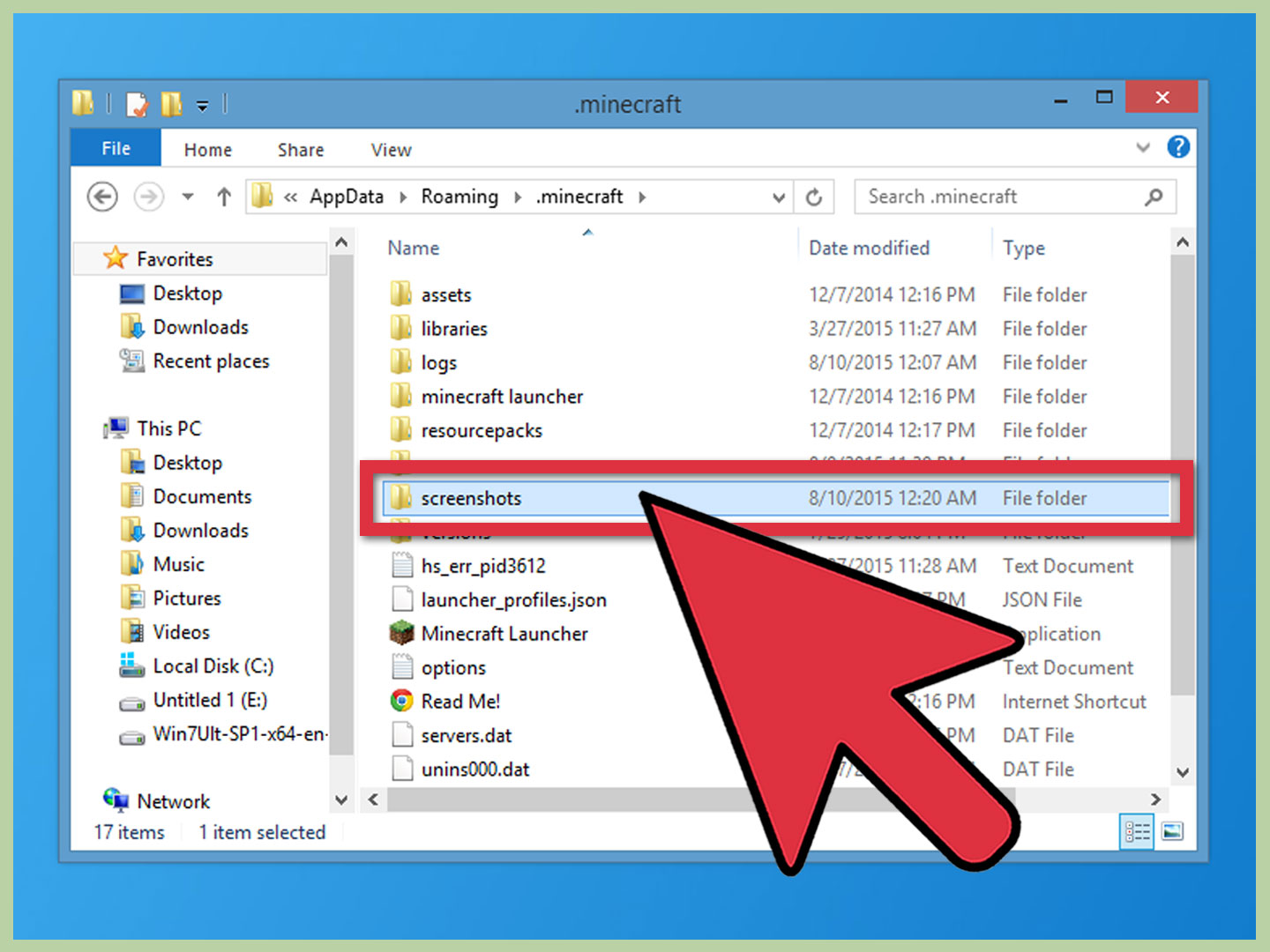
Finding your .minecraft folder can feel a little like mining straight down: you know something important is under there, but one wrong move and suddenly you are confused, lost, and blaming a creeper. The good news is that the folder is not hiding because it dislikes you personally. It is usually tucked inside system folders that Windows, macOS, and Linux keep out of sight to protect important app data.
This guide explains how to access your .minecraft folder on a computer in 10 clear steps. You will learn where Minecraft: Java Edition stores saves, screenshots, mods, resource packs, shader packs, logs, versions, and configuration files. You will also learn what to do if the folder seems missing, how to open it from inside the game, and why Bedrock Edition uses a different location.
Important note: This article focuses mainly on Minecraft: Java Edition. If you play Minecraft Bedrock Edition from the Microsoft Store, your worlds and files are stored in a different app package location. Java Edition is the version that normally uses the famous .minecraft folder.
What Is the .Minecraft Folder?
The .minecraft folder is the main data folder for Minecraft: Java Edition. Think of it as the game’s backpack. Inside it, Minecraft keeps your worlds, screenshots, resource packs, mods, game versions, launcher profiles, logs, and settings. When you install a texture pack, back up a survival world, add a mod, or rescue a screenshot of your suspiciously square castle, this is usually the folder you need.
The dot at the beginning of .minecraft is not a typo. On many systems, folders that begin with a dot are treated as hidden or system-style folders. On Windows, the folder is also inside AppData, which is hidden by default. That is why many players type “where is my Minecraft folder?” five minutes after deciding they are finally brave enough to install mods.
Default .Minecraft Folder Locations by Operating System
Windows
On Windows, the default Minecraft Java folder is:
The full path usually looks like this:
macOS
On macOS, the default Minecraft Java folder is:
Notice that on Mac, the folder is usually named minecraft, not .minecraft.
Linux
On Linux, the default Minecraft Java folder is:
Because it begins with a dot, it may be hidden in your file manager until you enable hidden files.
How to Access Your .Minecraft Folder on the Computer: 10 Steps
Step 1: Confirm You Are Using Minecraft: Java Edition
Before hunting for the folder, make sure you are playing Minecraft: Java Edition. This matters because Java Edition and Bedrock Edition store files differently. Java Edition uses the .minecraft folder for saves, mods, screenshots, and resource packs. Bedrock Edition on Windows stores files inside a Microsoft app package folder, which is not the same place.
Open the Minecraft Launcher and look at the game version you are launching. If it says Minecraft: Java Edition, you are in the right guide. If it says Minecraft for Windows, you are probably using Bedrock Edition, and the %appdata%\.minecraft path may not contain your active worlds.
Step 2: Open the Run Box on Windows
The fastest way to access the .minecraft folder on Windows is through the Run command. Press:
A small Run window will appear. Type this exactly:
Then press Enter. If Minecraft Java Edition has been launched at least once, File Explorer should open directly inside your .minecraft folder. This is the cleanest method, and it saves you from clicking through folders like you are exploring a badly lit cave system.
Step 3: Use File Explorer Manually if Run Does Not Work
If the Run command does not open the folder, you can navigate there manually. Open File Explorer, then go to:
If you do not see AppData, do not panic. It is probably hidden. Windows hides this folder because it contains application data, and accidental edits can break programs. Convenient? Not always. Sensible? Usually.
Step 4: Show Hidden Files on Windows
To reveal AppData on Windows 11, open File Explorer and choose:
On some Windows 10 setups, you may need to go to:
Once hidden items are visible, return to your user folder and open AppData, then Roaming, then .minecraft. After you are done, you can hide system files again if you prefer a cleaner File Explorer. Your computer will not be offended either way.
Step 5: Open the Folder from Inside Minecraft
One of the easiest methods is to let Minecraft lead you there. Open Minecraft: Java Edition, then go to:
This opens the resourcepacks folder. From there, go up one folder level. You should now be inside the main Minecraft folder. This method is especially helpful when your launcher uses a custom game directory or when you are not sure where Minecraft is saving files.
This trick is also useful for beginners because you do not need to memorize file paths. Minecraft opens the door; you simply walk through it like a polite villager who has discovered hinges.
Step 6: Access the Minecraft Folder on macOS
On a Mac, open Finder, click Go in the menu bar, then choose Go to Folder. You can also press:
Enter this path:
Press Return, and Finder should open the Minecraft folder. The Library folder is hidden by default on macOS, so using Go to Folder is usually faster than manually browsing around and wondering why Apple has turned your file system into a treasure hunt.
Step 7: Access the .Minecraft Folder on Linux
On Linux, open your file manager and go to your home directory. Press:
This toggles hidden files on and off in many Linux file managers. Look for:
You can also open a terminal and run:
If the folder exists, the terminal will move into it. If it does not exist, launch Minecraft Java Edition once, close the game, and check again. Minecraft often creates its folders after the first successful launch.
Step 8: Know What Each Important Folder Does
Once you open the .minecraft folder, you may see several subfolders. Here are the ones most players actually need:
- saves: Your single-player worlds. Back this up before changing anything important.
- screenshots: Images captured in Java Edition, usually with the F2 key.
- resourcepacks: Texture packs and visual resource packs go here.
- shaderpacks: Shader packs may go here if you use compatible shader tools.
- mods: Mod files usually go here when using Forge, Fabric, or another mod loader.
- logs: Useful files for troubleshooting crashes and errors.
- versions: Game version files used by the launcher.
- options.txt: A settings file for controls, graphics, audio, and other preferences.
Do not delete folders randomly. Minecraft may regenerate some files, but your worlds and custom content are not something you want to sacrifice to the digital lava pit.
Step 9: Back Up Your Worlds Before Editing Anything
Before installing mods, moving worlds, changing files, or deleting anything, make a backup. The most important folder is usually:
Copy the entire saves folder to another location, such as your Desktop, an external drive, or cloud storage. If you only care about one world, open saves and copy that world’s folder.
Backups are not glamorous, but neither is losing a 400-hour survival world because you dragged the wrong folder into the recycling bin while half-awake. Minecraft worlds are made of blocks, but regret is made of silence.
Step 10: Troubleshoot If the .Minecraft Folder Is Missing
If you cannot find the .minecraft folder, try these fixes:
- Launch Minecraft Java Edition once. The folder may not exist until the game has run successfully.
- Check the launcher profile. Custom installations can use custom game directories.
- Use Open Pack Folder. In-game folder access can reveal the active directory.
- Turn on hidden files. AppData and dot folders may be hidden.
- Check which edition you play. Bedrock Edition does not use the same Java folder structure.
- Search for saves. Search your computer for a known world name if you remember it.
If you use third-party launchers such as CurseForge, MultiMC, Prism Launcher, ATLauncher, or other modpack managers, your files may be stored in a separate instance folder. In that case, open the launcher, select the modpack or instance, and look for an option such as Open Folder, Open Instance Folder, or Open Game Directory.
How to Find Minecraft Screenshots
In Minecraft: Java Edition, screenshots are commonly taken with the F2 key. They are saved inside:
On Windows, the full default path is usually:
If you have a custom game directory, screenshots may be stored inside that custom folder instead. This is why the in-game Open Pack Folder method is so helpful: it reveals where the active Minecraft files actually live.
How to Find Minecraft Saves
Your Java Edition worlds are stored in:
Each world has its own folder. The folder name may not always match the display name you see in Minecraft, especially if you renamed the world in-game. To move a world to another computer, copy the entire world folder from saves and place it in the saves folder on the new computer.
After moving a world, launch Minecraft and check the Singleplayer menu. If the world does not appear, make sure the copied folder contains files such as level.dat. If the world folder is nested inside another folder, Minecraft may not detect it.
How to Use the Mods Folder Safely
The mods folder is where many Java Edition mods go, but it only works properly when you have installed a compatible mod loader such as Forge or Fabric. A common beginner mistake is dropping a mod file into .minecraft\mods while launching regular vanilla Minecraft. The game then behaves like nothing happened, because nothing useful did happen.
For mods, always check three things:
- The mod matches your Minecraft version.
- The mod matches your mod loader, such as Forge or Fabric.
- Required dependency mods are installed too.
Use trusted mod sources and avoid random download buttons that look like they were designed by a goblin with ad revenue goals. When in doubt, back up your worlds before testing new mods.
Java Edition vs. Bedrock Edition Folder Locations
Many players get confused because “Minecraft on PC” can mean more than one thing. Java Edition and Bedrock Edition are both available on computers, but they store data differently.
Minecraft: Java Edition uses the .minecraft folder. This is the version commonly used for Java mods, custom launchers, and traditional PC resource packs.
Minecraft Bedrock Edition, also called Minecraft for Windows, stores data in a Windows app package location. Its worlds are not normally inside %appdata%\.minecraft\saves. If you are trying to recover or transfer Bedrock worlds, look specifically for Bedrock world storage instructions instead of Java Edition folder guides.
Common Mistakes to Avoid
Deleting the Versions Folder Without Knowing Why
The versions folder contains game version files. Minecraft can often redownload these, but deleting them randomly can break installations or modded profiles until the launcher repairs them.
Editing options.txt Without a Backup
The options.txt file controls many game settings. You can edit it, but make a copy first. A tiny typo can create surprisingly dramatic results, like controls that feel as if a squid configured your keyboard.
Mixing Mod Loaders
Forge mods generally need Forge. Fabric mods generally need Fabric. Putting everything into one folder and hoping Minecraft becomes emotionally mature enough to sort it out is not a strategy.
Moving Only Part of a World Folder
A Minecraft world needs its full folder structure. If you only copy a few files, the world may not load correctly. Copy the entire world folder from saves.
Practical Experience: What Usually Happens When Players Search for the .Minecraft Folder
Most players begin looking for the .minecraft folder for one of three reasons: they want to install a mod, recover a world, or find a screenshot. The funny part is that all three missions start with confidence and usually turn into “Why is AppData hiding from me like an enderman in tall grass?” This is completely normal. The folder is not hard to use once you know where it lives, but operating systems do a very good job of making important folders look invisible.
One common experience is the modding adventure. A player downloads a mod, sees instructions that say “put it in your mods folder,” and immediately discovers there is no obvious mods folder. That is because the mods folder may not exist until a mod loader such as Forge or Fabric is installed, or until the user creates it manually in the correct game directory. The fix is simple: install the correct mod loader, launch the matching profile once, then place compatible mod files inside .minecraft\mods. The lesson is less simple but more important: Minecraft modding is picky about versions. A mod for 1.20.1 may not work on 1.21.x, and a Fabric mod will not magically behave like a Forge mod just because you asked nicely.
Another familiar situation is the missing screenshot. A player captures the perfect moment: a sunset over a mountain, a rare mob, or a friend falling into lava with the grace of a dropped sandwich. They press F2, see the screenshot message, and then cannot find the image anywhere. The answer is usually the screenshots folder inside the active Minecraft directory. If the player uses a custom game directory, the screenshot may not be in the default %appdata%\.minecraft location. Opening the resource pack folder from inside Minecraft and going up one level often solves this mystery faster than searching the whole computer.
World backups create another memorable lesson. Many players only learn about the saves folder after something goes wrong: a corrupted world, a failed mod experiment, a new computer, or a sibling who “just clicked a few things.” Copying the saves folder before changing mods or versions is one of the best habits a Java Edition player can build. It takes less than a minute, and it can save months of work. A backup is basically a Totem of Undying for your world files.
The biggest practical tip is this: do not rely on memory alone. Pin the .minecraft folder to Quick Access on Windows, add it to Finder favorites on Mac, or bookmark it in your Linux file manager. If you often use modpacks, learn where each launcher stores instances. A vanilla Java installation, a CurseForge profile, and a Prism Launcher instance may all have different directories. Once you understand that “the Minecraft folder” can mean “the folder for this specific installation,” troubleshooting becomes much easier.
After you have opened the folder a few times, it stops feeling mysterious. You will know that saves holds worlds, resourcepacks holds texture packs, screenshots holds pictures, and logs helps diagnose crashes. At that point, accessing the .minecraft folder becomes less like redstone engineering and more like opening a kitchen drawer. Still slightly messy, but at least you know where the spoons are.
Conclusion
Accessing your .minecraft folder on the computer is simple once you know the correct path for your operating system. On Windows, use %appdata%\.minecraft. On macOS, use ~/Library/Application Support/minecraft. On Linux, use ~/.minecraft. If the folder seems missing, launch Minecraft Java Edition once, show hidden files, or open the resource pack folder from inside the game and move up one level.
The .minecraft folder is powerful because it contains your worlds, screenshots, mods, resource packs, settings, and logs. Treat it with care, make backups before editing, and remember that Java Edition and Bedrock Edition do not store files the same way. Once you understand the folder structure, you can safely install content, recover files, transfer worlds, and manage Minecraft like a calm, organized player instead of a panicked villager during a raid.
Note: Folder paths can vary if you use a custom launcher, modpack manager, or custom game directory. When in doubt, use the launcher’s “Open Folder” option or Minecraft’s “Open Pack Folder” button to locate the active directory.