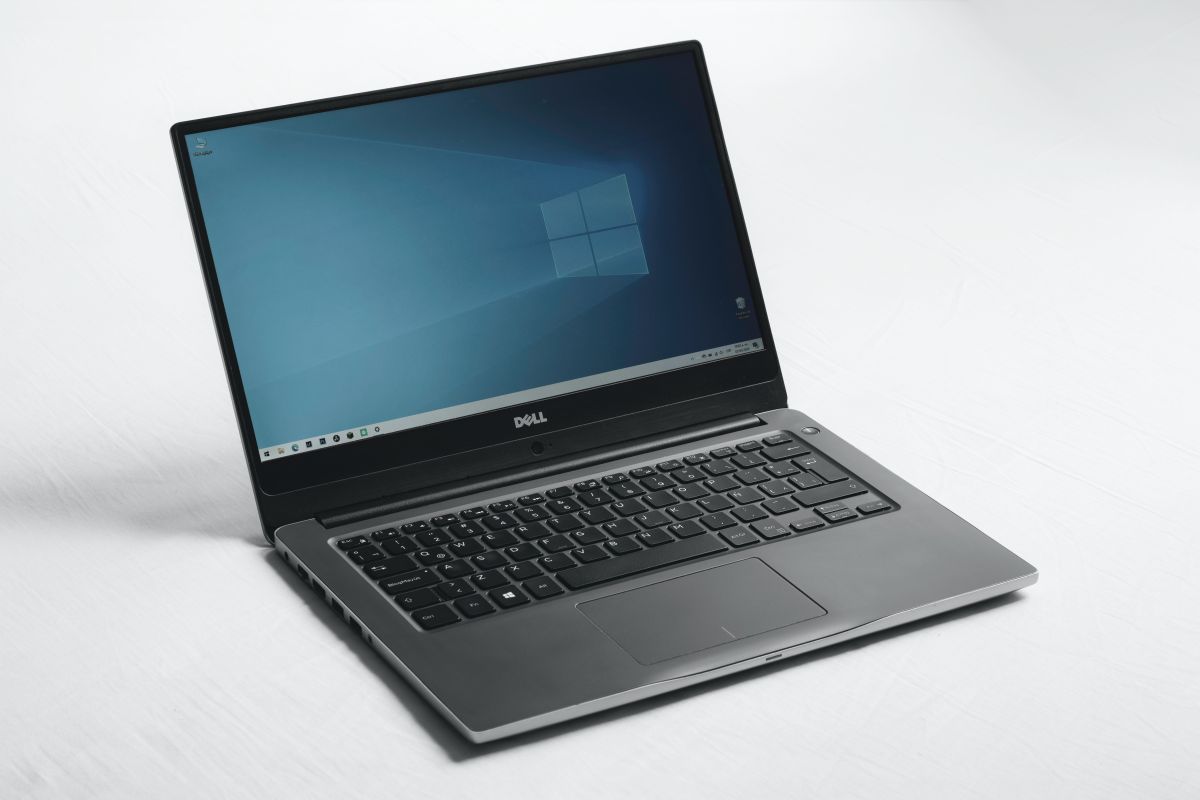
If your Windows 10 computer has started acting like it drank three espressos and forgot how to behave, a reset might be the cleanest fix. And if you want a fresher, less-corrupted reinstall than the usual local method, Windows 10 Cloud Recovery is the option worth knowing. In Microsoft’s wording, the feature is usually called Cloud Download, but many users search for it as Windows 10 Cloud Recovery. Same idea, same rescue mission, fewer headaches.
This feature lets you reset your PC and download a fresh copy of Windows from Microsoft’s servers instead of rebuilding Windows from files already stored on your computer. That matters because local files can be damaged, incomplete, or tangled up with the very mess you are trying to escape. Cloud Recovery gives your system a cleaner starting line, which is exactly what you want when troubleshooting crashes, slowdowns, weird update issues, or a machine you plan to sell, donate, or recycle.
In this guide, you will learn exactly how to use Windows 10 Cloud Recovery to reset the PC, when to choose it over Local Reinstall, what to back up first, what each reset option actually does, and what to expect once the process is finished. Think of this as your no-panic, no-jargon, no-mystery roadmap to giving Windows 10 a fresh start.
What Is Windows 10 Cloud Recovery?
Windows 10 Cloud Recovery is the reset method that downloads Windows installation files from Microsoft during the Reset this PC process. Instead of relying on recovery files stored on your hard drive, it pulls down a clean operating system image from the cloud and uses that to reinstall Windows.
That is the big difference. Local Reinstall uses files already sitting on the device. Cloud Download reaches out to Microsoft, grabs a fresh copy, and rebuilds Windows from that. If your current installation is corrupted, buggy, or missing files, Cloud Recovery is usually the smarter play.
It is not magic. It will not preserve your installed desktop apps, fix a dead hard drive, or turn a potato laptop into a gaming monster. But it can give you a much cleaner reinstall path without needing to create a USB installer or manually reinstall Windows from scratch.
When Should You Use Cloud Recovery?
Cloud Recovery makes the most sense when your PC still powers on and you want a clean reset without building bootable media. It is especially helpful in situations like these:
- Your PC is slow, unstable, or randomly crashing.
- Windows updates went sideways and the system feels broken afterward.
- System files may be damaged and you do not trust a Local Reinstall.
- You want to wipe the computer before giving it away.
- You want a cleaner Windows reinstall without hunting for an ISO or USB drive.
If the computer will not boot normally, you may still be able to use Reset this PC from the Windows Recovery Environment. If the recovery tools themselves fail, then installation media becomes the next step. In other words, Cloud Recovery is wonderfully convenient, but it is not the final boss of repair options.
Before You Reset: Do These First
1. Back Up Your Important Files
This should happen before you click anything dramatic. Even if you plan to use Keep my files, play it safe. Copy your Desktop, Documents, Downloads, photos, videos, school files, work files, and browser exports to OneDrive, an external SSD, or another trusted backup location. A reset is not the moment to discover your only copy of a project was living in a folder called “new new FINAL actually final.”
2. Save Your BitLocker Recovery Key
If device encryption or BitLocker is enabled, Windows may ask for your recovery key during the reset process. If you do not have it, your stress level may suddenly achieve flight. Save the key before starting.
3. Make a List of Apps You Will Need Later
Even with Keep my files, installed apps and custom settings are typically removed. Write down the programs you use most: Office apps, Adobe tools, browser extensions, VPN software, game launchers, printer utilities, and anything else you would miss five minutes after the reset.
4. Plug In the Laptop and Check Your Internet Connection
Cloud Recovery downloads Windows during the reset, so you need a stable connection. A power cable is also a very good idea unless you enjoy living on the edge for no practical reason.
5. Know Your Goal
If you are fixing a problem on your own PC, Keep my files is often a good first stop. If you are selling, recycling, or donating the machine, Remove everything is the better choice, and you should also enable drive cleaning.
Step by Step: How to Use Windows 10 Cloud Recovery to Reset the PC
Here is the standard path inside Windows 10:
- Click the Start button and open Settings.
- Select Update & Security.
- Click Recovery in the left-hand menu.
- Under Reset this PC, click Get started.
- Choose Keep my files or Remove everything.
- When asked how you want to reinstall Windows, select Cloud download.
- Review the additional settings shown on screen.
- If needed, click Change settings to adjust options such as cleaning the drive or deleting files from all drives.
- Click Next, then review the summary carefully.
- Click Reset to begin.
After that, Windows handles the heavy lifting. Your PC may restart multiple times, the screen may go black for a while, and progress may feel slower than a Monday morning. That is normal. Do not force a shutdown unless the system is completely frozen for an unusually long time and you have no other choice.
If Windows 10 Will Not Boot
You may still be able to reset from the recovery menu:
- Boot into the Windows Recovery Environment.
- Select Troubleshoot.
- Choose Reset this PC.
- Pick Keep my files or Remove everything.
- If available, choose Cloud download.
If recovery options fail entirely, create Windows installation media on another PC and reinstall from USB instead.
Keep My Files vs. Remove Everything
These two options sound simple, but they deserve a closer look.
Keep My Files
This reinstalls Windows 10 while preserving your personal files, such as documents and pictures. It still removes apps, drivers you installed, and most custom settings. It is the better option when the computer is yours and you are trying to fix software problems without fully nuking your data.
Remove Everything
This removes personal files, installed apps, and settings. Use it when you want the cleanest reset, or when the PC is leaving your possession. If you are preparing the device for resale or donation, this is the route you want.
Clean Data
When you choose Remove everything, Windows may also offer a Clean data setting. Turning it on makes it harder for someone else to recover deleted files. It takes longer, but it is a smart choice when privacy matters.
That said, Windows itself notes that this consumer-grade erasure is not designed to meet government or industry-grade data destruction standards. For ordinary home users, it is usually fine. For highly sensitive data, you may need a stricter wipe process.
Cloud Download vs. Local Reinstall: Which One Is Better?
Here is the practical version:
- Choose Cloud Download if you suspect corrupted system files, failed updates, or a damaged recovery image.
- Choose Local Reinstall if your internet is slow or unstable and the existing Windows files are probably okay.
Cloud Download is often the safer choice for troubleshooting because it uses a fresh copy of Windows. Local Reinstall can be faster, but it depends on the health of files already on the PC. If those files are part of the problem, Local Reinstall may just give you a cleaner version of the same headache.
Cloud Download also needs internet access and enough free space for the download and reinstall process. In everyday use, that is a perfectly fair trade for a fresher reset.
What Happens After the Reset?
Once the reset is done, Windows 10 walks you through setup again. If you chose Remove everything, the PC should eventually land on the out-of-box setup screen, the same kind of welcome process you would see on a new machine. That is your sign the reset did its job.
From there, you may need to:
- Sign in with your Microsoft account or local account.
- Reconnect Wi-Fi.
- Run Windows Update.
- Reinstall apps.
- Restore files from backup.
- Check device drivers for things like graphics, Wi-Fi, printers, and audio.
If the PC came with manufacturer software and the reset settings kept those customizations, some OEM apps may return. If not, you may need to download them later from your PC maker’s support page.
Common Mistakes to Avoid
- Skipping the backup. This is the classic tragedy.
- Choosing Keep my files when selling the PC. That is not enough. Use Remove everything and clean the drive.
- Forgetting the BitLocker recovery key. That can stop the process cold.
- Assuming apps will survive. They usually will not.
- Interrupting the reset. If the screen sits there quietly for a while, let it cook.
Troubleshooting Windows 10 Cloud Recovery Problems
If Cloud Download Is Missing
The feature was introduced in later Windows 10 releases, so very old versions may not show it. Update Windows first if possible.
If the Reset Fails
Try these moves:
- Install the latest Windows updates before resetting.
- Free up disk space.
- Temporarily disconnect unnecessary peripherals.
- Use Windows Recovery Environment and try again.
- If reset still fails, reinstall Windows using official installation media.
That last option sounds more intense than it really is. It is simply the next logical step when built-in recovery refuses to cooperate.
If You Suspect a Drive Problem
Cloud Recovery can fix software issues, but it cannot repair failing hardware. If your SSD or hard drive is dying, even a perfect reset may not hold for long. In that case, replace the drive first and then reinstall Windows.
Real-World Experiences With Windows 10 Cloud Recovery
In real life, using Windows 10 Cloud Recovery is usually less dramatic than people expect and more useful than they assume. A lot of users only discover it after trying everything else first: restarting five times, uninstalling a suspicious update, blaming Chrome, blaming Windows, blaming “the cloud,” and finally admitting the system needs a reset.
One common experience is the “my laptop became weird overnight” scenario. Maybe boot times doubled, the Start menu started lagging, settings pages froze, or random apps refused to open. In those cases, Keep my files + Cloud Download often feels like the sweet spot. You get a clean Windows reinstall without the emotional damage of losing your school projects, family photos, or work documents. The downside is that you still have to reinstall programs afterward, which is mildly annoying, but still far less annoying than living with a broken PC for three more months out of stubbornness.
Another very typical experience happens when somebody is preparing an old computer for a new owner. At first, they assume deleting files manually is enough. Then they remember browsers store passwords, apps leave leftovers everywhere, and Windows never forgets anything in a neat, polite way. In that situation, Remove everything + Cloud Download + Clean data feels much more reassuring. It takes longer, but it gives users confidence that the machine is not handing the next owner a bonus package of tax PDFs and saved Wi-Fi passwords.
There is also the user who chooses Local Reinstall because it sounds faster, only to discover the same weird behavior still shows up afterward. That is usually when Cloud Recovery starts looking like the smarter option. If the original Windows image is damaged, building a fresh install from those same local files can be like making soup from spoiled ingredients and wondering why the soup tastes suspicious.
People also tend to underestimate the emotional side of resetting a PC. Even when the process is straightforward, it feels strangely dramatic. You click the final button, Windows warns you with one last “are you really sure,” and suddenly your machine is off on a spiritual journey. The screen goes black, progress circles spin, the system restarts, and for a while you just sit there negotiating with fate. Then, when the setup screen finally appears, the relief is immediate. That moment feels like finding out your flight is delayed instead of canceled.
Most importantly, users who have a good Cloud Recovery experience usually do two things right: they back up first, and they know what will disappear. The people who struggle are often the ones who assume installed apps will survive, forget to save license keys, or realize too late that their BitLocker recovery key is apparently hiding in another dimension. Preparation is boring, yes, but it is the kind of boring that saves you from a very exciting disaster.
So if your Windows 10 PC is unstable, cluttered, or ready to retire, Cloud Recovery is one of the most practical built-in tools you have. It is not flashy, but it is dependable when used the right way. And in computer repair, dependable beats flashy every single time.
Conclusion
If you want the simplest built-in way to refresh a messy Windows 10 system, Cloud Recovery is the option to remember. It downloads a fresh copy of Windows from Microsoft, helps avoid problems tied to damaged local files, and gives you a cleaner reset path than Local Reinstall in many situations.
For troubleshooting, start with Keep my files if you want to preserve personal data. For selling, donating, or recycling a computer, choose Remove everything and enable drive cleaning. Back up first, save your BitLocker key, and let the process finish without interruption. Do that, and Windows 10 Cloud Recovery can turn a grumpy, glitchy PC into something far more civilized.
Not brand-new-computer exciting, maybe. But definitely “my PC works again and I can stop glaring at it” exciting.