Calculating the number of days between two dates in Excel sounds like one of those tiny spreadsheet tasks that should take eight seconds. Then Excel politely reminds you that dates are secretly numbers wearing calendar costumes, weekends may or may not count, holidays keep barging into the formula, and someone in accounting wants the result “including the start date, excluding federal holidays, but only for business days.” Wonderful. The coffee is now emotionally necessary.
The good news is that Excel is excellent at date calculations once you know which formula to use. Whether you are tracking project timelines, calculating invoice aging, measuring employee tenure, counting days until a deadline, or figuring out exactly how long it has been since you promised to “clean up that workbook,” Excel gives you several reliable ways to calculate days between dates.
In this guide, you will learn how to calculate days between two dates in Excel using simple subtraction, the DAYS function, DATEDIF, NETWORKDAYS, NETWORKDAYS.INTL, TODAY, and a few practical troubleshooting tricks. We will keep it clear, useful, and just fun enough that your spreadsheet does not feel like it was designed by a committee of sleepy robots.
Why Excel Can Calculate Dates So Easily
Before jumping into formulas, it helps to understand one simple idea: Excel stores dates as serial numbers. In Excel’s standard date system, each date is represented by a number, and each whole number equals one day. That means Excel can subtract one date from another the same way it subtracts regular numbers.
For example, if one date has a serial number of 45,000 and another has a serial number of 45,010, the difference is 10 days. Excel hides that serial-number machinery behind friendly date formatting, so you see “3/15/2026” instead of a number that looks like it escaped from a barcode scanner.
This is why the most basic formula for calculating the number of days between two dates in Excel is simply:
Simple, clean, and surprisingly powerful.
Method 1: Subtract One Date from Another
The fastest way to calculate the number of days between two dates in Excel is direct subtraction. Suppose your start date is in cell A2 and your end date is in cell B2.
If A2 contains January 1, 2026 and B2 contains January 15, 2026, the formula returns:
This means there are 14 elapsed days between the two dates. Excel does not count the start date as a full day in this type of calculation. It calculates the distance from one date to the other.
When to Use Direct Subtraction
Use direct subtraction when you need a plain calendar-day difference. This is perfect for simple tasks such as:
- Counting days between order date and delivery date
- Measuring how long a project took
- Calculating days between invoice date and payment date
- Finding the age of a task, ticket, or request
It is also easy to read, which matters more than people admit. A formula that future-you can understand is a small act of kindness.
Method 2: Use the DAYS Function
Excel also has a dedicated function called DAYS. The syntax is:
Using the same example, where A2 is the start date and B2 is the end date:
This returns the number of days between the two dates.
DAYS vs. Date Subtraction
For basic date differences, =B2-A2 and =DAYS(B2,A2) usually return the same result. The main difference is readability. The DAYS function clearly announces what the formula is doing, which can be helpful in shared workbooks.
However, direct subtraction is shorter and widely understood by experienced Excel users. Think of it this way: subtraction is the shortcut; DAYS is the polite version wearing a name tag.
Method 3: Calculate Days from a Date to Today
Sometimes you do not want to compare two fixed dates. You want to know how many days have passed since a certain date up to today. This is where the TODAY function becomes useful.
If A2 contains the start date, use:
Excel will calculate the number of days between the date in A2 and the current date.
Example: Days Since an Invoice Was Issued
Imagine A2 contains an invoice date. To calculate how many days old the invoice is, enter:
This is especially useful for aging reports, customer follow-ups, overdue tasks, support tickets, subscriptions, and anything else that gets more awkward the longer it sits untouched.
Method 4: Include the Start Date in the Count
One common question is: “Why does Excel return 14 days from January 1 to January 15? Shouldn’t that be 15?”
The answer depends on what you mean by “between.” If you are measuring elapsed time, January 1 to January 15 is 14 days. But if you want to count both the start date and end date, you need to add 1.
For example, if a hotel stay starts on January 1 and ends on January 15, you may count nights differently from days on a calendar. If a marketing campaign runs from January 1 through January 15 and both dates are active campaign days, adding 1 makes sense.
Rule of Thumb
Use =B2-A2 for elapsed days. Use =B2-A2+1 when both the start and end dates should be included in the total.
Method 5: Use DATEDIF to Calculate Days, Months, or Years
The DATEDIF function calculates the difference between two dates in days, months, or years. It is useful, but it is also a little mysterious because Excel supports it for compatibility reasons and it may not appear in the formula autocomplete list.
The syntax is:
To calculate the number of days between dates in A2 and B2, use:
The “d” unit tells Excel to return the difference in days.
Useful DATEDIF Units
- “d” returns total days between two dates.
- “m” returns complete months between two dates.
- “y” returns complete years between two dates.
- “ym” returns months after ignoring years.
- “yd” returns days after ignoring years.
- “md” returns days after ignoring months and years, but this unit can produce confusing results in some cases.
For simply calculating total days, DATEDIF(A2,B2,”d”) works well. But for more complex month-and-day combinations, test carefully. DATEDIF is handy, but it has a “check my work before showing the boss” personality.
Method 6: Calculate Working Days with NETWORKDAYS
Not every date calculation should include weekends. If you are tracking business deadlines, project schedules, payroll periods, service-level agreements, or office tasks, you may need to count only working days.
Excel’s NETWORKDAYS function calculates workdays between two dates, excluding Saturdays and Sundays by default.
If A2 contains the start date and B2 contains the end date, use:
Unlike basic subtraction, NETWORKDAYS includes both the start date and end date if they are workdays.
Example: Business Days Between Two Dates
If A2 is March 2, 2026 and B2 is March 6, 2026, and those dates fall from Monday to Friday, this formula:
returns:
That is because Monday, Tuesday, Wednesday, Thursday, and Friday are all counted.
Method 7: Exclude Holidays with NETWORKDAYS
Business calendars are never just Monday through Friday. Holidays appear, offices close, and suddenly your perfectly tidy formula needs a guest list.
To exclude holidays, list the holiday dates in a separate range, such as E2:E10. Then use:
This tells Excel to count workdays between A2 and B2 while excluding Saturdays, Sundays, and any holiday dates listed in E2:E10.
Best Practice for Holidays
Do not type holidays directly into the formula unless the list is tiny and will never change. A separate holiday table is cleaner, easier to update, and less likely to turn your formula into a spaghetti necklace.
Method 8: Use NETWORKDAYS.INTL for Custom Weekends
Some teams do not follow a traditional Monday-to-Friday workweek. Maybe your weekend is Friday and Saturday. Maybe your business operates Sunday through Thursday. Maybe your schedule was designed by someone who thinks calendars are a form of abstract art.
For custom weekends, use NETWORKDAYS.INTL.
Example:
The weekend argument controls which days are treated as non-working days. For many users, the default Saturday-Sunday weekend is enough. But if your organization has a different schedule, NETWORKDAYS.INTL gives you more flexibility.
Method 9: Calculate Days Between Dates and Times
Dates in Excel can also include times. A date is stored as a whole number, while time is stored as a decimal portion of a day. For example, noon is 0.5 because it is halfway through the day.
If A2 contains a start date and time, and B2 contains an end date and time, use:
The result may appear as a date or time depending on the cell formatting. To show the result as a number of days, format the result cell as Number or General.
Example with Time
If A2 is 1/1/2026 8:00 AM and B2 is 1/3/2026 8:00 PM, the result is:
That means two and a half days.
Method 10: Avoid Negative Results
If the end date is earlier than the start date, Excel will return a negative number. Sometimes that is useful. Other times, it makes your dashboard look like it needs emotional support.
To always return a positive number, use the ABS function:
This returns the absolute difference between the two dates, regardless of which date is earlier.
Method 11: Handle Blank Cells
Blank cells can create confusing results. If your worksheet has missing start or end dates, wrap the formula in an IF statement.
This formula checks whether either date cell is blank. If one is blank, Excel returns a blank result. If both dates exist, Excel calculates the number of days.
This is a good formula for reports because it prevents half-finished rows from showing strange numbers.
Common Problems When Calculating Days Between Dates in Excel
Problem 1: Excel Shows a Date Instead of a Number
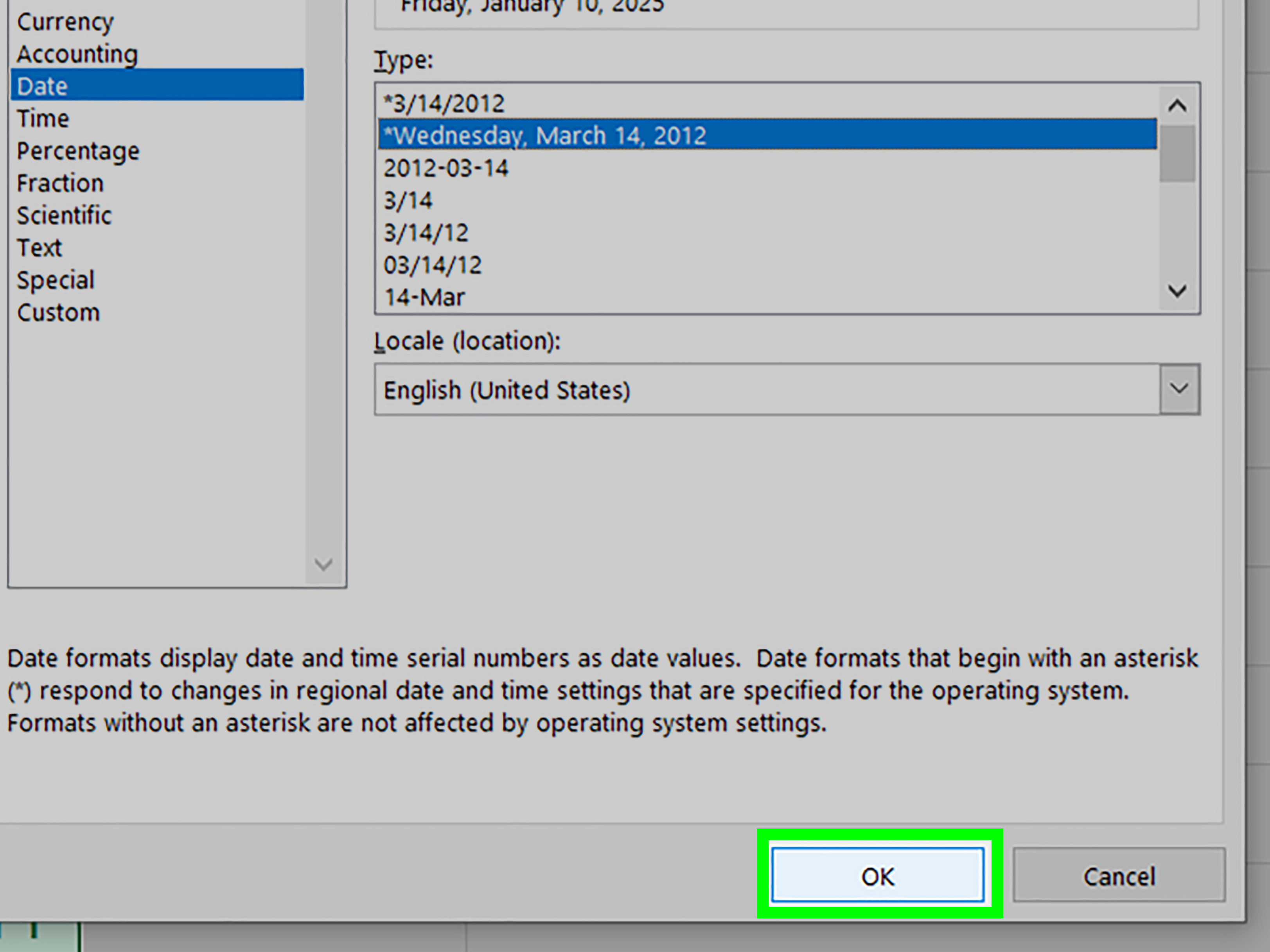
If your result looks like a date, the result cell is probably formatted as a date. Change the format to General or Number.
Problem 2: Excel Does Not Recognize the Date
If Excel treats your date like text, formulas may not work correctly. Check for extra spaces, inconsistent date formats, or imported data that looks like a date but behaves like a sentence in disguise.
You can often fix text dates with DATEVALUE, Text to Columns, or by re-entering the date in a recognized format.
Problem 3: The Result Seems Off by One Day
This usually happens because you need to decide whether the start date should be included. Use =B2-A2 for elapsed days and =B2-A2+1 for inclusive counting.
Problem 4: Business Days Do Not Match the Real Schedule
If your company does not use Saturday and Sunday as weekends, NETWORKDAYS may not match your calendar. Use NETWORKDAYS.INTL instead.
Which Excel Date Formula Should You Use?
Here is the practical cheat sheet:
| Goal | Best Formula |
|---|---|
| Calculate simple calendar days | =B2-A2 |
| Use a clear date-difference function | =DAYS(B2,A2) |
| Calculate days from a date to today | =TODAY()-A2 |
| Include both start and end dates | =B2-A2+1 |
| Calculate business days | =NETWORKDAYS(A2,B2) |
| Exclude holidays | =NETWORKDAYS(A2,B2,E2:E10) |
| Use custom weekends | =NETWORKDAYS.INTL(A2,B2,weekend,E2:E10) |
| Get total days with DATEDIF | =DATEDIF(A2,B2,"d") |
Practical Examples of Calculating Days Between Dates
Example 1: Project Duration
Suppose a project starts on April 1 and ends on April 20. Use:
This gives the elapsed number of days between the project start and end dates.
Example 2: Days Until a Deadline
If a deadline is in B2, use:
If the result is positive, that many days remain. If it is negative, the deadline has passed. Excel will not judge you, but the project manager might.
Example 3: Invoice Aging
If an invoice date is in A2, use:
This shows how many days the invoice has been outstanding.
Example 4: Working Days for a Support Ticket
If a support request opens on A2 and closes on B2, use:
This is better than simple subtraction when your reporting rules count only business days.
Experience-Based Tips for Calculating Days Between Two Dates in Excel
After working with date formulas in real spreadsheets, one lesson becomes clear very quickly: the formula is usually the easy part. The hard part is knowing what the business actually means by “days.” That word can mean calendar days, elapsed days, inclusive days, working days, billable days, school days, shipping days, or “days except the weird company holiday nobody remembers until the report is wrong.”
The first experience-based tip is to define the rule before writing the formula. Ask whether the start date should be counted. Ask whether weekends count. Ask whether holidays count. Ask whether a task completed on the same day should return 0 or 1. These small questions prevent large reporting headaches later. In many business workflows, =B2-A2 is mathematically correct, but =B2-A2+1 is operationally correct because both dates are included.
The second tip is to keep your holiday list separate. If you are calculating workdays, create a small table called something like Holiday_List. Then use that range inside NETWORKDAYS or NETWORKDAYS.INTL. This makes the workbook easier to maintain. When next year arrives, you update the holiday table instead of digging through formulas like an archaeologist searching for a lost civilization.
The third tip is to watch imported data carefully. Dates copied from websites, exported from systems, or downloaded from accounting tools may look normal but behave like text. If formulas return errors or strange results, test the cell with:
If Excel returns FALSE, the “date” is probably text. Clean it before calculating. A beautiful formula cannot rescue messy source data forever, although many of us have tried heroically.
The fourth tip is to use helper columns when formulas become too complex. For example, one column can calculate calendar days, another can calculate business days, and another can label whether the task is overdue. This makes your workbook easier to audit. A single giant formula may feel impressive, but it can become a haunted house when someone else has to fix it six months later.
The fifth tip is to format results clearly. If the result should be a number of days, format the cell as Number, not Date. Many Excel users panic when a date calculation returns something like “1/14/1900.” The formula may be fine; the formatting is simply wrong. Change the result cell to General or Number, and the mystery usually disappears.
The sixth tip is to document assumptions near the report. A small note such as “Business days exclude weekends and listed holidays” can save a surprising amount of confusion. Reports travel. They get emailed, copied, filtered, screenshotted, and interpreted by people who were not in the meeting where the rules were explained. A clear note is boring in the best possible way.
Finally, test your formula with simple dates before applying it to hundreds or thousands of rows. Use a Monday-to-Friday week, a same-day example, a weekend example, and a date range with a holiday. If those test cases work, your formula is much more likely to survive real data. Excel date math is dependable, but only when your assumptions are clear and your cells are actual dates. In other words: trust Excel, but verify the calendar.
Conclusion
Learning how to calculate the number of days between two dates in Excel is one of those skills that pays off constantly. The simplest method is direct subtraction, such as =B2-A2. For a named function, use DAYS. For business-day calculations, use NETWORKDAYS or NETWORKDAYS.INTL. For date differences involving days, months, and years, DATEDIF can help, though it deserves careful testing in more complex scenarios.
The key is choosing the formula that matches the real-world question. Are you counting elapsed calendar days? Inclusive days? Working days? Days until today? Once that rule is clear, Excel can do the math faster than you can say, “Wait, why is this cell formatted as a date?”
Note: This article is based on current Excel date-calculation behavior, official Microsoft Excel function documentation, and practical spreadsheet best practices from reputable Excel education resources.