Underlining text sounds like the kind of web design task that should take three seconds, one keyboard shortcut, and maybe half a cookie. Then HTML and CSS walk in wearing tiny professor glasses and say, “Actually, it depends what you mean by underline.”
The good news? Underlining text on a webpage is easy once you understand the two main approaches: using CSS with text-decoration, and using the HTML <u> element. The slightly more grown-up news is that they are not always interchangeable. CSS is usually the best way to underline text for styling, while the HTML <u> tag has a more specific semantic purpose.
This guide explains how to underline text in CSS and HTML, when to use each method, how to customize underlines, and how to avoid common design and accessibility mistakes. By the end, your underlines will look intentionalnot like your website accidentally sat on a keyboard.
What Does It Mean to Underline Text on the Web?
On paper, underlining simply means drawing a line beneath words. On the web, however, underlines carry meaning. For decades, users have learned that underlined text often means “click me.” That is why underlining random words can confuse visitors if those words are not links.
In HTML and CSS, underlining can be visual, semantic, or both. A visual underline is purely about appearance. A semantic underline communicates a special meaning in the markup itself. Understanding the difference helps you write cleaner code, improve accessibility, and avoid making your page look like a treasure map where every phrase appears suspiciously important.
Method 1: Underline Text with CSS
The most recommended way to underline text for design purposes is CSS. CSS controls how a webpage looks, so it is the right tool when your goal is styling. The core property is text-decoration, and the simplest version looks like this:
This creates a basic underline beneath the paragraph text. It works on paragraphs, headings, spans, links, buttons, navigation items, and almost any element containing text.
Basic CSS Underline Example
For a cleaner and more reusable approach, place the CSS in a stylesheet or inside a <style> block:
This method is better than inline styling because it keeps your HTML neat. If you later decide that all underlined text should use a different color, thickness, or offset, you can update one CSS rule instead of hunting through your entire website like a digital archaeologist.
Underline One Word or Phrase with CSS
Sometimes you do not want to underline a full paragraph. You only want to underline a single word or phrase. In that case, wrap the text in a <span> element and apply a class:
The <span> element is useful because it does not add extra meaning or layout by default. It simply gives CSS something to grab onto. Think of it as a tiny handle for styling text.
Customizing CSS Underlines
Modern CSS gives you more control than the old “line under words, good luck” approach. You can change underline color, thickness, style, and spacing. This is where CSS becomes much more flexible than basic HTML.
Change Underline Color
To change only the underline color, use text-decoration-color:
This is especially useful when you want the underline to support your brand design without changing the actual text color.
Change Underline Thickness
Use text-decoration-thickness to make the underline thinner or thicker:
A thicker underline can work well for headings, callouts, or modern link styles. Just do not go overboard. At some point, a dramatic underline becomes less “visual emphasis” and more “tiny road painted under your sentence.”
Adjust the Space Between Text and Underline
The text-underline-offset property controls how far the underline sits from the text:
This small detail can make underlined text much easier to read, especially when letters with descenderssuch as g, p, q, and yget too close to the line.
Create Dotted, Dashed, Double, or Wavy Underlines
CSS also lets you change the underline style:
Wavy underlines are often associated with spelling or grammar notes. Dashed and dotted underlines can suggest hints, definitions, tooltips, or secondary emphasis. Use them thoughtfully so visitors do not need a detective board and red string to understand your page.
Use the CSS Shorthand
You can combine several underline settings into one shorthand declaration:
This example creates a solid blue underline with a 2-pixel thickness and a small offset. The shorthand keeps the rule compact, while text-underline-offset remains separate because it is not part of the main text-decoration shorthand.
Method 2: Underline Text with HTML
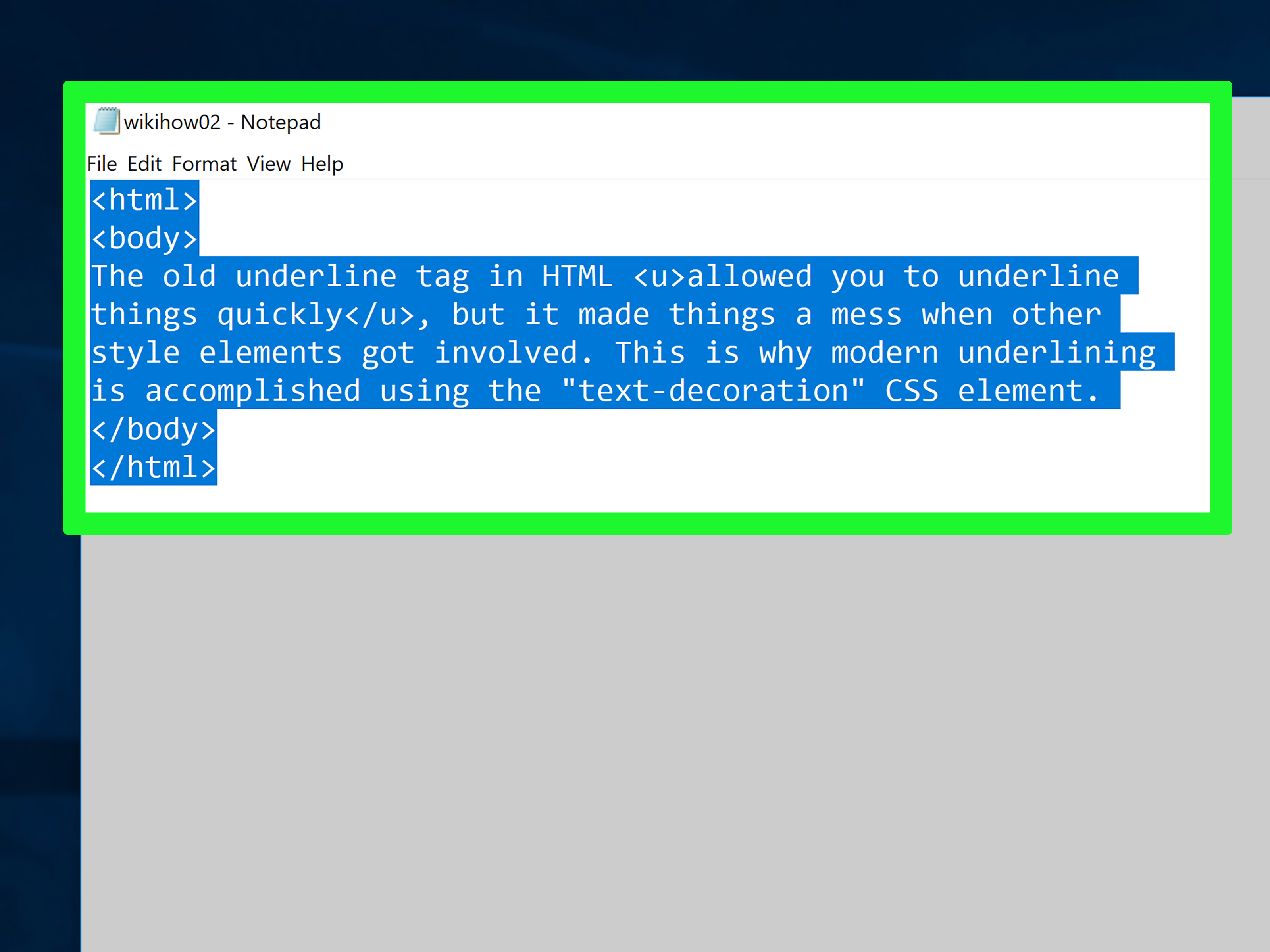
The second simple way to underline text is the HTML <u> element:
Most browsers display the <u> element with a default underline. However, modern HTML does not treat <u> as a general-purpose styling tag. It represents text with a non-textual annotation, such as a misspelled word or a proper name in certain writing systems.
When Should You Use the HTML <u> Tag?
Use <u> when the underline communicates a specific annotation, not just decoration. For example, you might mark a spelling error:
In this case, the underline is not merely “pretty.” It signals that the text has a special note attached to it. That is a semantic use.
When Should You Avoid the HTML <u> Tag?
Avoid using <u> only because you want underlined text. If the goal is visual styling, CSS is the better choice. HTML should describe the structure and meaning of content, while CSS should handle presentation. Mixing those roles can make your code harder to maintain.
You should also avoid underlining non-link text in a way that makes users think it is clickable. Web visitors are trained to associate underlines with links. If you underline too many ordinary words, people may start clicking everything like they are trying to unlock a secret level.
CSS Underline vs HTML <u>: Which One Is Better?
For most websites, CSS is the better option. It is more flexible, easier to maintain, and designed for presentation. The HTML <u> element is valid, but it should be reserved for special semantic cases.
Use CSS When:
- You want to underline headings, paragraphs, links, or buttons for design.
- You need custom underline color, thickness, style, or spacing.
- You want consistent styling across multiple pages.
- You are building a reusable class for your website or app.
Use HTML <u> When:
- The underline represents a non-textual annotation.
- You are marking misspelled words or special linguistic usage.
- The underline has meaning beyond appearance.
Here is the simplest rule: if you are asking “How should this look?” use CSS. If you are asking “What does this text mean?” HTML may be involved.
How to Underline Links Properly
Links are the classic use case for underlines. Most browsers underline links by default because underlines make clickable text easier to recognize. Removing link underlines can make a design look cleaner, but it can also hurt usability if there is no other clear visual cue.
A good link style usually includes more than color alone. Color can be difficult for some users to distinguish, while an underline provides an additional signal. This is especially important in body text, where links need to stand out without shouting.
Example: Modern Link Underline
This style keeps links recognizable while making the underline feel more polished. The hover effect adds feedback without turning the page into a carnival ride.
Common Mistakes When Underlining Text
1. Underlining Text That Is Not Clickable
This is the big one. Underlined text often looks like a link. If it does not go anywhere, users may feel tricked. Use bold, italics, background highlights, or color accents when you simply want emphasis.
2. Using <u> for Every Underline
The <u> element is not wrong, but it is often misused. For visual underlines, CSS is cleaner and more flexible.
3. Forgetting Readability
Heavy underlines can make text harder to read. If the underline touches letters too closely, increase the offset. If it dominates the text, reduce the thickness. Design is often less about adding more and more about stopping before the page starts yelling.
4. Removing Underlines from Links Without a Replacement
If you remove link underlines, make sure links remain obvious through another visual cue, such as strong color contrast, font weight, background treatment, or a hover/focus effect. For accessibility and user experience, links should not play hide-and-seek.
Best Practices for Underlining Text in HTML and CSS
Use CSS for regular underlines. Keep HTML semantic. Make links easy to identify. Test your underline styles on desktop and mobile screens. Check how they look in paragraphs, navigation menus, cards, buttons, and headings.
For longer text, subtle underlines usually work better than thick decorative ones. For headings, thicker underlines can add personality. For links, clarity matters more than fashion. A beautiful link that nobody recognizes is like a doorbell hidden behind a painting: stylish, but not very helpful.
Practical Examples You Can Copy
Simple Underlined Text
Underlined Heading
Subtle Underlined Link
Annotated Text with HTML
Real-World Experience: What I’ve Learned About Underlining Text
After working with HTML and CSS across different kinds of pagesblog posts, landing pages, product descriptions, help guides, and simple business websitesI have learned that underlining text is one of those tiny design choices that can quietly improve or damage the user experience. It looks small. It feels small. But the moment a reader mistakes an underlined phrase for a link, that small choice becomes a tiny frustration.
One practical lesson is that underlines should have a job. If the job is “this is clickable,” the underline is doing classic link work. If the job is “this is a spelling note,” the HTML <u> element may be appropriate. If the job is “this phrase deserves emphasis,” an underline might work, but it is not always the best option. Bold text, a short callout, or a background highlight may be clearer.
Another useful experience is that default underlines are not always visually perfect. Browser defaults are reliable, but they can feel cramped, especially with larger fonts or custom typefaces. Adding text-underline-offset often makes a page look more professional immediately. It creates breathing room between the letters and the underline. That one small CSS property can turn a stiff underline into something that feels intentionally designed.
I have also found that underline thickness matters more than people expect. A 1-pixel underline can look elegant in body copy, but it may disappear on some screens or feel too weak under a large heading. A 3-pixel underline can look confident in a hero section, but in a paragraph it may feel like the text is wearing boots. The best thickness depends on font size, font weight, contrast, and the purpose of the text.
For links inside articles, I usually prefer keeping underlines visible. Many modern websites removed underlines for a cleaner look, but clean is not always clear. Readers scan quickly. They should not need to hover over every blue word to discover what is clickable. A subtle underline with a small offset is often the best compromise: polished enough for design, obvious enough for usability.
There is also a maintenance lesson. Inline styles are tempting when you are testing something quickly, but they can create headaches later. A class like .article-link, .underlined-note, or .section-heading is easier to update across a whole site. If your website grows from five pages to fifty, reusable CSS classes will save you from a future afternoon of sighing dramatically at your own code.
Finally, underlining works best when used sparingly. If everything is underlined, nothing feels important. Good web design is not about decorating every sentence. It is about guiding the reader’s eye. Underlines can guide attention, identify links, clarify annotations, and add stylebut only when they are used with purpose. In other words, underline like a designer, not like a student trying to make every sentence in a textbook look exam-worthy.
Conclusion
There are two simple ways to underline text in CSS and HTML: use CSS text-decoration for styling, or use the HTML <u> element for specific semantic annotations. In most everyday web design situations, CSS is the better choice because it gives you control over color, thickness, offset, and style. The <u> tag still has a place, but it should not be treated as the default underlining tool for visual design.
When in doubt, remember this: CSS controls the look, HTML explains the meaning, and users just want to know what they can click without needing a magnifying glass and emotional support snack.
Note: This HTML includes only the body section, with SEO tags displayed in JSON format at the end for easy publishing.