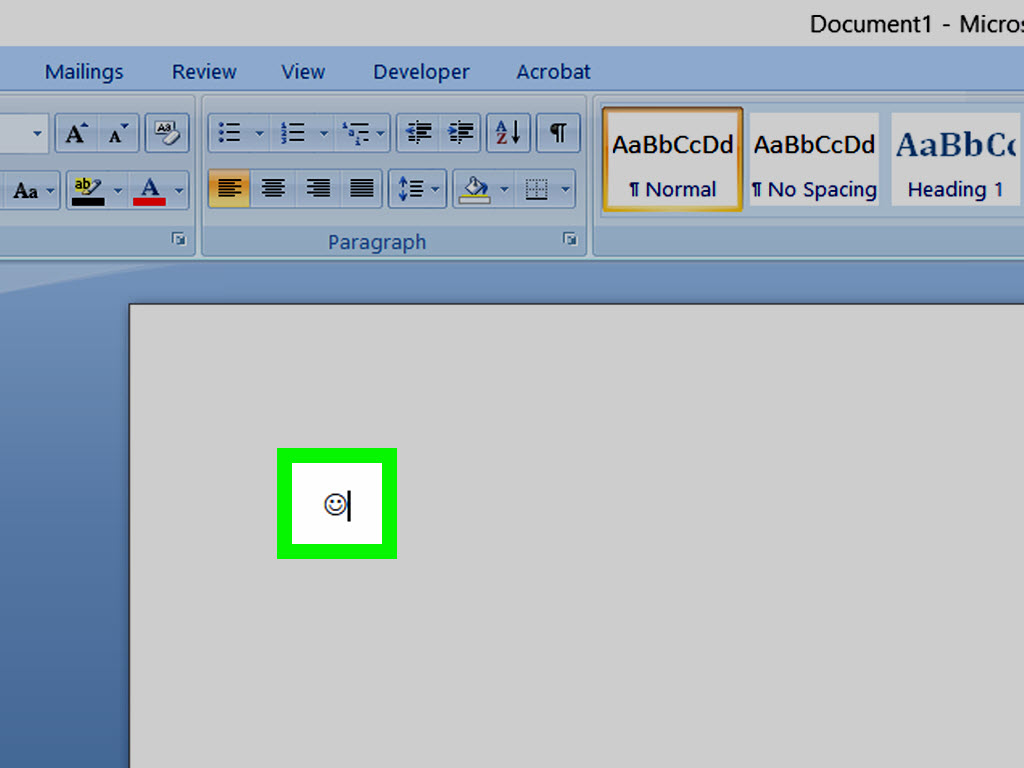
Sometimes words need a little backup. Maybe your text sounds too serious. Maybe your email looks like it was written by a tax auditor. Maybe you just want to say “I’m kidding” without writing a full legal disclaimer. That is where keyboard smiles come in. From classic text smileys like 🙂 to modern emoji like 🙂 and expressive kaomoji like (^_^), there are plenty of ways to make your messages feel warmer, funnier, and more human.
This guide walks you through how to make smiles on a keyboard across Windows, Mac, iPhone, and Android. You will learn the fastest shortcuts, the difference between emoji, emoticons, and kaomoji, and a few practical tips for using them without looking like you accidentally fell into a sticker factory. Whether you are typing in a text message, email, social media caption, or school note, these methods make it easy to add personality with just a few taps.
Emoji, Emoticons, and Kaomoji: What Is the Difference?
Before diving into shortcuts, it helps to know what kind of smile you are making.
Emoji
Emoji are the colorful little images built into modern keyboards, like 😀, 😂, or 🥲. They are designed to appear inside digital text and usually look a little different depending on the platform. A smile on an iPhone may not look exactly the same on an Android phone. Same idea, slightly different face. Digital mood swings are real.
Emoticons
Emoticons are made from regular keyboard characters. Think 🙂, 😉, 😀, or 😛. These are old-school, fast to type, and still surprisingly effective. They are also universal because they do not rely on a specific emoji font.
Kaomoji
Kaomoji are text-based expressions that often stand upright, such as (^_^), (T_T), or ¯\_(ツ)_/¯. They can show a wider range of feelings and are especially fun when a plain smiley is not dramatic enough for your moment.
If you only remember one rule, make it this: emoji are pictures, emoticons are typed characters, and kaomoji are decorative text expressions. All three can make smiles on a keyboard. They just do it with different levels of flair.
How to Make Smiles on a Windows Keyboard
Windows is one of the easiest places to insert emoji and kaomoji because the tool is built right into the operating system.
Use the Windows Emoji Panel
Place your cursor where you want the smile, then press Windows + . (Windows key plus period). The emoji panel opens instantly. From there, you can browse smiley faces, search for a specific emotion, or switch to other categories.
If you want a simple happy face, you can search for terms like smile, grin, or laughing face. This is faster than scrolling through rows of expressions that all seem cheerful but somehow emotionally distinct.
Try Kaomoji and Symbols Too
The Windows panel is not just for emoji. It also includes kaomoji and symbols. That means you can insert classic expressive faces like:
(^_^)
(T_T)
¯\_(ツ)_/¯
(╯°□°)╯︵ ┻━┻
If you are working on a laptop, messaging friends, or writing social posts from your desktop, this shortcut is a serious time-saver.
Use Classic Keyboard Smiles
You can always type text-based smiles manually on Windows too:
- 🙂 or 🙂 for a smile
- 😉 for a wink
- 😀 for a big grin
- 😛 for a playful face
- 🙁 for a sad face
- :’) for happy tears
These are perfect when you want a smile without opening the emoji panel, or when you are using a program that behaves like it has never heard of modern joy.
How to Make Smiles on a Mac Keyboard
Mac users get a built-in emoji and symbols viewer, and it is fast once you know the shortcut.
Open the Character Viewer
Press Control + Command + Space to open the Character Viewer. On some Macs, you can also use Fn/Globe + E. Once it appears, click the smile you want and it drops right into your text.
You can search keywords like smile, happy, wink, or laughing face to find the right emoji quickly. This is especially handy in Notes, Mail, Messages, Google Docs, and social media text boxes.
Use Emoji Suggestions While Typing
macOS can also suggest emoji as you type certain words or phrases. For example, typing something like “thumbs up” or “heart” may bring up emoji suggestions. It is a nice feature if you like speed and do not want to interrupt your typing flow every ten seconds.
Favorite Smiles on Mac
Mac makes it easy to keep frequently used emoji handy. If you use the same few expressions over and over, the viewer starts feeling less like a catalog and more like a shortcut bar for your personality. Great for people who rotate between exactly five moods: smiling, laughing, crying, tired, and “please do not email me again.”
How to Make Smiles on an iPhone
If you use an iPhone, smiles are built right into the keyboard. You do not need an extra app for the basics.
Switch to the Emoji Keyboard
Tap in any text field, then tap the Emoji button or the globe icon on the keyboard. This opens the emoji keyboard. From there, you can browse by category, swipe through options, or use the Search Emoji field to find exactly what you want.
To make a smile, try:
- 🙂 for a simple smile
- 😊 for a warm smile
- 😁 for a big grin
- 😂 for laughing
- 😉 for a wink
Use Predictive Emoji
iPhone can suggest emoji while you type. Write a message, and certain words may light up as options for replacement. For example, if you type “happy,” you may see a matching emoji suggestion above the keyboard. Tap it, and the word turns into a smile. Very efficient. Slightly magical.
Change Skin Tone When Available
Some emoji support skin tone variations. Touch and hold the emoji to see different versions. It is a small detail, but it helps people make their messages feel more personal.
What About Emoticons on iPhone?
You can still type emoticons manually on an iPhone just by using punctuation on the regular keyboard. So yes, 🙂 is still welcome here. It may be ancient internet history, but it still does the job.
How to Make Smiles on Android
Android phones vary by brand, but most people use Gboard or Samsung Keyboard. Both make it easy to add smiles.
Using Gboard
Open any app with a text field, tap where you want to type, then tap the Emoji key. Choose the smile you want and insert it into your message. Gboard also supports GIFs and other image-based expression tools, which means your keyboard can become delightfully chaotic if you let it.
Gboard also lets you touch and hold certain keys for accents and extra character options. While that feature is not specifically for smileys, it is useful when you are mixing expressive text, multiple languages, or custom stylized messages.
Using Samsung Keyboard
On Samsung phones, tap the smiley face icon in or near the keyboard to open emoji options. Samsung also offers extra personalization features, including shortcut controls and AR Emoji or avatar-style stickers on supported devices.
If you want something more playful than a standard smile, Samsung’s options can lean into stickers and animated expressions. That is fantastic if your message needs more energy than plain punctuation can provide.
Android Smile Examples
Whether you use Gboard or Samsung Keyboard, the same common smiles work well:
- 🙂 calm and friendly
- 😄 cheerful and upbeat
- 😆 laughing hard
- 🥹 emotional in the good way
- 😎 confident or playful
And of course, classic emoticons still work too: 🙂, XD, 😉, and ^-^.
Best Smiles You Can Type on Any Keyboard
If you want smiles that work across almost every device, app, and platform, text-based emoticons are still heroes. Here are some reliable favorites:
- 🙂 simple smile
- 🙂 classic smile
- 😀 big grin
- 😉 wink
- 😛 playful face
- XD laughing hard
- :] subtle smile
- ^_^ cute happy face
- ^-^ gentle smile
- <3 heart
These work well in gaming chats, emails, comment sections, or older systems that do not display modern emoji the way you expect. They are tiny, fast, and impossible to overcomplicate. Which is refreshing, honestly.
Why Smiles Sometimes Look Different on Different Devices
If you send a smile from an iPhone and it looks slightly different on an Android phone, you are not imagining things. Different platforms design emoji in different visual styles. The core meaning usually stays the same, but the exact facial expression can change. One version may look sweet, another may look slightly smug, and a third may look like it knows your Wi-Fi password.
That is why context matters. A basic smiling face is usually safe, but some emoji can feel warmer, colder, or more sarcastic depending on the design. If your message is important, choose simpler smiles and keep the wording clear.
Quick Tips for Using Keyboard Smiles Well
Match the Tone
A smiley can soften a message, but it can also confuse the tone if used carelessly. In casual texting, go wild. In school, work, or customer messages, keep it lighter and more selective.
Do Not Use Fifteen in a Row
One smile is friendly. Two may be enthusiastic. Fifteen starts to feel like your keyboard has developed its own emotional agenda.
Know Your Audience
A close friend may understand ¯\_(ツ)_/¯ immediately. Your teacher, manager, or bank probably prefers something less theatrical.
Use Emoticons When Emoji Feel Too Much
Sometimes 🙂 feels simpler and more natural than a bright yellow face. It is understated, fast, and perfect when you want a lighter touch.
Troubleshooting: If You Cannot Find the Emoji Keyboard
- Windows: Make sure you are clicking inside a text field before pressing Windows + .
- Mac: Try Control + Command + Space first, then check keyboard settings for the Globe or Fn key behavior
- iPhone: Touch and hold the globe or emoji key to switch keyboards if emoji is not showing
- Android: Check whether your default keyboard is Gboard or Samsung Keyboard, then look for the smiley icon or emoji key
If all else fails, you can still type 🙂 like it is 2004, and no one can stop you.
Real-Life Experiences With Keyboard Smiles
One of the funniest things about learning how to make smiles on a keyboard is realizing how much they change everyday communication. A short message like “Okay” can sound neutral, cold, annoyed, or perfectly friendly depending on whether you add 🙂, 😊, or nothing at all. The difference is tiny on the screen but huge in real life. People often start using keyboard smiles because they want to look expressive, but they keep using them because smiles quietly prevent misunderstandings.
On Windows, the built-in emoji panel feels like a discovery most people wish they had made sooner. Once you learn Windows + ., it starts showing up everywhere: quick replies in chats, comments on social posts, casual emails, even document notes. Mac users often have the same reaction with Control + Command + Space. It is one of those shortcuts that makes you feel oddly powerful, like you joined a secret society of people who know how to make technology slightly more cheerful.
Phone users usually have a different experience. On iPhone and Android, keyboard smiles become part of the rhythm of texting. You stop thinking about them as “special characters” and start thinking of them as part of your voice. A plain sentence can feel unfinished without one. For some people, that means ending messages with 🙂 to sound kind. For others, it means using 😂 like punctuation. Entire conversations can happen with almost no words at all, which is either efficient modern communication or a sign we all need more fresh air.
There is also something charming about old-school emoticons surviving next to modern emoji. Even with thousands of colorful symbols available, people still type 🙂, 😉, and XD. They are fast, familiar, and work almost anywhere. In gaming chats, forums, and casual messages, text smiles often feel more relaxed than polished emoji. They can come across as nostalgic in the best way, like bringing a flip phone attitude into a smartphone world.
Another real experience people notice is that not every smile lands the same way on every platform. A face that looks cute on one device might look slightly awkward on another. That is why many users settle into a few trusted favorites they know are easy to understand. Simpler smiles tend to win. They are clearer, friendlier, and less likely to make someone wonder whether you are being warm, weird, or quietly sarcastic.
In the end, keyboard smiles are small tools with a surprisingly big job. They add warmth, soften blunt messages, signal humor, and sometimes save a conversation from sounding harsher than intended. For something made with a couple of taps, that is impressive. Not bad for a tiny face living between your space bar and your punctuation keys.
Conclusion
Making smiles on a keyboard is easier than ever, whether you are on Windows, Mac, iPhone, or Android. Windows gives you a fast emoji panel, Mac offers the Character Viewer and handy shortcuts, iPhone has a built-in emoji keyboard with search and suggestions, and Android keyboards like Gboard and Samsung Keyboard make emoji just as accessible. On top of that, classic emoticons and kaomoji still work beautifully when you want something quick, nostalgic, or universally readable.
The best method depends on your device and your style, but the goal is the same: make your message feel more alive. A tiny smile can soften a sentence, add humor, or make a plain reply sound more human. And in a world full of rushed texts and dry notifications, that tiny extra warmth goes a long way.