Connecting a soundbar to a PC sounds like it should be as simple as plugging in a toaster. Then reality walks in wearing a headset, holding three cables, and asking why Windows is still playing audio through the monitor. The good news: once you understand the three main connection methodsBluetooth, AUX, and Toslinksetting up a PC soundbar becomes much less mysterious.
This guide explains how to connect a soundbar to a PC using Bluetooth, 3.5mm AUX, and optical Toslink. It also covers which method is best for gaming, movies, music, video calls, and everyday desktop use. Whether you have a compact under-monitor PC soundbar or a living-room-style soundbar sitting under your ultrawide monitor like it owns the place, the steps below will help you get clear, reliable audio without turning your desk into a cable jungle.
Before You Start: Check Your PC and Soundbar Ports
Before choosing a connection type, look at the back or side of your soundbar and your computer. Most soundbars include at least one of these inputs: Bluetooth, AUX, optical/Toslink, USB, HDMI ARC/eARC, or HDMI input. PCs commonly offer 3.5mm audio output, Bluetooth, USB audio, HDMI audio through the graphics card, and sometimes optical S/PDIF output on higher-end motherboards or sound cards.
The fastest way to avoid frustration is to match the output on your PC to the input on your soundbar. If your PC has Bluetooth and your soundbar supports Bluetooth, you can go wireless. If your PC has a green 3.5mm line-out jack and your soundbar has AUX input, use a standard 3.5mm cable. If your motherboard or sound card has optical S/PDIF out and the soundbar has optical in, Toslink is a clean digital option.
Best Connection Method at a Glance
For casual listening, Bluetooth is convenient. For gaming and lip-sync accuracy, AUX or Toslink is usually more dependable. For clean digital stereo and fewer electrical noise problems, Toslink is excellent. For Dolby Atmos home theater setups, HDMI is often better than optical, but since this guide focuses on Bluetooth, AUX, and Toslink, we will treat HDMI as a useful bonus rather than the main event.
Method 1: How to Connect a Soundbar to a PC with Bluetooth
Bluetooth is the easiest method if your goal is a clean desk with fewer cables. It is ideal for music, podcasts, YouTube, and casual streaming. It is not always the best choice for competitive gaming or music production because Bluetooth can introduce latency, meaning the sound may arrive slightly after the action on screen. Nobody wants the explosion to happen, the villain to monologue, and then the boom to arrive like it took a coffee break.
Step-by-Step Bluetooth Setup on Windows
- Turn on your soundbar and switch it to Bluetooth pairing mode. This usually involves pressing the Bluetooth button on the remote, top panel, or mobile app.
- On your PC, open Settings.
- Go to Bluetooth & devices.
- Make sure Bluetooth is turned on.
- Choose Add device, then select Bluetooth.
- Wait for your soundbar to appear in the list, then select it.
- After pairing, open Settings > System > Sound.
- Under Output, choose your soundbar as the active audio device.
If the soundbar does not appear, make sure it is not already paired with another phone, TV, tablet, or laptop. Bluetooth soundbars often reconnect automatically to the last device they used. In other words, your soundbar may still be emotionally attached to your phone. Disconnect it there first, then try pairing again.
When Bluetooth Works Best
Bluetooth is perfect when your soundbar sits across the room, when you hate cables, or when you want to switch between your PC and phone. It is also helpful for laptops because many modern laptops have fewer ports than a minimalist sculpture. For everyday useSpotify, online classes, cooking videos, and casual movie watchingBluetooth is simple and effective.
Bluetooth Troubleshooting Tips
If your soundbar connects but there is no sound, check the Windows output device. Windows may still be sending audio to your monitor, headphones, or a “Digital Audio” device that is currently doing absolutely nothing useful. Also check the volume mixer, the app volume, and the soundbar’s input mode.
If the audio stutters, move the soundbar closer to the PC, remove obstacles, update Bluetooth drivers, or try a USB Bluetooth adapter with a stronger antenna. Wireless interference from Wi-Fi routers, game controllers, keyboards, and other devices can affect Bluetooth performance. For gaming, rhythm games, or video editing, switch to AUX or Toslink if delay becomes noticeable.
Method 2: How to Connect a Soundbar to a PC with AUX
AUX is the old reliable friend of PC audio. It uses a 3.5mm analog cable, usually from the PC’s headphone jack or line-out port to the soundbar’s AUX input. It is not glamorous. It will not brag about object-based surround formats at parties. But it works, and it works on almost anything.
Step-by-Step AUX Setup
- Find the 3.5mm audio output on your PC. On desktops, this is often the green line-out or speaker-out jack on the rear panel. On laptops, it is usually the headphone jack.
- Connect one end of a 3.5mm AUX cable to the PC.
- Connect the other end to the AUX input on the soundbar.
- Turn on the soundbar and select AUX or Line In mode.
- In Windows, go to Settings > System > Sound and choose the speakers, headphones, or Realtek audio device as the output.
- Play audio and adjust both PC volume and soundbar volume.
Why AUX Is Still Useful
AUX has low latency, which makes it good for gaming, video calls, and watching movies. It also avoids the pairing drama that sometimes comes with Bluetooth. If your PC and soundbar are close together, a short AUX cable is often the most painless setup.
The downside is that AUX is analog. That means it can pick up electrical noise from the PC, power supply, monitor, or nearby cables. If you hear buzzing, humming, or faint whining when moving your mouse, congratulations: your computer is trying to become a tiny haunted radio. Try using a shorter cable, plugging the soundbar and PC into the same power strip, lowering PC output volume slightly, or switching to Toslink if available.
AUX Cable Tips
Use a decent 3.5mm stereo cable, but do not fall into the trap of buying one priced like jewelry. Keep it reasonably short, avoid tightly wrapping it around power cables, and make sure the plug is fully inserted at both ends. If your soundbar has RCA inputs instead of AUX, use a 3.5mm-to-RCA cable. Connect the red plug to the right channel and the white plug to the left channel. If you reverse them, the world will not end, but stereo positioning will feel slightly odd.
Method 3: How to Connect a Soundbar to a PC with Toslink Optical
Toslink, also called optical audio or optical S/PDIF, sends digital audio as light through a fiber-optic cable. It is a favorite for clean audio because it does not create an electrical connection between the PC and soundbar. That helps reduce ground-loop hum and electrical interference. In plain English: Toslink tells buzzes and hums to go bother someone else.
Step-by-Step Toslink Setup
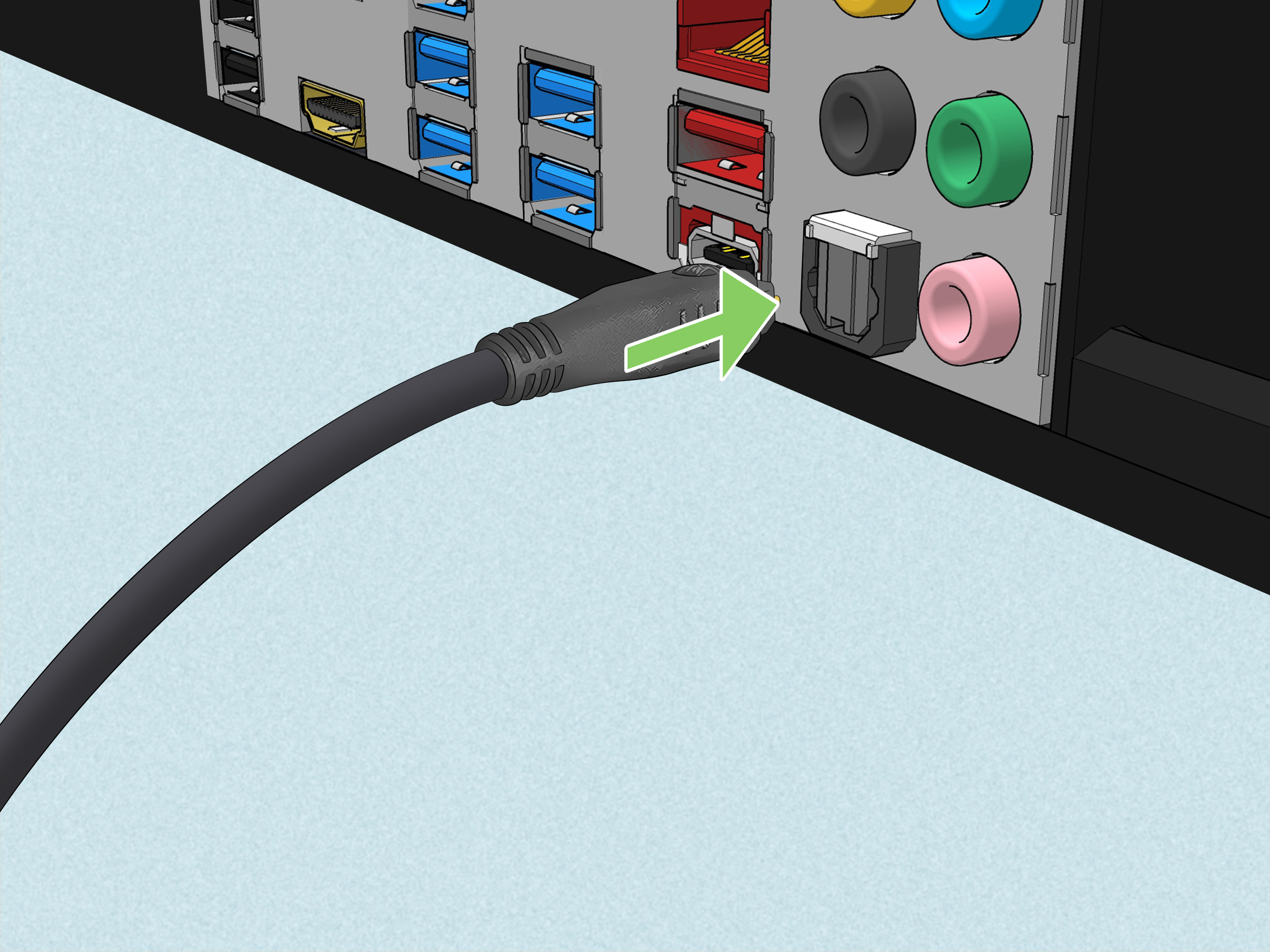
- Check whether your PC has an optical S/PDIF output. It may be a square port with a small flap or a red light inside.
- Check whether your soundbar has an optical input labeled Optical, Digital Audio In, or Toslink.
- Remove the tiny plastic caps from the ends of the optical cable. This step is small, but skipping it is a classic “why won’t this fit?” moment.
- Connect one end of the Toslink cable to the PC’s optical output.
- Connect the other end to the soundbar’s optical input.
- Set the soundbar input to Optical or D.IN.
- In Windows, open Settings > System > Sound and select the digital audio or S/PDIF output.
- Play audio and test the volume.
When Toslink Is the Best Choice
Toslink is excellent for desktop PCs with optical output, especially if analog AUX produces hum or static. It is also a stable wired option for movies and music. Because it carries digital audio, it avoids some of the quality issues that come from noisy analog output stages on cheaper motherboards.
However, Toslink has limits. It commonly supports stereo PCM and compressed surround formats such as Dolby Digital or DTS, depending on your hardware and software. It does not have the bandwidth for many newer high-resolution surround formats in the way HDMI eARC can. If you want Dolby Atmos for Home Theater from a PC to a compatible soundbar, HDMI is usually the more appropriate path. For straightforward stereo soundbar use, Toslink is still a very strong option.
Optical Troubleshooting Tips
If optical is connected but silent, confirm three things: the soundbar is on optical input, Windows is using the S/PDIF output, and your app is not muted. Then check the audio format. Some soundbars prefer PCM stereo from PCs. In Windows, open the advanced sound settings for the output device and test supported formats. If a movie app or game is sending a format your soundbar cannot decode, switch the PC output to stereo PCM.
Do not bend an optical cable sharply. It uses light, not electrical signal, so tight bends can weaken or break the connection. A gentle curve is fine. A cable folded like origami is not.
Bluetooth vs AUX vs Toslink: Which Should You Use?
Choose Bluetooth If You Want Convenience
Bluetooth is best for casual listening and clean setups. It is especially useful for laptops, shared spaces, or anyone who moves devices around often. Choose Bluetooth for music, podcasts, general browsing, and relaxed movie watching where a tiny delay is not a disaster.
Choose AUX If You Want Simple Low-Latency Audio
AUX is best when you want a quick wired connection with minimal delay. It works well for gaming, meetings, online lessons, and everyday PC use. It is also the most universal option because nearly every computer has some form of analog audio output. The main drawback is possible noise or hum.
Choose Toslink If You Want Clean Digital Sound
Toslink is best when your PC supports optical output and your soundbar has optical input. It gives you a clean digital signal and can solve many buzzing issues caused by analog connections. It is a great choice for music, movies, and desktop setups where reliability matters more than wireless convenience.
How to Set the Soundbar as the Default Output in Windows
After connecting your soundbar, Windows may not automatically use it. To set it manually, open Settings > System > Sound. Under Output, select the soundbar, Bluetooth device, speakers, Realtek output, or S/PDIF device. Then play a test sound.
If you see several confusing names, try them one at a time. Your Bluetooth soundbar may show its brand name. AUX may appear as Speakers, Headphones, or Realtek Audio. Toslink may appear as Digital Audio, S/PDIF, or Optical. Windows is powerful, but naming audio devices clearly is apparently where civilization reached its limit.
Common Problems and Easy Fixes
No Sound from the Soundbar
First, check the soundbar input. Bluetooth, AUX, and optical are separate modes. A soundbar set to Bluetooth will not play audio from an AUX cable, no matter how politely you ask. Next, check Windows output settings, volume levels, app volume, and mute buttons. Restarting both the PC and soundbar can also clear a stuck handshake or driver issue.
Audio Comes from the Monitor Instead
This often happens when the PC uses HDMI or DisplayPort audio through the monitor. Open Windows sound settings and choose the correct output device. You can also disable unused playback devices in the classic sound control panel if Windows keeps choosing the wrong one.
Bluetooth Delay While Gaming
Bluetooth latency varies by device, codec, driver, and distance. Some newer Bluetooth LE Audio devices improve the experience, but compatibility must exist on both the PC and soundbar. For fast games, use AUX, optical, USB, or HDMI instead.
Buzzing or Humming with AUX
Buzzing usually points to analog noise, a ground loop, poor shielding, or interference. Try a shorter cable, a different audio jack, the rear motherboard output instead of the front case jack, or a USB DAC. If your devices support it, Toslink is often the cleanest escape route because it uses optical isolation.
Optical Connected but Only Stereo Works
This is normal in many PC setups. Optical is excellent for stereo PCM and some compressed surround formats, but it is not the same as HDMI eARC. If your goal is modern immersive audio, check whether your soundbar supports HDMI input, ARC, or eARC and whether your PC can send the required format.
Practical Setup Examples
Example 1: Laptop + Compact Soundbar
If you use a laptop on a small desk, Bluetooth is usually the cleanest option. Pair the soundbar, set it as the output, and keep the charger and USB hub from becoming a cable monster. If the Bluetooth delay bothers you during video calls, switch to AUX.
Example 2: Gaming Desktop + Soundbar Under Monitor
For a gaming desktop, AUX or Toslink is usually better than Bluetooth. Use AUX if your motherboard audio is quiet and clean. Use Toslink if your PC has optical output and you want to avoid hum. If you play competitive shooters, wired audio is the safer choice because even small delays can be annoying.
Example 3: Home Theater PC + Living Room Soundbar
If your PC is connected to a TV and the TV connects to a soundbar, HDMI ARC or eARC may be the best overall setup. But if you are connecting directly from PC to soundbar and the soundbar has optical input, Toslink works well for stereo and compatible surround formats. Bluetooth is fine for casual use but less ideal for movies where lip-sync matters.
Experience Notes: Real-World Lessons from Connecting a Soundbar to a PC
After setting up more PC audio systems than any sane person should admit, one lesson stands out: the “best” connection is not always the fanciest one. Sometimes the humble AUX cable wins because it is fast, simple, and low-latency. Sometimes Bluetooth wins because the desk looks cleaner and nobody trips over a cable. And sometimes Toslink wins because it removes that mysterious electric hum that makes your PC sound like it is quietly plotting against you.
One common experience is the Windows output-device shuffle. You connect the soundbar, everything looks correct, and then audio still comes from the monitor. This happens often because monitors connected by HDMI or DisplayPort can appear as sound devices. Windows may choose the newest or most recently active output instead of the one you actually want. The fix is simple: go into sound settings, manually select the soundbar, and test it with a short audio clip. Once set, Windows usually remembers, although it occasionally wakes up feeling artistic.
Bluetooth setups feel magical when they work. Press a button, pair the device, and the room fills with music. But Bluetooth can be moody. A soundbar may refuse to appear because it is still paired to a phone in another room. It may connect but not play because Windows selected the hands-free communication profile or another output. It may also introduce just enough delay to make a game feel slightly off. For YouTube, playlists, and podcasts, Bluetooth is convenient. For precise gaming or editing, wired connections are safer.
AUX is the most forgiving method, especially with older PCs and budget soundbars. It rarely needs drivers, pairing, apps, accounts, firmware updates, or a ceremony under a full moon. Plug it in, select the right input, and play audio. The weakness is noise. Front-panel audio jacks on desktop cases can be especially prone to hiss or interference because the cable runs inside the PC near power and data lines. If AUX sounds noisy, try the rear motherboard jack. That one simple change often improves the sound immediately.
Toslink is the problem-solver for people who hear hum through analog cables. Because optical audio uses light, it separates the electrical grounds of the PC and soundbar. In real use, that can make the difference between “Why is there a mosquito living in my speaker?” and clean silence between songs. The only catch is compatibility. Many modern laptops do not have optical output, and some desktops only include it on premium motherboards. A USB-to-optical audio adapter can help, but make sure it supports the formats you need.
Placement also matters. A soundbar under a monitor should point toward your ears, not your keyboard. If it fires sound into the desk, dialogue can sound muffled. Leave space around side-firing drivers if your soundbar uses virtual surround. Keep it centered when possible, and do not bury it behind a monitor stand, snack bowl, or decorative plant named Kevin.
Finally, remember that a soundbar is designed to make audio easier, not more stressful. Start with the connection that matches your main use. Bluetooth for convenience, AUX for simplicity, Toslink for clean digital reliability. Once it works, resist the urge to change settings endlessly. Play a song you know well, watch a familiar movie scene, test a game, and adjust only what needs adjusting. The best PC soundbar setup is the one that disappears into your routine and simply sounds good.
Conclusion
Connecting a soundbar to a PC is straightforward once you know what each connection does. Bluetooth is wireless and convenient, AUX is simple and low-latency, and Toslink offers clean digital audio with excellent resistance to electrical noise. For most people, the right choice depends on how the PC is used. Gamers should lean wired. Music listeners can choose whatever sounds best and behaves reliably. Movie fans should consider Toslink for clean stereo or HDMI if advanced surround formats are a priority.
The key is to match the PC output, soundbar input, and Windows sound settings. Once those three pieces agree, your soundbar can turn a flat, tinny computer setup into something fuller, louder, and far more enjoyable. Your monitor may still look smug, but at least it will no longer be responsible for the audio.