Note: This guide explains iPhone notification behavior using current iOS settings, while also covering the older “Deliver Quietly” wording many users still search for. Menu names can vary slightly depending on your iOS version and app.
If your iPhone says a notification was “Delivered Quietly”, your phone is not being mysterious, moody, or passive-aggressive. It simply means the notification arrived without making a grand entrance. No banner swooping in. No sound. No Lock Screen spotlight. No dramatic vibration that makes your table sound like a tiny helicopter pad.
In practical terms, Delivered Quietly on iPhone means an app’s notifications are being sent to Notification Center, but they are not alerting you in the usual loud-and-proud way. This can be useful when you want fewer interruptions, but it can also become annoying when you actually want to hear from an applike Messages, Mail, banking apps, delivery updates, calendar reminders, or anything that might matter before next Tuesday.
The good news: turning off Delivered Quietly is usually simple. The slightly less good news: Apple has changed how notification controls appear across iOS versions, so the exact button may not always say “Deliver Prominently” anymore. The fix is still the same idea: turn the app’s visible alerts, banners, sounds, and badges back on.
What Does “Delivered Quietly” Mean on iPhone?
Delivered Quietly means your iPhone receives the notification, but it does not interrupt you. The notification may appear in Notification Center, but it typically will not appear on the Lock Screen, play a sound, show a banner, or display the kind of obvious alert you expected.
Think of it like a polite waiter placing a note on a side table instead of ringing a dinner bell. The message is there, but unless you go looking for it, you may miss it.
Delivered Quietly usually means:
- The notification may go straight to Notification Center.
- Your iPhone may not play a notification sound.
- Your screen may not light up.
- You may not see a banner at the top of the screen.
- The app may not show a badge, depending on your settings.
- The notification may feel “missing,” even though it technically arrived.
This is different from turning notifications off completely. When notifications are off, the app cannot notify you at all. When notifications are delivered quietly, the app still sends alerts, but your iPhone treats them like library whispers.
Why Are My iPhone Notifications Being Delivered Quietly?
There are several reasons your iPhone notifications may behave quietly. The most common cause is that notification settings for a specific app have been changed. But Focus modes, Scheduled Summary, Apple Watch behavior, app-specific settings, and even sound choices can also make alerts seem silent.
1. The App’s Alerts Are Not Fully Enabled
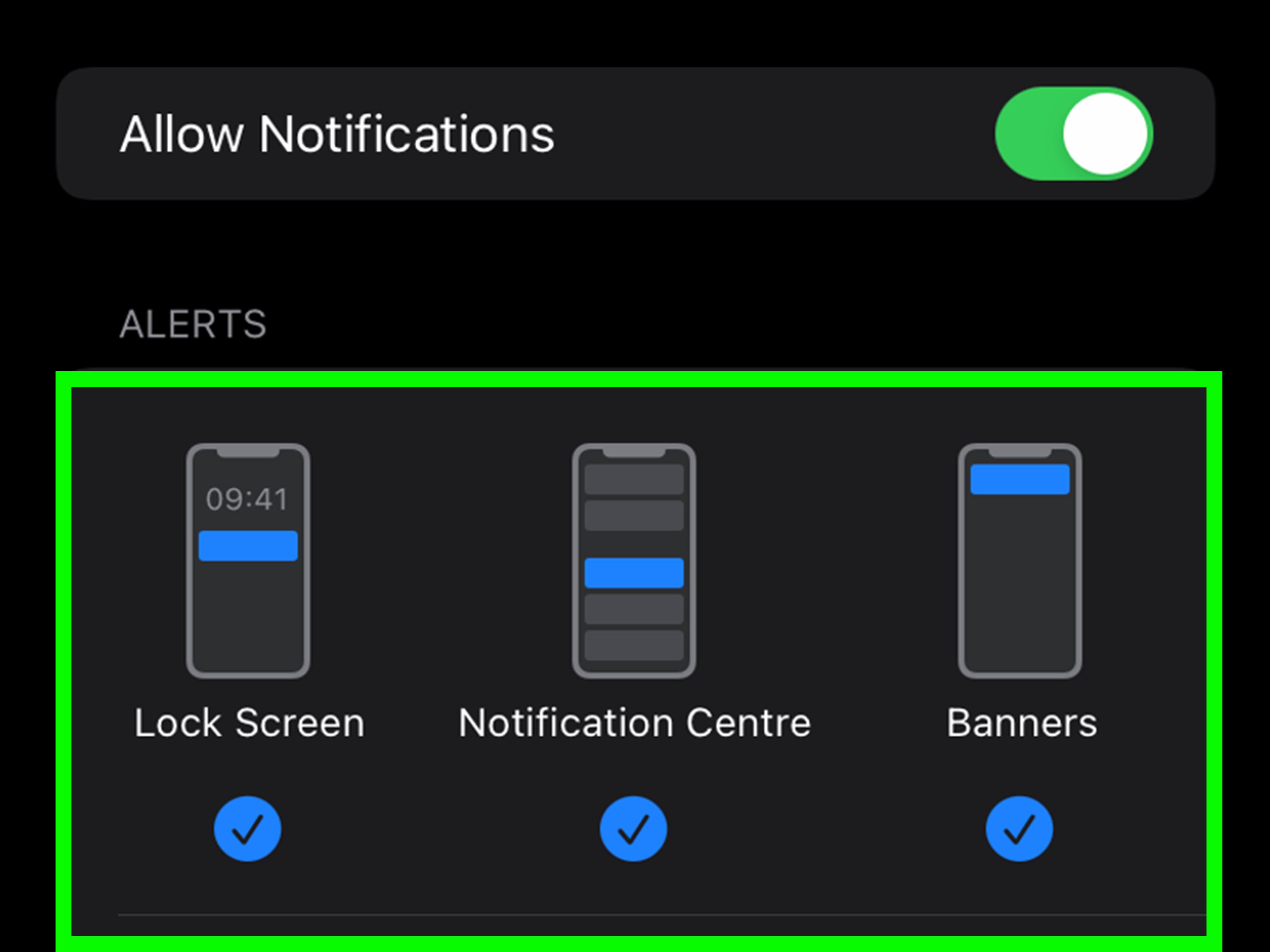
Each iPhone app has its own notification settings. You can decide whether alerts appear on the Lock Screen, in Notification Center, or as banners. You can also control sounds and badges. If Lock Screen, Banners, Sounds, or Badges are disabled, the app may feel like it is delivering notifications quietly.
2. Focus Mode Is Silencing the App
Focus modes such as Do Not Disturb, Sleep, Work, Personal, Driving, and custom Focus profiles can silence notifications from certain apps or people. This is great when you are trying to concentrate. It is less great when your “quick productivity setup” accidentally turns your phone into a digital monk.
3. Scheduled Summary Is Delaying Notifications
Scheduled Summary groups selected app notifications and shows them at chosen times. If an app is included in Scheduled Summary, its notifications may not appear immediately. This can make them feel like they were delivered quietly, even though they are actually being bundled for later.
4. Your Apple Watch Is Receiving the Alert
If you use an Apple Watch, notification behavior can change. In many situations, notifications may appear on your Apple Watch instead of making noise on your iPhone, especially when your iPhone is locked. This can be confusing if your wrist buzzed lightly but your phone stayed silent.
5. The App Has Its Own Internal Notification Settings
Some apps have notification controls inside the app itself. Messaging apps, email apps, social media apps, banking apps, shopping apps, and delivery apps often let you choose which types of alerts you receive. You may have iPhone notifications turned on, but the app may still be muting certain categories internally.
How to Turn Off Delivered Quietly on iPhone
The fastest fix is to open the notification settings for the app and turn alerts back on prominently. Use this method for Messages, Mail, WhatsApp, Instagram, Gmail, Calendar, Reminders, banking apps, food delivery apps, or any other app that seems too quiet.
Method 1: Turn Alerts Back On in Settings
- Open the Settings app on your iPhone.
- Tap Notifications.
- Scroll down and select the app that is being delivered quietly.
- Make sure Allow Notifications is turned on.
- Under Alerts, enable Lock Screen, Notification Center, and Banners.
- Turn on Sounds if you want an audible alert.
- Turn on Badges if you want the red number on the app icon.
- Set Banner Style to Temporary or Persistent, depending on your preference.
For most users, this solves the problem immediately. If the app was quietly sliding notifications into Notification Center like a ninja, enabling Lock Screen, Banners, and Sounds brings it back to normal.
Method 2: Change Notification Settings from a Notification
If you still have a notification from that app visible, you may be able to adjust it directly.
- Open Notification Center by swiping down from the top of the screen.
- Find a notification from the app.
- Swipe left on the notification.
- Tap Options or the menu button if available.
- Choose notification settings or turn alerts back on, depending on what your iOS version shows.
On older iOS versions, Apple offered options such as Deliver Quietly and Deliver Prominently. On newer versions, you may be sent to the app’s notification settings instead. Either way, the goal is the same: restore banners, sounds, Lock Screen alerts, and badges.
How to Turn Off Delivered Quietly for Messages
If text messages are being delivered quietly, check the Messages notification settings first. Missing text alerts can feel personal, especially when someone says, “I texted you three hours ago,” and your iPhone just sits there looking innocent.
Fix Message Notifications
- Open Settings.
- Tap Notifications.
- Tap Messages.
- Turn on Allow Notifications.
- Enable Lock Screen, Notification Center, and Banners.
- Tap Sounds and choose a text tone that is not set to None.
- Turn on Badges if you want unread message counts on the Messages icon.
Also check whether a specific conversation is muted. Open the Messages app and look for a crossed-out bell icon or muted conversation indicator. A single muted chat can make it seem like Messages is broken, when really only that conversation has been politely shoved into silence.
Check Focus Mode If Notifications Are Still Quiet
If notification settings look correct but alerts are still silent, Focus is the next suspect. Focus can silence apps, people, or entire categories of alerts.
Turn Off Focus Quickly
- Open Control Center.
- Tap Focus.
- If a Focus mode is active, tap it to turn it off.
Review Focus Settings
- Open Settings.
- Tap Focus.
- Select each Focus mode, such as Do Not Disturb, Sleep, Work, or Personal.
- Check which apps and people are allowed or silenced.
- Review schedules and automation rules.
- Turn off any Focus schedule that activates unexpectedly.
Focus is powerful, but it can be a little too helpful. If your iPhone suddenly goes quiet every night, during school or work hours, when you arrive somewhere, or when you open a certain app, a Focus automation may be responsible.
Check Scheduled Summary
Scheduled Summary is another setting that can make notifications seem delayed or quiet. It collects non-urgent notifications and shows them together at specific times. That is lovely for reducing chaos, but not ideal for apps you want to hear from immediately.
Turn Off Scheduled Summary for an App
- Open Settings.
- Tap Notifications.
- Tap Scheduled Summary.
- Find the app in the list.
- Turn off the app if you want its notifications to arrive immediately.
You do not have to disable Scheduled Summary completely. You can keep low-priority apps bundled while allowing important appsMessages, Calendar, Mail, banking, reminders, rideshare, delivery, or school/work toolsto notify you right away.
Check Sounds, Silent Mode, and Haptics
Sometimes the notification is not “Delivered Quietly” at all. It is technically making an alert, but the alert is so subtle it could be mistaken for a polite cough in another room.
Review Sound Settings
- Open Settings.
- Tap Sounds & Haptics.
- Check your ringtone and alert volume.
- Review Default Alerts if available on your iOS version.
- Make sure haptics are enabled if you rely on vibration.
Also check Silent Mode. On iPhones with a Ring/Silent switch, make sure the switch is not showing orange if you want sounds. On models with an Action Button, check whether the button is assigned to Silent Mode and whether Silent Mode is currently active.
What If Delivered Quietly Appears in iMessage?
People often confuse Delivered Quietly with iMessage delivery status. They are not exactly the same thing.
In Messages, “Delivered” usually means your message reached the other person’s Apple device. But if you see wording related to notifications being silenced, that usually means the recipient has a Focus mode or notification setting that may prevent them from being alerted immediately. It does not necessarily mean you are blocked, ignored, banished, or placed in the emotional equivalent of a junk drawer.
If your own incoming Messages are quiet, fix your Messages notification settings. If someone else’s phone says notifications are silenced, that setting is on their device, not yours.
Delivered Quietly vs. Notifications Off
It helps to understand the difference between quiet delivery and disabled notifications.
Delivered Quietly
The app can still send notifications, but they appear silently or less visibly. You may find them later in Notification Center.
Notifications Off
The app cannot send alerts at all. You will need to open the app manually to check for updates.
Focus Mode
The app may be allowed or silenced depending on the active Focus profile. Notifications might resume when Focus turns off.
Scheduled Summary
Notifications are collected and delivered at scheduled times instead of appearing immediately.
These settings can overlap. For example, an app can have banners disabled, sounds turned off, and also be included in Scheduled Summary. At that point, the notification is not just quietit has entered witness protection.
Best Notification Settings for Important Apps
For apps you truly care about, use a more noticeable setup. This does not mean every app deserves full-volume royal treatment. Your weather app does not need to burst into the room every time a cloud feels ambitious.
For important apps, consider enabling:
- Lock Screen: So you see alerts without unlocking your iPhone.
- Banners: So alerts appear while you are using your phone.
- Sounds: So you hear important updates.
- Badges: So you notice unread items on the Home Screen.
- Time Sensitive Notifications: If the app supports them and the alerts are genuinely urgent.
For less important apps, you can keep notifications quieter. News apps, shopping apps, games, social media, and random coupon apps do not always need immediate access to your nervous system.
Common Examples of Delivered Quietly Problems
Example 1: Messages Make No Sound
You receive texts, but your iPhone does not make a sound. Check Settings > Notifications > Messages. Make sure Allow Notifications, Sounds, Banners, and Lock Screen are enabled. Then check whether the specific conversation is muted.
Example 2: Gmail Notifications Arrive Late
If Gmail alerts show up only in batches, check both iPhone notification settings and Gmail’s internal notification settings. Also check Scheduled Summary, because email apps are often placed into summaries by users trying to reduce inbox noise.
Example 3: Calendar Alerts Do Not Pop Up
Open Settings > Notifications > Calendar and confirm alerts and sounds are enabled. Then open the Calendar app settings and check default alert times. A calendar reminder that whispers is basically just a missed appointment wearing a tiny hat.
Example 4: Notifications Go to Apple Watch Instead
If your Apple Watch receives alerts but your iPhone stays quiet, review Apple Watch notification settings in the Watch app. This is normal behavior in some situations, but you can customize how apps notify you.
Should You Turn Delivered Quietly Off?
You should turn Delivered Quietly off for apps where missing an alert could cause problems. That includes messages from family, school or work apps, calendar reminders, banking alerts, delivery updates, rideshare notifications, health-related reminders, and security alerts.
However, quiet delivery is useful for apps that are informative but not urgent. A shopping app announcing “flash sale” for the fourth time today does not need the same priority as a text from your parent, boss, teacher, doctor, or friend waiting outside your house.
A Practical Notification Setup That Actually Works
The best iPhone notification setup is not “everything loud” or “everything silent.” It is a thoughtful middle ground.
Use this simple system:
- Urgent apps: Lock Screen, Banners, Sounds, and Badges on.
- Useful but not urgent apps: Notification Center and Badges only.
- Distracting apps: Scheduled Summary or notifications off.
- People-based alerts: Use Focus settings to allow important contacts.
- Temporary quiet time: Use Focus instead of changing every app manually.
This setup keeps your iPhone helpful without letting it behave like a caffeinated doorbell.
500-Word Experience Section: Real-Life Lessons from “Delivered Quietly” on iPhone
One of the most common real-life experiences with Delivered Quietly on iPhone starts with confusion. You know the app is working. You open it and see new messages, emails, reminders, or updates. But your phone never made a sound. No banner appeared. No Lock Screen alert showed up. For a few minutes, you may wonder whether the app is broken, your iPhone is broken, or technology has finally decided to personally inconvenience you.
The first lesson is that “quiet” does not always mean “off.” This distinction matters. Many users go straight to reinstalling apps, restarting their iPhone, or blaming the latest iOS update. Those steps sometimes help, but most of the time the cause is much simpler: one notification setting changed. Maybe Sounds were turned off. Maybe Banners were disabled. Maybe the app was added to Scheduled Summary. Maybe a Focus mode started automatically and silenced the app. The notification arrived, but it arrived wearing socks on carpet.
A practical example: imagine you use a food delivery app. You place an order, then get distracted. The driver arrives, sends updates, and the app technically notifies youbut quietly. By the time you check Notification Center, your food is cooling outside like a sad little documentary about fries. In this case, the fix is not to turn every notification on for every app. The smarter move is to decide that delivery apps deserve banners and sounds while the order is active.
Another common experience happens with Messages. A person says, “Did you see my text?” You did not. Then you open Messages and discover the text has been sitting there for an hour. This can happen if Messages notifications were set too quietly, if the conversation was muted, if your phone was in Focus mode, or if the sound was set to None. The emotional drama can be large, but the technical fix is usually small.
The best habit is to audit your notifications once in a while. Go through Settings > Notifications and ask one simple question for each app: “Do I need this app to interrupt me?” If yes, enable Lock Screen, Banners, Sounds, and Badges. If no, let it stay quiet or move it into Scheduled Summary. This turns notification management from a messy guessing game into a clean system.
Delivered Quietly can actually be a wonderful feature when used intentionally. It lets you receive updates without letting every app grab your attention by the collar. The problem begins when important apps get quiet by accident. Once you understand how iPhone notification settings work, you can make your phone behave less like a chaotic carnival and more like a helpful assistant with basic manners.
Final Thoughts
Delivered Quietly on iPhone means notifications are arriving without the usual alert behavior. They may appear in Notification Center, but they may not show on the Lock Screen, play a sound, display a banner, or grab your attention. To turn it off, open Settings > Notifications, choose the app, and re-enable Lock Screen alerts, banners, sounds, and badges.
If that does not fix the issue, check Focus modes, Scheduled Summary, Silent Mode, Apple Watch notification settings, and the app’s own internal notification controls. Once everything is set correctly, your important alerts should return to normaland your iPhone can stop acting like it is trying not to wake a sleeping baby in another zip code.