Facebook birthdays are one of those tiny social features that quietly save us from becoming “that friend” who remembers lunch plans from 2017 but somehow forgets a birthday that Facebook literally announced. If you use Facebook on an iPhone or iPad, the good news is that you can still find friends’ birthdays without needing detective skills, a spreadsheet, or a dramatic apology message that starts with “I’m so sorry I missed yesterday…”
This guide explains how to see birthdays on Facebook on iPhone or iPad using two practical methods: the built-in Friends section and the Facebook search feature. You’ll also learn how to turn on birthday notifications, why some birthdays may not appear, and what to do when Facebook seems to be hiding the birthday list like it’s a state secret.
The exact layout of the Facebook app can shift slightly depending on your app version, location, account type, and whether Facebook is testing a new design. Still, the main paths remain easy once you know where to look. Let’s walk through both methods step by step.
Why Facebook Birthdays Are Sometimes Hard to Find
Years ago, Facebook birthdays felt impossible to miss. They popped up in notifications, appeared in the sidebar, and gently reminded everyone to write “HBD!” with the emotional depth of a fortune cookie. Today, the feature is still there, but it may be tucked inside the app’s menu, Friends tab, or search results.
On iPhone and iPad, Facebook organizes birthdays around your friends list and notification settings. That means you may see today’s birthdays, recent birthdays, and upcoming birthdays in one place. However, if a friend hides their birthday, changes the audience for their birth date, or removes the month and day from their visible profile details, their birthday may not show up for you.
In other words, if someone’s birthday is missing, it does not always mean your Facebook app is broken. Sometimes the person simply values privacy, which is fair. Not everyone wants 173 people they met at a conference in 2014 sending cake emojis at sunrise.
Method 1: See Birthdays Through the Friends Section
The most reliable way to find birthdays in the Facebook app is through the Friends area. This is the official route Facebook commonly uses for birthday discovery on mobile devices.
Step-by-Step Instructions for iPhone or iPad
- Open the Facebook app on your iPhone or iPad.
- Tap the Menu icon. On iPhone, this is usually in the bottom-right corner. On iPad, it may appear in a side menu or along the navigation area.
- Tap Friends.
- Look near the top of the Friends section and tap Birthdays.
- Review the list of today’s birthdays, recent birthdays, and upcoming birthdays.
Once you open the Birthdays section, Facebook may show people who have birthdays today first. Below that, you may see upcoming birthdays grouped by date. This is useful if you want to plan ahead instead of sending a rushed message at 11:58 p.m. with the energy of someone sprinting through an airport.
What You Can Do From the Birthday List
Depending on the current app design, you may be able to tap a friend’s name to visit their profile, write on their timeline, send a Messenger note, or simply remember to contact them another way. A thoughtful message does not have to be long. Even a short, personal line like “Happy birthday, hope your day is full of coffee and zero annoying emails” beats the classic copy-and-paste “Happy birthday!” marathon.
If you use Facebook mainly to keep up with family, classmates, coworkers, or old friends, checking this page once or twice a week can help you avoid missing important dates. It is also a handy place to spot birthdays coming up over the next few days, especially if you like sending cards, gifts, or slightly embarrassing throwback photos.
Method 2: Use Facebook Search to Find Birthdays
If you cannot find the Birthdays tab through the Friends section, the second method is even simpler: use Facebook search. This route is helpful when the app layout changes or when the Friends tab does not appear where you expect it.
Step-by-Step Instructions Using Search
- Open the Facebook app on your iPhone or iPad.
- Tap the Search icon, usually shown as a magnifying glass.
- Type birthdays into the search bar.
- Tap the result labeled Birthdays or Upcoming Birthdays.
- Browse the list of friends with birthdays today or coming soon.
This method works well because Facebook’s search can surface internal app pages, not just people, groups, and posts. If the first result sends you to a specific person’s profile instead of the birthday page, go back and try searching again with upcoming birthdays or friends birthdays.
When Search Is the Better Option
Search is especially useful if you are using an iPad, because the Facebook layout on tablets can differ from the iPhone layout. It is also helpful when Facebook moves features around during app updates. If you have ever opened an app after an update and thought, “Wonderful, everything is in a new place for character development,” this method is for you.
How to Turn On Facebook Birthday Notifications on iPhone or iPad
Seeing birthdays manually is useful, but notifications are better if you want Facebook to do the remembering for you. To check birthday notification settings inside Facebook, follow these steps:
- Open the Facebook app.
- Tap Menu.
- Scroll down and tap Settings & privacy.
- Tap Settings.
- Find and tap Notifications.
- Tap Birthdays.
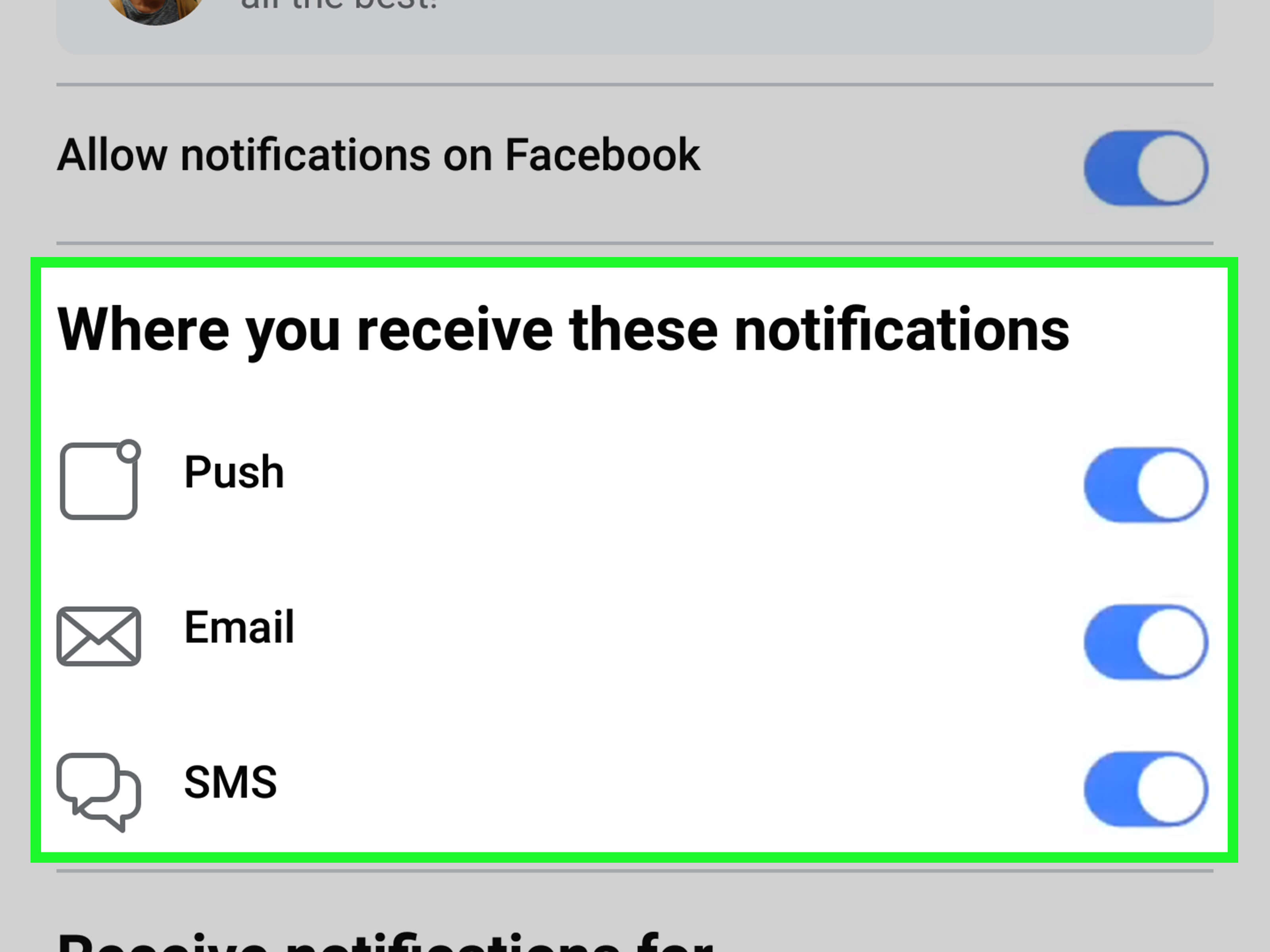
- Turn on the birthday notification options you want, such as push notifications, email, or SMS if available.
For most iPhone and iPad users, push notifications are the most useful choice. They appear directly on your device and can remind you before the day disappears into meetings, errands, and the mysterious time vortex known as “just checking one thing online.”
Check iPhone or iPad Notification Settings Too
If birthday alerts are enabled inside Facebook but you still do not receive them, check your Apple device settings:
- Open the Settings app on your iPhone or iPad.
- Tap Notifications.
- Scroll down and tap Facebook.
- Make sure Allow Notifications is turned on.
- Choose where alerts can appear, such as Lock Screen, Notification Center, or banners.
Also check whether a Focus mode, such as Do Not Disturb, Work, Sleep, or Personal, is silencing Facebook notifications. Focus modes are great when you need peace. They are less great when they quietly block the reminder that your cousin’s birthday is today and your family group chat is already judging your silence.
Why You Cannot See Some Friends’ Birthdays
If Facebook does not show a friend’s birthday, there are several possible reasons. The most common reason is privacy. Facebook users can control who sees their birthday and birth year. Someone may show their birth month and day to friends, hide the year, or hide everything from everyone except themselves.
Here are the main reasons a birthday may not appear:
- The friend hid their birthday: If they set the birthday audience to “Only me,” you will not see it.
- You are not Facebook friends: Birthdays usually appear for people connected to you as friends, not every profile you visit.
- The friend did not add a birthday: Some accounts have incomplete profile information.
- Your app is outdated: An older app version may have layout bugs or missing shortcuts.
- Facebook is testing a different layout: Features may appear in different places for different users.
- Notifications are turned off: You may still be able to see birthdays manually, but alerts will not arrive.
The important thing to remember is that Facebook does not give you a secret back door into someone’s hidden birthday. If a friend chooses not to share that information, the respectful answer is to ask them directly or save the date in your own Contacts app once you know it.
How to Update Facebook on iPhone or iPad
If the Birthdays option is missing, update the Facebook app before assuming the feature has disappeared forever. App updates often fix bugs, refresh menus, and restore features that may not be working correctly.
- Open the App Store.
- Tap your profile picture or account icon in the top-right corner.
- Scroll to the list of available updates.
- If Facebook appears, tap Update.
- After the update finishes, reopen Facebook and check the Friends or Search method again.
You can also restart your iPhone or iPad after updating. It sounds basic, but restarting a device remains the digital version of “drink water and take a deep breath.” Surprisingly effective, slightly annoying to hear, and often exactly what fixes the problem.
Tips for Using Facebook Birthdays Without Being Awkward
Finding birthdays is only half the mission. The other half is sending a message that feels human. Facebook makes it very easy to send a quick greeting, but a personal touch goes a long way.
Write a Better Birthday Message
Instead of writing only “Happy birthday,” add one detail that shows you know the person. For example:
- “Happy birthday, Sarah! Hope your day includes great coffee and absolutely no spreadsheet emergencies.”
- “Happy birthday, Mike! Hope this year brings more travel, better tacos, and fewer Monday meetings.”
- “Happy birthday, Aunt Linda! Sending love and hoping your cake-to-responsibility ratio is excellent today.”
You do not need to write a novel. A short, specific message can feel warmer than a generic wall post. If the person is close to you, consider sending a private Messenger note, text message, phone call, or card. Facebook is the reminder; you are still responsible for the charm.
Check Birthdays Weekly
A simple habit is to check Facebook birthdays every Sunday evening or Monday morning. This gives you a preview of the week ahead. If someone important has a birthday coming up, you can plan a message, buy a gift, or prepare a call instead of relying on a same-day notification.
Use Your iPhone Contacts for Important Birthdays
For close friends and family, do not rely only on Facebook. Add birthdays to your iPhone Contacts app or Calendar app. Social apps change layouts, notification systems glitch, and people sometimes leave Facebook. Your phone’s built-in calendar is a more stable backup for birthdays you truly do not want to miss.
Troubleshooting: What to Do If Facebook Birthdays Still Do Not Show
If you followed both methods and still cannot find birthdays, try this quick checklist:
- Update the Facebook app through the App Store.
- Close and reopen Facebook to refresh the app session.
- Log out and log back in if the birthday page will not load.
- Search for “birthdays” again using Facebook’s search bar.
- Check Facebook notification settings under Settings & privacy.
- Check iOS notification settings for the Facebook app.
- Try facebook.com in Safari on your iPhone or iPad if the app is misbehaving.
If the birthday list appears on the website but not in the app, the issue is likely app-related. If it does not appear anywhere, it may be due to account settings, privacy limits, or a temporary Facebook feature change.
Facebook Birthdays on iPhone vs. iPad: What Is Different?
The process is almost the same on iPhone and iPad, but the layout may look different. On iPhone, the Menu icon is often found at the bottom-right corner. On iPad, Facebook may use a wider layout with navigation links in a side panel or along the top. The words you are looking for are still the same: Menu, Friends, Birthdays, and Search.
If you are helping someone less tech-savvy, such as a parent or grandparent, focus on the labels instead of the icon location. Say, “Look for Menu, then Friends, then Birthdays,” rather than “Tap the button in the corner,” because Facebook has a talent for moving corners like furniture in a haunted house.
Privacy Reminder: Your Birthday Settings Matter Too
While you are checking other people’s birthdays, it is worth reviewing your own birthday privacy settings. On Facebook, you can usually choose who sees your birthday and birth year. Many people show the month and day to friends but hide the year. That way, friends can celebrate without doing unnecessary math.
To review your birthday visibility, go to your profile, open your About information, find Basic info, and edit the audience for your birthday or birth year. You can make it public, visible to friends, customized, or private depending on the options available to your account.
This is especially useful if you do not want birthday notifications sent to your entire friends list. Maybe you enjoy quiet birthdays. Maybe you do not want former coworkers, distant relatives, and people from one college group project flooding your timeline. That is perfectly okay. Privacy settings exist for a reason.
500-Word Experience Section: What It Is Like Finding Facebook Birthdays on iPhone or iPad
In real-world use, finding birthdays on Facebook from an iPhone or iPad can feel easy one week and strangely hidden the next. That is mostly because Facebook changes its app layout from time to time. One user may see the Friends tab right away, while another has to open Menu, scroll past Groups, Marketplace, Memories, Reels, Events, and possibly three features they have never used in their life. The birthday list is there, but it can feel like Facebook placed it behind a digital curtain.
The most practical experience-based advice is this: use the search method first when you are in a hurry. If it is someone’s birthday today and you want to check the full list quickly, tapping the magnifying glass and typing “birthdays” is usually faster than exploring menus. This is especially true on iPad, where the larger screen does not always mean easier navigation. Sometimes it simply means Facebook has more room to show more things you were not looking for.
The Friends section method is better when you want to browse calmly. It feels more organized because you are already in the part of Facebook dedicated to your personal connections. This is useful if you want to check upcoming birthdays for the week or month. For example, maybe you notice that your best friend’s birthday is in five days. That gives you enough time to order a gift, plan a dinner, or at least write something better than “Hope it’s a good one!” while standing in line at the grocery store.
Another common experience is missing birthday notifications even when you think they are turned on. The reason is often that notifications need permission in two places: inside Facebook and inside iPhone or iPad Settings. Facebook may be ready to send alerts, but iOS may be blocking them. Or iOS may allow notifications, but Facebook’s own birthday alerts may be disabled. Think of it like two locked doors. Both need to be open before the reminder reaches you.
It is also smart not to rely on Facebook for your most important birthdays. For casual friends, Facebook is perfect. For your spouse, parents, children, siblings, best friends, or anyone who might lovingly remind you of your failure for the next decade, add the date to your iPhone Calendar or Contacts. Facebook is helpful, but your personal calendar is safer.
One more thing: Facebook birthdays can encourage more meaningful reconnections. You may see a name from an old school, workplace, or neighborhood and decide to send a short private message. Sometimes that simple birthday note restarts a friendship. Other times, it is just a kind gesture. Either way, it is a small reminder that social media is at its best when it helps people act a little more human.
Conclusion
Learning how to see birthdays on Facebook on iPhone or iPad is simple once you know the two best routes. You can open Menu > Friends > Birthdays, or you can use Facebook search and type birthdays. Both methods can show today’s birthdays and upcoming birthdays, depending on your app version and account settings.
If birthdays do not appear, check your Facebook notification settings, your iPhone or iPad notification permissions, app updates, and your friends’ privacy settings. Some birthdays may be hidden because users control who can see their profile information. For the birthdays that matter most, save them in your iPhone Contacts or Calendar app as a backup.
Facebook may move buttons around, but the goal remains the same: helping you remember the people who matter. And if all else fails, a sincere belated birthday message is still better than silence. Just maybe add a joke. Cake-related humor usually travels well.
Note: Facebook app menus may vary slightly by account, region, and app version. The steps above reflect the current commonly available Facebook mobile paths for iPhone and iPad users.