Ordering an Uber for another person sounds simple until you are standing in a parking lot, your aunt is texting “Where is the car?”, the driver is calling you, and the actual rider is waving at three black sedans like they are auditioning for airport security training. The good news: Uber has several ways to help someone else get from point A to point B without handing them your phone, your credit card, or your last remaining ounce of patience.
This guide explains how to request an Uber for someone else, how Uber Family Profiles work, when to use teen accounts, what “Send a Ride” means, and how to avoid the tiny coordination disasters that turn a five-minute pickup into a family group chat emergency.
The Quick Answer: Can You Request an Uber for Someone Else?
Yes, you can request an Uber ride for someone else directly from your Uber app. Uber’s rider flow lets you choose another rider, enter that person’s mobile number or select them from your contacts, set the pickup and destination, choose a ride type, and request the trip. Once a driver accepts, the guest rider receives trip details by text, including the driver’s name, vehicle details, estimated arrival time, and license plate information.
The important detail is this: do not simply order the ride “for yourself” and put another person at the pickup spot. That old workaround can cause confusion because the driver sees your name, your location may not match the pickup, and the rider may not receive the information needed to find the correct vehicle. Use Uber’s guest rider option whenever possible. It is cleaner, safer, and less likely to produce a “Which Toyota Camry?” crisis.
How to Request an Uber for Someone Else
Here is the standard way to book an Uber for another adult rider:
- Open the Uber app on your phone.
- Tap Where to? to begin a ride request.
- Look near the top of the screen for the rider selector, often labeled For Me or Me.
- Tap the rider selector and choose Add a rider or select an existing contact.
- Enter the rider’s phone number, or choose the person from your contacts.
- Confirm that the correct rider is selected.
- Enter the rider’s pickup location and destination.
- Choose the ride option, such as UberX, Comfort, UberXL, or another available product.
- Review the fare estimate, pickup point, and payment method.
- Request the ride.
After the ride is accepted, the guest rider should receive a text message with the information they need. They do not necessarily need the Uber app installed to receive those text updates, although having the app may make communication and tracking easier. If the guest does have the app, notifications should be enabled so they do not miss the driver details.
Example: Booking an Uber for a Parent at the Airport
Suppose your dad lands at Chicago O’Hare and insists he is “right by the big door,” which is not a pickup location recognized by any known navigation system. Instead of guessing, ask him for the terminal, door number, rideshare pickup zone, and destination. Then add him as the rider in your Uber app. The driver and your dad can coordinate directly, while you remain the person paying for the ride. Everyone wins, including the family group chat.
Can You Request More Than One Uber at a Time?
For the standard guest ride flow, Uber generally does not allow you to request multiple rides at the same time from the same personal account. If you request a ride for a friend, you usually need to wait until that trip ends before requesting another ride for yourself or another person. For families, workplaces, events, and repeated ride coordination, Family Profiles, Uber Business, vouchers, or newer ride-sharing features may be better options.
What Is an Uber Family Account?
An Uber Family Profile, often casually called a family account, lets one organizer invite family members to use a shared payment method. It is useful when you want approved relatives to request their own rides from their own phones while billing the ride to the family profile. Think of it as “I trust you to get home safely,” not “Please text me seventeen times so I can manually order every ride.”
Once a family member accepts the invitation, they can open their own Uber app, request a ride, and choose the Family Profile as the payment option. The organizer can manage members and payment preferences from the app. Depending on location and account settings, the organizer may also receive receipts or trip notifications.
How to Set Up an Uber Family Profile
- Open the Uber app.
- Go to Account.
- Select Family or Family and teens.
- Create a Family Profile if you do not already have one.
- Tap Add member or Invite family.
- Choose a contact from your phone.
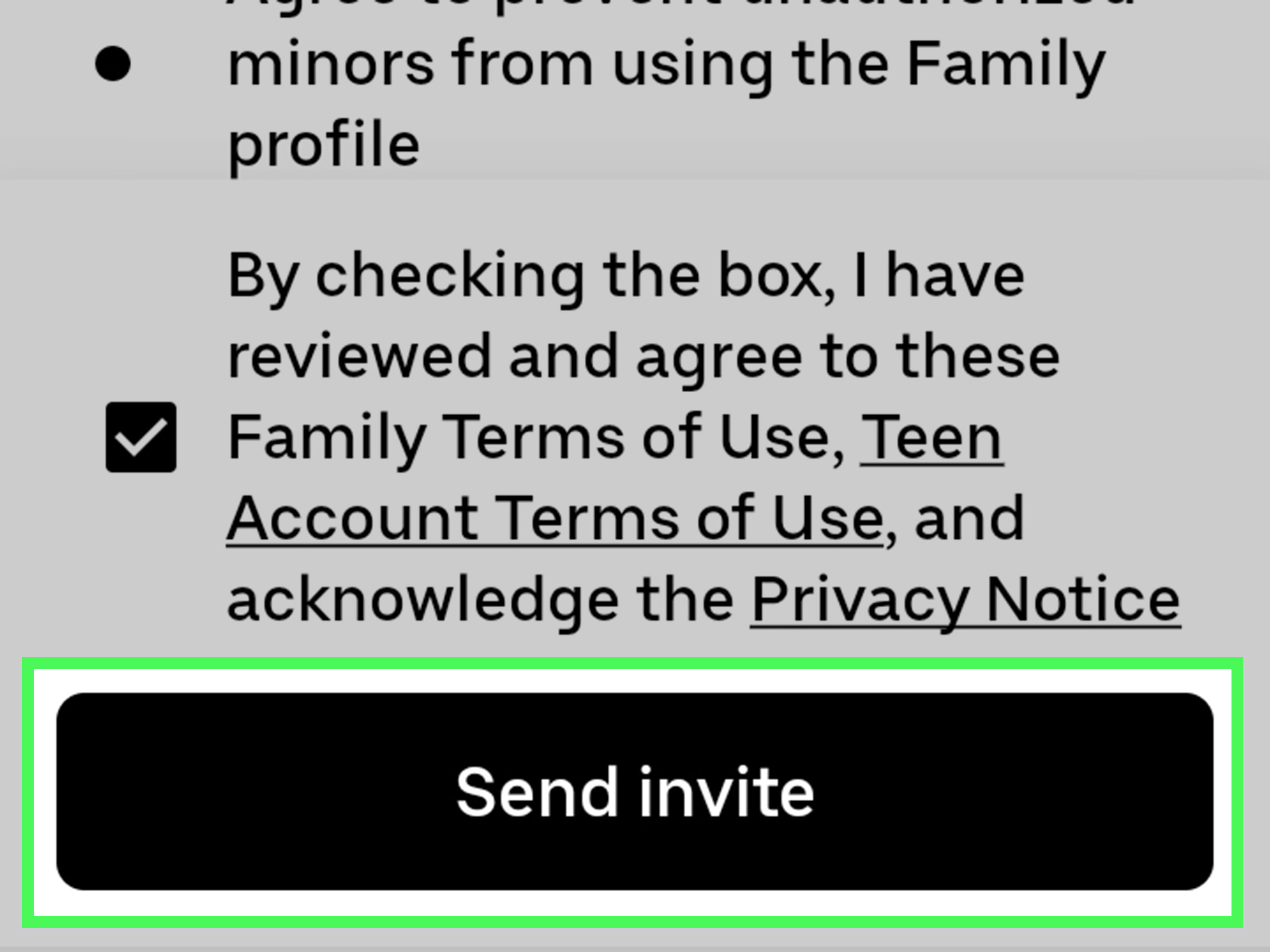
- Send the invitation.
- Confirm that your payment method is current.
The invited person must accept the invitation before they can use the profile. If the invite does not appear, ask them to update the Uber app, check their SMS messages, or install the app before you resend the invitation.
Family Profile Rules to Know
Family Profiles are convenient, but they are not an unlimited magic carpet. Uber may allow only one Family Profile per organizer. Regular family members generally need to meet Uber’s age requirements for standard rider accounts, which usually means being 18 or the legal age of majority in their location. Also, Family Profiles may not let organizers set detailed ride-type restrictions or spending limits for every member. In plain English: if you add someone, make sure you actually trust them with the payment method.
Uber Teen Accounts: A Different Tool for Younger Riders
Teen accounts are not the same as regular guest rides. In eligible locations, Uber allows parents or guardians to create supervised teen accounts through a Family Profile. A teen account lets an eligible teenager request rides or meals under guardian supervision, with safety features such as live trip tracking, real-time notifications, and destination protections.
To create a teen account, the guardian usually starts in Account, chooses Family and teens, adds a new member, selects Teen, and sends an invitation to the teen’s phone number. The teen then completes the required onboarding before using the account. Age eligibility and product availability can vary by location, so the Uber app is the final source of truth.
When to Use a Teen Account Instead of Booking a Guest Ride
Use a teen account when the rider is an eligible minor and the service is available in your area. Do not try to route around age rules by booking a normal adult guest ride for a minor. Besides being a bad idea, it can create problems with driver expectations, safety features, and platform policies. If the app offers Uber for teens, use it the way it was designed: supervised, trackable, and far less likely to cause parental heart palpitations.
What Is “Send a Ride”?
Uber’s newer Send a Ride feature works differently from booking a guest ride in real time. Instead of ordering the car immediately, you send a ride voucher or link to someone else. The recipient can use it when they are ready, while you control the budget and number of rides covered. This is especially useful for airport pickups, babysitters, visiting relatives, clients, or anyone who may not know their exact departure time yet.
For example, instead of trying to guess when your cousin will clear baggage claim, you can send a ride with a spending cap. Your cousin clicks the link, requests the ride, and uses the covered amount. You pay for what is actually used after the trip is completed, up to the limit you selected. That is much calmer than refreshing a flight tracker like you are monitoring a NASA launch.
Guest Ride vs. Send a Ride vs. Family Profile
Use a guest ride when you know the pickup time, pickup location, and destination right now. Use Send a Ride when you want to pay but let the other person choose the timing. Use a Family Profile when someone regularly needs to request their own Uber rides using your shared payment method.
Safety Tips When Ordering Uber for Someone Else
Safety matters even more when you are not the person getting into the car. The rider must know exactly which vehicle to enter, where to stand, and how to contact the driver if needed. Before requesting the ride, send the rider a simple checklist:
- Confirm the pickup address and exact pickup spot.
- Check the driver’s name, vehicle make and model, and license plate.
- Do not get into a car that does not match the trip details.
- Keep the phone nearby and charged.
- Use in-app or provided contact options for driver communication.
- Share trip status with a trusted person if available.
Uber also offers features such as Share My Trip and PIN verification in many areas. Share My Trip lets selected contacts view trip status and location. PIN verification gives the rider a four-digit code that the driver must enter before the trip can begin. These features are especially useful for nighttime pickups, crowded events, airports, and rides for less tech-comfortable relatives.
Write Pickup Notes Like a Human
Pickup notes can save everyone time. “At north entrance near pharmacy sign” is helpful. “Here” is not helpful. “By the tree” is only helpful if there is exactly one tree in the city, which science has not yet confirmed. Use landmarks, door numbers, terminal names, hotel entrances, or business names. If the rider is older, traveling with luggage, or needs extra time, mention practical details politely.
Who Pays for the Ride?
When you request an Uber for someone else from your app, your selected payment method is typically charged. The guest rider receives trip details, but you remain the person responsible for payment, tips, cancellation fees, and post-trip support. If you use a Family Profile, the shared family payment method is charged when the family member selects that profile. If you use Send a Ride, your card is charged according to the voucher rules and limits you set.
Always check the payment method before tapping request. This is especially important if you have personal, business, family, and shared profiles in the same account. Accidentally billing a ride to the wrong profile is not the end of the world, but it can produce an expense report with the emotional energy of a courtroom drama.
Can the Guest Add a Tip?
Tips may depend on the ride flow, account setup, and app access. If you ordered and paid for the ride, you may be the person who can add the tip afterward. If a family member requested the ride from their own app using the Family Profile, they may be able to manage trip details from their account. Either way, if the driver helped with luggage, waited patiently, or navigated a confusing pickup zone, tipping is a thoughtful way to say thanks.
Troubleshooting Common Problems
The Rider Did Not Receive the Text
First, confirm that the phone number is correct and includes the right country code if needed. Ask the rider to check blocked messages, spam filters, and weak signal areas. If they have the Uber app, they may need to enable notifications. You can also manually share the driver’s name, vehicle, license plate, and ETA, but the rider should still verify the car carefully before entering.
The Pickup Pin Is in the Wrong Place
Canceling and re-requesting may be better than asking the driver to circle a confusing area forever. Before requesting, zoom in on the map and move the pickup pin to the exact side of the street, hotel entrance, terminal zone, or building door. For airports, stadiums, hospitals, and malls, follow the app’s designated rideshare pickup instructions.
The Rider Wants to Change the Destination
Destination changes can depend on the ride type and account setup. If you booked the ride from your phone, you may need to update the destination in your app. For teen trips and some protected ride types, destination changes may be limited or controlled by the rider. When in doubt, check the app instead of relying on the driver to make changes manually.
The Driver Calls You Instead of the Rider
This can happen if the ride was not properly set up as a guest ride or if contact routing is limited. Send the rider the driver details and ask both sides to use the provided contact options. For future rides, make sure you select the guest as the actual rider before confirming the trip.
Best Situations for Requesting an Uber for Someone Else
Requesting Uber for someone else is ideal when the other person needs a ride now and may not have the app, payment method, or confidence to book it. Common examples include helping a parent get home from an appointment, sending a friend home safely after dinner, arranging transportation for a visiting relative, booking a ride for a houseguest, or helping someone whose phone is low on battery.
Family Profiles are better for repeated use. If your college-age child, spouse, parent, or caregiver regularly needs transportation, a Family Profile saves time because they can request rides themselves. Send a Ride is better when you want to cover the cost but let the recipient decide exactly when to go.
Privacy: What Can the Organizer See?
Privacy depends on the ride type. If you request the ride from your own app, you can usually see the trip route, driver details, fare, and receipt because you are the account holder paying for the ride. With Family Profiles, organizers may receive receipts and account-level information tied to family rides. With teen accounts, guardians may receive more active trip tracking and safety notifications. Because privacy settings and visibility can change by region and product, users should review the app’s current Family, teen, and receipt settings before relying on assumptions.
As a practical rule, tell riders what you can see. “I booked it and can track the trip until you arrive” is better than pretending the technology is a mystery cloud with cup holders.
FAQs About Requesting Uber for Someone Else
Can I order an Uber for someone who does not have the app?
Yes. A guest rider can receive trip details by text message, including the vehicle and driver information. However, the rider still needs a working mobile phone to receive updates and coordinate if necessary.
Can I schedule an Uber for someone else?
In many places, Uber allows rides to be reserved in advance through Uber Reserve. Availability, pickup windows, cancellation rules, and ride types vary. If you are arranging an important appointment or airport trip, check the details carefully before confirming.
Can I book an Uber for someone in another city?
Usually yes, as long as Uber operates in that location and the ride type is available. Set the pickup location accurately, choose the correct rider, and make sure the guest can receive texts and identify the vehicle.
Can I request an Uber for a child?
Do not use the standard adult guest ride flow for children or minors who are not eligible to ride alone under Uber’s rules. In eligible markets, use Uber teen accounts through a Family Profile for approved teen riders.
What happens if the guest cancels?
The account or payment profile responsible for the ride may be charged a cancellation fee depending on timing, ride type, city, and Uber’s current cancellation rules. Make sure the rider is ready before you request the car.
Real-World Experience: What Actually Makes This Work Smoothly
The easiest Uber ride to request for someone else is the one where you collect boring details first. Boring is beautiful. Boring gets people home. Before opening the app, ask three questions: “Where exactly are you standing?”, “Where exactly are you going?”, and “Can you receive text messages right now?” Those three answers prevent most problems.
In real life, the pickup point is usually the troublemaker. A home address is simple, but airports, hospitals, campuses, hotels, apartment complexes, and concert venues are sneaky little mazes. If your rider says, “I’m outside,” that is not enough. Outside where? Main entrance? Emergency entrance? North lobby? Rideshare zone? Door 4? The driver cannot pick up a feeling. The driver needs a location.
For older parents or relatives, it helps to send a short message after booking: “Your driver is Maria in a white Honda Accord, plate ABC123. She arrives in 6 minutes. Wait by the main entrance and check the plate before getting in.” This message is simple, calm, and useful. Avoid sending five screenshots and three voice notes unless you want to create a tiny transportation documentary.
For friends leaving a party or dinner, the biggest issue is timing. Do not request the ride until the person is actually ready to walk outside. Drivers are not personal chauffeurs waiting indefinitely while someone says goodbye to every human they have ever met. If your friend needs ten more minutes, wait ten more minutes. A late request is cheaper than a cancellation fee and less awkward than a driver calling you while your friend is still debating dessert.
For airport pickups, consider Send a Ride if it appears in your app. Flights land late, bags take forever, and relatives often underestimate how long it takes to escape an airport. A ride voucher lets them request the car when they are truly ready. That flexibility can be much better than ordering a car while they are still trapped behind someone wrestling a suitcase the size of a refrigerator.
Family Profiles work best when everyone understands the rules before the first ride. Tell family members which payment method is attached, when they should use it, and whether they need to ask before taking longer trips. This avoids surprise receipts that look less like transportation and more like someone financed a scenic tour of the entire metro area.
The best habit is to treat every ride for someone else like a handoff. You are not just buying transportation; you are transferring clear information between rider, driver, and app. Confirm the pickup, confirm the destination, confirm the rider’s phone, and confirm the vehicle. It takes less than a minute, and it saves everyone from standing on a curb squinting suspiciously at every sedan that slows down.
Conclusion
Requesting an Uber for someone else is easy when you choose the right tool. For a one-time ride, use the guest rider option in your Uber app. For relatives who regularly need transportation, set up a Family Profile. For eligible teens, use Uber teen accounts through the supervised family setup. For flexible timing, especially airport pickups or late-night rides, Send a Ride can be the calmer choice.
The golden rule is simple: make the actual rider visible in the app whenever possible. Add their phone number, confirm their pickup spot, share clear vehicle details, and remind them to check the license plate before getting in. Do that, and you can help someone get where they need to go without becoming a full-time dispatcher with snack breaks.
Note: Uber features, menu labels, teen eligibility, ride types, payment options, and cancellation rules may vary by city, app version, account type, and local regulations. Always review the final details inside the Uber app before requesting or paying for a ride.