Good news for anyone with a dusty stack of Wii discs and a Wii U that still works like a loyal little lunchbox: yes, you can play Wii games on the Wii U. Nintendo built the Wii U with backward compatibility for nearly all Wii games and many original Wii accessories, which means classics like Mario Kart Wii, Wii Sports Resort, Super Mario Galaxy, Donkey Kong Country Returns, and The Legend of Zelda: Skyward Sword can still have a second life on your newer-old console.
The process is simple, but it is not quite as obvious as putting in a disc and grabbing the Wii U GamePad. Wii games run through a separate environment called Wii Mode, which behaves more like the original Wii than a normal Wii U app. That means you will need the right controller, the right menu, and a little patience while the console switches personalities. Think of the Wii U as a theater with two stages: the shiny Wii U stage and the nostalgic Wii stage where everyone still points at the screen like it is 2006.
This guide explains how to play Wii games on the Wii U in four practical steps, including what accessories you need, how to launch Wii Mode, how to use the Wii U GamePad as a display, and how to troubleshoot common problems. It also includes real-world experience tips at the end, because nothing teaches you faster than trying to play a motion-control game while your sensor bar is hiding behind a decorative candle.
Can the Wii U Play Wii Games?
Yes. The Wii U can play nearly all original Wii games using Wii Mode. Physical Wii discs work on the Wii U, and previously purchased compatible Wii digital content may be available through the Wii Menu if it was transferred or already installed. However, the Wii U does not play Nintendo GameCube discs, even though the original Wii had limited GameCube compatibility on early models. If you were hoping to slide in Super Smash Bros. Melee, the Wii U will politely ignore your dream.
For Wii games, the most important thing to understand is that the Wii U GamePad is usually not a Wii controller. It can display Wii Mode on its screen, but most Wii games still require Wii controllers such as a Wii Remote, Wii Remote Plus, Nunchuk, Classic Controller, or Wii Balance Board, depending on the game. The GamePad screen is helpful, but it does not magically become a giant Wii Remote. Nintendo gave us backward compatibility, not wizardry.
What You Need Before You Start
Before launching your Wii game, gather the basics. You will need a Wii U console, a Wii game disc or installed Wii software, at least one synced Wii Remote or Wii Remote Plus, and a sensor bar or compatible infrared pointer setup. Many games also need a Nunchuk, Wii MotionPlus, Classic Controller, or other accessory. Check the back of your game case if you are unsure. Wii game boxes are surprisingly useful when they are not being used as shelf decoration.
You should also make sure your Wii U is connected to your TV with HDMI or another supported video cable. If you want to use the Wii U GamePad as a screen for Wii games, keep it charged and nearby. It can mirror the Wii Mode display, which is great for playing when someone else wants the TV, but you will still need a Wii Remote to control most games.
Step 1: Set Up and Sync a Wii Remote
The first step is syncing a Wii Remote with your Wii U. This is where many new users get stuck because the Wii U GamePad looks like it should control everything. In Wii Mode, however, the Wii Remote is the star of the show.
How to sync the Wii Remote
Turn on your Wii U and open the Home Menu. From there, go to controller settings and choose the option to pair a Wii Remote or other controller. Press the sync button on the Wii Remote, then follow the on-screen instructions. You can also use the sync button on the Wii U console itself to bring up the pairing screen. Once the Wii Remote is connected, you should see the player light settle on the controller.
Next, place the sensor bar above or below your TV. The sensor bar does not actually “see” the controller; it gives the Wii Remote infrared reference points so it can aim properly. If your pointer jumps around, disappears, or behaves like it drank three energy drinks, adjust the sensor bar position and make sure shiny lights or sunlight are not confusing the Wii Remote.
Which controllers work with Wii games?
Most Wii games use the Wii Remote, often with a Nunchuk. Some games support the Classic Controller or Classic Controller Pro, which plugs into the Wii Remote. Games like Wii Fit may require the Wii Balance Board. The Wii U Pro Controller generally does not function as a Wii controller inside Wii Mode. It is excellent for Wii U games, but for original Wii games, it is usually left on the bench wearing a nice tracksuit.
Step 2: Insert the Wii Disc or Open the Wii Menu
Once your Wii Remote is ready, insert your Wii game disc into the Wii U. The console should recognize it and provide an option to launch the game through Wii Mode. If you are not using a disc, scroll through the Wii U Menu and select the Wii Menu icon. This opens the Wii environment, where you can access compatible installed Wii channels, save data, and games.
When launching Wii Mode, the Wii U may ask whether you want to display the image on the TV only or on both the TV and the Wii U GamePad. Choose the option that matches how you plan to play. If you pick the wrong display option, you may need to exit Wii Mode and launch it again to change the setting. Mildly annoying? Yes. Console-breaking? No. Just a tiny reminder that older Nintendo menus were designed by people who believed commitment builds character.
Important note about digital Wii games
The Wii U eShop no longer allows new purchases, so you cannot simply browse and buy old Wii U or Wii digital content like before. Previously purchased content may still be redownloadable where supported, and installed games or transferred Wii software can remain playable. For most players today, the easiest and most reliable way to play Wii games on Wii U is with original Wii discs.
Step 3: Enter Wii Mode and Launch the Game
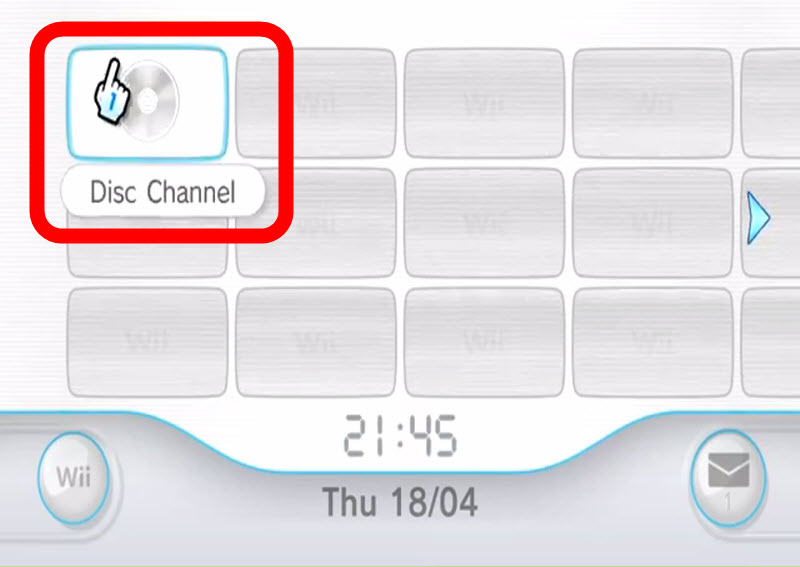
After selecting Wii Mode or starting the Wii disc, your Wii U will switch from the Wii U interface to the Wii Menu. This mode looks and feels like the original Wii system menu, complete with familiar channels and pointer controls. Use the Wii Remote to select the Disc Channel if you inserted a game. Press the A Button, choose Start, and the game should load.
At this point, your Wii U is essentially behaving like a Wii. The game will use Wii controls, Wii save data, and Wii display settings. If a game asks for a Nunchuk or MotionPlus accessory, connect it before continuing. Some games will pause and refuse to proceed until the required accessory is detected, which is the console equivalent of folding its arms and saying, “I can wait.”
Can you return to the Wii U Menu?
Yes. From Wii Mode, press the Home Button on the Wii Remote. Depending on what you are doing, you may see an option to return to the Wii Menu or go back to the Wii U Menu. If the game is not responding or you want a clean restart, you can also power down the console and start again. Save your progress first whenever possible, because nostalgia is fun, but losing a two-hour boss fight is character development nobody asked for.
Step 4: Adjust Display, Controls, and Save Data
After the game launches, take a minute to adjust your setup. Wii games were made for different TV eras, and some may appear softer than modern games. That is normal. The Wii U outputs the game through your current connection, but it does not remake the graphics. A Wii game on Wii U still looks like a Wii game, just with the convenience of one console and, in many setups, HDMI output.
If you chose to display Wii Mode on the Wii U GamePad, the GamePad can mirror the TV image. This is useful for smaller spaces, shared TVs, or quick sessions. However, remember that the GamePad screen is mainly a display. You still use the Wii Remote for input. The GamePad also has a built-in sensor strip that can help with pointing when playing directly on the GamePad screen, but the Wii Remote needs to face the GamePad properly for accurate pointer control.
Save data and transferred content
Wii games played in Wii Mode use Wii-style save data. If you previously owned a Wii, Nintendo provided a system transfer process that moved content from a Wii to a Wii U using an SD card and the Wii System Transfer tool. If that was already done, your Wii saves and compatible downloaded content may appear in Wii Mode. If not, your Wii U will start fresh for that game, which is either exciting or emotionally devastating depending on how many gold medals you had in Wii Sports.
Common Problems and Easy Fixes
The Wii Remote will not sync
Replace or recharge the batteries, then try syncing again from the Wii U controller settings. Make sure you are pressing the sync button on the controller and completing the pairing process on the console. If the Wii Remote was previously paired with another system, it may need to be paired again with the Wii U.
The pointer is not showing on the screen
Check the sensor bar placement. Make sure it is plugged in, centered, and not blocked. Try moving closer to the TV and pointing directly at the sensor bar. Bright sunlight, reflective surfaces, and other infrared light sources can interfere with pointer tracking. In other words, your living room may be too fabulous for motion controls.
The game asks for a missing accessory
Some Wii games require specific accessories. Wii Sports Resort needs Wii MotionPlus or a Wii Remote Plus. Many adventure games need a Nunchuk. Fitness games may need the Wii Balance Board. If a game will not start properly, look at the controller icons on the game case or in the game manual.
The Wii U GamePad controls do not work in a Wii game
That is expected. The GamePad can display Wii Mode, but it usually does not act as the controller for original Wii games. Use a Wii Remote and the accessories required by the game. Treat the GamePad like a small TV with buttons that are mostly there for emotional support.
Online features are missing
Many online features for Wii U and related legacy software are no longer active. Offline play, local multiplayer, campaigns, and disc-based gameplay remain the main reasons to use Wii games on Wii U today. If a game once had online leaderboards, matchmaking, or downloadable community features, those may not work anymore.
Best Wii Games to Try on Wii U
If you are wondering which games are worth pulling out first, start with the crowd-pleasers. Super Mario Galaxy and Super Mario Galaxy 2 remain excellent platformers with creative level design. Mario Kart Wii is still chaotic fun for local multiplayer. New Super Mario Bros. Wii is perfect for couch co-op, especially if your friendships can survive accidental platforming betrayal. The Legend of Zelda: Twilight Princess and Skyward Sword offer longer adventures, while Wii Sports and Wii Sports Resort are ideal for quick sessions with family or friends.
Rhythm and party games can also shine on the Wii U because local play does not depend on modern online services. Just confirm that you have the right controllers and accessories before inviting people over. Nothing ruins a retro gaming night faster than discovering you own three guitars, two microphones, and zero working batteries.
Real-World Experience: What It Is Actually Like to Play Wii Games on the Wii U
Playing Wii games on the Wii U feels a little like finding a hidden room in a house you already own. The Wii U Menu is colorful and modern by Nintendo’s early-2010s standards, but once you enter Wii Mode, everything suddenly becomes familiar: the floating hand cursor, the channel grid, the gentle menu sounds, and the immediate urge to check if your Mii still looks like a potato with eyebrows.
In actual use, the biggest benefit is convenience. If your Wii U is already connected to your TV through HDMI, it is often easier to play Wii discs there than to reconnect an original Wii with older cables. The image will not become HD in the way a remaster would, but the setup is clean and simple. For casual players, that matters more than pixel-perfect analysis. You insert the disc, switch to Wii Mode, and suddenly the living room is ready for bowling, kart racing, or a heroic quest involving a sword, a fairy, and suspiciously breakable pottery.
The GamePad display option is more useful than many people expect. It is not a true handheld Wii, because you still need the Wii Remote, but it can be perfect when someone else is using the TV. For example, you can set the GamePad on a table, point the Wii Remote at it, and continue playing certain games comfortably. This works best with slower-paced titles or menu-heavy games. Fast motion games can feel awkward because you need to keep the GamePad positioned where the Wii Remote can track it.
The main frustration is controller management. Wii games were creative, but they were also accessory-hungry. One game wants a Nunchuk. Another wants MotionPlus. A fitness game wants the Balance Board. A multiplayer night wants four Wii Remotes, and somehow every battery in the house has chosen retirement. The best experience comes from preparing a small Wii kit: two Wii Remote Plus controllers, one or two Nunchuks, fresh batteries or rechargeable packs, and a sensor bar that stays in place.
Save data is another thing to think about. If you transferred your old Wii data to the Wii U years ago, the experience feels wonderfully continuous. Your records, Miis, and progress may still be waiting in Wii Mode. If you did not transfer data, starting over can be surprisingly fun. Many Wii games were designed for replay, and revisiting them on the Wii U can feel less like a chore and more like opening a time capsule with better cables.
Overall, the Wii U is one of the best official ways to keep Wii games playable on a modern-ish TV setup. It is not perfect, and it will not replace the charm of the original Wii for collectors, but it is practical, reliable, and delightfully nostalgic. For families, retro gamers, or anyone who missed the Wii era, the Wii U turns a shelf of old discs into something useful again. That is the magic of backward compatibility: yesterday’s games do not have to become museum pieces. Sometimes, they just need a synced Wii Remote and a sensor bar that has not fallen behind the TV.
Conclusion
Learning how to play Wii games on the Wii U is easy once you understand the four-step process: sync a Wii Remote, insert a Wii disc or open the Wii Menu, launch Wii Mode, and adjust your display and controller setup. The Wii U gives Wii games a comfortable second home, especially for players who want to enjoy original discs without keeping multiple consoles connected.
The most important rule is simple: Wii games still behave like Wii games. You will need Wii controllers, Wii accessories for certain titles, and Wii Mode to run them. The Wii U GamePad can be a handy display, but it is not a universal replacement for the Wii Remote. Once everything is connected, though, the experience is smooth, nostalgic, and surprisingly charming. Whether you are revisiting Mario Kart Wii, introducing someone to Wii Sports, or finally finishing that Zelda adventure you abandoned years ago, the Wii U remains a great bridge between Nintendo’s motion-control era and its HD console generation.