Making a mailing list in Gmail sounds like one of those tiny productivity tricks that should take ten secondsuntil you realize Gmail does not actually call it a “mailing list.” Classic Google: the feature exists, works well, and saves a ton of time, but it hides under a different name. In Gmail and Google Contacts, a mailing list is usually created with a contact label. Once you add people to that label, you can type the label name into the Gmail recipient field and send one email to the whole group.
Whether you want to email your soccer team, book club, classroom volunteers, coworkers, clients, family members, or “people who still owe me potluck recipes,” a Gmail mailing list can keep you from typing the same addresses over and over. It also reduces mistakes, helps you stay organized, and makes recurring communication feel much less like digital gardening with tweezers.
This guide explains how to make a mailing list in Gmail using Google Contacts, how to send a group email, how to update your list, how to import contacts in bulk, and when you should use Google Groups or email marketing software instead. Let’s build a clean, useful Gmail contact group without turning your inbox into a confetti cannon.
What Is a Mailing List in Gmail?
A mailing list in Gmail is a saved group of contacts that lets you email multiple people at once. In Google’s ecosystem, this is usually managed through Google Contacts labels. Think of a label as a named bucket: you create a label like “Neighborhood Association,” “Wedding Guests,” “Client Updates,” or “Friday Study Group,” then place contacts inside it.
When you compose an email in Gmail, you can type the label name into the To, Cc, or Bcc field. Gmail will then populate the message with the contacts assigned to that label. It is not quite the same as a professional newsletter platform, but for small groups and everyday communication, it is simple, fast, and free.
Before You Start: Choose the Right Type of Gmail List
Before creating your list, decide what kind of communication you plan to send. This matters because Gmail contact labels, Google Groups, and dedicated email marketing platforms serve different needs.
Use Google Contacts Labels for Small Personal or Work Groups
Google Contacts labels are best for small to medium groups that you email personally. Examples include a family list, a parent volunteer group, a project team, a club committee, or a list of regular vendors. This method is quick and does not require admin access.
Use Google Groups for Shared Team Communication
Google Groups is better when you want a real group email address, such as [email protected] or [email protected]. It can support shared conversations, roles, permissions, archives, and team collaboration. For businesses, schools, and organizations using Google Workspace, Google Groups is often the cleaner long-term solution.
Use Email Marketing Software for Newsletters or Promotions
If you are sending newsletters, campaigns, promotions, or bulk email to subscribers, Gmail is not the ideal tool. Email marketing services are built for unsubscribe links, templates, analytics, list permissions, segmentation, and compliance. Gmail can handle occasional group messages, but it is not designed to be your full-time marketing megaphone.
How to Make a Mailing List in Gmail Using Google Contacts
The easiest way to create a Gmail mailing list is through Google Contacts. Gmail pulls from your saved contacts, so the list needs to begin there.
Step 1: Open Google Contacts
Go to Google Contacts while signed into the same Google account you use for Gmail. On desktop, you can also open Gmail, click the Google apps grid in the upper-right corner, and choose Contacts. If you manage multiple Google accounts, double-check that you are in the correct one. Creating the perfect mailing list in the wrong account is a special kind of modern inconvenience.
Step 2: Select the Contacts You Want to Add
In Google Contacts, hover over each person’s profile icon or checkbox and select the contacts you want in your mailing list. You can choose one contact, several contacts, or a large group. If someone is not already saved, click Create contact and add their name and email address first.
For best results, clean up contact names before adding them. “Dad,” “Dad old email,” and “Dad maybe?” may make sense today, but future you deserves better.
Step 3: Click Manage Labels
After selecting your contacts, click the Manage labels icon. It usually looks like a label or tag. This menu lets you add selected contacts to an existing label or create a new one.
Step 4: Create a New Label
Choose Create label, then enter a clear name for your mailing list. Use something specific, such as “Spring Fundraiser Volunteers” instead of simply “People.” A good label name should make sense six months from now when you are trying to remember why twenty-seven people are grouped together like a digital flash mob.
Click Save or Apply. Your selected contacts are now part of that Gmail mailing list.
Step 5: Open Gmail and Compose a Message
Now go to Gmail and click Compose. In the recipient field, begin typing the label name you created. Gmail should suggest the contact label. Select it, and Gmail will add the people in that group to the message.
Step 6: Use Bcc for Privacy When Needed
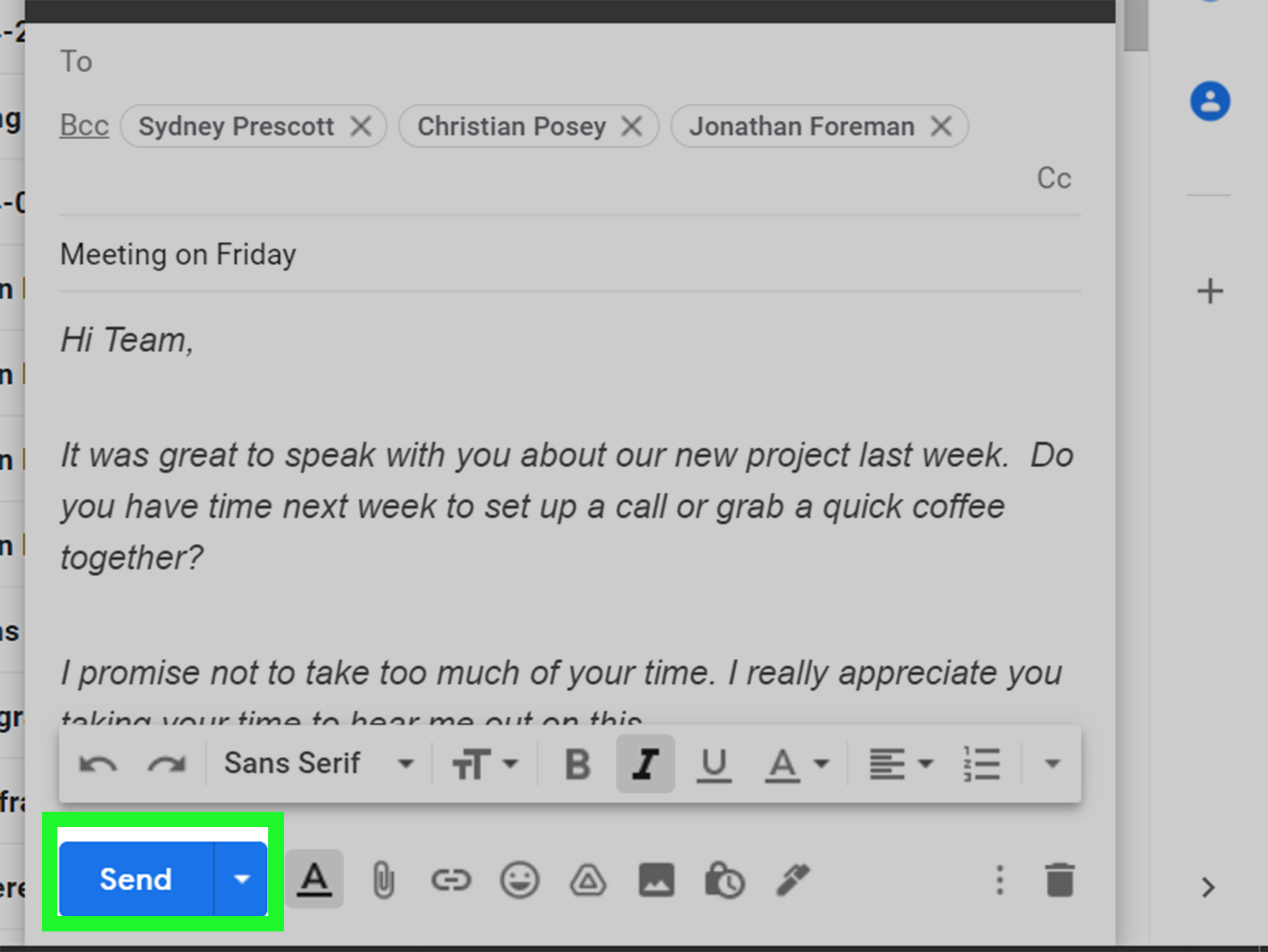
If your recipients do not already know each other, use the Bcc field instead of To. Bcc hides recipient addresses from the rest of the group. This is especially important for community lists, customer lists, school groups, event guests, or any situation where privacy matters.
Using Bcc also prevents the dreaded “reply all avalanche,” a natural disaster known to strike inboxes without warning.
How to Add New People to an Existing Gmail Mailing List
Mailing lists are rarely finished forever. People join, people leave, someone changes jobs, and someone else insists on using an email address they made in 2004. Fortunately, updating a Gmail mailing list is easy.
- Open Google Contacts.
- Find and select the new contact.
- Click Manage labels.
- Choose the existing label.
- Click Apply.
The next time you type that label name in Gmail, the new person should be included. If they do not appear right away, refresh Gmail or wait a moment for Google Contacts to sync.
How to Remove Someone from a Gmail Mailing List
Removing a person from a Gmail mailing list does not delete the contact from your address book. It only removes that contact from the label.
- Go to Google Contacts.
- Click the label in the left sidebar.
- Select the contact you want to remove.
- Click Manage labels.
- Uncheck the label or remove the contact from that label.
- Apply the change.
This is useful when someone leaves a project, opts out of updates, or no longer needs to receive a specific type of email.
How to Import Contacts in Bulk for a Gmail Mailing List
If you have a long list of names and email addresses, adding them one by one is possiblebut so is eating soup with a fork. Technically doable, spiritually exhausting. A better method is to import contacts with a CSV file.
Create a CSV File
A CSV file is a spreadsheet-style file that stores contact information. You can create one in Google Sheets, Microsoft Excel, or another spreadsheet tool. Include columns such as:
- Name
- Email address
- Phone number, if needed
- Company or notes, if useful
For Gmail contact imports, make sure your email column is clearly labeled and your addresses are formatted correctly. Remove blank rows, duplicate entries, and obvious typos before importing.
Import the File into Google Contacts
Open Google Contacts and choose Import. Select your CSV file and upload it. After importing, Google Contacts may create an imported group based on the date. You can then select those contacts and apply a custom label, such as “Workshop Attendees” or “Customer Follow-Up List.”
After importing, check a few contacts manually to confirm that names and email addresses landed in the right fields. A five-minute review can prevent a surprisingly creative mess later.
How to Send an Email to Your Gmail Mailing List
Once your label is ready, sending to the list is simple.
- Open Gmail.
- Click Compose.
- Type your label name into To, Cc, or Bcc.
- Select the label when it appears.
- Write your subject line and message.
- Review the recipient list.
- Click Send.
Before sending, pause for a quick quality check. Are the right people included? Should the list be in Bcc? Is the subject line clear? Did you attach the file you promised, or are you about to send the classic follow-up email titled “Oops, attachment here”?
Best Practices for Gmail Mailing Lists
Use Clear Label Names
Label names should be descriptive and easy to recognize. “Board Members 2026” is better than “Board.” “Summer Camp Parents” is better than “Parents,” especially if you manage multiple groups.
Keep Lists Small and Relevant
Gmail works well for practical group communication, but it is not built for high-volume email blasts. Keep your list focused. Sending relevant messages to the right people is better than sending everything to everyone and hoping nobody mutters “unsubscribe” into the void.
Use Bcc for External Groups
When recipients do not know one another, Bcc protects privacy and keeps the message cleaner. It also prevents accidental reply-all chains, which can become inbox theater very quickly.
Update Your Contacts Regularly
Every few months, review your mailing lists. Remove outdated addresses, merge duplicates, and correct misspelled names. Google Contacts includes tools such as Merge & fix that can help clean up duplicate contacts.
Respect Consent
Only email people who reasonably expect to hear from you. If someone asks to be removed, remove them promptly. For commercial or promotional email, include a clear way to opt out and consider using a proper email marketing platform that supports unsubscribe features automatically.
Gmail Mailing List Limits You Should Know
Gmail has sending limits to reduce spam and protect accounts. The exact limits can vary depending on whether you use a personal Gmail account, Google Workspace, trial Workspace, mail merge, SMTP, or other sending methods.
For many everyday users, the practical lesson is simple: do not use Gmail like a bulk email cannon. If you need to contact hundreds or thousands of people often, use a newsletter or customer email platform. For internal teams and organizations, Google Workspace and Google Groups may be more suitable.
You should also avoid sending sudden, repetitive, or unwanted messages. High bounce rates, spam complaints, and suspicious sending patterns can hurt deliverability or trigger temporary sending restrictions. In plain English: Gmail notices when an account starts acting like a robot wearing a fake mustache.
Gmail Contact Label vs. Google Group: What Is the Difference?
A Gmail contact label is a personal list saved in your own Google Contacts. It helps you quickly address an email to multiple people. Other people generally do not use your label, and the group does not have its own shared inbox or public email address.
A Google Group can have its own email address and membership settings. Members can participate in group conversations, and admins can manage permissions. Google Groups is stronger for organizations, departments, clubs, classrooms, and long-term collaborative communication.
Here is a simple rule: use a Google Contacts label when you need to email a saved list. Use Google Groups when a team or organization needs a shared group identity.
Troubleshooting: Why Your Gmail Mailing List Is Not Working
The Label Does Not Appear in Gmail
Make sure you created the label in the same Google account you are using in Gmail. Also confirm that the label has contacts assigned to it. Refresh Gmail and try typing the exact label name again.
Some Contacts Are Missing
Check whether those contacts have valid email addresses. A contact with only a phone number will not help much when sending email, no matter how politely you ask Gmail.
Imported Contacts Look Messy
Open your CSV file and review the columns. Make sure names and email addresses are separated correctly. Then use Google Contacts’ cleanup tools to merge duplicates or fix incomplete entries.
Recipients Can See Everyone’s Email Address
You probably used the To or Cc field. For privacy-sensitive group messages, put your own address in the To field and place the mailing list in Bcc.
Your Message Was Blocked or Not Sent
You may have hit a sending limit or triggered Gmail’s safety systems. Reduce your sending volume, remove invalid addresses, avoid spammy wording, and wait before trying again. For large campaigns, move to an email platform designed for bulk sending.
Examples of Useful Gmail Mailing Lists
Not sure what to create first? Here are practical mailing list ideas:
- Family Updates: Share travel plans, holiday meals, or reunion details.
- Team Projects: Email coworkers assigned to a specific project.
- Classroom Parents: Send reminders about events, supplies, or schedules.
- Club Members: Keep book clubs, sports teams, and hobby groups informed.
- Client Follow-Ups: Organize professional contacts by service, region, or project stage.
- Event Guests: Send RSVP reminders, parking details, and schedule updates.
Extra Experience: Lessons Learned from Creating Gmail Mailing Lists
The first thing you learn after making a mailing list in Gmail is that organization matters more than speed. It is tempting to dump every address into one giant label called “Everyone,” but that quickly becomes chaos in a sweater vest. A good Gmail mailing list starts with a clear purpose. If the list is for parents helping with a school event, keep it limited to that event. If it is for clients, separate active clients from past clients. If it is for team members, avoid mixing internal staff with outside contractors unless everyone truly needs the same message.
Another helpful experience is to write better subject lines. Group emails often fail not because the list is wrong, but because the message is vague. A subject like “Update” is easy to ignore. A subject like “Friday Volunteer Schedule: Arrival Times and Parking” tells recipients exactly why the email matters. When people understand the message quickly, they are less likely to miss important details or ask questions you already answered three paragraphs down.
Using Bcc is also one of those small habits that makes you look instantly more professional. For private groups, customer updates, event guests, and community lists, Bcc should be your default. It protects email addresses and keeps replies from going to everyone. The only time To or Cc makes sense for a group is when recipients already know each other and collaboration is expected.
One practical trick is to create labels by context, not just by identity. For example, instead of one broad “Clients” label, create labels like “Clients – Monthly Reports,” “Clients – Tax Documents,” or “Clients – Design Feedback.” This makes your Gmail mailing list more useful because each label matches a real communication need. You will send fewer irrelevant emails, and people will be more likely to read what you send.
It is also wise to review your lists before important sends. Open the contact label, scan the names, remove outdated addresses, and check for duplicates. This is especially important before invitations, announcements, invoices, or anything business-related. A mailing list should feel like a sharp tool, not a mystery drawer full of cables.
Finally, know when Gmail is no longer enough. If your list grows large, if you need unsubscribe management, if you send promotional messages, or if you care about open rates and analytics, move to a dedicated email marketing platform. Gmail is excellent for personal and small-group communication. It is not meant to replace a professional newsletter system. The best setup is the one that matches the job: Gmail labels for simple lists, Google Groups for shared collaboration, and marketing software for subscriber-based campaigns.
Conclusion
Learning how to make a mailing list in Gmail is one of the easiest ways to save time and reduce repetitive typing. The key is to use Google Contacts labels: create a label, add contacts, open Gmail, and type the label name into your recipient field. From there, you can send updates, reminders, announcements, and group messages without rebuilding the recipient list every time.
For small groups, Gmail mailing lists are convenient and effective. For shared team addresses, Google Groups may be better. For newsletters or promotional email, use a proper email marketing platform. Match the tool to the purpose, keep your contacts clean, respect recipient privacy, and your Gmail mailing list will behave like a helpful assistant instead of a tiny administrative gremlin.