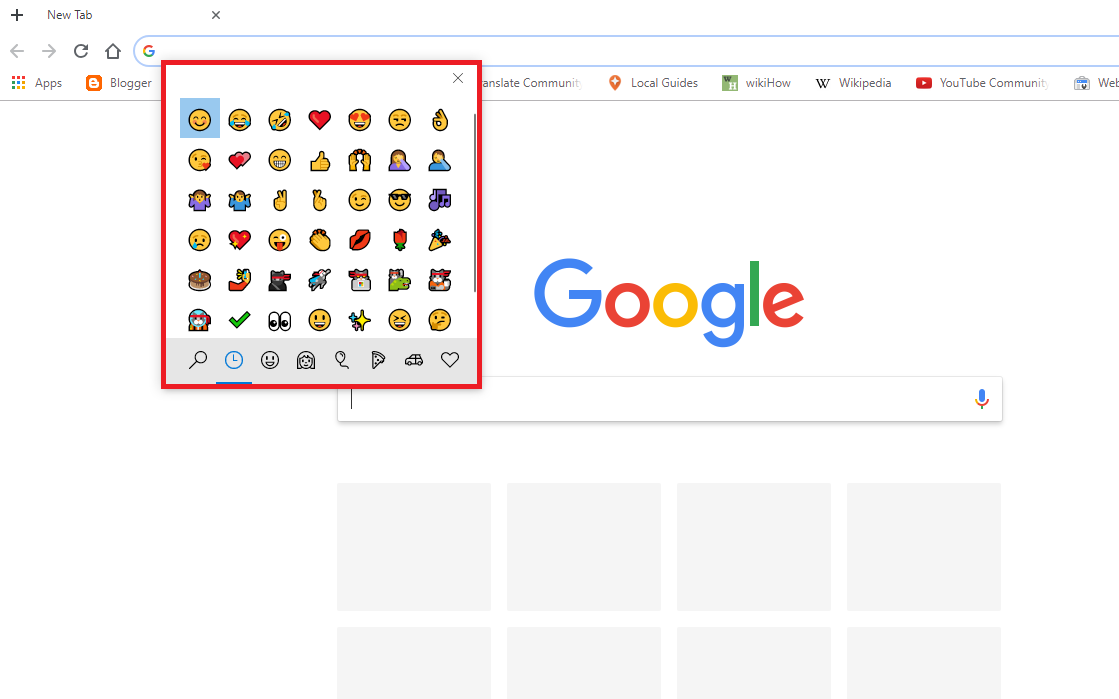
Typing an emoji should not require opening a search engine, typing “confused face emoji,” copying the result, and hoping you did not accidentally grab an advertisement along with it. Google Chrome once offered a wonderfully simple solution: right-click inside a text field, choose Emoji, and select the tiny digital face that best represented your emotional state.
The feature originally appeared as an experimental Chrome flag called enable-emoji-context-menu. It was available in Chrome 68-era releases on Windows, macOS, and ChromeOS, connecting Chrome’s right-click menu to the operating system’s native emoji picker. However, Chrome flags are temporary experiments, so the original flag is no longer available in most current Chrome installations. Modern users may see the Emoji command automatically, or they can open the same picker with an operating-system shortcut.
What Is the Chrome Emoji Context Menu?
The emoji context menu is an option that appears when you right-click inside an editable area, such as a social media post, webmail message, comment box, search field, or browser-based document. Selecting Emoji opens the emoji interface supplied by your operating system.
Chrome itself does not maintain a completely separate library of smiling faces, food icons, animals, flags, and mysterious hand gestures. Instead, it asks Windows, macOS, or ChromeOS to display the system picker. That is why the picker’s appearance, categories, available symbols, and search tools can vary from one computer to another.
The original Chromium description was straightforward: the feature enabled an Emoji picker item in context menus for editable text areas when the operating system supported it. In other words, Chrome provided the doorbell, while your operating system answered the door carrying a basket of colorful pictographs.
Where the Option Works
The command is intended for fields in which you can type or edit text. Typical examples include:
- Gmail messages and replies
- Google Docs and other browser-based editors
- Facebook, Instagram, LinkedIn, and X posts
- YouTube comments
- Customer-support chat windows
- Content-management systems such as WordPress
- Search boxes and online forms
Right-clicking a blank part of a webpage will not necessarily show an Emoji command. Your cursor generally needs to be inside an editable field. Chrome cannot insert a taco emoji into a paragraph you are merely reading, no matter how strongly the paragraph may need one.
Before You Begin
First, make sure Google Chrome is reasonably up to date. Chrome normally installs updates in the background and applies them when the browser restarts. You can check manually by opening the three-dot menu, selecting Help, and choosing About Google Chrome. If a relaunch button appears, use it after Chrome completes the update.
You should also understand the difference between Chrome settings and Chrome flags. Regular settings are supported controls intended for everyday use. Flags are experimental switches used to test features that may change, become permanent, break unexpectedly, or disappear entirely. Google explicitly describes flags as a way to activate or deactivate experimental functionality.
Because the emoji context-menu experiment is an older feature, the instructions below apply primarily to historical Chrome releases. They are still useful for understanding old tutorials, older computers, archived screenshots, and managed systems that may run unusual Chromium builds.
How to Enable the Emoji Context Menu in Google Chrome: 7 Steps
Step 1: Open Google Chrome
Launch Chrome on your Windows PC, Mac, or Chromebook. Close or save any sensitive work before changing an experimental setting. Enabling a flag normally requires a browser relaunch, and although Chrome usually restores open tabs, an unsaved form may not be nearly as forgiving.
Step 2: Open the Chrome Flags Page
Click the address bar, type the following command, and press Enter:
This opens Chrome’s experimental-features page. You may see a warning explaining that enabling experimental features could affect browser data, security, or privacy. The warning is not decorative theater. Flags are development tools, not permanent user preferences.
Step 3: Search for the Emoji Context Menu Flag
In the search box at the top of the Flags page, enter:
Older Chrome versions should display an entry named Emoji Context Menu. You can also try entering the original direct address:
Historical guides from 2018 consistently used this exact flag address. The experiment was tested on Windows, Mac, and ChromeOS before becoming part of the browser or operating-system experience on supported devices.
Step 4: Change the Setting to Enabled
Open the drop-down menu next to the Emoji Context Menu entry and select Enabled. The available choices in an older build may include Default, Enabled, and Disabled.
Selecting Enabled tells that version of Chrome to add an Emoji item to the context menu when you right-click an editable text field. It does not install a new keyboard, download a font package, or replace the emojis used by your operating system.
Step 5: Relaunch Chrome
Click the Relaunch Now or Relaunch button at the bottom of the page. Chrome will close and reopen with the experimental change applied.
Save unfinished messages before relaunching. Chrome is talented at restoring tabs, but trusting a browser with a 900-word unsent complaint to customer service is how villains are created.
Step 6: Click Inside an Editable Text Field
After Chrome reopens, visit a webpage containing a text box. A search field, email composer, comment form, or social media post editor will work. Click inside the field so that the blinking text cursor appears.
If the field is read-only, disabled, or controlled by a specialized web editor, Chrome may not recognize it as a standard editable area. Test the feature in a simple search box before assuming the flag failed.
Step 7: Right-Click and Select Emoji
Right-click inside the text field and choose Emoji from the context menu. Your operating system’s emoji picker should open. Browse a category, search by keyword, and click an emoji to insert it where the cursor is positioned.
The original implementation placed the Emoji command near the top of Chrome’s context menu. On Windows, choosing it opened the native Windows emoji panel rather than a Chrome-exclusive gallery.
What to Do If the Emoji Context Menu Flag Is Missing
On a modern Chrome installation, searching the Flags page will probably produce no matching result. This is expected. Chrome flags are regularly removed after an experiment ends, particularly when a feature becomes standard, is replaced by another implementation, or is handed over to the operating system.
Users began reporting that the flag had disappeared from Chrome 76 and Chrome 77-era versions. Later reports also showed that the right-click Emoji item could remain present even though the old enable-or-disable flag was gone. This reflects a transition from an optional browser experiment to system-integrated behavior.
Do not install an unknown extension merely to recreate the menu. A keyboard shortcut is faster, safer, and already built into the major desktop operating systems.
Windows 10 and Windows 11
Click inside a text field in Chrome and press either of these shortcuts:
The Windows emoji panel should appear near the cursor. You can search for an emoji by typing a word such as laugh, coffee, or celebrate. Depending on your Windows version, the panel may also include GIFs, kaomoji, symbols, and clipboard tools. The shortcut works across applications, so it is useful in Chrome, Microsoft Word, messaging software, and most standard text fields.
macOS
Click in the Chrome text field and press:
On newer Macs, you may also use:
The macOS Character Viewer allows you to browse emoji, search by name, select skin-tone variations, insert symbols, and save frequently used characters as favorites. You can also open it from an application’s Edit > Emoji & Symbols menu when that command is available.
Chromebook and ChromeOS
On a Chromebook, right-click inside a text field and select Emoji. You can also press:
ChromeOS officially supports searching for emojis, symbols, emoticons, and GIFs through its picker. The right-click command is therefore a normal ChromeOS feature rather than something most users need to activate through an experimental flag.
Linux
Linux behavior depends on the distribution, desktop environment, input method, and installed fonts. Some desktop environments include an emoji picker or an “Insert Emoji” command, while others require a character-map application, an input-method shortcut, or copy and paste.
If emojis display as empty rectangles, monochrome symbols, or missing-character boxes, install a compatible emoji font through your distribution’s package manager. Modern Chromium builds commonly use available system fonts such as Noto Color Emoji on Linux.
Troubleshooting Common Emoji Picker Problems
The Emoji Command Does Not Appear
Confirm that you are right-clicking inside an editable field rather than on ordinary webpage text. Then update and relaunch Chrome. If the command still does not appear, use your operating system’s keyboard shortcut. The shortcut opens the same native picker and is generally more reliable than hunting through a right-click menu.
The Picker Opens, but Clicking an Emoji Does Nothing
Test another website or a simple Chrome search field. Some web applications use custom text editors that intercept keyboard and mouse events. Browser extensions can also interfere with text entry. Try an Incognito window, temporarily disable writing assistants or clipboard extensions, and test again.
Recent Chrome community reports show that the Windows picker can occasionally open without inserting the selected character. When that happens, updating Chrome and Windows, restarting the browser, and testing without extensions are sensible first steps.
Emojis Appear Differently After Posting
Emoji are Unicode characters, but their artwork is designed separately by Google, Apple, Microsoft, and individual platforms. A face that looks warm and cheerful on your computer may appear slightly different on someone else’s phone. The meaning usually remains recognizable, although certain expressions can gain an unexpected amount of eyebrow drama.
An Emoji Displays as a Box
A box, question mark, or blank symbol usually means that the selected emoji is newer than the font or operating system rendering it. Update the operating system and browser. You may also choose a more widely supported alternative, particularly when writing for a large public audience using older devices.
The Right-Click Menu Shows Emoji Suggestions Instead of Spelling Suggestions
Some users have reported that emoji-related items compete with spell-check suggestions in Chrome’s context menu. Because the old disabling flag is generally unavailable, use the keyboard shortcut when you need emoji and review Chrome’s language and spell-check settings when correction suggestions behave incorrectly.
Tips for Using Emoji in Chrome Without Overdoing It
Emoji can make online communication friendlier, clearer, and easier to scan, but they work best when they support the message rather than replace it.
- Use search instead of scrolling: Type words such as “warning,” “calendar,” “money,” or “check” in the picker.
- Put clarity first: Do not replace essential instructions with an icon that different readers may interpret differently.
- Consider accessibility: Screen readers may announce an emoji’s official Unicode name, so ten repeated laughing faces can become a surprisingly long audio performance.
- Check professional context: A check mark in a project update is usually harmless. A dancing banana in a legal notice may require stronger strategic justification.
- Preview before publishing: Make sure the website accepts the character and does not convert it into a box or remove it.
Real-World Experience: What Using Chrome’s Emoji Menu Is Actually Like
In practical use, the Chrome emoji context menu is most valuable when you are writing across several websites throughout the day. Imagine replying to Gmail, approving a task in a project-management platform, posting a product update on LinkedIn, and answering a customer in live chat. Without a universal picker, each site places its emoji button in a different location. One hides it beside the attachment icon, another buries it under a plus sign, and a third apparently believes emoji are a premium archaeological discovery.
The right-click command solves that inconsistency. You position the cursor, open the menu, choose Emoji, and insert a character without learning each website’s interface. The experience feels especially natural on a Chromebook because the operating system officially supports both the context-menu command and the Search-plus-Shift-plus-Space shortcut.
On Windows, however, the keyboard shortcut is usually faster. Pressing Windows plus period becomes muscle memory after a few days. It works in Chrome and nearly every other standard application, so you do not need to remember whether a particular webpage displays the right-click command. For example, while drafting a customer-service response, you can type “Your refund has been processed,” press Windows plus period, search for “check,” and insert a check-mark symbol in seconds.
The most common mistake is right-clicking the webpage instead of the text field. The menu that appears may contain commands such as Back, Reload, Save As, Print, Cast, Translate, or View Page Source, but no Emoji option. Clicking inside the field first changes the context. Chrome must know that you intend to insert text rather than save the entire page as a souvenir.
Another practical lesson is that custom editors behave unpredictably. A plain HTML text box usually accepts emoji immediately. Rich editors used by publishing platforms, design tools, and business applications may process text through scripts. The picker can open correctly while the selected emoji fails to appear, appears in the wrong place, or inserts only after you click the field again. Testing in Chrome’s address-bar search field or a basic web form helps determine whether the problem comes from Chrome or from the website.
Extensions are another variable. Grammar checkers, translation tools, clipboard managers, password managers, and productivity extensions may all interact with text fields or context menus. When the emoji picker suddenly stops cooperating, opening an Incognito window is a useful diagnostic step. If it works there, an extension is likely involved. You can then disable extensions one at a time instead of performing the classic technical ritual of restarting everything while glaring at the router.
It is also worth building a small set of dependable emojis for repeated work. Check marks can confirm completion, warning symbols can highlight problems, calendar icons can emphasize dates, and simple facial expressions can soften casual messages. Searching by keyword is much faster than wandering through every category while becoming emotionally invested in the food section.
Finally, remember that emoji appearance is not universal. Google, Microsoft, and Apple render the same Unicode character with different artwork. Before using an unfamiliar symbol in an important message, check its meaning and consider how it may look on another platform. A restrained, recognizable emoji usually communicates better than a rare character that turns into an empty square on half your readers’ devices.
Conclusion
The original method for enabling the Emoji Context Menu in Google Chrome required opening chrome://flags, locating enable-emoji-context-menu, selecting Enabled, relaunching Chrome, and choosing Emoji from the right-click menu of a text field.
That seven-step process remains historically accurate, but most current Chrome users will not find the old flag. Chrome experiments are temporary, and modern emoji entry is largely handled by the operating system. Use Windows plus period on a PC, Control plus Command plus Space or Fn/Globe plus E on a Mac, or Search/Launcher plus Shift plus Space on a Chromebook.
The result is the same: fewer copy-and-paste adventures, faster online writing, and immediate access to the exact facial expression required when a website says your password cannot contain the password you just created.