Video files have a special talent for becoming inconvenient excreen recording is WEBM, your friend sent a MOV file, and the website you need to upload to suddenly acts as though it only speaks fluent MP4.
The good news: converting videos to MP4 does not require a film degree, expensive software, or a mysterious wizard in a hood. With the right free tool, you can turn many common video formats into a widely compatible MP4 file in a few clicks.
This guide explains three easy ways to convert videos to MP4 for free, how to choose the best export settings, and what to do when your converted file looks blurry, plays without sound, or seems determined to test your patience.
Why Convert a Video to MP4?
MP4 is one of the most widely accepted video file formats for phones, computers, smart TVs, websites, social platforms, cloud storage services, and email attachments. It is popular because it can balance video quality, file size, and playback compatibility without behaving like a picky dinner guest.
One important detail: MP4 is a container, not a single video recipe. Think of the container as a lunchbox. Inside it, you can have video, audio, subtitles, chapters, and metadata. The most common compatibility-friendly combination is:
- Video codec: H.264
- Audio codec: AAC
- Container: MP4
That combination works smoothly in most modern browsers, Windows PCs, Macs, Android phones, iPhones, televisions, and video-sharing platforms. It is usually the safest choice when you do not know exactly where the video will be played.
You may want to convert a video to MP4 when you need to upload it to a website, send it to a friend, edit it in another program, play it on a device that rejects the original format, or shrink a giant file that has somehow become the size of a small moon.
Way 1: Convert Videos to MP4 with HandBrake
Best for: Large files, high-quality conversions, batch processing, and anyone who wants more control over video settings.
HandBrake is a free, open-source video converter available for Windows, macOS, and Linux. It supports many common video formats, including MOV, MKV, AVI, WMV, MPEG, MTS, and WEBM. It may look more technical than a browser converter at first, but its presets make the process surprisingly simple.
How to use HandBrake to convert a video to MP4
- Install HandBrake from its official website.
- Open HandBrake and select File to choose the video you want to convert.
- Choose a preset from the presets panel. For most people, a general 1080p preset is a reliable starting point.
- Open the Summary tab and make sure the format is set to MP4.
- Open the Video tab and choose H.264 if maximum compatibility matters.
- Set a destination folder and file name.
- Click Start Encode and let HandBrake do the heavy lifting.
For everyday videos, start with a 1080p preset and avoid changing too many settings. That is the video-conversion equivalent of ordering the house special: it is usually good, fast, and less likely to create drama.
Recommended HandBrake settings for most users
- Format: MP4
- Video encoder: H.264
- Framerate: Same as source
- Quality: Constant Quality around RF 20 to 22 for 1080p video
- Audio: AAC, 160 kbps to 192 kbps for standard stereo sound
A lower RF number creates higher quality and a larger file. A higher RF number creates a smaller file and may reduce detail. For example, RF 18 can look excellent but may create a bigger file, while RF 24 can save space but may make fast-moving scenes look softer.
HandBrake is especially useful when you need to convert several recordings at once. Add multiple videos to the queue, choose your settings once, and let the computer work while you do something more exciting, like finally organize the Downloads folder from 2019.
Way 2: Export an MP4 with Microsoft Clipchamp
Best for: Windows users who want a simple editor and converter in one place.
Microsoft Clipchamp is a beginner-friendly video editor that can export finished projects as MP4 files. It is useful when your clip needs a quick trim, a title card, a muted section, or a minor cleanup before conversion. Instead of only changing the format, you can make the video presentable enough to leave the house.
How to convert a video to MP4 in Clipchamp
- Open Clipchamp on Windows or in a supported browser.
- Create a new video project.
- Import your original video file.
- Drag the clip onto the timeline.
- Trim unwanted footage, crop the frame, mute audio, or add text if needed.
- Click Export.
- Choose a resolution that fits your needs, such as 720p or 1080p.
- Save the exported MP4 file to your device.
This method is ideal for people who do not want to stare at bitrate settings, codecs, and acronyms that sound like abandoned robot names. Import the video, make any quick changes, export it, and you receive an MP4 file ready for sharing.
Keep an eye on resolution. Exporting a 480p video at 1080p will not magically create extra detail. It may make the file larger, but it cannot invent pixels that were never there. For the best result, match the original video resolution whenever possible.
Clipchamp is also useful when you have screen recordings or meeting clips that need a little polishing. You can remove awkward dead air, crop out a browser tab with seventeen open shopping carts, and export a cleaner MP4 for work, school, or social media.
Way 3: Use a Free Online MP4 Converter
Best for: Quick conversions, small-to-medium files, and situations where you do not want to install desktop software.
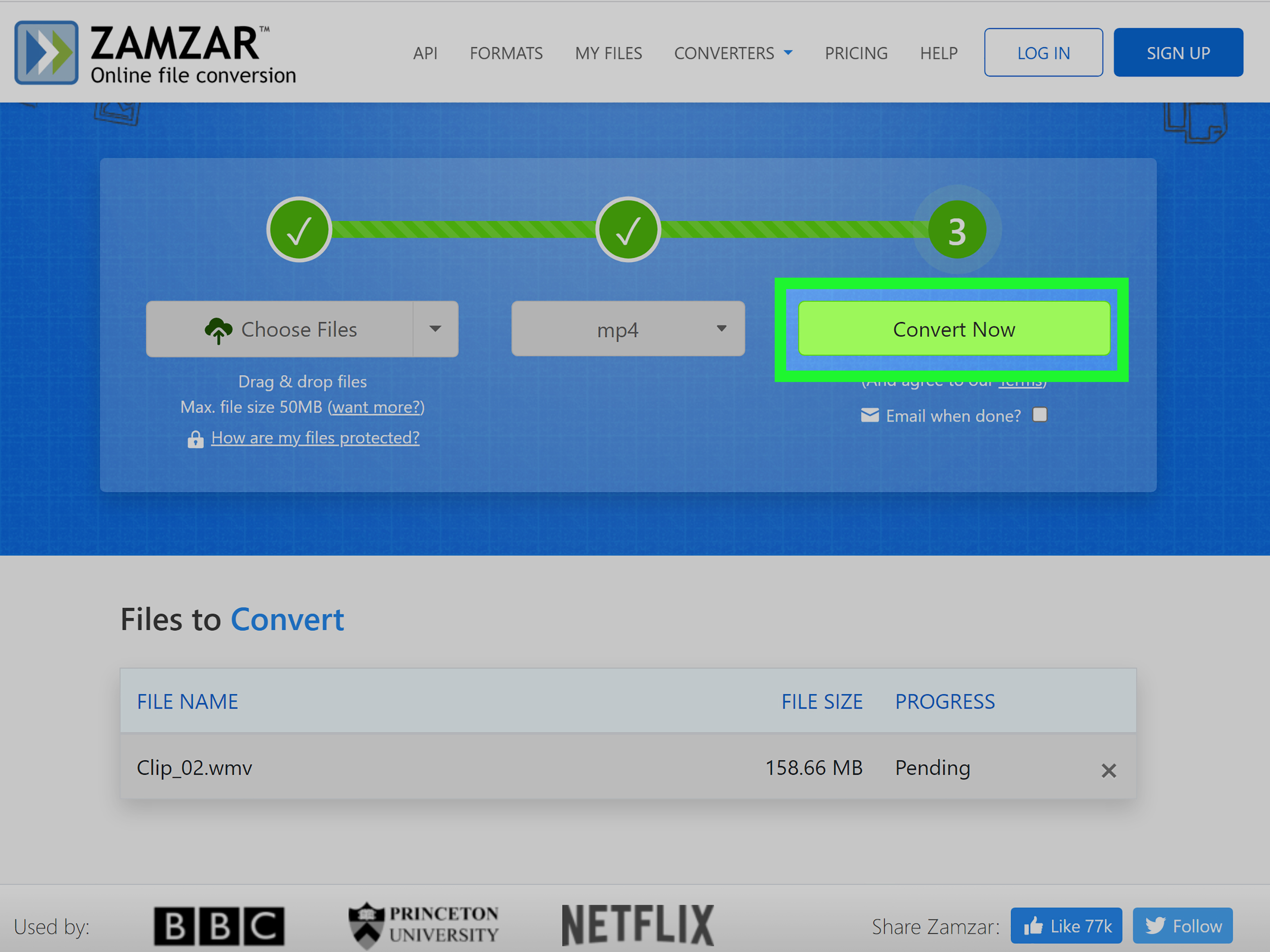
A free online video converter can be the fastest option when you only need to convert one file. Tools such as Adobe Express and other reputable browser-based converters allow you to upload a supported video, select MP4 as the output format, and download the converted file.
How to convert a video to MP4 online
- Open a reputable online video-to-MP4 converter.
- Upload your original video file.
- Select MP4 as the output format.
- Choose quality or resolution settings if the tool offers them.
- Start the conversion.
- Download the finished MP4 file.
- Play the file before deleting the original.
Online converters are convenient, but they are not the best choice for private videos, confidential work recordings, client footage, legal materials, medical videos, or anything you would not want sitting on a third-party server temporarily. For sensitive files, use a local tool such as HandBrake instead.
Also, watch for suspicious websites that bombard you with pop-ups, fake download buttons, browser notifications, or software installers. A legitimate converter should not require you to install a “super turbo media booster” that looks like it was designed by a villain in a low-budget spy movie.
Before uploading, check the service’s current file-size limits, privacy policy, and deletion policy. Free online tools often have limits, and those limits can change over time.
How to Choose the Best MP4 Export Settings
The right settings depend on where the video is going. A family vacation clip, a YouTube upload, a school project, and a product demo do not all need the same file size or quality level.
| Use Case | Recommended Resolution | Suggested Format |
|---|---|---|
| Email or messaging apps | 720p or lower | MP4 with H.264 and AAC |
| Social media posts | 1080p | MP4 with H.264 and AAC |
| YouTube or website uploads | Match the original | MP4 with H.264 and AAC |
| Long recordings with limited storage | 720p or 1080p | MP4 with moderate compression |
| Archiving important footage | Keep original resolution | MP4 copy plus original backup |
When possible, keep the original frame rate. A video recorded at 30 frames per second should usually remain at 30 frames per second. Changing frame rates can create choppy motion, duplicated frames, or odd movement that makes everyone look like they are walking through pudding.
For standard compatibility, use H.264 video and AAC audio. H.265 or HEVC may create smaller files at similar quality, but older devices and some websites may not support it as reliably. AV1 can be excellent for compression, but it is not always the easiest choice for broad compatibility.
Remember that every time you re-encode a video, some quality may be lost. Avoid converting the same clip repeatedly. Convert from the original file once, save the MP4, and keep the original in a safe folder if it matters.
Common Problems When Converting Video to MP4
The MP4 file has no sound
This often happens when the original audio codec does not convert properly or is not supported by the device playing the file. Reconvert the video and choose AAC audio. If you are using HandBrake, review the Audio tab before starting the conversion.
The video looks blurry after conversion
The converter may be using a low bitrate, aggressive compression, or a lower resolution than the original. Choose a higher-quality preset, reduce compression, or export at the original resolution. Do not upscale a low-resolution clip unless you have a specific reason; bigger does not always mean better.
The converted file is too large
Try reducing the resolution from 4K to 1080p or from 1080p to 720p. You can also use a slightly higher Constant Quality value in HandBrake. Cutting unnecessary footage before export can make a noticeable difference too.
The conversion stops or fails
Make sure you have enough free storage space, especially for long videos. Try copying the source file to your local drive before converting it. If an online tool fails, the file may be too large, the connection may be unstable, or the service may not support that source format.
Frequently Asked Questions
Can I convert videos to MP4 for free without a watermark?
Yes. Desktop tools such as HandBrake typically convert videos without adding a watermark. Some free browser-based editors may limit premium features, so always review the export screen before you begin.
Can I convert MOV to MP4?
Yes. MOV files from iPhones, cameras, and editing programs can usually be converted to MP4 using HandBrake, Clipchamp, or an online converter.
Can I convert MKV to MP4?
Yes. HandBrake is a strong option for MKV-to-MP4 conversion. Be aware that advanced subtitle tracks and special audio tracks may not transfer exactly the same way, so test the final file before deleting the original.
Does converting a video to MP4 make it smaller?
Sometimes. File size depends on resolution, bitrate, frame rate, codec, and audio settings. An MP4 can be smaller than the original, but it can also be larger if you choose higher quality settings.
Final Thoughts
Converting a video to MP4 is usually much easier than it sounds. Use HandBrake when you want control and dependable results, Clipchamp when you want quick editing and exporting, and a reputable online converter when speed matters more than advanced settings.
For the safest all-purpose result, export as MP4 with H.264 video and AAC audio, keep the original resolution and frame rate when possible, and test the finished file before you send it into the wild.
Real-World Video Conversion Experiences: What Usually Makes the Difference
Most video conversion problems are not caused by the button you click. They are caused by small decisions made before and after conversion. A common example is a phone video that plays perfectly on the phone but refuses to upload to a work portal, classroom website, or older smart TV. The file may already have an MP4 extension, but its internal codec, frame rate, or metadata can still confuse the destination platform. In that situation, re-exporting the video as an H.264 MP4 often solves the issue.
Another common experience involves videos that are technically correct but impractical. A ten-minute 4K recording can be hundreds of megabytes or several gigabytes, which is fine until you need to email it, upload it on hotel Wi-Fi, or store it on a phone with approximately three megabytes of free space and forty-seven screenshots of accidental pocket photos. Converting the file to a 1080p MP4 can dramatically reduce the size while keeping it sharp enough for normal viewing.
Screen recordings are another frequent troublemaker. Many screen recorders save files as WEBM, MKV, or another format that works well on the original computer but may not open in a presentation app or video editor. Converting those files to MP4 makes them easier to share with coworkers, teachers, clients, or relatives who believe “send it again” is a complete technical diagnosis.
People also discover that audio can be the hidden villain. A converted video may look perfect but play silently on a television, phone, or website. The fix is usually simple: convert the audio track to AAC instead of copying the original audio unchanged. AAC is widely supported and works well for most everyday videos. It is a small setting that can prevent a large amount of confused staring at volume buttons.
For long-term storage, the best habit is to keep both files when the footage matters. Save the original camera file in a backup folder or cloud drive, then create an MP4 copy for viewing and sharing. The original is your master copy; the MP4 is your practical, easygoing version that can travel almost anywhere. This approach is particularly useful for family events, business recordings, school projects, and edited videos that would be painful to recreate.
Finally, do not judge a conversion by whether the progress bar reaches 100%. Open the finished MP4 and check the beginning, middle, and end. Confirm that the image is clear, the sound is present, subtitles appear correctly if needed, and the duration matches the original. A thirty-second test can save you from discovering a missing audio track five minutes before a presentation. In video conversion, a quick quality check is not paranoia. It is simply good manners toward your future self.