If your iPhone or iPad has started acting like it needs a snack, a nap, and maybe a therapist, you are not alone. Apps freeze, Safari gets moody, games stutter, and your device suddenly behaves like it is carrying the emotional weight of 200 open tabs. Naturally, people start searching for how to clear RAM on an iPhone or iPad.
Here is the good news: you can refresh memory usage and improve performance. Here is the better news: you do not need sketchy “phone cleaner” apps or ritualistic tapping patterns that sound like a cheat code from 2004. Apple devices already manage RAM automatically, so the goal is not to “empty memory” like you would dump out a junk drawer. The real goal is to reduce memory pressure, reset stuck processes, and get your iPhone or iPad running smoothly again.
In this guide, you will learn four easy, real-world ways to clear RAM on an iPhone or iPad, plus what actually works, what is outdated, and what to do when your device still feels slow after the usual tricks.
What Does “Clearing RAM” on an iPhone or iPad Actually Mean?
RAM, or random access memory, is the short-term working space your device uses while apps are open and tasks are active. Think of it as your device’s kitchen counter. The more apps, browser tabs, video streams, widgets, and background tasks you pile onto it, the more crowded it gets.
On iPhone and iPad, iOS and iPadOS are designed to manage RAM for you. That means there is no big shiny button labeled Empty All Memory and Make Everything Magical Again. Instead, the operating system constantly reallocates memory, pauses background apps, and frees space when needed.
So when people say they want to clear RAM, they usually mean one of three things:
- They want to fix lag, freezing, or crashing.
- They want an app to stop acting weird.
- They want the whole device to feel faster and less cluttered.
That is exactly where the four methods below come in.
Method 1: Restart Your iPhone or iPad
If you only try one thing, make it this one. Restarting your device is the simplest and safest way to clear active memory and refresh system processes. It closes what is currently loaded in RAM, gives iOS or iPadOS a clean restart, and often fixes minor slowdowns without any drama.
Why a restart helps
When your device has been running for days, a lot can pile up in the background: temporary system tasks, buggy app behavior, resource-heavy browsing sessions, and processes that are technically not broken but definitely are not helping. A restart clears the deck and gives your device a fresh start.
How to restart an iPhone
On newer iPhones with Face ID, press and hold either volume button and the side button until the power-off slider appears. Drag the slider, wait for the device to shut down, then hold the side button again until the Apple logo appears.
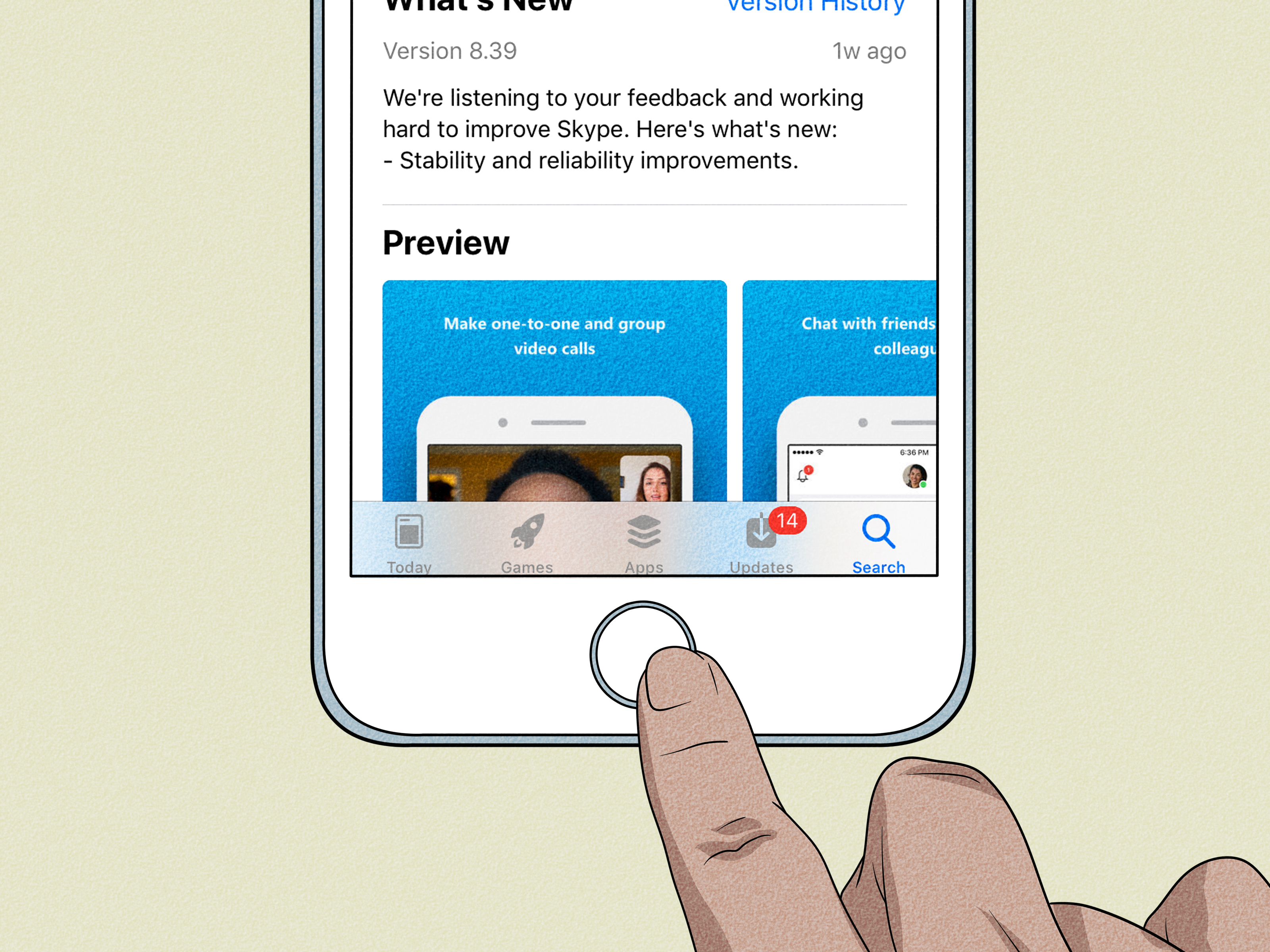
On older iPhones with a Home button, press and hold the side or top button until the slider appears, power off, then turn the device back on.
How to restart an iPad
On an iPad without a Home button, press and hold either volume button and the top button until the power-off slider appears. Slide to power off, wait a few seconds, then press and hold the top button to restart.
On an iPad with a Home button, press and hold the top button until the slider shows up, turn it off, then power it back on.
When to use this method
- Your device feels generally sluggish.
- Apps are opening slowly.
- Safari keeps pausing or reloading tabs.
- Your iPhone or iPad is warm for no obvious reason.
It is simple, safe, and honestly underappreciated. Restarting your device is the digital version of standing up, stretching, and pretending your life is together.
Method 2: Force Restart When the Device Is Frozen
If your iPhone or iPad is completely stuck, a normal restart may not be possible. That is when a force restart becomes the move. This does not erase your data, photos, or apps. It simply forces the device to shut down and reboot when the screen is frozen or unresponsive.
Why a force restart helps
Sometimes a misbehaving app, a temporary iOS glitch, or a hung system process can lock up the whole device. A force restart interrupts that loop and reloads the operating system. It is especially useful when a screen refuses to respond, an app crashes repeatedly, or your device gets stuck on a black screen or Apple logo.
How to force restart an iPhone with Face ID
Press and quickly release Volume Up, press and quickly release Volume Down, then press and hold the side button until the Apple logo appears.
How to force restart an older iPhone with a Home button
Press and hold the Home button and the side or top button together until you see the Apple logo.
How to force restart an iPad
On newer iPads without a Home button, press and quickly release the volume button closest to the top button, then the other volume button, then press and hold the top button until the Apple logo appears.
On older iPads with a Home button, press and hold both the Home button and the top button until the Apple logo appears.
When to use this method
- The screen is frozen.
- Your device will not respond to taps or swipes.
- An update or app launch seems stuck.
- The device is on, but you cannot shut it down normally.
Use this when your device is genuinely jammed, not as your daily warm-up routine. It is a fix, not a hobby.
Method 3: Force-Close One Misbehaving App, Not Every App You See
This is where many articles on the internet wander into the weeds. Swiping away every app in the app switcher may feel productive, like aggressively alphabetizing your pantry, but it usually is not necessary on iPhone or iPad. Apple’s own guidance is pretty clear: quitting an app is mainly helpful when that specific app is not responding.
What to do instead
If one app is frozen, crashing, overheating your device, or acting like it drank six espressos, close that app and reopen it.
How to close an app on iPhone or iPad
Open the app switcher by swiping up from the bottom and pausing, or by double-clicking the Home button on older models. Find the app that is causing trouble, then swipe up on its preview card to close it. Reopen the app from your Home Screen, App Library, or Dock.
Why this helps RAM
When one app gets stuck, it may hold onto memory or system resources in a messy way. Closing and reopening it forces that app to start fresh and reload its working memory cleanly.
When to use this method
- A game is lagging badly.
- Mail, Safari, or Messages keeps freezing.
- A video app crashes every time you open it.
- An app drains battery or heats the device unusually fast.
In other words, treat the app switcher like a troubleshooting tool, not a leaf blower.
Method 4: Reduce Memory Pressure From Background Activity
If your iPhone or iPad keeps slowing down even after a restart, the issue may not be “RAM” in the dramatic sense. It may be ongoing background activity, overloaded browser data, or low storage creating a general performance squeeze. This is where you make your device’s workload lighter.
Turn off Background App Refresh for apps that do not need it
Background App Refresh allows apps to update content when you are not actively using them. Handy? Sometimes. Necessary for every app on your phone? Absolutely not.
Go to Settings > General > Background App Refresh. From there, you can turn it off entirely or disable it only for apps that love to do the most in the background. Social media, shopping apps, travel apps, and random utilities are common candidates.
This does not “clear RAM” instantly, but it reduces ongoing memory pressure and cuts down on unnecessary background activity over time.
Clear Safari history and website data
If Safari feels sluggish, keeps reloading pages, or behaves like a browser haunted by the ghosts of a thousand tabs, clearing its website data can help. Go to Settings > Apps > Safari > Clear History and Website Data.
On iPad, you can also clear browsing history directly in Safari. This mainly removes cached website data, cookies, and browsing history, but it can still improve overall responsiveness, especially if web browsing is where your device feels heaviest.
Free up storage with Offload Unused Apps
Storage and RAM are not the same thing, but they are close enough cousins to show up at the same family reunion. When storage is very low, performance often suffers. Use Settings > General > iPhone Storage or iPad Storage to see what is eating space.
If you do not want to delete everything, enable Offload Unused Apps. This removes apps you rarely use while keeping their documents and data, so you can reinstall them later without starting from scratch.
Install the latest iOS or iPadOS update
If your device has been unstable, buggy, or randomly slow, an update may fix the underlying issue. Go to Settings > General > Software Update and install the latest version available for your device.
Software updates are not glamorous, but they often fix memory leaks, app compatibility glitches, and system bugs that make your device feel older than it really is.
What Not to Do When Trying to Clear RAM
Do not close every app all the time
This is the biggest myth. iPhone and iPad are built to manage suspended apps on their own. Constantly swiping everything away can make your device work harder because apps have to fully reload the next time you open them.
Do not install random “RAM cleaner” apps
On iOS and iPadOS, third-party apps do not get magical control over system memory. If an app promises one-tap turbo-boost wizardry, be skeptical. Your phone deserves better than snake oil in app form.
Do not factory reset unless the problem is serious
A full reset is sometimes useful for persistent software issues, but it is not one of the four easy ways. It is the nuclear option. Back up first, then consider it only if simpler fixes fail.
Signs Your iPhone or iPad Needs a Memory Refresh
- Apps crash when switching between tasks.
- Safari tabs constantly reload.
- Your keyboard lags behind your typing.
- Games stutter after several minutes of play.
- The device feels hot during light use.
- Multitasking on iPad feels unusually clunky.
If those problems happen only once in a while, a restart is usually enough. If they happen all the time, check background activity, storage, and software updates next.
Real-World Examples: When These 4 Methods Work Best
Let’s say your older iPad starts lagging during a video call while Safari, Notes, Mail, and a PDF app are all open. A normal restart can clear active memory and stop the stutter. If the screen freezes mid-call, a force restart is the better choice.
Or maybe your iPhone is fine overall, but one shopping app crashes every single time you try to check out. In that case, do not go on a closing spree. Just force-close that app, reopen it, and see if the problem disappears.
Another common situation is heavy Safari use. If you have dozens of tabs, saved website data, and a bunch of media-rich pages open, Safari can start feeling sticky. Clearing website data and cutting back on background refresh often helps more than obsessively swiping away every recent app.
And if your device seems slow all week, not just during one glitch, check storage. An iPhone running low on space often feels tired in a very specific, overworked way. Offloading unused apps can be the difference between “Why is this thing so slow?” and “Oh, right, I installed fourteen apps I forgot existed.”
Experience-Based Advice: What It Feels Like to Actually Use These Fixes
Here is the part most quick guides skip: what these fixes feel like in real life. Because “clear RAM” sounds technical, but most people are really chasing one simple outcome: they want their device to stop being annoying.
In everyday use, the restart method is the quiet hero. It is not flashy, and it does not come with a dramatic before-and-after animation, but it often makes the biggest difference. A device that was getting warm, hesitating between apps, or randomly pausing during typing can feel noticeably smoother after a clean reboot. The change is not always breathtaking, but it is often enough to make you stop muttering at your screen.
Force restart feels different. That one is for emergencies. It is the tech equivalent of opening a stuck jar with a dish towel and sheer determination. When an iPhone freezes on a black screen or an iPad refuses to respond during a presentation, a force restart feels less like “optimizing memory” and more like rescuing your afternoon. It is not something most people need often, but when they do need it, they really need it.
Closing one broken app is also more useful than people expect. A lot of users assume that if one app acts up, the whole phone must be clogged with memory problems. In reality, a single buggy app can cause outsized chaos. Closing that one app, reopening it, and moving on can solve the issue in under a minute. It is oddly satisfying, like finally finding the one sock that jammed the dryer.
Reducing background activity is the long-game fix. You may not notice a huge difference five seconds later, but over a few days the device often feels steadier. Fewer random pauses. Less overheating. Less battery drain. Less of that weird moment where Safari reloads a page you were literally reading one second ago. It is subtle, but subtle is good when it comes to performance.
People with older devices usually notice these changes the most. An aging iPhone or iPad does not necessarily need replacement right away; sometimes it just needs less clutter, fewer background tasks, and the occasional reboot. That is not exciting advice, but it is real advice.
The biggest experience takeaway is this: the best fix depends on the symptom. If the whole device feels heavy, restart it. If it is frozen, force restart it. If one app is being chaotic, close only that app. If the slowness keeps returning, reduce background refresh, clear Safari data, and free up storage. Match the fix to the problem, and your device usually rewards you by acting normal again. Which, frankly, is all most of us wanted in the first place.
Conclusion
If you want to clear RAM on an iPhone or iPad, the smartest approach is not to fight the operating system. It is to work with it. Restart the device for a general refresh, force restart when it freezes, close only the app that is misbehaving, and reduce background load if performance problems keep coming back.
That combination is simple, safe, and far more effective than outdated myths about manually closing every app in sight. In most cases, your iPhone or iPad does not need a miracle. It just needs a quick reset, a lighter workload, and maybe fewer browser tabs living rent-free in memory.