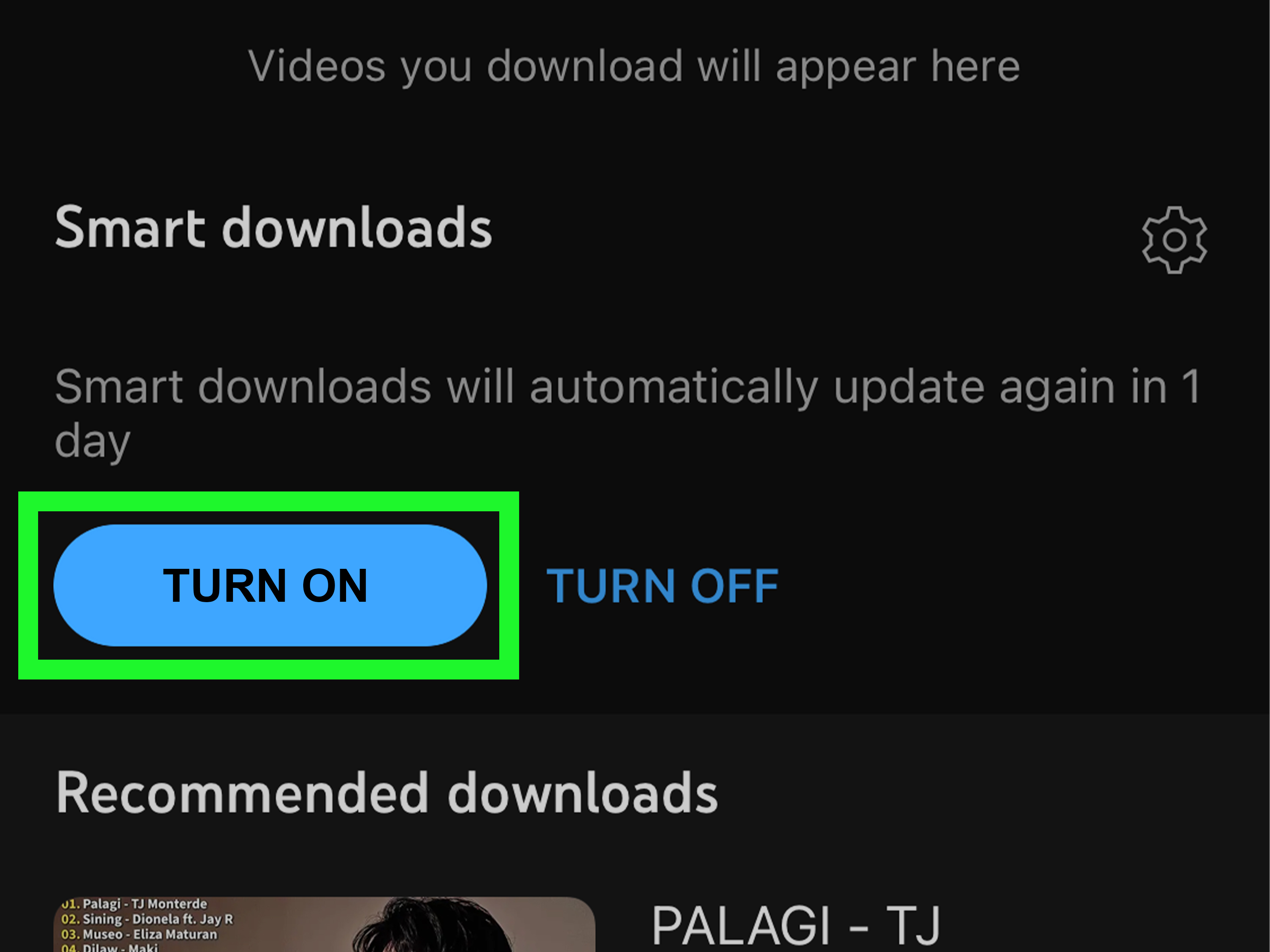
Downloading one YouTube video is simple when the platform provides a download button. Downloading an entire channel is a different creature. It can involve hundreds of files, several terabytes of storage, changing video formats, duplicate downloads, missing metadata, and the occasional computer fan that begins sounding like a small aircraft.
The easiest method depends on what you are trying to accomplish. Channel owners may want a complete backup of their uploads. Editors may need copies of client videos for an authorized project. Viewers may simply want videos available during a flight or unreliable internet connection. Each situation calls for a different tool.
This guide explains the safest and most practical ways to download or save all videos from a YouTube channel. It covers Google Takeout, YouTube Studio, YouTube Premium, the open-source yt-dlp utility, channel playlists, and the YouTube Data API. It also explains what each method canand cannotdo.
Choose the Right Method Before You Start
Before installing anything, decide which of these outcomes you actually need:
- A permanent backup of your own channel: Start with Google Takeout.
- A few files from your own uploads: Use YouTube Studio.
- Offline viewing inside YouTube: Use YouTube Premium.
- An organized archive of authorized videos: Consider yt-dlp and FFmpeg.
- A spreadsheet or database of channel videos: Use the YouTube Data API.
That distinction matters. YouTube Premium downloads are designed for offline playback inside YouTube, while Google Takeout and YouTube Studio provide actual video files from your own account. An API can list videos, but it does not magically hand you a folder full of MP4 files.
Method 1: Use Google Takeout for Your Own Channel
Google Takeout is usually the easiest way to download all videos from a YouTube channel you control. Instead of saving uploads individually, you request an export containing selected data from your Google account.
How to export your YouTube videos
- Sign in to the Google account connected to the YouTube channel.
- Open Google Takeout.
- Select Deselect all so you do not accidentally export every Google product you have used since the dawn of Gmail.
- Find YouTube and YouTube Music and select it.
- Open the included-data options and confirm that Videos is selected.
- Choose a delivery method, archive format, and maximum archive size.
- Create the export and download each archive part when it becomes available.
Google can send an archive link by email or deliver the export to supported cloud-storage services. Large exports may be divided into multiple files based on the archive size you choose.
Why Google Takeout is the best first choice
Takeout is an official Google service, requires no third-party login, and is specifically designed to export account data. YouTube’s own help documentation recommends it when channel owners want to download all uploaded videos rather than save them one at a time.
It is especially useful before deleting a channel, transferring responsibility to another team, changing an organization’s Google account, or reorganizing a large media library.
Possible limitations
Takeout is not an instant “download everything now” button. Large exports can be split into many archives, and the finished folder structure may require cleanup. Before deleting anything from YouTube, open several exported videos and verify that they play correctly.
Also check which channel identity is active. A Google account may manage multiple YouTube channels or Brand Accounts, and exporting from the wrong identity can produce an archive that appears suspiciously small. That is not the kind of surprise anyone wants after clicking “Delete forever.”
Method 2: Download Your Uploads from YouTube Studio
YouTube Studio is convenient when you need selected videos rather than a complete channel archive.
Steps on a computer
- Sign in to YouTube Studio.
- Select Content from the left menu.
- Locate the video you want.
- Open its options menu.
- Select Download.
YouTube says owners can download MP4 copies of videos they uploaded, generally in 720p or 360p depending on the video.
This method is straightforward, but it is manual. If your channel contains 600 videos, clicking the menu 600 times is less of a workflow and more of a wrist endurance competition.
When YouTube Studio makes sense
Use Studio when you need a handful of videos, need to recover an older upload quickly, or want a copy after trimming or blurring a video. YouTube specifically documents downloading uploaded videos from the Studio content area.
For a complete backup, however, Google Takeout is usually more efficient.
Method 3: Save Videos Offline with YouTube Premium
YouTube Premium can download videos and playlists for offline viewing where the feature is available. It is ideal for travelers, commuters, students, and anyone whose internet connection occasionally behaves like it is powered by hamsters.
How offline downloads work
- Sign in to a YouTube Premium account.
- Open a video or playlist.
- Select Download.
- Choose an available quality setting.
- Access the saved content through the Downloads section of YouTube.
YouTube Premium officially supports downloading videos and playlists for offline viewing.
What Premium does not provide
Premium downloads are not normal MP4 files that you can move into an editing program, copy to a USB drive, or upload to another platform. YouTube stores them for playback through its app or supported browser environment, and mobile downloads are stored in an encrypted form rather than appearing as ordinary gallery files.
That makes Premium excellent for watching, but unsuitable for permanent archiving or video production.
Method 4: Use yt-dlp for an Authorized Channel Archive
For videos you own or have explicit permission to archive, yt-dlp offers powerful control over file quality, naming, subtitles, thumbnails, metadata, and incremental updates. It is an actively maintained, open-source command-line media downloader hosted on GitHub.
Because it can automate channel-scale downloads, use it only when your rights and YouTube’s applicable terms permit that access. Do not use it to evade paid access, copy protected libraries, bypass account restrictions, or redistribute someone else’s work.
What you need
- The current official release of yt-dlp
- FFmpeg for combining separate video and audio streams
- Enough storage space for the entire channel
- A stable internet connection
- Permission to download the content
FFmpeg is a widely used media-processing tool that can read, convert, and combine many audio and video formats.
A basic authorized channel command
Replace the sample address with the channel’s actual Videos-tab URL. Depending on the channel layout and the current yt-dlp release, you may also use an uploads playlist URL.
A more organized backup command
On Windows Command Prompt, enter the command on one line or replace the backslashes with the appropriate line-continuation character.
Here is what the important options do:
--ignore-errorscontinues when a private, deleted, or unavailable video is encountered.--continueresumes partially downloaded files where possible.--no-overwritesavoids replacing existing files.--download-archive downloaded.txtrecords completed video IDs so future runs skip them.-f "bv*+ba/b"requests a suitable video-and-audio combination with a fallback.--merge-output-format mp4asks FFmpeg to merge compatible streams into an MP4 container.-ocreates organized filenames using channel, upload date, title, and video ID.
The download archive is particularly useful for maintaining a channel backup. Run the same command later, and yt-dlp can focus on videos that are not already recorded in the archive file.
Save subtitles, descriptions, and thumbnails
For a richer archive, add selected metadata options:
This can preserve useful context alongside each video. Metadata files may include titles, dates, identifiers, and other details available to the tool at download time.
Method 5: Download an Authorized Uploads Playlist
Every YouTube channel has an internal uploads playlist. In some workflows, using that playlist is more predictable than using the public channel homepage.
The YouTube Data API documentation explains that a channel resource contains the playlist ID associated with its uploaded videos. Developers can retrieve that ID and then list the videos through the playlist-items endpoint.
Once you have an authorized uploads-playlist URL, it can be supplied to a suitable permitted download workflow. It can also be useful for inventorying videos without downloading them.
Remember that a creator’s hand-built public playlists may repeat videos, omit uploads, or include videos from other channels. The official uploads playlist is generally the better source when your goal is a complete channel inventory.
Method 6: Use the YouTube Data API to Build a Video Inventory
The YouTube Data API is not a bulk video downloader. It is useful for gathering an accurate list of video IDs, titles, descriptions, publication dates, thumbnails, and playlist positions.
A typical workflow looks like this:
- Use
channels.listto retrieve the channel’s uploads-playlist ID. - Use
playlistItems.listto retrieve items from that playlist. - Follow pagination tokens until every item has been collected.
- Save the results to a database, CSV file, or backup manifest.
The playlist-items method can return all items from a specified playlist through paginated requests.
This approach is valuable for businesses, universities, agencies, and archives that need to know what existed on a channel at a particular time. Think of it as creating a library catalog. The catalog tells you what is on the shelves; it does not automatically place every book in your backpack.
How to Prepare for a Large Channel Download
Estimate storage before downloading
A channel with 500 short tutorials may require less space than 40 long 4K livestreams. Check several representative videos, estimate their average size, multiply by the approximate number of uploads, and leave extra space for subtitles, thumbnails, metadata, temporary files, and future additions.
For important archives, keep at least two copies on separate devices. A backup stored on only one external drive is not a backup; it is a future anecdote about an external drive.
Use stable filenames
Titles can change, and different videos may share the same title. Include the upload date and YouTube video ID in each filename. A structure such as the following remains searchable and reduces collisions:
Preserve metadata
A video without its title, original URL, publication date, description, or license information can become difficult to identify later. Save metadata in JSON or CSV form, and keep a channel-level manifest listing every expected video.
Test before running the full job
Download two or three authorized videos first. Confirm that the files play, audio is present, filenames are readable, subtitles use the expected language, and your media software supports the chosen format.
A five-minute test is cheaper than discovering the next morning that 900 silent videos have been neatly downloaded into the wrong folder.
Common Problems and Practical Fixes
Some videos are missing
Private, deleted, members-only, age-restricted, region-restricted, scheduled, or otherwise unavailable videos may not appear or may fail during processing. Compare your downloaded files against a manifest from YouTube Studio, Google Takeout, or the API.
Video and audio arrive as separate files
Higher-quality YouTube formats often use separate video and audio streams. Install FFmpeg and allow the authorized downloader to merge them. Do not assume that the largest video-only file contains sound.
The process stops halfway through
Use resumable downloads, an archive file, and error-tolerant settings. Avoid deleting partial files until you confirm they cannot be resumed. For very large channels, process the library in batches rather than attempting one heroic, computer-melting marathon.
Duplicate videos appear
Duplicates often result from downloading several overlapping playlists. Use the video ID in filenames and maintain a download-archive file. The ID is more reliable than a title because creators can rename videos whenever inspirationor an SEO consultantstrikes.
A website asks for your Google password
Leave immediately. Do not enter Google credentials, browser cookies, recovery codes, or session tokens into random “free channel downloader” websites. Use Google’s official export tools or well-documented software obtained from its official project page.
Real-World Experiences and Lessons from Channel Backups
The smoothest channel backups usually begin with boring preparation. That may sound disappointing, especially when a single command appears capable of doing everything, but preparation prevents most disasters.
One common experience is underestimating storage. A creator sees 200 uploads and assumes an ordinary portable drive will be more than enough. Then the archive begins pulling long livestreams, high-frame-rate footage, thumbnails, subtitle tracks, and metadata. Suddenly the “small backup” is eating disk space like it skipped breakfast. Checking several representative file sizes before starting gives a much more realistic estimate.
Another lesson is that finished does not necessarily mean complete. A tool may reach the end of a channel while quietly skipping unavailable videos. That is why an inventory matters. Export a list of expected video IDs and compare it with the completed files. The comparison reveals missing uploads, duplicate titles, and videos that disappeared between the inventory and the download.
Filename design also becomes more important as the archive grows. At first, a folder filled with titles such as My New Setup.mp4 and Weekly Update.mp4 seems manageable. After five years of weekly updates, it resembles a filing cabinet assembled during an earthquake. Adding the upload date and video ID makes sorting, searching, and deduplication dramatically easier.
It is also wise to separate the original archive from working copies. Editors often open a downloaded video, trim it, recompress it, and accidentally overwrite the only archived copy. A safer structure uses one read-only folder for originals and another folder for edits, conversions, and social-media clips.
Large jobs benefit from patience. Downloading at maximum speed can trigger network instability, fill temporary storage, or make the computer unpleasant to use. Running smaller batches overnight, keeping a download archive, and verifying each batch produces a more dependable result than repeatedly restarting one enormous job.
Cloud storage helps, but it should not be the only destination. Account problems, accidental synchronization, ransomware, or a mistaken deletion can affect cloud copies too. A practical arrangement includes one local working copy, one external backup, and one separate off-site or cloud copy for irreplaceable material.
Finally, permissions should be documented. When archiving a client, partner, or institution’s channel, keep written confirmation describing what may be downloaded, how it may be stored, who may access it, and whether it may be edited or republished. “They said it was probably fine during a video call” is not a great rights-management strategy.
The main takeaway is simple: the download itself is only half the project. A useful YouTube channel backup must be complete, organized, verifiable, playable, securely stored, and supported by the appropriate rights. Do those things well, and restoring one videoor an entire channelbecomes a routine task rather than a digital scavenger hunt.
Conclusion
For channel owners, Google Takeout is usually the easiest way to download all uploaded videos in one export. YouTube Studio works well for individual files, while YouTube Premium is the simplest choice when the goal is offline viewing rather than permanent ownership of portable files.
Authorized users who need repeatable, organized archives can use yt-dlp with FFmpeg, sensible filenames, metadata files, and a download archive. The YouTube Data API can supplement that process by creating a reliable channel inventory.
No matter which method you choose, verify your permissions, test a small batch, estimate storage, preserve metadata, and keep more than one backup. Your future self will appreciate the organizationespecially when the future self urgently needs a video uploaded seven years ago and remembers only that the thumbnail contained a surprised face.
Note: Platform features, terms, formats, and third-party tools can change. Review the current official documentation before beginning a large export or automated archival project, and use these methods only for content you are authorized to download.