Got an old laptop that sounds like it is preparing for takeoff every time you open a browser tab? Good news: it may not be ready for the electronics graveyard just yet. Installing Chrome OS Flex can give an aging Windows PC or Mac a second life with a cleaner, faster, more cloud-focused experience. Think of it as a digital decluttering session for your computer, except instead of tossing old socks, you are replacing a bloated operating system with something lighter and simpler.
This guide walks you through how to install Chrome OS Flex step by step, what to expect before you begin, common mistakes to avoid, and how to decide whether this operating system is the right fit for your device. It is written for real humans, not robots pretending they have never clicked the wrong BIOS option. By the end, you should feel confident enough to turn that dusty laptop into a surprisingly useful everyday machine.
What Is Chrome OS Flex, Exactly?
Chrome OS Flex is Google’s lightweight operating system designed for older PCs and Macs. It delivers a Chromebook-style experience on existing hardware, which makes it especially appealing if your current system feels slow, unsupported, or just plain grumpy. The big appeal is speed, simplicity, and lower hardware demands compared with a full Windows reinstall.
It is important to understand one thing before you fall in love with the idea: Chrome OS Flex is not identical to the ChromeOS found on official Chromebooks. For example, Chrome OS Flex does not support Google Play Store or Android apps, and dual booting is not officially supported. So if your dream is to turn a 2013 laptop into an Android-gaming beast, this is where the dream politely leaves the chat.
Why People Install Chrome OS Flex
There are several good reasons to install Chrome OS Flex, especially on an older machine:
- Better performance on aging hardware: Older laptops often feel faster with a lighter operating system.
- Simple setup: The install process is straightforward once you have the USB installer ready.
- Modern browsing experience: Ideal for web apps, email, Google Docs, streaming, and schoolwork.
- Improved longevity: It can breathe new life into devices that struggle with newer versions of Windows.
- Lower maintenance: Chrome OS Flex is built for people who do not want to spend Saturday night fighting mystery driver errors.
Before You Install Chrome OS Flex
1. Check Minimum Requirements
Before you do anything else, make sure your device is at least in the ballpark. Chrome OS Flex generally works on Intel or AMD x86-64-bit devices, with at least 4 GB of RAM and 16 GB of internal storage. Your computer also needs to boot from a USB drive, and you need full BIOS or UEFI access. If your hardware is very old, especially systems using Intel or AMD processors from 2012 or earlier, or older Nvidia graphics from 2014 or earlier, the odds of a smooth experience drop pretty quickly.
2. Look for Your Device on Google’s Certified Models List
This step is not glamorous, but it matters. Google maintains a certified models list for Chrome OS Flex, and checking it can save you from unnecessary drama. A certified model gives you a better chance of stable performance, fewer weird hardware quirks, and smoother updates. A non-certified device may still work, but you are entering the “it might be totally fine, or it might refuse to behave” zone.
3. Back Up Your Files
This is the big one. Installing Chrome OS Flex permanently erases the existing operating system, along with your files, apps, and settings. So before you get excited and click buttons like you are speed-running the process, back up anything important to cloud storage or an external drive. Photos, tax files, work documents, old music libraries, screenshots of memes you somehow still treasure, all of it.
4. Gather What You Need
- A USB drive with at least 8 GB of storage
- A second computer with Chrome installed, if you plan to use Chromebook Recovery Utility
- A reliable internet connection
- Your target device, fully powered off and ready for its makeover
Step-by-Step: How to Install Chrome OS Flex
Step 1: Create the USB Installer
The easiest way to make a bootable installer is with the Chromebook Recovery Utility extension in the Chrome browser. Once the extension is installed, open it and click Get started. Then choose Select a model from a list. Under manufacturer, select Google ChromeOS Flex, and under product, select ChromeOS Flex.
Insert your USB drive, select it from the list, and click Create now. The utility downloads the correct image and prepares the installer automatically. During this part, progress indicators can look a little odd. Do not panic if percentages behave like they were invented by a trickster spirit. That is normal.
If you are using Linux or prefer the manual route, Google also provides an installer image that can be written to a USB drive with another tool. But for most people, the Chromebook Recovery Utility is the least stressful option.
Step 2: Insert the USB Drive Into the Target Device
Once your installer is ready, remove it safely and plug it into the laptop or desktop where you want to install Chrome OS Flex. Make sure the device is fully powered off, not asleep, hibernating, or pretending not to hear you.
Step 3: Boot From USB
Turn the device on and immediately press the boot key repeatedly. This key varies by manufacturer. Common examples include Esc, F2, F10, F12, or Delete. If a one-time boot menu appears, choose the USB drive. If your computer drops you into BIOS or UEFI settings, go to the boot section and set the USB drive as the first boot device.
Some machines make this step feel like a game show. “Will it be F12? Esc? Something obscure from 2009?” Be patient. Once you find the right path, select the USB installer and continue.
Step 4: Try It First or Install Immediately
When Chrome OS Flex loads, you will see the welcome screen. At this point, you have two choices:
- Try it first: This runs Chrome OS Flex from the USB drive without installing it.
- Install Chrome OS Flex: This permanently replaces the current OS on the machine.
If you are uncertain about hardware compatibility, choose Try it first. This is a smart move because it lets you test the keyboard, trackpad, Wi-Fi, audio, Bluetooth, and display before you wipe the machine. If your Wi-Fi does not work, your touchpad acts possessed, or your speakers go silent, you will be glad you tested first.
Step 5: Test the Experience in Live Boot Mode
Live boot mode is basically a preview. It is useful for quick testing, but Google recommends a full installation for the best experience. Running from USB has performance and storage limitations, and it does not support the full long-term experience the same way an installed system does.
Spend a few minutes clicking around. Open the browser. Connect to Wi-Fi. Type something in a document. Adjust the volume. Pair a Bluetooth accessory if you use one. This short test can tell you whether your old machine is about to become useful again or whether it would prefer to retire in peace.
Step 6: Install Chrome OS Flex
If everything looks good, go ahead and install it. From the welcome screen, click Get started, then choose Install Chrome OS Flex. Read the warning about erasing your data, then confirm the installation.
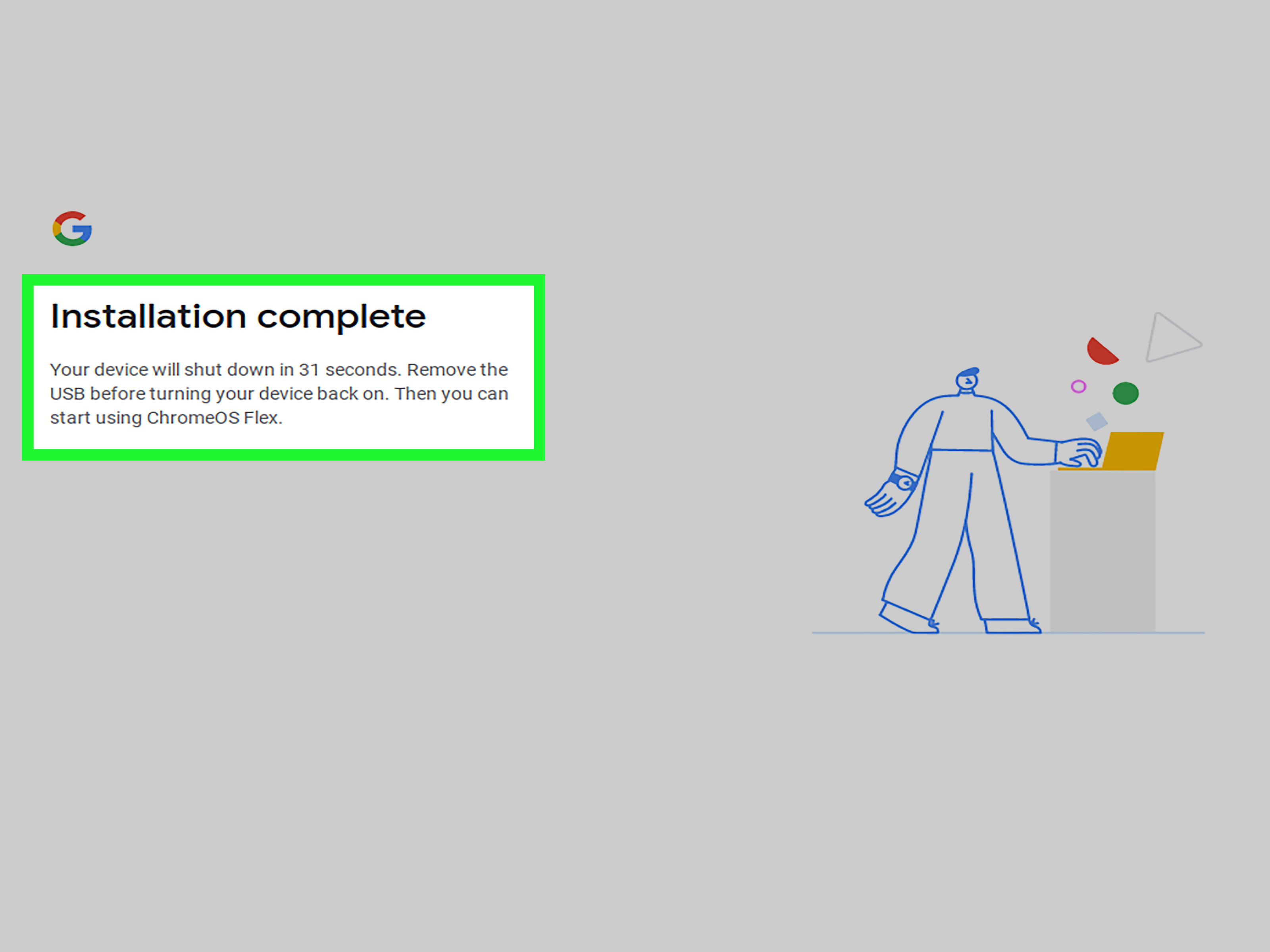
Now your machine goes to work. The install process usually does not take forever, but it can vary depending on the hardware. When it finishes, the device shuts down automatically.
Step 7: Remove the USB Drive and Reboot
After the system powers off, remove the USB installer. Then turn the device back on. If all goes well, your machine should boot directly into Chrome OS Flex from internal storage.
Congratulations. Your old laptop just got a major plot twist.
Step 8: Complete the First-Time Setup
Once Chrome OS Flex boots from the internal drive, follow the on-screen setup process. Connect to Wi-Fi, sign in with your Google account, review settings, and finish personalization. If you have ever set up a Chromebook, the process will feel familiar.
After that, you are ready to browse the web, use Google Workspace, watch videos, handle school or office tasks, and generally enjoy a cleaner computing experience without listening to your fans scream like they are in a horror movie.
Common Problems and Easy Fixes
The USB Installer Will Not Boot
If the device ignores the USB drive, first try a different USB port. Then verify that USB boot is enabled in BIOS or UEFI. On some systems, you may need to choose a specific option labeled something like UEFI: USB Name. If the installer still fails, recreate the USB using Chromebook Recovery Utility. A corrupted installer is one of the most common culprits.
The Installation Fails Midway
If installation breaks down, check the BIOS storage settings. Some systems need RAID disabled or changed to AHCI. Others behave better with UEFI mode enabled. In trickier cases, resetting BIOS to default settings can help. This is not always fun, but it is often effective.
Black Screen After Installation
This sometimes happens on certain unsupported or non-certified models. Start by resetting BIOS to defaults, checking boot mode, and trying the installation again. If your device is not on the certified list, remember that support and stability are not guaranteed. Sometimes the problem is not you. Sometimes the hardware is simply being stubborn.
What Chrome OS Flex Does Well
Chrome OS Flex shines when your needs are mostly web-based. It is excellent for:
- Web browsing and research
- Email and messaging
- Google Docs, Sheets, and Slides
- Streaming video and music
- Online classes and homework
- Light office productivity
If your old device mostly needs to handle Chrome tabs, documents, video calls, and cloud apps, Chrome OS Flex can feel like a refreshingly modern upgrade.
What Chrome OS Flex Does Not Do So Well
This is where realistic expectations matter. Chrome OS Flex is not a miracle potion. It has limits:
- No official support for Android apps or the Google Play Store
- No supported dual-boot setup
- Some hardware features may not work on non-certified devices
- It is less ideal for heavy gaming, specialized desktop software, or advanced creative workflows
In other words, Chrome OS Flex is fantastic for the right kind of user. It is less exciting if your daily routine depends on Adobe-heavy workflows, Windows-only software, or niche hardware accessories that already needed a pep talk just to function.
Who Should Install Chrome OS Flex?
Chrome OS Flex is a great choice if you have an older PC or Mac that still turns on but struggles with modern operating systems. It is also a strong option for students, casual users, families, and anyone who wants a simple, low-maintenance laptop for online tasks.
It may also be a smart move for people with old Windows 10 hardware who want a simpler alternative rather than buying a new machine immediately. If your needs revolve around the browser and cloud services, Chrome OS Flex makes a lot of sense.
Final Thoughts
Installing Chrome OS Flex is one of the easiest ways to rescue an old laptop from slow-motion misery. The process is approachable, the system feels clean and modern, and the payoff can be surprisingly impressive if your machine is a good fit. The key is to prepare properly: check compatibility, back up your data, test in live mode first, and keep your expectations grounded in how you actually use your computer.
If your laptop’s best years seemed to be behind it, Chrome OS Flex may prove otherwise. It will not turn a dinosaur into a spaceship, but it can absolutely turn a tired old machine into a solid browser-based productivity device. And honestly, that is a pretty heroic comeback story for a laptop that had already started auditioning for retirement.
Extended Experience Section: What Installing Chrome OS Flex Feels Like in Real Life
One of the most relatable things about installing Chrome OS Flex is how often the experience starts with low expectations. Usually, the machine in question is not some sleek new ultrabook. It is an older laptop with a fading sticker, a battery that retired emotionally three years ago, and a startup routine slow enough to make coffee feel instant. Many people begin the process hoping for “usable enough,” then end up pleasantly surprised when the device suddenly feels responsive again.
A common experience is that the preparation takes more mental energy than the installation itself. Backing up files, finding a USB drive that is not full of random photos from 2018, and figuring out the correct boot key can feel like the true boss battle. Once the USB installer is ready, the actual Chrome OS Flex setup often feels refreshingly straightforward. That contrast is part of the appeal. The hard part is less about technical skill and more about convincing yourself to stop procrastinating and finally do it.
Another real-world pattern is that live boot mode gives people immediate emotional feedback. The first few minutes usually answer the biggest questions fast: Does Wi-Fi work? Is the touchpad normal? Does the screen look right? If the answer is yes, confidence rises almost instantly. There is something oddly satisfying about seeing an old machine launch a clean interface instead of dragging itself through another painful startup. It feels less like installing software and more like giving the laptop a second career.
People also tend to notice that Chrome OS Flex changes how they think about old hardware. A machine that felt outdated under Windows can suddenly become useful for writing, web browsing, video streaming, email, or online classes. It may not become a powerhouse, but it often becomes dependable. And dependable is underrated. There is a lot of value in a computer that simply opens, connects, syncs, and gets out of your way.
Of course, not every installation is perfect. Some users hit BIOS roadblocks, weird boot behavior, or missing hardware support on non-certified models. That can be frustrating, especially if expectations were sky-high. But even that experience teaches something important: Chrome OS Flex works best when approached like a practical upgrade, not magic. If your goal is a stable, browser-centered machine, success can feel dramatic. If your goal is to keep every old app, game, and hardware trick intact, the honeymoon may be short.
In the best cases, the post-install experience is almost funny in how simple it becomes. The laptop boots quickly, signs in cleanly, opens a browser without complaint, and handles basic tasks with a kind of quiet competence that older computers rarely get credit for. That is why so many people walk away from the process saying the same thing in different words: “I thought this laptop was done, but apparently it just needed a lighter operating system and a little respect.”
Conclusion
Chrome OS Flex is not just a tool for tech enthusiasts. It is a practical upgrade path for ordinary people who want more life out of the hardware they already own. When installed on the right device, it can turn a sluggish computer into a clean, fast, low-maintenance machine for everyday work and entertainment. Follow the steps carefully, test before committing, and you may end up with one of the most satisfying budget-friendly tech upgrades available today.