Editing a PDF on an iPad used to feel like trying to repair a watch with a banana: technically possible, but nobody was having a good time. Today, thankfully, the iPad has become one of the easiest portable devices for marking up, signing, rearranging, scanning, and sharing PDF files. Whether you are reviewing a contract, filling out a school form, correcting a worksheet, adding notes to a client proposal, or signing something your printer mysteriously refuses to print, the iPad can handle it.
The best part is that you do not always need a paid app. Apple’s built-in tools, including Files, Markup, Notes, and Preview on current iPadOS versions, cover many everyday PDF editing tasks. For heavier work, such as editing original text, converting files, using OCR, compressing documents, merging multiple PDFs, or managing a large document library, third-party apps like Adobe Acrobat, PDF Expert, Smallpdf, Documents by Readdle, and iLovePDF can make the process smoother.
This guide explains the simplest ways to edit a PDF on an iPad, from quick free fixes to more advanced workflows. No tech wizard robe required. A charged iPad helps, though.
What Does “Edit a PDF on an iPad” Actually Mean?
Before opening twelve apps and questioning your life choices, it helps to define what kind of PDF editing you need. People often use the phrase “edit a PDF” to mean several different things:
- Adding text, comments, shapes, arrows, or highlights
- Signing a document
- Filling out a form
- Drawing or handwriting with Apple Pencil
- Adding, deleting, rotating, cropping, or rearranging pages
- Scanning paper documents into a PDF
- Changing existing text or images inside the PDF
- Converting a PDF to Word, Excel, PowerPoint, JPG, or another format
- Compressing, merging, splitting, protecting, or redacting a file
Apple’s built-in tools are excellent for markup, signatures, page organization, scanning, and light document handling. If you want to rewrite the original text inside a PDF the way you would edit a Word document, you will usually need a more powerful PDF editor.
Use the Files App for Quick PDF Markup
The Files app is one of the fastest ways to make simple edits to a PDF on an iPad. It is already installed, works with iCloud Drive, and can also connect to storage services such as Google Drive, Dropbox, and OneDrive if those apps are set up on your device.
How to Mark Up a PDF in Files
- Open the Files app on your iPad.
- Find the PDF you want to edit.
- Tap the PDF to open it.
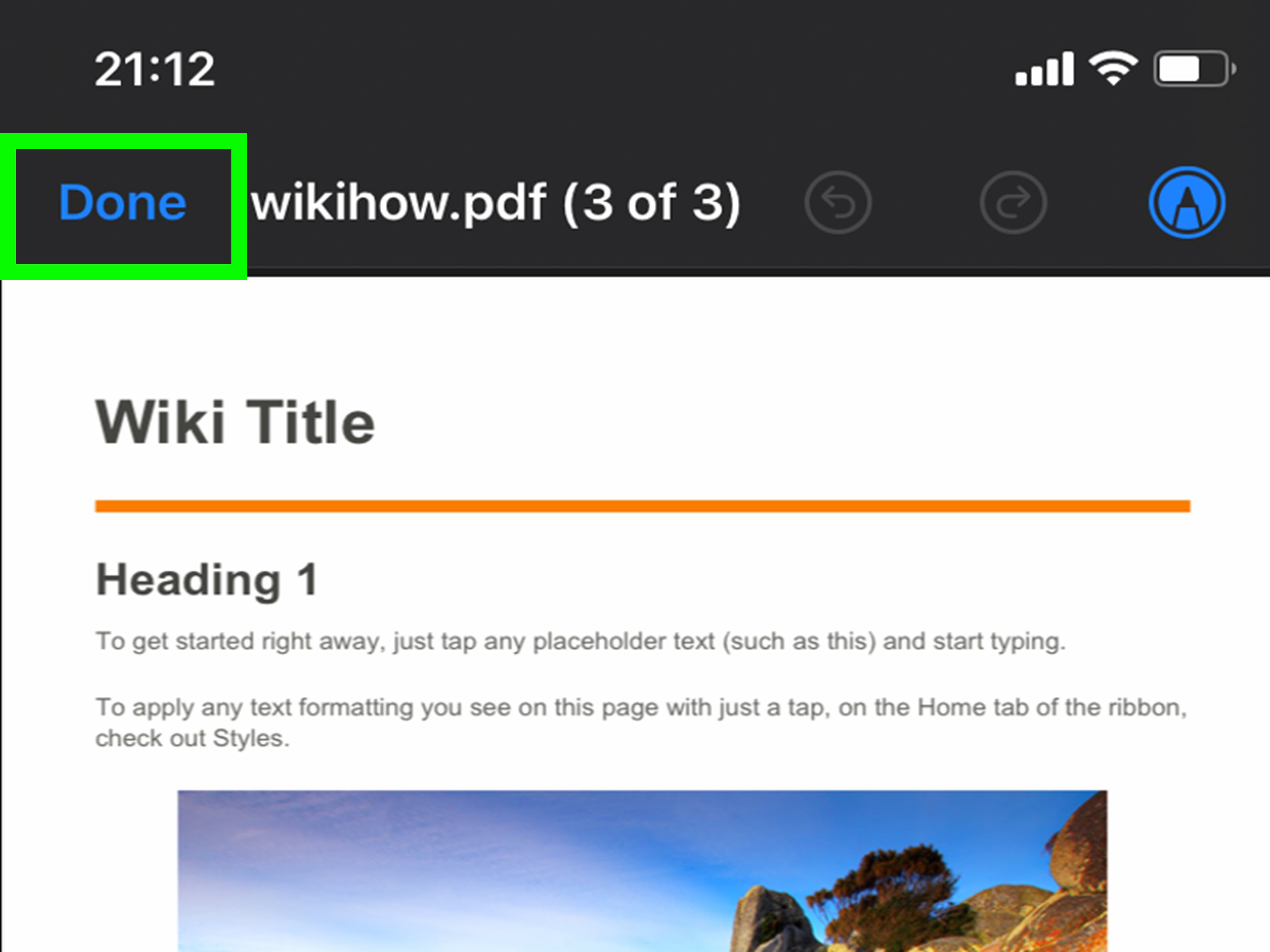
- Tap the Markup button, usually shown as a pen tip icon.
- Use the pen, marker, pencil, eraser, lasso, ruler, text, shapes, or signature tools.
- Tap Done when finished.
This method is perfect for highlighting an important paragraph, circling a typo, adding a quick note, drawing an arrow, or signing a simple form. If you use an Apple Pencil, the experience feels much more natural, especially for handwritten notes and signatures. Your finger works too, although finger signatures often look like they were written on a moving bus during an earthquake.
Use Markup to Add Text, Shapes, and Signatures
Markup is Apple’s built-in annotation toolkit. It appears in several places across iPadOS, including Files, Notes, Photos, screenshots, Mail attachments, and Preview. For PDF work, it is especially useful because you can add information without changing the underlying document layout.
Best Uses for Markup
Markup is ideal when you need to:
- Add typed text to a blank area of a PDF
- Highlight or underline important information
- Draw arrows, circles, boxes, or callouts
- Add a saved signature
- Write notes by hand with Apple Pencil
- Fill out simple forms that do not have interactive fields
To add typed text, open the PDF, enter Markup, tap the plus button, and choose Text. A text box appears on the page. You can move it, resize it, and type the information you need. For signatures, tap the plus button and select Signature. You can create a new one or use a saved signature.
For simple paperwork, this is often all you need. A permission slip, a rental form, a delivery confirmation, or a basic agreement can usually be completed in minutes. The key is to zoom in before placing text or signatures, because a slightly misplaced text box can make your neat document look like it sneezed.
Use Preview on iPad for More Built-In PDF Control
On current iPadOS versions, Apple’s Preview app brings more Mac-like PDF handling to the iPad. Preview can open PDFs and images, let you annotate them, fill out forms, sign documents, scan pages, organize pages, and export files in different formats or sizes.
This is a major win for people who want stronger PDF tools without immediately subscribing to a third-party editor. Preview is especially useful if your task involves page-level editing, such as deleting a blank page, rotating a sideways scan, cropping margins, or moving a page to a better position.
How to Rearrange, Delete, Rotate, or Crop Pages
- Open the PDF in Preview on your iPad.
- Tap the sidebar or thumbnail view button.
- Touch and hold a page thumbnail.
- Choose an action such as insert, delete, rotate, move, or crop.
- Save the updated document.
This is useful for scanned packets, homework bundles, contracts, invoices, travel documents, and anything else that arrives with page three mysteriously upside down. PDFs have many talents; arriving in the correct order is not always one of them.
Fill Out and Sign PDF Forms on an iPad
If your PDF has form fields, the iPad may detect areas where you can enter information. In Preview or Markup, you can add text, use AutoFill where available, and place a signature. This works well for many common documents: medical forms, school forms, tax-related worksheets, job applications, client approvals, and service agreements.
Tips for Filling Forms Cleanly
- Zoom in before typing into small boxes.
- Use the same font size throughout the form for a cleaner look.
- Save a copy before making major changes.
- Review every page before sending, especially after signing.
- Flatten or export a final copy if the recipient only needs the finished document.
A saved signature is convenient, but do not treat it casually. Once a signed PDF is saved or flattened in some apps, the signature may become permanent. That is excellent for preventing accidental edits, but less excellent if you signed the wrong version while half-asleep and holding a coffee.
Scan Paper Documents Into PDFs
The iPad can also turn paper documents into PDFs using the camera. You can scan from Notes or Files, adjust the corners, add more pages, and save the result as a PDF. This is one of the simplest ways to digitize receipts, handwritten notes, printed forms, letters, worksheets, or signed pages.
Scan a Document Using Files
- Open the Files app.
- Tap the more options button.
- Choose Scan Documents.
- Place the paper in view of the camera.
- Adjust the corners if needed.
- Tap Keep Scan, then add more pages or tap Done.
- Choose where to save the PDF.
For better scans, place the paper on a flat surface with good lighting. Avoid shadows, coffee stains, and dramatic desk clutter unless your goal is “legal document meets archaeological dig.” A plain background helps the iPad detect the edges more accurately.
Use Notes for Simple PDF Review and Collaboration
The Notes app is surprisingly capable for PDF work. You can attach PDFs, scan documents into a note, annotate them with Apple Pencil or your finger, and collaborate with others. This makes Notes a good choice for students, teachers, small teams, and anyone who wants a lightweight workspace rather than a formal document management system.
For example, a teacher could scan a worksheet, write comments, and keep it inside a class note. A student could attach lecture slides as a PDF and mark them up during class. A homeowner could scan repair receipts and write notes about warranties. Notes is not the most powerful PDF editor, but it is fast, familiar, and already on the iPad.
Use Adobe Acrobat for Forms, Signatures, Comments, and Advanced PDF Work
Adobe Acrobat is one of the best-known PDF tools because Adobe created the PDF format. On iPad, Acrobat Reader can view, annotate, fill, sign, and manage PDF files. With the right plan, it can also support more advanced tools such as editing, compressing, exporting, and working with cloud storage.
Acrobat is a good fit if you regularly deal with business documents, contracts, forms, client comments, or files that need to move between desktop and mobile devices. It also works well if your organization already uses Adobe tools.
When Acrobat Makes Sense
- You need reliable form filling and signing.
- You work with PDFs across iPad, desktop, and web.
- You need comments, highlights, sticky notes, and collaboration features.
- You handle scanned PDFs and may need OCR or searchable text.
- You want a professional tool for frequent PDF workflows.
The free version may be enough for reading, basic annotation, and signing. Editing existing PDF text, exporting, compressing, or using premium tools may require a paid plan. Always check what is included before subscribing, because app stores love subscriptions the way cats love knocking things off tables.
Use PDF Expert for a Polished iPad Editing Experience
PDF Expert by Readdle is another popular option for iPad users who want a dedicated PDF editor. It is designed around reading, annotating, organizing, filling forms, adding drawings, and editing PDF text. It is especially appealing for people who spend a lot of time reviewing long documents because the interface feels built for touch and Apple Pencil.
PDF Expert can be a strong choice for students, lawyers, consultants, researchers, designers, and anyone who needs to review large files without feeling trapped in a digital filing cabinet. It can also connect to cloud storage, which helps if your documents live in multiple places.
Use Smallpdf or iLovePDF for Quick Online PDF Tasks
Sometimes you do not need a full editor. You just need to compress a file, merge two PDFs, convert a PDF to Word, rotate pages, add text, or sign something quickly. Online tools such as Smallpdf and iLovePDF are convenient for these one-off jobs and can work from an iPad browser or mobile app, depending on the tool.
Common Online PDF Tasks
- Compress a large PDF before emailing it
- Merge several files into one document
- Split one long PDF into smaller files
- Convert PDF pages to images
- Convert Word, Excel, or PowerPoint files to PDF
- Add page numbers, watermarks, or simple annotations
- Use OCR on scanned documents
Online tools are convenient, but use good judgment with sensitive documents. If the PDF includes private financial records, medical information, legal documents, passwords, employee data, or confidential business material, a trusted local app or organization-approved platform may be safer than uploading it to a web tool.
Use Documents by Readdle for File Management Plus PDF Tools
Documents by Readdle is more than a PDF editor. It is a file manager, document viewer, media player, scanner, cloud hub, and PDF workspace in one app. For iPad users who collect documents from email, websites, cloud drives, zipped folders, and messaging apps, it can help bring everything into one place.
This approach is useful if your PDF problem is not just editing but finding the file in the first place. Many iPad users have experienced the classic “I downloaded it, therefore it has vanished into the mist” situation. A dedicated file manager can reduce that chaos.
Which PDF Editing Method Should You Choose?
The best method depends on the job. For a quick signature or highlight, use Files, Markup, Notes, or Preview. For page management, try Preview first. For form-heavy work, Adobe Acrobat is a reliable choice. For polished iPad editing and annotation, PDF Expert is excellent. For compression, conversion, merging, and one-off tasks, Smallpdf or iLovePDF can be convenient. For managing lots of files, Documents by Readdle may be the better hub.
Fast Recommendation Guide
- Free basic markup: Files or Markup
- Built-in page editing: Preview
- Scanning paper to PDF: Files or Notes
- Signing forms: Preview, Markup, Notes, or Acrobat
- Editing original PDF text: PDF Expert, Acrobat, or another full PDF editor
- Compressing or converting: Smallpdf, iLovePDF, Acrobat, or similar tools
- Large document library: Documents by Readdle or PDF Expert
Simple Workflow Example: Sign and Send a PDF
Imagine someone emails you a permission form, lease addendum, invoice approval, or freelance contract. Here is a simple iPad workflow:
- Open the PDF attachment.
- Save it to Files.
- Open it from Files or Preview.
- Tap Markup.
- Add text where needed.
- Add your signature.
- Review every page.
- Tap Share and send the finished PDF by Mail, Messages, AirDrop, or your preferred app.
This whole process can take less time than finding your printer cable, remembering the printer’s Wi-Fi password, discovering the ink is empty, and whispering motivational words to a machine that has chosen violence.
Simple Workflow Example: Fix a Messy Scanned PDF
Now imagine you scanned a five-page document, but one page is upside down and another page is blank. Open the PDF in Preview, show the page thumbnails, rotate the sideways page, delete the blank page, rearrange anything out of order, and save a new copy. If the file is too large to email, compress it using a trusted PDF tool.
This is where the iPad shines. Touch-based page thumbnails make organizing PDFs feel more like arranging photos than managing office paperwork. It is simple, visual, and much less intimidating than traditional desktop PDF software.
Security Tips Before Editing PDFs on an iPad
PDFs often contain sensitive information, so treat them carefully. Use a passcode, Face ID, or Touch ID on your iPad. Keep iPadOS updated. Avoid uploading confidential files to unfamiliar websites. Save original copies before making edits. Be cautious with signatures, especially if an app flattens the document after signing. For business, legal, or medical documents, follow your company’s or provider’s approved process.
If you are sending a final PDF, open it once more before sharing. Check that the text is readable, the signature is placed correctly, the pages are in order, and no private notes or test scribbles remain. Nobody wants to send a professional contract with “remember to buy oat milk” written in the margin.
Common Problems and Easy Fixes
The PDF Will Not Let Me Edit Existing Text
Many built-in tools only add annotations on top of a PDF. They do not rewrite the original text. Use a full PDF editor such as Acrobat, PDF Expert, or another app that supports text editing.
The Scanned PDF Is Not Searchable
You may need OCR, which recognizes text inside scanned images. Adobe Scan, Acrobat, Smallpdf, iLovePDF, and other PDF tools offer OCR features, though some may require a paid plan.
The File Is Too Big to Email
Use a PDF compressor or export the file at a smaller size if your app supports it. For scanned documents, scanning in good light and avoiding unnecessary pages can also reduce file size.
My Signature Looks Strange
Try creating it again while zoomed in, using Apple Pencil if available. A saved signature can usually be resized and moved before you finish.
The Recipient Says They Cannot See My Edits
Export or share a flattened copy if your app offers that option. This makes annotations part of the final document and reduces compatibility problems.
Real-World Experiences: Editing PDFs on an iPad Without Losing Your Mind
After working with PDFs on an iPad in everyday situations, one lesson becomes clear: the easiest method is usually the best method. It is tempting to download a giant app for every document task, but many PDF jobs are tiny. A form needs your name. A teacher’s handout needs highlighting. A contractor’s quote needs a signature. A scanned receipt needs to be saved before it disappears into the same mysterious universe as missing socks. For these cases, Apple’s built-in tools are fast and reliable.
The Files app is the tool I would recommend first to most casual users. It is not flashy, but it is right there. You open the PDF, tap Markup, write, highlight, sign, and save. For people who mainly receive PDFs by email or download them from websites, saving everything into a clear folder structure inside Files makes life much easier. A folder named “Taxes 2026” or “Client Contracts” can prevent the classic panic search later.
Apple Pencil changes the experience dramatically. Without it, the iPad is still useful. With it, marking up a PDF feels natural. Students can underline lecture notes, writers can circle edits, designers can comment on mockups, and business users can sign documents without printing anything. The biggest practical tip is to zoom in before writing. Zooming makes handwriting cleaner, signatures smoother, and text boxes easier to place. It is a small habit that makes the final PDF look much more professional.
Preview is especially helpful when the problem is not the words but the pages. Scanned documents often arrive with crooked pages, blank pages, duplicate pages, or pages in the wrong order. Thumbnail view makes fixing those issues simple. Drag a page, rotate a page, crop a page, delete a page, save the file. Done. It feels like the iPad was made for this kind of hands-on editing.
For heavier work, though, dedicated apps earn their place. Adobe Acrobat is excellent when you deal with forms, signatures, comments, and professional workflows. PDF Expert feels smooth for reading, annotating, and editing on the iPad. Smallpdf and iLovePDF are useful when you need quick conversion or compression. Documents by Readdle is helpful when your files come from everywhere and need one organized home.
The biggest mistake is assuming every PDF can be edited the same way. A clean digital PDF with real text behaves differently from a scanned image of paper. A locked PDF behaves differently from an open one. A form with fields behaves differently from a flat form. Once you understand that, editing PDFs on an iPad becomes much less frustrating. The iPad is not just a screen for reading PDFs anymore. It is a portable document desk, scanner, pen, filing cabinet, and signature pad. Thankfully, it weighs less than all of those combined.
Conclusion
Editing a PDF on an iPad is now simple enough for everyday users and powerful enough for serious document work. For quick annotations, signatures, highlights, and text boxes, start with Files, Markup, Notes, or Preview. For scanning paper documents, use Files or Notes. For rearranging, deleting, rotating, or cropping pages, Preview is a strong built-in option. For advanced editing, OCR, conversions, compression, or professional workflows, apps like Adobe Acrobat, PDF Expert, Smallpdf, iLovePDF, and Documents by Readdle are worth considering.
The smartest approach is not to chase the biggest app. Match the tool to the task. If you only need to sign a form, do not build a NASA control room. If you need to edit original text, process scanned documents, or manage hundreds of PDFs, choose a dedicated editor. With the right workflow, your iPad can turn PDF editing from a paperwork headache into a quick, tap-and-done routine.