Your Android phone is brilliant. It can stream movies, back up vacation photos, update apps, sync email, refresh social feeds, navigate traffic, and somehow still remind you that you forgot to buy coffee. The problem? All that brilliance can chew through mobile data like a raccoon in a snack drawer.
If your monthly data plan disappears before the month is halfway over, you are not alone. Mobile apps have become richer, video quality has become sharper, photos are larger, and background activity is sneakier than ever. The good news is that Android gives you plenty of tools to control mobile data usage without turning your smartphone into a decorative paperweight.
This guide explains 7 ways to reduce data usage on an Android smartphone, from built-in Android settings to app-specific tricks for YouTube, Netflix, Google Photos, Chrome, and more. Whether you use a Pixel, Samsung Galaxy, Motorola, OnePlus, or another Android device, these practical tips can help you save mobile data, avoid overage charges, and keep your phone useful when Wi-Fi is nowhere to be found.
Why Your Android Phone Uses So Much Data
Before we start flipping switches like a spaceship pilot, it helps to understand where the data goes. The biggest mobile data drains are usually video streaming, music streaming, social media feeds, automatic app updates, cloud photo backups, navigation, video calls, and apps refreshing in the background.
Some data use is obvious. If you watch a two-hour movie on mobile data, your plan will notice. Other usage is less visible. A photo backup app may upload videos while your phone is in your pocket. A news app may refresh headlines all day. A social app may preload videos before you even tap them. Individually, these actions seem small. Together, they can turn a 5 GB plan into a sad little memory.
The goal is not to stop using your phone. The goal is to make your phone ask, “Should I really use mobile data for this?” more often.
1. Turn On Android Data Saver Mode
The fastest way to reduce mobile data usage on Android is to turn on Data Saver. This built-in Android feature limits how most apps and services use data in the background. Active apps can still use mobile data, but many background activities are delayed until Wi-Fi is available.
How to turn on Data Saver on most Android phones
- Open Settings.
- Tap Network & internet, Connections, or a similar option.
- Tap Data Saver or Data usage.
- Turn on Use Data Saver or Turn on now.
On Samsung Galaxy phones, the path is commonly Settings > Connections > Data usage > Data saver. On Pixel phones, you will usually find it under Settings > Network & internet > Data Saver.
Data Saver is especially useful for people on limited data plans, prepaid plans, family plans with shared data, or international roaming. Think of it as putting your apps on a polite diet. They can still eat, but they no longer get to raid the fridge at 2 a.m.
When not to use Data Saver
Data Saver can delay notifications or reduce background syncing for some apps. If you rely on real-time alerts from messaging, banking, work, health, or ride-share apps, add those apps to the unrestricted list. Android usually lets you choose which apps can continue using data while Data Saver is active.
For example, you may want WhatsApp, Gmail, Google Maps, or your bank app to keep working normally while games, shopping apps, and random coupon apps get sent to data jail.
2. Check Which Apps Are Using the Most Mobile Data
You cannot fix what you cannot see. Android includes a mobile data usage dashboard that shows which apps are using the most data during your billing cycle. This is where the truth comes out. Sometimes the villain is YouTube. Sometimes it is Instagram. Sometimes it is an app you opened once in 2023 and forgot existed.
How to check app data usage
- Open Settings.
- Tap Network & internet or Connections.
- Tap SIMs, Mobile network, or Data usage.
- Select App data usage or Mobile data usage.
- Review the list of apps and the amount of data each one used.
Look for apps with unusually high usage. A streaming app at the top is not shocking. A flashlight app using hundreds of megabytes? That deserves a raised eyebrow and possibly an uninstall.
Restrict background data for specific apps
Once you find a data-hungry app, tap it and look for options such as Background data, Allow background data usage, or Unrestricted data usage. Turn off background data for apps that do not need to refresh when you are not actively using them.
Good candidates for background data restriction include shopping apps, games, travel apps after a trip, news apps, social apps, food delivery apps, and apps you use only occasionally. Avoid restricting essential apps that need timely updates, such as messaging, navigation, security, medical, or payment apps.
3. Set a Data Warning and Data Limit
Android can warn you when you are getting close to your monthly data allowance. Some phones can also stop mobile data after you reach a limit. This is useful because carrier apps and Android settings may not always match perfectly, but a warning still gives you a helpful “Hey, maybe stop streaming documentaries in 4K on the bus” moment.
How to set a data warning
- Open Settings.
- Tap Network & internet, SIMs, Connections, or Data usage.
- Choose your mobile carrier or SIM.
- Tap Data warning & limit or Billing cycle and data warning.
- Turn on Set data warning.
- Enter a warning amount, such as 4 GB on a 5 GB plan.
How to choose the right warning level
Set your warning below your actual plan limit. If your plan includes 10 GB per month, a warning at 8 GB gives you time to adjust. If your plan includes 5 GB, set the warning around 4 GB. If you use a shared family plan, set your warning even earlier because one person’s “just one more episode” can become everyone’s problem.
You should also match the billing cycle date on your phone to your carrier’s actual billing cycle. If your carrier resets data on the 12th but your phone thinks the cycle starts on the 1st, your usage dashboard may be misleading.
4. Make App Updates and Downloads Wi-Fi Only
Automatic app updates are convenient, but they can be sneaky data hogs. A single large app or game update can use hundreds of megabytes. Several updates in one day can drain a small data plan before lunch. Your phone may call this “maintenance.” Your data plan calls it “betrayal.”
Set Google Play app updates to Wi-Fi only
- Open the Google Play Store.
- Tap your profile picture.
- Tap Settings.
- Tap Network preferences.
- Tap Auto-update apps.
- Select Update over Wi-Fi only or Don’t auto-update apps.
For most people, Update over Wi-Fi only is the best balance. Your apps stay current, but they wait for a cheaper connection. If you choose not to auto-update apps at all, remember to update manually on Wi-Fi so you still receive bug fixes and security improvements.
Watch out for large file downloads
App stores are not the only download culprits. Podcasts, offline playlists, maps, movies, attachments, cloud files, and game content can all be large. In apps that support downloads, look for settings such as Download over Wi-Fi only, Use cellular data, or Download quality.
One smart habit is to create a “Wi-Fi loading routine.” Before leaving home, download playlists, maps, podcasts, boarding passes, documents, and videos while connected to Wi-Fi. It feels oddly responsible, like meal prepping but for your phone.
5. Lower Streaming Quality in Video and Music Apps
Streaming is the heavyweight champion of mobile data usage. Video is especially hungry because higher resolution means more data. HD, Full HD, and 4K look beautiful, but on a small phone screen, you may not notice enough difference to justify the data cost.
Use YouTube Data Saver or lower video quality
In the YouTube app, you can change video quality while watching a video or set general preferences for mobile networks. Choose Data saver or a lower resolution such as 360p or 480p when you are on mobile data. Save higher quality for Wi-Fi.
For YouTube Premium users or users in supported regions, downloading videos for offline viewing can also help. Set downloads to Wi-Fi only and choose a reasonable download quality. Your future self, sitting in a waiting room with weak signal, will applaud.
Adjust Netflix cellular data settings
Netflix includes cellular data controls inside the app. Open Netflix, go to App Settings, and look for Cellular Data Usage. You can choose options that reduce mobile data use, and you can keep downloads limited to Wi-Fi.
This same principle applies to Hulu, Disney+, Max, Prime Video, Spotify, Apple Music, YouTube Music, and podcast apps. Lower streaming quality, enable data saver options, and download content over Wi-Fi whenever possible.
Use audio instead of video when practical
If you are listening to an interview, lecture, podcast-style video, or news segment, consider audio-only playback when available. Watching a talking head in HD while your phone sits face-down on a table is basically donating data to the clouds.
6. Control Photo, Video, and Cloud Backups
Modern smartphone cameras create large files. A few photos may not matter, but high-resolution videos can be huge. If Google Photos, Google Drive, OneDrive, Dropbox, or another cloud app backs up media over mobile data, your data plan may vanish faster than free donuts in an office kitchen.
Adjust Google Photos mobile data backup
- Open Google Photos.
- Tap your profile picture or initial.
- Tap Photos settings.
- Tap Backup.
- Select Mobile data usage.
- Choose a daily limit or restrict backups when Wi-Fi is not available.
If you take lots of videos, pay special attention to video backup settings. Videos are often much larger than photos. Uploading a weekend of clips over mobile data can feel harmless until your carrier sends a usage alert with the emotional tone of a parking ticket.
Review cloud storage and messaging apps
Cloud apps may sync documents, photos, videos, and shared folders automatically. Messaging apps may auto-download images, GIFs, videos, and voice messages. Open your major apps and look for settings such as Media auto-download, Cellular downloads, Backup over mobile data, or Sync only on Wi-Fi.
For messaging apps, it is usually smart to allow small images on mobile data but block videos or large files until Wi-Fi. Nobody needs a 90 MB group-chat video downloading automatically unless it contains proof that your dog finally learned taxes.
7. Use Wi-Fi, Offline Features, and Browser Settings More Strategically
The final way to save Android mobile data is less about one setting and more about smarter habits. Wi-Fi and offline features are your best friends. Browser settings also matter because web pages can include autoplay videos, large images, ads, trackers, and scripts.
Connect to trusted Wi-Fi whenever possible
Use home, office, school, or trusted public Wi-Fi for heavy tasks such as app updates, video calls, cloud backups, downloads, and streaming. Avoid sensitive tasks on unsecured public Wi-Fi unless you use proper security protections. Free Wi-Fi is wonderful, but “Free Airport Wi-Fi Definitely Real” deserves suspicion.
Download offline maps
Navigation apps can use data for maps, traffic, route changes, and local searches. Before a trip, download offline maps over Wi-Fi. This is especially helpful for road trips, rural areas, international travel, festivals, hikes, and anywhere signal gets dramatic.
Manage Chrome preloading and offline pages
Chrome can preload pages to make browsing feel faster, but preloading may use data by preparing pages before you actually open them. On Android, open Chrome settings and review Privacy and security options such as Preload pages. You can also download pages for offline reading when connected to Wi-Fi.
Another easy win is closing unused tabs. A browser packed with dozens of old tabs can feel like a digital junk drawer. While inactive tabs do not always consume huge amounts of data, closing them reduces clutter and may prevent unnecessary refreshes.
Bonus Tips to Save Even More Mobile Data
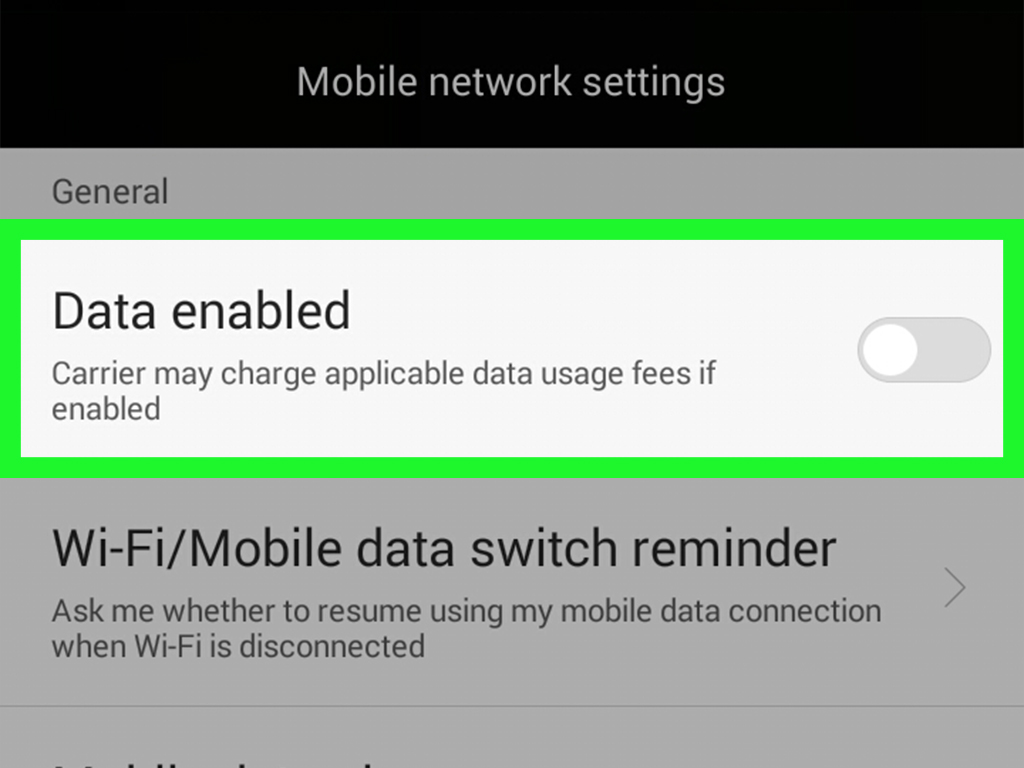
Turn off mobile data when you truly do not need it
If you are working, sleeping, studying, or trying to avoid doom-scrolling, turn mobile data off temporarily. Calls and texts may still work depending on your carrier and settings, and your apps can reconnect later on Wi-Fi.
Disable data roaming unless you need it
When traveling, data roaming can become expensive depending on your plan. Turn off data roaming unless your carrier plan includes it or you intentionally need it. Also download maps, tickets, hotel details, translation packs, and entertainment before you travel.
Uninstall apps you do not use
Unused apps can still update, sync, send notifications, and use background resources. If you have not opened an app in months, remove it. Your phone will feel cleaner, and your data usage may improve.
Use Lite or web versions when appropriate
Some services offer lighter apps or mobile web versions that use less data. These can be helpful on older phones, slow networks, or limited plans. Just make sure you download apps from trusted sources such as the Google Play Store.
Common Mistakes That Waste Android Data
Many people try one setting and assume the problem is solved. In reality, reducing data usage is usually a mix of system settings, app settings, and everyday habits. Here are a few common mistakes to avoid:
- Leaving video apps on high quality: HD streaming is one of the fastest ways to burn mobile data.
- Allowing automatic app updates on mobile data: Updates are useful, but they can be large.
- Ignoring background data: Apps can use data even when you are not looking at them.
- Backing up videos over cellular: Cloud video uploads can be massive.
- Forgetting the billing cycle: A wrong reset date makes your phone’s data tracking less useful.
- Downloading media without checking settings: Music, podcasts, maps, and movies should usually wait for Wi-Fi.
Real-World Experience: What Actually Works Best
In everyday use, the best way to reduce data usage on an Android smartphone is not one magical trick. It is a small system of habits. The first time I helped someone clean up their Android data usage, the problem looked mysterious. Their phone was using data constantly, even though they insisted they were “barely doing anything.” That phrase usually means one of two things: either the phone is haunted, or several apps are quietly partying in the background. Spoiler: it was the apps.
The biggest surprise was Google Photos. The phone was backing up photos and videos whenever mobile data was available. Photos were not too bad, but videos were the real data monsters. A few short clips from a birthday party had used more data than hours of browsing. After setting Google Photos to limit mobile data backup and wait for Wi-Fi, the monthly usage dropped noticeably.
The second major fix was streaming quality. Many people do not realize that video apps often choose quality automatically based on connection speed. If your 5G signal is strong, an app may happily serve higher-quality video. That sounds great until your data plan starts sweating. Setting YouTube to Data Saver on mobile networks and adjusting Netflix cellular playback made a big difference. On a phone screen, 480p or moderate quality is often good enough for casual watching. Save the cinematic glory for Wi-Fi and a bigger screen.
Another practical lesson: app updates are sneaky. People think of mobile data as something they use intentionally, like opening TikTok or streaming music. But app updates can happen in the background, and large games or social apps can push big updates. Setting Google Play to update over Wi-Fi only is one of those boring settings that quietly saves the day. It is not glamorous, but neither is paying for extra data.
Data Saver also works well, but it should not be treated like a hammer for every nail. Some apps need background access. Messaging apps, work apps, banking alerts, calendar notifications, and navigation tools may become less reliable if restricted too aggressively. The best experience is selective: turn on Data Saver, then allow important apps to keep unrestricted data. This gives you control without making your phone feel broken.
The final habit that works surprisingly well is planning downloads. Before travel, long commutes, flights, doctor appointments, or road trips, download music, podcasts, maps, and shows on Wi-Fi. It sounds simple because it is simple. Offline content is one of the most underrated ways to save mobile data. Plus, it protects you from weak signal areas, which always seem to appear exactly when you need directions.
After testing these habits in real life, the most effective combination is clear: turn on Data Saver, restrict background data for nonessential apps, set app updates to Wi-Fi only, lower streaming quality, and control photo/video backups. Do those five things and most Android users will see a meaningful drop in mobile data usage. Add data warnings and offline downloads, and you will have a phone that behaves less like a data vacuum and more like a responsible adult. A tiny adult with apps, but still.
Conclusion
Reducing mobile data usage on Android does not require extreme measures. You do not have to delete every app, stop watching videos, or live permanently in airplane mode like a digital monk. You simply need to make your phone more selective about when and how it uses cellular data.
Start with Android Data Saver, then check which apps use the most data. Set warnings and limits, move app updates to Wi-Fi, lower streaming quality, control cloud backups, and use offline features whenever possible. These steps work because they target the most common sources of data drain: background activity, automatic downloads, video streaming, and media backups.
The best part is that most of these changes take only a few minutes. Once they are set, your phone keeps saving data quietly in the background. That means fewer surprise alerts, fewer overage worries, and more data left for the things you actually want to do. Your Android phone can still be smart, useful, and entertaining. It just does not need to eat your entire data plan for breakfast.
Note: Menu names may vary slightly depending on your Android version, carrier, and phone brand. If a setting is not in the exact location described, use the Settings search bar and type terms such as “Data Saver,” “data usage,” “background data,” or “data warning.”