If you ever opened Skype and thought, “I know this person exists, so why is the app acting like they were abducted by aliens?” you were not alone. Finding people on Skype was usually easy once you knew where to look, but it could also be weirdly picky about names, emails, usernames, synced contacts, and which account you were actually signed into. That is why the smartest way to search was never just “type and hope.”
This guide walks through the classic Skype workflow for finding people with the Contacts menu and Search tool, plus the practical habits that made search faster, cleaner, and far less annoying. Since many people still look up old Skype instructions while checking archived accounts, recovering contacts, or moving to newer Microsoft communication tools, this article focuses on the steps that mattered most: where to start, what search terms worked best, how to confirm you found the right person, and what to do if Skype search gave you absolutely nothing except attitude.
Why Finding People on Skype Wasn’t Always as Simple as Typing a Name
Skype let users search by several different identifiers, including a person’s display name, Skype Name, email address, or phone number. That sounds wonderfully flexible until you remember one tiny detail: humans are chaos. Some people used real names. Others used gamer handles from 2012. Others had a Microsoft email nobody recognized. And a few seemed determined to appear online as something like cooldragon843live, which is not exactly helpful when you are just trying to call your accountant.
That is why the best results usually came from searching with the most specific detail you had. A full name might work. An email was often better. A Skype Name could be best of all. The Contacts menu helped when the person was already saved, while the Search tool helped when they were new, missing, or hiding behind a display name that sounded like a Wi-Fi password.
Method 1: Start with the Contacts Menu
Open your contact list first
If the person had already been added at some point, the fastest move was to open the Contacts section before doing anything else. On desktop, Skype typically displayed contacts in the left sidebar or in a dedicated contacts area. On mobile, the Contacts view was just as important, even if the layout looked a little different.
This mattered because many users assumed a missing conversation meant a missing person. Not necessarily. Chats could get buried, archived, pushed down by newer messages, or lost in a sea of group threads. The Contacts menu gave you a cleaner way to search the person rather than hunting through every chat like a digital archaeologist.
Use the list before you use the panic button
In the Contacts menu, you could often scroll alphabetically, spot favorites, and quickly recognize profile pictures or names. That made it useful for finding someone you already knew but had not contacted in a while. If you had a long contact list, the built-in contact search field helped narrow the list without forcing you into a full account search.
A simple example: if your cousin’s display name was “Jen,” typing Jen into the Contacts search field would likely surface “Jennifer T.,” “Jen Boston,” and every other Jen in your contact list. From there, you could check the profile details and choose the right one. Not glamorous, but effective. Like using a flashlight instead of yelling into a closet.
Method 2: Use the Skype Search Tool for New or Missing Contacts
Search with the most precise detail you have
If the person was not already in your saved contacts, the next step was to use Skype’s Search bar. This was the real workhorse. In classic Skype, you could usually search by:
- Full name
- Skype Name or username
- Email address
- Phone number
Here is the rule that saved time: start specific, then go broader. If you searched “David,” you could get a crowd. If you searched “David Nguyen Boston” or an email address, your odds improved dramatically. The Skype search tool was smart enough to return likely matches, but it was not psychic. It could not magically know which “Mike” from your internship, church, fantasy football league, or family barbecue you meant.
Know the difference between display names and Skype Names
One of the most common Skype search mistakes was assuming a display name and a Skype Name were the same thing. They were not. A display name was what people wanted you to see. A Skype Name was the more permanent account identifier attached to the account.
That distinction was huge. If a person had changed their public-facing profile name, a search by old nickname might fail, while a search by Skype Name or account email might still work. So if a basic name search came up empty, ask the person directly for the exact username or email linked to the account. That tiny bit of precision could save fifteen minutes of useless clicking and one mild identity crisis.
How to Add Someone Once Search Finds Them
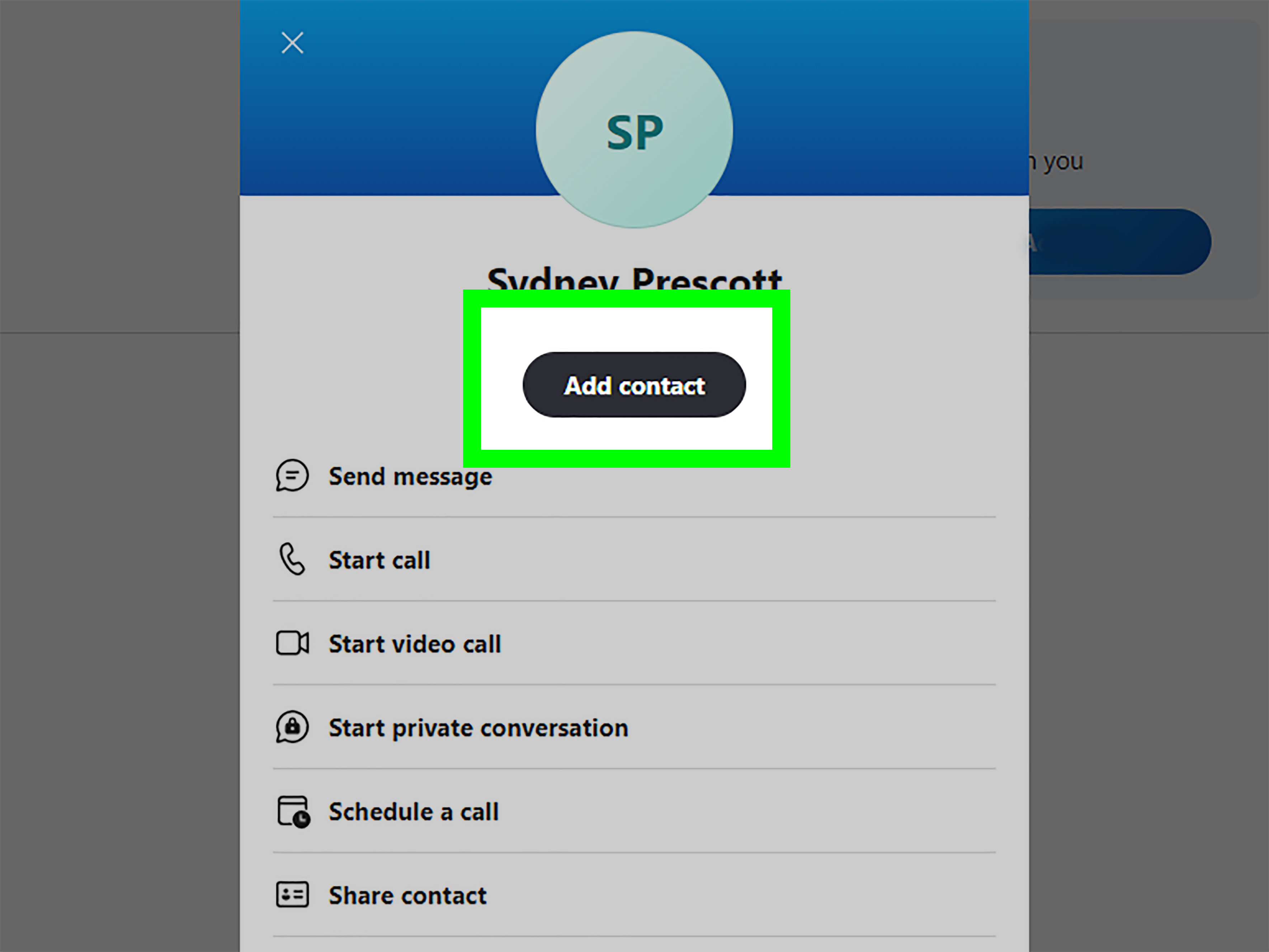
After the correct person appeared in search results, the next step was to open the profile and choose the relevant action. In classic Skype, that usually meant one of the following:
- Add to contacts
- Send a message
- Start a voice call
- Start a video call
If this was a brand-new contact, Add to contacts was the safest choice. That way, the person would stay easy to find later from the Contacts menu. If you skipped that step and jumped straight into a message, you might still be able to communicate, but you were making future-you work harder. Future-you deserves better.
A good habit was to send a short introductory message after adding someone. Something simple like, “Hi Alex, this is Jordan from the design team,” made it easier for the other person to accept the request and recognize who you were. Cold contact requests without context tend to feel suspicious, especially in platforms where spam accounts existed.
How to Confirm You Found the Right Person
Searching was only half the job. The other half was making sure you had the right person before calling them at dinner time. A few quick checks could help:
Check the profile details
Look at the display name, Skype Name, profile photo, and any visible profile information. If you were searching by email or phone number, compare that detail with what you already knew.
Look for conversation history
If the person had contacted you before, existing chat history was a helpful clue. A prior thread was usually the strongest sign that you had the correct account and not somebody with the same name who happened to also enjoy blurry profile pictures.
Use context clues
If you were reconnecting with a coworker, client, teacher, or family member, think about how you originally met them. Did they use a work email? Did they add you from a specific country code? Did they use a certain last name spelling? Those details mattered more than people realized.
Syncing Phone Contacts: Helpful, but Sometimes Messy
Another classic shortcut was to sync your device contacts with Skype. This could make it easier to discover which people in your phone already had Skype accounts. For many users, this was a convenient way to populate Skype quickly after installing the app on mobile.
Still, convenience came with trade-offs. Synced contact lists could become cluttered. You might see partial duplicates, old numbers, outdated names, or contacts you barely remembered adding to your phone in the first place. If your goal was clean searching, synced contacts were helpful only when your phone book was already well organized.
The best approach was selective realism: sync if you wanted faster discovery, but do not assume every contact that appears is current, correct, or somebody you actually want in your communication universe.
Common Reasons Skype Search Didn’t Work
You were signed into the wrong account
This was more common than people like to admit. If your contacts seemed missing, the issue might not be Skype search at all. You may have signed in with a different Microsoft account, email alias, or old login. Before troubleshooting the app, verify the account itself.
The search term was too vague
Searching only a first name often produced a giant pile of maybe. Search with a full name, username, email, or phone number whenever possible.
The person changed their profile details
If your friend updated their display name or used a different email, an old search phrase might stop working. Ask them for the exact identifier tied to the account.
The contact was blocked or removed
Blocked or removed contacts could create confusion, especially if you expected them to appear normally in your list. If someone had been blocked in the past, you might need to review privacy or blocked-contact settings before you could reconnect properly.
You mixed up Skype and Skype for Business
This was a big one. Consumer Skype and Skype for Business did not always behave the same way. In work environments, directory searches could depend on organizational settings, company address books, and admin permissions. So if you were trying to find someone from work, the search experience might look different from a personal Skype account.
Best Practices for Finding People Faster on Skype
If you wanted less friction and fewer false starts, a few habits made a noticeable difference:
- Save important contacts as soon as you verify them.
- Ask people for their exact Skype Name or account email.
- Keep your phone contacts updated before syncing them.
- Add a short note when sending a new contact request.
- Use the Contacts menu for known people and Search for new ones.
These are not glamorous secrets. They are the digital equivalent of labeling your storage bins. Boring? Maybe. Incredibly useful when you need something later? Absolutely.
What This Means for People Looking Up Skype Today
Many people searching for how to find people on Skype today are not actually starting fresh. They are usually doing one of three things: reopening an old account, trying to recover a familiar contact, or figuring out how their old Skype connections relate to newer Microsoft tools.
That is why understanding the Contacts menu and Search tool still matters. Even as communication platforms change, the underlying logic remains the same: known contact lists are for people you already saved, search is for discovery, and the most precise identifier wins. The technology gets newer, but the human problem stays delightfully old-fashioned: “I know this person is in here somewhere.”
Experiences Related to Finding People on Skype: What Real Use Looked Like
One of the most relatable experiences with Skype was realizing that finding people was easy only when life was organized, and life is rarely organized. Students used Skype to stay in touch with classmates after group projects ended. Freelancers used it to reconnect with clients who preferred quick calls over email. Families used it for international chats, especially when relatives lived in different time zones and the contact list became a digital family tree with profile photos that never seemed to update.
A common experience was searching for someone by the name you personally remembered, only to discover that Skype remembered them differently. Maybe your old coworker “Michael Rodriguez” appeared as “Mike R.” Maybe your aunt used a Microsoft email nobody in the family knew. Maybe a former client had a polished company profile on Monday and an oddly casual nickname by Friday. Skype search usually worked, but it often rewarded people who had the patience to think like detectives instead of guessers.
Another frequent experience involved old conversations. People would swear a contact had vanished, then realize the person was still there all along, just hidden under years of silence and newer chats. That moment felt equal parts relief and embarrassment. The digital version of “never mind, I found it” happened a lot on Skype.
Phone contact syncing created its own memorable category of experiences. For some users, it felt magical. Open the app, allow contact sync, and suddenly a bunch of familiar names appeared. For others, it felt like opening a junk drawer. Old classmates, outdated numbers, duplicate entries, and people from jobs three careers ago would all show up like they had been waiting for a reunion. Convenient? Sometimes. Chaotic? Also yes.
Work-related use was different again. In professional settings, people often expected Skype to behave like an office directory. Sometimes it did. Sometimes it depended on company settings, user permissions, and whether the person lived inside the same organization or outside it. That led to one of the most common workplace experiences: two people insisting they were both on Skype while still somehow failing to find each other for twenty minutes before finally exchanging an exact email address.
Then there were the emotional reconnection moments. Former classmates, distant relatives, or old friends could suddenly reappear with one accurate search term. That is part of why Skype remained memorable for so many people. It was never just a utility. It was also a bridge. The search bar was often the first step in reviving a conversation that had gone quiet for months or years.
In that sense, finding people on Skype was rarely just about software navigation. It was about digital memory, identity, and context. The users who had the best experience were not always the most technical. They were the ones who knew one practical truth: the better your contact details, the easier the connection.
Final Thoughts
If you wanted to find someone on Skype efficiently, the winning formula was simple: check the Contacts menu first for saved people, use the Search tool for new or missing ones, and search with the most specific information available. A Skype Name, email, or phone number usually beat a vague first name every time. Add the right person to contacts once you find them, verify the profile before calling, and keep your contact list clean enough that future searches do not become a scavenger hunt.
In other words, Skype searching worked best when you treated it less like guesswork and more like light detective work. No magnifying glass required. Just a good search term and a little patience.