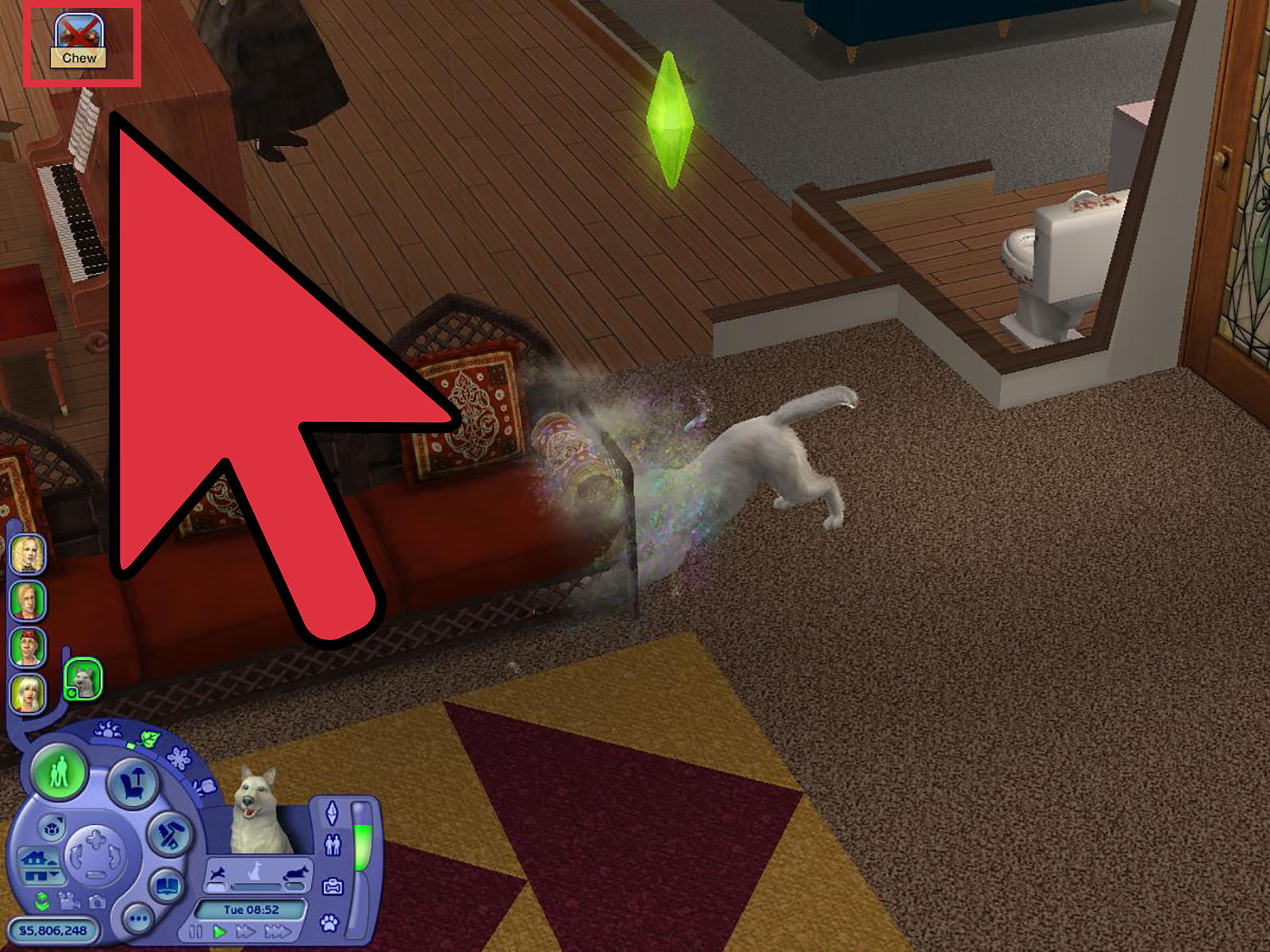
Note: This guide is written for the PC/Mac version of The Sims 2 Pets. Console versions of the game use different controls and cheat systems, so the steps below are mainly for players using the original computer release or compatible re-releases.
Introduction: Yes, You Can Control Pets in The Sims 2 Pets
If you have ever played The Sims 2 Pets, you probably know the feeling: your Sim is late for work, the kitchen smells suspicious, the toddler is chewing on destiny, and your dog has decided that the best use of everyone’s time is barking at a chair. Cats and dogs in The Sims 2 Pets are charming, funny, and occasionally dramatic little chaos machines. By default, however, they are not fully controllable like regular Sims.
That is part of the design. Pets are meant to feel more independent. They have needs, personalities, relationships, learned behaviors, and even careers, but the game normally expects you to guide them through your human Sims. You train them, praise them, scold them, fill their bowls, clean their beds, and hope they do not pick the couch as their next artistic project.
Fortunately, there is a way to control pets more directly in The Sims 2 Pets. Using two simple cheat codes, you can make dogs and cats selectable, give them commands, and cancel actions in their queue. This is especially helpful if you want cleaner storytelling, better screenshots, smoother gameplay, or simply fewer moments where your digital cat ignores civilization.
This guide explains how to control pets on The Sims 2 Pets in 5 steps, including the exact cheat codes, how to use them, what each one does, and how to make pet control feel natural instead of turning your household into a furry spreadsheet.
Before You Start: What Pet Control Actually Means
In The Sims 2 Pets, controlling pets is not quite the same as controlling adult Sims. When you turn on the pet control cheat, cats and dogs become selectable, and you can direct many of their actions. However, pets still have their own instincts, motives, and limitations. They are not tiny humans in fur coats, even if some of them act like they pay the mortgage.
The most important thing to understand is that you need two cheats for the smoothest experience. The first cheat allows you to control pets. The second cheat allows you to cancel actions from a pet’s queue. If you only use the first cheat, you may be able to select your pet and give commands, but canceling queued actions may not work properly.
How to Control the Pets on the Sims 2 Pets: 5 Steps
Step 1: Load a Household With a Pet
Start by opening a household that already has a cat or dog. You can adopt a pet by phone, create one in Create-a-Family, or add one through regular gameplay. Once your household is loaded, enter Live Mode and make sure the pet is actually on the lot.
This step sounds obvious, but it matters because the cheat is most useful when you can immediately test whether the pet becomes selectable. If you are on a community lot, using a different game version, or playing with heavy custom content, behavior can vary. For the cleanest test, use a normal residential lot with one family pet.
Also, take a moment to save your game before entering cheats, especially if you use mods. The pet control cheats are widely used by Sims 2 players, but saving first is always smart. The Sims franchise has a proud tradition of turning “just one quick experiment” into a three-hour rescue mission.
Step 2: Open the Cheat Console
To open the cheat console in The Sims 2 Pets on PC, press:
A small text box should appear at the top of the screen. This is where you type cheat codes. If the box does not appear, check that your keyboard shortcuts are working and that no other software is intercepting the command. On some computers, screen capture tools, graphics utilities, or keyboard managers can interfere with game shortcuts.
Once the cheat box appears, you are ready to enter the pet control commands. Type carefully. Sims 2 cheats are not difficult, but one missing space can make the game stare back at you like a disappointed llama.
Step 3: Turn On Pet Control
In the cheat console, type the following code and press Enter:
This cheat allows you to control pets more like regular Sims. After entering it, click your cat or dog’s portrait or select the pet directly. You should now be able to view the pet as the active household member and give available commands.
You may also see this cheat written with slightly different capitalization, such as:
The Sims 2 is generally forgiving with capitalization, but it is best to keep the command simple and consistent. The key parts are boolProp, controlPets, and on.
At this point, you can direct your pet to perform many actions, depending on the object, the pet’s needs, and the pet’s learned behaviors. For example, you may guide a dog toward a food bowl, pet bed, toy, or another Sim. You can also better manage screenshots, storytelling scenes, and household routines.
Step 4: Allow Pet Action Canceling
Now open the cheat console again with Ctrl + Shift + C. Type this second command and press Enter:
This cheat lets you cancel actions from a pet’s queue. Without it, pet control can feel incomplete because your pet may still be locked into actions you cannot easily remove. With it, you can manage the pet’s activity queue in a way that feels much closer to controlling a regular Sim.
This second code is the secret sauce. The first cheat gives you the steering wheel; the second gives you the brakes. And in a house with two dogs, three cats, and one suspiciously fragile sofa, brakes are not optional.
Once both cheats are active, select your pet and test a basic command. Add an interaction, then cancel it from the queue. If the action disappears, the setup worked.
Step 5: Use Pet Control Wisely During Gameplay
After both cheats are enabled, you can begin managing your pets more directly. This is useful for practical gameplay and storytelling. You can send a tired pet to sleep, move a hungry pet toward food, stop a pet from interrupting a scene, or arrange a family moment without waiting for animal free will to cooperate.
However, it is usually best not to micromanage every second of a pet’s life. The fun of The Sims 2 Pets comes from the balance between control and unpredictability. If you command every move, pets can start to feel like smaller Sims with fewer interactions. If you let them do everything alone, they may turn your house into a sitcom written by raccoons. The sweet spot is somewhere in the middle.
Use direct control when it improves your game: managing needs, setting up screenshots, preventing annoying loops, helping with pet careers, or keeping a story on track. Let pets act naturally when their behavior adds personality. A mischievous cat scratching furniture is annoying, yes, but it is also very on brand.
How to Turn Pet Control Off
If you want to return the game to normal, open the cheat console and enter:
Then enter:
This restores the default style of pet gameplay, where pets act more independently and are mainly influenced through Sims, training, praise, scolding, and household objects.
Optional Cheat: Adjust Pet Free Will
Some players also use a pet free will cheat to reduce autonomous behavior. If your pets are still causing too much chaos, you can experiment with:
To turn pet free will back on, use:
This is optional. For most players, controlPets and petActionCancel are enough. Turning off pet free will can make the game easier to manage, but it can also make pets feel less alive. Use it when you need order, not necessarily when you want comedy.
Why Pets Are Not Controllable by Default
The design choice makes sense when you look at the personality of The Sims 2 Pets. The expansion was built around the idea that pets should feel like animals with their own habits, not just extra Sims wearing collars. Dogs and cats have needs, relationships, behaviors, learned commands, and personalities. They can be trained, encouraged, corrected, and cared for, but their default independence makes them feel more surprising.
That independence is also what creates memorable gameplay. A perfectly obedient pet is useful. A pet with opinions is a story generator. One dog might constantly beg for attention. Another might become obsessed with a chew toy. A cat may decide the most expensive furniture in the house is clearly a scratching post sent by the heavens. These moments can be frustrating, but they are also why people still talk about The Sims 2 Pets years later.
The control cheat gives players flexibility. If you want a realistic pet-care challenge, leave pets autonomous. If you want a smoother household or a specific story scene, turn control on. The best part is that you can switch between both styles whenever you want.
Best Uses for Controlling Pets in The Sims 2 Pets
Managing Pet Needs
One of the most practical reasons to control pets is need management. Pets can become hungry, tired, lonely, dirty, or bored. If a pet is ignoring its food bowl or wandering around while exhausted, direct control helps you solve the problem quickly.
This is especially helpful in busy households. When multiple Sims are working, studying, dating, raising kids, repairing appliances, and occasionally setting dinner on fire, pet care can get lost. Selecting the pet directly gives you a clearer view of what is wrong and what to do next.
Improving Training Sessions
Training is a major part of The Sims 2 Pets. Sims can teach pets commands, reinforce good behavior, and discourage bad habits. Direct control does not replace training, but it can make training easier to organize. You can position pets, reduce distractions, and keep them from wandering away right when your Sim is ready to teach a command.
For example, if your Sim is trying to teach a dog to roll over, but the dog keeps running off to chew something, direct control can help you bring the dog back into the training area. It is not cheating the relationship system; it is more like gently reminding the dog that class is still in session.
Helping With Pet Careers
Pets in The Sims 2 Pets can have careers, which is both hilarious and wonderful. A dog bringing home a paycheck is peak Sims logic. Pet careers often require learned commands and good mood management, so controlling pets can help keep them rested, fed, and ready for work.
If your pet needs to learn specific commands for promotions, direct control can make the household routine smoother. You still need your Sim to do the training, but you can reduce wasted time and keep the pet available when training opportunities appear.
Creating Better Screenshots and Stories
Many Sims 2 players love storytelling. Whether you run a legacy family, create neighborhood drama, or stage screenshots for a blog, controlling pets is incredibly useful. Pets do not always understand dramatic timing. Your Sim may be proposing in the garden while the family dog decides to nap directly in the shot like a furry director.
With pet control enabled, you can move animals into better positions, keep them nearby for family scenes, or send them away when they are photobombing an emotional moment. It is a small change that makes a big difference for players who care about visual storytelling.
Common Problems and Easy Fixes
The Cheat Does Not Work
First, check the spelling and spacing. Use:
Make sure you are in Live Mode on a residential lot with an actual pet in the household. If you are using a modern collection, custom launcher, or heavily modded game, test the cheats in a clean household to rule out conflicts.
I Can Control the Pet, But I Cannot Cancel Actions
This usually means you entered the control cheat but not the action-cancel cheat. Enter:
After that, select the pet and try canceling an action again.
The Pet Still Acts on Its Own
That is normal. The cheat gives you more control, but pets may still have autonomous behavior depending on free will, motives, personality, and available interactions. If you want stricter control, you can try turning pet free will off, but many players prefer leaving some autonomy on for realism and humor.
Practical Gameplay Tips for Better Pet Control
Keep Pet Objects Easy to Reach
Pet control works better when your lot is designed well. Place food bowls, pet beds, litter boxes, toys, and scratching posts in open areas. If a pet cannot route to an object, controlling it will not magically solve the pathfinding problem. The Sims 2 pathfinding is impressive for its time, but it still occasionally acts like a doorway is a complex philosophical question.
Use Training Alongside Cheats
Do not rely only on direct control. Train pets to develop better long-term behavior. Praise good actions and scold bad ones when appropriate. Over time, pets can learn what is allowed and what is not, which makes the household easier to manage even when cheats are off.
Watch the Pet’s Motives
If your pet keeps refusing actions or wandering away, check its needs. A hungry, exhausted, or lonely pet will not behave perfectly. Just like Sims, pets perform better when their basic needs are met. Before training or staging a scene, make sure the pet has eaten, slept, and had enough social interaction.
Do Not Overload the Queue
Even with pet control enabled, avoid stacking too many actions. Pets are still pets, and the game can become messy if you queue a long list of commands. Give one or two actions at a time, especially during training or when managing several household members.
Extra Experience: What It Feels Like to Control Pets in Real Gameplay
The first time you successfully control a pet in The Sims 2 Pets, it feels like discovering a secret door in a house you have lived in for years. Suddenly, the dog that used to sprint around the lot with mysterious purpose can be selected. The cat that once treated your instructions as light background music can finally be guided. It does not remove the personality of the pets, but it changes your relationship with the household.
In regular gameplay, the biggest benefit is peace of mind. Imagine a family with two working adults, one teen trying to build skills, one child who needs homework help, and a dog named Biscuit who believes puddles are a lifestyle. Without direct control, you spend a lot of time waiting for Sims to handle pet problems indirectly. With pet control turned on, you can select Biscuit, check what he needs, and send him toward the right object before the entire evening becomes “Operation Wet Floor.”
Another great experience is using pet control for storytelling. Sims 2 players often create detailed family stories, and pets are part of the emotional texture of a household. A loyal dog sleeping near an elder Sim, a cat sitting beside a child doing homework, or a puppy playing in the yard during a birthday party can make a scene feel warmer. Without control, these moments happen randomly. With control, you can gently stage them while still letting the game’s charm shine through.
Pet control is also useful when you are playing legacy challenges. In a legacy household, time matters. Every Sim day can be packed with work, school, relationships, pregnancies, birthdays, aspirations, and skill building. Pets add joy, but they also add responsibility. Being able to select them helps prevent small problems from becoming big ones. You can quickly send a tired pet to bed or make sure a working pet is in a good mood before the carpool arrives.
That said, controlling pets too much can make the game feel less funny. Some of the best Sims 2 moments happen when things go slightly wrong. A cat interrupting a romantic dinner or a dog choosing the worst possible time to demand attention can be annoying in the moment but hilarious later. The trick is to use pet control as a tool, not a permanent remote control for every tail wag.
A balanced approach works best. Turn on the cheats when you need them. Use them to fix stuck behavior, manage important scenes, organize training, or protect your furniture from becoming a chewable landmark. Then let your pets be weird again. The magic of The Sims 2 Pets is not perfect obedience. It is the feeling that your household includes creatures with their own tiny agendas.
For players returning to The Sims 2 Pets after years away, the pet control cheats can make the game feel more modern without removing its old-school charm. Many newer simulation games give players more direct control, so going back to fully autonomous pets may feel restrictive. These cheats bridge that gap. You get the classic Sims 2 personality system, but with enough control to reduce frustration.
In my experience, the best use of pet control is during “high-stakes” household moments: parties, pet training sessions, career preparation, family screenshots, and chaotic mornings before work or school. During quiet evenings, I prefer letting pets roam. A cat choosing its favorite sleeping spot or a dog greeting a Sim at the door adds life to the home. But when the wedding arch is ready and the dog is standing exactly where the bride needs to be, yes, it is time for boolProp controlPets on. Romance is important, but so is routing.
Conclusion
Learning how to control the pets on The Sims 2 Pets is simple once you know the two essential cheats. Open the cheat console, enter boolProp controlPets on, then enter boolProp petActionCancel true. Together, these commands let you select cats and dogs, guide their actions, and cancel items from their queues.
Used wisely, pet control can make your game smoother, funnier, and more flexible. It helps with training, careers, storytelling, screenshots, and everyday household management. Just remember that pets are at their best when they still have a little personality. Control them when you need order, but let them surprise you when you want the classic Sims 2 magic.