You join a Discord voice channel, your friend’s avatar lights up, everyone else seems to be laughing, and you hear… absolutely nothing. No voice. No sound. Just digital silence and the slow emotional damage of wondering whether your headset has betrayed you.
If you are asking, “Why can’t I hear my friend on Discord?” the good news is that this problem is usually fixable. Most Discord audio issues come from the same handful of culprits: the wrong output device, muted user volume, bad voice settings, operating system sound routing, browser permissions, Bluetooth weirdness, network problems, or Discord having a temporary bad day.
This guide breaks down the most common reasons Discord voice chat has no sound, then walks you through 10 practical fixes for desktop, browser, and mobile. No panic. No tech wizard robe required. Just a clear path from “I can’t hear my friend” to “Finally, I can hear the chaos again.”
Why You Can’t Hear Your Friend on Discord
Discord voice audio depends on several layers working together. The app needs to send your friend’s voice to the correct output device. Your computer or phone needs to allow that sound through. Your headset, speakers, or earbuds need to be connected properly. Your friend also needs to be transmitting audio clearly.
That means the problem is not always “Discord is broken.” Sometimes Discord is simply sending sound to the wrong place, like your monitor speakers, a disconnected Bluetooth headset, or a controller audio device you forgot existed. Other times, one user is muted, server permissions are odd, or audio processing features are being a little too enthusiastic.
Common causes include:
- The wrong output device is selected in Discord.
- Your friend’s user volume is turned down or muted.
- Windows, macOS, iPhone, Android, Chrome, or Firefox is blocking or misrouting audio.
- Your headset is connected but not set as the default playback device.
- Bluetooth earbuds are stuck in the wrong audio mode.
- Discord voice settings are corrupted or misconfigured.
- Noise suppression, attenuation, or audio enhancements are interfering.
- The Discord server region, connection, VPN, firewall, or outage is causing voice issues.
Now let’s fix it, starting with the easiest wins.
10 Fixes When You Can’t Hear Your Friend on Discord
1. Check If Your Friend Is Muted or Turned Down
Before opening 17 settings panels and emotionally preparing to reinstall your operating system, check the simple stuff. In Discord, right-click your friend’s name in the voice channel or direct call. Look for the user volume slider and make sure it is not set to 0%.
Also check whether you accidentally muted them. It happens more often than anyone admits. One tiny misclick during a gaming session and suddenly your friend sounds like they have taken a vow of silence.
If you are in a server, make sure the issue is only with one person. If you can hear everyone except one friend, their microphone, user volume, or server role may be the problem. If you cannot hear anyone, the issue is probably on your side.
2. Select the Correct Output Device in Discord
This is one of the most common reasons Discord has no voice audio. Discord may be sending your friend’s voice to a device you are not actually using.
On desktop, open User Settings, go to Voice & Video, and check Output Device. Instead of leaving it on “Default,” choose the exact device you want: your headset, earbuds, speakers, or audio interface.
For example, if you use a USB headset, select that headset directly. If you recently plugged in a monitor through HDMI, Windows may have decided your monitor is now the official king of sound. Discord may follow that route unless you tell it otherwise.
After selecting the output device, use Discord’s audio test or join a call again. If sound returns, congratulations: your headset did not betray you. Your settings were just playing hide-and-seek.
3. Check Your Computer’s Sound Output
If Discord looks correct but you still cannot hear your friend, check your operating system’s sound settings.
On Windows, open Settings > System > Sound. Under Output, select the device you are actually using. Make sure the volume is up and not muted. Then open the volume mixer and confirm Discord is not turned down separately.
On macOS, open System Settings > Sound and confirm your output device is selected. If you use an external headset, speakers, dock, or monitor, switch between devices and test again.
This step matters because Discord can be perfectly configured while your computer sends all sound somewhere else. Your friend may be talking beautifully into the void, but your system has routed them to an unplugged speaker like a tiny audio prank.
4. Restart Discord Completely
Closing the Discord window is not always the same as quitting Discord. On desktop, Discord may continue running in the background. Fully quit it, then reopen it.
On Windows, check the system tray near the clock, right-click Discord, and choose quit. On macOS, use Command + Q or quit it from the menu bar. On mobile, swipe the app away from recent apps, then reopen it.
A full restart can fix temporary glitches with voice connections, output devices, and audio sessions. It is the classic “turn it off and back on again” move, but there is a reason tech support keeps that spell in the ancient handbook.
5. Reset Discord Voice Settings
If you have changed several voice settings over time, Discord may be stuck with a messy configuration. Resetting voice settings gives you a clean starting point.
Go to User Settings > Voice & Video, scroll down, and choose Reset Voice Settings. After resetting, reselect your input and output devices, then test the call again.
This can help when your Discord voice chat has no sound after changing audio subsystem options, input sensitivity, noise suppression, or advanced settings. It is especially useful if the issue started after experimenting with voice settings for streaming, gaming, recording, or trying to make your microphone sound like a podcast studio instead of a sock drawer.
6. Turn Off Attenuation, Noise Suppression, and Audio Enhancements
Discord has helpful audio features, but sometimes helpful features become “helpful” in quotation marks.
In User Settings > Voice & Video, look for Attenuation. This feature lowers other sounds when people speak. If it behaves strangely, it may make voice chat seem too quiet. Set attenuation to 0% and test again.
Next, try disabling noise suppression, echo cancellation, automatic gain control, or similar processing features temporarily. These tools are designed to clean up audio, but on some devices they can cause quiet, choppy, or missing sound.
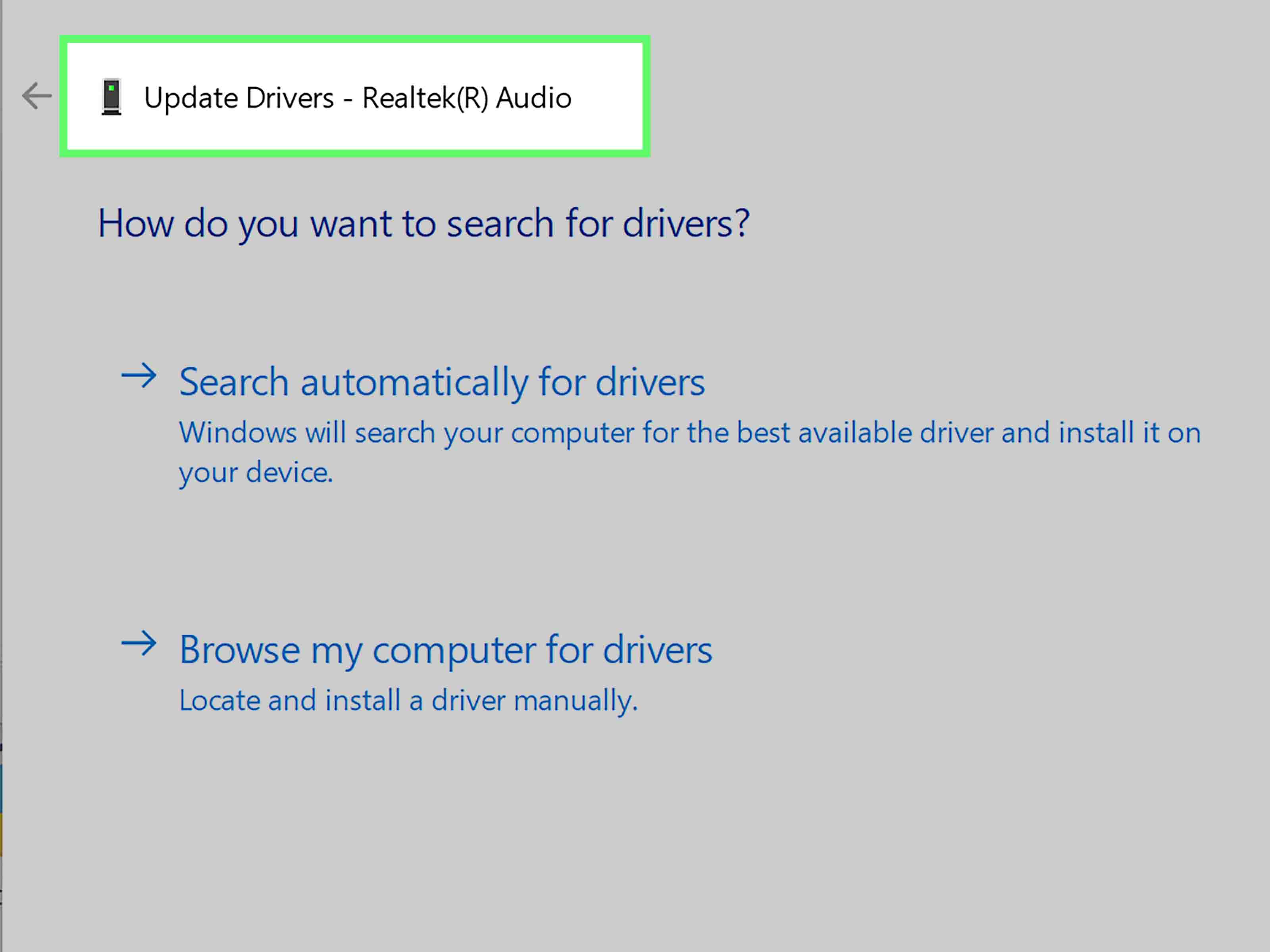
On Windows, you can also check sound device properties and turn off audio enhancements. Some laptops and gaming PCs include Realtek, Nahimic, DTS, Dolby, or manufacturer audio suites. They may improve music or game audio but occasionally interfere with voice chat apps.
7. Try the Standard or Legacy Audio Subsystem
Discord includes audio subsystem options that can affect compatibility with certain devices. If your headset, audio interface, or older PC behaves strangely, switching the audio subsystem may help.
Open User Settings > Voice & Video, then look for Audio Subsystem. Try switching between Standard and Legacy. Restart Discord if prompted, then rejoin the voice channel.
This fix is especially useful when Discord sees your headset but voice audio still refuses to cooperate. Some hardware simply works better with one subsystem than another. Think of it as trying a different door into the same room, except the room contains your friend yelling, “Can you hear me now?”
8. Check Browser Permissions If You Use Discord Web
If you use Discord in Chrome, Firefox, Edge, or another browser, permissions matter. The browser must allow Discord to use audio features properly, and the site may need microphone access for calls.
In Chrome, click the lock or site settings icon near the address bar while Discord is open. Check microphone permissions and make sure Discord is allowed. You can also go into Chrome settings and review site permissions for microphone and sound.
In Firefox, open settings, go to privacy and security, and review microphone permissions. Remove blocked permissions for Discord if needed, then reload the site and allow access when prompted.
Even if your problem is hearing your friend, not speaking to them, browser permissions and site settings can affect voice sessions. If Discord web keeps misbehaving, test the desktop app. If the desktop app works, the browser setup was likely the troublemaker.
9. Check Mobile Permissions, Bluetooth, and Call Audio
On iPhone and Android, Discord audio issues often come from permissions, Bluetooth routing, or the phone choosing the wrong speaker mode.
On iPhone, go to Settings > Privacy & Security > Microphone and confirm Discord is allowed. Also check Bluetooth settings if you use AirPods or wireless earbuds. Disconnect and reconnect them, then rejoin the call.
On Android, open Settings > Apps > Discord > Permissions and make sure microphone access is allowed. Also check whether Discord is restricted in battery settings. Some phones aggressively limit background activity, which can affect calls when the screen turns off or you switch apps.
If sound plays through your phone speaker instead of earbuds, tap the audio output option during the call and choose the correct device. Mobile audio routing can be dramatic, especially with Bluetooth earbuds that switch between media mode and call mode.
10. Test Your Network, VPN, Firewall, and Discord Status
If Discord connects to voice but you cannot hear anyone, the problem may be connection-related. Voice chat depends on a stable route between your device and Discord’s voice servers.
First, check whether other apps have internet problems. Then try switching networks. If you are on Wi-Fi, test mobile data. If you are on mobile data, try Wi-Fi. Restarting your router can also help with local connection problems.
VPNs, proxies, school networks, office networks, and strict firewalls can interfere with Discord voice. If you use a VPN, temporarily disconnect it and test again. If you are on a restricted network, Discord voice may be blocked or unstable.
Finally, check Discord’s status page to see whether voice services are having issues. Sometimes the problem is not your headset, your settings, or your internet. Sometimes Discord is simply having a rough afternoon, and all you can do is wait while everyone in the group chat sends “same here” like a support group.
How to Tell Whether the Problem Is You, Your Friend, or Discord
A good troubleshooting trick is to isolate the problem. Do not change everything at once. Test one layer at a time.
If you can hear everyone except one friend
The issue is likely with that friend’s microphone, their server permissions, their push-to-talk key, or your user volume setting for them. Ask them to check whether Discord detects their mic under Voice & Video. They should also confirm they are not muted in the server or call.
If you cannot hear anyone in Discord
The issue is probably your output device, Discord voice settings, your operating system sound settings, your headset, or your network connection.
If Discord has no sound but other apps do
Check Discord’s output device, the Windows volume mixer, Discord user volume, and voice settings. The problem is likely limited to Discord.
If nothing on your device has sound
Discord is probably innocent. Check system volume, default output device, headset connection, audio drivers, Bluetooth settings, or speaker hardware.
Quick Fix Checklist
Need the fast version? Run through this checklist:
- Make sure your friend is not muted or turned down.
- Select the correct output device in Discord.
- Check your computer or phone output device.
- Restart Discord completely.
- Reset Discord voice settings.
- Disable attenuation and test again.
- Turn off noise suppression or audio enhancements temporarily.
- Switch Discord’s audio subsystem.
- Check browser or mobile permissions.
- Test another network and check Discord status.
In most cases, one of the first four steps solves the issue. If not, the deeper settings usually uncover the gremlin hiding in the audio machine.
Extra Experience: What Discord Audio Problems Feel Like in Real Life
Discord sound issues rarely happen at a convenient time. They show up exactly when your friends are ready to start a ranked match, a study session, a movie night, or a group call where everyone is already asking, “Where are you?” The app opens fine. The voice channel connects. The green rings light up. But you cannot hear a single word.
One common real-world scenario is the “new headset problem.” You buy a fresh USB headset, plug it in, and Windows recognizes it. Music plays. YouTube works. Then Discord decides to keep using your old speakers. The fix is usually simple: choose the headset manually in Discord’s output device settings. But until you find that setting, it feels like Discord has personally rejected your purchase.
Another classic case is Bluetooth earbuds. They work perfectly for music, then sound terrible or disappear in voice chat. This happens because many Bluetooth earbuds use different modes for high-quality media and two-way calls. When the microphone turns on, the audio profile may change. Sometimes disconnecting and reconnecting helps. Sometimes using wired headphones is the easiest answer, especially during long gaming sessions where stable voice matters more than looking futuristic.
Browser users have their own flavor of pain. Discord web can work beautifully until Chrome or Firefox blocks a permission, saves a bad exception, or routes audio strangely after an update. In that case, clearing the site permission and allowing Discord again can fix the problem. When in doubt, testing the Discord desktop app is a great comparison. If desktop works and browser does not, you have found the suspect.
Mobile Discord issues can be even sneakier. You might hear your friend through the phone speaker when you expected earbuds, or the call may go quiet after the screen locks. Android battery optimization, iPhone privacy settings, Bluetooth routing, and app permissions can all affect voice behavior. The fastest practical test is to turn Bluetooth off, rejoin the call using the phone speaker, and see whether the audio returns. If it does, the issue is probably your wireless audio route rather than Discord itself.
There is also the “everyone blames everyone” group-call problem. You cannot hear one friend, so you assume Discord is broken. Your friend insists their mic is fine. Someone else says they can hear them. Then you discover their user volume on your Discord client is set to 3%, which is basically whisper mode for ants. This is why checking individual user volume should always happen early.
For gamers, Discord audio can get tangled with game audio software, overlays, capture cards, virtual audio cables, and streaming tools. A setup with OBS, a virtual mixer, a USB mic, headset software, and Discord can be powerful, but it also creates more places for audio to wander off and get lost. When troubleshooting, simplify the setup. Choose one real headset as your output device, disable extra processing, and test Discord before adding the fancy tools back.
The best habit is to change one setting at a time. If you reset everything at once, you may fix the problem without knowing what fixed it. That sounds nice until it happens again next week. Start with user volume, output device, system sound, and restart. Then move to voice reset, audio subsystem, permissions, and network checks.
Most importantly, do not assume your hardware is broken immediately. Discord no sound problems are often caused by settings, not dead headsets. Before buying new gear, test your headset in another app, test Discord with another output device, and check whether your friend can be heard by other people. A little detective work can save money, time, and a dramatic farewell ceremony for a headset that was innocent all along.
Conclusion
If you can’t hear your friend on Discord, start with the basics: user volume, mute status, output device, and system sound settings. Then restart Discord, reset voice settings, turn off attenuation or audio processing, check permissions, and test your network. Most Discord voice chat problems come down to routing, permissions, or temporary app glitchesnot some mysterious audio curse.
The fastest path is simple: confirm whether the issue affects one friend or everyone, test another output device, and change only one setting at a time. With a little patience, you can usually get Discord voice working again before your friends finish roasting you in text chat.